
| Package | aws-cli/2.37.3, openssh-clients, SSM agent (RHEL 10.2 on EC2 with EBS root volume and public IPv4) |
|---|---|
| AWS Region | ap-south-1 (Mumbai) for the examples; EC2 key pairs and instance metadata are Regional |
| Lab environment | Workstation with AWS CLI v2 and configured credentials — AWS CLI tutorial Install AWS CLI on Ubuntu · Install AWS CLI on Debian |
| Privilege | EC2 permissions to create key pairs and snapshots, stop and start instances, attach and detach EBS volumes; IAM permissions for ssm:SendCommand, Session Manager, or AWSSupport-ResetAccess; [sudo](/sudo-command-in-linux/) on the instance or rescue host to edit authorized_keys |
| Scope | How to regain SSH when the EC2 private key (.pem) is lost, why AWS cannot restore the old private key, and tested recovery through Systems Manager, AWSSupport-ResetAccess, and offline EBS root-volume editing on a rescue instance. Covers creating a replacement key pair, adding its public half to authorized_keys with correct ownership, and verifying login. EC2 Instance Connect is documented for supported AMIs only (not RHEL 10). Does not cover wrong-key diagnosis when the PEM still exists, SSH timeouts, or connection refused. |
| Related guides | EC2 permission denied publickey Recover unbootable EC2 with rescue instance EC2 SSH connection timed out AWS CLI Tutorial AWS Tutorial |
Losing the .pem file for an EC2 Linux instance blocks SSH because sshd only accepts public keys listed in the login user's authorized_keys. AWS retains the launch key-pair metadata, while the corresponding public key was written into the instance's authorized_keys during first boot. AWS does not retain a recoverable copy of the private key. Recovery means adding a new public key to the instance without rebuilding the server or enabling password login.
If Session Manager is already working, use it first. When SSM is unavailable but the AMI supports EC2 Instance Connect, that API can provide temporary SSH access on supported distributions. On RHEL 10.2, the tested paths are Session Manager and offline EBS volume rescue. The examples use ec2-user on an EBS-backed root volume; instance IDs, IP addresses, and key names are sanitized. Workflows were tested in ap-south-1.
  Lost .pem on workstation          EC2 still has launch public key
       |                                      |
       |  ssh -i recovery.pem  FAIL           |
       X------------------------------------->| authorized_keys
       |                                      | missing new key
       |                                      |
       +--- SSM / ResetAccess / rescue volume -> append new public key
       |                                      |
       |  ssh -i recovery.pem  OK             |
       +------------------------------------->|
Lost EC2 key pair?
- Confirm the symptom is a missing private key, not a wrong username or PEM path (permission denied publickey covers that case).
- Create a new EC2 key pair and keep the
.pemin a safe place. - Try Session Manager when the SSM agent and IAM instance profile are already configured.
- Consider
AWSSupport-ResetAccesswhen you want AWS Automation to inject a replacement key. - Try EC2 Instance Connect only on an AMI AWS currently lists as supported (not RHEL 10).
- Fall back to offline EBS root-volume repair when no in-guest path works and the root volume is EBS-backed.
- Append the new public key with correct ownership (
700on.ssh,600onauthorized_keys). - Verify SSH with the new private key and remove obsolete key lines when finished.
What AWS Can and Cannot Recover
At launch, EC2 copies the selected key pair's public material into ~/.ssh/authorized_keys for the AMI default user. The EC2 console shows Key pair assigned at launch as metadata; that name does not rotate keys on a running instance.
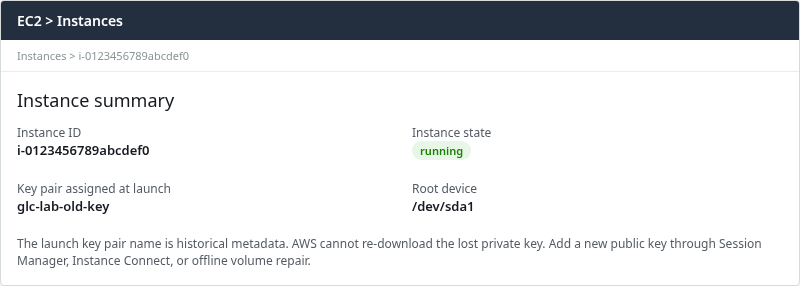
AWS cannot:
- Re-download or email the original private
.pem - Derive the private key from the public key stored on the instance
- Change which key
authorized_keyscontains by selecting a different key pair in the console later
AWS can:
- Create a new key pair and deliver a new private
.pemfor future logins - Let an administrator with SSM, Instance Connect, or offline volume access append a new public key line to
authorized_keys
Stopping the instance does not delete EBS root data. A stop/start may change the public IPv4 address; update the SSH target after the instance returns to running.
| Recovery method | When to use |
|---|---|
| Session Manager shell / Run Command | Instance already managed by SSM |
AWSSupport-ResetAccess |
Want AWS Automation to inject a replacement SSH key |
| EC2 Instance Connect | Supported AMI and SSH/network prerequisites met |
| Offline EBS rescue | No working in-guest access path; EBS-backed root volume |
Offline rescue requires an EBS-backed root volume. An instance-store root volume cannot be detached and mounted on another instance.
AWS also documents a cloud-init user-data recovery method that injects a replacement key on the next boot. It depends on cloud-init behavior and requires stopping, editing, and restarting the instance, so this guide prefers SSM, AWSSupport-ResetAccess, supported Instance Connect, or offline rescue where possible. See the AWS re:Post lost-key answer linked in References.
Do not enable PasswordAuthentication yes in sshd_config as the primary fix. Password login is off by default on current Linux AMIs, weakens the attack surface, and is unnecessary when any of the paths above can inject a public key.
Create a Replacement Key Pair
Before touching the instance, generate a new key pair and record its fingerprint so later SSH tests prove the correct material is in use.
Create the key pair in EC2 and save the private file locally:
aws ec2 create-key-pair --region ap-south-1 --key-name glc-lab-recovery-key --query 'KeyMaterial' --output text > glc-lab-recovery-key.pemRestrict workstation permissions so OpenSSH will read the file:
chmod 400 glc-lab-recovery-key.pemcreate-key-pair prints the PEM once. Store it in a secrets manager or encrypted backup; AWS will not show it again.
Derive a .pub file once on the workstation and reuse it in every recovery path below:
ssh-keygen -y -f glc-lab-recovery-key.pem > glc-lab-recovery-key.pubssh-rsa AAAAB3NzaC1yc2EAAAADAQABAAABAQDF9D4Ni4pR+SKxPx0a3HgBNEpTKGs9XiPSP/pf4yiqt5ifE3MDVF2u1MDRW5kMy+uvEdbokfXs+6xJSC9f00sNN0E3CL5Mf5RgJnJnfPxpv5ZGVrKDbGMUFvM4Unl0UHNkhDhUlepimw39moZ++16lygTcYgGsnmg3waFlDTPDoPUh/F4ryVa1XKcAVGIDYND4Aex6aiAFaVBCSqon6c2+36sC1AfisgRCxfo+rBscCcM997DRqoNSivtO3tph2GUXP6NWbfj9b6Igf7q9hD29sE2g8j4OdJqrejmKeGiArBUiuD8R9v8MAkd4JiPYmOQ7i4Bf7l/oRJ1RHiQJElT/Record the fingerprint from that public file; the same value should appear in authorized_keys after recovery:
ssh-keygen -lf glc-lab-recovery-key.pub2048 SHA256:dgZXUGqulhRfAafgDZKXXPakHdzF4CU85EDncC1K7eo no comment (RSA)With only the new .pem on the workstation and the launch key still the sole line in authorized_keys, SSH fails before any recovery step:
ssh -i glc-lab-recovery-key.pem -o BatchMode=yes ec2-user@203.0.113.42 hostnameec2-user@203.0.113.42: Permission denied (publickey,gssapi-keyex,gssapi-with-mic).That publickey response confirms the network path and sshd are up; the missing fix is server-side key material, not security group rules.
Fastest Recovery if Session Manager Works
Systems Manager is the preferred path when the instance is already a managed node: SSM agent running, IAM instance profile with AmazonSSMManagedInstanceCore (or equivalent), and the instance can reach SSM endpoints. No inbound port 22 is required.
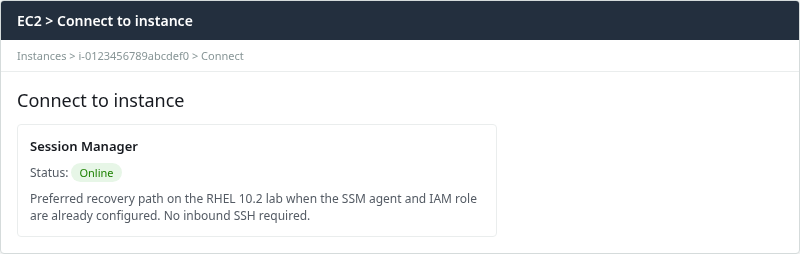
Confirm the agent reports Online before spending time on SSH-only paths:
aws ssm describe-instance-information --region ap-south-1 --filters "Key=InstanceIds,Values=i-0123456789abcdef0" --query 'InstanceInformationList[0].PingStatus' --output textOnlineFrom the console, open Connect → Session Manager → Start session and edit authorized_keys interactively, or push the change with Run Command. The CLI path below matches what was tested on RHEL 10.2.
Run a shell document that creates .ssh with correct ownership, appends the new public key as ec2-user, fixes modes, and prints fingerprints for verification. Paste the single line from glc-lab-recovery-key.pub into the echo command:
aws ssm send-command --region ap-south-1 --instance-ids i-0123456789abcdef0 --document-name AWS-RunShellScript --parameters 'commands=["sudo install -d -m 700 -o ec2-user -g ec2-user /home/ec2-user/.ssh","echo ssh-rsa AAAAB3NzaC1yc2EAAAADAQABAAABAQDF9D4Ni4pR+SKxPx0a3HgBNEpTKGs9XiPSP/pf4yiqt5ifE3MDVF2u1MDRW5kMy+uvEdbokfXs+6xJSC9f00sNN0E3CL5Mf5RgJnJnfPxpv5ZGVrKDbGMUFvM4Unl0UHNkhDhUlepimw39moZ++16lygTcYgGsnmg3waFlDTPDoPUh/F4ryVa1XKcAVGIDYND4Aex6aiAFaVBCSqon6c2+36sC1AfisgRCxfo+rBscCcM997DRqoNSivtO3tph2GUXP6NWbfj9b6Igf7q9hD29sE2g8j4OdJqrejmKeGiArBUiuD8R9v8MAkd4JiPYmOQ7i4Bf7l/oRJ1RHiQJElT/ | sudo -u ec2-user tee -a /home/ec2-user/.ssh/authorized_keys >/dev/null","sudo chmod 600 /home/ec2-user/.ssh/authorized_keys","sudo ssh-keygen -lf /home/ec2-user/.ssh/authorized_keys"]' --query 'Command.CommandId' --output textPoll the command until status is Success, then read stdout. The fingerprint list should include both the original launch key and the new recovery key:
2048 SHA256:4XQZSF4K6uQ/SL1Y91qit6wtKZtuKHg7nw5uD4faTFM glc-lab-old-key (RSA)
2048 SHA256:dgZXUGqulhRfAafgDZKXXPakHdzF4CU85EDncC1K7eo no comment (RSA)
Confirm ownership and modes on the home directory tree:
aws ssm send-command --region ap-south-1 --instance-ids i-0123456789abcdef0 --document-name AWS-RunShellScript --parameters 'commands=["sudo ls -ld /home /home/ec2-user /home/ec2-user/.ssh /home/ec2-user/.ssh/authorized_keys"]' --query 'Command.CommandId' --output textdrwxr-xr-x. 3 root root 22 Sep 26 15:47 /home
drwx------. 3 ec2-user ec2-user 74 Sep 26 15:47 /home/ec2-user
drwx------. 2 ec2-user ec2-user 29 Sep 26 15:47 /home/ec2-user/.ssh
-rw-------. 1 ec2-user ec2-user 784 Sep 26 15:51 /home/ec2-user/.ssh/authorized_keysRetest SSH from the workstation with the new private key:
ssh -i glc-lab-recovery-key.pem ec2-user@203.0.113.42 hostnameip-172-31-18-195.ap-south-1.compute.internalWhen SSM stays Offline, repair the agent only if another management path already exists (Serial Console, a co-admin's access, or a prior SSM session). Otherwise move to AWSSupport-ResetAccess, supported EC2 Instance Connect, or offline EBS rescue.
AWS Automation option: AWSSupport-ResetAccess
AWSSupport-ResetAccess automates an offline EC2Rescue-style workflow. On Linux it creates and injects a new SSH key and stores the generated private key encrypted in Systems Manager Parameter Store. AWS documents this runbook specifically for lost EC2 keys.
The automation stops the target instance and creates a backup before modifying access. Review that operational impact before you start. A stop/start cycle can also change a non-Elastic public IPv4 address.
Start the automation from the Systems Manager console under Documents → AWSSupport-ResetAccess, or invoke it through the API when your account policy allows SSM Automation on the instance. When it completes, retrieve the new private key from the Parameter Store path shown in the execution output, then verify SSH with that key before removing older authorized_keys lines.
On the RHEL 10.2 lab, Session Manager and offline rescue were tested directly; use AWSSupport-ResetAccess when you prefer AWS-managed key injection over manual volume editing.
Use EC2 Instance Connect on a Supported AMI
EC2 Instance Connect pushes a temporary SSH public key that expires in about 60 seconds. It helps when SSH port 22 is reachable and the caller has ec2-instance-connect:SendSSHPublicKey, but it does not replace adding a permanent line to authorized_keys unless you follow up with a shell session.
EC2 Instance Connect is useful on supported AMIs, but AWS's current installation documentation lists RHEL 8 and RHEL 9 rather than RHEL 10. For the RHEL 10.2 lab in this article, use Session Manager or offline EBS rescue as the supported recovery paths. Use the steps below only on an AMI that AWS currently lists as supported (for example Amazon Linux 2023, Ubuntu, or RHEL 9).
Amazon Linux and Ubuntu AMIs often ship the agent. On RHEL 8 and RHEL 9, install the ec2-instance-connect and ec2-instance-connect-selinux RPMs from the AWS distribution URL documented for your release.
Push glc-lab-recovery-key.pub for the target OS user (Availability Zone must match the instance):
aws ec2-instance-connect send-ssh-public-key --region ap-south-1 --instance-id i-0123456789abcdef0 --availability-zone ap-south-1c --instance-os-user ec2-user --ssh-public-key file://glc-lab-recovery-key.pub{
"RequestId": "00e32b86-4192-41a8-bd03-22264601e8fb",
"Success": true
}Success: true only means the key was accepted; connect within about 60 seconds while the push is valid, then append the same public key to authorized_keys using the live-instance steps in the next section.
Offline Recovery with a Rescue Instance
When SSM is offline, AWSSupport-ResetAccess is not an option, and Instance Connect does not apply, repair the root filesystem offline. This section only shows the key-repair part; the separate rescue-instance guide covers the full EBS detach/reattach workflow.
This path requires an EBS-backed root volume in the same Availability Zone as the rescue host. Launch or reuse a rescue instance using a key pair you still possess (here, glc-lab-recovery-key). Stop the locked instance so the root volume can detach cleanly:
aws ec2 stop-instances --region ap-south-1 --instance-ids i-0123456789abcdef0Wait until the instance state is stopped, then snapshot the root volume before any offline edit:
aws ec2 create-snapshot --region ap-south-1 --volume-id vol-0abc1234567890def --description "Before EC2 SSH key recovery"create-snapshot returns a snapshot ID immediately while the snapshot completes in the background. Detach the root volume only after the instance is fully stopped (note the volume ID and original device name, often /dev/sda1):
aws ec2 detach-volume --region ap-south-1 --volume-id vol-0abc1234567890defAttach the volume to the rescue instance as a secondary device:
aws ec2 attach-volume --region ap-south-1 --volume-id vol-0abc1234567890def --instance-id i-0fedcba9876543210 --device /dev/sdf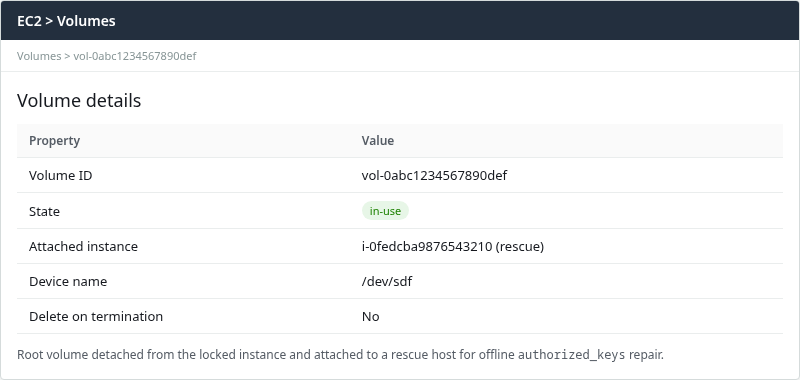
On the rescue host, list block devices and pick the XFS root partition (commonly the third partition on Nitro instances):
lsblk -fNAME FSTYPE FSVER LABEL UUID FSAVAIL FSUSE% MOUNTPOINTS
nvme0n1
├─nvme0n1p1
├─nvme0n1p2 vfat FAT16 ESP 97D2-64D3 190.8M 4% /boot/efi
└─nvme0n1p3 xfs root c78c1f15-7ec8-4bc4-b1b6-0e557f828ec1 8G 18% /
nvme1n1
├─nvme1n1p1
├─nvme1n1p2 vfat FAT16 ESP 97D2-64D3
└─nvme1n1p3 xfs root c78c1f15-7ec8-4bc4-b1b6-0e557f828ec1Mount the foreign root partition under /mnt/rescue-root. Use nouuid on XFS when the rescue host and detached volume share the same filesystem UUID:
sudo mount -o nouuid /dev/nvme1n1p3 /mnt/rescue-rootmount exits silently when the filesystem attaches; append the recovery public key using the rescue-mounted steps in the next section before unmounting.
Add the New Public Key Correctly
sshd ignores authorized_keys that are writable by group or others, or owned by the wrong numeric UID. The safe command differs depending on whether you are on the original instance or on a rescue host with the root volume mounted elsewhere.
On the live instance (Session Manager or Instance Connect)
Use this path when the shell runs on the locked instance itself (SSM Session Manager, SSM Run Command, or an Instance Connect session on a supported AMI).
Create .ssh owned by the login user when the directory is missing:
sudo install -d -m 700 -o ec2-user -g ec2-user /home/ec2-user/.sshAppend the public key as ec2-user so the file stays owned by the account that will log in:
cat glc-lab-recovery-key.pub | sudo -u ec2-user tee -a /home/ec2-user/.ssh/authorized_keys >/dev/nullSet the mode sshd expects on RHEL:
sudo chmod 600 /home/ec2-user/.ssh/authorized_keysVerify ownership on the live instance:
sudo ls -ld /home/ec2-user/.ssh /home/ec2-user/.ssh/authorized_keysdrwx------. 2 ec2-user ec2-user 56 Sep 26 15:51 /home/ec2-user/.ssh
-rw-------. 1 ec2-user ec2-user 784 Sep 26 15:57 /home/ec2-user/.ssh/authorized_keysOn a rescue-mounted root volume
ec2-user has the same numeric UID/GID on the rescue instance and the detached root filesystem. On the rescue host, sudo -u ec2-user refers to the rescue machine's local account, which may differ from the original instance user's UID.
Create .ssh under the mounted path without forcing the rescue host's user ID:
sudo install -d -m 700 /mnt/rescue-root/home/ec2-user/.sshAppend the key with tee, then copy ownership from the target home directory so numeric UID/GID match the original instance:
cat glc-lab-recovery-key.pub | sudo tee -a /mnt/rescue-root/home/ec2-user/.ssh/authorized_keys >/dev/nullchown --reference applies the home directory's UID/GID to the whole .ssh tree:
sudo chown -R --reference=/mnt/rescue-root/home/ec2-user /mnt/rescue-root/home/ec2-user/.sshSet the modes sshd expects on the mounted copy, starting with the directory:
sudo chmod 700 /mnt/rescue-root/home/ec2-user/.sshThen restrict the key file itself to owner-read/write:
sudo chmod 600 /mnt/rescue-root/home/ec2-user/.ssh/authorized_keysConfirm modes on the mounted tree before unmounting:
sudo ls -ld /mnt/rescue-root/home/ec2-user/.ssh /mnt/rescue-root/home/ec2-user/.ssh/authorized_keysdrwx------. 2 ec2-user ec2-user 56 Sep 26 15:51 /mnt/rescue-root/home/ec2-user/.ssh
-rw-------. 1 ec2-user ec2-user 784 Sep 26 15:57 /mnt/rescue-root/home/ec2-user/.ssh/authorized_keysUse chmod values 700 on .ssh and 600 on authorized_keys. Avoid chmod 777 or root-owned key files; both produce the same Permission denied (publickey) symptom documented in the publickey troubleshooting guide.
Restore the Root Volume
After offline edits, unmount the rescue copy of the root filesystem:
sudo umount /mnt/rescue-rootDetach the volume from the rescue instance:
aws ec2 detach-volume --region ap-south-1 --volume-id vol-0abc1234567890defReattach it to the original instance at the same device name recorded before detach (/dev/sda1 in the tested layout):
aws ec2 attach-volume --region ap-south-1 --volume-id vol-0abc1234567890def --instance-id i-0123456789abcdef0 --device /dev/sda1Start the instance and wait for status checks to return ok:
aws ec2 start-instances --region ap-south-1 --instance-ids i-0123456789abcdef0A stop/start cycle can assign a new public IPv4 address. Refresh the SSH target from the console or API before testing.
Verify SSH and Remove Temporary Access
Confirm the new private key authenticates and returns the expected hostname:
ssh -i glc-lab-recovery-key.pem ec2-user@203.0.113.42 hostnameip-172-31-18-195.ap-south-1.compute.internalOn the instance, list fingerprints in authorized_keys and confirm the recovery key is present:
sudo ssh-keygen -lf /home/ec2-user/.ssh/authorized_keys2048 SHA256:4XQZSF4K6uQ/SL1Y91qit6wtKZtuKHg7nw5uD4faTFM glc-lab-old-key (RSA)
2048 SHA256:dgZXUGqulhRfAafgDZKXXPakHdzF4CU85EDncC1K7eo no comment (RSA)Remove keys that should no longer authenticate (for example the lost launch key line) only after confirming the new key works in a second session. Keep at least one working key line to avoid locking the instance again.
Terminate the rescue instance if it was created only for this repair. Instance Connect temporary keys expire on their own; no file cleanup is required for the push API.
Record which replacement key now has access so another administrator can identify it later. The console Key pair assigned at launch field still shows the original name until the instance is replaced; that metadata does not control which keys sshd accepts.
Troubleshooting
| Symptom | Likely cause | Fix |
|---|---|---|
SSM PingStatus Offline |
Agent never configured, or no path to SSM endpoints | If another management path exists, repair SSM prerequisites; otherwise use AWSSupport-ResetAccess, supported Instance Connect, Serial Console, or offline EBS rescue |
send-ssh-public-key Success but SSH fails |
Expired temporary key, wrong AZ, unsupported AMI, or missing EIC agent | Retry within 60 seconds; match AZ; confirm AMI is on AWS's supported list (RHEL 8/9, AL2023, Ubuntu) |
publickey after rescue |
Wrong partition mounted or rescue-host UID applied to authorized_keys |
Re-check lsblk, mount root partition, use chown --reference on the target home directory |
Authentication refused: bad ownership or modes |
Root-owned or world-writable authorized_keys |
On live instance: chown ec2-user:ec2-user; on rescue mount: chown --reference from target home; chmod 700 .ssh, chmod 600 file |
| SSH to new IP fails after start | Elastic IP not associated | Read current public IP from describe-instances |
Summary
A lost EC2 .pem does not destroy instance data, but AWS cannot recreate the private key. To regain SSH access, add a public key for a private key you still control into the correct user's authorized_keys with strict ownership and modes.
When Systems Manager already manages the host, SSM Run Command or an interactive Session Manager shell is the fastest fix on the RHEL 10.2 lab and avoids opening port 22. AWSSupport-ResetAccess automates key injection when you prefer AWS-managed offline repair. EC2 Instance Connect can add a short-lived key on AMIs AWS currently supports, but not RHEL 10 per current installation docs. When no in-guest path works and the root volume is EBS-backed, snapshot the volume, detach it to a rescue host in the same Availability Zone, edit authorized_keys offline with chown --reference so numeric UID/GID match the original home directory, use mount -o nouuid when XFS UUIDs collide, then reattach and start.
After SSH succeeds with the new .pem, remove obsolete key lines, retire single-purpose rescue instances, and store the replacement private key outside the original workstation. Password authentication is not required for any step in this workflow.
References
- Amazon EC2 key pairs
- I've lost my private key. How can I connect to my instance?
- AWSSupport-ResetAccess
- AWS Systems Manager Session Manager
- Connect to your Linux instance using EC2 Instance Connect
- Install EC2 Instance Connect on RHEL
- SendSSHPublicKey API
- Attach an Amazon EBS volume to an instance
- Troubleshoot connecting to your instance
- OpenSSH authorized_keys manual
Frequently Asked Questions
Can AWS download my PEM file again?
No. When you create or import a key pair, AWS delivers the private key material once. After that, only the public key is stored for injection at launch. If the .pem is lost, create a new key pair and add its public half to authorized_keys through Session Manager, Instance Connect, or offline volume access.
Can I change an EC2 key pair after launch?
You can create new key pairs in the EC2 console at any time, but assigning a different key pair name to an existing instance does not update authorized_keys on the running system. To use a new key, append its public line to the login user's authorized_keys, or launch a replacement instance with the new pair selected at creation time.
Does stopping the instance lose EBS data?
No. Stop and start preserve EBS root and attached data volumes. Stop is required before detaching the root volume for offline rescue. A new public IPv4 address may appear after start unless an Elastic IP is associated.
