
| Package | AWS Management Console (Amazon S3) and aws-cli/2.37.3 for list, download, and presigned URL examples |
|---|---|
| AWS Region | ap-south-1 (Mumbai) for the examples; S3 bucket names must be unique in the bucket namespace, and each bucket lives in one Region |
| Test environment | AWS account with console access in your chosen Region |
| Privilege | IAM permissions to create and delete the tutorial bucket and list, read, and write its objects (exact console permissions depend on your IAM setup; common actions include s3:CreateBucket, s3:PutObject, s3:GetObject, s3:ListBucket, s3:DeleteObject, and s3:DeleteBucket) |
| Scope | What Amazon S3 buckets and objects are; how to create a private general-purpose bucket with modern ownership and Block Public Access defaults; upload a file in the console; why anonymous object URLs return 403; create a presigned URL; and verify with aws s3 ls and aws s3 cp. Does not cover static website hosting, versioning and delete markers, SSE-KMS key design, or bucket policies that enforce encryption. |
| Related guides | AWS Tutorial Configure S3 bucket as Terraform backend Host a static website on AWS Amplify Amazon DynamoDB tutorial |
Amazon S3 stores files as objects inside buckets. A bucket name must be unique among existing S3 bucket names, and you choose the Region where a general-purpose bucket is created. New S3 buckets block public access by default, which is the right starting point for this tutorial.
In this guide, we'll create a bucket named demo-glcoct14-bucket in the console, upload notes/hello.txt, and see why the plain object URL returns 403 Forbidden when the request is anonymous. We'll then use the AWS CLI to list and download the same object with authenticated credentials, and generate a short-lived presigned URL when someone needs temporary browser access without making the bucket public.
Key takeaways
- A bucket is a container; an object is a file plus metadata, identified by an object key (a path-like string such as
notes/hello.txt). - Modern defaults favor Bucket owner enforced (ACLs disabled), Block Public Access enabled, and SSE-S3 encryption on new uploads without extra configuration.
- The object URL in the console is not a public link for anonymous users. Applications use IAM-authorized requests; for temporary browser access, use a presigned URL.
- All new S3 uploads are automatically encrypted at rest with SSE-S3 by default. This tutorial does not configure a customer-managed KMS key.
- S3 charges for storage, requests, and data transfer. Empty the bucket and delete it when you finish testing.
Buckets and objects
| Term | Meaning in this guide |
|---|---|
| Bucket | Named general-purpose container (demo-glcoct14-bucket) in one AWS Region |
| Object | Stored file (for example hello.txt) |
| Object key | Full path inside the bucket (notes/hello.txt) |
| Prefix | The part before the filename (notes/) — useful when listing with aws s3 ls |
Console or AWS CLI
             ↓
S3 bucket (Region)
             ↓
Object key notes/hello.txt
             ↓
Object bytes + metadata
What you need
| Requirement | Notes |
|---|---|
| AWS account | Sign in to the console |
| Globally unique bucket name | Lowercase letters, numbers, and hyphens; try a suffix if the name is taken |
| Region | Create and manage the bucket in the same Region throughout the tutorial |
| AWS CLI v2 | For verification and presigned URLs |
Step 1: Create a general-purpose S3 bucket
Open Amazon S3 → Buckets → Create bucket. Create a standard general-purpose S3 bucket with a unique name and Region. Keep Bucket Versioning disabled for this first walkthrough.
| Setting | Example value |
|---|---|
| Bucket name | demo-glcoct14-bucket (must be unique worldwide) |
| AWS Region | ap-south-1 |
| Object Ownership | Bucket owner enforced (ACLs disabled) |
| Block Public Access | Block all public access |
| Bucket Versioning | Disable |
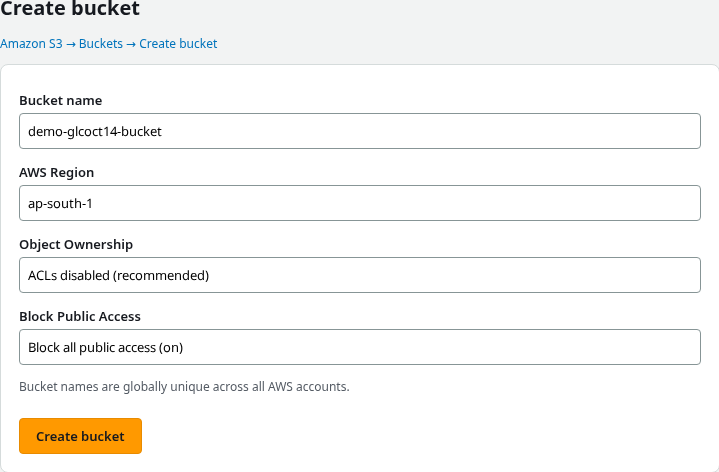
For a new general-purpose bucket, keep the modern S3 defaults:
- Object Ownership: Bucket owner enforced (ACLs disabled)
- Block Public Access: enabled
- Default encryption: S3 automatically encrypts new uploads with SSE-S3
You do not need to make the bucket public just to upload or download files with IAM credentials.
Choose Create bucket. Confirm the new bucket appears in the Buckets list for your Region.
Step 2: Upload an object
Open the bucket, choose Create folder, and name the folder notes. Open the notes/ folder, then choose Upload.
Use Add files (or drag and drop) to upload a small text file named hello.txt. With the file inside the notes/ folder, the full object key is notes/hello.txt.
| Field | Value |
|---|---|
| Folder | notes/ (create in the console before upload) |
| File | hello.txt (any short text file) |
| Resulting object key | notes/hello.txt |
| Storage class | Standard |
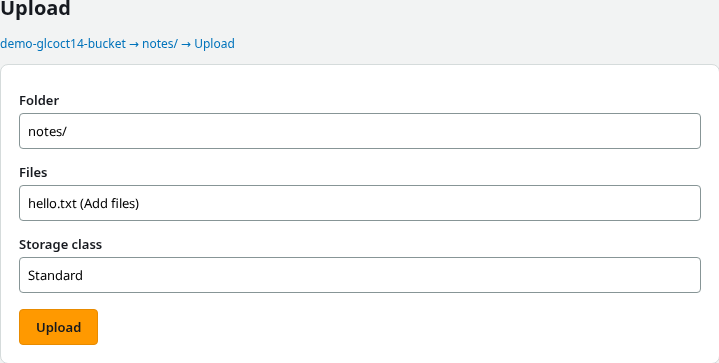
Choose Upload and wait until the transfer completes.
Step 3: Review the object and public access
Open notes/hello.txt on the object overview page. Note the size and content type.
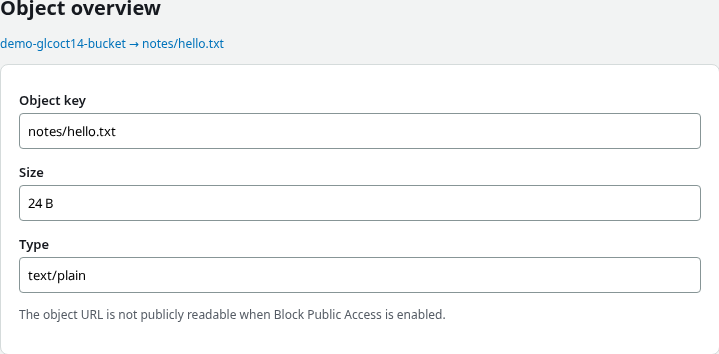
Under Permissions → Block public access, confirm Block all public access is enabled.
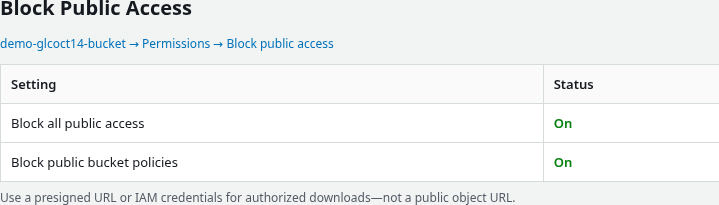
If you open the object URL in a browser without signing in, S3 returns 403 Forbidden. That is expected: the request is anonymous and the object has not been granted public read access. Block Public Access prevents you from accidentally creating such public access.
Applications access private objects with IAM authorization. For temporary browser access, use a presigned URL; for private network routing from a VPC, you can also use an S3 VPC endpoint (still subject to IAM).
Step 4: Verify with the AWS CLI
The commands below assume a configured AWS CLI v2 in the same account as the bucket. If you still need install steps or credential setup, follow the AWS CLI tutorial first.
From a workstation with credentials for the same account, set the Region and bucket name:
export AWS_DEFAULT_REGION=ap-south-1
export BUCKET_NAME=demo-glcoct14-bucket
List objects under the notes/ prefix:
aws s3 ls "s3://${BUCKET_NAME}/notes/"Sample output:
2026-10-14 15:59:31 23 hello.txtThe size column is in bytes. The date reflects when the object was stored.
Download the object to the current directory:
aws s3 cp "s3://${BUCKET_NAME}/notes/hello.txt" ./hello-downloaded.txtaws s3 cp prints the source and destination when the copy succeeds.
Read the file to confirm the content:
cat ./hello-downloaded.txtSample output:
hello-from-s3-tutorialStep 5: Create a temporary download link
A private S3 object does not need to be made public just because someone needs to download it. You can create a time-limited presigned URL instead.
Generate a URL that expires in five minutes (300 seconds):
aws s3 presign "s3://${BUCKET_NAME}/notes/hello.txt" --expires-in 300Sample output (your URL will differ; do not share presigned URLs that contain live credentials):
https://demo-glcoct14-bucket.s3.ap-south-1.amazonaws.com/notes/hello.txt?X-Amz-Algorithm=AWS4-HMAC-SHA256&X-Amz-Credential=...&X-Amz-Expires=300&X-Amz-Signature=...Open the URL in a browser before it expires. The private object should download successfully while the signature is valid. After expiration, anonymous access stops working again.
Clean up
In the console:
- Open the bucket, select notes/hello.txt, and delete the object.
- Return to Buckets, select the bucket, and choose Delete.
Or empty and delete from the CLI:
aws s3 rm "s3://${BUCKET_NAME}" --recursiveWhen the bucket is empty, delete it:
aws s3api delete-bucket --bucket "${BUCKET_NAME}" --region "${AWS_DEFAULT_REGION}"Troubleshooting
| Symptom | Likely cause | Fix |
|---|---|---|
| Bucket name already exists | Name already used in S3 | Choose another unique bucket name |
AccessDenied on upload |
IAM lacks object or list permissions | Grant s3:PutObject on the object path (for example arn:aws:s3:::BUCKET/*); console listing may also need s3:ListBucket on arn:aws:s3:::BUCKET |
| Object URL returns 403 in a browser | Anonymous request to a private object | Expected; use IAM-authorized CLI/SDK access or a presigned URL |
aws s3 ls shows nothing |
Wrong bucket, Region, or prefix | Match AWS_DEFAULT_REGION, bucket name, and notes/ prefix |
| Presigned URL fails immediately | Clock skew or expired URL | Sync workstation time; generate a new URL with a longer --expires-in if needed |
| Cannot delete bucket | Objects still inside | Empty the bucket with Empty bucket in the console or aws s3 rm --recursive |
Summary
Amazon S3 general-purpose buckets hold objects keyed by paths such as notes/hello.txt. The console walkthrough used modern defaults: bucket owner enforced ownership, Block Public Access, and automatic SSE-S3 on uploads. Anonymous object URLs return 403; IAM credentials, presigned URLs, and authorized private connectivity handle real access.
If you need to publish a website or public static files, use a dedicated hosting setup instead of simply opening a general-purpose bucket to everyone — for example host a static website on AWS Amplify. For infrastructure-as-code storage, see configure an S3 bucket as a Terraform backend.
References
- What is Amazon S3?
- Creating a bucket
- Blocking public access to your Amazon S3 storage
- Sharing objects with presigned URLs
- Amazon S3 pricing
Frequently Asked Questions
Are S3 bucket names global or Regional?
Bucket names must be unique among existing S3 bucket names. The bucket itself is created in one Region, which you choose at creation time.
What is the difference between a bucket and an object?
The bucket is the container. Each object is a file (bytes) plus metadata, identified by its object key inside that bucket.
Why does the object URL return 403?
The browser request is anonymous and the object is not publicly readable. Use IAM-authorized requests, a presigned URL for temporary access, or IAM-authorized traffic through private connectivity such as an S3 VPC endpoint.
Does this tutorial enable versioning?
No. Versioning is left disabled. Turning it on keeps multiple versions of the same key and changes how deletes behave — a separate topic from first bucket setup.
