
| Package | AWS Management Console, aws-cli/2.37.3 for optional resource checks, and standard Linux block-device and filesystem tools (lsblk, file, mkfs, mount) |
|---|---|
| AWS Region | ap-south-1 (Mumbai). EBS volumes belong to one Availability Zone; EBS snapshots of Regional volumes are stored at the Region level and can be used to create a new volume in another AZ in that Region |
| Test environment | Workstation with AWS CLI v2 and configured credentials — AWS CLI tutorial Install AWS CLI on Ubuntu · Install AWS CLI on Debian |
| Privilege | IAM permissions to create and delete EC2 instances, EBS volumes, and snapshots (ec2:RunInstances, ec2:CreateVolume, ec2:AttachVolume, ec2:TerminateInstances, ec2:CreateSnapshot, and related describe/delete actions) |
| Scope | How Amazon EBS block storage works with EC2, creating and attaching a data volume in the same AZ, formatting and mounting it on Linux, why a volume can outlive an instance, taking a snapshot, and restoring data on a new volume. Does not cover Amazon EFS, instance store, encryption setup, or growing an existing file system after resize. |
| Related guides | AWS Tutorial Amazon DynamoDB tutorial Grow EBS root volume on EC2 AWS RDS tutorial |
Amazon EBS provides block storage that you attach to EC2 instances. Each volume is tied to one Availability Zone. A Linux instance in that same zone can use the volume like an extra disk after you format and mount it.
We'll create an 8 GiB gp3 data volume, attach it to a Linux EC2 instance in ap-south-1a, mount it under /data, write a test file, terminate the instance, and confirm the volume returns to Available. We then create a snapshot, restore a new volume from it, and mount that volume on another instance to confirm the same file is still present.
Key takeaways
- EBS volumes are AZ-scoped: a volume attaches only to an instance in the same Availability Zone.
- Delete on termination is an attachment setting. In this walkthrough, the data volume attached after launch has
DeleteOnTermination=false, so it survives instance termination. Root volumes normally usetrueunless you change the setting. - EBS snapshots are point-in-time backups. After the first snapshot, AWS stores later snapshots incrementally behind the scenes. You choose the destination AZ when you create a volume from a snapshot.
- On Nitro instances,
/dev/sdfin the API often appears asnvme1n1inlsblk. - gp3 is the general-purpose SSD type recommended for most boot and data workloads in new designs.
EBS volume types at a glance
| Type | Media | Typical use |
|---|---|---|
| gp3 | SSD | General-purpose SSD; recommended for most common boot and data workloads |
| io2 | SSD | Sustained high IOPS with provisioned performance |
| st1 | HDD | Throughput-oriented frequently accessed data (not a boot volume) |
| sc1 | HDD | Cold, infrequently accessed data (not a boot volume) |
This guide uses gp3 for the data volume and for the volume created from a snapshot.
What you need
| Requirement | Notes |
|---|---|
| AWS account | EC2 and EBS quotas in the target Region |
| Region and AZ | Use one AZ (for example ap-south-1a) for the volume and instance |
| Linux EC2 instance | Launch in the console or use an existing instance in that AZ |
| Instance access | EC2 Instance Connect, Session Manager, or SSH before you run lsblk and mount |
| AWS CLI v2 | Optional for volume checks from your workstation |
Charges apply for instances, EBS storage, and snapshots. Delete tutorial resources when finished.
Step 1: Create an EBS volume
In the AWS console, open EC2 → Elastic Block Store → Volumes → Create volume. Match the settings below so the volume can attach to an instance in the same zone.
| Setting | Value |
|---|---|
| Volume type | gp3 |
| Size | 8 GiB |
| Availability Zone | ap-south-1a (same AZ as your instance) |
| Name tag | demo-data |
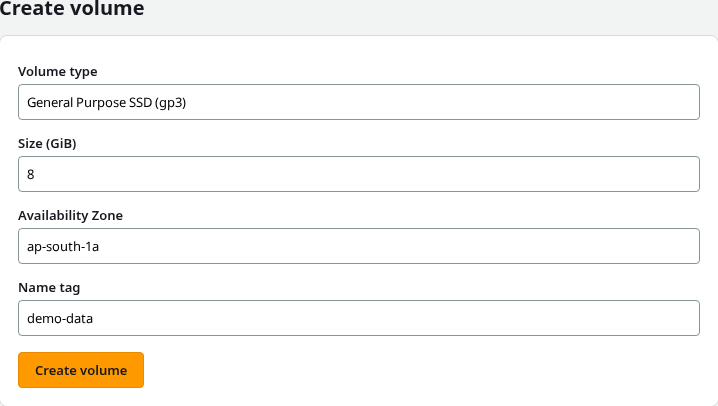
You can confirm the same details with the CLI after you set the Region:
export AWS_DEFAULT_REGION=ap-south-1
export DATA_VOLUME_ID=vol-0abc1234567890def
Confirm the volume is available in the expected AZ:
aws ec2 describe-volumes --volume-ids "${DATA_VOLUME_ID}" \
  --query 'Volumes[0].{Id:VolumeId,State:State,Size:Size,Type:VolumeType,AZ:AvailabilityZone}' \
  --output json
Sample output:
{
    "Id": "vol-0abc1234567890def",
    "State": "available",
    "Size": 8,
    "Type": "gp3",
    "AZ": "ap-south-1a"
}
Step 2: Launch or choose an EC2 instance in the same AZ
If you already have a Linux EC2 instance in ap-south-1a, you can use it. Otherwise, open EC2 → Instances → Launch instances and create a small Linux instance in the same Availability Zone as the volume (ap-south-1a in this example). Allow a login path you will use next (EC2 Instance Connect, Session Manager, or SSH with a key pair and security group rule for port 22).
Before you attach storage, confirm both resources share an AZ:
| Resource | Availability Zone |
|---|---|
EBS volume demo-data |
ap-south-1a |
| EC2 instance | ap-south-1a |
Step 3: Attach the EBS volume
On the volume, choose Actions → Attach volume. Select your instance and a device name such as /dev/sdf.
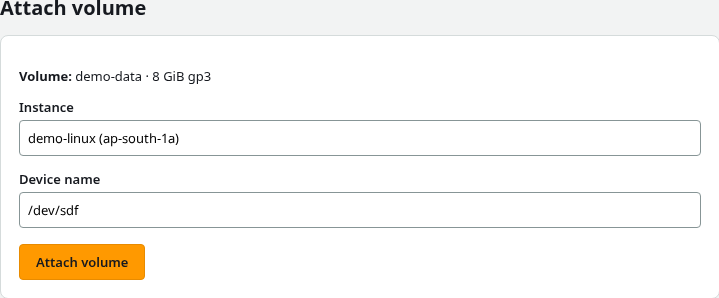
For a data volume attached after the instance is launched, the default is to preserve the volume when the instance terminates. Confirm the attachment shows DeleteOnTermination: false before you continue.
Optional CLI check from your workstation (set INSTANCE_ID to your instance):
aws ec2 describe-volumes --volume-ids "${DATA_VOLUME_ID}" \
  --query 'Volumes[0].Attachments[0].{Device:Device,DeleteOnTermination:DeleteOnTermination,State:State}' \
  --output json
Sample output:
{
    "Device": "/dev/sdf",
    "DeleteOnTermination": false,
    "State": "attached"
}
Step 4: Format and mount the volume
Connect to the instance, then list block devices. On Nitro, the data disk is often nvme1n1:
lsblk -o NAME,SIZE,TYPE,MOUNTPOINTSample output:
NAME         SIZE TYPE MOUNTPOINT
nvme0n1       10G disk
├─nvme0n1p1    1M part
├─nvme0n1p2  200M part /boot/efi
└─nvme0n1p3  9.8G part /
nvme1n1        8G disk
A new empty volume has no filesystem yet. Inspect the device (use your NVMe name if it differs):
sudo file -s /dev/nvme1n1Sample output:
/dev/nvme1n1: dataIf file -s already reports a filesystem such as ext4 or XFS, do not run mkfs; mount the existing filesystem instead.
Only run mkfs on a new empty volume. Formatting a volume that already contains a filesystem destroys its existing filesystem metadata and data.
Create an ext4 filesystem, mount it, and write a test file:
sudo mkfs.ext4 /dev/nvme1n1Create a mount point on the root filesystem:
sudo mkdir -p /dataMount the new filesystem:
sudo mount /dev/nvme1n1 /dataWrite a small test file on the EBS volume:
echo "EBS data survives the instance" | sudo tee /data/ebs-test.txtRead it back before you terminate the instance:
cat /data/ebs-test.txtSample output:
EBS data survives the instanceThat file is what you will read again after snapshot restore.
Step 5: Terminate EC2 and confirm the volume survives
Terminate the instance from EC2 → Instances when you are ready. The data volume should detach and return to Available because delete on termination was off for that attachment.

CLI equivalent:
aws ec2 describe-volumes --volume-ids "${DATA_VOLUME_ID}" \
  --query 'Volumes[0].{State:State,Attachments:Attachments}' --output json
Sample output:
{
    "State": "available",
    "Attachments": []
}
Step 6: Create an EBS snapshot
With the instance already terminated, there are no active application writes to flush. If you snapshot a volume that is still attached to a running workload, quiesce the application or file system when consistency matters.
Open EC2 → Snapshots → Create snapshot, select the demo-data volume, and wait until status is Completed.
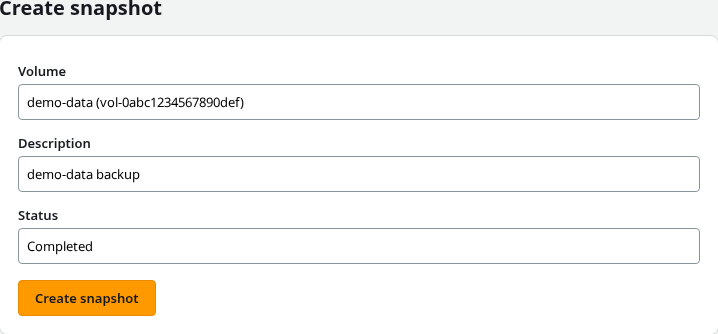
From the CLI:
SNAPSHOT_ID=$(aws ec2 create-snapshot --volume-id "${DATA_VOLUME_ID}" \
  --description "demo-data backup" --query 'SnapshotId' --output text)
Wait until the snapshot reaches completed:
aws ec2 wait snapshot-completed --snapshot-ids "${SNAPSHOT_ID}"EBS snapshots are Regional. The snapshot is not locked to the source volume AZ.
Step 7: Restore a new volume from the snapshot
Create a volume from the snapshot. This example uses ap-south-1a so it can attach to another instance in that zone, but you could choose a different AZ in ap-south-1 when you create the volume.
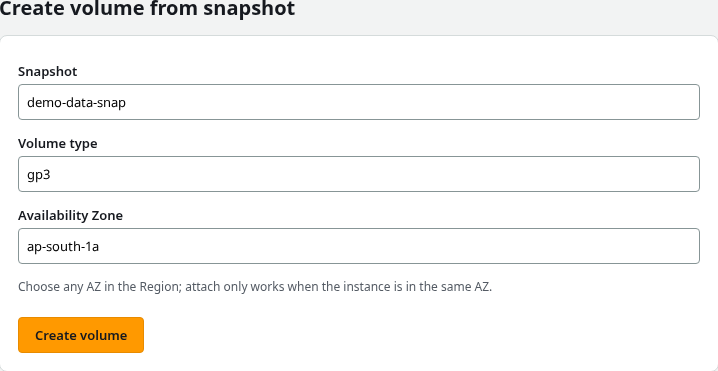
export AZ=ap-south-1aCreate the new volume in the target AZ:
RESTORE_VOLUME_ID=$(aws ec2 create-volume \
  --snapshot-id "${SNAPSHOT_ID}" \
  --availability-zone "${AZ}" \
  --volume-type gp3 \
  --query 'VolumeId' --output text)
Wait until the restored volume is ready to attach:
aws ec2 wait volume-available --volume-ids "${RESTORE_VOLUME_ID}"A restored volume may show higher latency the first time snapshot-backed blocks are read while EBS initializes them. That behavior does not mean the restore failed.
Attach the restored volume to a Linux instance in ${AZ} the same way as in Step 3, then connect to the instance.
List block devices and filesystem labels so you pick the restored disk, not the root volume:
lsblk -fIdentify the device that contains the restored ext4 filesystem. In this example it appears as /dev/nvme1n1, but your device name may differ (for example nvme2n1 on another instance).
Create the mount point:
sudo mkdir -p /data-restoreMount the restored ext4 filesystem on the device you identified:
sudo mount /dev/nvme1n1 /data-restoreConfirm the snapshot preserved the file:
cat /data-restore/ebs-test.txtSample output:
EBS data survives the instanceThe same text confirms the snapshot carried your formatted filesystem and data.
Troubleshooting
| Symptom | Likely cause | Fix |
|---|---|---|
| Volume will not attach | Instance and volume are in different AZs | Check the AZ on both resources; create a volume from a snapshot in the instance AZ if needed |
No new disk in lsblk |
NVMe mapping delay | Wait a few seconds and run lsblk again; look for a new nvme node |
| Data volume deleted with the instance | Delete on termination was true for that attachment |
Restore from a snapshot if you have one; attach future data volumes with delete on termination off |
| Restored volume cannot attach to the instance | Restored volume was created in a different AZ | Create another volume from the same snapshot in the instance AZ |
| Volume stays in-use after terminate | Instance not fully terminated or another attachment exists | Confirm the instance is terminated; run describe-volumes and detach only if an attachment remains |
mount reports wrong fs type or bad superblock |
Wrong device selected or damaged filesystem | Run lsblk -f and file -s and confirm you are mounting the restored data volume, not the root disk |
Clean up
Delete the restored volume, snapshot, and original data volume when the tutorial is done. Each volume must be available and detached first.
aws ec2 delete-volume --volume-id "${RESTORE_VOLUME_ID}"delete-volume returns no output when the call succeeds. Remove the snapshot next:
aws ec2 delete-snapshot --snapshot-id "${SNAPSHOT_ID}"Delete the original data volume last:
aws ec2 delete-volume --volume-id "${DATA_VOLUME_ID}"Terminate any EC2 instances you created for the walkthrough.
Summary
Amazon EBS provides block storage in one Availability Zone. Creating a gp3 volume, attaching it with delete on termination off, and formatting and mounting it under /data turns the raw block device into storage Linux applications can actually use. Terminating the instance leaves the data volume behind in Available state.
Snapshots capture a point-in-time copy at the Region level. Creating a volume from a snapshot lets you pick the target AZ; mounting the restored volume and reading ebs-test.txt shows the data survived independently of the original instance. For capacity growth on an existing mount, use growpart on EC2 instead of repeating this attach workflow.
References
Frequently Asked Questions
Can I attach one EBS volume to multiple EC2 instances at once?
Standard EBS volumes attach to one instance at a time. Multi-Attach is available for supported Provisioned IOPS io1/io2 configurations, with io2 the preferred modern option. For shared file access, use a service such as Amazon EFS.
Why must the volume and instance share an Availability Zone?
EBS replicates within an AZ. Attach enforces same-zone placement so the instance sees low-latency block storage.
Does a snapshot include data I wrote only in RAM?
No. A snapshot reflects data that reached the volume. Flush caches or quiesce writes on running systems when you need a consistent backup.
What is the difference between gp2 and gp3?
Both are general-purpose SSD types. gp3 separates baseline IOPS and throughput from size and is the type AWS recommends for most new general-purpose workloads.
