
| Package | cloud-utils-growpart, xfsprogs, aws-cli/2.37.3 (RHEL 10.2 on EC2, Nitro/XFS root on nvme0n1p3) |
|---|---|
| AWS Region | ap-south-1 (Mumbai) for the examples; EBS volume modification is Regional |
| Lab environment | Workstation with AWS CLI v2 and configured credentials — AWS CLI tutorial Install AWS CLI on Ubuntu · Install AWS CLI on Debian |
| Privilege | EC2 ModifyVolume permission and sudo on the instance for partition and filesystem growth |
| Scope | Why growpart returns No space left on device after an EBS volume is enlarged, how to compare EBS block size with partition and filesystem size, how to provide temporary writable space for growpart (including the tmpfs-on-/tmp workaround), and how to extend the partition and grow XFS or ext4. Does not cover the generic EBS resize workflow when df already shows free space or when growpart reports NOCHANGE. |
| Related guides | Fix growpart NOCHANGE on EC2 EBS resized but df unchanged AWS EBS Volume Guide AWS CLI Tutorial AWS Tutorial |
When an EBS root volume is enlarged in the console or with modify-volume, AWS can expose a larger block device inside the instance while the Linux partition and filesystem on / remain at the old size. If the root filesystem has little or no writable space left, growpart may fail with No space left on device, mkdir: cannot create directory '/tmp/growpart...': No space left on device, or failed to dump sfdisk info even though the EBS resize itself succeeded.
That failure usually means growpart needs temporary working files while it reads the disk layout and prepares the partition resize. By default those files are created under ${TMPDIR:-/tmp}. If /tmp sits on a root filesystem with no usable free space, growpart can fail before the partition extends. The example compares EBS, partition, and filesystem size with lsblk and df, applies the tmpfs-on-/tmp workaround when needed, then runs growpart and xfs_growfs after a 10 GiB to 16 GiB gp3 resize.
growpart fails with No space left on device?
- Confirm the Linux disk is larger than its partition with
lsblk. - Check whether
/or/tmphas little or no writable space withdf -h(anddf -iif creation still fails). - Free a small amount of space, mount a temporary
tmpfson/tmp, or pointTMPDIRto another filesystem with space. - Run
growpart <disk> <partition-number>. - Grow the filesystem with
xfs_growfsorresize2fs. - Verify the new size with
df -handlsblk.
Why EBS Is Larger but Linux Is Still Full
EBS capacity, the partition layout, and the filesystem are three separate layers:
- AWS can increase the EBS volume independently of the Linux partition and filesystem
- Linux does not extend the partition automatically
- XFS or ext4 does not grow until the matching tool runs
  ┌─────────────┐     ┌──────────────────┐     ┌──────────────────┐
  │ EBS volume  │ ──► │ Linux partition  │ ──► │ Filesystem       │
  │ 16 GiB      │     │ still 9.8 GiB    │     │ XFS/ext4 on /    │
  └─────────────┘     └──────────────────┘     └──────────────────┘
        ▲                       ▲                        ▲
   modify-volume            growpart           xfs_growfs / resize2fs
growpart updates the partition table so the partition extends into the newly available space at the end of the disk.
Until both growpart and the filesystem resize complete:
dfkeeps reporting the old filesystem size- The extra EBS space stays after the partition end, unused and invisible to
df - A root filesystem that already had little or no writable space stays that way through the EBS resize
Before modifying a production root partition, create an EBS snapshot or another tested backup so there is a recovery point if the partition resize fails.
Confirm the EBS Resize Succeeded and the Partition Is Still Smaller
Most readers already enlarged EBS and hit the error. Confirm both of the following:
- The three layers are out of sync (EBS larger than partition and filesystem)
- The failure may match a temp-file problem on a nearly full root filesystem, not a different
growpartissue
Report filesystem type and free space on /:
df -hT /Filesystem Type Size Used Avail Use% Mounted on
/dev/nvme0n1p3 xfs 9.8G 9.7G 112M 99% /df size comes from the filesystem inside the partition, not from the EBS volume size.
List disk and partition sizes:
sudo lsblk -o NAME,SIZE,TYPE,FSTYPE,MOUNTPOINTSNAME SIZE TYPE FSTYPE MOUNTPOINTS
nvme0n1 16G disk
├─nvme0n1p1 1M part
├─nvme0n1p2 200M part vfat /boot/efi
└─nvme0n1p3 9.8G part xfs /Here nvme0n1 is 16G while nvme0n1p3 stayed 9.8G. This is the key sign that the EBS resize succeeded but the Linux partition has not been extended yet. The unused space between the 9.8 GiB partition and the 16 GiB disk is what growpart will add to the partition once it has a writable temporary directory.
findmnt removes any ambiguity about which device actually backs /, which matters before running a filesystem-specific resize command:
sudo findmnt -n -o SOURCE,TARGET,FSTYPE,SIZE,AVAIL //dev/nvme0n1p3 / xfs 9.7G 112MIf df -h shows available space but growpart still cannot create files under /tmp, check inode usage:
df -i /tmpA filesystem with no free inodes can also return No space left on device even when block space remains.
| Layer | Command | What to compare |
|---|---|---|
| EBS volume | EC2 console or aws ec2 describe-volumes |
Volume Size in GiB |
| Disk | lsblk top-level SIZE |
Should match EBS size (for example 16G) |
| Partition | lsblk partition row |
Smaller than disk until growpart runs |
| Filesystem | df -hT / |
Matches partition size until xfs_growfs or resize2fs |
In the AWS Management Console, open EC2 → Elastic Block Store → Volumes, select the root volume, and confirm Size shows the new capacity (for example 16 GiB). The volume can still be in the In-use - optimizing phase; once Linux sees the larger block device in lsblk, the partition and filesystem resize can continue without waiting for optimization to reach completed.
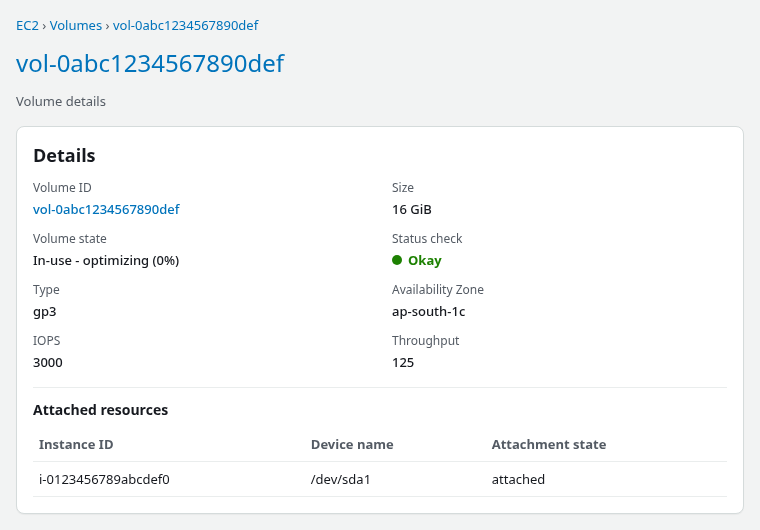
At this stage, the EBS volume and Linux disk should show the new size, while the partition can still show the old size:
EC2/EBS volume: 16 GiB
Linux disk:     16G
Partition:      9.8G
Filesystem:     9.8G
The EBS volume may still be in the In-use - optimizing phase in the console. That gap between disk and partition is what growpart and the filesystem resize must close.
The same state from the AWS CLI:
aws ec2 describe-volumes --volume-ids vol-0abc1234567890def --query 'Volumes[0].{Size:Size,State:State}' --output table--------------------
| DescribeVolumes |
+-------+----------+
| Size | State |
+-------+----------+
| 16 | in-use |
+-------+----------+Size is already 16 GiB while the partition row in lsblk is still 9.8G.
The failure output varies by cloud-utils-growpart and util-linux versions. On the RHEL 10 test instance, growpart returned sfdisk: write error: No space left on device while the root filesystem was nearly full (df reported 99% use with about 112M available on /):
sudo growpart /dev/nvme0n1 3FAILED: failed: sfdisk --list /dev/nvme0n1
failed [sfd_list:1] sfdisk --list --unit=S /dev/nvme0n1
GPT PMBR size mismatch (20971519 != 33554431) will be corrected by write.
The backup GPT table is not on the end of the device.
sfdisk: write error: No space left on deviceOther versions expose the temporary-file failure more directly with /tmp/growpart... or failed to dump sfdisk info. When you see the explicit /tmp/growpart... form, the cause is clear: growpart cannot create or write its temporary working files. For less-specific sfdisk: write error output, first check both block space and inode usage before treating it as the same failure.
On this test instance, mounting tmpfs on /tmp and retrying the same command changed the result from sfdisk: write error to CHANGED, confirming that temporary-file space was the blocker in this run.
Read the output together:
GPT PMBR size mismatchlines are expected after an online EBS resize
Create Temporary Space So growpart Can Run
growpart shells out to sfdisk and stores working files under ${TMPDIR:-/tmp}. On default layouts /tmp is on the root filesystem. When / has little or no writable space left, pick one of three ways to give growpart a writable temporary directory:
| Option | When to use |
|---|---|
Free space on / |
You can delete logs, cache, or temporary files safely |
tmpfs on /tmp |
Root has almost no usable free space and nothing can be removed quickly |
TMPDIR on another mount |
Another filesystem (not /tmp on the same full root) has free space |
growpart needs only a small amount of writable temporary space. You do not need to free gigabytes just to run the command.
Option 1: Free a small amount of space on /
Pick the smallest change that restores writable space:
- Remove large temporary files or build artifacts that are safe to delete.
- Identify large logs first with
sudo du -xh /var/log | sort -h | tail, and remove only old rotated or compressed logs that are no longer needed. Avoid deleting active log files blindly. - Run
sudo dnf clean allorsudo yum clean allon RPM systems to clear package cache. sudo journalctl --vacuum-size=50Mcan reduce persistent systemd journal usage if old journal files are consuming significant space.
After deleting filler files used in the lab reproduction, root dropped back to roughly 19% usage:
sudo rm -f /fill-*Confirm root has enough free space for growpart to write its temporary files:
df -hT /Filesystem Type Size Used Avail Use% Mounted on
/dev/nvme0n1p3 xfs 9.8G 1.9G 8.0G 19% /The lab removes all filler files for convenience. In a real incident, only enough space is needed for normal writes and the small temporary files growpart creates.
Option 2: Temporarily mount tmpfs on /tmp
If the root filesystem has almost no usable free space and files cannot be deleted quickly, AWS re:Post documents mounting tmpfs on /tmp as a workaround for the exact growpart no-space failure.
tmpfs stores its files in memory instead of consuming blocks from the full root filesystem. Temporarily mounting it on /tmp therefore gives growpart somewhere writable to create its working files, even when df on / still looks nearly full.
Mounting tmpfs on /tmp temporarily hides files already present in that directory; they reappear after sudo umount /tmp. Avoid this step if applications on the instance are actively relying on files in /tmp.
The sequence is:
- Mount a small tmpfs over
/tmp - Confirm
/tmphas writable space - Run
growpart - Grow the filesystem
umount /tmpwhen finished
Mount a small tmpfs over /tmp:
sudo mount -o size=10M,rw,nodev,nosuid -t tmpfs tmpfs /tmpConfirm the temporary mount has writable space:
df -h /tmpFilesystem Size Used Avail Use% Mounted on
tmpfs 10M 0 10M 0% /tmpWith /tmp on tmpfs, retry growpart even when / still has little or no usable free space:
sudo growpart /dev/nvme0n1 3CHANGED: partition=3 start=413696 old: size=20555776 end=20969471 new: size=33140703 end=33554398After the partition and filesystem are grown, remove the temporary mount:
sudo umount /tmpBecause /tmp is now backed by memory, growpart can run even though the root filesystem is still nearly full.
Option 3: Point TMPDIR to another filesystem
When another mount has free space, point growpart at that directory:
sudo TMPDIR=/var/tmp growpart /dev/nvme0n1 3This only helps when:
/var/tmpis on a filesystem that actually has free space- That filesystem is not the same full root volume as
/tmp
If /tmp and /var/tmp are both on the full root filesystem, use Option 2 or free space on / instead.
Extend the Partition
With temporary space available, run growpart using the disk device name and partition number from lsblk, not the partition path.
growpart takes the disk and partition number separately. For /dev/nvme0n1p3, use growpart /dev/nvme0n1 3, not growpart /dev/nvme0n1p3 3. Passing the partition device path is a common cause of unknown label or partition-table errors.
Partition numbers vary by AMI layout:
- RHEL 10 Nitro (this walkthrough): partition
3onnvme0n1 - Many Ubuntu AMIs: partition
1onnvme0n1orxvda
Always take the disk name and partition number from lsblk, not from the article examples.
sudo growpart /dev/nvme0n1 3CHANGED: partition=3 start=413696 old: size=20555776 end=20969471 new: size=33140703 end=33554398The CHANGED line confirms partition 3 now spans the unallocated space at the end of the 16 GiB disk.
If growpart returns NOCHANGE instead of CHANGED, first confirm that the EBS volume was actually enlarged and that lsblk shows a disk larger than the partition. If the disk and partition are already the same size, there is nothing for growpart to extend. A non-adjacent partition layout can also prevent growth. That is not the no-space-in-/tmp failure covered here.
Verify the partition grew before touching the filesystem:
sudo lsblk -o NAME,SIZE,TYPE,FSTYPE,MOUNTPOINTSNAME SIZE TYPE FSTYPE MOUNTPOINTS
nvme0n1 16G disk
├─nvme0n1p1 1M part
├─nvme0n1p2 200M part vfat /boot/efi
└─nvme0n1p3 15.8G part xfs /nvme0n1p3 now reports about 15.8G. df still shows the old filesystem size until the filesystem is extended.
Grow XFS or ext4
Use the filesystem-specific resize command that matches the type reported by df -hT. Use the actual device shown by findmnt and lsblk; do not assume the partition is p3.
| Filesystem | Grow command | Online grow |
|---|---|---|
| XFS | sudo xfs_growfs / |
Yes, while mounted |
| ext4 | sudo resize2fs <partition-device> |
Yes, while mounted |
Pick the tool from df -hT:
- XFS: grow with the mount point (
xfs_growfs /) - ext4: grow with the partition device (
resize2fs <partition-device>)
On the RHEL 10 test instance the root format is XFS:
sudo xfs_growfs /...
data blocks changed from 2569472 to 4142587data blocks changed confirms that XFS extended into the larger partition.
For ext4, run resize2fs on the partition device after growpart:
sudo resize2fs /dev/nvme0n1p3Replace /dev/nvme0n1p3 with the partition device from findmnt or lsblk.
Verify the New Capacity
Confirm df reports the larger size and that free space increased:
df -hT /Filesystem Type Size Used Avail Use% Mounted on
/dev/nvme0n1p3 xfs 16G 2.0G 14G 13% /The size moved from 9.8G to 16G with about 14G available. Cross-check partition and disk alignment one more time:
sudo lsblk -o NAME,SIZE,TYPE,FSTYPE,MOUNTPOINTSNAME SIZE TYPE FSTYPE MOUNTPOINTS
nvme0n1 16G disk
├─nvme0n1p1 1M part
├─nvme0n1p2 200M part vfat /boot/efi
└─nvme0n1p3 15.8G part xfs /Disk, partition, and filesystem sizes should now agree within normal rounding. In the EC2 console, the root volume shows the new size with the volume attached to the instance.
Why growpart Needs Temporary Space
growpart is a wrapper around partition table tools. GPT and MBR are partition-table formats that describe where partitions start and end on the disk. During a resize it:
- Reads the current layout with
sfdisk - Plans a larger partition end sector
- Writes an updated GPT or MBR partition table
- Creates a temporary working directory under
${TMPDIR:-/tmp} - Stores
sfdiskdumps and other working files in that directory
The immediate failure on a nearly full root filesystem is usually:
- Unable to create or write those temporary files
- Not a lack of free sectors at the end of the EBS volume
When /tmp is on a root volume with little or no usable free space, growpart can fail before the partition resize completes even though unallocated space exists at the end of the disk. The same root cause appears as failed to dump sfdisk info on some distributions when sfdisk cannot write its temporary output.
Once growpart has somewhere to write its temporary files, finish the resize in this order:
- Enlarge the EBS volume and confirm the new size is reflected for the block device.
- Give
growparta writable temporary directory (free space on/, tmpfs on/tmp, orTMPDIRon another filesystem). - Run
growparton the correct disk and partition number. - Extend the filesystem with
xfs_growfsorresize2fs. - Verify with
dfandlsblk.
Reproduce the Error in a Test Instance
The steps below recreate the failure on a disposable EC2 instance for learning or validation. Skip this section if the instance already shows the error after a production EBS resize.
Start from a healthy root filesystem:
df -hT /Filesystem Type Size Used Avail Use% Mounted on
/dev/nvme0n1p3 xfs 9.8G 1.9G 8.0G 19% /Fill / with large files until df reports little or no usable free space (the lab reached 99% with about 115M shown as available):
sudo fallocate -l 200M /fill-0Repeat with incrementing names until root is full, then check usage:
df -hT /Filesystem Type Size Used Avail Use% Mounted on
/dev/nvme0n1p3 xfs 9.8G 9.7G 115M 99% /Enlarge the root EBS volume in the console or with the AWS CLI:
aws ec2 modify-volume --volume-id vol-0abc1234567890def --size 16Confirm the new EBS size is reflected and Linux sees the larger block device:
sudo lsblk -o NAME,SIZE,TYPE,FSTYPE,MOUNTPOINTSNAME SIZE TYPE FSTYPE MOUNTPOINTS
nvme0n1 16G disk
├─nvme0n1p1 1M part
├─nvme0n1p2 200M part vfat /boot/efi
└─nvme0n1p3 9.8G part xfs /With root still nearly full, run growpart to trigger the failure, then apply one of the temporary-space options from the fix section above.
Summary
An enlarged EBS root volume does not automatically extend the Linux partition or filesystem. When / has little or no writable space left, growpart fails because it cannot create or write temporary working files under /tmp, not because the EBS resize failed or because the kernel lacks unallocated sectors at the end of the disk.
The diagnostic pattern looks like this:
lsblkdisk size is larger (for example 16G)- Partition row is unchanged (for example 9.8G)
dfstill matches the old filesystem size
To unblock growpart, give it a writable temporary directory by freeing a small amount on /, mounting a 10 MB tmpfs on /tmp, or pointing TMPDIR at another filesystem with space. xfs_growfs or resize2fs then extends the filesystem into the larger partition.
On Nitro instances the root device is often nvme0n1 with a high partition number for / on RHEL-style images. Take partition numbers from lsblk rather than assuming 1, and create an EBS snapshot before partition work on production roots.
When df already has free space but the reported size did not change after an EBS resize, the blocker is usually a different step in the partition or filesystem chain. The no-space growpart error covered here is specific to a root filesystem with little or no usable free space at resize time.
References
- Amazon EBS extend a Linux file system
- Modify an EBS volume
- growpart(8) man page
- xfs_growfs(8) man page
- resize2fs(8) man page
Frequently Asked Questions
Why does growpart need free disk space?
growpart calls sfdisk to read and rewrite the partition table. It creates temporary files under /tmp (or under TMPDIR when set). Those files live on whatever filesystem hosts that directory, usually root. When root has little or no writable space left:
- The write fails with
No space left on device - Unallocated space still exists at the end of the EBS volume
- Mounting a small tmpfs on
/tmpprovides writable space without deleting files
Can I resize EBS while the instance is running?
Yes for most gp2, gp3, io1, and io2 volumes attached to supported instance types:
- Modify the volume size in the console or with
modify-volume - Confirm the new size is available to the instance
- Run
growpartand the filesystem resize command without a reboot - Take a snapshot first on production systems
Should I use xfs_growfs or resize2fs?
Use the tool that matches the filesystem type from df -hT:
- XFS:
xfs_growfswith the mount point (for example/) - ext4:
resize2fswith the partition device (for example/dev/nvme0n1p3)
Using the wrong tool does not grow the filesystem and may print errors.
Do I need to reboot?
No reboot is required for a standard online EBS resize on Linux when the instance supports live resize and the block device reflects the new volume size. Reboot only if the OS or AMI documentation requires it for the specific layout, or if validation in a maintenance window is preferred after growing root.
