
| Package | aws-cli/2.37.3, ncat (RHEL 10.2 on EC2 with public IPv4 in a public subnet) |
|---|---|
| AWS Region | ap-south-1 (Mumbai) for the examples; security groups, route tables, and NACLs are Regional VPC resources tied to the instance subnet |
| Lab environment | Workstation with AWS CLI v2 and configured credentials — AWS CLI tutorial Install AWS CLI on Ubuntu · Install AWS CLI on Debian |
| Privilege | EC2 and VPC read permissions to describe instances, security groups, route tables, and network ACLs; permission to update those resources when applying fixes; [sudo](/sudo-command-in-linux/) on the instance only after SSH or Session Manager access works for host firewall checks |
| Scope | Why SSH to an EC2 Linux instance returns connection timed out instead of a TCP response, how to verify instance state and public IP, security group port 22 and source CIDR, route table and internet gateway path, NACL inbound and ephemeral return rules, and optional Reachability Analyzer before checking sshd and host firewall. Does not cover connection refused, public key authentication failures, or instance reachability status check failures. |
| Related guides | EC2 instance reachability check failed Deploy a website with AWS EC2 AWS CLI Tutorial AWS Tutorial sudo command |
ssh: connect to host … port 22: Connection timed out means the TCP connection never completed before the client timeout. In practice, packets or replies are usually being dropped somewhere along the path—not at SSH authentication.
That symptom differs from connection refused, which means something actively rejected the TCP connection on port 22, and from permission denied or publickey errors, which mean SSH reached sshd and failed authentication. This page covers timeout only.
The examples deliberately break one layer at a time so you can see why very different AWS network mistakes all produce the same SSH timeout. They use a RHEL 10.2 instance with a public IPv4 address: missing security-group access, a missing internet gateway route, and a blocking network ACL rule. EC2 status checks stayed passed throughout, which separates this page from EC2 instance reachability check failed when the guest OS stops responding to health probes.
Instance IDs, IP addresses, and resource IDs in screenshots and command output are sanitized; the workflow was tested against the environment listed in Package above.
In AWS, a subnet is public when its route table has a route to an internet gateway. A public IPv4 on the instance is also required for direct IPv4 access from the internet.
  Your workstation                    AWS VPC (public subnet)
       |                                      |
       |  TCP SYN to PUBLIC_IP:22             |
       +------------------------------------->|
       |                                      | SG / route / NACL may drop silently
       |  (no reply before client timeout)    |
       X<-------------------------------------+
SSH connection timed out to EC2?
- Confirm the instance is
running, the public IPv4 is current, and status checks pass. - Test port 22 with
nc -vzfrom the same source network as SSH. - Check the instance security group allows TCP port 22 from your egress IP or CIDR.
- Confirm the subnet route table sends
0.0.0.0/0to an internet gateway. - Review the subnet NACL for inbound port 22 and outbound ephemeral return ports.
- Use Reachability Analyzer when the path is unclear.
- Once TCP port 22 is reachable, check sshd and the instance firewall.
What a Timeout Tells You
A connection timeout means the client sent traffic but no usable TCP response arrived in time. On EC2, the usual causes are:
- Security group missing inbound TCP port 22 from the client source
- No route from the subnet to an internet gateway for internet-bound traffic
- Network ACL denying inbound SSH or outbound ephemeral return traffic
- Wrong or stale public IPv4 after stop/start
- A local firewall, corporate proxy, or ISP blocking outbound port 22
Security groups are stateful: an allowed inbound SSH session automatically permits return traffic. Network ACLs are stateless: inbound allow on port 22 is not enough unless outbound ephemeral ports are also permitted.
| Client message | Typical meaning | Covered here |
|---|---|---|
| Connection timed out | No TCP handshake completed | Yes |
| Connection refused | Host received SYN and sent RST | No — different diagnosis |
| Permission denied (publickey) | SSH reached sshd; auth failed | No — different diagnosis |
When both EC2 status checks pass but SSH still times out, start with VPC networking before opening the reachability-check article for guest OS boot problems.
Verify Instance State, IP and Status Checks
An SSH timeout to the wrong IP or a stopped instance wastes time on security group edits. Confirm the target first.
List the instance state, public IPv4, and security groups:
aws ec2 describe-instances \
  --region ap-south-1 \
  --instance-ids i-0123456789abcdef0 \
  --query 'Reservations[0].Instances[0].{State:State.Name,PublicIp:PublicIpAddress,PrivateIp:PrivateIpAddress,SubnetId:SubnetId,SecurityGroups:SecurityGroups[*].GroupId}' \
--output table-------------------------------------------------------
| DescribeInstances |
+-----------+----------------+------------------------+
| PrivateIp | PublicIp | State |
+-----------+----------------+------------------------+
| 172.31.22.42 | 203.0.113.42 | running |
+-----------+----------------+------------------------+
|| SecurityGroups ||
|+---------------------------------------------------+|
|| sg-0abc1234567890def ||
|+---------------------------------------------------+|A stop/start cycle can assign a new public IPv4 when the instance does not use an Elastic IP. Copy the address from the console or CLI before testing SSH.
Check status checks. Both can pass while SSH still times out because EC2's health probe is not the same test as TCP port 22 from your laptop:
aws ec2 describe-instance-status \
  --region ap-south-1 \
  --instance-ids i-0123456789abcdef0 \
  --include-all-instances \
  --query 'InstanceStatuses[0].{System:SystemStatus.Status,Instance:InstanceStatus.Status}' \
--output table------------------------
|DescribeInstanceStatus|
+-----------+----------+
| Instance | System |
+-----------+----------+
| ok | ok |
+-----------+----------+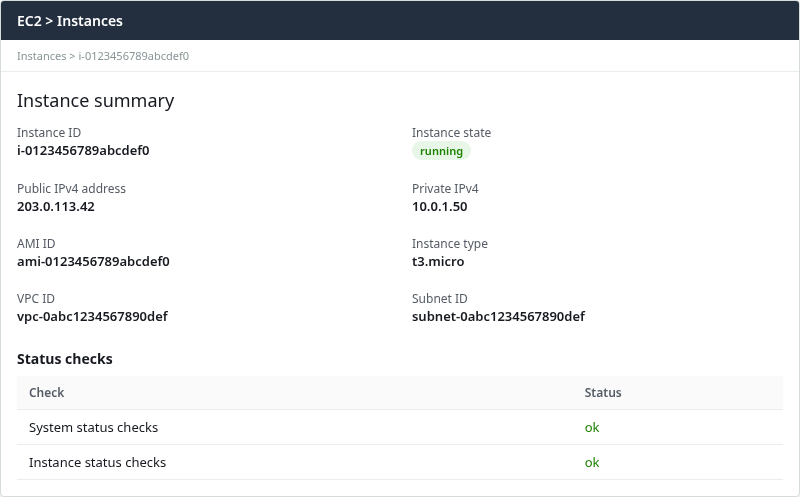
The instance is running, has a public IPv4, and both status checks passed—so the next step is the network path to TCP port 22, not guest OS reachability.
From the same network where SSH fails, probe port 22 directly:
nc -vz -w 5 203.0.113.42 22When the path is broken, nc reports a timeout rather than refused:
Ncat: Version 7.92 ( https://nmap.org/ncat )
Ncat: TIMEOUT.
ssh -vvv shows the same network failure before any host key or authentication step:
ssh -vvv -o ConnectTimeout=10 -o BatchMode=yes -i /path/to/key.pem ec2-user@203.0.113.42debug1: Connecting to 203.0.113.42 [203.0.113.42] port 22.
debug1: connect to address 203.0.113.42 port 22: Connection timed out
ssh: connect to host 203.0.113.42 port 22: Connection timed outReplace ec2-user with the default user for the AMI (ubuntu on Ubuntu images).
Check Security Group Port 22
The instance security group must allow inbound TCP port 22 from the source CIDR your SSH client uses on the internet. AWS sees your network's public egress IP, not a laptop address such as 192.168.1.20 behind home or office NAT:
   Laptop 192.168.1.20
            ↓
    home or office NAT
            ↓
Public egress 203.0.113.50
            ↓
SG source: 203.0.113.50/32
            ↓
   EC2 public IPv4 :22
A missing rule drops traffic silently, which surfaces as a timeout.
Inspect inbound rules on the security group attached to the instance:
aws ec2 describe-security-groups \
  --region ap-south-1 \
  --group-ids sg-0abc1234567890def \
  --query 'SecurityGroups[0].IpPermissions' \
  --output table
When port 22 is missing, the table is empty:
------------------------
|DescribeSecurityGroups|
+----------------------+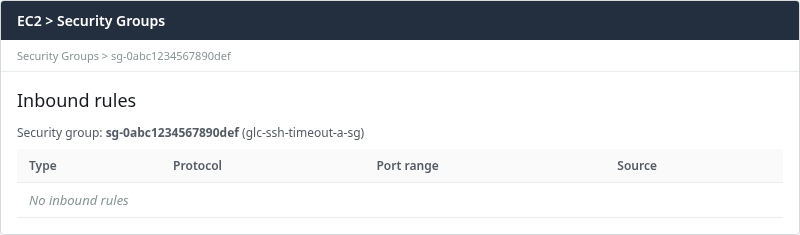
No inbound SSH rule is listed, which matches the nc timeout above.
Security groups are allow-only. When multiple security groups attach to one instance, their Allow rules are combined—one group does not deny traffic another group permits.
Add SSH access from a specific source CIDR when you know the client egress address:
aws ec2 authorize-security-group-ingress \
  --region ap-south-1 \
  --group-id sg-0abc1234567890def \
  --protocol tcp \
  --port 22 \
  --cidr 203.0.113.50/32
For a lab or temporary test only, some teams open port 22 to 0.0.0.0/0. Restrict the source in production.
Re-test with nc after the rule propagates:
nc -vz -w 5 203.0.113.42 22Ncat: Connected to 203.0.113.42:22.Check Route Table and Internet Gateway
For an EC2 instance with a public IPv4 to communicate directly with internet clients, its subnet route table needs 0.0.0.0/0 pointing to an internet gateway. The internet gateway provides the VPC internet path and performs public/private IPv4 translation for the instance.
  Public IPv4 on instance
        +
  0.0.0.0/0 -> Internet Gateway on subnet route table
        +
  Security group and NACL allow TCP/22
        =
  Possible direct internet SSH path
A public IPv4 alone does not make the instance reachable from the internet without that route and permissive security group and NACL rules.
Find the route table associated with the instance subnet:
aws ec2 describe-route-tables \
  --region ap-south-1 \
  --filters "Name=association.subnet-id,Values=subnet-0abc1234567890def" \
  --query 'RouteTables[0].Routes' \
  --output table
If this returns no route table, the subnet may be using the VPC main route table rather than an explicit subnet association. Open the VPC console route tables view and check the main route table for that VPC, or query route tables with the association.main filter.
When the internet route is missing, only the local VPC CIDR appears:
----------------------------------------------------------------------------
|                            DescribeRouteTables                           |
+----------------------+-------------------------+-------------------------+
| DestinationCidrBlock |        GatewayId        |          State          |
+----------------------+-------------------------+-------------------------+
|  172.31.0.0/16       |  local                  |  active                 |
+----------------------+-------------------------+-------------------------+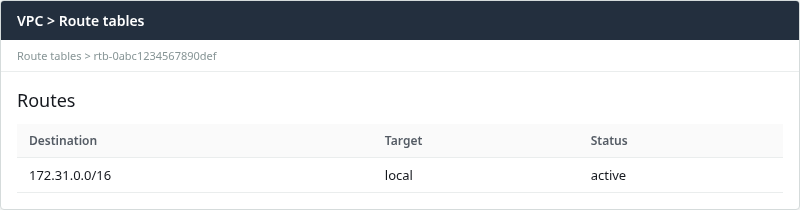
Only the VPC-local route is present; there is no 0.0.0.0/0 target for internet traffic.
A working public subnet includes 0.0.0.0/0 pointing at igw-…. After the route is restored, run the same describe-route-tables command again:
aws ec2 describe-route-tables \
  --region ap-south-1 \
  --filters "Name=association.subnet-id,Values=subnet-0abc1234567890def" \
  --query 'RouteTables[0].Routes' \
--output table----------------------------------------------------------------------------
| DescribeRouteTables |
+----------------------+-------------------------+-------------------------+
| DestinationCidrBlock | GatewayId | State |
+----------------------+-------------------------+-------------------------+
| 0.0.0.0/0 | igw-0abc1234567890def | active |
| 172.31.0.0/16 | local | active |
+----------------------+-------------------------+-------------------------+Restore the default route when an internet gateway is attached to the VPC:
aws ec2 create-route \
  --region ap-south-1 \
  --route-table-id rtb-0abc1234567890def \
  --destination-cidr-block 0.0.0.0/0 \
  --gateway-id igw-0abc1234567890def
A NAT gateway provides outbound internet access for instances in private subnets; it does not accept unsolicited inbound SSH. To administer a private instance, use a bastion host, VPN or Direct Connect, EC2 Instance Connect Endpoint, or Systems Manager Session Manager.
Check NACL and Ephemeral Return Ports
Subnet network ACLs are stateless. In addition to inbound TCP port 22, the NACL must allow outbound return traffic to the client's ephemeral source port (typically 1024–65535).
  Client:54321  --->  EC2:22        (inbound NACL: allow TCP 22)
  EC2:22        --->  Client:54321  (outbound NACL: allow ephemeral return)
Because NACLs are stateless, the outbound rule must permit return traffic to the client's ephemeral source port—not only port 22 on the outbound side.
NACL rules are evaluated in ascending rule number. A deny rule with a lower number than the allow blocks traffic before the permit is evaluated.
List the NACL associated with the subnet:
aws ec2 describe-network-acls \
  --region ap-south-1 \
  --filters "Name=association.subnet-id,Values=subnet-0abc1234567890def" \
  --query 'NetworkAcls[0].Entries' \
  --output table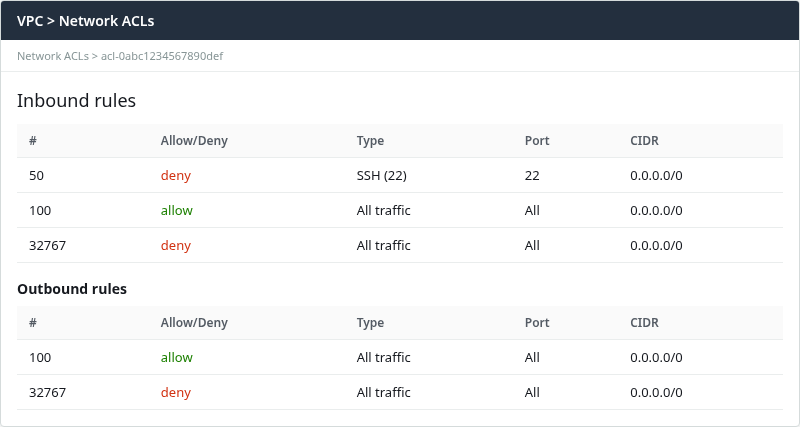
Rule 50 denies inbound SSH before rule 100 allows all traffic, so the connection times out at the client.
The default NACL allows all inbound and outbound traffic. Custom NACLs often allow inbound SSH (rule 100) and outbound ephemeral TCP (rule 100) while denying everything else at rule 32767.
| Direction | What to allow for SSH from the internet |
|---|---|
| Inbound | TCP port 22 from the client CIDR (or 0.0.0.0/0 in a lab) |
| Outbound | TCP ephemeral ports 1024–65535 back to the client (or 0.0.0.0/0) |
Remove or renumber deny rules that block port 22 or ephemeral return traffic, then run nc -vz again from the client.
Use Reachability Analyzer
If the security group, route table, and NACL all look correct, Reachability Analyzer can identify the AWS-side configuration that prevents the modeled path from reaching the instance.
For SSH from the public internet, create a path with the VPC's internet gateway as the source and the EC2 instance as the destination. Set the protocol to TCP and the destination port to 22. Reachability Analyzer models VPC resources—it does not accept an arbitrary public client CIDR on the internet as a source resource.
If the analysis reports Not reachable, AWS identifies the blocking component, such as a route table, network ACL, or security group.
Reachability Analyzer is a configuration analysis tool, not an actual packet probe. A successful analysis means the VPC configuration permits the modeled path. It does not prove that your laptop, ISP, corporate firewall, or the instance operating-system firewall will pass the real SSH connection.
Reachability Analyzer is optional for a simple public-subnet instance but saves time on complex VPC layouts with multiple security groups and peering links.
Check Host Firewall Last
Check the instance firewall and sshd after the AWS-side path—security group, route table, and NACL—has been verified. A host firewall can also silently drop port 22, so a continuing nc timeout does not completely rule out an in-guest cause.
If port 22 becomes reachable, move on to sshd and authentication. Confirm sshd listens on all interfaces:
ssh -i /path/to/key.pem ec2-user@203.0.113.42 'ss -lntp | grep :22'LISTEN 0 128 0.0.0.0:22 0.0.0.0:*
LISTEN 0 128 [::]:22 [::]:*On RHEL, check whether firewalld blocks SSH:
ssh -i /path/to/key.pem ec2-user@203.0.113.42 'sudo firewall-cmd --list-all 2>/dev/null || echo "firewalld inactive"'firewalld inactiveIf SSH itself is unavailable, use Session Manager, EC2 Serial Console, or another established management path to inspect the host firewall. Do not assume you can run these commands through the broken SSH path.
If firewalld is active and SSH is blocked, allow the service (sudo firewall-cmd --permanent --add-service=ssh && sudo firewall-cmd --reload) or use Session Manager when SSH is unavailable.
If Session Manager or normal SSH is unavailable and the AWS-side network path looks correct, AWS also provides the AWSSupport-TroubleshootSSH Systems Manager Automation runbook for common SSH configuration problems.
Verify SSH Connectivity
After each fix, retest from the client in the same order: nc, then ssh, then application use.
nc -vz -w 5 203.0.113.42 22Ncat: Connected to 203.0.113.42:22.
Ncat: 0 bytes sent, 0 bytes received in 0.08 seconds.When nc reports a connection, confirm SSH authentication with a simple remote command:
ssh -i /path/to/key.pem ec2-user@203.0.113.42 hostnameip-172-31-22-42.ap-south-1.compute.internalChange one layer at a time and retest, otherwise you will not know which change actually fixed the timeout. A missing security group rule, a missing IGW route, and an NACL deny on port 22 each produced the same client error until that single layer was restored.
Troubleshooting
| Symptom | Likely cause | Fix |
|---|---|---|
| Timeout; status checks pass | Security group, route, NACL, wrong public IP, or host firewall | Check instance IP and status, then SG, route, NACL, then client network and OS firewall |
| Timeout; instance status impaired | Guest OS not responding to EC2 health probe | See EC2 instance reachability check failed |
| Timeout from one network only | Corporate firewall or ISP blocks outbound 22 | Test from another network or use Session Manager / bastion |
Connection refused; nc also reports refused |
Nothing listening on port 22 or host firewall actively rejects it | Check sshd, listening sockets, and the OS firewall; this is a different problem from timeout |
nc connects but SSH hangs before authentication |
SSH banner or daemon, MTU, proxy, or middlebox issue | Use ssh -vvv; inspect sshd and the path |
Summary
Connection timed out on port 22 means the TCP handshake never completed. On a public EC2 instance with passing status checks, the first places to check are the VPC path—security group, subnet route table, and NACL—followed by the client network and the instance firewall.
Confirm the instance is running with the current public IPv4 and passing status checks, then test with nc -vz from the real client network using the correct egress CIDR in the security group. Fix one layer at a time—security group port 22, 0.0.0.0/0 to an internet gateway on a public subnet, then NACL inbound and outbound rules. Reachability Analyzer models internet-gateway-to-instance paths when the layout is complex; a passing result still does not replace a real client-side nc test.
Check sshd and the instance firewall after AWS-side networking is verified, including when nc still times out. Authentication errors and connection refused are separate problems with different fixes.
References
- Amazon EC2 instance status checks
- Amazon VPC security groups
- Route tables and internet gateways
- Network ACLs
- VPC Reachability Analyzer
- AWSSupport-TroubleshootSSH Automation runbook
- Connect to a private EC2 instance with EC2 Instance Connect Endpoint
Frequently Asked Questions
Why does SSH time out even with port 22 open?
First confirm that the rule allowing TCP port 22 is attached to the actual instance network interface and that its source CIDR includes the public egress IP from which you are connecting.
If multiple security groups are attached, their Allow rules are combined; one security group does not override an SSH Allow rule in another security group.
If the security group is correct, check the subnet route table, internet gateway, network ACL, current public IP, and the client-side network.
Can NACLs cause SSH timeout?
Yes. Network ACLs are stateless. An inbound allow on TCP port 22 still fails if outbound ephemeral ports are denied, because return packets never reach the client. A deny rule with a lower rule number than the allow also blocks SSH before the permit is evaluated.
What source IP should the security group allow?
Allow the public egress IP or CIDR of the network where the SSH client runs—not the laptop's private address behind NAT. Office networks may use a shared egress IP; home connections may change after reconnecting. Use /32 for a single address when it is stable, or tighten the range to your organization's known egress CIDRs instead of 0.0.0.0/0 in production.
