
| Package | aws-cli/2.37.3 (RHEL 10.2 on EC2, Nitro/XFS root on nvme0n1p3) |
|---|---|
| AWS Region | ap-south-1 (Mumbai) for the examples; EBS volumes and snapshots are Regional |
| Lab environment | Workstation with AWS CLI v2 and configured credentials — AWS CLI tutorial Install AWS CLI on Ubuntu · Install AWS CLI on Debian |
| Privilege | EC2 permissions to stop and start instances, create snapshots, and attach or detach EBS volumes; [sudo](/sudo-command-in-linux/) on the rescue host to mount the broken root filesystem |
| Scope | The rescue-instance workflow for an unbootable EC2 Linux instance: stop the broken host, detach the root EBS volume, attach it to a helper instance in the same Availability Zone, identify and mount the correct partition, repair files or run filesystem tools offline, then reattach the volume with the original root device name and verify boot. Covers the generic method regardless of cause. Does not diagnose specific symptoms (emergency mode, full disk) or rebuild GRUB, initramfs, or bootloader configuration inside chroot. |
| Related guides | EC2 emergency mode recovery AWS EBS Volume Guide fstab UUID and label mounts AWS CLI Tutorial AWS Tutorial |
An EBS-backed EC2 instance can fail to boot even though its root disk is still healthy and readable. Because the operating system lives on an EBS volume, you can stop the broken instance, attach that root volume to another healthy EC2 instance, and repair files without booting the damaged system.
This guide focuses on the rescue-instance technique itself, regardless of what made the instance unbootable. If the console specifically shows emergency.target or an /etc/fstab mount failure, use EC2 emergency mode recovery for diagnosis first. The walkthrough below uses a harmless bad fstab line on RHEL 10.2 only to demonstrate the workflow.
You can use the same workflow whenever the root filesystem must be repaired while the broken instance is offline:
- Bad
/etc/fstabentries - Broken
sshd_configor PAM settings - A full root filesystem
- Damaged configuration or systemd unit files
- Bootloader or initramfs problems that require a properly prepared chroot
This article does not cover the full GRUB/initramfs repair procedure.
        Broken EC2 instance
                 ↓
   stop + detach root EBS volume
                 ↓
    Healthy rescue EC2 instance
                 ↓
attach root volume as secondary disk
                 ↓
 Mount filesystem and repair files
                 ↓
          unmount + detach
                 ↓
       Original EC2 instance
                 ↓
  reattach as original root device
                 ↓
          Boot and verify
Unbootable EC2 when the root disk can still be read offline?
- Record the root volume ID and original root device name (
/dev/sda1on this AMI). - Launch or pick a compatible rescue instance in the same Availability Zone.
- Stop the broken instance, snapshot the root volume, and detach it.
- Attach the root volume to the rescue host as a secondary device (
/dev/sdf). - Identify the root partition with
lsblkandblkid, then mount it offline. - Repair files or run filesystem tools on the mounted tree.
- Unmount, detach, reattach with the original root mapping, start the instance, and verify SSH.
When to Use a Rescue Instance
A rescue instance is a healthy EC2 host used only while the broken instance stays stopped. The broken root EBS volume is attached to the rescue host as secondary storage so its filesystem can be mounted and repaired without booting the damaged system.
Use this workflow when:
- SSH, EC2 Instance Connect, and Session Manager are all unavailable
- The repair requires editing files on the root filesystem (
/etc/fstab, unit files, PAM,sshdconfig) - Filesystem repair tools must run on an unmounted or read-only copy of the root partition
- Automated rescue (
AWSSupport-ExecuteEC2Rescue) is not suitable or not preferred
Skip a manual rescue host when Serial Console login still works and the fix is a few file edits, or when AWS automated rescue is acceptable for an unencrypted root volume. Symptom-specific guides help decide whether offline volume work is necessary when console output already points at emergency mode or a failed mount unit.
The root volume contains the filesystem mounted at / and the files needed to boot Linux. Directories such as /etc, /usr, and /var are usually on that volume unless the instance was configured with separate filesystems. During recovery, that root EBS volume is temporarily attached to the rescue instance as a secondary disk. It does not replace creating a new instance from a fresh AMI unless the root volume is beyond repair.
Create a Compatible Rescue Host
The rescue instance must meet three constraints:
- Same Availability Zone as the detached root volume — EBS attaches only within one AZ
- Room for one more EBS attachment — EC2 instances have per-instance volume limits; attach the broken root as a secondary disk (
/dev/sdfis the usual API name) - Tools compatible with the broken instance's filesystem and operating system — using a similar distribution makes file edits straightforward; matching CPU architecture (x86_64 vs arm64) matters if you later need to run binaries inside a chroot
Launch a rescue instance from an AMI similar to the broken host (RHEL 10 for RHEL 10 in this lab). A different distribution can work for simple file edits, but using a similar OS makes commands such as dracut, GRUB tools, and filesystem utilities less likely to differ.
Confirm the rescue instance is running and reachable over SSH before detaching the broken root volume. Record both instance IDs and the Availability Zone; the examples use i-0123456789abcdef0 (broken) and i-0fedcba9876543210 (rescue) in ap-south-1c.
Stop and Detach the Broken Root Volume
EC2 must show the broken instance as stopped before its root EBS volume can be detached. Record the root mapping first so it can be restored exactly after repair.
List block devices on the broken instance:
aws ec2 describe-instances \
  --region ap-south-1 \
  --instance-ids i-0123456789abcdef0 \
  --query 'Reservations[0].Instances[0].{RootDevice:RootDeviceName,BlockDevices:BlockDeviceMappings[*].{Device:DeviceName,Volume:Ebs.VolumeId}}' \
--output table------------------------------------------
| DescribeInstances |
+--------------------+-------------------+
| RootDevice | /dev/sda1 |
+--------------------+-------------------+
|| BlockDevices ||
|+------------+-------------------------+|
|| Device | Volume ||
|+------------+-------------------------+|
|| /dev/sda1 | vol-0abc1234567890def ||
|+------------+-------------------------+|RootDevice and the block device mapping show the API device name to use on reattach. On Nitro, Linux exposes that disk as nvme0n1 with partitions such as nvme0n1p3 for /.
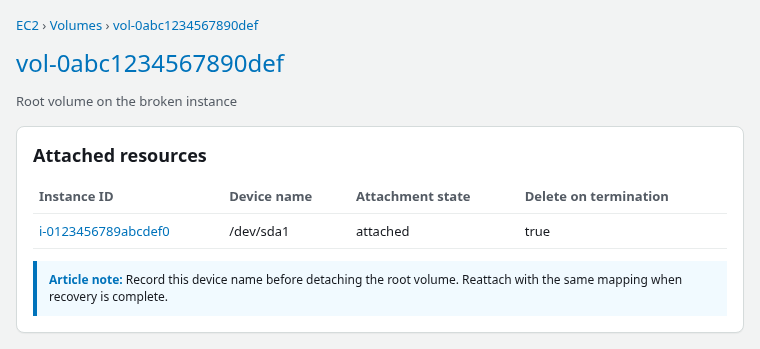
Stop the broken instance:
aws ec2 stop-instances --region ap-south-1 --instance-ids i-0123456789abcdef0Wait until EC2 reports stopped:
aws ec2 wait instance-stopped --region ap-south-1 --instance-ids i-0123456789abcdef0Create a recovery snapshot while the instance is stopped so there is a rollback point before editing the detached root filesystem:
aws ec2 create-snapshot \
  --region ap-south-1 \
  --volume-id vol-0abc1234567890def \
  --description "Pre-rescue repair" \
  --tag-specifications 'ResourceType=snapshot,Tags=[{Key=Name,Value=rescue-repair}]' \
  --query SnapshotId \
--output textsnap-0fedcba9876543210Wait for the snapshot to complete before detaching production data:
aws ec2 wait snapshot-completed --region ap-south-1 --snapshot-ids snap-0fedcba9876543210Detach the root volume:
aws ec2 detach-volume --region ap-south-1 --volume-id vol-0abc1234567890defWait until the volume state is available:
aws ec2 wait volume-available --region ap-south-1 --volume-ids vol-0abc1234567890defAttach and Identify the Disk Safely
Attach the broken root volume to the rescue instance as a secondary device. /dev/sdf is the conventional non-root attachment name in the EC2 API:
aws ec2 attach-volume \
  --region ap-south-1 \
  --volume-id vol-0abc1234567890def \
  --instance-id i-0fedcba9876543210 \
  --device /dev/sdf
On Nitro instances, /dev/sdf in the API usually appears inside Linux as an NVMe device such as /dev/nvme1n1. The NVMe index is not guaranteed; always confirm the newly attached disk with block-layer tools before mounting.
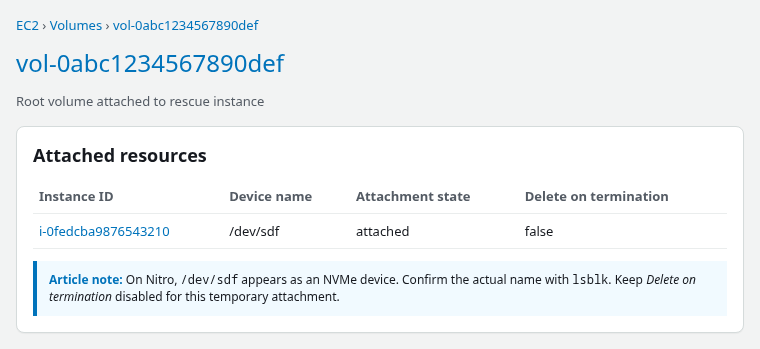
Keep Delete on termination disabled for the temporary rescue attachment. If that flag is true and the rescue instance is terminated, AWS can delete the volume you are repairing along with the helper host.
Confirm attachment from the API:
aws ec2 describe-volumes \
  --region ap-south-1 \
  --volume-ids vol-0abc1234567890def \
  --query 'Volumes[0].Attachments[0].{InstanceId:InstanceId,Device:Device,State:State}' \
--output table-------------------------------------------------
| DescribeVolumes |
+----------+------------------------+-----------+
| Device | InstanceId | State |
+----------+------------------------+-----------+
| /dev/sdf | i-0fedcba9876543210 | attached |
+----------+------------------------+-----------+SSH to the rescue instance and list filesystems. The rescue host root stays on nvme0n1; the broken root volume appears as an additional NVMe disk without a mount point:
sudo lsblk -fNAME FSTYPE FSVER LABEL UUID FSAVAIL FSUSE% MOUNTPOINTS
nvme0n1
├─nvme0n1p2 vfat FAT16 ESP 97D2-64D3 190.8M 4% /boot/efi
└─nvme0n1p3 xfs root c78c1f15-7ec8-4bc4-b1b6-0e557f828ec1 7.9G 19% /
nvme1n1
├─nvme1n1p2 vfat FAT16 ESP 97D2-64D3
└─nvme1n1p3 xfs root c78c1f15-7ec8-4bc4-b1b6-0e557f828ec1nvme1n1p3 is the detached root filesystem from the broken instance. Both XFS roots share the same UUID because the rescue and broken hosts use the same AMI lineage — that matters for the mount step next.
blkid prints UUIDs and filesystem types for every partition, which helps match /etc/fstab entries to real devices:
sudo blkid/dev/nvme0n1p3: LABEL="root" UUID="c78c1f15-7ec8-4bc4-b1b6-0e557f828ec1" TYPE="xfs" ...
/dev/nvme1n1p3: LABEL="root" UUID="c78c1f15-7ec8-4bc4-b1b6-0e557f828ec1" TYPE="xfs" ...Pick the partition on the secondary disk (nvme1n1p3 here), not the rescue host's active root on nvme0n1p3.
Double-check the disk before mounting or repairing it. In this lab, nvme0n1 is the rescue instance's own root disk and nvme1n1 is the broken instance's attached root disk. Running repair commands against the wrong device could damage the healthy rescue host.
Mount the Filesystem
Create a mount point on the rescue host:
sudo mkdir -p /mnt/rescue-rootWhen two XFS filesystems share a UUID, a normal mount may refuse the second copy. That happens in this lab because both instances were created from the same AMI lineage, so the copied XFS root filesystem has the same UUID. Mount the detached root with -o nouuid:
sudo mount -o nouuid /dev/nvme1n1p3 /mnt/rescue-rootIf mount succeeds without a UUID conflict, nouuid is optional.
findmnt confirms the rescue mount:
findmnt /mnt/rescue-rootTARGET SOURCE FSTYPE OPTIONS
/mnt/rescue-root /dev/nvme1n1p3 xfs rw,relatime,seclabel,nouuid,attr2,inode64,logbufs=8,logbsize=32k,noquotaThe broken root tree is now available under /mnt/rescue-root for inspection and repair. Do not run e2fsck or xfs_repair against this filesystem while it is mounted. Unmount it first.
Make the Repair
The example failure is a fake UUID in /etc/fstab that systemd cannot satisfy at boot. Inspect the file on the mounted root:
sudo tail -5 /mnt/rescue-root/etc/fstabUUID=c78c1f15-7ec8-4bc4-b1b6-0e557f828ec1 / xfs defaults 0 0
UUID=97D2-64D3 /boot/efi vfat defaults,uid=0,gid=0,umask=077,shortname=winnt 0 2
UUID=22222222-2222-2222-2222-222222222222 /rescue-lab-bad xfs defaults 0 0Back up the file, then remove or correct the bad line:
sudo cp /mnt/rescue-root/etc/fstab /mnt/rescue-root/etc/fstab.bakRemove the line that references the missing filesystem:
sudo sed -i '/rescue-lab-bad/d' /mnt/rescue-root/etc/fstabConfirm the bad entry is gone:
sudo grep rescue-lab-bad /mnt/rescue-root/etc/fstab || echo "bad line removed"bad line removedReview the repaired fstab:
sudo cat /mnt/rescue-root/etc/fstabUUID=c78c1f15-7ec8-4bc4-b1b6-0e557f828ec1 / xfs defaults 0 0
UUID=97D2-64D3 /boot/efi vfat defaults,uid=0,gid=0,umask=077,shortname=winnt 0 2For production incidents, compare every UUID and device in fstab against blkid output from the broken layout and follow fstab UUID and label rules instead of deleting lines blindly. When the log points to filesystem corruption rather than a missing mount, unmount the partition first, then use xfs_repair for XFS or e2fsck for ext4 — not generic fsck on XFS.
Use chroot Only When Needed
Editing files such as /etc/fstab, sshd_config, or systemd unit files does not require chroot. Open paths under /mnt/rescue-root directly from the rescue shell, as the fstab example above does.
Some boot repairs, such as rebuilding GRUB or an initramfs, do require a correctly prepared chroot, including any separate /boot or /boot/efi filesystem and the required bind mounts. That setup varies by distribution and disk layout, so it is outside this article's scope. If you must run binaries inside a chroot, use a rescue instance with a compatible CPU architecture (x86_64 vs arm64) and preferably the same distribution version as the broken host.
When the repair is complete, unmount cleanly before detaching from the rescue host:
sudo umount /mnt/rescue-rootRestore the Root Volume and Boot
Detach the volume from the rescue instance:
aws ec2 detach-volume --region ap-south-1 --volume-id vol-0abc1234567890defWait until the volume is available again:
aws ec2 wait volume-available --region ap-south-1 --volume-ids vol-0abc1234567890defReattach using the original root device name recorded earlier (/dev/sda1 on this RHEL AMI; Ubuntu images often use /dev/sda1 or /dev/xvda):
aws ec2 attach-volume \
  --region ap-south-1 \
  --volume-id vol-0abc1234567890def \
  --instance-id i-0123456789abcdef0 \
  --device /dev/sda1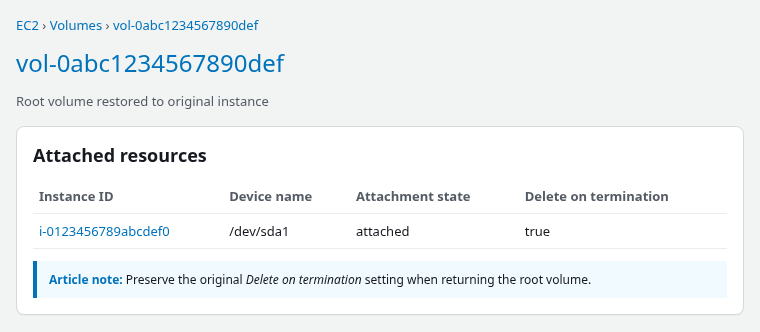
Preserve the original Delete on termination setting when returning the root volume. The temporary rescue attachment should use false, while the restored root attachment should use whatever value the original root volume had before recovery. In this lab the root attachment stayed true on /dev/sda1, matching the configuration before detachment.
Wait until EC2 reports the volume as attached to the broken instance:
aws ec2 wait volume-in-use --region ap-south-1 --volume-ids vol-0abc1234567890defStart the instance:
aws ec2 start-instances --region ap-south-1 --instance-ids i-0123456789abcdef0Poll until the instance is running:
aws ec2 wait instance-running --region ap-south-1 --instance-ids i-0123456789abcdef0If the instance used an auto-assigned public IPv4 address, stop/start may assign a new address. Read the current IP from the console or describe-instances before testing SSH.
Status checks may show initializing for a few minutes after the first successful boot. Poll until both report ok:
aws ec2 describe-instance-status \
  --region ap-south-1 \
  --instance-ids i-0123456789abcdef0 \
  --include-all-instances \
  --query 'InstanceStatuses[0].{System:SystemStatus.Status,Instance:InstanceStatus.Status}' \
--output table------------------------
|DescribeInstanceStatus|
+-----------+----------+
| Instance | System |
+-----------+----------+
| ok | ok |
+-----------+----------+Confirm SSH and that / mounted from the expected NVMe partition. Replace ec2-user with the AMI's default login user:
ssh -i /path/to/key.pem ec2-user@203.0.113.10 'hostname; sudo findmnt /; sudo systemctl is-system-running || true'ip-172-31-19-129.ap-south-1.compute.internal
TARGET SOURCE FSTYPE OPTIONS
/ /dev/nvme0n1p3 xfs rw,relatime,seclabel,attr2,inode64,logbufs=8,logbsize=32k,noquota
runningBefore the repair, the same host returned Connection timed out on SSH because the guest never finished booting. After fstab was fixed offline, SSH and systemctl is-system-running returned running.
Troubleshooting
| Symptom | Likely cause | Fix |
|---|---|---|
| Attach fails with AZ mismatch | Volume and rescue instance are in different Availability Zones | Use a rescue instance in the volume's Availability Zone, or create a new EBS volume from the snapshot in the rescue instance's Availability Zone |
| XFS mount reports duplicate UUID | Rescue and broken roots share the same XFS UUID | Mount with -o nouuid |
| Secondary NVMe disk missing after attach | Nitro device enumeration delay | Re-run lsblk; identify the new disk by size and missing mount point |
/dev/sdf not visible in lsblk |
Looking for the API name instead of NVMe | On Nitro, /dev/sdf appears as an NVMe device rather than a /dev/sdf node. Use lsblk to identify the actual NVMe name |
Volume not in available state |
Still attached elsewhere | Detach from rescue or broken instance and wait |
Status ok but SSH fails |
New public IP, security group, or key mismatch | Refresh the instance IP; verify port 22 and the correct key pair |
| Boot fails again after repair | Another bad fstab line or failed unit | Mount offline again; inspect /etc/fstab and the system log |
Summary
An unbootable EC2 Linux instance can often be recovered without rebuilding from scratch when the root EBS volume is still readable. Stop the broken host, snapshot the root volume, detach that disk, and attach it to a rescue instance in the same Availability Zone. On Nitro, the API device /dev/sdf appears as an NVMe disk such as /dev/nvme1n1; use lsblk and blkid to pick the correct partition before mounting.
Mount the root filesystem under /mnt/rescue-root, using mount -o nouuid when duplicate XFS UUIDs block a normal mount. Edit configuration files directly on the mounted tree; rebuilding GRUB or initramfs inside chroot is outside this article's scope. After the repair, unmount once, detach, reattach the volume with the original root device name (/dev/sda1 in this RHEL example), preserve the original Delete on termination setting, and start the instance.
Take a snapshot before modifying the detached root volume. Match fstab UUIDs to real devices rather than deleting required mounts, and use filesystem-specific repair tools only after unmounting. If the EC2 console already shows a specific failure such as emergency.target or a failed mount unit, diagnose that symptom first and then use this rescue workflow when offline root-volume access is required.
References
- Detach and attach Amazon EBS volumes
- Amazon EC2 root device types
- Device names on Linux AMIs
- Amazon EC2 instance status checks
- AWSSupport-ExecuteEC2Rescue — AWS Systems Manager Automation Runbook Reference
Frequently Asked Questions
Must the rescue host be in the same Availability Zone?
Yes. An EBS volume attaches only to instances in the same Availability Zone as the volume. If the rescue host is in a different AZ, create a snapshot of the root volume and restore it to a new volume in the rescue instance's AZ, then attach that copy.
Why does /dev/sdf appear as NVMe inside Linux?
On Nitro-based instances, EC2 maps API device names such as /dev/sdf to NVMe devices (/dev/nvme1n1, /dev/nvme2n1, and so on). The NVMe number depends on attachment order and instance type. Use lsblk after attach instead of assuming a fixed /dev/sd* path inside the guest.
Can I repair the disk without chroot?
Yes, when the fix is a file edit on the mounted root tree. Open /mnt/rescue-root/etc/fstab, unit files, or other configuration directly from the rescue shell. Rebuilding GRUB, initramfs, or other boot components inside chroot needs extra bind mounts and often separate /boot or /boot/efi mounts; that advanced setup is outside this article.
