
| Package | aws-cli/2.37.3, ncat, openssh-clients (RHEL 10.2 on EC2 with public IPv4 and SSM agent) |
|---|---|
| AWS Region | ap-south-1 (Mumbai) for the examples; EC2 status checks and Session Manager are Regional services tied to the instance |
| Lab environment | Workstation with AWS CLI v2 and configured credentials — AWS CLI tutorial Install AWS CLI on Ubuntu · Install AWS CLI on Debian |
| Privilege | EC2 read access to describe instances and status checks; permission to start Session Manager sessions or run SSM commands when SSH is down; [sudo](/sudo-command-in-linux/) on the instance for sshd and firewall changes |
| Scope | Why SSH to an EC2 Linux instance returns connection refused instead of timing out, how to confirm the instance and network path are reachable, whether sshd is running and listening on the expected port and address, how to validate /etc/ssh/sshd_config with sshd -t, fix missing host keys or wrong key permissions, resolve port conflicts, check host firewall rules, and recover through Session Manager or EC2 Serial Console when port 22 is down. Does not cover VPC routing timeouts, public key authentication failures, or instance reachability status check failures. |
| Related guides | EC2 SSH connection timed out EC2 instance reachability check failed AWS CLI Tutorial Deploy a website with AWS EC2 AWS Tutorial |
ssh: connect to host … port 22: Connection refused means the EC2 instance was reachable, but nothing accepted the TCP connection on the SSH port. At the TCP level, the host (or a rejecting firewall) responds with RST instead of completing the handshake. That usually means nothing is listening on that port, sshd failed to start, or a local firewall rejected the packet.
That symptom differs from connection timed out, where no TCP response arrives before the client gives up, and from permission denied or publickey errors, which mean SSH reached sshd and failed authentication. Security groups and network ACLs that block traffic typically produce a timeout, not refused.
The examples stop sshd, break sshd_config with a safe syntax error, and move sshd to port 2222 while clients still connect on port 22. Recovery uses Systems Manager when SSH is unavailable. Instance IDs, IP addresses, and resource IDs in screenshots and command output are sanitized; the workflow was tested on RHEL 10.2 in ap-south-1.
  Your workstation                    EC2 instance (reachable)
       |                                      |
       |  TCP SYN to PUBLIC_IP:22             |
       +------------------------------------->|
       |  TCP RST (connection refused)        |
       X<-------------------------------------+
       |                                      | sshd stopped, wrong port,
       |                                      | or host firewall reject
SSH connection refused to EC2?
- Confirm the instance is
running, status checks pass, andncreports refused—not timed out. - Check whether sshd is active with
systemctl status sshd(orsshon Ubuntu/Debian). - Confirm what owns the SSH port with
ss -lntp. - Match
PortandListenAddressin/etc/ssh/sshd_configto what clients use. - Validate config with
sshd -t; fix host keys or permissions if sshd still will not start. - Review host firewall (
firewalld,nftables, oriptables). - Recover through Session Manager or Serial Console when SSH is down.
- Retest with
ncandsshafter each fix.
What Connection Refused Means
Connection refused is a TCP-level response. The remote host (or a firewall on that host) received the SYN and sent RST instead of completing the handshake. On EC2 Linux, the cause is usually on the instance itself:
sshdstopped or failed to start after a config change- sshd listening on a port or address the client does not use
- Another process already bound to port 22
- Invalid
sshd_config, missing host keys, or wrong key file permissions - Host firewall rejecting inbound TCP on port 22
| Client message | Typical meaning | Covered here |
|---|---|---|
| Connection refused | RST received; nothing accepted on that port | Yes |
| Connection timed out | No TCP response before client timeout | No — see EC2 SSH connection timed out |
| Permission denied (publickey) | SSH reached sshd; auth failed | No — different diagnosis |
| Instance reachability check failed | Guest OS not responding to EC2 health probe | No — see EC2 instance reachability check failed |
Security groups are stateful filters. When they deny inbound port 22, packets are dropped and the client usually sees a timeout. Refused on a public instance with passing status checks points to the SSH service or host firewall, not a missing security group rule.
Confirm the Instance Is Reachable
Before editing sshd, confirm the instance is up and the connection is being actively refused rather than silently timing out. This distinction tells you whether to troubleshoot the VPC path or the SSH service.
List instance state, public IPv4, and status checks:
aws ec2 describe-instances \
  --region ap-south-1 \
  --instance-ids i-0123456789abcdef0 \
  --query 'Reservations[0].Instances[0].{State:State.Name,PublicIp:PublicIpAddress,PrivateIp:PrivateIpAddress}' \
--output table-------------------------------------------------------
| DescribeInstances |
+-----------+----------------+------------------------+
| PrivateIp | PublicIp | State |
+-----------+----------------+------------------------+
| 10.0.1.50 | 203.0.113.42 | running |
+-----------+----------------+------------------------+Confirm both status checks are ok:
aws ec2 describe-instance-status \
  --region ap-south-1 \
  --instance-ids i-0123456789abcdef0 \
  --query 'InstanceStatuses[0].{System:SystemStatus.Status,Instance:InstanceStatus.Status}' \
--output table-----------------------------
| DescribeInstanceStatus |
+------------+--------------+
| Instance | System |
+------------+--------------+
| ok | ok |
+------------+--------------+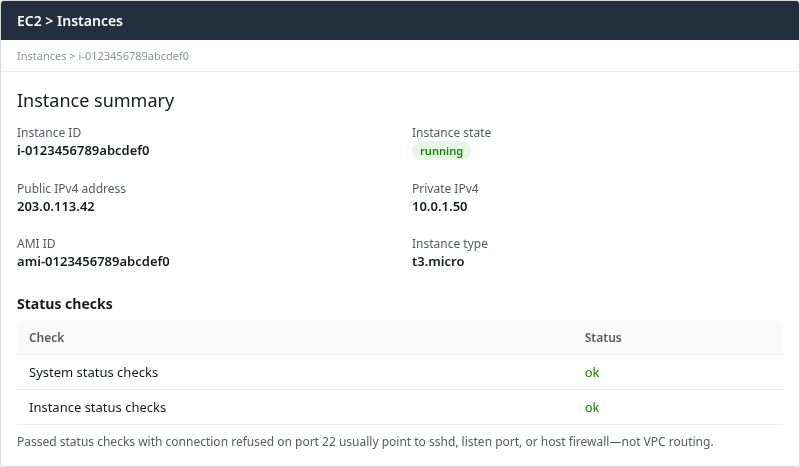
Passed status checks with connection refused on port 22 mean the guest OS is healthy enough for EC2 probes; the problem is the SSH listener or local reject rules, not a failed reachability check.
Probe port 22 from the same network where ssh runs:
nc -vz -w 5 203.0.113.42 22When sshd is stopped, nc reports refused immediately:
Ncat: Version 7.92 ( https://nmap.org/ncat )
Ncat: Connection refused.
When sshd is healthy, repeat the same probe:
nc -vz -w 5 203.0.113.42 22Ncat: Version 7.92 ( https://nmap.org/ncat )
Ncat: Connected to 203.0.113.42:22.
Ncat: 0 bytes sent, 0 bytes received in 0.05 seconds.If nc returns connection refused immediately while both status checks pass, start with sshd and the local firewall. If nc hangs and then times out, switch to the EC2 SSH connection timed out guide for security groups, routes, and NACLs.
Check Whether sshd Is Running
If no service is listening on port 22, Linux normally rejects the TCP connection immediately. Confirm the OpenSSH service state first. On RHEL and most systemd distributions the unit is sshd; on Ubuntu and Debian it is commonly named ssh.
When SSH is unavailable, use Session Manager or Serial Console to check the service (see the recovery section below). Through SSM Run Command, confirm the service is inactive after stopping sshd:
sudo systemctl status sshd○ sshd.service - OpenSSH server daemon
Active: inactive (dead) since Sat 2026-09-26 14:28:31 UTC; 8s ago
Docs: man:sshd(8)
man:sshd_config(5)
Process: 1809 ExecStart=/usr/sbin/sshd -D $OPTIONS (code=exited, status=0/SUCCESS)
Main PID: 1809 (code=exited, status=0/SUCCESS)
CPU: 48ms
Sep 26 14:28:31 ... systemd[1]: Stopped sshd.service - OpenSSH server daemon.Start sshd when it is stopped and the config is valid:
sudo systemctl start sshdConfirm sshd is active after start:
systemctl is-active sshdactiveCheck whether sshd is enabled to start on boot. start runs sshd now; enable configures it to start automatically after a reboot:
systemctl is-enabled sshdIf the unit is disabled, enable and start it together:
sudo systemctl enable --now sshdIf systemctl start fails, read the journal before retrying—usually a bad sshd_config line blocked startup.
Check Which Port sshd Listens On
sshd can listen on a non-default port while clients still target port 22. That mismatch produces connection refused on 22 even when sshd is running.
List TCP listeners that involve sshd (use sudo in Session Manager so root-owned processes are visible):
sudo ss -lntp | grep sshdWith sshd on the default port, port 22 is bound on all interfaces:
LISTEN 0 128 0.0.0.0:22 0.0.0.0:* users:(("sshd",pid=3102,fd=7))
LISTEN 0 128    [::]:22    [::]:* users:(("sshd",pid=3102,fd=8))
Also check the listen address. If sshd is bound only to 127.0.0.1:22 because of a ListenAddress directive, remote clients cannot connect even though the service is running locally. The address column in ss -lntp should show 0.0.0.0 or the instance interface, not loopback only.
Check whether another process already owns port 22:
sudo ss -lntp | grep ':22'If a process other than sshd holds port 22, sshd cannot bind that port and may fail to start. Stop the conflicting service or move one of the services to another port.
Move sshd to a custom port
On RHEL 10 with SELinux enforcing, update SELinux, firewall, and AWS network rules before restarting sshd on a non-default port. Skipping those steps can leave sshd unable to bind or clients unable to reach the new port even when the daemon starts.
OpenSSH reads Port from /etc/ssh/sshd_config and from /etc/ssh/sshd_config.d/*.conf. Multiple Port lines can make sshd listen on more than one port, so do not blindly append a second port. Search for existing directives first:
sudo grep -RniE '^[[:space:]]*Port[[:space:]]+' \
  /etc/ssh/sshd_config /etc/ssh/sshd_config.d 2>/dev/null
Edit the effective Port line to Port 2222, or add Port 2222 only when no other active Port directive exists. Through Session Manager, use sudo vi /etc/ssh/sshd_config or your editor of choice.
Validate syntax before touching SELinux or firewall rules:
sudo sshd -tsshd -t exits silently when the syntax is valid.
Confirm the effective listen port OpenSSH will use after restart:
sudo sshd -T | grep '^port 'port 2222When only port 2222 appears, sshd will not listen on 22 after restart.
On SELinux-enforcing RHEL, label the custom port. Check existing SSH ports first:
sudo semanage port -l | grep ssh_port_tAdd port 2222 only if it is not already listed:
sudo semanage port -a -t ssh_port_t -p tcp 2222semanage may not be installed by default (policycoreutils-python-utils on RHEL). The -a flag fails if the port already exists under another SELinux type—use -m to modify an existing mapping instead.
If firewalld is active, check which zone controls the instance interface before adding the port:
sudo firewall-cmd --get-active-zones--add-port without --zone changes the default zone. If the EC2 interface belongs to another active zone, add 2222/tcp to that zone instead.
Allow the custom port in the correct zone before restart:
sudo firewall-cmd --permanent --add-port=2222/tcpReload firewalld so the rule takes effect:
sudo firewall-cmd --reloadOpen the same port in the instance security group from your client egress IP (replace the group ID and CIDR with yours):
aws ec2 authorize-security-group-ingress \
  --region ap-south-1 \
  --group-id sg-0abc1234567890def \
  --protocol tcp --port 2222 --cidr 203.0.113.50/32
Replace 203.0.113.50/32 with the public egress IP or CIDR of the network from which you connect. Use 0.0.0.0/0 only for a temporary lab when broad access is intentional.
If the subnet uses a restrictive custom network ACL, allow inbound TCP 2222 and preserve the outbound ephemeral return path. A security group change alone can still produce connection timed out when the NACL blocks the custom port.
Restart sshd only after config, SELinux, firewalld, and AWS rules are in place:
sudo systemctl restart sshdConfirm which ports are listening:
sudo ss -lntp | grep ':22\|:2222'LISTEN 0 128 0.0.0.0:2222 0.0.0.0:* users:(("sshd",pid=2901,fd=7))
LISTEN 0 128 [::]:2222 [::]:* users:(("sshd",pid=2901,fd=8))When sshd -T shows only port 2222, port 22 no longer has a listener and clients that still target 22 see refused:
nc -vz -w 5 203.0.113.42 22Ncat: Connection refused.Probe the custom listen port after the security group and NACL updates:
nc -vz -w 5 203.0.113.42 2222Ncat: Connected to 203.0.113.42:2222.
Ncat: 0 bytes sent, 0 bytes received in 0.05 seconds.Match the client port to Port in /etc/ssh/sshd_config, or restore Port 22 and restart sshd. SSH clients must use -p 2222 (or the configured port) after the change.
Validate sshd_config
A syntax error or unknown directive prevents sshd from starting. Always run sshd -t before systemctl restart sshd.
Test the configuration file:
sudo sshd -tA valid file produces no output. After appending a bad line such as BadDirective yes, validation fails:
/etc/ssh/sshd_config: line 132: Bad configuration option: BadDirective
/etc/ssh/sshd_config: terminating, 1 bad configuration options
systemctl restart sshd then fails and port 22 returns connection refused:
sudo systemctl restart sshdJob for sshd.service failed because the control process exited with error code.
See "systemctl status sshd.service" and "journalctl -xeu sshd.service" for details.Read recent sshd journal entries when restart fails:
sudo journalctl -u sshd -n 15 --no-pagerSep 26 14:29:37 ... sshd[2054]: /etc/ssh/sshd_config: line 132: Bad configuration option: BadDirective
Sep 26 14:29:37 ... sshd[2054]: /etc/ssh/sshd_config: terminating, 1 bad configuration options
Sep 26 14:29:37 ... systemd[1]: sshd.service: Main process exited, code=exited, status=255/EXCEPTION
Sep 26 14:29:37 ... systemd[1]: Failed to start sshd.service - OpenSSH server daemon.Remove or fix the bad line, confirm with sshd -t, then restart. Back up sshd_config before editing it so you can restore the previous version quickly through Session Manager.
If sshd Still Will Not Start
When sshd -t passes but systemctl start sshd still fails, read more journal lines and inspect host keys and file permissions.
sudo journalctl -u sshd -n 50 --no-pagerList host private and public key files with their permissions:
sudo ls -l /etc/ssh/ssh_host_*_key*If the journal reports missing host keys, regenerate them:
sudo ssh-keygen -AIf the journal reports unsafe permissions on host keys, restore secure modes before restarting:
sudo chmod 600 /etc/ssh/ssh_host_*_key
sudo chmod 644 /etc/ssh/ssh_host_*_key.pub
If sshd_config permissions are also flagged, tighten them. AWS repair guidance uses 0600 for sshd_config; OpenSSH only requires root-only write access:
sudo chmod 600 /etc/ssh/sshd_configValidate the configuration before restarting:
sudo sshd -tWhen validation succeeds with no output, restart sshd:
sudo systemctl restart sshdsystemctl restart sshd exits with no output when the restart succeeds. Confirm the service is active before retesting SSH from the client.
Check the Host Firewall
AWS security groups and NACLs usually drop denied traffic, which surfaces as timeout. A host firewall on the instance can also block SSH. A rule using REJECT can produce connection refused; a DROP rule usually produces a timeout—the same distinction as security groups versus an actively closed port.
Through Session Manager or when SSH is available again, check firewalld on RHEL:
sudo firewall-cmd --list-all 2>/dev/null || echo firewalld-inactivefirewalld-inactiveIf firewalld is active and the ssh service or port 22 is missing from --list-services or --list-ports, allow SSH and reload:
sudo firewall-cmd --permanent --add-service=ssh
sudo firewall-cmd --reload
On distributions using nftables or raw iptables, list rules that REJECT or DROP input on port 22. Host firewall checks require console access when SSH is already refused—use Session Manager in that case.
Recover Through Session Manager or Serial Console
When port 22 is refused, SSH cannot carry fix commands. Systems Manager Session Manager lets you access the instance without opening inbound port 22 if the instance has the SSM agent, an instance profile with the required Systems Manager permissions (commonly provided by the AmazonSSMManagedInstanceCore managed policy), and outbound HTTPS to SSM endpoints.
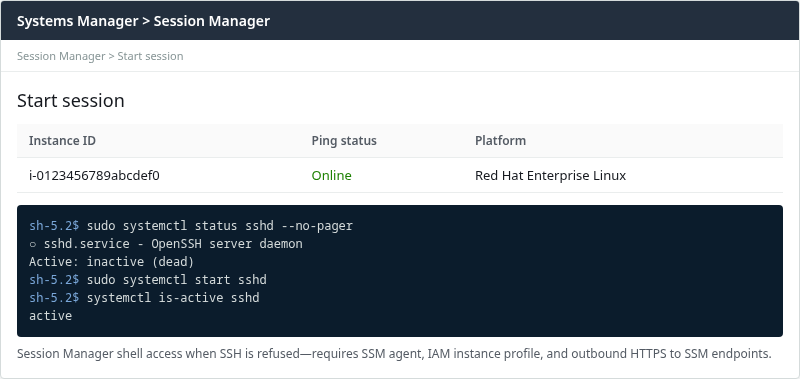
From the EC2 console, open Connect → Session Manager → Start session, or run commands through SSM Run Command. To restore a backed-up config and restart sshd:
aws ssm send-command \
  --region ap-south-1 \
  --instance-ids i-0123456789abcdef0 \
  --document-name AWS-RunShellScript \
  --parameters 'commands=["sudo cp -a /etc/ssh/sshd_config.lab-backup /etc/ssh/sshd_config","sudo sshd -t","sudo systemctl restart sshd","systemctl is-active sshd"]'
When the command succeeds, stdout shows active:
activeIf the SSH configuration problem is not obvious from journalctl and sshd -t, AWS also provides the AWSSupport-TroubleshootSSH Systems Manager Automation runbook. It uses EC2Rescue for Linux to check supported SSH and OS configuration problems and can apply fixes depending on the selected action.
EC2 Serial Console is an alternative when SSM is unavailable: it requires account-level enablement, password-based access on the serial port, and works even without the SSM agent. RHEL AMIs may need amazon-ssm-agent installed from the repositories before the agent reports Online.
Verify SSH
After each change, retest from the client in the same order: nc, then ssh, then normal use.
nc -vz -w 5 203.0.113.42 22Ncat: Connected to 203.0.113.42:22.
Ncat: 0 bytes sent, 0 bytes received in 0.05 seconds.Confirm authentication with a short remote command:
ssh -i /path/to/key.pem ec2-user@203.0.113.42 hostnameip-172-31-22-42.ap-south-1.compute.internalVerbose SSH helps confirm refused versus other failures:
ssh -vvv -o ConnectTimeout=10 -i /path/to/key.pem ec2-user@203.0.113.42 trueWhen sshd is down, the debug log shows refused at connect time:
debug1: Connecting to 203.0.113.42 [203.0.113.42] port 22.
debug1: connect to address 203.0.113.42 port 22: Connection refused
ssh: connect to host 203.0.113.42 port 22: Connection refused
Change one variable at a time—sshd state, config, listen port, firewall—and retest so you know which change actually fixed the problem.
Troubleshooting
| Symptom | Likely cause | Fix |
|---|---|---|
nc refused; status checks pass |
sshd stopped or failed to start | systemctl start sshd; read journalctl -u sshd on failure |
| Refused after config edit | Invalid sshd_config |
sudo sshd -t; fix errors; systemctl restart sshd |
| Refused on 22; sshd active on another port | Port or ListenAddress mismatch |
Align client -p and target IP with sshd_config or restore defaults |
| sshd fails with missing host key message | Host keys missing | sudo ssh-keygen -A, fix permissions, restart sshd |
| sshd fails to bind port 22 | Port already used by another process | sudo ss -lntp for port 22 listeners; stop conflict or change port |
| sshd fails after package update | Broken OpenSSH installation | Reinstall openssh-server via Session Manager; sudo dnf reinstall openssh-server on RHEL |
| Refused only from some clients | Host firewall REJECT rule | Allow port 22 or ssh service in firewalld/nftables via Session Manager |
| Timeout instead of refused | Security group, route, NACL, or wrong IP | See EC2 SSH connection timed out |
| Status checks impaired | Guest OS not responding | See EC2 instance reachability check failed |
Summary
Connection refused means the TCP request reached a component that actively rejected port 22 rather than silently dropping it. On a healthy EC2 instance, that usually points to sshd, the listen port or address, or the host firewall—not VPC routing.
Confirm refused (not timeout) with nc -vz, then check systemctl status sshd and ss -lntp. Run sshd -t before every restart after editing /etc/ssh/sshd_config. When sshd still fails, inspect host keys, file permissions, and port conflicts. When SSH is down, use Session Manager or Serial Console to start sshd, restore a known-good config, and reopen the correct port.
Security groups that block port 22 typically cause timeout, not refused—so a refused error with healthy status checks is a strong signal to focus on sshd and the OS firewall rather than repeating the full security group and NACL walkthrough.
References
- Amazon EC2 instance status checks
- Connect to your Linux instance using SSH
- Troubleshoot connecting to your Linux instance
- AWS Systems Manager Session Manager
- AWSSupport-TroubleshootSSH Automation runbook
- EC2 Serial Console
- OpenSSH sshd_config manual
- Red Hat firewalld documentation
Frequently Asked Questions
What is the difference between SSH timeout and connection refused?
Connection timed out means no TCP response arrived before the client gave up—common when a security group, route table, or NACL drops packets. Connection refused means the host (or its firewall) sent TCP RST, which usually means nothing is listening on that port or a local rule rejected the SYN. Test with nc -vz: refused appears quickly; timeout waits until the client timer expires.
How can I fix sshd when SSH is already down?
Use Systems Manager Session Manager or EC2 Serial Console to get a shell without port 22. Run sudo sshd -t to validate config, fix /etc/ssh/sshd_config, then sudo systemctl restart sshd. The instance needs the SSM agent Online (or serial console enabled) and an IAM role that permits SSM access.
Does a security group cause connection refused?
Usually no. Security groups are stateful packet filters. Denied inbound traffic is dropped, so the client typically sees connection timed out. Connection refused on a public instance with passing status checks more often means sshd is not listening on the target port or the instance firewall rejected the packet. Still verify the security group allows the port you actually use if you moved sshd off port 22.
