
| Package | aws-cli/2.37.3, openssh-clients (RHEL 10.2 on EC2 with public IPv4 and SSM agent) |
|---|---|
| AWS Region | ap-south-1 (Mumbai) for the examples; EC2 key pairs and instance metadata are Regional |
| Lab environment | Workstation with AWS CLI v2 and configured credentials — AWS CLI tutorial Install AWS CLI on Ubuntu · Install AWS CLI on Debian |
| Privilege | EC2 read access to describe instances and key pairs; permission to start Session Manager sessions or run SSM commands when SSH auth fails; [sudo](/sudo-command-in-linux/) on the instance to repair authorized_keys ownership and modes |
| Scope | Why SSH to an EC2 Linux instance returns Permission denied (publickey) after TCP and SSH handshake succeed, how to confirm the AMI default username, verify the local private key against authorized_keys, read ssh -vvv and journalctl evidence, and fix authorized_keys ownership and permissions. Does not cover connection timed out, connection refused, or instance reachability check failures. |
| Related guides | Recover lost EC2 key pair EC2 SSH connection timed out EC2 SSH connection refused AWS CLI Tutorial AWS Tutorial |
Permission denied (publickey) on EC2 means SSH reached the server, but none of the client's keys matched a key allowed for that Linux user. Because SSH reached the authentication stage, the network path to sshd is already working. Do not start by changing security groups or routes.
That failure is different from connection timed out, where no TCP response arrives, and from connection refused, where the host sends RST because nothing listens on the port. Those symptoms belong to network path and sshd availability checks, not key and username diagnosis.
The examples use a wrong AMI username, a mismatched PEM file, and loose authorized_keys permissions on RHEL 10.2. Recovery when SSH still fails uses Systems Manager. Instance IDs, IP addresses, and key names in screenshots and command output are sanitized; the workflow was tested in ap-south-1.
  Your workstation                    EC2 instance (sshd listening)
       |                                      |
       |  TCP + SSH handshake OK              |
       +------------------------------------->|
       |  Offer public key(s)                 |
       |  Permission denied (publickey)       |
       X<-------------------------------------+
       |                                      | wrong user, wrong key,
       |                                      | or bad authorized_keys
EC2 permission denied (publickey)?
- Confirm SSH reaches the host (not timeout or refused).
- Use the AMI default Linux username (
ec2-useron RHEL,ubuntuon Ubuntu, and so on). - Check the instance Key pair name to see which launch key was selected, then verify the local private key matches the public key in
authorized_keys. - Run
ssh -vvvand compare the offered fingerprint to the key stored inauthorized_keys. - On the instance, inspect
~/.ssh/authorized_keyscontent, ownership, and modes. - Read
journalctl -u sshdforAuthentication refusedorFailed publickey. - Repair permissions (
700on.ssh,600onauthorized_keys) through Session Manager when needed. - Retest with
sshafter each fix.
What Permission denied (publickey) Means
Public-key authentication happens after the SSH transport connects. The client sends one or more public keys; sshd checks whether any key is listed in the login user's ~/.ssh/authorized_keys and whether file ownership and modes satisfy StrictModes (enabled by default).
When every offered key fails, OpenSSH returns:
Permission denied (publickey).Common causes on EC2 Linux:
- Wrong username (
ubuntuon a RHEL AMI, orec2-useron Ubuntu) - Private key that does not match any line in
authorized_keys - Missing, truncated, or edited
authorized_keysline on the instance .sshorauthorized_keysowned by root or another user- Group- or world-writable
authorized_keysor home.sshdirectory
| Client message | Typical meaning | Covered here |
|---|---|---|
| Permission denied (publickey) | TCP and SSH OK; no accepted public key | Yes |
| Connection timed out | No TCP response before client timeout | No — see EC2 SSH connection timed out |
| Connection refused | RST on port 22; nothing accepted the SYN | No — see EC2 SSH connection refused |
| Instance reachability check failed | Guest OS not responding to EC2 health probe | No — see EC2 instance reachability check failed |
Once the client reaches Permission denied (publickey), the SSH authentication exchange has already started. Troubleshoot the username and key material before revisiting the VPC network path.
Confirm the Correct EC2 Username
EC2 does not create a password for the default Linux user. The username depends on the AMI publisher, not the key pair name.
| AMI family | Common default SSH user |
|---|---|
| Amazon Linux | ec2-user |
| RHEL | ec2-user or root |
| Ubuntu | ubuntu |
| Debian | admin |
| CentOS | centos or ec2-user |
| Fedora | fedora or ec2-user |
| SUSE | ec2-user or root |
| Rocky Linux | rocky |
Custom or Marketplace AMIs can use different usernames, so check the AMI publisher's documentation when unsure.
On RHEL 10.2 the default user is ec2-user. Connecting as ubuntu with the correct PEM still fails because sshd looks for keys under /home/ubuntu/.ssh/authorized_keys, which EC2 did not populate for that AMI.
List platform details for the instance:
aws ec2 describe-instances \
  --region ap-south-1 \
  --instance-ids i-0123456789abcdef0 \
  --query 'Reservations[0].Instances[0].{PlatformDetails:PlatformDetails,ImageId:ImageId,KeyName:KeyName}' \
--output table-----------------------------------------------------------------
| DescribeInstances |
+---------------+-------------------------+---------------------+
| ImageId | KeyName | PlatformDetails |
+---------------+-------------------------+---------------------+
| ami-0123... | glc-lab-key | Red Hat Enterprise |
| | | Linux |
+---------------+-------------------------+---------------------+PlatformDetails confirms RHEL; the SSH user is ec2-user, not ubuntu. Wrong-username attempts still complete the SSH handshake, then fail at authentication:
ssh -vvv -o ConnectTimeout=10 -o BatchMode=yes -i /path/to/glc-lab-key.pem ubuntu@203.0.113.42debug1: Authenticating to 203.0.113.42:22 as 'ubuntu'
debug1: Trying private key: /path/to/glc-lab-key.pem
debug3: sign_and_send_pubkey: ... RSA SHA256:Y5XnHlV3MP4ZYHn5RJS2gimWWYCYPC+O8JoBCTu83U4
debug1: Authentications that can continue: publickey,gssapi-keyex,gssapi-with-mic
ubuntu@203.0.113.42: Permission denied (publickey,gssapi-keyex,gssapi-with-mic).On this RHEL AMI, the launch key was installed for ec2-user, not ubuntu, so authenticating as ubuntu cannot use the expected ec2-user authorized key. Retry with ec2-user@203.0.113.42 once the username matches the AMI.
Confirm the Instance Key Pair
At launch, EC2 writes the selected key pair's public half into ~/.ssh/authorized_keys for the default user. AWS does not retain the private key. The client must use the corresponding private key file, which can have any filename on the workstation.
KeyName tells you which EC2 key pair was selected at launch. It does not prove that a local file with a similar name is the matching private key.
The console shows the key pair on the instance details page:
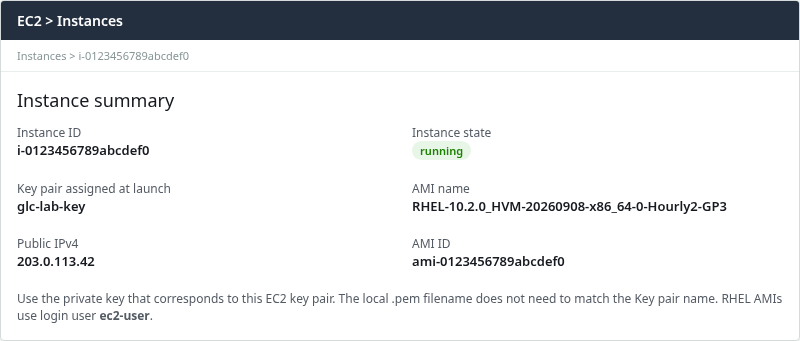
Use the private key that corresponds to this EC2 key pair. The local .pem filename does not need to match the Key pair name.
The same name appears under Network & Security → Key pairs in the EC2 console:
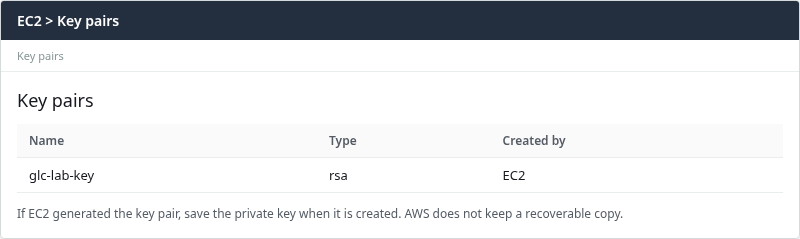
If EC2 generated the key pair, save the private key when it is created. AWS does not keep a recoverable copy.
From the CLI, read KeyName on the running instance:
aws ec2 describe-instances \
  --region ap-south-1 \
  --instance-ids i-0123456789abcdef0 \
  --query 'Reservations[0].Instances[0].KeyName' \
--output textglc-lab-keyThat name identifies the launch key pair. To verify the actual SSH key, derive the public key from the private key and compare it with the key currently stored in authorized_keys.
On the workstation, extract the public key and print its OpenSSH fingerprint:
ssh-keygen -y -f /path/to/glc-lab-key.pem > /tmp/glc-lab-key.pubssh-keygen -y writes the public half to stdout; redirecting it creates a file you can fingerprint:
ssh-keygen -lf /tmp/glc-lab-key.pub2048 SHA256:Y5XnHlV3MP4ZYHn5RJS2gimWWYCYPC+O8JoBCTu83U4 glc-lab-key.pub (RSA)On the instance, through Session Manager or another admin shell, fingerprint the allowed keys:
sudo ssh-keygen -lf /home/ec2-user/.ssh/authorized_keys2048 SHA256:Y5XnHlV3MP4ZYHn5RJS2gimWWYCYPC+O8JoBCTu83U4 ec2-user@ip-172-31-22-162.ap-south-1.compute.internal (RSA)Matching SHA256 values on the workstation .pub file and authorized_keys confirm the private key corresponds to an allowed public key. You can also inspect authorized_keys and compare the base64 key material line by line.
If you want to compare against the EC2 key-pair fingerprint shown in the AWS console, follow the fingerprint procedure in the Amazon EC2 key pairs documentation because the calculation differs for EC2-created and imported RSA keys.
Lost the PEM? AWS cannot provide it again. EC2 does not keep a copy of private keys. Follow Recover lost EC2 key pair to add a new public key through Session Manager, EC2 Instance Connect, Serial Console, or offline EBS rescue.
If several private key files exist locally, compare candidate keys before trying them one by one. A wrong private key produces the same Permission denied (publickey) line as a wrong username, but ssh -vvv shows a different sign_and_send_pubkey fingerprint.
Inspect SSH Verbose Output
The ssh command -vvv flag separates transport problems from authentication failures. After Authenticating to … as 'user', watch which private keys are tried and whether the server accepts any of them.
Wrong key file with the correct ec2-user username:
ssh -vvv -o ConnectTimeout=10 -o BatchMode=yes \
-i /path/to/wrong-key.pem ec2-user@203.0.113.42debug1: Authenticating to 203.0.113.42:22 as 'ec2-user'
debug1: Trying private key: /path/to/wrong-key.pem
debug3: sign_and_send_pubkey: ... RSA SHA256:24cgguNV7ij9cNChWsknwcH0uWvP8GaceRtijYd3ZrQ
debug1: Authentications that can continue: publickey,gssapi-keyex,gssapi-with-mic
ec2-user@203.0.113.42: Permission denied (publickey,gssapi-keyex,gssapi-with-mic).The client offered fingerprint SHA256:24cgguNV7ij9cNChWsknwcH0uWvP8GaceRtijYd3ZrQ, but the allowed key in authorized_keys has fingerprint SHA256:Y5XnHlV3MP4ZYHn5RJS2gimWWYCYPC+O8JoBCTu83U4. That means the private key being offered does not correspond to an authorized public key for ec2-user. Use the matching private key, or add the correct public key to authorized_keys on the instance (see below).
Useful ssh client checks:
-i /path/to/key.pempoints at the intended private keychmod 400(or600) on the PEM on Linux and macOS clients so OpenSSH accepts the file locallyIdentitiesOnly yesin~/.ssh/configwhen SSH agent keys confuse the offer order
Client-side PEM permissions do not change server-side authorized_keys modes. Both sides have separate requirements.
Repair authorized_keys
When username and PEM are correct but login still fails, inspect the public key file on the instance. EC2 typically writes one line per launch key into /home/ec2-user/.ssh/authorized_keys (path varies by user).
Through Session Manager or an existing root session, print the file:
sudo cat /home/ec2-user/.ssh/authorized_keysssh-rsa AAAAB3NzaC1yc2EAAAADAQABAAABAQC... glc-lab-keyEach authorized key must remain on a single line. A line can optionally begin with SSH key options, followed by the key type (ssh-rsa, ssh-ed25519, ecdsa-sha2-*, and so on), the base64 key data, and an optional comment. Do not split the key material across lines. Use ssh-keygen -y -f on the workstation PEM and compare the result to this file, as shown in the previous section.
To add a new public key without replacing the instance, create .ssh with correct ownership if the directory or file is missing. A bare sudo tee can leave authorized_keys owned by root and cause another publickey failure:
sudo install -d -m 700 -o ec2-user -g ec2-user /home/ec2-user/.sshAppend the new key as ec2-user so the file stays owned by the login user:
echo 'ssh-rsa AAAA... new-admin-key' | sudo -u ec2-user tee -a /home/ec2-user/.ssh/authorized_keys >/dev/nullSet the file mode sshd expects after the append:
sudo chmod 600 /home/ec2-user/.ssh/authorized_keysThe key pair selected at launch only controls the public key initially placed in authorized_keys. Creating or selecting a different EC2 key pair later does not automatically update the keys already stored on the instance. Update the file on disk, or launch a new instance with a different key pair.
On supported AMIs, EC2 Instance Connect can temporarily push a public key for SSH access, provided its package, IAM permissions, and network prerequisites are already in place.
Fix Ownership and Permissions
sshd enforces StrictModes by default. If the login user's home directory, ~/.ssh, or authorized_keys is writable by group or others, or owned by the wrong user, sshd ignores the key file and authentication fails with the same client error.
For StrictModes troubleshooting, check the home directory as well as .ssh and authorized_keys:
sudo ls -ld \
  /home \
  /home/ec2-user \
  /home/ec2-user/.ssh \
/home/ec2-user/.ssh/authorized_keysdr-xr-xr-x. 3 root root 22 Sep 26 15:08 /home
drwx------. 18 ec2-user ec2-user 4096 Sep 26 15:08 /home/ec2-user
drwx------. 2 ec2-user ec2-user 29 Sep 26 15:08 /home/ec2-user/.ssh
-rw-------. 1 ec2-user ec2-user 398 Sep 26 15:08 /home/ec2-user/.ssh/authorized_keysExpected ownership:
/home—root:root/home/ec2-user—ec2-user:ec2-user, not group- or world-writable/home/ec2-user/.ssh—ec2-user:ec2-user, mode700(drwx------)authorized_keys—ec2-user:ec2-user, mode600(-rw-------)
Avoid chmod 777 on the home directory, .ssh, or authorized_keys.
After chmod 777 on authorized_keys, SSH fails even with the correct username and PEM:
ssh -i /path/to/glc-lab-key.pem ec2-user@203.0.113.42 hostnameec2-user@203.0.113.42: Permission denied (publickey,gssapi-keyex,gssapi-with-mic).For this RHEL lab, restore /home/ec2-user to 0700. More generally, the login user's home must have correct ownership and must not be writable by group or others. Repair the home directory first, then .ssh and authorized_keys:
Give the home directory back to the login user:
sudo chown ec2-user:ec2-user /home/ec2-userOn this RHEL lab host, set mode 0700 so group and other have no write access:
sudo chmod 700 /home/ec2-userFix ownership on the SSH directory tree next:
sudo chown -R ec2-user:ec2-user /home/ec2-user/.sshRestrict .ssh to the owner only:
sudo chmod 700 /home/ec2-user/.sshThe key file itself must not be group- or world-readable:
sudo chmod 600 /home/ec2-user/.ssh/authorized_keyschown and chmod exit silently on success. Run the ls -ld check again to confirm ownership on the home directory, .ssh, and authorized_keys before retrying SSH.
Some distributions tolerate group-readable authorized_keys (mode 644); RHEL sshd still rejects group- or world-writable files. When in doubt, use 700 and 600.
Check sshd Authentication Logs
Server logs explain why a key was ignored when the client only prints Permission denied (publickey).
On RHEL and Amazon Linux with systemd:
sudo journalctl -u sshd -n 30 --no-pagerPermission failures show up as Authentication refused when modes are wrong, or Failed publickey when the offered fingerprint does not match any authorized_keys line:
sshd-session[2076]: Authentication refused: bad ownership or modes for file /home/ec2-user/.ssh/authorized_keys
sshd-session[1842]: Failed publickey for ec2-user from 203.0.113.42 port 52114 ssh2: RSA SHA256:24cgguNV7ij9cNChWsknwcH0uWvP8GaceRtijYd3ZrQ
Match the log fingerprint to ssh-keygen -lf on the workstation public key or to sudo ssh-keygen -lf on authorized_keys. Authentication refused: bad ownership or modes points straight to chown/chmod on the home directory, .ssh, and authorized_keys, not to security groups.
On Ubuntu, check /var/log/auth.log with grep sshd if journalctl is not the primary log.
Recover Access with Session Manager
When every SSH key fails but the instance is running and status checks pass, Systems Manager Session Manager can provide a shell without opening inbound port 22. Session Manager only helps if the instance was already configured as a managed node (SSM agent running, IAM instance profile with Systems Manager permissions such as AmazonSSMManagedInstanceCore, outbound HTTPS to SSM endpoints). If SSM is not available, use EC2 Serial Console, EC2 Instance Connect where supported, or offline EBS rescue to reach the instance and repair authorized_keys.
From the EC2 console, open Connect → Session Manager → Start session, or run a one-off fix with SSM Run Command:
aws ssm send-command \
  --region ap-south-1 \
  --instance-ids i-0123456789abcdef0 \
  --document-name AWS-RunShellScript \
  --parameters 'commands=["sudo chown ec2-user:ec2-user /home/ec2-user","sudo chmod 700 /home/ec2-user","sudo chown -R ec2-user:ec2-user /home/ec2-user/.ssh","sudo chmod 700 /home/ec2-user/.ssh","sudo chmod 600 /home/ec2-user/.ssh/authorized_keys","sudo ls -ld /home /home/ec2-user /home/ec2-user/.ssh /home/ec2-user/.ssh/authorized_keys"]'
When the command succeeds, stdout shows the restored ownership and modes on the home directory, .ssh, and authorized_keys.
AWS also documents AWSSupport-TroubleshootSSH for automated SSH configuration checks on supported AMIs.
Verify SSH Login
After each change, retest with the correct user, PEM, and permissions.
ssh -i /path/to/glc-lab-key.pem ec2-user@203.0.113.42 hostnameip-172-31-22-162.ap-south-1.compute.internalA successful run prints the instance hostname and exits. For a deeper check, run ssh -vvv once more and confirm debug1: Authentication succeeded (publickey) appears before the remote command runs.
Change one variable at a time (username, PEM path, authorized_keys content, then modes) so you can see which change actually fixed authentication.
Troubleshooting
| Symptom | Likely cause | Fix |
|---|---|---|
publickey with ubuntu@ on RHEL AMI |
Wrong default user | Use ec2-user (or the AMI's documented user) |
publickey with correct user; wrong fingerprint in -vvv |
Private key not in authorized_keys |
Use the matching private key, or add its public key to authorized_keys |
publickey; journal shows bad ownership or modes |
Loose home, .ssh, or authorized_keys permissions |
chown home and .ssh to login user; chmod 700 home and .ssh, 600 on authorized_keys |
| Lost private key (.pem) | AWS does not store private keys | Use SSM, Instance Connect, Serial Console, or EBS rescue to add a new public key |
publickey; empty authorized_keys |
Key never injected or file wiped | Restore from backup, redeploy key via SSM, or attach volume snapshot |
WARNING: UNPROTECTED PRIVATE KEY FILE locally |
PEM too open on client | chmod 400 key.pem on workstation |
Timeout instead of publickey |
SG, NACL, or wrong IP | Fix VPC path and security group inbound rules for port 22 |
| Connection refused | sshd down or wrong port |
Start sshd, confirm listen port, check host firewall |
Summary
Permission denied (publickey) means SSH reached sshd but no offered public key matched a valid authorized_keys entry under the login user. On EC2 that usually traces to the AMI default username, a private key that does not match authorized_keys, or server-side ownership and permission problems. Security group rules are a separate check.
Confirm PlatformDetails and connect as the documented user (ec2-user on RHEL). Use KeyName to identify the launch key pair, then verify the workstation private key against authorized_keys with ssh-keygen -y and ssh-keygen -lf. Use ssh -vvv to see which fingerprint the client offers. On the instance, validate authorized_keys content and enforce correct ownership on the home directory, 700 on .ssh, and 600 on authorized_keys; journalctl -u sshd names ignored keys and permission failures explicitly.
When SSH cannot authenticate at all, Session Manager, Instance Connect, or Serial Console can repair authorized_keys without a working key-based login. Retest with a simple ssh … hostname after each single change so you can see which change actually fixed authentication.
References
- Connect to your Linux instance using SSH
- Troubleshoot connecting to your Linux instance
- Amazon EC2 key pairs
- AWS Systems Manager Session Manager
- AWSSupport-TroubleshootSSH Automation runbook
- OpenSSH sshd_config manual
- OpenSSH authorized_keys manual
Frequently Asked Questions
What is the default RHEL EC2 username?
RHEL AMIs on AWS use ec2-user as the default SSH login. Ubuntu AMIs use ubuntu, and Amazon Linux uses ec2-user. The username comes from the AMI publisher, not from the key pair name. Connecting with the wrong user still completes the SSH handshake but fails with Permission denied (publickey) because authorized_keys for that user was never populated.
Can I use a different key after launch?
The key pair selected at launch only injects its public half into authorized_keys once. Creating or selecting a different EC2 key pair later does not automatically update keys on a running instance. To use a new key, append the public key to ~/.ssh/authorized_keys on the instance (through Session Manager or another admin path), or launch a replacement instance with the new key pair.
Why does chmod 400 on the PEM not fix server-side permissions?
chmod 400 on the private key file only satisfies OpenSSH on the workstation so the client will read the PEM. sshd on the instance separately requires the login user to own ~/.ssh and authorized_keys, with modes that are not writable by group or others. Client PEM mode and server authorized_keys mode are independent checks.
