Implementing a CI/CD pipeline on AWS allows developers to automate code integration, testing, and build processes without managing infrastructure. AWS provides services like CodeCommit for source control and CodeBuild for automated builds, forming the foundation of a modern DevOps workflow. In this tutorial, we will create a simple CI/CD workflow on AWS using CodeCommit and CodeBuild with practical examples and hands-on scenarios.
AWS CodeCommit and CodeBuild Cheat Sheet
Common AWS CodeCommit Git Commands
| Task | Command | Description |
|---|---|---|
| Clone repository | git clone <repository-url> |
Clone AWS CodeCommit repository to local machine |
| Check repository status | git status |
View current status of working directory |
| Add files to staging | git add <file> |
Add file to staging area before commit |
| Commit changes | git commit -m "message" |
Commit staged changes with a message |
| Push changes | git push origin main |
Push commits to CodeCommit repository |
| Pull latest changes | git pull origin main |
Fetch and merge changes from repository |
| Create new branch | git checkout -b <branch-name> |
Create and switch to a new branch |
| Switch branches | git checkout <branch-name> |
Switch to an existing branch |
Common AWS CodeBuild Concepts
| Component | Purpose |
|---|---|
| Build Project | Configuration that defines how CodeBuild runs builds |
| Build Environment | Runtime environment used for executing builds |
| buildspec.yml | File that defines build phases and commands |
| Source Repository | Code source used for the build process |
| Artifacts | Output files generated after a successful build |
| Logs | Detailed logs stored in Amazon CloudWatch |
Basic buildspec.yml Structure
version: 0.2

phases:
  install:
    commands:
      - echo Installing dependencies

  pre_build:
    commands:
      - echo Preparing build environment

  build:
    commands:
      - echo Running build commands

  post_build:
    commands:
      - echo Build completed
Overview of CI/CD Pipeline on AWS
Continuous Integration and Continuous Delivery (CI/CD) is a DevOps practice that automates the process of building, testing, and delivering applications. Instead of manually deploying code, CI/CD pipelines automatically trigger builds and validations whenever developers push changes to the repository.
AWS provides several managed services to implement CI/CD pipelines, allowing teams to automate their software delivery workflow without managing infrastructure. In this tutorial, we will focus on using AWS CodeCommit for source control and AWS CodeBuild for automated builds, which together form the first stages of a CI/CD pipeline.
What is CI/CD and Why It Matters in DevOps
CI/CD is a modern software development approach where code changes are automatically integrated, tested, and prepared for deployment. Continuous Integration ensures that developers frequently merge code changes into a central repository, while Continuous Delivery automates the build and testing process so that applications are always ready to deploy.
This approach helps teams detect bugs early, reduce manual deployment errors, and deliver new features faster.
How CI/CD Works in AWS
In AWS, a CI/CD pipeline typically consists of several stages that automate the application lifecycle. The pipeline starts when developers push code to a source repository such as AWS CodeCommit. The pipeline then triggers a build process using AWS CodeBuild, which compiles the code, runs tests, and prepares artifacts for deployment.
Later stages of the pipeline may include deployment using AWS CodeDeploy and workflow orchestration using AWS CodePipeline.
AWS Services Used in CI/CD Pipelines
AWS provides several services that work together to create a complete CI/CD pipeline:
| CI/CD Stage | AWS Service | Purpose |
|---|---|---|
| Source Control | AWS CodeCommit | Stores application source code |
| Build | AWS CodeBuild | Compiles code and runs tests |
| Deployment | AWS CodeDeploy | Deploys applications to servers |
| Pipeline Orchestration | AWS CodePipeline | Automates the entire workflow |
In this tutorial, we will focus on the source and build stages of the pipeline.
Architecture of a Basic AWS CI/CD Pipeline
A typical AWS CI/CD architecture includes a source repository, an automated build service, and deployment automation. Developers push code changes to the repository, which automatically triggers the build process. Once the build succeeds, the application artifacts can be deployed to servers or container platforms.
This automated pipeline reduces manual effort and ensures that every code change goes through consistent validation steps.
CI/CD Workflow Using CodeCommit and CodeBuild
The workflow in this tutorial follows a simple pipeline structure:
- Developers push code to an AWS CodeCommit repository.
- CodeBuild automatically detects changes in the repository.
- CodeBuild runs the build commands defined in the buildspec.yml file.
- The build process validates the application and produces artifacts.
This workflow forms the foundation of a fully automated CI/CD pipeline.
AWS CodeCommit Overview
AWS CodeCommit is a fully managed source control service that allows teams to host secure and scalable Git repositories in the AWS cloud. It eliminates the need to manage Git servers and provides seamless integration with other AWS DevOps services.
CodeCommit supports standard Git commands and integrates with IAM for access control, making it a reliable option for storing and managing application source code.
What is AWS CodeCommit
AWS CodeCommit is a Git-based version control service provided by Amazon Web Services. It allows developers to store, manage, and collaborate on code in private repositories hosted securely within AWS infrastructure.
Developers can use familiar Git tools and workflows while benefiting from AWS security, scalability, and availability.
Key Features of AWS CodeCommit
Some of the important features of AWS CodeCommit include:
- Fully managed Git repositories
- Integration with AWS Identity and Access Management (IAM)
- Encryption for data at rest and in transit
- Highly available and scalable infrastructure
- Support for pull requests and code reviews
- Integration with AWS DevOps tools such as CodeBuild and CodePipeline
These features make CodeCommit suitable for organizations that want a secure and integrated source control system.
Benefits of Using CodeCommit Instead of Self-hosted Git
Using CodeCommit removes the need to maintain your own Git servers. With self-hosted repositories, teams must manage server infrastructure, backups, security updates, and scaling requirements.
CodeCommit automatically handles these operational tasks, allowing development teams to focus on writing and delivering code instead of maintaining infrastructure.
CodeCommit vs GitHub vs GitLab
CodeCommit is often compared with other Git hosting platforms such as GitHub and GitLab.
| Feature | CodeCommit | GitHub | GitLab |
|---|---|---|---|
| Hosting | AWS managed | Cloud / self-hosted | Cloud / self-hosted |
| Integration | Deep AWS integration | Broad ecosystem | DevOps platform |
| Access Control | AWS IAM | GitHub permissions | GitLab permissions |
| Pricing Model | Pay per usage | Free + paid plans | Free + paid plans |
Organizations already using AWS infrastructure often choose CodeCommit for tighter integration with AWS DevOps services.
When to Use AWS CodeCommit
AWS CodeCommit is ideal when your application infrastructure already runs on AWS and you want a fully integrated DevOps workflow. It is commonly used when building CI/CD pipelines with services such as CodeBuild, CodeDeploy, and CodePipeline.
It is also suitable for teams that require strong security controls and centralized repository management within AWS.
Create and Manage Git Repositories in AWS CodeCommit
In this scenario, we will create a repository in AWS CodeCommit and perform common Git operations such as cloning the repository, committing files, and managing branches.
Create a new repository in AWS CodeCommit
To create a repository, log in to the AWS Management Console and navigate to the CodeCommit service. From the dashboard, choose Create repository, provide a repository name, and optionally add a description and tags.
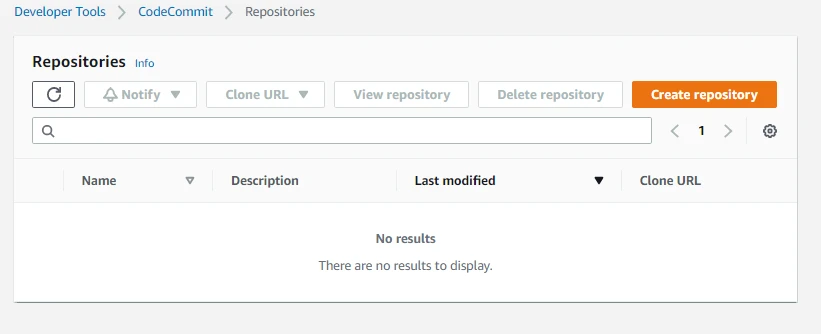
Once the repository is created, AWS generates a clone URL that can be used to connect to the repository from your local machine.
Clone CodeCommit repository using HTTPS
Repositories in CodeCommit can be cloned using HTTPS. Copy the repository URL from the console and run the following command on your local machine:
git clone https://git-codecommit.region.amazonaws.com/v1/repos/repository-name
You will be prompted to enter the Git credentials generated in IAM.
Clone CodeCommit repository using SSH
Alternatively, you can configure SSH access to CodeCommit by adding an SSH key to your IAM user account. Once the key is configured, the repository can be cloned using the SSH URL provided in the console.
SSH authentication is commonly used for secure automated workflows.
Upload files directly from AWS Console
CodeCommit also allows uploading files directly through the AWS console. This is useful when initializing a repository or making quick changes without using Git commands locally.
After uploading the file, you must provide commit details such as author name, email address, and commit message.
Commit and push code using Git commands
Developers can commit and push code changes using standard Git commands. A typical workflow looks like this:
git add .
git commit -m "Initial commit"
git push origin main
These commands stage the files, create a commit, and push the changes to the remote repository.
Create and manage branches in CodeCommit
Branches allow developers to work on new features or bug fixes without affecting the main codebase. In Git, a new branch can be created using:
git checkout -b feature-branch
After completing development work, the branch can be merged back into the main branch using pull requests.
Configure Authentication for CodeCommit
To access AWS CodeCommit repositories securely, developers must configure authentication methods supported by AWS. CodeCommit allows authentication through HTTPS Git credentials, SSH keys, and AWS CLI-based credential helpers. Proper authentication ensures secure access to repositories while enabling automation in CI/CD workflows.
Generate HTTPS Git credentials in IAM
AWS CodeCommit supports Git over HTTPS using IAM-generated credentials. These credentials allow Git clients to authenticate securely when cloning or pushing code to repositories.
To generate HTTPS Git credentials:
- Open the AWS Management Console.
- Navigate to IAM → Users.
- Select your IAM user.
- Open the Security credentials tab.
- Under HTTPS Git credentials for AWS CodeCommit, click Generate credentials.
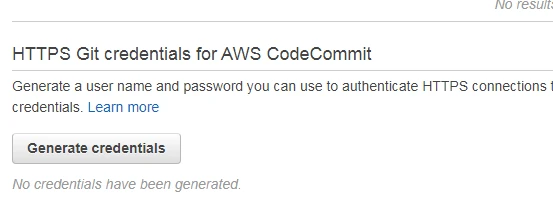
AWS generates a Git username and password that can be used when cloning repositories using HTTPS.
Configure Git credential helper for CodeCommit
Instead of entering credentials repeatedly, you can configure the AWS Git credential helper to automatically authenticate requests.
Run the following command:
git config --global credential.helper '!aws codecommit credential-helper $@'
git config --global credential.UseHttpPath true
This configuration allows Git to use AWS CLI credentials for authentication.
Connect CodeCommit using SSH keys
CodeCommit also supports SSH authentication for secure Git operations.
Steps to configure SSH authentication:
- Generate an SSH key on your local machine:
ssh-keygen -t rsa -b 4096- Copy the public key.
- Navigate to IAM → Users → Security Credentials.
- Under SSH keys for AWS CodeCommit, upload the public key.
Once uploaded, you can clone repositories using the SSH URL.
Configure AWS CLI authentication for CodeCommit
AWS CLI credentials can also be used for authenticating Git operations.
If aws is not installed yet, follow the AWS CLI tutorial or install AWS CLI on Ubuntu before the configure step below.
Configure AWS CLI using:
aws configureYou will be prompted to enter:
- AWS Access Key
- AWS Secret Access Key
- Default region
- Output format
Once configured, Git can authenticate through AWS CLI integration.
Work with CodeCommit Repository Features
AWS CodeCommit provides several features that help developers collaborate on code, track revisions, and manage repository activities.
Create pull requests in CodeCommit
Pull requests allow developers to propose code changes and request reviews before merging them into the main branch.
Steps:
- Open the CodeCommit repository.
- Navigate to Pull Requests.
- Click Create pull request.
- Select the source branch and destination branch.
Pull requests help enforce code review workflows.
Review and merge pull requests
Once a pull request is created, reviewers can:
- View code differences
- Comment on changes
- Approve or reject modifications
After approval, the changes can be merged into the main branch.
Compare commits and track changes
CodeCommit allows users to compare commits and analyze code differences across versions.
Developers can:
- Compare commit histories
- View file differences
- Identify added or removed code sections
This helps track code evolution within the repository.
Use Git tags in CodeCommit repositories
Git tags are used to mark important commits such as release versions.
Example commands:
git tag v1.0
git push origin v1.0
Tags provide version control references for production releases.
Configure repository notifications using SNS
AWS CodeCommit integrates with Amazon SNS to notify teams when repository events occur.
Common events include:
- Code pushes
- Pull request updates
- Branch creation or deletion
SNS notifications help teams stay informed about repository activity.
AWS CodeBuild Overview
AWS CodeBuild is a fully managed continuous integration service that compiles source code, runs automated tests, and produces deployable application artifacts. It eliminates the need to manage dedicated build servers.
What is AWS CodeBuild
AWS CodeBuild automates the process of building and testing application code. Developers define build instructions in a buildspec.yml file, which CodeBuild executes during the build process.
How CodeBuild Works in a CI/CD Pipeline
In a CI/CD pipeline, CodeBuild performs the build stage:
- Developers push code to the source repository.
- CodeBuild automatically starts a build.
- Build commands defined in
buildspec.ymlare executed. - Build artifacts are generated for deployment.
This automation ensures continuous validation of application code.
Key Features of AWS CodeBuild
AWS CodeBuild provides several capabilities including:
- Fully managed build infrastructure
- Automatic scaling
- Integration with CodeCommit, GitHub, and S3
- Support for multiple programming languages
- CloudWatch integration for build logs
These features simplify the build automation process.
Supported Build Environments and Runtimes
CodeBuild supports multiple build environments such as:
- Linux-based environments
- Windows-based environments
It also supports popular runtimes including:
- Node.js
- Python
- Java
- Go
- Docker
Developers can also use custom Docker images for specialized build environments.
CodeBuild Pricing Model Explained
AWS CodeBuild follows a pay-per-build-minute pricing model. Users only pay for the time required to run builds, eliminating costs associated with idle build servers.
Pricing may vary depending on:
- Compute type
- Operating system
- Build duration
Create a Build Project in AWS CodeBuild
A build project defines how CodeBuild compiles and processes your application code.
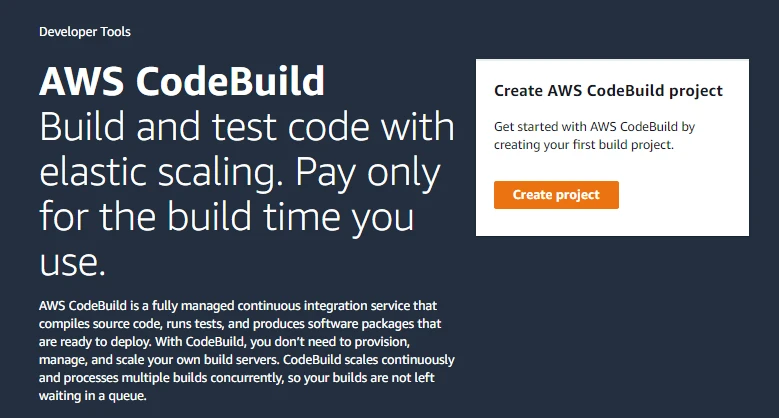
Create a CodeBuild project from AWS Console
Steps:
- Open the AWS Management Console.
- Navigate to AWS CodeBuild.
- Click Create build project.
- Enter a project name and description.
Connect CodeBuild with CodeCommit repository
Under the Source provider, select AWS CodeCommit and choose the repository containing your application code.
You can also configure the branch that triggers builds.
Select build environment and runtime
Choose the build environment configuration including:
- Operating system
- Runtime environment
- Build image
- Compute resources
AWS provides managed build images containing common development tools.
Configure build artifacts and logs
Artifacts are output files generated after successful builds.
CodeBuild supports storing artifacts in:
- Amazon S3
- AWS CodePipeline
- Local build storage
Build logs are automatically sent to Amazon CloudWatch Logs.
Create service role for CodeBuild
CodeBuild requires an IAM service role to access AWS resources.
You can either:
- Create a new service role automatically
- Use an existing IAM role
This role grants permissions for accessing repositories, storing artifacts, and writing logs.
Configure Build Automation Using buildspec.yml
AWS CodeBuild uses a configuration file called buildspec.yml to define how your build process runs. This file contains instructions that specify build phases, commands to execute, and environment settings. By defining build steps in this file, developers can automate compilation, testing, and validation of application code whenever a build is triggered.
Understanding buildspec.yml structure
The buildspec.yml file defines the sequence of commands that CodeBuild executes during a build process. A basic structure includes version information and several build phases such as install, pre_build, build, and post_build.
Example structure:
version: 0.2

phases:
  install:
    commands:
      - echo Installing dependencies

  pre_build:
    commands:
      - echo Preparing build environment

  build:
    commands:
      - echo Running build commands

  post_build:
    commands:
      - echo Build completed
Each phase performs specific tasks required during the build lifecycle.
Define install phase in buildspec.yml
The install phase is used to install dependencies and required tools before running the build. For example, you may install packages, libraries, or programming language dependencies.
Example:
install:
  commands:
    - echo Installing required packages
    - npm install
This ensures the build environment contains all required dependencies.
Define pre_build phase
The pre_build phase prepares the environment before executing the main build commands. This phase may include authentication steps, configuration checks, or preparing environment variables.
Example:
pre_build:
  commands:
    - echo Logging in to container registry
Define build phase
The build phase contains the main commands used to compile or validate the application code. This is the most critical stage in the build process.
Example:
build:
  commands:
    - echo Running application build
    - npm run build
Define post_build phase
The post_build phase runs after the build completes. It is commonly used for packaging artifacts, sending notifications, or preparing deployment packages.
Example:
post_build:
  commands:
    - echo Build finished successfully
Run custom scripts during build
Developers can also run custom shell scripts within the build process. This allows complex automation such as running test suites, generating reports, or validating configuration files.
Example:
build:
  commands:
    - chmod +x build.sh
    - ./build.sh
Custom scripts make build pipelines more flexible and reusable.
Validate Application Builds Using CodeBuild
One of the main purposes of CodeBuild is to validate application code before deployment. By running automated tests and verification scripts, developers can detect issues early in the CI/CD pipeline.
Test application files during build
During the build process, CodeBuild can verify application files to ensure they contain expected content or structure.
Example validation command:
grep "GoLinuxCloud" index.htmlIf the expected content is missing, the build process can be configured to fail.
Run automated scripts in CodeBuild
Automated scripts can be used to perform tasks such as:
- Running unit tests
- Checking coding standards
- Performing configuration validation
Example command:
npm testAutomated testing ensures application quality before deployment.
Fail builds based on validation conditions
Build failures can be intentionally triggered if validation conditions are not satisfied.
Example:
if ! grep -q "GoLinuxCloud" index.html; then
  echo "Validation failed"
  exit 1
fi
This prevents faulty builds from progressing further in the pipeline.
Debug build failures using build logs
When a build fails, CodeBuild provides detailed logs that help identify the problem. These logs include command output, error messages, and execution details.
Developers can analyze these logs to troubleshoot issues quickly.
Monitor and Troubleshoot CodeBuild Jobs
View build history in CodeBuild
CodeBuild maintains a history of all build executions. From the CodeBuild console, you can:
- View build status
- Inspect build duration
- Identify failed builds
This history helps track pipeline activity over time.
Analyze build logs using CloudWatch
CodeBuild integrates with Amazon CloudWatch Logs to store detailed build logs.
These logs allow developers to:
- Review command outputs
- Identify errors
- Monitor execution steps
CloudWatch logs can also be used for long-term monitoring and auditing.
Troubleshoot failed builds
Common causes of failed builds include:
- Missing dependencies
- Incorrect build commands
- Permission issues with IAM roles
- Misconfigured environment variables
Reviewing build logs helps isolate the root cause.
Debug environment configuration issues
Sometimes builds fail due to incorrect runtime configurations such as wrong environment images or missing runtime tools.
Developers should verify:
- Runtime environment selection
- Environment variables
- Required permissions
Correct configuration ensures successful builds.
AWS CodeCommit and CodeBuild Integration
AWS CodeCommit and CodeBuild work together to enable continuous integration. Whenever developers push code to the repository, automated build processes can validate the changes.
How CodeCommit Triggers CodeBuild
CodeCommit can trigger CodeBuild automatically whenever new code is pushed to a repository. This integration ensures that builds are executed immediately after code changes.
Automating builds after code commits
With automated triggers configured, the CI/CD workflow becomes:
- Developer pushes code to CodeCommit.
- CodeBuild detects the change.
- CodeBuild runs build instructions defined in
buildspec.yml. - Build artifacts are generated.
This automation removes manual steps in the build process.
Configure build triggers using webhooks
CodeBuild supports webhook triggers that initiate builds whenever repository events occur. For example:
- Code push events
- Pull request updates
- Branch merges
Webhooks ensure builds run automatically when code changes occur.
Continuous integration workflow example
A typical CI workflow using CodeCommit and CodeBuild includes:
- Developers commit code changes to CodeCommit.
- CodeBuild automatically starts a new build.
- The build process validates code and runs tests.
- Successful builds generate artifacts ready for deployment.
This workflow forms the foundation of a scalable DevOps pipeline.
Next Steps: Deploy Applications Using CodeDeploy and CodePipeline
In this tutorial, we focused on the source and build stages of a CI/CD pipeline using AWS CodeCommit and AWS CodeBuild. The next step in building a complete DevOps pipeline is to automate deployments using AWS CodeDeploy and AWS CodePipeline.
By extending the pipeline, you can automatically deploy application builds to servers, enforce approval workflows, and create a fully automated CI/CD process.
AWS CodeDeploy automates application deployments to services such as Amazon EC2, AWS Lambda, and Amazon ECS. It helps developers deploy new application versions with minimal downtime.
To learn how deployment works in practice, continue with the next tutorial:
👉 AWS CodeDeploy and CodePipeline Tutorial
Frequently Asked Questions
What is AWS CodeCommit?
AWS CodeCommit is a fully managed Git-based source control service that allows teams to host secure and scalable private repositories in the AWS cloud.
What is AWS CodeBuild?
AWS CodeBuild is a fully managed continuous integration service that compiles source code, runs tests, and produces deployable artifacts without managing build servers.
How does CodeCommit work with CodeBuild?
CodeCommit stores the application source code while CodeBuild automatically compiles and tests the code whenever changes are pushed to the repository.
What is buildspec.yml in AWS CodeBuild?
buildspec.yml is a configuration file that defines the build commands and phases such as install, pre_build, build, and post_build used during a CodeBuild execution.
Summary
In this tutorial, we explored how to implement the first stages of a CI/CD pipeline on AWS using AWS CodeCommit and AWS CodeBuild. We created a repository, connected it to a build project, configured authentication, and automated the build process using the buildspec.yml configuration file.
These services form the foundation of an AWS DevOps pipeline, enabling developers to integrate and validate code automatically before deployment.
In the next tutorial, we will extend this pipeline by introducing AWS CodeDeploy and AWS CodePipeline, allowing us to fully automate application deployment workflows.