
| Package | aws-cli/2.37.3 (RHEL 10.2 on EC2, Nitro/XFS root on nvme0n1p3) |
|---|---|
| AWS Region | ap-south-1 (Mumbai) for the examples; EC2 status checks are evaluated per instance in the Region where it runs |
| Lab environment | Workstation with AWS CLI v2 and configured credentials — AWS CLI tutorial Install AWS CLI on Ubuntu · Install AWS CLI on Debian |
| Privilege | EC2 permissions to describe instance status, read console output, stop and start instances, and attach or detach EBS volumes; [sudo](/sudo-command-in-linux/) on a rescue host when the root filesystem must be repaired offline |
| Scope | Why the EC2 instance reachability check fails while system status can remain ok, how the ARP-based instance status check differs from SSH and security group problems, how to read describe-instance-status and the EC2 system log to separate guest OS boot, filesystem, memory, and network causes from AWS infrastructure problems, and how to recover the instance when SSH no longer works. Does not cover security group, route table, or NACL troubleshooting when both status checks still pass. |
| Related guides | EC2 emergency mode recovery Recover unbootable EC2 with rescue instance fstab UUID and label mounts AWS EBS Volume Guide AWS Tutorial |
An EC2 instance can remain Running while its instance status check reports 1/2 checks failed and Instance reachability: Failed. If the system status check still passes, AWS has not detected a host-level infrastructure failure; the problem is more likely inside the guest OS or its network configuration.
Security groups, NACLs, and routing control whether your SSH client can reach the instance. They do not drive the instance reachability status check. EC2 performs that check with an ARP request to the instance network interface, not by testing port 22 or your SSH key.
The walkthrough below reproduces a bad /etc/fstab line on RHEL 10.2 that blocks boot and fails reachability. Other guest OS failures can produce the same failed reachability check; the system log tells you which one you are dealing with.
  AWS view                         Guest OS (typical fstab failure)
  Instance state: Running          systemd waits for missing disk UUID
  System status: ok                local-fs.target cannot complete
  Instance reachability: Failed    emergency.target or hung boot
  Get system log: mount timeout    SSH never becomes usable
Instance reachability check failed with system status ok?
- Run
describe-instance-statusand confirm System: ok with Instance: impaired. - Open Status and alarms and Get system log before changing security groups.
- Use the log message to decide whether you are dealing with storage, boot, memory, or guest networking.
- Pick Serial Console,
AWSSupport-ExecuteEC2Rescue, or a rescue instance when SSH cannot be used. - After repair, poll status checks until reachability returns to passed.
Should you reboot first?
A reboot is reasonable when the failure appeared unexpectedly and may be a transient OS hang. If the check fails again after reboot, stop repeating reboots and read Get system log. Persistent problems such as a bad fstab entry, filesystem corruption, broken network configuration, or an invalid kernel return until the underlying cause is fixed.
What an Instance Reachability Failure Means
For this error, the two checks that matter most are system status and instance status:
- System status checks the AWS infrastructure hosting the instance.
- Instance status checks whether the individual instance's operating system and network stack are healthy enough to respond to EC2's health probe.
EC2 can also expose other status-check types, including attached EBS and application status checks, but those are separate from the instance reachability failure covered here.
The instance status check (also called the instance reachability check) often appears in the console as Instance status check failed, 1/2 checks failed, or Instance reachability: Failed. EC2 currently performs this check by sending an ARP request to the instance's network interface. ARP is a low-level network probe used to determine whether the guest networking stack is alive; EC2 is not testing whether port 22 is open or whether your SSH key works.
That failure does not mean the hypervisor is down. The instance can remain in the running state, retain its instance ID, and keep attached EBS volumes while Linux never finishes booting or never brings up a working network interface.
Common Linux causes behind a reachability failure include:
- A required
/etc/fstabmount that never appears - Filesystem corruption or a full root disk that blocks boot services
- Kernel panic, memory exhaustion, or initramfs failure before multi-user mode
- The primary network interface failing to come up or respond to ARP
The failed check tells you something inside the instance is wrong; the system log usually tells you what failed.
Security group / NACL / route issue     Guest OS / interface / boot failure
                |                                         |
                v                                         v
     Your SSH connection can fail              Instance cannot answer
                                                      EC2 health probe (ARP)
                |                                         |
                v                                         v
     EC2 instance status may still be OK        Instance reachability check can fail
System Check vs Instance Check
System status verifies AWS infrastructure hosting the instance: network connectivity to the host, power, host software, and physical hardware. Instance status verifies the guest OS layer: whether the instance responds to EC2's ARP-based health probe.
| Check | What it tests | Console label (typical) | Failure usually means |
|---|---|---|---|
| System status | AWS infrastructure hosting the instance | System status check | AWS host, network, power, or hardware problem; wait for AWS recovery or stop/start an EBS-backed instance |
| Instance status | Guest OS health and reachability | Instance status check / reachability | Boot failure, hung OS, broken in-guest network stack, or resource exhaustion |
When system status is ok and instance reachability is failed, focus on the guest OS, not security groups first. A security group that blocks SSH produces a connection timeout from the client; it does not flip the instance reachability check to failed while system status stays ok.
Query both checks with the AWS CLI:
aws ec2 describe-instance-status \
  --region ap-south-1 \
  --instance-ids i-0123456789abcdef0 \
  --include-all-instances \
  --query 'InstanceStatuses[0].{System:SystemStatus.Status,Instance:InstanceStatus.Status,Reachability:InstanceStatus.Details[0].Status}' \
--output table-------------------------------------------------
| DescribeInstanceStatus |
+-------------------+------------+--------------+
| Instance | Reachability| System |
+-------------------+------------+--------------+
| impaired | failed | ok |
+-------------------+------------+--------------+System: ok with Instance: impaired and Reachability: failed is the pattern this article addresses. If both checks fail, treat system status first. AWS documents recovery steps for impaired system status separately.
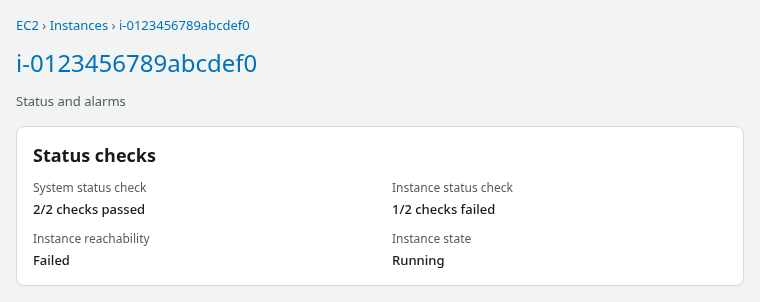
Status checks can read initializing for several minutes after launch or reboot. Poll until they settle before assuming a hard failure.
Read EC2 System Logs First
When SSH times out and reachability is failed, the EC2 system log is the fastest way to see how far Linux got during boot. In the console, open the instance, choose Actions, Monitor and troubleshoot, Get system log. The CLI equivalent is get-console-output:
aws ec2 get-console-output \
  --region ap-south-1 \
  --instance-id i-0123456789abcdef0 \
  --latest \
  --query Output \
--output text | tail -40Timed out waiting for device dev-disk-by\x2duuid-11111111\x2d1111\x2d1111\x2d1111\x2d111111111111.
Dependency failed for badmount.mount - /badmount.
Dependency failed for local-fs.target - Local File Systems.
Started emergency.service - Emergency Shell.
Reached target emergency.target - Emergency Mode.
You are in emergency mode. After logging in, type "journalctl -xb" to view
system logs, "systemctl reboot" to reboot, or "exit" to continue bootup.
Cannot open access to console, the root account is locked.The log shows systemd waiting for a disk UUID that does not exist, then dropping into emergency.target. That confirms the problem happened during Linux boot rather than in the security group.
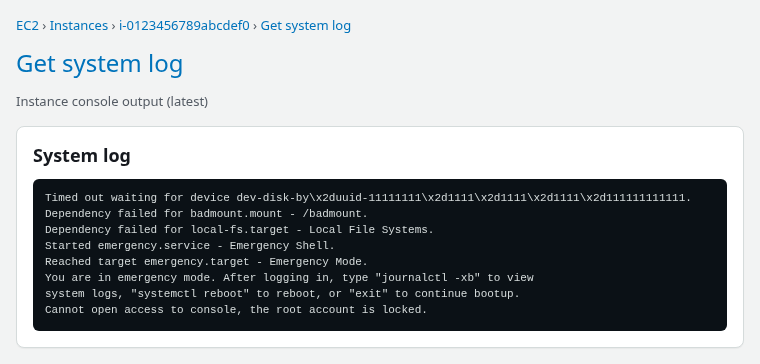
Scan the log for these patterns:
| Log signal | Likely cause | Next section |
|---|---|---|
Timed out waiting for device, Dependency failed for …mount, emergency.target |
Bad or missing /etc/fstab entry, filesystem not present |
Disk and filesystem |
No space left on device, filesystem full, cannot write pid file |
Full root or /var blocking services |
Disk and filesystem |
Kernel panic, Out of memory, Killed process, oom-killer |
Kernel crash or OOM | Kernel, memory, and boot |
| Primary interface down, DHCP failure, NetworkManager errors, wrong MAC | Guest network stack did not become usable | OS network |
If the log is empty or stale, wait one to two minutes after boot and request --latest output again. Very early boot failures may need EC2 Serial Console when it is enabled for the account.
Check Disk, Memory and Filesystem Failures
Disk and filesystem problems are common causes of instance reachability failure when Linux cannot complete boot. Linux may stop in emergency mode or fail before sshd starts.
Full root filesystem
When the root filesystem has no free space, services that write pid files, logs, or temporary data can fail during boot. The system log may mention No space left on device even though the instance state is still running.
If SSH still works, check block usage on /:
df -hT /Filesystem Type Size Used Avail Use% Mounted on
/dev/nvme0n1p3 xfs 10G 10G 20M 100% /On this XFS root volume, block-space exhaustion is the relevant first check. If df -h still shows free space but applications report No space left on device, also run df -i / to rule out inode exhaustion on filesystems with a fixed inode pool.
Free space on the root volume, extend the partition if an EBS resize is pending, or remove large files under /var and /tmp. When SSH is unavailable, repair the root EBS volume offline on a rescue host using the same workflow as fstab repair below.
Bad or missing fstab entries
A line in /etc/fstab that references storage which never appears forces systemd to wait. On RHEL 10 the tested failure used a deliberate bogus UUID:
UUID=11111111-1111-1111-1111-111111111111 /badmount xfs defaults 0 0After reboot, reachability failed within a few minutes while system status remained ok. The system log showed the mount timeout and emergency.target.
For optional data mounts, nofail prevents a missing disk from blocking boot, but do not add nofail to hide a mount the application truly requires. Compare UUIDs with fstab UUID and label rules and fix the reference instead.
Filesystem corruption
When the log reports superblock errors, XFS: Filesystem … has errors, or fsck prompts, the partition may need offline repair. For XFS use xfs_repair on an unmounted copy; for ext4 use e2fsck. Work from a snapshot or detached volume, not on a live root mount.
Check Kernel, Memory, and Boot Failures
Kernel and early-boot failures also fail instance reachability while system status stays ok.
Look in the system log for:
Kernel panic - not syncing- Initramfs errors (
dracut,Failed to load SELinux policy) - GRUB or initrd messages followed by an abrupt stop
A recent kernel update, incompatible module, or bad grubby default can produce these lines after reboot. Serial Console helps when the log truncates before the panic line.
When the log points at emergency mode with a specific failed mount unit, see EC2 emergency mode recovery for the full offline fstab repair walkthrough.
Memory exhaustion or OOM
AWS lists exhausted memory as a cause of instance status failure. Look for lines such as:
Out of memoryKilled processoom-killer
If the instance repeatedly exhausts memory, rebooting may restore it temporarily but will not fix the cause. Review the application's memory usage, swap configuration, and whether the instance type has enough RAM. If the OS cannot stay online long enough for SSH, use Serial Console or stop the instance before changing the instance type.
Sustained CPU pressure
If the instance becomes unresponsive under sustained CPU load rather than failing during boot, check CloudWatch CPUUtilization and the system log. High CPU alone does not prove the cause, but prolonged resource exhaustion can make the guest stop responding to the instance health check.
Check OS Network Configuration
If Linux completes boot but the instance status check still fails, inspect the guest network configuration. EC2's instance health check depends on the instance's network interface and OS network stack responding correctly to an ARP request.
Look for evidence such as:
- the primary interface did not come up
- DHCP failed and the interface has no expected address
- NetworkManager or another network service failed
- the interface configuration refers to the wrong device or MAC address
- a network configuration change prevented the guest interface from becoming usable
AWS's failed-status-check documentation includes problems such as an interface configured for a different MAC address among known OS-level failures.
When SSH still works, inspect link state and addresses:
ip link show2: ens5: <BROADCAST,MULTICAST,UP,LOWER_UP> mtu 9001 qdisc mq state UP mode DEFAULT group default qlen 1000
link/ether 0e:12:34:56:78:9a brd ff:ff:ff:ff:ff:ffConfirm the primary interface is UP and has the expected link layer address:
ip -4 addr show scope global2: ens5 inet 172.31.16.161/20 brd 172.31.31.255 scope global dynamic ens5You can also run ip -4 route for broader network diagnosis, but a missing default route by itself does not explain the EC2 reachability status failure. That check is not testing Internet connectivity or SSH.
When SSH does not work and the log shows networking rather than mount errors, Serial Console or offline editing of network config on a rescue host may be required.
Recover with Serial Console or Rescue Instance
Once the log shows what failed, choose the recovery method that gives you enough access to fix it.
| Situation | Try first |
|---|---|
| Serial Console enabled, IAM allows it, instance type supports it, guest has a usable console login | EC2 Serial Console |
| Unencrypted root volume and permission to run SSM Automation | AWSSupport-ExecuteEC2Rescue |
| Console login blocked (default on many Linux AMIs) or full manual control needed | Rescue instance + offline EBS repair |
The tested RHEL 10 example could not use Serial Console interactively because the log reported the root account is locked. Offline repair on a rescue host was required.
Offline rescue summary
The full detach, mount, edit, and reattach sequence lives in Recover unbootable EC2 with rescue instance, including preserving the volume and its original root-device settings. For the fstab failure reproduced here, the condensed path is:
- Snapshot the root volume while the instance is stopped.
- Detach the root EBS volume and attach it as
/dev/sdfto a rescue instance in the same Availability Zone as the volume. - On the rescue host, identify the root partition with
lsblk -f(for examplenvme1n1p3). - Mount it at
/mnt/rescue-root, usingmount -o nouuidfor XFS when duplicate UUIDs block a normal mount. - Remove or fix the bad
/etc/fstabline. - Unmount, detach, reattach to the original instance using the original root device name (
/dev/sda1in this lab), and start the instance.
Verify the Status Check Recovers
After the guest OS can boot normally, poll instance status until both checks report ok and reachability returns to passed:
aws ec2 describe-instance-status \
  --region ap-south-1 \
  --instance-ids i-0123456789abcdef0 \
  --include-all-instances \
  --query 'InstanceStatuses[0].{System:SystemStatus.Status,Instance:InstanceStatus.Status,Reachability:InstanceStatus.Details[0].Status}' \
--output table----------------------------------------
| DescribeInstanceStatus |
+----------+----------------+----------+
| Instance | Reachability | System |
+----------+----------------+----------+
| ok | passed | ok |
+----------+----------------+----------+Checks may stay initializing for one to three minutes after the first successful boot. A stop/start can change an auto-assigned public IPv4 address, so confirm the current address before testing SSH.
Confirm SSH and that / mounted from the expected partition:
ssh -i /path/to/key.pem ec2-user@203.0.113.10 'hostname; uptime; findmnt /; systemctl is-system-running || true'ip-172-31-16-161.ap-south-1.compute.internal
12:58:40 up 3 min, 1 user, load average: 0.12, 0.15, 0.07
TARGET SOURCE FSTYPE OPTIONS
/ /dev/nvme0n1p3 xfs rw,relatime,seclabel,attr2,inode64,logbufs=8,logbsize=32k,noquota
runningReplace ec2-user with the AMI's default login user. systemctl is-system-running may print starting briefly while cloud-init finishes.
Troubleshooting
| Symptom | Likely cause | Fix |
|---|---|---|
| Both system and instance checks failed | AWS host, network, power, or hardware problem | Follow AWS guidance for impaired system status; stop/start an EBS-backed instance may move it to healthy hardware |
| Reachability failed, log shows mount timeout | Bad /etc/fstab or missing volume |
Offline fstab repair; see EC2 emergency mode recovery |
| Reachability failed, log shows panic or OOM | Kernel crash or insufficient memory | Serial Console or offline rescue; review recent kernel or memory changes |
| Reachability failed, clean boot in log | Guest network interface did not become usable | Fix interface config, DHCP, or MAC mismatch inside the guest |
| Reachability failed immediately after changing instance type | Missing or incompatible ENA or NVMe drivers on older AMI | Revert to the previous compatible instance type and update required drivers before migrating to Nitro |
| Reachability fails under heavy disk I/O but boot logs show no mount failure | Root EBS volume may be throttled | Check EBS IOPS and throughput CloudWatch metrics; confirm the workload stays within the volume's provisioned performance |
Status ok but SSH times out |
Security group, NACL, route, or wrong IP | Network path issue, not an instance status check failure; verify SG port 22 and the current public IP |
| Reachability returns failed after every reboot | Persistent misconfiguration | Offline repair until boot completes without emergency mode |
Volume … not in available state during rescue |
Volume still attached elsewhere | Detach from rescue or broken instance; wait for available |
Summary
The EC2 instance reachability check uses an ARP probe against the instance network interface. It measures guest OS and network-stack health, not whether a security group allows SSH from a workstation. When the console shows 1/2 checks failed with System status: 2/2 checks passed, start with describe-instance-status and Get system log before changing network rules.
The system log separates boot and filesystem failures (mount timeouts, emergency mode, full disks) from kernel panics, memory exhaustion, and guest network problems. Serial Console, AWSSupport-ExecuteEC2Rescue, and a manual rescue instance are the main recovery paths when SSH is unavailable; the RHEL 10 example repaired a bad fstab UUID offline and returned reachability to passed within minutes of boot.
A failed reachability check tells you to investigate the guest OS next. Identify the failure class from the log, repair the root cause on the EBS volume or through console access, then poll status checks and SSH together before closing the incident.
References
- Amazon EC2 instance status checks
- Retrieve EC2 console output
- EC2 Serial Console
- AWSSupport-ExecuteEC2Rescue — AWS Systems Manager Automation
- Detach and attach Amazon EBS volumes
- systemd.special — emergency.target
Frequently Asked Questions
Can a security group fail an instance status check?
No. Security groups control network traffic to and from the instance. They can cause SSH or application timeouts from a client, but they do not set the EC2 instance reachability check to failed while system status remains ok. EC2 tests reachability with an ARP request to the instance network interface, not by opening port 22.
What does 1/2 status checks mean?
The console summarizes the primary infrastructure and instance checks: system status (AWS infrastructure) and instance status (guest OS reachability). 1/2 checks failed means one of those two failed. With system status ok and instance reachability failed, focus first on the guest OS or its network configuration rather than the underlying AWS host.
Can reboot fix instance reachability?
A reboot can clear a transient hang, but it does not fix persistent misconfiguration. A bad /etc/fstab line, corrupted filesystem, or broken network config fails reachability again on every boot until the root cause is repaired offline or through Serial Console.
