
| Package | aws-cli/2.37.3, ec2-instance-connect CLI, openssh-clients (Amazon Linux 2023 on EC2 with public IPv4) |
|---|---|
| AWS Region | ap-south-1 (Mumbai); EC2 Instance Connect API requests are Regional |
| Lab environment | Workstation with AWS CLI v2 and configured credentials — AWS CLI tutorial Install AWS CLI on Ubuntu · Install AWS CLI on Debian |
| Privilege | ec2-instance-connect:SendSSHPublicKey on the target instance (or broader EC2 connect permissions); ec2:DescribeInstances when using the EC2 console Connect tab; [sudo](/sudo-command-in-linux/) on the instance when repairing sshd or installing the package on supported RHEL releases |
| Scope | Why EC2 Instance Connect browser or CLI access fails after choosing Connect, how to confirm AMI and ec2-instance-connect package support with sshd AuthorizedKeysCommand integration, IAM permission for send-ssh-public-key, the correct TCP/22 source for browser versus CLI workflows, the correct instance-os-user, and a running sshd, how to interpret API Success versus an SSH failure, and how to verify a working push-and-login flow. Does not cover EC2 Instance Connect Endpoint setup for private subnets. |
| Related guides | Recover lost EC2 key pair EC2 permission denied publickey EC2 SSH connection timed out EC2 SSH connection refused AWS CLI Tutorial |
EC2 Instance Connect temporarily publishes an SSH public key through the SendSSHPublicKey API. A successful key push does not mean the SSH login will succeed. End-to-end access also requires a supported or configured AMI, the correct Linux username, a working AuthorizedKeysCommand integration, an SSH listener, and a valid TCP/22 path for the connection method you use.
That flow is separate from the launch key pair. Instance Connect does not download or replace the .pem you selected at launch. The temporary key sits in instance metadata for about 60 seconds and is not permanently added to authorized_keys.
The examples use standard Amazon Linux 2023, where ec2-instance-connect and the sshd integration are preinstalled. AWS's current EC2 Instance Connect installation guide provides RHEL packages and instructions for RHEL 8 and RHEL 9, but not RHEL 10. For RHEL 10, do not assume the RHEL 9 package is supported; use another access method unless AWS documents a supported EIC installation path. Instance IDs, IP addresses, and account IDs in screenshots and command output are sanitized; the workflow was tested in ap-south-1.
               IAM user / role
                      ↓
    ec2-instance-connect:SendSSHPublicKey
                      ↓
          EC2 Instance Connect API
                      ↓
     temporary public key (~60 seconds)
                      ↓
            EC2 instance metadata
                      ↓
       sshd runs AuthorizedKeysCommand
                      ↓
           eic_run_authorized_keys
                      ↓
SSH key accepted for the requested Linux user
EC2 Instance Connect not working?
- Confirm the instance is Running and both EC2 status checks pass.
- First check whether AWS supports EC2 Instance Connect on the AMI you launched, then confirm the
ec2-instance-connectpackage andsshdAuthorizedKeysCommand integration. - Verify the IAM principal has
ec2-instance-connect:SendSSHPublicKeyon the instance. - Decide whether you are using the browser Connect tab or
send-ssh-public-keyplus localssh, then open the matching TCP/22 source in the security group. - Use the AMI default Linux username in the Connect panel and in
--instance-os-user. - Confirm
sshdis active and listening on port 22. - Run
aws ec2-instance-connect send-ssh-public-key, then SSH within 60 seconds. - The error usually tells you which layer to check next: IAM, TCP/22, the Linux username, or
sshd.
How EC2 Instance Connect Works
EC2 Instance Connect does not permanently add the temporary key to authorized_keys.
When you use the EC2 console or send-ssh-public-key:
IAM user / role
      |
      | ec2-instance-connect:SendSSHPublicKey
      v
EC2 Instance Connect API
      |
      | temporary public key (~60 seconds)
      v
EC2 instance metadata
      |
      | sshd runs AuthorizedKeysCommand
      v
eic_run_authorized_keys
      |
      v
SSH key accepted for the requested Linux user
The SSH connection itself is still a normal TCP connection to sshd. EC2 Instance Connect only provides the temporary public key used during authentication.
SendSSHPublicKey and a successful SSH login have different prerequisites:
| Step | What must be true |
|---|---|
Key push (SendSSHPublicKey) |
IAM permission ec2-instance-connect:SendSSHPublicKey; instance in a Region where EC2 Instance Connect is available |
| SSH login | Supported or configured AMI with ec2-instance-connect; sshd AuthorizedKeysCommand integration; enabled instance metadata (IMDS); correct instance-os-user; inbound TCP/22 from the correct source for your workflow; sshd listening on port 22 |
Success: true from send-ssh-public-key only means AWS placed the temporary key in instance metadata. It does not guarantee that SSH from your workstation or the browser will succeed. Wrong username, blocked port 22, disabled IMDS, missing AuthorizedKeysCommand configuration, or stopped sshd still produce errors after a successful API response.
SendSSHPublicKey AccessDenied     --> IAM

Success: true + timeout           --> network path / SG source

Success: true + publickey           --> user / EIC helper / IMDS

Success: true + refused             --> sshd / listener

Browser fails, CLI push works       --> browser SG source vs local SSH source
EC2 Instance Connect Endpoint (private subnet access without a public IP) is a different feature. This article covers the public-IP Connect tab and CLI only.
Confirm Instance Health
Confirm the instance is Running and both EC2 status checks pass before you troubleshoot Instance Connect internals. If the instance status check is failing, fix the guest OS first rather than treating it as an Instance Connect-specific problem.
aws ec2 describe-instance-status \
  --region ap-south-1 \
  --instance-ids i-0123456789abcdef0 \
  --query 'InstanceStatuses[0].{State:InstanceState.Name,SystemStatus:SystemStatus.Status,InstanceStatus:InstanceStatus.Status}' \
--output table----------------------------------------------
| DescribeInstanceStatus |
+----------+----------------+----------------+
| State | InstanceStatus | SystemStatus |
+----------+----------------+----------------+
| running | ok | ok |
+----------+----------------+----------------+Verify AMI and Package Support
First check whether AWS supports EC2 Instance Connect on the AMI you launched. Amazon Linux 2023 standard AMIs include EC2 Instance Connect; AL2023 minimal AMIs require the package to be installed. Recent Amazon Linux 2 and many Ubuntu images include the package and sshd hooks. Red Hat Enterprise Linux 8 and 9 can install RPMs from AWS documentation. Custom AMIs need both the package and a working AuthorizedKeysCommand configuration.
On Amazon Linux 2023 the lab instance already had the package:
rpm -q ec2-instance-connectec2-instance-connect-1.1-19.amzn2023.noarchConfirm sshd calls the EC2 Instance Connect helper. AWS warns that if AuthorizedKeysCommand or AuthorizedKeysCommandUser were customized before installation, adding the package alone may not enable Instance Connect:
sudo sshd -T | grep -E 'authorizedkeyscommand|authorizedkeyscommanduser'authorizedkeyscommand /opt/aws/bin/eic_run_authorized_keys %u %f
authorizedkeyscommanduser ec2-instance-connectThe package can be installed while Instance Connect still fails if sshd is not configured to call eic_run_authorized_keys. Restore the AWS-documented values or reinstall the package on supported distributions before you test the Connect tab again.
EC2 Instance Connect retrieves the temporary key through IMDS. Confirm the instance metadata endpoint is enabled:
aws ec2 describe-instances \
  --region ap-south-1 \
  --instance-ids i-0123456789abcdef0 \
  --query 'Reservations[0].Instances[0].MetadataOptions.HttpEndpoint' \
--output textenabledIf the instance metadata endpoint is disabled, re-enable it before troubleshooting the EIC helper further.
Confirm sshd is active and listening on port 22:
systemctl is-active sshdactiveConfirm port 22 is listening (use sudo so process names are visible):
sudo ss -lntp | grep ':22'LISTEN 0 128 0.0.0.0:22 0.0.0.0:* users:(("sshd",pid=1950,fd=3))
LISTEN 0 128 [::]:22 [::]:* users:(("sshd",pid=1950,fd=4))On RHEL 8 or 9, install ec2-instance-connect and ec2-instance-connect-selinux from the AWS distribution URL in the official setup guide, verify the AuthorizedKeysCommand lines, then restart sshd. For RHEL 10, use Session Manager or offline recovery unless AWS documents a supported EIC installation path. See Recover lost EC2 key pair for paths that do not depend on Instance Connect.
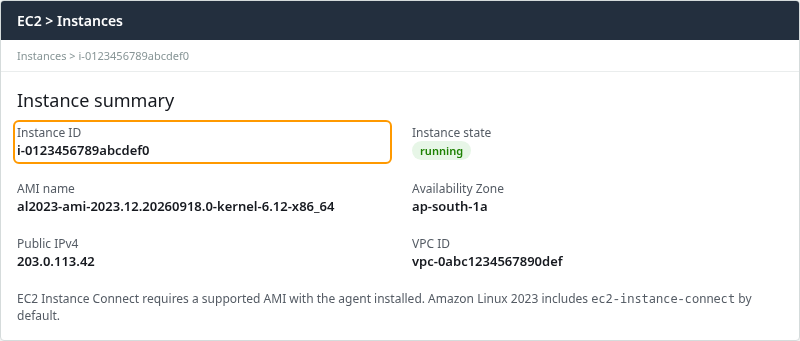
The summary confirms the instance ID and AMI family. Match the AMI name to AWS support documentation before relying on the Connect tab.
Check IAM Permission
The IAM action that gates Instance Connect is ec2-instance-connect:SendSSHPublicKey. Without it, the CLI and console cannot push a key.
| Permission | Why it matters |
|---|---|
ec2-instance-connect:SendSSHPublicKey |
Authorizes the temporary key push into instance metadata |
ec2:DescribeInstances |
Required for users connecting through the EC2 console Connect workflow |
ec2:osuser condition (optional) |
Restricts which Linux username may be used in SendSSHPublicKey |
CLI-only operators who already know the instance ID and OS user can omit ec2:DescribeInstances.
When a lab IAM user had only ec2:DescribeInstances, the push failed:
aws ec2-instance-connect send-ssh-public-key \
  --region ap-south-1 \
  --instance-id i-0123456789abcdef0 \
  --instance-os-user ec2-user \
--ssh-public-key file://eic-temp.pubAn error occurred (AccessDeniedException) when calling the SendSSHPublicKey operation: User: arn:aws:iam::123456789012:user/lab-limited is not authorized to perform: ec2-instance-connect:SendSSHPublicKey on resource: arn:aws:ec2:ap-south-1:123456789012:instance/i-0123456789abcdef0 because no identity-based policy allows the ec2-instance-connect:SendSSHPublicKey actionAttach a policy that allows the push on instances operators should reach. For the Amazon Linux 2023 lab, scope the OS user with ec2:osuser:
{
  "Version": "2012-10-17",
  "Statement": [
    {
      "Effect": "Allow",
      "Action": "ec2-instance-connect:SendSSHPublicKey",
      "Resource": "arn:aws:ec2:ap-south-1:123456789012:instance/*",
      "Condition": {
        "StringEquals": {
          "ec2:osuser": "ec2-user"
        }
      }
    },
    {
      "Effect": "Allow",
      "Action": "ec2:DescribeInstances",
      "Resource": "*"
    }
  ]
}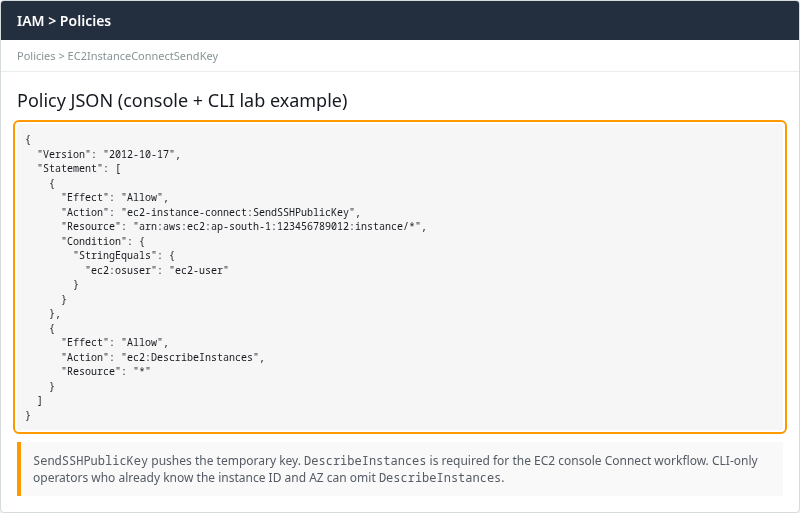
The console Connect tab uses the same SendSSHPublicKey permission through your signed-in IAM principal or role. Browser errors that mention access denied before any SSH attempt usually belong in this IAM step, not in host troubleshooting.
Check Network Reachability
Browser EC2 Instance Connect and send-ssh-public-key plus your own ssh client use different TCP/22 sources:
| Method | What must reach instance TCP/22 |
|---|---|
| EC2 console → EC2 Instance Connect | EC2 Instance Connect service IP range (Regional managed prefix list) |
send-ssh-public-key + local ssh |
Your workstation or network public egress IP |
| EC2 Instance Connect Endpoint | Separate private-connectivity workflow (out of scope here) |
Browser Connect tab:
  AWS EC2 Instance Connect service  --->  instance:22

CLI send-ssh-public-key + ssh:
  your laptop (203.0.113.50)        --->  instance:22
Copy the instance ID and public IP from Connect → EC2 Instance Connect when filling CLI flags:
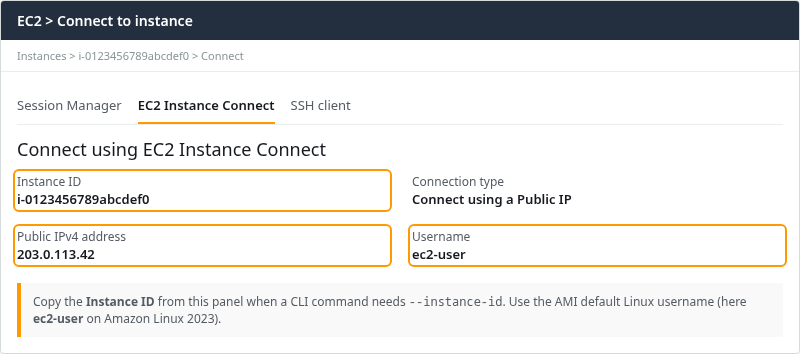
The highlighted Instance ID is the value for --instance-id. The Username must match --instance-os-user in CLI calls.
For the browser Connect tab, allow SSH from the Regional EC2 Instance Connect managed prefix list (in ap-south-1, com.amazonaws.ap-south-1.ec2-instance-connect):
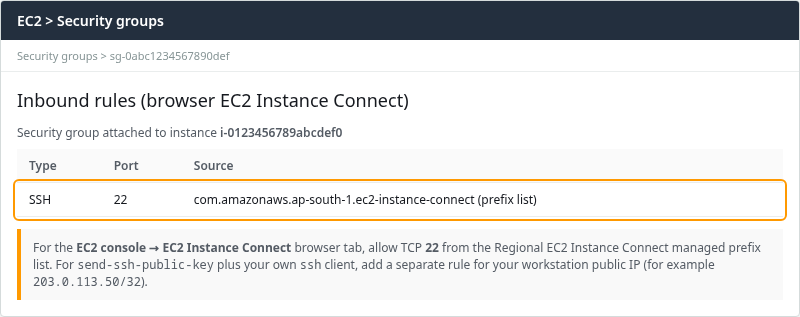
For send-ssh-public-key and your own ssh client, add a separate inbound rule for your public egress IP, for example 203.0.113.50/32. Do not use the instance public IP as the security group source.
When the lab removed all SSH inbound rules, the API push still succeeded. The JSON only proves AWS accepted the key, not that your workstation can reach port 22:
aws ec2-instance-connect send-ssh-public-key \
  --region ap-south-1 \
  --instance-id i-0123456789abcdef0 \
  --instance-os-user ec2-user \
--ssh-public-key file://eic-temp.pub{
"RequestId": "fc8e0db2-7f60-4a7a-bd46-c92b58045db3",
"Success": true
}Port reachability from the lab host failed:
nc -vz -w 5 203.0.113.42 22Ncat: TIMEOUT.SSH with the temporary key timed out for the same reason:
ssh -o IdentitiesOnly=yes -i /tmp/eic-temp -o ConnectTimeout=10 ec2-user@203.0.113.42 hostnamessh: connect to host 203.0.113.42 port 22: Connection timed outIf the symptom is timeout rather than refused, also review route tables and NACLs in EC2 SSH connection timed out.
List the instance ID and public IP from the CLI when you are not using the console:
aws ec2 describe-instances \
  --region ap-south-1 \
  --instance-ids i-0123456789abcdef0 \
  --query 'Reservations[0].Instances[0].{InstanceId:InstanceId,PublicIp:PublicIpAddress,Az:Placement.AvailabilityZone}' \
--output table-----------------------------------------------------------
| DescribeInstances |
+------------+-----------------------+--------------------+
| Az | InstanceId | PublicIp |
+------------+-----------------------+--------------------+
| ap-south-1c| i-0123456789abcdef0 | 203.0.113.42 |
+------------+-----------------------+--------------------+Check Username and sshd
Wrong instance-os-user
The Connect tab username must match the AMI default account. On Amazon Linux 2023 that is ec2-user. Pushing a key for ubuntu still returned API success in the lab:
aws ec2-instance-connect send-ssh-public-key \
  --region ap-south-1 \
  --instance-id i-0123456789abcdef0 \
  --instance-os-user ubuntu \
--ssh-public-key file://eic-temp.pub{
"RequestId": "2e29711e-df21-49ab-8797-ae1f6050878a",
"Success": true
}SendSSHPublicKey accepted the request for OS user ubuntu, but the subsequent SSH login failed because that account does not exist on the Amazon Linux instance:
ssh -o IdentitiesOnly=yes -i /tmp/eic-temp ubuntu@203.0.113.42 hostnameubuntu@203.0.113.42: Permission denied (publickey,gssapi-keyex,gssapi-with-mic).Use ec2-user on Amazon Linux, ubuntu on Ubuntu AMIs, and check publisher docs for other images. Wrong-user symptoms overlap with EC2 permission denied publickey, but here the fix is the Connect username field, not the launch .pem.
Stopped or misconfigured sshd
When sshd is not listening, the client sees connection refused even after a successful key push:
ssh -o IdentitiesOnly=yes -i /tmp/eic-temp ec2-user@203.0.113.42 hostnamessh: connect to host 203.0.113.42 port 22: Connection refusedThrough Systems Manager, sshd was inactive:
sudo systemctl status sshd --no-pager | head -5Active: inactive (dead) since Sun 2026-09-27 02:58:56 UTCStart and enable the service:
sudo systemctl start sshd
sudo systemctl enable sshd
For deeper sshd_config, host key, and firewall checks, see EC2 SSH connection refused. Instance Connect does not bypass a broken SSH daemon.
Test with CLI and API
You can reproduce the same key-push step from the CLI, which makes troubleshooting much easier. Generate a throwaway key pair for the test (do not reuse the launch .pem):
ssh-keygen -t ed25519 -N '' -f /tmp/eic-temp -C eic-labSend the public half. --availability-zone is optional in the current AWS CLI. If you supply it, use the instance's actual Availability Zone from Instance summary or describe-instances:
aws ec2-instance-connect send-ssh-public-key \
  --region ap-south-1 \
  --instance-id i-0123456789abcdef0 \
  --instance-os-user ec2-user \
--ssh-public-key file:///tmp/eic-temp.pub{
"RequestId": "325ae9b0-8012-4746-b48a-2ab43a1b7bb8",
"Success": true
}Connect within 60 seconds using the private key you just generated. IdentitiesOnly=yes ensures SSH uses the temporary key instead of unrelated keys from your agent:
ssh -o IdentitiesOnly=yes -i /tmp/eic-temp ec2-user@203.0.113.42 hostnameip-172-31-19-133.ap-south-1.compute.internalIf the hostname prints, Instance Connect and SSH are both working. Remove both temporary key files when finished:
rm -f /tmp/eic-temp /tmp/eic-temp.pubThe pushed key in instance metadata expires automatically after about 60 seconds.
Fix Common Browser Errors
| Browser or client symptom | Likely layer | What to check |
|---|---|---|
| Failed to connect / access denied before SSH | IAM | ec2-instance-connect:SendSSHPublicKey on the instance ARN |
| Connecting hangs, then times out | Network | Browser: EC2 Instance Connect prefix list on port 22. CLI: your public egress /32 on port 22 |
| Connected but authentication failed | Username, EIC helper, or IMDS | Connect Username field, instance-os-user, AuthorizedKeysCommand, IMDS endpoint |
Browser fails but CLI push returns Success: true |
Security group source mismatch | Browser: EC2 Instance Connect prefix list. CLI/local SSH: your egress /32 |
| Connection refused | Host SSH | systemctl status sshd, port 22 listener. See EC2 SSH connection refused. |
| Connect tab unavailable / EIC unsupported for image | AMI/package | Confirm OS support, package, and AuthorizedKeysCommand configuration |
| EIC unavailable in deployment location | AWS feature availability | Check Region support; not available in Local Zones or European Sovereign Cloud per current AWS docs |
If the browser only says it could not connect, test the key push and SSH connection separately from the CLI. When the tab fails after a spinner, run send-ssh-public-key and compare the JSON response to an immediate ssh -vvv attempt.
If the cause is still unclear, AWS provides the AWSSupport-TroubleshootEC2InstanceConnect Systems Manager Automation runbook, which checks the main EC2 Instance Connect prerequisites automatically.
Verify Access
After IAM, network, username, and sshd are correct, repeat the push-and-login cycle:
aws ec2-instance-connect send-ssh-public-key \
  --region ap-south-1 \
  --instance-id i-0123456789abcdef0 \
  --instance-os-user ec2-user \
--ssh-public-key file:///tmp/eic-temp.pub{
"RequestId": "10ef4347-2268-45ba-ad0c-cb5a8a55a100",
"Success": true
}Log in immediately with the temporary private key:
ssh -o IdentitiesOnly=yes -i /tmp/eic-temp ec2-user@203.0.113.42 hostnameip-172-31-19-133.ap-south-1.compute.internalThe launch key pair should still work in parallel when authorized_keys was never changed:
ssh -i ~/.ssh/lab-key.pem ec2-user@203.0.113.42 'rpm -q ec2-instance-connect'ec2-instance-connect-1.1-19.amzn2023.noarchUse Instance Connect when you want short-lived SSH access without storing another permanent public key. For a permanent new key after losing the .pem, append the public key to authorized_keys through Session Manager or follow Recover lost EC2 key pair.
Troubleshooting
| Symptom | Likely cause | Fix |
|---|---|---|
AccessDeniedException on SendSSHPublicKey |
Missing IAM action | Add ec2-instance-connect:SendSSHPublicKey scoped to the instance |
Success: true then SSH timeout |
Port 22 blocked for your workflow | Browser: add EC2 Instance Connect prefix list. CLI: add your egress /32 |
Success: true then Permission denied (publickey) |
Wrong instance-os-user |
Set Connect username to AMI default (ec2-user on Amazon Linux) |
Success: true then Permission denied with correct user |
Wrong user, AuthorizedKeysCommand, or IMDS | Confirm instance-os-user; verify sshd -T and IMDS endpoint |
| Correct user and package but EIC key never accepted | AuthorizedKeysCommand or IMDS unavailable | Verify sshd -T shows eic_run_authorized_keys; confirm metadata endpoint is enabled |
Connection refused after push |
sshd stopped or wrong port |
systemctl start sshd; confirm listener on 22 |
| Connect tab grayed out / unsupported | AMI or Region | Use supported AMI and Region; install package per AWS docs |
| Push works once, then fails | 60-second key expiry | Run send-ssh-public-key again immediately before ssh |
Summary
EC2 Instance Connect authorizes a temporary SSH public key through SendSSHPublicKey, places it in instance metadata for about 60 seconds, and relies on the sshd AuthorizedKeysCommand integration to retrieve that key during login. A successful key push does not guarantee SSH login. API Success does not override disabled IMDS, missing AuthorizedKeysCommand configuration, the wrong security group source for your workflow, the wrong Linux username, or a stopped sshd.
On standard Amazon Linux 2023 the package and sshd hooks were present by default and the full push-and-login path worked after each prerequisite was restored. Unsupported AMIs or Regions need a different recovery path such as Session Manager or offline volume repair.
When the browser Connect tab fails, run send-ssh-public-key from the CLI, read whether AWS returned AccessDenied or Success, then test SSH with ssh -vvv to see whether the failure is network, username, AuthorizedKeysCommand, or sshd. Keep EC2 Instance Connect Endpoint configuration separate when the goal is private-subnet access without a public IP.
References
- Connect to your Linux instance using EC2 Instance Connect
- Set up EC2 Instance Connect
- send-ssh-public-key (AWS CLI)
- Actions for EC2 Instance Connect
- Connect to a private EC2 instance with EC2 Instance Connect Endpoint
- Troubleshoot issues connecting to your instance using EC2 Instance Connect
Frequently Asked Questions
Does EC2 Instance Connect require port 22?
Yes for the standard public-IP flow in this article. Browser Instance Connect reaches sshd on TCP port 22 from the EC2 Instance Connect service range. Local ssh after send-ssh-public-key also uses TCP port 22 from your workstation IP. EC2 Instance Connect Endpoint is a separate feature for reaching instances without a public IP.
Does Instance Connect replace the instance key pair?
No. It pushes a temporary public key into instance metadata that expires in about 60 seconds. The key pair assigned at launch remains in authorized_keys unless you change it separately. Instance Connect does not retrieve a lost private .pem.
Which AMIs support EC2 Instance Connect?
Standard Amazon Linux 2023 and recent Amazon Linux 2 AMIs include the package and sshd integration. AL2023 minimal AMIs require installation. Many Ubuntu images ship it. RHEL 8 and RHEL 9 can install AWS-documented RPMs. Verify the current list in the official setup guide before relying on the Connect tab on other distributions.
