
| Package | xfsprogs, rsync, util-linux, aws-cli/2.37.3 (RHEL 10.2 on EC2, Nitro/XFS) |
|---|---|
| AWS Region | ap-south-1 (Mumbai); source, target, and EC2 instance are in ap-south-1a. EBS volumes are Availability Zone resources and can attach only within the same AZ |
| Lab environment | Workstation with AWS CLI v2 and configured credentials — AWS CLI tutorial Install AWS CLI on Ubuntu · Install AWS CLI on Debian |
| Privilege | EC2 CreateVolume, AttachVolume, and DetachVolume permissions and [sudo](/sudo-command-in-linux/) on the instance for partitioning, filesystem creation, and mount changes |
| Scope | Why EBS volume size cannot be decreased in place, how to snapshot the source, pick a smaller target from measured used space, match source encryption, create and attach a new volume in the same Availability Zone, copy data with rsync -aHAXx, quiesce writers for a final sync, update /etc/fstab by UUID, mount through the new entry, verify with rsync --dry-run or diff, and retain the original volume for rollback. Covers a partitioned XFS data volume on Nitro. Does not cover in-place XFS shrink, LVM pvmove workflows, or root-volume replacement without a separate rescue-instance procedure. |
| Related guides | AWS EBS Volume Guide EBS resized but df unchanged Attach existing EBS volume Recover unbootable EC2 with rescue instance AWS Tutorial |
Amazon EBS lets you increase volume size with modify-volume, but it does not support decreasing block size on an existing volume. When a data disk was overprovisioned, the practical fix is to provision a new, smaller EBS volume, copy the filesystem contents, point the mount at the new device, and retire the old volume only after verification.
The workflow mirrors attaching a blank volume and migrating data, with one extra constraint: the target volume must be larger than the data footprint plus filesystem overhead. Used-space checks on the source mount come before any create-volume call.
The example migrates a 10 GiB gp3 XFS data volume (/dev/sdf → /dev/nvme1n1p1 on Nitro) with about 81 MiB of files to a 5 GiB target (/dev/sdg → /dev/nvme2n1p1), updates /etc/fstab by UUID, and detaches the original volume while keeping it in Available state for rollback.
         modify-volume smaller size
                     ↓
              AWS rejects request
                     ↓
        measure used space on source
                     ↓
      create smaller EBS volume (same AZ)
                     ↓
     partition, mkfs, mount at staging path
                     ↓
        initial rsync -aHAXx (app running)
                     ↓
           stop / quiesce writers
                     ↓
         final rsync -aHAXx --delete
                     ↓
      rsync --dry-run or diff -qr verify
                     ↓
     update fstab UUID, mount via fstab
                     ↓
   detach old volume (keep for rollback)
Where to run the commands
aws ec2 create-volume,attach-volume, anddescribe-volumesrun from a workstation with the AWS CLI configured.df,du,parted,mkfs.xfs,rsync, andmountrun on the EC2 instance after both volumes are attached.
Quick Answer
| Step | Action | Good result |
|---|---|---|
| Shrink in place | aws ec2 modify-volume --size <smaller> |
Error: new size cannot be smaller than existing size |
| Size the target | df -hT and du -sh on the mount |
Used data fits in target with headroom for metadata and growth |
| New volume | create-volume in the same AZ as the instance |
Volume available, then in-use after attach |
| Staging mount | mkfs on target, mount at /mnt/target |
blkid shows new UUID; staging path empty |
| Backup | EBS snapshot of source before changes | Snapshot completed in the same Region |
| Copy | Initial rsync -aHAXx, then final sync after quiesce |
rsync --dry-run or diff -qr shows no differences |
| Verify | sha256sum or cmp on sample files |
Spot-checks match; dry-run confirms full sync |
| Cutover | Update fstab UUID, mount /mnt/appdata from fstab |
df reports the smaller device at the production mount |
| Rollback | Keep old volume detached, not deleted | Reattach and restore old fstab line if verification fails |
Can EBS Be Shrunk Directly?
No. EBS volume size can only grow through modify-volume or the console equivalent. AWS rejects a request to set a smaller size on an existing volume.
The example below tries to shrink a 10 GiB data volume to 5 GiB with the CLI:
aws ec2 modify-volume --volume-id vol-0abc1234567890def --size 5aws: [ERROR]: An error occurred (InvalidParameterValue) when calling the ModifyVolume operation: New size cannot be smaller than existing sizeThat error is expected. There is no supported shrink API for gp2, gp3, io1, or io2 volumes.
Snapshots do not provide a shortcut for shrinking either. An EBS snapshot retains the source volume's logical VolumeSize. When you create a volume from that snapshot, the requested size must be equal to or larger than that snapshot volume size. For example, a snapshot created from a 10 GiB EBS volume cannot be restored directly into a 5 GiB volume, even if only 1 GiB of filesystem data was actually in use.
Snapshot storage consumption is based on written blocks, but the snapshot's volume-size metadata still determines the minimum restore volume size.
Check Used Space Before Choosing a Smaller Volume
The target EBS size must exceed the data footprint, partition table overhead, and reasonable growth margin. Measure from the mounted filesystem, not from the EBS console size alone.
On the instance, check filesystem use and directory totals:
df -hT /mnt/appdataFilesystem Type Size Used Avail Use% Mounted on
/dev/nvme1n1p1 xfs 10G 308M 9.7G 4% /mnt/appdatadf reports filesystem capacity. A 10 GiB volume with XFS metadata can show 10G total while only a fraction is used.
Next, measure the data directory size:
sudo du -sh /mnt/appdata /mnt/appdata/*81M /mnt/appdata
81M /mnt/appdata/lab-dataIn the example, 81 MiB of files live under /mnt/appdata. A 5 GiB target leaves ample headroom. Choose a target comfortably above the measured data footprint and account for expected growth, filesystem metadata, temporary files, and workload-specific free-space requirements. There is no single percentage that is appropriate for every workload.
If du approaches the planned target size, pick the next larger EBS tier or archive data before migrating. Copying into a target that is too small either fails during rsync or leaves too little free space for normal application writes and filesystem metadata.
Snapshot the Source Before Migration
Before attaching or formatting a second volume, create an EBS snapshot of the source if the data matters. Keeping the original volume after cutover provides fast rollback, while the snapshot protects against accidental changes to the source during the migration itself.
From a workstation, snapshot the source volume:
aws ec2 create-snapshot --volume-id vol-0abc1234567890def \
  --description "Pre-shrink backup of appdata source"
Wait until the snapshot reaches completed state before proceeding. For application-consistent backup of an actively written database or similar workload, quiesce or pause writes according to that application's backup requirements before taking the snapshot.
Create and Attach the Smaller Volume
Create the new volume in the same Availability Zone as the EC2 instance. Cross-AZ attachment is not supported for standard EBS volumes.
Check whether the source volume is encrypted and which KMS key it uses:
aws ec2 describe-volumes --volume-ids vol-0abc1234567890def \
--query 'Volumes[0].{Encrypted:Encrypted,KmsKeyId:KmsKeyId,Type:VolumeType}'{
"Encrypted": false,
"KmsKeyId": null,
"Type": "gp3"
}Match the encryption requirements of the source. If the source volume is encrypted, create the target with --encrypted. If the source must use a specific customer-managed KMS key, also specify --kms-key-id <key-id>. AWS supports copying between encrypted and unencrypted volumes at the application level, but silently dropping encryption is not a safe default.
From a workstation, create a 5 GiB gp3 volume in ap-south-1a (match the instance AZ):
aws ec2 create-volume --availability-zone ap-south-1a --size 5 --volume-type gp3 \
  --tag-specifications 'ResourceType=volume,Tags=[{Key=Name,Value=appdata-target}]'
Note the VolumeId from the output, then attach it as a second data device:
aws ec2 attach-volume --volume-id vol-0def9876543210abc \
  --instance-id i-0123456789abcdef0 --device /dev/sdg
On Nitro instances, /dev/sdg maps to an NVMe device such as /dev/nvme2n1. Confirm both volumes are attached before partitioning:
aws ec2 describe-volumes --volume-ids vol-0abc1234567890def vol-0def9876543210abc \
--query 'Volumes[].{Id:VolumeId,Size:Size,State:State,Device:Attachments[0].Device}' --output table---------------------------------------------------------
| DescribeVolumes |
+----------+-------------------------+-------+----------+
| Device | Id | Size | State |
+----------+-------------------------+-------+----------+
| /dev/sdf| vol-0abc1234567890def | 10 | in-use |
| /dev/sdg| vol-0def9876543210abc | 5 | in-use |
+----------+-------------------------+-------+----------+On the instance, map NVMe serials to volume IDs with lsblk:
lsblk -o NAME,SIZE,TYPE,FSTYPE,MOUNTPOINT,SERIALNAME SIZE TYPE FSTYPE MOUNTPOINT SERIAL
nvme0n1 10G disk vol049fed7e8d6584da2
├─nvme0n1p1 1M part
├─nvme0n1p2 200M part vfat /boot/efi
└─nvme0n1p3 9.8G part xfs /
nvme1n1 10G disk vol0abc1234567890def
└─nvme1n1p1 10G part xfs /mnt/appdata
nvme2n1 5G disk vol0def9876543210abcThe EBS volume ID appears in the NVMe SERIAL without hyphens. Here, vol-0def9876543210abc maps to SERIAL=vol0def9876543210abc, confirming that /dev/nvme2n1 is the new 5 GiB target. Do not run parted or mkfs until that mapping is confirmed.
The 10 GiB source remains mounted at /mnt/appdata during copy. The 5 GiB disk (nvme2n1) has no partition yet. At this stage, both volumes should show in-use in describe-volumes.
Create Filesystem and Mount It
Partition the target disk, create a fresh filesystem, and mount it at a staging path — not the production mount yet. The source stays online at /mnt/appdata during the copy.
The commands below use /dev/nvme2n1 only because its SERIAL matched the new target volume ID in this lab. On another instance it may be /dev/nvme1n1, /dev/nvme3n1, or another index. Always map the target volume ID with lsblk before partitioning.
Before running mkfs, confirm that /dev/nvme2n1 maps to the new target EBS volume ID. Never run mkfs on the source volume.
Create a GPT partition spanning the 5 GiB disk:
sudo parted -s /dev/nvme2n1 mklabel gpt mkpart primary xfs 1MiB 100%The kernel needs a partition table rescan before /dev/nvme2n1p1 appears:
sudo partprobe /dev/nvme2n1partprobe exits silently when the new partition node is ready.
Format the partition as XFS without -f so mkfs refuses to overwrite an existing filesystem signature on the wrong device:
sudo mkfs.xfs /dev/nvme2n1p1Confirm the new filesystem UUID before updating fstab:
sudo blkid /dev/nvme2n1p1/dev/nvme2n1p1: UUID="453bec19-20ef-4f05-b553-7e4d22df6775" BLOCK_SIZE="512" TYPE="xfs" PARTLABEL="primary" PARTUUID="58bd2d45-8d5a-427b-8ab0-0faa145ecfc9"Record the new UUID for /etc/fstab later. For ext4 data volumes, use mkfs.ext4 instead of mkfs.xfs and the same staging-mount pattern.
Mount the target at a staging path:
sudo mkdir -p /mnt/targetMount the formatted partition at the staging path:
sudo mount /dev/nvme2n1p1 /mnt/targetfindmnt /mnt/target should show the 5.0G XFS filesystem on nvme2n1p1.
Copy Data Safely
Copy file contents and metadata from the production mount to the staging mount. rsync -aHAXx preserves permissions, timestamps, ACLs, and extended attributes, and -x keeps the copy within the source filesystem instead of following separately mounted paths beneath /mnt/appdata.
Run an initial copy while the application may still be writing. This pass reduces downtime but is not sufficient for cutover by itself:
sudo rsync -aHAXx --info=stats2 /mnt/appdata/ /mnt/target/Number of files: 4 (reg: 2, dir: 2)
Number of created files: 3 (reg: 2, dir: 1)
Number of regular files transferred: 2
Total file size: 83,886,107 bytes
Total transferred file size: 83,886,107 bytes
sent 83,906,906 bytes received 69 bytes 167,813,950.00 bytes/sec
total size is 83,886,107 speedup is 1.00The trailing slash on /mnt/appdata/ copies contents into /mnt/target/ without nesting an extra appdata directory.
Spot-check one small file and one large file after the initial pass:
sha256sum /mnt/appdata/lab-data/verify.txt /mnt/target/lab-data/verify.txt5d54a97f9b7e3643804c0d2fcb52a370057fe333075e85d42c2fddc7fd840209 /mnt/appdata/lab-data/verify.txt
5d54a97f9b7e3643804c0d2fcb52a370057fe333075e85d42c2fddc7fd840209 /mnt/target/lab-data/verify.txtFor binary payloads, cmp confirms byte-identical copies:
cmp -s /mnt/appdata/lab-data/sample.bin /mnt/target/lab-data/sample.bin && echo 'sample.bin identical'sample.bin identicalStop Writes and Run a Final Sync
The first rsync can reduce downtime, but do not cut over while applications are still modifying the source. Stop the application or place it in a read-only or quiesced state, then run a final synchronization.
--delete removes files that exist only on the target, so use it only after confirming /mnt/target is the dedicated replacement volume:
sudo rsync -aHAXx --delete /mnt/appdata/ /mnt/target/-x keeps the copy on the source filesystem. --delete also removes files from the target that were deleted from the source after the first pass, so the target reflects the final source state.
Confirm the trees match before unmounting — include --delete in the dry run so it matches the final sync:
sudo rsync -aHAXx --delete --dry-run --itemize-changes /mnt/appdata/ /mnt/target/No output means source and target are synchronized for the attributes rsync compares. On a small lab tree, diff -qr is another quick check:
sudo diff -qr /mnt/appdata /mnt/targetdiff exits silently when no file differences remain.
Update Mount Configuration
Production cutover swaps the UUID in /etc/fstab and mounts through the new entry. Use UUID= — device names like /dev/nvme2n1p1 can shift when volumes are reattached.
Unmount both paths after the final sync succeeds:
sudo umount /mnt/appdataRelease the staging mount as well so the production path can mount from fstab:
sudo umount /mnt/targetBack up the current fstab before editing:
sudo cp -a /etc/fstab /etc/fstab.pre-ebs-shrinkReplace the old fstab line. Remove the source UUID and append the target UUID:
grep -v '94f85de6-0e47-4ab6-ab68-a0e9b37be83e' /etc/fstab | sudo tee /etc/fstab.tmp >/dev/nullAppend the target UUID line for the production mount:
echo 'UUID=453bec19-20ef-4f05-b553-7e4d22df6775 /mnt/appdata xfs defaults,nofail 0 0' | sudo tee -a /etc/fstab.tmp >/dev/nullReplace the live fstab only after the temp file looks correct:
sudo mv /etc/fstab.tmp /etc/fstabMount using the fstab entry — not the block device path directly:
sudo mount /mnt/appdataBecause only the mount point is provided, mount reads /etc/fstab and uses the UUID just configured. That is a stronger test than manually mounting /dev/nvme2n1p1 and then calling mount -a.
Swap Volumes
After the fstab mount succeeds, the instance serves data from the smaller volume at /mnt/appdata:
findmnt /mnt/appdataTARGET SOURCE FSTYPE OPTIONS
/mnt/appdata /dev/nvme2n1p1 xfs rw,relatime,seclabel,attr2,inode64,logbufs=8,logbsize=32k,sunit=8,swidth=8,noquotadf should now report the smaller block device at the production path:
df -hT /mnt/appdataFilesystem Type Size Used Avail Use% Mounted on
/dev/nvme2n1p1 xfs 5.0G 210M 4.8G 5% /mnt/appdatadf now reports 5.0G total — the migration goal.
Detach the overprovisioned source volume from a workstation, but do not delete it until the new volume survives a reboot and application checks:
aws ec2 detach-volume --volume-id vol-0abc1234567890defConfirm the source is available for rollback while the target stays in-use:
aws ec2 describe-volumes --volume-ids vol-0abc1234567890def vol-0def9876543210abc \
--query 'Volumes[].{Id:VolumeId,Size:Size,State:State}' --output table------------------------------------------------
| DescribeVolumes |
+------------------------+-------+-------------+
| Id | Size | State |
+------------------------+-------+-------------+
| vol-0abc1234567890def | 10 | available |
| vol-0def9876543210abc | 5 | in-use |
+------------------------+-------+-------------+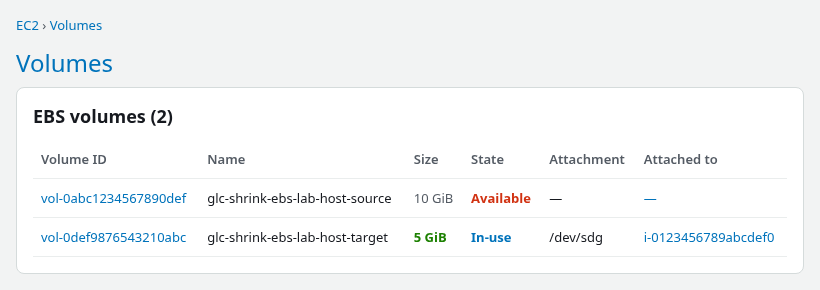
After cutover, the original 10 GiB volume remains Available for rollback while the new 5 GiB volume stays In-use on the instance.
Keeping the detached source volume temporarily incurs normal EBS storage charges, but provides a fast rollback path. Delete it only after the new volume passes your chosen validation and retention period.
Root-Volume Considerations
The tested example covers a data volume at /mnt/appdata. Shrinking a root EBS volume is a separate, higher-risk workflow because the replacement disk must also be bootable. It can involve EFI or BIOS partitions, boot-loader configuration, fstab, initramfs, encryption, or LVM.
Do not apply this data-volume cutover sequence directly to /. Use a tested root-volume or rescue-instance workflow instead.
Verify and Roll Back if Needed
After cutover, confirm application data and schedule a reboot test when /etc/fstab changed:
cat /mnt/appdata/lab-data/verify.txtglc-shrink-ebs-verify-2026Reboot during a maintenance window and confirm the mount returns:
sudo rebootAfter SSH returns, findmnt /mnt/appdata should still reference the smaller UUID.
Rollback if verification fails before deleting the old volume:
- Stop applications using the mount.
umount /mnt/appdataattach-volumethe original 10 GiB volume- Mount the original partition by its UUID at
/mnt/appdata - Restore the previous
fstabfrom backup:sudo cp -a /etc/fstab.pre-ebs-shrink /etc/fstab - Delete or retain the failed target volume after root-cause analysis
Troubleshooting
| Symptom | Likely cause | Fix |
|---|---|---|
modify-volume rejected |
EBS cannot shrink in place | Create a smaller volume and migrate data |
rsync: write failed: No space left on device |
Target EBS size too small for data + XFS overhead | Create a larger target; re-run copy |
mount: wrong fs type |
Unformatted target or wrong partition | blkid on target partition; run mkfs only on blank target |
df still shows old size after cutover |
Still mounted on source device | findmnt; confirm fstab UUID matches target blkid |
Boot hangs after fstab change |
UUID typo or detached volume without nofail |
Use nofail on optional data volumes; fix UUID in emergency mode |
| NVMe device name changed after reattach | Nitro device names are not stable | Always use UUID= in fstab, not /dev/nvme* paths |
mkfs run on source by mistake |
Target device not confirmed via lsblk SERIAL |
Map volume ID before parted; never use mkfs -f on a migration target |
Summary
Amazon EBS supports growing volumes in place, but there is no API to shrink an existing volume. The workable pattern snapshots the source, measures used space, provisions a smaller gp3 volume in the same Availability Zone with matching encryption, formats and mounts it at a staging path, runs an initial rsync -aHAXx, quiesces writers for a final rsync -aHAXx --delete, verifies with rsync --delete --dry-run or diff -qr, backs up and updates /etc/fstab by UUID, and mounts through the new fstab line.
The critical sizing step is du on the live mount — console size alone does not reveal how small the target can be. Snapshots do not create smaller disks; restore size must be at least the snapshot VolumeSize. Detach the overprovisioned volume only after validation, and keep it in available state until the smaller volume survives reboot and application checks.
For growing an existing volume after resize, see EBS resized but df unchanged. For attaching a volume that already contains a filesystem, see attach existing EBS volume. Root-volume replacement belongs on a rescue instance with full boot-path testing.
References
- Modify an Amazon EBS volume — volume modifications support increasing size only
- Create an Amazon EBS volume — size and Availability Zone requirements
- Attach an Amazon EBS volume to an instance — device names and same-AZ rule
- Restore an Amazon EBS volume from a snapshot — restored volume size versus snapshot size
- Identify EBS devices on Nitro-based instances — NVMe mapping and serial numbers
- rsync(1) — archive mode and attribute preservation
- fstab(5) — persistent mounts and
nofail
Frequently Asked Questions
Why can EBS volumes not be decreased?
Amazon EBS Elastic Volumes supports increasing volume size but does not support decreasing it. AWS's documented method is to create a smaller volume and migrate the data to it with an application-level tool such as rsync.
Can I shrink XFS directly?
XFS does not support filesystem shrinking. xfs_growfs only grows a filesystem. To move XFS data onto a smaller EBS volume, create a new smaller filesystem and copy the files.
Can a snapshot create a smaller volume?
No. An EBS snapshot retains the source volume's logical VolumeSize. When you create a volume from that snapshot, the requested size must be equal to or larger than that snapshot volume size. To reduce cost, copy data from the snapshot-backed volume to a genuinely smaller empty volume.
