
| Package | xfsprogs, e2fsprogs, util-linux (wipefs), aws-cli/2.37.3 (RHEL 10.2 on EC2, Nitro/XFS) |
|---|---|
| AWS Region | ap-south-1 (Mumbai) for the examples; EBS volumes and attachments are Regional |
| Lab environment | Workstation with AWS CLI v2 and configured credentials — AWS CLI tutorial Install AWS CLI on Ubuntu · Install AWS CLI on Debian |
| Privilege | EC2 AttachVolume and DetachVolume permissions and [sudo](/sudo-command-in-linux/) on the instance for block-device inspection and mount |
| Scope | How to detach a used EBS data volume from its previous instance, attach it to EC2 in the same Availability Zone without formatting it, identify an existing filesystem with lsblk -f, blkid, file -s, and wipefs -n, mount safely, handle XFS duplicate UUID when a snapshot clone shares the same UUID as a volume already mounted, and persist the mount in /etc/fstab with UUID= and nofail. Assumes a normal single-attach EBS data volume, not EBS Multi-Attach. Does not cover creating and formatting a new blank volume or post-resize partition growth — see the linked EBS resize guides. |
| Related guides | AWS EBS Volume Guide EBS resized but df unchanged EC2 fstab boot failure Restore EC2 root from EBS snapshot AWS Tutorial |
Attaching an existing EBS volume to an EC2 instance does not erase block data. The risk is on the Linux side: running mkfs or repartitioning on a device that already holds a filesystem destroys access to that data.
Before doing anything destructive, identify the attached device and check whether it already contains a filesystem. If Linux finds XFS or ext4, mount that filesystem — do not run mkfs. If no filesystem is detected but the volume was supposed to contain data, stop and investigate rather than assuming it is blank.
The example uses a 5 GiB gp3 data volume with a partitioned XFS filesystem and a known file inside. The volume is unmounted and detached from its prior host, waits in Available state, then attaches to a RHEL 10.2 Nitro instance as /dev/sdf, maps to /dev/nvme1n1p1 through the NVMe serial, mounts at /mnt/appdata, and persists by UUID in /etc/fstab. A snapshot clone on the same instance shows the XFS duplicate-UUID refusal and the nouuid workaround.
      Existing EBS volume
               ↓
       AWS attach-volume
               ↓
       EC2 block device
        /dev/sdf in AWS
               ↓
         Nitro maps it
               ↓
    /dev/nvme1n1 in Linux
               ↓
 existing partition/filesystem
               ↓
 /dev/nvme1n1p1 (XFS/ext4)
               ↓
             mount
               ↓
         /mnt/appdata
Attaching and mounting are two different steps. AWS attaches the block device to the EC2 instance; Linux then identifies the existing filesystem and mounts it into the directory tree. attach-volume alone does not make files appear under /mnt/appdata.
Where to run the commands
aws ec2 attach-volumeanddescribe-volumesrun from a workstation with the AWS CLI configured.lsblk,blkid,file, andmountrun on the EC2 instance after the volume is attached.
Quick Answer
| Step | Command or check | What a good result looks like |
|---|---|---|
| Detach from old host | Unmount on source instance, then detach-volume |
Volume state available in the same AZ as the target |
| Attach in AWS | aws ec2 attach-volume (same AZ as the instance) |
Volume state in-use, attachment state attached |
| Find the Linux device | lsblk -o NAME,SIZE,SERIAL,FSTYPE |
NVMe SERIAL matches the EBS volume ID (hyphens removed) |
| Confirm existing filesystem | blkid, file -s, wipefs -n |
TYPE="xfs" or TYPE="ext4" — not proof the disk is blank when empty |
| Do not format | Skip mkfs.* when a filesystem is found |
Mount the existing filesystem instead |
| First mount (optional) | mount -o ro |
Read-only pass checks file contents; not a forensic no-write guarantee |
| Mount for use | mount /dev/nvme1n1p1 /mnt/appdata |
findmnt shows the mount |
| Snapshot clone on same host | mount -o nouuid for XFS |
Duplicate UUID bypass when both volumes are local |
| Survive reboot | UUID=… in /etc/fstab with nofail |
mount -a validates the entry while attached; nofail avoids blocking boot if the volume is unavailable later |
Attach the Existing Volume
An EBS volume must be in the same Availability Zone as the target instance. A volume created in ap-south-1a cannot attach to an instance in ap-south-1b.
If the volume is still attached to another EC2 instance, unmount it there first and then detach it. Wait until its EBS state becomes Available before attaching it to the new instance. That prevents writes from the old host while the filesystem is being moved. On the source instance:
sudo umount /mnt/appdataFrom a workstation, detach the volume when it is no longer in use:
aws ec2 detach-volume --volume-id vol-0abc1234567890defThe example below starts with an already detached 5 GiB gp3 volume in Available state. This article assumes a normal single-attach EBS data volume, not EBS Multi-Attach.
From a workstation, attach the volume to the target instance. Use the volume ID from the console or describe-volumes. The --device /dev/sdf value is the attachment name supplied to EC2. On Nitro-based instances, Linux normally exposes the same EBS volume as an NVMe device such as /dev/nvme1n1, so do not try to mount /dev/sdf until Linux device discovery confirms the path.
aws ec2 attach-volume --volume-id vol-0abc1234567890def \
--instance-id i-0123456789abcdef0 --device /dev/sdf{
"VolumeId": "vol-0abc1234567890def",
"InstanceId": "i-0123456789abcdef0",
"Device": "/dev/sdf",
"State": "attaching",
"AttachTime": "2026-09-27T09:31:59.066000+00:00"
}Wait until AWS reports the volume as attached:
aws ec2 describe-volumes --volume-ids vol-0abc1234567890def \
  --query 'Volumes[0].{VolumeState:State,Size:Size,Device:Attachments[0].Device,AttachmentState:Attachments[0].State}' \
--output table-----------------------------------------------------------------
| DescribeVolumes |
+-------------------+------------+-------+----------------------+
| AttachmentState | Device | Size | VolumeState |
+-------------------+------------+-------+----------------------+
| attached | /dev/sdf | 5 | in-use |
+-------------------+------------+-------+----------------------+In the AWS Management Console, open EC2 → Elastic Block Store → Volumes and confirm Volume state is In-use, the attachment shows the expected instance, and the device name is /dev/sdf:
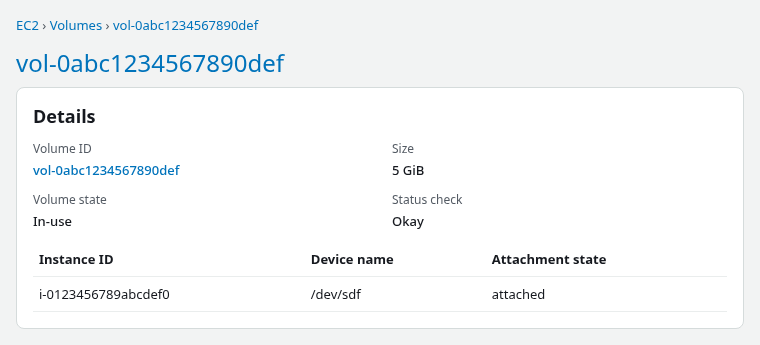
The attachment device name in the console (/dev/sdf) is a suggestion. On Nitro instances Linux exposes the volume under an NVMe name such as /dev/nvme1n1. Map the volume to the Linux device with lsblk and the NVMe serial — not by assuming a fixed /dev/nvme* number.
Identify the New Device
After attach, map the EBS volume ID to the Nitro NVMe device before mounting anything. List block devices with size, serial, and filesystem metadata:
sudo lsblk -o NAME,SIZE,SERIAL,FSTYPE,MOUNTPOINTSNAME SIZE SERIAL FSTYPE MOUNTPOINTS
nvme0n1 10G vol0a2e97712e1d06191
├─nvme0n1p1 1M
├─nvme0n1p2 200M vfat /boot/efi
└─nvme0n1p3 9.8G xfs /
nvme1n1 5G vol0abc1234567890def
└─nvme1n1p1 5G xfsOn Nitro instances, the NVMe SERIAL column contains the EBS volume ID with hyphens removed. Volume vol-0abc1234567890def appears as vol0abc1234567890def on nvme1n1. Use that value to identify the correct disk rather than assuming a particular /dev/nvmeXn1 number. See EC2 EBS device name versus NVMe for how attachment names map inside Linux.
The data partition shows FSTYPE=xfs and no MOUNTPOINTS entry yet — that pattern indicates an existing filesystem waiting to be mounted. For a filesystem-type summary without the serial column, lsblk -f shows the same UUID and FSTYPE fields.
Check for an Existing Filesystem
Before any write to the partition table, confirm what Linux sees on the device. Start with blkid. If the result is unclear, use file -s and wipefs -n to see what signatures are actually present on the disk or partition.
sudo blkid /dev/nvme1n1p1/dev/nvme1n1p1: UUID="e7786810-a6df-4c21-98db-9822040d3711" BLOCK_SIZE="512" TYPE="xfs" PARTLABEL="primary" PARTUUID="21bdae02-1b6f-449e-aee2-c724b6b6a106"blkid reads filesystem superblocks and prints type and UUID. A line with TYPE="xfs" or TYPE="ext4" means a filesystem is present.
Inspect raw block content when blkid is inconclusive:
sudo file -s /dev/nvme1n1 /dev/nvme1n1p1/dev/nvme1n1: DOS/MBR boot sector; partition 1 : ID=0xee, start-CHS (0x0,0,2), end-CHS (0x3ff,255,63), startsector 1, 10485759 sectors, extended partition table (last)
/dev/nvme1n1p1: SGI XFS filesystem data (blksz 4096, inosz 512, v2 dirs)The partition line reports SGI XFS filesystem data, which confirms that this partition already contains an XFS filesystem. Do not format it again. For ext4, file -s typically reports Linux rev 1.0 ext4 filesystem data.
| Tool | What it tells you |
|---|---|
lsblk -f |
Device tree, filesystem type, UUID, and current mounts |
blkid |
Filesystem type and UUID on a specific device |
file -s |
What kind of data or signature exists on the raw block device |
wipefs -n |
Known filesystem or partition signatures without erasing them |
Do Not Format a Used Volume
mkfs.xfs, mkfs.ext4, and parted mklabel on a volume that already contains data are destructive. They replace filesystem metadata; existing files become unreachable. AWS warns that creating a filesystem on a volume that already contains data overwrites the existing filesystem.
If blkid, file -s, or lsblk -f shows XFS or ext4, skip straight to mount — do not run mkfs or repartition to "fix" a missing mount point. Create the mount directory with mkdir, then mount the existing filesystem.
If no filesystem appears, stop before running mkfs if this volume was supposed to contain data. First confirm that the correct EBS volume is attached and inspect the disk for partitions and other signatures. Only format when the volume is intended to be blank — never infer that an existing volume is safe to format only because blkid or lsblk does not recognize a filesystem.
Absence of a recognized filesystem does not prove the disk is disposable. The device could hold a damaged superblock, RAID/LVM/encryption layers below the partition you checked, or simply be the wrong EBS volume.
List known signatures without erasing anything:
sudo wipefs -n /dev/nvme1n1DEVICE OFFSET TYPE UUID LABEL
nvme1n1 0x200 gpt
nvme1n1 0x13ffffe00 gpt
nvme1n1 0x1fe PMBROn the partition:
sudo wipefs -n /dev/nvme1n1p1DEVICE OFFSET TYPE UUID LABEL
nvme1n1p1 0x0 xfs e7786810-a6df-4c21-98db-9822040d3711wipefs -n lists signatures it would remove — it does not erase them. Use it for inspection only; do not run wipefs -a on a volume that may still hold data.
If the volume should contain data but these tools return nothing useful, investigate further or restore from a snapshot instead of formatting it.
blkid initially looks empty on the wrong partition or device level.
Mount Safely
Create the mount point, then optionally mount read-only first to check file contents before a read-write mount:
sudo mkdir -p /mnt/appdataFor an initial check, mount the filesystem read-only. This prevents normal applications and users from modifying files while verifying contents. A read-only mount is not a forensic no-write guarantee, because a journaled filesystem may perform recovery while mounting.
sudo mount -o ro /dev/nvme1n1p1 /mnt/appdataA successful read-only mount exits with no output. Read a known file from the volume:
sudo cat /mnt/appdata/lab-data/verify.txtglc-attach-ebs-verify-2026The expected content confirms the filesystem is intact. Unmount the read-only mount before attaching read-write:
sudo umount /mnt/appdataMount read-write for normal use:
sudo mount /dev/nvme1n1p1 /mnt/appdataConfirm the mount source and options:
sudo findmnt -n -o SOURCE,TARGET,FSTYPE,OPTIONS /mnt/appdata/dev/nvme1n1p1 /mnt/appdata xfs rw,relatime,seclabel,attr2,inode64,logbufs=8,logbsize=32k,sunit=8,swidth=8,noquotafindmnt shows the block device backing the mount and confirms the filesystem is mounted read-write.
Handle XFS Duplicate UUID if Needed
Attaching a snapshot or clone of an XFS volume to the same instance that already mounts the source filesystem triggers a duplicate UUID conflict. XFS refuses a second mount of the same UUID by default.
With the original volume mounted at /mnt/appdata, attach a clone and try a normal mount:
sudo mount /dev/nvme2n1p1 /mnt/appdata-clonemount: /mnt/appdata-clone: wrong fs type, bad option, bad superblock on /dev/nvme2n1p1, missing codepage or helper program, or other error.
dmesg(1) may have more information after failed mount system call.The generic mount message hides the XFS reason. Check the kernel log:
sudo dmesg | tail -3[ 382.258854] XFS (nvme2n1p1): Filesystem has duplicate UUID e7786810-a6df-4c21-98db-9822040d3711 - can't mountFor a temporary second mount of the clone on the same host, use nouuid:
sudo mount -o nouuid /dev/nvme2n1p1 /mnt/appdata-cloneThe mount succeeds silently unless another option restricts writes. nouuid alone is a normal read-write mount — it only bypasses the duplicate-UUID check. Data on the clone matches the source:
sudo cat /mnt/appdata-clone/lab-data/verify.txtglc-attach-ebs-verify-2026For read-only snapshot inspection without XFS log replay, mount with ro,nouuid,norecovery:
sudo mount -o ro,nouuid,norecovery /dev/nvme2n1p1 /mnt/appdata-clonenorecovery skips XFS log replay, so the view can omit very recent metadata updates if the snapshot was not captured from a cleanly unmounted source. That combination is for inspection only — not for production read-write use.
For a long-term clone that must coexist with the source, unmount the clone first and assign a new XFS UUID:
sudo umount /mnt/appdata-clone
sudo xfs_admin -U generate /dev/nvme2n1p1
Run xfs_admin only against the clone after confirming the device path. xfs_admin cannot modify a mounted filesystem.
Persist with /etc/fstab
Survive reboot by mounting through /etc/fstab. Use the filesystem UUID from blkid, not the NVMe path. The device may be nvme1n1p1 today and a different NVMe number after a reboot or attachment change. The filesystem UUID stays with the filesystem, which is why it is safer in /etc/fstab.
Add one line with nofail so an unavailable optional data volume does not block normal boot:
UUID=e7786810-a6df-4c21-98db-9822040d3711 /mnt/appdata xfs defaults,nofail 0 0The last two fields disable dump backups (0) and boot-time fsck ordering (0). XFS does not use the traditional boot-time fsck pass that ext filesystems do, so 0 0 is appropriate for this optional data mount.
nofail prevents an unavailable optional data volume from blocking normal boot. Systemd can still attempt the mount, but failure of this mount does not make local-fs.target fail. See EC2 fstab boot failure for the failure mode when nofail is omitted on a non-root data disk.
Test the new entry without rebooting — unmount first so mount -a exercises the fstab line:
sudo umount /mnt/appdataThen reload every persistent mount from /etc/fstab:
sudo mount -amount -a exits silently when every /etc/fstab line succeeds. Verify the mount came back:
sudo findmnt -n -o SOURCE,TARGET,FSTYPE /mnt/appdata/dev/nvme1n1p1 /mnt/appdata xfsVerify Data
After the read-write mount or an fstab-driven mount -a, confirm application data is present and writable:
sudo cat /mnt/appdata/lab-data/verify.txtglc-attach-ebs-verify-2026Optionally write a new file to confirm the mount is read-write, then read it back:
echo 'post-attach ok' | sudo tee /mnt/appdata/lab-data/post-attach.txtThe new file should match what was written:
sudo cat /mnt/appdata/lab-data/post-attach.txtpost-attach okFinding the expected file after the mount is a quick sanity check that the intended volume is attached and its existing data is readable. For volumes moved between instances, compare timestamps, database row counts, or application-specific checksums before cutover for stronger validation.
Troubleshooting
| Symptom | Likely cause | Fix |
|---|---|---|
attach-volume fails with InvalidParameterValue |
Volume and instance in different AZs | Attach only within the same Availability Zone |
Volume still in-use on another instance |
Not unmounted or detached from the old host | Unmount on the source instance, detach-volume, wait for available |
New disk missing in lsblk |
Attachment still settling or wrong instance | Wait for in-use; confirm instance ID and NVMe serial; rescan NVMe or reboot if needed |
blkid shows no TYPE= but data expected |
Wrong volume, damaged superblock, or layer below the partition checked | Confirm NVMe serial matches volume ID; run wipefs -n; restore from snapshot — do not format |
mount: unknown filesystem type |
Wrong device, unsupported filesystem, or missing kernel filesystem support | Confirm FSTYPE with lsblk -f or blkid; verify the mount target is the partition that holds the filesystem |
| Volume mounts but application gets Permission denied | Existing UID/GID ownership or SELinux labels differ on the new instance | Inspect with ls -ln and ls -lZ; adjust ownership or labels only after confirming the correct files |
XFS duplicate UUID in dmesg |
Snapshot clone on same instance as source | mount -o nouuid temporarily, or unmount clone and run xfs_admin -U generate on the clone device |
Boot hangs at local-fs.target |
/etc/fstab entry without nofail for detached data volume |
Add nofail or remove the line; recover through emergency mode |
Installing xfsprogs supplies XFS administration tools such as xfs_admin, but do not assume that installing a package alone fixes an unknown filesystem type — confirm the device and filesystem signature first.
Summary
Attaching an existing EBS volume to EC2 preserves block data; the danger is formatting or repartitioning on Linux before confirming what is on the disk. The workflow unmounts and detaches from the old host, waits for Available state, attaches in the correct Availability Zone, maps /dev/sdf to the Nitro device through the NVMe serial, and confirms XFS or ext4 with blkid, file -s, and wipefs -n before any mount.
A read-only mount pass checks expected file contents, but it is not a forensic no-write guarantee on journaled filesystems. Snapshot clones on the same instance can hit XFS duplicate UUID — kernel logs name the conflict, mount -o nouuid mounts the clone for ordinary temporary use, and ro,nouuid,norecovery suits read-only inspection without log replay. Persist the mount with UUID= and nofail in /etc/fstab so an optional data volume does not block boot when it is unavailable.
For blank volumes that need a first filesystem, use a separate new-volume procedure. For growing an attached filesystem after EBS resize, follow EBS resized but df unchanged. For root recovery from snapshots, see restore EC2 root from EBS snapshot.
References
- Make an Amazon EBS volume available for use — check for an existing filesystem before formatting; AWS warning on overwriting data
- Attach an Amazon EBS volume to an instance — detach, attach, and device names
- Identify EBS devices on Nitro-based instances —
/dev/sdfversus/dev/nvme*and NVMe serial mapping - Amazon EBS volume state — volume lifecycle and attachment states
- mount(8) — mount options including
ro,nouuid, andnorecovery - fstab(5) — persistent mount configuration and
nofail - xfs_admin(8) — XFS UUID management on unmounted filesystems
Frequently Asked Questions
Will attaching EBS erase data?
No. The attach API connects an existing block device to an instance. Data stays on the volume until something on the instance overwrites it — most often mkfs, parted mklabel, or writing to the wrong device. Inspect with blkid and file -s before any destructive command.
Should I run mkfs on an existing EBS volume?
Only when the volume is intended to be blank and inspection confirms no filesystem signatures on the correct device and partition. If blkid reports TYPE="xfs" or TYPE="ext4", or file -s or wipefs -n names a filesystem type, skip mkfs and mount instead. If tools show nothing but the volume should contain data, investigate or restore from a snapshot — do not format based on empty output alone.
Why can an XFS snapshot clone refuse to mount?
A snapshot copy keeps the same XFS UUID as the source. Linux allows only one mounted filesystem per UUID. When both volumes are on one instance and the source is already mounted, XFS logs Filesystem has duplicate UUID … can't mount. Use mount -o nouuid for a temporary read-write mount, mount -o ro,nouuid,norecovery for read-only inspection without log replay, or unmount the clone and run xfs_admin -U generate on the clone device for a permanent fix.
