
| Package | cloud-utils-growpart, e2fsprogs, xfsprogs, aws-cli/2.37.3 (RHEL 10.2 on EC2, Nitro devices) |
|---|---|
| AWS Region | ap-south-1 (Mumbai) for the examples; EBS volume modification is Regional |
| Lab environment | Workstation with AWS CLI v2 and configured credentials — AWS CLI tutorial Install AWS CLI on Ubuntu · Install AWS CLI on Debian |
| Privilege | EC2 ModifyVolume permission and [sudo](/sudo-command-in-linux/) on the instance for partition and filesystem growth |
| Scope | Why an enlarged EBS volume can leave df reporting the old filesystem size on EC2, how to compare EBS block size with partition and filesystem size, extend the partition with growpart, grow ext4 with resize2fs or extend a partitioned XFS root on RHEL with growpart and xfs_growfs -d, handle unpartitioned XFS volumes, and verify capacity. Does not cover growpart failing with no space left on device when the root filesystem is full or growpart returning NOCHANGE when the partition already fills the disk. |
| Related guides | Fix growpart NOCHANGE on EC2 Fix growpart no space left on device on EC2 AWS EBS Volume Guide AWS CLI Tutorial AWS Tutorial |
After modify-volume or a console resize, the EBS control plane can report a larger volume while Linux still shows the old capacity in df. That gap is normal: AWS enlarges the block device, but Linux does not extend the partition or filesystem automatically.
The examples use RHEL 10.2 on Nitro in ap-south-1: a partitioned XFS root volume (10 GiB to 16 GiB), a partitioned ext4 data disk (2 GiB to 5 GiB on /data), and an unpartitioned XFS data volume (2 GiB to 4 GiB on /mnt/rawxfs). The same three-layer model applies to common non-LVM layouts. If the volume uses LVM, additional physical-volume and logical-volume layers sit between the partition and filesystem.
┌─────────────┐     ┌──────────────────┐     ┌──────────────────┐
│ EBS volume  │ ──► │ Linux partition  │ ──► │ Filesystem       │
│ 5 GiB       │     │ still 2 GiB      │     │ ext4 on /data    │
└─────────────┘     └──────────────────┘     └──────────────────┘
      ▲                       ▲                        ▲
  modify-volume            growpart          resize2fs / xfs_growfs
Think of the storage as layers. AWS enlarges the underlying EBS disk first. A partition inside that disk can still remain at its old size, and the filesystem inside that partition can remain smaller again. df reports the filesystem layer, not the raw EBS disk.
Where to run the commands
aws ec2 …commands can run from a workstation or any system with AWS CLI credentials configured.lsblk,df,growpart,resize2fs, andxfs_growfsrun inside the EC2 Linux instance whose EBS volume was resized.
Quick Answer
| Symptom | Most likely layer | First check |
|---|---|---|
EBS console shows new size, df unchanged |
Partition or filesystem not grown | lsblk vs df -hT |
lsblk disk larger than partition |
Partition not extended | growpart on disk + partition number |
Partition larger than df |
Filesystem not grown | resize2fs (ext4) or xfs_growfs -d (XFS) |
lsblk and df both old size |
EBS modification not visible yet | Confirm modification → re-check correct device → rescan if needed → reboot only if still necessary |
growpart returns NOCHANGE |
Partition already uses all of the disk space Linux can currently see, or OS still sees old disk size | If disk is new size, skip to filesystem grow; if disk is still old, verify EBS modification |
growpart fails with no space left |
Root or /tmp full |
See growpart no space left on device |
lsblk shows the size and structure of Linux block devices such as disks and partitions. df shows the size of mounted filesystems. That is why lsblk can show the new 5G disk while df still reports a 2.0G filesystem — and why both commands appear in the first checks above.
Why AWS and df Show Different Sizes
Three separate layers sit between the EBS API and what df reports:
- EBS volume — the block-device capacity configured in AWS
- Linux partition — the portion of that disk allocated to the filesystem
- Filesystem — the structure Linux mounts and whose usable size
dfreports
df reads the mounted filesystem size. It does not read the EBS volume size directly. After a resize, the new space exists on the disk, but the partition and filesystem are still using their old boundaries until growpart and the filesystem grow tool run.
On Nitro instances, the enlarged EBS size usually appears in lsblk without a reboot. If lsblk still shows the original disk size after EBS reaches optimizing or completed, first verify that you are checking the correct device and wait briefly. If the OS still does not detect the new capacity, use the appropriate device rescan method for that platform; reboot only as a last step.
Confirm EBS Modification Completed
Before running growpart, confirm AWS finished applying the new size. From a workstation with the AWS CLI configured:
aws ec2 describe-volumes-modifications --volume-ids vol-0abc1234567890def \
  --query 'VolumesModifications[0].{State:ModificationState,Target:TargetSize,Progress:Progress}' \
--output table-------------------------------------
| DescribeVolumesModifications |
+----------+-------------+----------+
| Progress | State | Target |
+----------+-------------+----------+
| 100 | completed | 5 |
+----------+-------------+----------+You do not have to wait for EBS to reach completed. Once the modification reaches optimizing, the new capacity is available to the instance; AWS continues performance optimization in the background. Proceed with lsblk checks and partition or filesystem growth as soon as the disk row shows the larger size.
In the AWS Management Console, open EC2 → Elastic Block Store → Volumes, select the volume, and confirm Size shows the new capacity (for example 5 GiB):
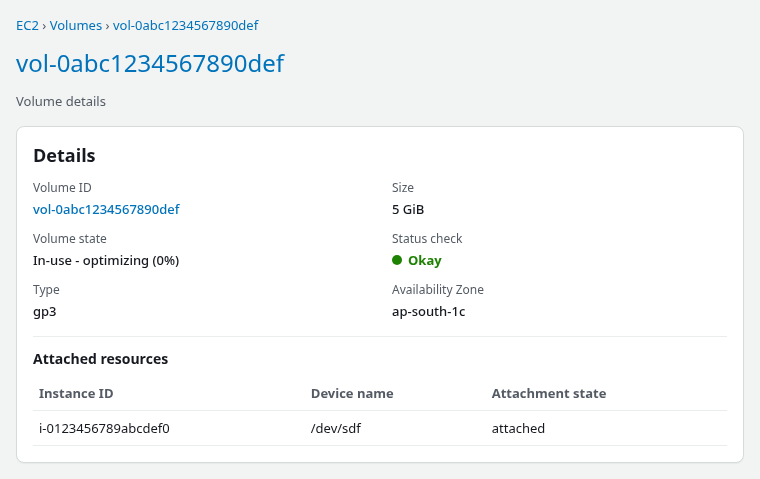
The EC2 console shows this volume attached as /dev/sdf, but this Nitro instance exposes it inside Linux as /dev/nvme1n1. That is normal on Nitro instances. NVMe numbering can depend on device discovery order, so do not assume that /dev/sdf always maps to /dev/nvme1n1. Identify the volume on the running instance with lsblk and, when needed, its EBS volume ID or filesystem UUID. Do not run growpart /dev/sdf … just because /dev/sdf appears in the console.
Identify Disk, Partition, and Filesystem
Match the EBS volume to the Nitro device name, partition, filesystem type, and mount point before changing anything. List every block device and mount:
sudo lsblk -o NAME,SIZE,TYPE,FSTYPE,MOUNTPOINTSNAME SIZE TYPE FSTYPE MOUNTPOINTS
nvme0n1 16G disk
├─nvme0n1p1 1M part
├─nvme0n1p2 200M part vfat /boot/efi
└─nvme0n1p3 9.8G part xfs /
nvme1n1 5G disk
└─nvme1n1p1 2G part ext4 /data
nvme2n1 4G disk xfs /mnt/rawxfsAfter EBS modification, the top-level disk rows (nvme0n1, nvme1n1, nvme2n1) show the new sizes, while partitions and filesystems can lag behind. Root still shows nvme0n1p3 at 9.8G on a 16G disk; the ext4 data partition is 2G on a 5G disk; the unpartitioned XFS volume shows 4G at the disk row but df still reports 2.0G.
Report filesystem capacity for the mounts in question:
sudo df -hT / /data /mnt/rawxfsFilesystem Type Size Used Avail Use% Mounted on
/dev/nvme0n1p3 xfs 9.8G 2.0G 7.8G 20% /
/dev/nvme1n1p1 ext4 2.0G 24K 1.9G 1% /data
/dev/nvme2n1 xfs 2.0G 71M 1.9G 4% /mnt/rawxfsdf reads the filesystem size inside each partition or whole-disk device — not the EBS volume size directly.
Map each mount to its source device:
sudo findmnt -n -o SOURCE,TARGET,FSTYPE,SIZE //dev/nvme0n1p3 / xfs 9.7GRepeat for other mount points when more than one volume was resized:
sudo findmnt -n -o SOURCE,TARGET,FSTYPE,SIZE /data/dev/nvme1n1p1 /data ext4 1.9G| Layer | What to read | Healthy after EBS resize, before grow |
|---|---|---|
| EBS | Console or describe-volumes |
New size (for example 5 GiB) |
| Disk | lsblk top-level SIZE |
Matches EBS size |
| Partition | lsblk partition row |
Often still old size |
| Filesystem | df -hT |
Matches old partition size |
Device names differ by attachment order and AMI. Use lsblk and findmnt on the instance rather than assuming /dev/xvd* names from the console attachment list.
After df -hT identifies the filesystem type, pick the grow tool:
df -hT shows ext4?
    └── resize2fs /dev/<partition>

df -hT shows xfs?
    └── xfs_growfs -d <mount-point>
resize2fs takes the ext4 device (partition or whole disk). xfs_growfs takes the XFS mount point, not the raw block device.
What if lsblk shows LVM?
If the mounted filesystem sits on a device such as /dev/mapper/... or the TYPE column shows lvm, do not run resize2fs on the EBS partition alone after growpart. If you see /dev/mapper/..., stop following the simple growpart → resize2fs sequence until you have confirmed the LVM layout. With LVM, there are two extra storage layers between the partition and filesystem:
     EBS volume
          ↓
      partition
          ↓
 LVM physical volume
          ↓
   logical volume
          ↓
ext4 / XFS filesystem
Grow the partition first when the disk is larger than the partition. With LVM, the usual sequence is grow partition → pvresize → extend the logical volume → grow the filesystem. This article does not walk through those LVM commands in detail.
Extend the Partition if Needed
Run growpart only when lsblk shows a partition row smaller than the parent disk. If the filesystem sits directly on the whole disk and there is no partition row, skip growpart.
Before modifying partitions on important volumes, create an EBS snapshot so there is a rollback point if the partition edit fails.
Do not run mkfs on the existing volume. mkfs creates a new filesystem and can destroy existing data. Resizing an existing EBS filesystem uses growpart, resize2fs, or xfs_growfs instead.
When the disk is larger than its partition, extend the partition into the free space at the end of the disk. growpart does not take the full partition path. It takes the parent disk as the first argument and the partition number as the second. The partition path and the growpart arguments are different:
partition path:  /dev/nvme1n1p1

growpart args:   disk              partition number
                 /dev/nvme1n1      1
The digit after p in names such as nvme1n1p1 is partition 1 on disk nvme1n1. Pass the disk and number separately — not the partition path. Running growpart /dev/nvme1n1p1 is a common mistake and will fail.
Install growpart if it is missing:
sudo dnf install -y cloud-utils-growpartRun growpart on the ext4 data disk:
sudo growpart /dev/nvme1n1 1CHANGED: partition=1 start=2048 old: size=4190208 end=4192255 new: size=10483679 end=10485726CHANGED means the partition table now spans the enlarged disk. If lsblk already shows the disk at the new EBS size and growpart returns NOCHANGE, the partition already uses all of the disk space Linux can currently see — continue to filesystem growth. If the disk itself still shows the old size, verify the EBS modification instead of running resize2fs or xfs_growfs.
Confirm the partition row grew:
sudo lsblk -o NAME,SIZE,TYPE,FSTYPE,MOUNTPOINTS /dev/nvme1n1NAME SIZE TYPE FSTYPE MOUNTPOINTS
nvme1n1 5G disk
└─nvme1n1p1 5G part ext4 /dataIf growpart fails because the root filesystem has no writable space for temporary files, use the workarounds in Fix growpart no space left on device on EC2.
Grow ext4 with resize2fs
Once the partition matches the disk size, grow ext4 into the new space. The examples below follow the ext4 data volume at /data on /dev/nvme1n1p1.
Confirm ext4 and the device path
Verify the mount uses ext4 and note the partition device:
sudo df -hT /dataFilesystem Type Size Used Avail Use% Mounted on
/dev/nvme1n1p1 ext4 2.0G 24K 1.9G 1% /dataFor this workflow, the Type column should read ext4. If it shows xfs, use the XFS section instead. Run resize2fs on the partition device (/dev/nvme1n1p1), not the whole disk (/dev/nvme1n1).
Run resize2fs
With the filesystem mounted, ext4 supports online growth:
sudo resize2fs /dev/nvme1n1p1resize2fs 1.47.1 (20-May-2024)
Filesystem at /dev/nvme1n1p1 is mounted on /data; on-line resizing required
old_desc_blocks = 1, new_desc_blocks = 1
The filesystem on /dev/nvme1n1p1 is now 1310459 (4k) blocks long.Online resize is expected for ext4 on a mounted data volume. Root ext4 can often be grown the same way when / is ext4, but take a snapshot first on production systems.
Verify the filesystem
Check that df and lsblk agree:
sudo df -hT /dataFilesystem Type Size Used Avail Use% Mounted on
/dev/nvme1n1p1 ext4 4.9G 24K 4.7G 1% /dataConfirm the partition row also shows the new size:
sudo lsblk -o NAME,SIZE,TYPE,FSTYPE,MOUNTPOINTS /dev/nvme1n1NAME SIZE TYPE FSTYPE MOUNTPOINTS
nvme1n1 5G disk
└─nvme1n1p1 5G part ext4 /datadf may report slightly less capacity than the raw partition size (for example 4.9G on a 5G partition) because some space is used by filesystem metadata and layout overhead. Ext4's reserved-block setting also reduces the space shown as Avail, but that is separate from the total Size column df reports.
Troubleshoot resize2fs errors
| Message or symptom | Likely cause | Next step |
|---|---|---|
The filesystem is already … blocks long |
Filesystem already matches partition | No further ext4 action needed |
Bad magic number on whole disk |
Target is not ext4 or wrong device | Re-check df -hT and lsblk; use the partition with FSTYPE ext4 |
Couldn't find valid filesystem superblock |
Wrong device, wrong filesystem type, or filesystem damage | Re-check device and type with lsblk -f and findmnt; do not format an existing volume |
Please run e2fsck -f |
Filesystem requires an offline consistency check | Do not run e2fsck on a mounted filesystem. Unmount a data filesystem first; for /, use rescue or offline maintenance, then run e2fsck and retry resize2fs |
df unchanged after resize2fs |
Partition not grown first | Run growpart; partition SIZE in lsblk must increase before resize2fs |
For a data mount such as /data, an offline check before retry looks like:
sudo umount /data
sudo e2fsck -f /dev/nvme1n1p1
sudo resize2fs /dev/nvme1n1p1
sudo mount /data
Do not run e2fsck -f against a mounted ext4 filesystem. Root / requires rescue or offline maintenance because it cannot be unmounted on a running system.
Shrinking ext4 online is not supported the same way as growth. This article covers extend-only workflows after EBS enlargement.
Extend an EBS XFS Filesystem
Many RHEL and Amazon Linux AMIs ship with XFS on /. After EBS modification, the Nitro disk row grows first while df on / can still show the old size. The growth sequence is the same as for other layouts: confirm the mount uses XFS, extend the partition when lsblk shows free space after the partition row, then run xfs_growfs on the mount point — not on /dev/nvme0n1p3 directly.
Confirm XFS and Mount Point
List block devices and confirm the root row uses xfs and which partition holds /:
sudo lsblk -o NAME,SIZE,TYPE,FSTYPE,MOUNTPOINTS /dev/nvme0n1NAME SIZE TYPE FSTYPE MOUNTPOINTS
nvme0n1 16G disk
├─nvme0n1p1 1M part
├─nvme0n1p2 200M part vfat /boot/efi
└─nvme0n1p3 9.8G part xfs /The top-level nvme0n1 disk shows 16G after EBS modification, but nvme0n1p3 is still 9.8G — the partition has not caught up yet.
Confirm the filesystem type and what df reports on /:
sudo df -hT /Filesystem Type Size Used Avail Use% Mounted on
/dev/nvme0n1p3 xfs 9.8G 2.0G 7.8G 20% /The Type column must read xfs. xfs_growfs takes the mount point (/), not the block device path.
Map the mount to its source device when more than one XFS filesystem is on the instance:
sudo findmnt -n -o SOURCE,TARGET,FSTYPE,SIZE //dev/nvme0n1p3 / xfs 9.7GExtend the Partition
When the disk is larger than the XFS partition, extend the partition before xfs_growfs. On this RHEL 10.2 root disk, / lives on partition 3 of nvme0n1:
sudo growpart /dev/nvme0n1 3CHANGED: partition=3 start=413696 old: size=20555776 end=20969471 new: size=33140703 end=33554398CHANGED means the partition table now spans the enlarged disk. If growpart returns NOCHANGE but lsblk already shows the partition at the new size, skip to xfs_growfs.
Confirm the partition row grew:
sudo lsblk -o NAME,SIZE,TYPE,FSTYPE,MOUNTPOINTS /dev/nvme0n1NAME SIZE TYPE FSTYPE MOUNTPOINTS
nvme0n1 16G disk
├─nvme0n1p1 1M part
├─nvme0n1p2 200M part vfat /boot/efi
└─nvme0n1p3 15.8G part xfs /The root partition is slightly smaller than 16G because nvme0n1p1 and nvme0n1p2 occupy EFI and boot space on the same disk.
Run xfs_growfs
Grow the mounted XFS filesystem into the enlarged partition. The -d flag expands the data section to use all space in the underlying device:
sudo xfs_growfs -d /meta-data=/dev/nvme0n1p3 isize=512 agcount=4, agsize=642368 blks
= sectsz=512 attr=2, projid32bit=1
= crc=1 finobt=1, sparse=1, rmapbt=1
= reflink=1 bigtime=1 inobtcount=1 nrext64=1
= exchange=0 metadir=0
data = bsize=4096 blocks=2569472, imaxpct=25
= sunit=0 swidth=0 blks
naming =version 2 bsize=4096 ascii-ci=0, ftype=1, parent=0
log =internal log bsize=4096 blocks=16384, version=2
= sectsz=512 sunit=0 blks, lazy-count=1
realtime =none extsz=4096 blocks=0, rtextents=0
= rgcount=0 rgsize=0 extents
= zoned=0 start=0 reserved=0
data blocks changed from 2569472 to 4142587The data blocks changed line confirms XFS consumed the new partition space.
For a non-root XFS mount such as /mnt/app, pass that mount point with -d:
sudo xfs_growfs -d /mnt/appVerify XFS Capacity
After xfs_growfs, df on / should report roughly 16G:
sudo df -hT /Filesystem Type Size Used Avail Use% Mounted on
/dev/nvme0n1p3 xfs 16G 2.1G 14G 14% /The partition size in lsblk and the filesystem size in df should now agree.
Troubleshoot XFS Growth
| Symptom | Likely cause | Next step |
|---|---|---|
df on / unchanged after EBS resize |
Partition or XFS not grown | Compare lsblk disk vs partition rows; run growpart then xfs_growfs -d / |
xfs_growfs prints data size unchanged, skipping |
Partition not extended yet, or XFS already at partition size | Confirm nvme0n1p3 grew in lsblk; re-run growpart if the partition is still small |
growpart NOCHANGE on root |
Partition already spans the disk Linux sees | Run xfs_growfs -d / only; if the disk row is still old, verify EBS modification first |
Ran xfs_growfs on /dev/nvme0n1p3 |
Wrong target — XFS wants a mount point | Use xfs_growfs -d / or xfs_growfs -d /mount/path |
growpart fails with no space left |
Full root or /tmp |
See growpart no space left on device |
Handle Unpartitioned Volumes
Some data volumes have no partition table — the filesystem sits directly on the block device. In lsblk, nvme2n1 shows FSTYPE xfs and MOUNTPOINTS /mnt/rawxfs with no p1 child row.
After EBS modification from 2 GiB to 4 GiB, the disk row grew to 4G while df still reported 2.0G:
sudo df -hT /mnt/rawxfsFilesystem Type Size Used Avail Use% Mounted on
/dev/nvme2n1 xfs 2.0G 71M 1.9G 4% /mnt/rawxfsSkip growpart when no partition exists. Grow XFS on the mount point with -d:
sudo xfs_growfs -d /mnt/rawxfsmeta-data=/dev/nvme2n1 isize=512 agcount=8, agsize=65536 blks
= sectsz=512 attr=2, projid32bit=1
= crc=1 finobt=1, sparse=1, rmapbt=1
= reflink=1 bigtime=1 inobtcount=1 nrext64=1
= exchange=0 metadir=0
data = bsize=4096 blocks=524288, imaxpct=25
= sunit=1 swidth=1 blks
naming =version 2 bsize=4096 ascii-ci=0, ftype=1, parent=0
log =internal log bsize=4096 blocks=16384, version=2
= sectsz=512 sunit=1 blks, lazy-count=1
realtime =none extsz=4096 blocks=0, rtextents=0
= rgcount=0 rgsize=0 extents
= zoned=0 start=0 reserved=0
data blocks changed from 524288 to 1048320For unpartitioned ext4, run resize2fs on the whole-disk device (for example /dev/nvme2n1) instead of xfs_growfs.
Always confirm with lsblk whether a part row exists before choosing growpart.
Verify Capacity
After the resize is complete, lsblk should show the larger disk and partition, and df should show the larger filesystem on each mount you extended.
List block devices and mounted filesystem sizes together:
sudo lsblk -o NAME,SIZE,TYPE,FSTYPE,MOUNTPOINTSNAME SIZE TYPE FSTYPE MOUNTPOINTS
nvme0n1 16G disk
├─nvme0n1p1 1M part
├─nvme0n1p2 200M part vfat /boot/efi
└─nvme0n1p3 15.8G part xfs /
nvme1n1 5G disk
└─nvme1n1p1 5G part ext4 /data
nvme2n1 4G disk xfs /mnt/rawxfsConfirm df reports the new capacity on each mount:
sudo df -hT / /data /mnt/rawxfsFilesystem Type Size Used Avail Use% Mounted on
/dev/nvme0n1p3 xfs 16G 2.1G 14G 14% /
/dev/nvme1n1p1 ext4 4.9G 24K 4.7G 1% /data
/dev/nvme2n1 xfs 4.0G 111M 3.9G 3% /mnt/rawxfsFrom the workstation, confirm the ext4 data volume size matches the top-level disk row in lsblk:
aws ec2 describe-volumes --volume-ids vol-0abc1234567890def \
--query 'Volumes[0].Size' --output text5This matches the 5G top-level nvme1n1 disk shown by lsblk. Repeat with each resized volume's EBS volume ID when more than one disk was modified.
Troubleshooting
| Symptom | Likely cause | Next step |
|---|---|---|
EBS larger, lsblk disk still old |
Modification not complete or OS has not detected new size | Confirm optimizing or completed; verify correct device and wait briefly; use the appropriate device rescan method for that platform; reboot only as a last step |
| Disk larger, partition old | Partition not extended | growpart |
Partition larger, df old |
Filesystem not grown | resize2fs or xfs_growfs -d |
growpart NOCHANGE |
Partition already uses all of the disk space Linux can currently see, or disk still old size | If disk is new size, grow filesystem only; if disk is old size, verify EBS modification |
| Wrong filesystem tool | ext4 vs XFS mismatch | Match tool to df -hT type column |
growpart no space left |
Full root or /tmp |
growpart no space left device guide |
/dev/mapper/... in findmnt |
LVM between partition and filesystem | Extend PV/LV before filesystem grow |
Summary
When EBS shows a larger size but df does not, work through the stack in order: confirm modification finished, compare EBS size with lsblk disk and partition rows, extend the partition with growpart when the disk is larger than the partition, then grow the filesystem with resize2fs for ext4 or xfs_growfs -d for XFS.
On the test instance, all three layouts showed the same pattern after modify-volume: the Nitro disk row grew immediately while df stayed at the old size. Root XFS on nvme0n1p3 needed growpart /dev/nvme0n1 3 and xfs_growfs -d /. The ext4 data disk needed growpart /dev/nvme1n1 1 and resize2fs /dev/nvme1n1p1. The unpartitioned XFS volume needed only xfs_growfs -d /mnt/rawxfs because no partition table was present.
If growpart fails on a nearly full root filesystem, fix temporary space first — see Fix growpart no space left on device on EC2 rather than forcing partition edits.
References
- Amazon EBS modify volume
- Extend a Linux file system after resizing a volume
- growpart (cloud-utils)
- resize2fs man page
- xfs_growfs man page
Frequently Asked Questions
Do I need a reboot after resizing EBS?
Usually not on Nitro instances. After modify-volume enters optimizing or completed, lsblk should show the larger disk without a reboot. If lsblk still shows the original disk size, first verify that you are checking the correct device and wait briefly. If the OS still does not detect the new capacity, use the appropriate device rescan method for that platform; reboot only as a last step.
Why is lsblk bigger than df?
lsblk reports block device and partition sizes. df reports the mounted filesystem size inside the partition. After EBS grows, the disk row increases first; the partition and filesystem stay smaller until growpart and resize2fs or xfs_growfs -d run.
What if growpart says NOCHANGE?
If lsblk already shows the disk at the new EBS size, the partition likely already uses all of the disk space Linux can currently see — run resize2fs or xfs_growfs -d next. If the disk row still shows the old size, verify the EBS modification completed before growing the filesystem.
Can resize2fs run online?
Yes for ext4 grow operations on a mounted filesystem in normal extend scenarios. The tool prints on-line resizing required when the filesystem is mounted. Shrinking ext4 requires unmounting and is outside the usual post-EBS-resize workflow.
Do I run resize2fs on the disk or partition?
Run it on the partition that holds ext4, such as /dev/nvme1n1p1. Use the whole disk device only when ext4 was created directly on an unpartitioned volume with no p1 row in lsblk.
Does xfs_growfs use a device or mount point?
Use the mount point. For root, run xfs_growfs -d /. For /mnt/app, run xfs_growfs -d /mnt/app. Do not pass /dev/nvme0n1p3 unless you are using advanced XFS options outside the usual post-EBS-resize workflow.
Can XFS grow online?
Yes. xfs_growfs grows a mounted XFS filesystem while it stays online. Unmounting is not required for extend-only growth after EBS enlargement. The partition or whole-disk device underneath must already be larger before xfs_growfs can use the space.
