
| Package | xfsprogs, e2fsprogs, util-linux (wipefs), aws-cli/2.37.3 (RHEL 10.2 on EC2, Nitro/XFS) |
|---|---|
| AWS Region | ap-south-1 (Mumbai) for the examples; EBS volumes and attachments are Regional |
| Lab environment | Workstation with AWS CLI v2 and configured credentials — AWS CLI tutorial Install AWS CLI on Ubuntu · Install AWS CLI on Debian |
| Privilege | EC2 AttachVolume and DetachVolume permissions and [sudo](/sudo-command-in-linux/) on the instance for unmount, block-device inspection, and mount |
| Scope | How to move persistent data from one EC2 instance to another by unmounting the filesystem on the source host, detaching the EBS volume, attaching it to a target instance in the same Availability Zone, mounting the existing filesystem without mkfs, persisting the mount in /etc/fstab, verifying file integrity, and cloning the volume into another AZ with an EBS snapshot when direct attach is impossible. Assumes a normal single-attach data volume, not EBS Multi-Attach. Does not cover formatting a new blank volume — see attach an existing EBS volume when the volume is already detached and waiting. |
| Related guides | Attach existing EBS volume EC2 EBS device name vs NVMe Restore EC2 root from EBS snapshot AWS EBS Volume Guide AWS Tutorial |
An EBS data volume stores block data independently of any one EC2 instance. Moving that data to another instance means stopping writes on the source host, detaching the volume in AWS, attaching it to the target instance in the same Availability Zone, and mounting the filesystem Linux already finds on the disk.
Running mkfs or repartitioning on a volume that already holds application data destroys access to that data. Before moving the volume, stop anything writing to it and unmount the filesystem. Then detach it from the source instance, attach it to the target, confirm that Linux sees the existing filesystem, and mount it without formatting.
The example moves a 5 GiB gp3 volume with a partitioned XFS filesystem and a known test file from a source RHEL 10.2 instance in ap-south-1a to a target instance in the same zone, then clones the volume into ap-south-1b through an EBS snapshot when the destination AZ differs.
        source EC2 instance (ap-south-1a)
                     ↓
              umount filesystem
                     ↓
                 detach-volume
                     ↓
           volume state available
                     ↓
    attach-volume on target (same AZ)
                     ↓
         identify NVMe device path
                     ↓
           mount existing XFS
                     ↓
              verify file hash
Where to run the commands
aws ec2 describe-instances,detach-volume,attach-volume,create-snapshot, andcreate-volumerun from a workstation with the AWS CLI configured.findmnt,umount,lsblk,blkid,mount, andsha256sumrun on the EC2 instances over SSH.
Check Availability Zones First
EBS volumes are zonal resources. An AWS Region such as ap-south-1 contains multiple Availability Zones such as ap-south-1a and ap-south-1b. An EBS volume belongs to one specific Availability Zone, so a direct detach-and-attach works only when both EC2 instances are in that same AZ.
A volume created in ap-south-1a attaches only to EC2 instances in ap-south-1a. AWS returns an error if the volume AZ and the target instance AZ differ.
     Source EC2 + target EC2 same AZ?
                  |
           +------+------+
           |             |
          Yes            No
           |             |
      detach EBS      snapshot EBS
           |             |
    attach same     create new volume
       volume        in target AZ
           |             |
         mount        attach + mount
Before detach or attach, confirm both instances and the volume share the same Availability Zone for a direct move:
aws ec2 describe-instances --instance-ids i-0123456789abcdef0 i-0fedcba9876543210 \
  --query 'Reservations[].Instances[].{Name:Tags[?Key==`Name`]|[0].Value,InstanceId:InstanceId,AZ:Placement.AvailabilityZone}' \
--output table--------------------------------------------------------------------------
| DescribeInstances |
+-------------+-----------------------+----------------------------------+
| AZ | InstanceId | Name |
+-------------+-----------------------+----------------------------------+
| ap-south-1a| i-0123456789abcdef0 | app-server-source |
| ap-south-1a| i-0fedcba9876543210 | app-server-target |
+-------------+-----------------------+----------------------------------+Compare the volume AZ as well:
aws ec2 describe-volumes --volume-ids vol-0abc1234567890def \
  --query 'Volumes[0].{VolumeId:VolumeId,State:State,AZ:AvailabilityZone,Attached:Attachments[0].InstanceId}' \
--output table---------------------------------------------------------------------------
| DescribeVolumes |
+-------------+-----------------------+-------------------------+---------+
| AZ | Attached | Id | State |
+-------------+-----------------------+-------------------------+---------+
| ap-south-1a| i-0123456789abcdef0 | vol-0abc1234567890def | in-use |
+-------------+-----------------------+-------------------------+---------+When the target instance must live in another AZ, skip direct attach and use the snapshot workflow in Cross-AZ move with snapshot instead.
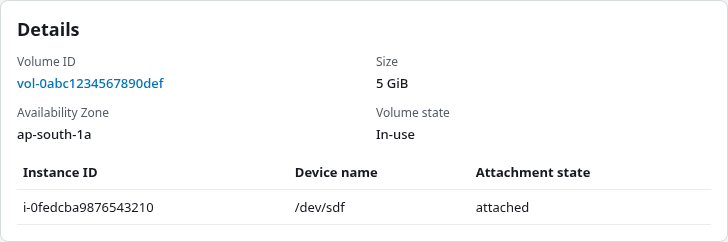
In the AWS Management Console, open EC2 → Elastic Block Store → Volumes and confirm Volume state is In-use, the attachment shows the target instance, and the volume Availability Zone matches that instance. The describe-instances output above proves the source and target instance AZs; the console does not keep a separate “prior host” record after the move.
Unmount the Filesystem Safely
Detaching an EBS volume while Linux still has the filesystem mounted risks torn writes and filesystem corruption. AWS expects the filesystem to be unmounted on a running instance before detachment when data consistency matters.
Confirm what is mounted at the data mount point:
sudo findmnt -n -o SOURCE,TARGET,FSTYPE,OPTIONS /mnt/appdata/dev/nvme1n1p1 /mnt/appdata xfs rw,relatime,seclabel,attr2,inode64,logbufs=8,logbsize=32k,sunit=8,swidth=8,noquotaThe output ties /mnt/appdata to /dev/nvme1n1p1 with FSTYPE=xfs. Stop any service or application that writes to that path before continuing.
While the source filesystem is still mounted and writes are stopped, record a checksum of a file you can verify after the move:
sudo sha256sum /mnt/appdata/lab-data/verify.txt84fd9627c46920cb12c1a9baddac1412bb923d2ca5cfa7c4b756927045b660ab /mnt/appdata/lab-data/verify.txtSave that hash before detaching the volume. After mounting on the target, calculate the same checksum again. Matching values confirm this test file is byte-for-byte identical before and after the move.
For important data, create an EBS snapshot while application writes are stopped. That gives you a recovery point before the volume is detached:
aws ec2 create-snapshot --volume-id vol-0abc1234567890def --description "Pre-move backup"The snapshot command returns immediately while AWS finishes the snapshot in the background. You do not need a full snapshot walkthrough here — wait until the snapshot reaches completed before relying on it, then proceed with unmount and detach.
Unmount the filesystem on the source host:
sudo umount /mnt/appdataumount exits silently on success. Confirm the partition is not mounted anywhere Linux tracks:
sudo findmnt -S /dev/nvme1n1p1No output means that partition is no longer mounted anywhere Linux knows about, so it is ready for the AWS detach step. Checking only findmnt /mnt/appdata proves the mount point is free, not that the underlying device is unmounted under another path.
Detach the EBS Volume
From a workstation, detach the volume after the source instance has unmounted it:
aws ec2 detach-volume --volume-id vol-0abc1234567890def{
"VolumeId": "vol-0abc1234567890def",
"InstanceId": "i-0123456789abcdef0",
"Device": "/dev/sdf",
"State": "detaching",
"AttachTime": "2026-09-27T14:56:41+00:00"
}Wait until the volume reaches available state before attaching it elsewhere:
aws ec2 describe-volumes --volume-ids vol-0abc1234567890def \
  --query 'Volumes[0].{VolumeId:VolumeId,State:State,AZ:AvailabilityZone,Attachments:Attachments}' \
--output json{
"VolumeId": "vol-0abc1234567890def",
"State": "available",
"AZ": "ap-south-1a",
"Attachments": []
}State: available with an empty Attachments list means the volume is free in ap-south-1a and ready for the target instance.
Stopping the source EC2 instance is not required for a data volume detach when the filesystem is unmounted first. Stopping can simplify root-volume work, but a clean umount is what protects data on a secondary data disk.
Attach to the Target Instance
Attach the volume to the target instance in the same Availability Zone. The --device /dev/sdf value is the attachment name AWS records; Nitro instances expose the disk under an NVMe path such as /dev/nvme1n1.
aws ec2 attach-volume --volume-id vol-0abc1234567890def \
--instance-id i-0fedcba9876543210 --device /dev/sdf{
"VolumeId": "vol-0abc1234567890def",
"InstanceId": "i-0fedcba9876543210",
"Device": "/dev/sdf",
"State": "attaching",
"AttachTime": "2026-09-27T14:57:24.010000+00:00"
}Confirm AWS reports the attachment:
aws ec2 describe-volumes --volume-ids vol-0abc1234567890def \
  --query 'Volumes[0].{VolumeState:State,AZ:AvailabilityZone,Instance:Attachments[0].InstanceId,Device:Attachments[0].Device,AttachmentState:Attachments[0].State}' \
--output json{
"VolumeState": "in-use",
"AZ": "ap-south-1a",
"Instance": "i-0fedcba9876543210",
"Device": "/dev/sdf",
"AttachmentState": "attached"
}VolumeState: in-use with AttachmentState: attached means the block device is present on the target instance. Linux still needs a separate mount step before files appear under /mnt/appdata.
Identify and Mount the Existing Filesystem
On the target instance, map the EBS volume ID to the Nitro NVMe device before mounting. See EC2 EBS device name versus NVMe for how /dev/sdf maps inside the guest.
List block devices with serial numbers:
sudo lsblk -o NAME,SIZE,SERIAL,FSTYPE,MOUNTPOINTSNAME SIZE SERIAL FSTYPE MOUNTPOINTS
nvme0n1 10G vol0e309f8eed671a832
├─nvme0n1p1 1M
├─nvme0n1p2 200M vfat /boot/efi
└─nvme0n1p3 9.8G xfs /
nvme1n1 5G vol0abc1234567890def
└─nvme1n1p1 5G xfsThe NVMe SERIAL column on the parent disk contains the EBS volume ID with the hyphen removed. Here, vol-0abc1234567890def appears as vol0abc1234567890def on /dev/nvme1n1; its existing filesystem is on the child partition /dev/nvme1n1p1.
vol-0abc1234567890def
         ↓
   /dev/nvme1n1       ← EBS disk / serial
         ↓
   /dev/nvme1n1p1     ← partition containing XFS
         ↓
     /mnt/appdata     ← Linux mount point
Confirm the existing filesystem before any write:
sudo blkid /dev/nvme1n1p1/dev/nvme1n1p1: UUID="139b1c29-b6ef-4fbc-ad98-578fd9e3bd19" BLOCK_SIZE="512" TYPE="xfs" PARTLABEL="primary" PARTUUID="78e86515-6968-45f7-a111-e33bb1c51210"TYPE="xfs" means a filesystem is already present. Do not run mkfs.xfs, mkfs.ext4, or parted on this partition when moving data.
Optionally mount read-only first to prevent normal application writes while checking the data. A read-only mount is not a forensic no-write guarantee for a journaled filesystem.
sudo mkdir -p /mnt/appdata
sudo mount -o ro /dev/nvme1n1p1 /mnt/appdata
Because the volume was cleanly unmounted before detaching, the practical risk is already reduced for this move workflow.
Mount read-write for normal use:
sudo umount /mnt/appdata
sudo mount /dev/nvme1n1p1 /mnt/appdata
Confirm the read-write mount landed on the expected device:
sudo findmnt -n -o SOURCE,TARGET,FSTYPE,OPTIONS /mnt/appdata/dev/nvme1n1p1 /mnt/appdata xfs rw,relatime,seclabel,attr2,inode64,logbufs=8,logbsize=32k,sunit=8,swidth=8,noquotaThe mount succeeded without formatting. Application data on the volume is now visible on the target host.
Persist the Mount
Add an /etc/fstab entry so the data volume mounts after reboot. Use the filesystem UUID from blkid, not the Nitro device name, because /dev/nvme1n1p1 can change if attachment order changes.
UUID=139b1c29-b6ef-4fbc-ad98-578fd9e3bd19 /mnt/appdata xfs defaults,nofail 0 0Append that line on the target instance, then validate:
sudo umount /mnt/appdata
sudo mount -a
sudo findmnt -n -o SOURCE,TARGET,FSTYPE /mnt/appdata/dev/nvme1n1p1 /mnt/appdata xfsnofail keeps boot from hanging if the volume is detached later. For XFS data volumes, 0 0 in the last two fstab fields is normal — XFS is not dumped with dump and does not use fsck on boot the way ext4 does. See EC2 fstab boot failure if a bad fstab line blocks startup.
Cross-AZ move with snapshot
When the target EC2 instance runs in a different Availability Zone, direct attach-volume fails. Snapshot the source volume, then create a new EBS volume from that snapshot in the target AZ.
A cross-AZ “move” is technically a copy: the snapshot is used to create a new EBS volume with a new volume ID in the target AZ. The original volume remains in its original AZ until you choose to delete it.
Unmount and detach the source volume cleanly first:
sudo umount /mnt/appdata
aws ec2 detach-volume --volume-id vol-0abc1234567890def
Wait until the volume is available, then create a snapshot:
aws ec2 create-snapshot --volume-id vol-0abc1234567890def \
--description "Move appdata volume to ap-south-1b"{
"SnapshotId": "snap-0abc1234567890def",
"State": "pending",
...
}Wait for snapshot completion:
aws ec2 describe-snapshots --snapshot-ids snap-0abc1234567890def \
  --query 'Snapshots[0].{SnapshotId:SnapshotId,State:State,VolumeSize:VolumeSize}' \
--output json{
"SnapshotId": "snap-0abc1234567890def",
"State": "completed",
"VolumeSize": 5
}Create a new volume in the destination AZ from the snapshot:
aws ec2 create-volume --availability-zone ap-south-1b \
--snapshot-id snap-0abc1234567890def --volume-type gp3{
"VolumeId": "vol-0def9876543210abc",
"AvailabilityZone": "ap-south-1b",
"State": "creating",
...
}create-volume returns before the new EBS volume is ready to attach. Wait until its state becomes available:
aws ec2 wait volume-available --volume-ids vol-0def9876543210abcA volume restored from a snapshot is usable once it becomes available, but its first reads can have higher latency while snapshot blocks are initialized. That affects initial performance, not whether the restored data is present.
Attach the new volume to an instance in ap-south-1b, identify the NVMe device with lsblk, and mount the existing filesystem. The new EBS volume keeps the filesystem stored in the snapshot, including its XFS UUID. That is normally fine when it replaces the source volume on an instance in another Availability Zone. A duplicate-UUID conflict occurs only if the target instance already has another XFS filesystem with that same UUID mounted, such as another clone of the same snapshot. In that case, use the duplicate-UUID handling described in the attach an existing EBS volume guide.
For a cross-Region move, copy the snapshot to the destination Region, then create a new EBS volume in the Availability Zone of the target EC2 instance.
Verify Data
After mount on the target, confirm the test file contents and compare its SHA-256 checksum to the value recorded on the source before detach.
Read the known test file:
sudo cat /mnt/appdata/lab-data/verify.txtglc-move-ebs-verify-2026Compute the checksum again on the target:
sudo sha256sum /mnt/appdata/lab-data/verify.txt84fd9627c46920cb12c1a9baddac1412bb923d2ca5cfa7c4b756927045b660ab /mnt/appdata/lab-data/verify.txtThe hash matches the source value from the unmount section, so this test file survived the same-AZ move unchanged.
After the cross-AZ snapshot clone in ap-south-1b, the same file and SHA-256 checksum on the destination provides a reproducible sanity check that this test data survived the snapshot-and-restore workflow unchanged. For production workloads, validate application-specific data, checksums, database consistency, or other workload-level checks before cutover.
Troubleshooting
| Symptom | Likely cause | Fix |
|---|---|---|
InvalidParameterValue or AZ mismatch on attach |
Volume AZ differs from target instance AZ | Move only within the same AZ, or snapshot and create-volume in the target AZ |
Detach hangs or busy on the instance |
Filesystem still mounted or process holding the device | findmnt, stop services, sudo umount, check lsof +f -- /mnt/appdata |
| Empty disk after attach | Ran mkfs or created a new partition table |
Restore from snapshot or backup; never format when blkid shows an existing filesystem |
mount: unknown filesystem type |
Wrong device, unsupported filesystem, or filesystem not recognized by the running kernel | Check lsblk -f and blkid; confirm you are mounting the partition that actually contains the filesystem |
| Device path changed after reboot | Nitro NVMe order varies | Use UUID= in /etc/fstab, not /dev/nvme1n1p1 |
XFS Filesystem has duplicate UUID |
Target instance already mounts another XFS filesystem with the same UUID, such as a second clone of the same snapshot | Mount with -o nouuid for XFS, or xfs_admin -U generate while unmounted |
Summary
Moving an EBS data volume has two parts: AWS moves the block-device attachment from one EC2 instance to another, and Linux mounts the existing filesystem on the new host. The volume and target instance must share an Availability Zone for direct attach; otherwise snapshot the volume and create a new disk in the destination zone.
On the source host, unmount the filesystem before detach-volume. On the target host, map the volume with lsblk and the NVMe serial, confirm TYPE=xfs or TYPE=ext4 with blkid, and mount without mkfs. Persist with a UUID-based /etc/fstab line and nofail.
The main pitfall is treating a moved volume like a blank disk. Formatting destroys the data the move was meant to preserve. Verify important files or application-specific checks before completing the cutover. For a direct same-AZ move, keep a recent snapshot until the application has validated the volume on the target. For a cross-AZ snapshot migration, keep the original volume unchanged until the new volume has been validated.
For a volume already sitting in Available state, the existing-volume attach guide covers target-side identification and mount steps in more detail, including duplicate-UUID snapshot clones on one instance.
References
- Detach an Amazon EBS volume from an Amazon EC2 instance
- Amazon EBS volumes — attach and detach
- Amazon EBS snapshots
- Amazon EC2 instance Availability Zones
- Identify EBS volumes on Nitro instances
Frequently Asked Questions
Can EBS attach to another Availability Zone?
No. An EBS volume attaches only to EC2 instances in the same Availability Zone where the volume was created. To reach another AZ, snapshot the volume and create a new EBS volume from that snapshot in the target AZ, then attach that new volume.
Do I need to stop the EC2 instance?
Not for a secondary data volume when the filesystem is unmounted first. Stop application writes, run umount on the source instance, then call detach-volume. Stopping the instance can reduce stray open file handles but is not an AWS requirement for detaching a data disk that is already unmounted.
Can EBS Multi-Attach move the same volume?
No. EBS Multi-Attach applies only to specific io1/io2 volumes in supported configurations and does not replace moving a standard data volume between two standalone instances. For normal gp3 data volumes, detach from the source instance before attaching to the target.
