
| Package | nvme-cli, util-linux (lsblk, blkid, findmnt), aws-cli/2.37.3 (RHEL 10.2 on EC2, Nitro NVMe) |
|---|---|
| AWS Region | ap-south-1 (Mumbai) for the examples; EBS volumes are Availability Zone scoped, and a volume must normally be attached to an instance in the same AZ |
| Lab environment | Workstation with AWS CLI v2 and SSH or Session Manager access to the instance — AWS CLI tutorial Install AWS CLI on Ubuntu · Install AWS CLI on Debian |
| Privilege | EC2 DescribeInstances, DescribeVolumes, and volume attach permissions; [sudo](/sudo-command-in-linux/) on the instance for block-device inspection |
| Scope | Why EC2 attachment device names such as /dev/sdf differ from the NVMe paths Linux uses on Nitro instances, how to map each NVMe device to its EBS volume ID using lsblk SERIAL and nvme list, and why persistent mounts should use filesystem UUIDs instead of /dev/nvme1n1 numbering. Covers when Amazon Linux may create /dev/sdf symlinks and when other distributions expose only nvme* devices. Does not cover resizing an attached volume or growing a filesystem — see the linked EBS resize guides. |
| Related guides | EBS volume resized but df not changed Fix resize2fs bad magic number on EBS Amazon Elastic Block Store AWS CLI Tutorial AWS Tutorial |
If an EBS volume is attached as /dev/sdf in the EC2 console but /dev/sdf does not exist inside Linux, the volume is probably not missing. On Nitro instances, Linux exposes EBS volumes as NVMe devices such as /dev/nvme1n1; identify the correct disk by matching its NVMe serial number to the EBS volume ID.
The walkthrough uses a RHEL 10.2 Nitro instance in ap-south-1 with two extra gp3 volumes: one attached at /dev/sdf (4 GiB XFS) and one at /dev/sdg (5 GiB ext4). AWS keeps the attachment names in describe-instances, while lsblk and nvme list show the guest NVMe devices and volume IDs. A detach-and-reattach of the second volume shows why nvme index numbers are a poor choice for /etc/fstab.
        EC2 API / console                 Linux on Nitro

   DeviceName: /dev/sdf
   VolumeId: vol-0abc...        ───────►   /dev/nvme1n1
                                           SERIAL=vol0abc...
                                                  │
                                                  └─ some AMIs may create
                                                     /dev/sdf symlink
Where to run the commands
aws ec2 …commands run from a workstation with the AWS CLI configured.lsblk,nvme list,blkid, and mount inspection run on the EC2 instance.
Why Nitro Changes EBS Device Names
Before Nitro, many EC2 instances presented attached EBS volumes through Xen paravirtual block drivers. Names like /dev/xvdf or /dev/sdf often matched what operators typed in automation.
Nitro instances attach EBS through an NVMe controller. The guest kernel sees standard NVMe namespace devices (/dev/nvme0n1, /dev/nvme1n1, …). AWS still accepts legacy-style attachment names in the EC2 API (/dev/sdf, /dev/sdg, /dev/xvdf), but those strings are attachment labels on the AWS side. The underlying block device is still NVMe.
Some AWS-provided distributions, notably Amazon Linux, can create udev symlinks that use the original attachment name, such as /dev/sdf pointing at the real NVMe device. Other distributions may expose only the nvme* path. Scripts should not assume /dev/sdf maps to a particular nvmeXn1 index even when the symlink exists.
In this RHEL 10.2 lab:
- The root disk is
nvme0n1and/is onnvme0n1p3. Other AMIs can use different partition numbers. - Each attached EBS volume appears as an NVMe namespace such as
nvme1n1. Whether it has child partitions such asnvme1n1p1depends on how that volume was previously partitioned or formatted. /dev/sdfand/dev/sdgdo not exist as guest device paths. The data volumes appear as/dev/nvme1n1and/dev/nvme2n1.
That mismatch is normal on this RHEL image. It is not a failed attach. The volume is present under an NVMe name with the volume ID in the NVMe serial field.
AWS Attachment Name vs Linux Device Name
First compare the device name AWS shows with the disks Linux actually sees. From a workstation, list block device mappings for the instance:
aws ec2 describe-instances --instance-ids i-0123456789abcdef0 \
--query 'Reservations[0].Instances[0].BlockDeviceMappings' --output table---------------------------------------------------------------
| DescribeInstances |
+-------------------------------+-----------------------------+
| DeviceName | /dev/sda1 |
+-------------------------------+-----------------------------+
|| Ebs ||
|+-------------------------+---------------------------------+|
|| AttachTime | 2026-09-27T09:21:35+00:00 ||
|| DeleteOnTermination | True ||
|| Status | attached ||
|| VolumeId | vol-0123456789abcdef0 ||
|+-------------------------+---------------------------------+|
| DescribeInstances |
+--------------------------------+----------------------------+
| DeviceName | /dev/sdf |
+--------------------------------+----------------------------+
|| Ebs ||
|+----------------------+------------------------------------+|
|| AttachTime | 2026-09-27T09:24:46.030000+00:00 ||
|| Status | attached ||
|| VolumeId | vol-0abc1234567890def ||
|+----------------------+------------------------------------+|
| DescribeInstances |
+--------------------------------+----------------------------+
| DeviceName | /dev/sdg |
+--------------------------------+----------------------------+
|| Ebs ||
|+----------------------+------------------------------------+|
|| AttachTime | 2026-09-27T09:25:09.673000+00:00 ||
|| Status | attached ||
|| VolumeId | vol-0fedcba9876543210 ||
|+----------------------+------------------------------------+|The DeviceName column is the attachment name AWS stores for that volume on this instance. It is useful in CloudFormation, launch templates, and the EC2 console storage panel:
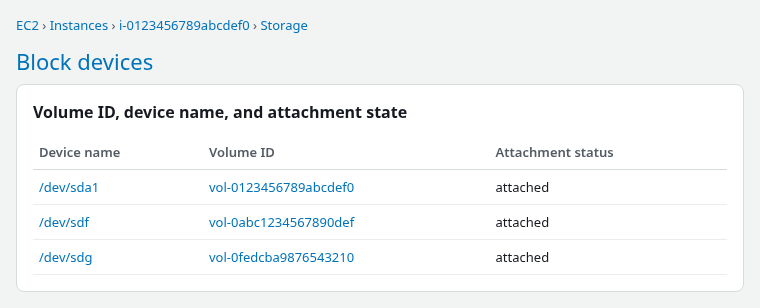
On this RHEL 10.2 instance, those /dev/sd* paths are not present:
ls -l /dev/sdf /dev/sdg 2>&1ls: cannot access '/dev/sdf': No such file or directory
ls: cannot access '/dev/sdg': No such file or directoryAWS keeps /dev/sdf as the attachment label even though Linux may expose the disk under a different name. On Amazon Linux, a /dev/sdf symlink may exist; on this RHEL lab it does not. Use the NVMe device path and match SERIAL to the volume ID when running disk commands on the instance.
| Layer | What you see | Stable across reboot? |
|---|---|---|
| EC2 attachment name | /dev/sdf, /dev/sdg in console and describe-instances |
Yes for that attachment record |
| Linux NVMe device | /dev/nvme1n1, /dev/nvme2n1, … |
Index can change on later starts or reattach |
Optional /dev/sdf symlink |
Present on some AMIs (for example Amazon Linux), absent on this RHEL lab | Symlink target can move if NVMe index changes |
NVMe serial / lsblk SERIAL |
EBS volume ID without hyphen (vol0abc…) |
Yes — tied to the volume |
| Filesystem UUID | 871a7786-… from blkid |
Yes — tied to the formatted filesystem |
Map NVMe Device to EBS Volume ID
The fastest cross-check on RHEL and most Linux AMIs is lsblk with the SERIAL column. EBS publishes the volume ID there with the hyphen removed.
On the instance:
sudo lsblk -o NAME,SIZE,TYPE,FSTYPE,MOUNTPOINTS,SERIALNAME SIZE TYPE FSTYPE MOUNTPOINTS SERIAL
nvme0n1 10G disk vol0123456789abcdef0
├─nvme0n1p1 1M part
├─nvme0n1p2 200M part vfat /boot/efi
└─nvme0n1p3 9.8G part xfs /
nvme1n1 4G disk xfs /mnt/vol-a vol0abc1234567890def
nvme2n1 5G disk ext4 /mnt/vol-b vol0fedcba9876543210Match each row to AWS:
vol-0abc1234567890defattached at/dev/sdf→nvme1n1(4 GiB XFS at/mnt/vol-a).vol-0fedcba9876543210attached at/dev/sdg→nvme2n1(5 GiB ext4 at/mnt/vol-b).
To convert SERIAL back to a volume ID, insert a hyphen after vol: vol0abc1234567890def → vol-0abc1234567890def.
nvme list shows the same serial in the SN column:
sudo nvme listNode Generic SN Model
/dev/nvme0n1 /dev/ng0n1 vol0123456789abcdef0 Amazon Elastic Block Store
/dev/nvme1n1 /dev/ng1n1 vol0abc1234567890def Amazon Elastic Block Store
/dev/nvme2n1 /dev/ng2n1 vol0fedcba9876543210 Amazon Elastic Block StoreFor a single device, nvme id-ctrl prints the serial directly:
sudo nvme id-ctrl /dev/nvme1n1 | grep -E '^sn|^mn'sn : vol0abc1234567890def
mn : Amazon Elastic Block StoreOn Amazon Linux, the ebsnvme-id helper (from the amazon-ec2-utils package) wraps the same lookup:
sudo ebsnvme-id /dev/nvme1n1That package is not installed by default on RHEL 10.2; lsblk SERIAL and nvme list are enough there.
When several data volumes are attached, use the volume ID in SERIAL as the primary match; size and mount point are useful cross-checks. Do not assume /dev/sdf always becomes nvme1n1. The nvme1n1, nvme2n1, and similar numbers come from Linux device discovery; they are not derived from /dev/sdf, /dev/sdg, or the order shown in the EC2 console.
Use UUIDs for Filesystems
After the correct NVMe device is identified, use the filesystem UUID for persistent mounts instead of /dev/nvme1n1 or /dev/sdf.
Read UUIDs with blkid:
sudo blkid /dev/nvme1n1 /dev/nvme2n1/dev/nvme1n1: UUID="871a7786-9946-4574-a815-fc8e6fd57f4d" TYPE="xfs"
/dev/nvme2n1: UUID="14d48a91-362a-4ab0-aba3-bdaee49fc18a" TYPE="ext4"Example /etc/fstab lines:
UUID=871a7786-9946-4574-a815-fc8e6fd57f4d /mnt/vol-a xfs defaults,nofail 0 2
UUID=14d48a91-362a-4ab0-aba3-bdaee49fc18a /mnt/vol-b ext4 defaults,nofail 0 2
Confirm what is mounted:
findmnt -rn -o SOURCE,TARGET,FSTYPE,SIZE /mnt/vol-a/dev/nvme1n1 /mnt/vol-a xfs 3.9GRun the same check on the second mount point:
findmnt -rn -o SOURCE,TARGET,FSTYPE,SIZE /mnt/vol-b/dev/nvme2n1 /mnt/vol-b ext4 4.8GUUIDs survive NVMe renumbering. They also survive EBS resize and grow workflows as long as the same filesystem is grown in place. If a volume is formatted again, the UUID changes and fstab must be updated.
Avoid hard-coding /dev/nvme1n1 in /etc/fstab because NVMe enumeration can change. Also do not rely on the EC2 attachment label such as /dev/sdf being present on every Linux distribution. Use the filesystem UUID for persistent mounts.
Avoid Hard-Coding NVMe Enumeration
The 1 in nvme1n1 reflects discovery order; it is not a permanent identifier for that EBS volume. It can change when:
- Volumes are detached and reattached in a different order.
- Additional EBS volumes are attached before an existing one is removed.
- On subsequent starts, NVMe devices can be discovered in a different order — even though the EBS volume itself is unchanged.
To demonstrate the risk safely, unmount and detach the second volume, then attach it again at the same AWS device name /dev/sdg:
sudo umount /mnt/vol-bFrom the workstation, detach volume B while the instance keeps volume A:
aws ec2 detach-volume --volume-id vol-0fedcba9876543210 --instance-id i-0123456789abcdef0Wait until the volume is fully detached before reattaching:
aws ec2 wait volume-available --volume-ids vol-0fedcba9876543210After detach, only the first data volume remains:
sudo lsblk -o NAME,SIZE,TYPE,SERIAL,MOUNTPOINTS | grep -E 'nvme|NAME'NAME SIZE TYPE SERIAL MOUNTPOINTS
nvme0n1 10G disk vol0123456789abcdef0
nvme1n1 4G disk vol0abc1234567890def /mnt/vol-aReattach at the same attachment name and remount:
aws ec2 attach-volume --volume-id vol-0fedcba9876543210 \
  --instance-id i-0123456789abcdef0 --device /dev/sdg
Wait until AWS reports the volume as in use again:
aws ec2 wait volume-in-use --volume-ids vol-0fedcba9876543210After the volume is in use again, remount using the UUID line already in /etc/fstab:
sudo mount /mnt/vol-bList only rows whose SERIAL starts with vol to compare index numbers with volume IDs:
sudo lsblk -o NAME,SERIAL,MOUNTPOINTS | grep volnvme0n1 vol0123456789abcdef0
nvme1n1 vol0abc1234567890def /mnt/vol-a
nvme2n1 vol0fedcba9876543210 /mnt/vol-bIn this run, the volume returned as nvme2n1 again, but that is not a guarantee. Another attach order could assign nvme3n1 while AWS still shows /dev/sdg. The SERIAL column still maps to vol-0fedcba9876543210 regardless of the index.
For scripts that must run before UUIDs exist, match on SERIAL or volume ID instead of hard-coded nvme1n1. Once the filesystem exists, switch automation to UUID or to a stable udev rule derived from the EBS volume ID.
Troubleshoot a Missing Mapping
| Symptom | Likely cause | Fix |
|---|---|---|
/dev/sdf not found |
Expected on some distributions; attachment name exists only in AWS, or symlink not created on this AMI | Use lsblk / nvme list; map SERIAL to volume ID |
| No SERIAL on a disk row | Not an EBS NVMe namespace (local NVMe instance store, loop, or driver still settling) | Wait for attach; compare aws ec2 describe-volumes; check instance store vs EBS |
| Wrong volume formatted or mounted | Assumed nvme1n1 without checking SERIAL |
Unmount; remap with lsblk -o NAME,SERIAL,SIZE; use UUID in fstab |
nvme index changed after reboot or restart |
NVMe discovery order shifted | SERIAL and UUID still identify the volume; update scripts, not fstab UUID lines |
nvme list empty or permission denied |
Missing nvme-cli or need root |
Install nvme-cli; use sudo |
If a data volume was just attached, wait until aws ec2 describe-volumes shows State: in-use and the instance sees a new nvme* row before running mkfs or mount. Formatting the wrong device because /dev/sdf was missing or pointed at the wrong NVMe namespace destroys data on the misidentified disk.
When resizing or repairing filesystems after mapping, continue with the appropriate guide — resize2fs bad magic number if ext4 and XFS tools are confused, or the EBS resize workflow when capacity does not match df.
Summary
On Nitro EC2 instances, names like /dev/sdf are AWS attachment labels. Linux exposes the same EBS volumes as NVMe devices such as /dev/nvme1n1, and those index numbers can shift when volumes are detached, reattached, or when the instance starts again.
Some distributions, including Amazon Linux, may also provide a /dev/sdf symlink to the underlying NVMe device. The symlink is a convenience path, not a substitute for volume ID mapping or UUID-based mounts.
The reliable mapping is the EBS volume ID. It appears in describe-instances and in the guest as the NVMe serial with the hyphen removed — visible in lsblk SERIAL and nvme list. After identifying the correct device, put filesystem UUIDs in /etc/fstab instead of /dev/nvme1n1 or /dev/sdf.
Before destructive disk operations, reconcile AWS volume IDs with SERIAL on the instance. A missing /dev/sdf on RHEL or Ubuntu is common; the volume is still present under an NVMe name when the attachment shows attached in AWS.
References
- Device names for volumes on Amazon EC2 instances — AWS documentation
- Amazon EBS and NVMe on Linux instances — AWS documentation
- Identify Amazon EBS volumes on Linux — AWS documentation
- lsblk(8) — util-linux
- nvme(1) — nvme-cli
Frequently Asked Questions
Is /dev/sdf supposed to exist inside Linux?
Not necessarily. Nitro exposes the EBS volume itself as an NVMe device such as /dev/nvme1n1. Some distributions, including Amazon Linux, may also create a /dev/sdf symlink to that NVMe device. In this RHEL 10.2 lab no /dev/sdf node was created, so the volume was identified through its NVMe serial number.
Can nvme1n1 change after reboot?
Yes. The number in nvme1n1 reflects discovery order, not the AWS attachment name. On subsequent instance starts, NVMe devices can appear in a different order even when the attached EBS volumes are unchanged. The NVMe serial (EBS volume ID without hyphen) and the filesystem UUID stay tied to the same volume and filesystem across reboots and most reattach scenarios.
How do I find the EBS volume ID from Linux?
Read the SERIAL column from sudo lsblk -o NAME,SERIAL or the SN column from sudo nvme list. Insert a hyphen after vol to recover the standard volume ID format. On Amazon Linux, sudo ebsnvme-id /dev/nvme1n1 prints the same ID.
