
| Package | aws-cli/2.37.3, xfsprogs, util-linux (lsblk, blkid, findmnt) on RHEL 10.2 EC2 (Nitro, XFS root) |
|---|---|
| AWS Region | ap-south-1 (Mumbai); EBS volumes are Availability Zone scoped, while EBS snapshots are Regional |
| Lab environment | Workstation with AWS CLI v2 and configured credentials — AWS CLI tutorial Install AWS CLI on Ubuntu · Install AWS CLI on Debian |
| Privilege | EC2 permissions to stop and start instances, create snapshots, and attach or detach EBS volumes; [sudo](/sudo-command-in-linux/) on the rescue host to mount the broken root filesystem |
| Scope | How to prove an EC2 Linux boot failure caused by /etc/fstab from status checks and system log output, stop and snapshot the root volume, repair fstab offline on a rescue instance, compare block devices to UUIDs, validate with findmnt --verify, and reboot safely. Covers wrong UUIDs and missing optional data volumes; does not teach the generic rescue-instance workflow in full or GRUB/initramfs repair. |
| Related guides | Recover unbootable EC2 with rescue instance EC2 emergency mode recovery fstab UUID and label mounts EC2 instance reachability check failed AWS EBS Volume Guide |
Use this guide when the EC2 system log specifically shows a missing UUID or device, a failed .mount unit, or local-fs.target failure after an /etc/fstab change. If the instance is in emergency mode but the cause is not yet known, start with EC2 emergency mode recovery. For the generic offline EBS detach-and-attach workflow without fstab specifics, use Recover unbootable EC2 with rescue instance.
A bad /etc/fstab line can leave an EC2 Linux instance Running in the console while the guest OS never finishes booting. systemd waits for a filesystem that does not exist, local-fs.target cannot complete, and SSH times out even though the underlying EBS root volume is healthy.
/etc/fstab is Linux's persistent filesystem table. It tells the OS which local disks or network filesystems should be mounted automatically and where. During boot, systemd converts these entries into mount units. If a required device never appears, systemd waits for it and can eventually send the system into emergency mode.
Once the system log identifies the missing UUID or mount unit, the problem is in the guest's mount configuration rather than something to fix in the security group or EC2 host. Because the root filesystem lives on EBS, the repair path is offline: stop the instance, snapshot the root volume, attach it to a rescue host, fix fstab, validate the file safely, then reattach the disk with its original root device name.
The walkthrough below uses RHEL 10.2 on a Nitro instance with a deliberate wrong UUID in fstab. Instance IDs, volume IDs, and IP addresses in commands and output are sanitized; the workflow was tested in ap-south-1.
           Linux reads /etc/fstab
                     ↓
   Required disk/UUID is missing or wrong
                     ↓
    systemd cannot mount that filesystem
                     ↓
 mount unit waits and eventually times out
                     ↓
      local-fs.target cannot complete
                     ↓
Linux enters emergency.target (SSH unusable)
EC2 unreachable after an fstab edit?
- Confirm Get system log shows a mount timeout or
emergency.target. - Record the root volume ID and original root device name (
/dev/sda1on this AMI). - Stop the instance, wait until it is stopped, then snapshot the root volume before detaching it.
- Attach the root volume to a rescue instance in the same Availability Zone.
- Mount the root partition offline, check whether each UUID in fstab matches a filesystem that is actually attached, and fix fstab.
- Validate the repaired fstab with
findmnt --verifybefore unmounting. - Reattach the volume as the original root device and verify status checks and SSH.
Recognize an fstab Boot Failure
EC2 can report Running while the guest OS is stuck before multi-user mode. A required fstab mount that never appears produces systemd mount timeouts, then emergency.target. SSH usually times out because sshd never reaches a usable login path for normal users.
Start with status checks. System status covers AWS infrastructure; Instance status covers guest health:
aws ec2 describe-instance-status \
  --region ap-south-1 \
  --instance-ids i-0123456789abcdef0 \
  --include-all-instances \
  --query 'InstanceStatuses[0].{System:SystemStatus.Status,Instance:InstanceStatus.Status,Reachability:InstanceStatus.Details[0].Status}' \
--output table-------------------------------------------------
| DescribeInstanceStatus |
+-------------------+------------+--------------+
| Instance | Reachability| System |
+-------------------+------------+--------------+
| impaired | failed | ok |
+-------------------+------------+--------------+System: ok with Instance: impaired points to a guest OS problem rather than an EC2 host-level status failure. The system log then tells you whether an /etc/fstab mount actually blocked boot.
Pull the latest console output when SSH is unavailable:
aws ec2 get-console-output \
  --region ap-south-1 \
  --instance-id i-0123456789abcdef0 \
  --latest \
  --query Output \
--output text | tail -30Timed out waiting for device dev-disk-by\x2duuid-11111111\x2d1111\x2d1111\x2d1111\x2d111111111111.
Dependency failed for badmount.mount - /badmount.
Dependency failed for local-fs.target - Local File Systems.
Started emergency.service - Emergency Shell.
Reached target emergency.target - Emergency Mode.
You are in emergency mode. After logging in, type "journalctl -xb" to view
system logs, "systemctl reboot" to reboot, or "exit" to continue bootup.
Cannot open access to console, the root account is locked.The important pattern is Timed out waiting for device on a UUID or device path from fstab, followed by Dependency failed for …mount and emergency.target. For broader emergency-mode paths (Serial Console, AWSSupport-ExecuteEC2Rescue), see EC2 emergency mode recovery.
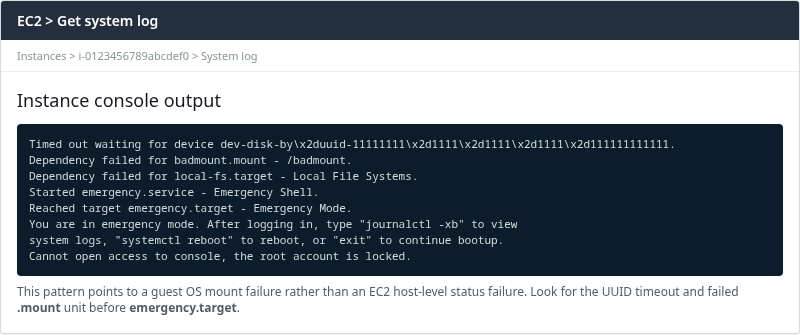
The log ties the boot hang to a specific fstab entry (badmount in the lab). Match the UUID or mount point in the log to the line that was added or changed before reboot.
Snapshot Before Repair
Before editing fstab offline, record the root mapping and take a recovery snapshot. If the instance uses an auto-assigned public IPv4 address, stopping and starting it can assign a new public address. Record the current connection details and query the address again after recovery.
List the root device and volume ID:
aws ec2 describe-instances \
  --region ap-south-1 \
  --instance-ids i-0123456789abcdef0 \
  --query 'Reservations[0].Instances[0].{RootDevice:RootDeviceName,BlockDevices:BlockDeviceMappings[*].{Device:DeviceName,Volume:Ebs.VolumeId}}' \
--output table-------------------------------------------------------
| DescribeInstances |
+---------------------------+-------------------------+
| RootDevice | /dev/sda1 |
+---------------------------+-------------------------+
|| BlockDevices ||
|+------------------------+--------------------------+|
|| Device | Volume ||
|+------------------------+--------------------------+|
|| /dev/sda1 | vol-0abc1234567890def ||
|+------------------------+--------------------------+|Stop the broken instance before detaching its root volume:
aws ec2 stop-instances --region ap-south-1 --instance-ids i-0123456789abcdef0Wait until EC2 reports stopped before creating the snapshot or detaching the root volume:
aws ec2 wait instance-stopped --region ap-south-1 --instance-ids i-0123456789abcdef0Create a snapshot while the instance is stopped so the capture is as consistent as the volume state allows:
aws ec2 create-snapshot \
  --region ap-south-1 \
  --volume-id vol-0abc1234567890def \
  --description "Pre-fstab repair" \
  --tag-specifications 'ResourceType=snapshot,Tags=[{Key=Name,Value=fstab-repair}]' \
  --query SnapshotId \
--output textsnap-0abc1234567890defWait for the snapshot to complete before detaching production data if time allows:
aws ec2 wait snapshot-completed --region ap-south-1 --snapshot-ids snap-0abc1234567890defDetach the root volume:
aws ec2 detach-volume --region ap-south-1 --volume-id vol-0abc1234567890defConfirm the volume is available before attaching it to the rescue host:
aws ec2 wait volume-available --region ap-south-1 --volume-ids vol-0abc1234567890defAttach the Root Volume to a Rescue Host
Launch or reuse a healthy Linux rescue instance in the same Availability Zone as the detached volume. EBS volumes attach only within one AZ. The steps below only cover what matters for repairing fstab; the separate rescue guide covers the generic detach/attach workflow in more detail at Recover unbootable EC2 with rescue instance.
Attach the broken root volume as a secondary device. /dev/sdf is the conventional API name for a non-root attachment:
aws ec2 attach-volume \
  --region ap-south-1 \
  --volume-id vol-0abc1234567890def \
  --instance-id i-0fedcba9876543210 \
  --device /dev/sdf
On Nitro instances the API device name often maps to an NVMe disk such as /dev/nvme1n1 inside Linux. Confirm with lsblk before mounting.
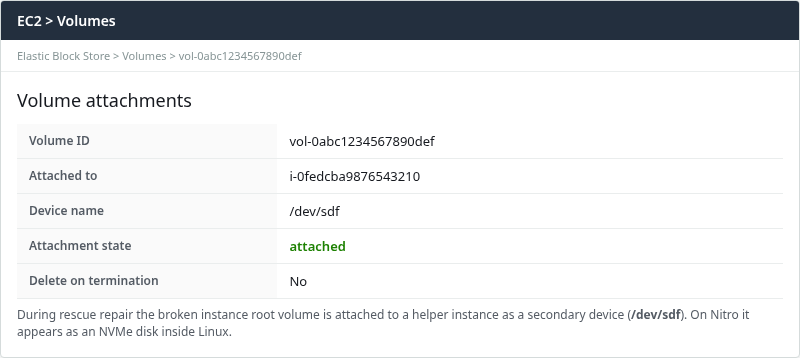
Verify attachment state:
aws ec2 describe-volumes \
  --region ap-south-1 \
  --volume-ids vol-0abc1234567890def \
  --query 'Volumes[0].Attachments[0].{InstanceId:InstanceId,Device:Device,State:State}' \
--output table-------------------------------------------------
| DescribeVolumes |
+----------+------------------------+-----------+
| Device | InstanceId | State |
+----------+------------------------+-----------+
| /dev/sdf | i-0fedcba9876543210 | attached |
+----------+------------------------+-----------+Find the Correct UUID/Device
SSH to the rescue host. Do not assume nvme1n1 is always the broken disk. In this lab, nvme0n1 is already mounted as /, so it belongs to the rescue instance; nvme1n1 is the newly attached broken disk. Confirm by mount point, disk size, and attachment information before editing anything.
| Disk | Role in this lab |
|---|---|
/dev/nvme0n1p3 → / |
Rescue instance root |
/dev/nvme1n1p3 → unmounted |
Broken instance root (offline repair target) |
List filesystems on all disks and pick the unmounted root partition on the secondary NVMe device:
sudo lsblk -fNAME FSTYPE FSVER LABEL UUID FSAVAIL FSUSE% MOUNTPOINTS
nvme0n1
├─nvme0n1p3 xfs root c78c1f15-7ec8-4bc4-b1b6-0e557f828ec1 8G 18% /
nvme1n1
├─nvme1n1p3 xfs root c78c1f15-7ec8-4bc4-b1b6-0e557f828ec1Check whether each UUID in fstab matches a filesystem that is actually attached when fstab uses UUID= entries:
sudo blkid/dev/nvme0n1p3: LABEL="root" UUID="c78c1f15-7ec8-4bc4-b1b6-0e557f828ec1" TYPE="xfs"
/dev/nvme1n1p3: LABEL="root" UUID="c78c1f15-7ec8-4bc4-b1b6-0e557f828ec1" TYPE="xfs"On EC2, device names such as /dev/xvdf in fstab can change across stop/start or instance type moves. Prefer UUID= or LABEL= for data volumes that must survive those changes. See fstab UUID and label mounts for formatting rules.
Create a mount point and attach the broken root read-write:
sudo mkdir -p /mnt/rescue-rootIn this lab, both roots came from the same XFS image and share the same filesystem UUID, so the rescue copy needs nouuid. If the UUIDs differ, mount normally:
sudo mount /dev/nvme1n1p3 /mnt/rescue-rootFor this duplicate-UUID lab:
sudo mount -o nouuid /dev/nvme1n1p3 /mnt/rescue-rootfindmnt should show the offline root:
findmnt /mnt/rescue-rootTARGET SOURCE FSTYPE OPTIONS
/mnt/rescue-root /dev/nvme1n1p3 xfs rw,relatime,seclabel,attr2,inode64,logbufs=8,logbsize=32k,noquotaInspect the broken fstab line before editing:
sudo grep -n badmount /mnt/rescue-root/etc/fstab1:UUID=11111111-1111-1111-1111-111111111111 /badmount xfs defaults 0 0Fix /etc/fstab
Back up fstab on the mounted root filesystem, then remove or correct the failing entry. chroot is not required for a simple fstab edit.
sudo cp /mnt/rescue-root/etc/fstab /mnt/rescue-root/etc/fstab.bakRemove the lab bad line (replace badmount with the mount point or UUID that failed in the log):
sudo sed -i '/badmount/d' /mnt/rescue-root/etc/fstabConfirm the entry is gone:
sudo grep badmount /mnt/rescue-root/etc/fstab || echo "badmount line removed"badmount line removedFor a real incident, replace a stale UUID with the value from blkid on the volume that should mount, or comment out optional data mounts until the EBS volume is reattached. Do not delete the root / line.
Missing secondary EBS volume: if fstab references a detached data volume, either reattach the volume before boot or change the line to use the correct UUID after the disk is present. A line left pointing at a volume that is not attached will block boot unless nofail is set.
Validate Before Reboot
Do not run mount -a -T /mnt/rescue-root/etc/fstab on the rescue host. -T only selects a different fstab file; mount -a still mounts at the paths written in that file (/data, /boot, and so on) in the rescue host's mount namespace, not under /mnt/rescue-root.
Before putting the disk back, check the repaired fstab for obvious errors with findmnt --verify and --tab-file:
sudo findmnt --verify --verbose \
--tab-file /mnt/rescue-root/etc/fstabSuccess, no errors or warnings detectedfindmnt --verify checks the alternative fstab for parsing and source/target usability from the rescue host's current environment. It is a useful sanity check, but it does not fully simulate booting the repaired instance. An fstab target such as /data is evaluated from the rescue environment, not automatically as /mnt/rescue-root/data. In this lab both XFS roots share the same filesystem UUID, so UUID resolution during verification can be ambiguous.
For entries you changed, separately confirm the UUID with blkid, confirm the intended target exists under /mnt/rescue-root, and test an attached data filesystem on a temporary mount point when practical.
If you changed a specific data-volume entry and that volume is attached to the rescue host, identify its unique device first:
sudo lsblk -fNAME FSTYPE FSVER LABEL UUID MOUNTPOINTS
nvme0n1
├─nvme0n1p3 xfs root c78c1f15-7ec8-4bc4-b1b6-0e557f828ec1 /
nvme1n1
├─nvme1n1p3 xfs root c78c1f15-7ec8-4bc4-b1b6-0e557f828ec1
nvme2n1
└─nvme2n1p1 xfs data a1b2c3d4-e5f6-7890-abcd-ef1234567890Do not use the duplicated root filesystem UUID for this test. Mount only the data volume you identified with lsblk -f or blkid:
sudo mkdir -p /mnt/testMount the data partition by device path:
sudo mount /dev/nvme2n1p1 /mnt/testOr, only when its UUID is known to be unique:
sudo mount UUID=a1b2c3d4-e5f6-7890-abcd-ef1234567890 /mnt/testConfirm the temporary mount succeeded:
findmnt /mnt/testRemove the test mount before continuing:
sudo umount /mnt/testFor a volume that is intentionally absent and uses nofail, you cannot prove its future mount from this rescue host. Verify the entry syntax and UUID, then test after the original instance boots.
Unmount cleanly before detaching EBS from the rescue host:
sudo umount /mnt/rescue-rootRestore and Verify
Detach the volume from the rescue instance:
aws ec2 detach-volume --region ap-south-1 --volume-id vol-0abc1234567890defWait until the volume is available again on the rescue side:
aws ec2 wait volume-available --region ap-south-1 --volume-ids vol-0abc1234567890defReattach using the original root device name recorded earlier (/dev/sda1 on this RHEL AMI):
aws ec2 attach-volume \
  --region ap-south-1 \
  --volume-id vol-0abc1234567890def \
  --instance-id i-0123456789abcdef0 \
  --device /dev/sda1
Confirm EC2 attached the volume to the original instance before starting it:
aws ec2 wait volume-in-use --region ap-south-1 --volume-ids vol-0abc1234567890defStart the instance:
aws ec2 start-instances --region ap-south-1 --instance-ids i-0123456789abcdef0Poll until the instance returns to running:
aws ec2 wait instance-running --region ap-south-1 --instance-ids i-0123456789abcdef0A stop/start can assign a new public IPv4 address. Read the current address before testing SSH:
aws ec2 describe-instances \
  --region ap-south-1 \
  --instance-ids i-0123456789abcdef0 \
  --query 'Reservations[0].Instances[0].PublicIpAddress' \
--output text203.0.113.42Poll status checks until both report ok:
aws ec2 describe-instance-status \
  --region ap-south-1 \
  --instance-ids i-0123456789abcdef0 \
  --include-all-instances \
  --query 'InstanceStatuses[0].{System:SystemStatus.Status,Instance:InstanceStatus.Status}' \
--output table-------------------------------------
| DescribeInstanceStatus |
+------------+----------------------+
| Instance | System |
+------------+----------------------+
| ok | ok |
+------------+----------------------+SSH should succeed after the fstab repair:
ssh -i ~/.ssh/lab-key.pem ec2-user@203.0.113.42 hostnameip-172-31-18-190.ap-south-1.compute.internalUse nofail/_netdev Where Appropriate
Once the instance is back online, prevent the same problem from happening with optional mounts.
| Option | Use on EC2 when |
|---|---|
nofail |
Optional data volumes that may be detached during maintenance; boot may continue if the mount is missing |
_netdev |
Network filesystems (EFS, NFS) that require networking before mount |
x-systemd.device-timeout= |
Reduce or extend how long systemd waits for slow storage (use sparingly) |
nofail does not make an incorrect UUID correct. It tells systemd that boot may continue even when that optional mount cannot be completed. Use nofail only when the machine is allowed to boot without that mount. Do not add it to the root filesystem or to mounts the application truly requires at boot just to hide a misconfigured UUID.
Example optional data volume line after the volume exists:
UUID=a1b2c3d4-e5f6-7890-abcd-ef1234567890 /data xfs defaults,nofail 0 2For EFS or NFS mounts that need the network stack first:
fs-0123456789abcdef0.efs.ap-south-1.amazonaws.com:/ /mnt/efs efs defaults,_netdev 0 0Troubleshooting
| Symptom | Likely cause | Fix |
|---|---|---|
Timed out waiting for device on a UUID |
Wrong or removed UUID in fstab | Compare with blkid; update or remove the line offline |
Dependency failed for local-fs.target |
Required mount missing at boot | Fix fstab or use nofail only for optional data mounts |
| Instance impaired, system ok | Guest OS boot failure | System log; offline fstab repair |
mount duplicate UUID on rescue host |
Detached XFS root shares UUID with rescue root | mount -o nouuid when UUIDs match |
| SSH works on rescue host but not broken instance | Wrong partition mounted or fstab not saved | Confirm unmounted secondary disk; verify edited file under /mnt/rescue-root/etc/fstab |
findmnt --verify reports errors |
Typo, wrong filesystem type, stale UUID | Fix fstab line; test one mount with mount UUID=... /mnt/test when the volume is attached |
Summary
A bad /etc/fstab entry can block local-fs.target and drop RHEL into emergency.target while EC2 still shows the instance as Running. Because the instance cannot boot far enough to edit fstab normally, repair the file from the detached root volume: stop the instance, snapshot, detach, mount offline on a rescue host, check whether each UUID in fstab matches a filesystem that is actually attached, fix or remove the failing line, validate with findmnt --verify --tab-file, then reattach the volume with the original root device name.
Use UUID= for stable data volume references on EC2. Use nofail only when the machine is allowed to boot without that mount, and add _netdev for network-backed filesystems. Do not use mount -a -T against an offline fstab on the rescue host; it can mount paths on the rescue system instead of testing the broken instance's configuration.
When the symptom is emergency mode but the root cause is unknown, start with EC2 emergency mode recovery. When the goal is only the generic detach-attach rescue workflow without fstab specifics, use Recover unbootable EC2 with rescue instance.
References
- Troubleshoot an EC2 Linux instance in emergency mode
- Make an Amazon EBS volume available for use
- View the console output of an EC2 instance
- Detach an Amazon EBS volume from a Linux instance
- Amazon EBS volume attachment for Amazon EC2 instances
- fstab(5) — static file system information
- findmnt(8) — find a filesystem
Frequently Asked Questions
Can a bad fstab prevent SSH?
Yes. A required mount that never completes can stop local-fs.target, which prevents normal multi-user boot. SSH may time out even though the EC2 instance state is Running and system status checks pass.
Should EC2 fstab use UUIDs?
Yes for data volumes and mounts that must survive device name changes on Nitro instances. Map UUIDs with blkid after attaching the volume. The root / entry on RHEL AMIs is usually already UUID-based from installation.
What does nofail do?
nofail tells systemd to continue booting if the filesystem cannot be mounted. It does not fix a wrong UUID. Use it for optional data volumes that might be detached, not for root or mounts the service truly needs at startup.
