
| Package | cloud-utils-growpart, e2fsprogs, aws-cli/2.37.3 (RHEL 10.2 on EC2, Nitro/ext4 data on nvme1n1p1) |
|---|---|
| AWS Region | ap-south-1 (Mumbai) for the examples; EBS volume modification is Regional |
| Lab environment | Workstation with AWS CLI v2 and configured credentials — AWS CLI tutorial Install AWS CLI on Ubuntu · Install AWS CLI on Debian |
| Privilege | EC2 ModifyVolume permission and [sudo](/sudo-command-in-linux/) on the instance for partition and filesystem growth |
| Scope | Why growpart can print NOCHANGE: partition cannot be grown on EC2 after an EBS resize, how to confirm the correct volume and NVMe device, compare disk and partition sizes with lsblk, pick the right partition number, check whether another partition blocks contiguous free space, and decide whether the partition already fills the disk or AWS has not finished exposing new capacity. Does not cover growpart failing with no space left on device on a full root filesystem, LVM logical-volume growth, or the full post-resize df workflow when growpart succeeds on the first try. |
| Related guides | EBS resized but df unchanged Fix growpart no space left on device xfs_growfs data size unchanged AWS EBS Volume Guide AWS Tutorial |
growpart from cloud-utils-growpart extends a partition only into contiguous free space immediately after that partition on the parent disk. When nothing usable remains, it prints NOCHANGE and a message that the partition cannot be grown. NOCHANGE looks like an error, but often it simply means there is no partition space left to extend.
Common reasons include: the partition already matches the disk; the EBS volume was not enlarged or Linux has not seen the new size yet; growpart targets the wrong disk or partition number; or another partition sits between the target partition and the free space at the end of the disk. The walkthrough uses a partitioned ext4 data volume on RHEL 10.2 in ap-south-1 (2 GiB enlarged to 5 GiB) and checks each case with lsblk before changing anything destructive.
What NOCHANGE Means
growpart compares the end of the selected partition with the end of the parent disk. If the partition already consumes the growable region (minus a small alignment fudge), it prints NOCHANGE and does not rewrite the partition table.
Two common wordings appear in current cloud-utils-growpart builds:
NOCHANGE: partition N could only be grown by …— the disk and partition are the same size (or nearly so); there is no spare space at the end of the diskNOCHANGE: partition N is size …. it cannot be grown— the partition already reaches the usable end of the available space, so there is nothing left forgrowpartto add
Neither line means the EBS API failed. They mean growpart has nothing to extend on that disk and partition pair. A successful resize prints CHANGED: with old and new sector counts and exits with status 0. Current growpart returns exit status 1 for NOCHANGE (no growth possible or necessary) and 2 for an actual failure such as a missing partition index.
         EBS modify-volume completes
                     ↓
      Linux disk SIZE grows in lsblk
                     ↓
   Partition SIZE still smaller than disk
                     ↓
        growpart → CHANGED (first run)
                     ↓
   Partition SIZE matches disk SIZE
                     ↓
        growpart → NOCHANGE (second run)
When NOCHANGE appears before the disk row in lsblk shows extra capacity, treat it as a signal to verify AWS-side size and device mapping first—not as proof that repartitioning is required.
Confirm You Resized the Correct EBS Volume
Instances with multiple EBS volumes map each attachment to its own NVMe namespace (nvme1n1, nvme2n1, and so on). Resizing the root volume in the console while troubleshooting a data mount on /data leaves the data disk unchanged and produces NOCHANGE on the data device.
From a workstation with the AWS CLI, list volumes attached to the instance and match Size to the mount being extended:
aws ec2 describe-volumes --filters Name=attachment.instance-id,Values=i-0123456789abcdef0 \
--query 'Volumes[].{VolumeId:VolumeId,Size:Size,Device:Attachments[0].Device}' --output table-------------------------------------------------------
| DescribeVolumes |
+-----------+-------+---------------------------------+
| Device | Size | VolumeId |
+-----------+-------+---------------------------------+
| /dev/sda1| 10 | vol-06074582d3808cc13 |
| /dev/sdf | 5 | vol-0abc1234567890def |
+-----------+-------+---------------------------------+The /dev/sdf row is the data volume in this layout (5 GiB after resize). Nitro instances expose that attachment as nvme1n1 inside the guest. Make sure the EBS volume resized in the console is the same disk that backs the mount being extended.
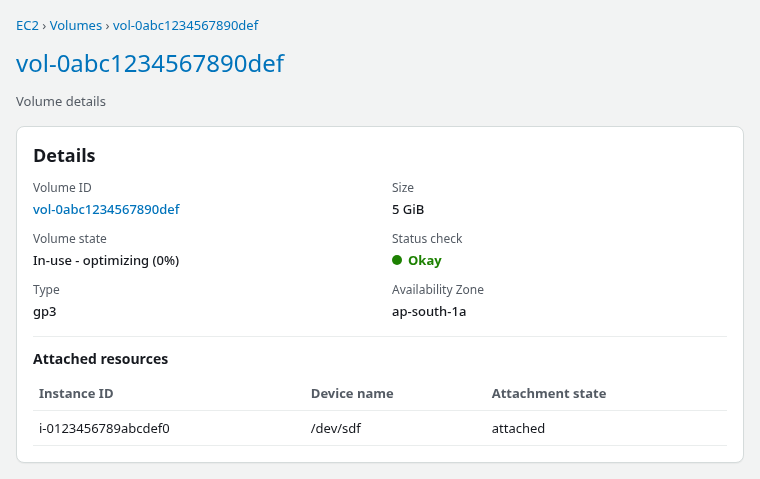
In the AWS Management Console, open EC2 → Elastic Block Store → Volumes, select the volume ID tied to /data, and confirm Size matches the target capacity and Attachment status is Attached. The volume can show In-use - optimizing while modification finishes; once lsblk reports the larger disk size, partition growth can proceed without waiting for optimization to reach completed.
AWS has already enlarged the EBS volume to 5 GiB in the console example below. The next check is whether the corresponding NVMe disk inside Linux also reports 5G.
Compare Disk and Partition Sizes
lsblk separates the EBS block device (disk row) from the partition and filesystem layers. After a successful EBS resize, the disk SIZE should increase while the partition SIZE stays at the old value until growpart runs.
On the data volume before modify-volume, both layers are 2G, so growpart correctly reports NOCHANGE:
sudo lsblk -o NAME,SIZE,TYPE,FSTYPE,MOUNTPOINTSNAME SIZE TYPE FSTYPE MOUNTPOINTS
nvme0n1 10G disk
├─nvme0n1p1 1M part
├─nvme0n1p2 200M part vfat /boot/efi
└─nvme0n1p3 9.8G part xfs /
nvme1n1 2G disk
└─nvme1n1p1 2G part ext4 /dataWith disk and partition both at 2G, growpart has no trailing space to consume:
sudo growpart /dev/nvme1n1 1NOCHANGE: partition 1 could only be grown by 2015 [fudge=2048]fudge=2048 is growpart's minimum-growth threshold in sectors for this installed build. Only 2015 sectors are available here, so the possible increase is too small and growpart intentionally leaves the partition unchanged. Other cloud-utils-growpart packages may show a different threshold; read the value printed on the line, not a fixed number from memory.
The disk is only 2G and the partition already spans it. Running growpart again here cannot add space because AWS has not enlarged the block device yet.
After aws ec2 modify-volume (or a console resize) from 2 to 5 GiB, the disk row grows while the partition stays at 2G:
sudo lsblk -o NAME,SIZE,TYPE,FSTYPE,MOUNTPOINTSNAME SIZE TYPE FSTYPE MOUNTPOINTS
nvme0n1 10G disk
├─nvme0n1p1 1M part
├─nvme0n1p2 200M part vfat /boot/efi
└─nvme0n1p3 9.8G part xfs /
nvme1n1 5G disk
└─nvme1n1p1 2G part ext4 /data| Layer | What to read | Healthy state after EBS resize |
|---|---|---|
| EBS volume | Console or describe-volumes Size |
New GiB value (for example 5) |
| Linux disk | lsblk row with TYPE disk |
Matches EBS size (for example 5G) |
| Partition | Child row under that disk | Smaller than disk until growpart |
| Filesystem | df -hT on the mount point |
Matches partition until resize2fs or xfs_growfs |
If the Linux disk row still shows the old size, confirm that the EBS modification reached at least optimizing, verify that the correct volume was resized, then recheck lsblk. If the disk is larger than the partition and free space sits immediately after that partition, growpart should normally return CHANGED. If another partition blocks the gap, NOCHANGE can still appear even though the disk grew.
Check Whether Another Partition Blocks the Free Space
growpart can only extend a partition into free space that begins immediately after it. It cannot jump over another partition.
growpart can extend partition 1 only when free space follows it directly:
|------ partition 1 ------|--------- free ---------|It cannot extend partition 1 when another partition sits in the way:
|------ partition 1 ------|-- partition 2 --| free |On a 20G disk with an 8G root partition, a 2G swap partition, and 10G free at the end, partition 1 cannot grow into that trailing space while partition 2 remains in between.
List partition layout and free regions on the target disk:
sudo parted /dev/nvme0n1 unit GiB print freeNumber Start End Size File system Name Flags
0.00GiB 0.00GiB 0.00GiB Free Space
1 0.00GiB 8.00GiB 8.00GiB ext4
2 8.00GiB 10.00GiB 2.00GiB linux-swap
10.00GiB 20.00GiB 10.00GiB Free SpaceIf another partition follows the target partition, stop before modifying the partition table. Moving or deleting another partition is a different and higher-risk workflow than extending a single partition at the end of a disk.
Check the Partition Number
growpart takes the parent disk and a partition index, not the partition device path. For /data on nvme1n1p1, the command is growpart /dev/nvme1n1 1.
A nonexistent partition number usually fails. A wrong partition number that does exist operates on that partition instead—growpart does not infer which mount was intended. Identify the parent disk and partition index before running the command.
On the data disk only partition 1 exists, so partition 2 is invalid and fails:
sudo growpart /dev/nvme1n1 2FAILED: failed to get start and end for /dev/nvme1n12 in /dev/nvme1n1Pointing growpart at the root disk by mistake also yields NOCHANGE when that disk was not resized:
sudo growpart /dev/nvme0n1 3NOCHANGE: partition 3 could only be grown by 2015 [fudge=2048]The root EBS volume was not enlarged in this example, so nvme0n1 and nvme0n1p3 are both still ~10G. The fix is to identify which lsblk disk backs /data (or /) and use that disk name with the correct partition index.
lsblk with PKNAME shows the parent disk for each partition:
sudo lsblk -o NAME,PKNAME,TYPE,SIZE,FSTYPE,MOUNTPOINTSNAME PKNAME TYPE SIZE FSTYPE MOUNTPOINTS
nvme1n1 disk 5G
└─nvme1n1p1 nvme1n1 part 5G ext4 /dataPKNAME is the disk passed to growpart (/dev/nvme1n1); the partition index is 1 for nvme1n1p1.
Handle an Already-Grown Partition
If this is important data, take an EBS snapshot before modifying the partition table. AWS recommends having a rollback snapshot before extending an EBS filesystem.
Once growpart succeeds, a second run on the same disk and partition prints NOCHANGE because the partition already fills the disk:
sudo growpart /dev/nvme1n1 1CHANGED: partition=1 start=2048 old: size=4190208 end=4192255 new: size=10483679 end=10485726After a successful extend, the partition row should match the disk row:
sudo lsblk -o NAME,SIZE,TYPE,FSTYPE,MOUNTPOINTSNAME SIZE TYPE FSTYPE MOUNTPOINTS
nvme1n1        5G disk
└─nvme1n1p1 5G part ext4 /dataA repeat run confirms there is nothing left to grow:
sudo growpart /dev/nvme1n1 1NOCHANGE: partition 1 is size 10483679. it cannot be grownThat second NOCHANGE is expected in this walkthrough because growpart had already extended the partition once. The next step is filesystem growth (resize2fs for ext4, xfs_growfs -d for XFS), not another partition resize. If df still shows the old size after NOCHANGE on an already-matched partition, see EBS resized but df unchanged for the filesystem layer.
Handle No-Partition Filesystems
Some data volumes are formatted directly on the whole disk without a partition table. growpart does not apply because there is no partition entry to extend.
sudo lsblk -o NAME,SIZE,TYPE,FSTYPE,MOUNTPOINTSnvme2n1 4G disk xfs /mnt/rawxfsThere is no partition row under the disk—the filesystem sits directly on nvme2n1, so growpart has nothing to grow. For XFS on the disk device, run xfs_growfs -d on the mount point after EBS resize. If xfs_growfs prints data size unchanged, skipping on a partitioned XFS volume, the partition still needs growpart first; see xfs_growfs data size unchanged.
If lsblk shows an lvm layer between the partition and mount point (for example rhel-root on nvme0n1p3), this guide stops at the partition layer. Extend the physical volume and logical volume with the LVM workflow before growing the filesystem.
Retry and Verify
After growpart returns CHANGED, grow the filesystem to match the new partition size. On ext4:
sudo resize2fs /dev/nvme1n1p1resize2fs 1.47.1 (20-May-2024)
Filesystem at /dev/nvme1n1p1 is mounted on /data; on-line resizing required
old_desc_blocks = 1, new_desc_blocks = 1
The filesystem on /dev/nvme1n1p1 is now 1310459 (4k) blocks long.Confirm disk, partition, and filesystem sizes align:
sudo df -hT /dataFilesystem Type Size Used Avail Use% Mounted on
/dev/nvme1n1p1 ext4 4.9G 24K 4.7G 1% /dataThe block layout should show matching 5G on both disk and partition:
sudo lsblk -o NAME,SIZE,TYPE,FSTYPE,MOUNTPOINTSnvme1n1 5G disk
└─nvme1n1p1 5G part ext4 /dataMap the EBS volume to the NVMe device with the serial field when multiple data disks are attached:
sudo lsblk -o NAME,SIZE,TYPE,MOUNTPOINTS,SERIALnvme1n1 5G disk vol0abc1234567890def
└─nvme1n1p1 5G part ext4 /dataOn Nitro instances the SERIAL value is the EBS volume ID without the vol- prefix, which helps match console volumes to guest device names.
| Symptom | Likely cause | Next step |
|---|---|---|
NOCHANGE … could only be grown by |
Disk and partition same size; EBS not resized or wrong volume | Confirm describe-volumes size; resize correct volume; recheck lsblk disk row |
NOCHANGE … it cannot be grown |
Partition already extended | Run resize2fs or xfs_growfs -d; skip second growpart |
FAILED … failed to get start and end |
Wrong partition number | Use findmnt and lsblk; pass disk plus index (growpart /dev/nvme1n1 1) |
NOCHANGE on root disk after resizing data volume |
Wrong block device | Match attachment device to mount with lsblk and console attachments |
NOCHANGE while disk is larger than partition |
Another partition blocks contiguous free space | Run parted … print free; do not delete or move partitions from this guide |
No space left on device from growpart |
Root filesystem too full for temp files | See Fix growpart no space left on device |
Summary
growpart NOCHANGE on EC2 means the tool found no contiguous space it could add to the chosen partition index on that disk. That is normal when the partition already matches the block device, when EBS was never enlarged (or Linux still shows the old disk size), when the command targets the wrong NVMe namespace or partition number, or when another partition sits between the target partition and trailing free space.
Troubleshoot it in this order: confirm the correct EBS volume and attachment; check whether the Linux disk row shows the new size (at least optimizing on the volume); compare disk and partition sizes in lsblk; verify the partition index with PKNAME; confirm free space is contiguous after the partition; run growpart only when those checks pass, then grow ext4 or XFS. A second growpart after CHANGED will print NOCHANGE again with exit status 1—that is not a regression. Whole-disk and LVM-backed layouts follow different paths. Destructive repartitioning is rarely needed once disk size, partition layout, and EBS modification state are verified.
References
- Amazon EBS — Modify an Amazon EBS volume
- Amazon EC2 — Device names for volumes on Amazon EC2 instances
- cloud-utils-growpart source (growpart script)
- Red Hat — Growing a file system on a logical volume (partition and filesystem growth concepts)
Frequently Asked Questions
Does growpart NOCHANGE mean the partition resize failed?
It means growpart did not change the partition. That may be completely expected if the partition already fills the available contiguous space, but it can also mean the EBS resize is not visible yet, the wrong partition was selected, or another partition blocks the free space. NOCHANGE is not the same as a successful CHANGED operation: current growpart returns exit status 1 when no growth is possible or necessary, while a successful partition extension returns 0. Diagnose why there is no contiguous space before deciding that anything is broken.
Can the filesystem grow without growpart?
Only when the filesystem sits directly on the whole disk with no partition table, or when the partition was already extended. For a typical GPT layout with one partition per EBS volume, the partition must grow before resize2fs or xfs_growfs can use new EBS capacity. If the partition already matches the disk, skip growpart and run the filesystem tool only.
How do I map an EBS volume to an NVMe device?
On Nitro instances, run lsblk -o NAME,SERIAL and match the SERIAL column to the volume ID (without the vol- prefix). Cross-check with the EC2 console attachment device (for example /dev/sdf) and aws ec2 describe-volumes attachment metadata. Use the disk name from lsblk (nvme1n1), not the /dev/sd* name, in growpart commands.
