
| Package | cloud-utils-growpart, xfsprogs, aws-cli/2.37.3 (RHEL 10.2 on EC2, Nitro/XFS) |
|---|---|
| AWS Region | ap-south-1 (Mumbai) for the examples; EBS volume modification is Regional |
| Lab environment | Workstation with AWS CLI v2 and configured credentials — AWS CLI tutorial Install AWS CLI on Ubuntu · Install AWS CLI on Debian |
| Privilege | EC2 ModifyVolume permission and [sudo](/sudo-command-in-linux/) on the instance for partition and filesystem growth |
| Scope | Why xfs_growfs can print data size unchanged, skipping after an EBS resize on EC2, how to compare EBS disk size with partition and XFS filesystem size, extend the partition with growpart when the disk is larger than the partition, run xfs_growfs -d again, and verify capacity. Does not replace the full post-resize workflow for ext4, LVM, or unpartitioned volumes — see the linked EBS resize guide. |
| Related guides | EBS resized but df unchanged Fix growpart no space left on device AWS EBS Volume Guide AWS CLI Tutorial AWS Tutorial |
After an EBS resize, xfs_growfs -d can print data size unchanged, skipping even though the AWS console shows the larger volume. The message means XFS already uses all space currently available on its underlying block device. If the EBS disk was enlarged but its partition was not, extend the partition first. If the partition and filesystem already show the new size, there is nothing left to grow.
The walkthrough uses a partitioned XFS data volume on RHEL 10.2 in ap-south-1: a 2 GiB gp3 disk grows to 5 GiB, xfs_growfs skips until growpart extends nvme1n1p1, then xfs_growfs reports data blocks changed. A second xfs_growfs after the filesystem is full prints the same skip line again — that second skip is expected.
Where to run the commands
aws ec2 …commands run from a workstation with the AWS CLI configured.lsblk,df,growpart, andxfs_growfsrun on the EC2 instance whose EBS volume was resized.
Quick Answer
| Symptom | Likely cause | Next step |
|---|---|---|
data size unchanged, skipping after EBS resize |
XFS sees no additional space; often the partition was not extended | Compare EBS → disk → partition → df sizes |
lsblk disk 5G, partition 2G, df 2.0G |
Missing partition grow | growpart on disk + partition number, then xfs_growfs -d |
| Skip after a successful grow | Filesystem already uses all partition space | No action — verify with df -hT |
lsblk disk still 2G |
EBS modification not visible to the OS yet | Confirm modification state, then re-check the correct device |
xfs_growfs grows the XFS filesystem into free space on its underlying block device — usually a partition such as /dev/nvme1n1p1. It cannot use spare capacity that sits outside the partition boundary on the enlarged EBS disk.
       AWS EBS volume  5 GiB
                 ↓
         Linux disk  5 GiB
           /dev/nvme1n1
                 ↓
Partition  2 GiB  ← problem is here
          /dev/nvme1n1p1
                 ↓
       XFS filesystem  2 GiB
           /mnt/xfsdata
xfs_growfs can only use space available on /dev/nvme1n1p1. The extra 3 GiB belongs to the parent disk but is still outside the partition, so XFS has nowhere to grow until growpart extends partition 1.
What the XFS Message Means
xfs_growfs -d grows the XFS data section to use all available space on the device underneath the mounted filesystem. If that device is still a 2 GiB partition, XFS cannot see the remaining space on the 5 GiB parent disk. xfs_growfs can only grow when the device underneath XFS is larger than the filesystem. If both are still 2 GiB, there is nothing for XFS to use, so it prints data size unchanged, skipping.
That line appears in two different situations:
- Before the fix: EBS and the top-level disk row grew, but the partition — and therefore the block device backing XFS — is still at the old size. The filesystem already filled the old partition, so XFS correctly reports no change.
- After the fix: The filesystem already grew to match the enlarged partition. Running
xfs_growfsagain is harmless; the same skip line confirms there is no remaining free space to absorb.
The message does not necessarily indicate an XFS error. It usually means there is no additional space available on the device XFS currently uses — either because the partition was not extended yet, or because the grow already finished.
On a partitioned volume, the usual order after EBS resize is growpart first, then xfs_growfs -d on the mount point. For the full layer model across ext4, unpartitioned XFS, and LVM layouts, see EBS resized but df still shows old size.
Compare EBS, Partition, and Filesystem Sizes
Before changing partitions, confirm AWS applied the new EBS size and compare the three layers on the instance.
From a workstation, check the modification state:
aws ec2 describe-volumes-modifications --volume-ids vol-0abc1234567890def \
  --query 'VolumesModifications[0].{State:ModificationState,Target:TargetSize,Progress:Progress}' \
--output table--------------------------------------
| DescribeVolumesModifications |
+----------+--------------+----------+
| Progress | State | Target |
+----------+--------------+----------+
| 5 | optimizing | 5 |
+----------+--------------+----------+Target is the requested EBS size in GiB; Progress is the modification progress as a percentage. Here, Target=5 means the requested EBS size is 5 GiB, while Progress=5 means the modification is 5% through the optimization phase. That also explains why the console screenshot shows In-use - optimizing (0%) while the CLI sample may show a different progress percentage — they are snapshots taken at different moments, not contradictory results.
Once the modification reaches optimizing, the new EBS capacity is available for filesystem extension. Confirm that Linux sees the larger block device with lsblk before changing the partition. In the AWS Management Console, open EC2 → Elastic Block Store → Volumes and confirm Size shows the new value (for example 5 GiB):
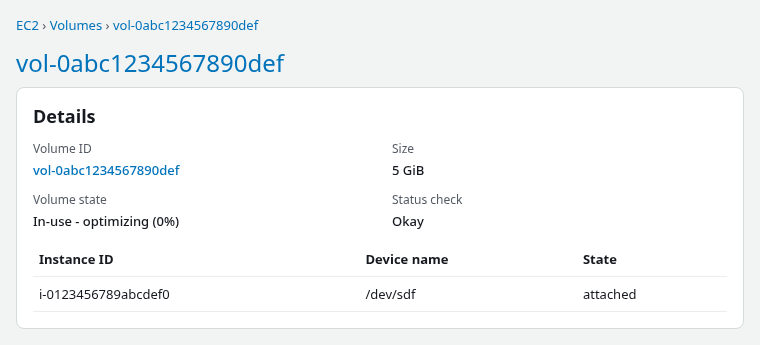
The console attachment may list /dev/sdf while Nitro exposes the volume inside Linux as /dev/nvme1n1. Use lsblk on the running instance rather than assuming a fixed NVMe name.
List block devices for the data disk:
sudo lsblk -o NAME,SIZE,TYPE,FSTYPE,MOUNTPOINTS /dev/nvme1n1NAME SIZE TYPE FSTYPE MOUNTPOINTS
nvme1n1 5G disk
└─nvme1n1p1 2G part xfs /mnt/xfsdataThe top-level disk row shows 5G after EBS modification, but the partition row is still 2G. That gap is why xfs_growfs skips — XFS sits on nvme1n1p1, not on the raw 5G disk.
Report filesystem size at the mount point:
sudo df -hT /mnt/xfsdataFilesystem Type Size Used Avail Use% Mounted on
/dev/nvme1n1p1 xfs 2.0G 71M 1.9G 4% /mnt/xfsdatadf matches the partition size, not the EBS volume size. When lsblk shows a larger disk than the partition row, extend the partition before expecting xfs_growfs to grow.
| Layer | What to read | After EBS resize, before growpart |
|---|---|---|
| EBS | Console or describe-volumes |
New size (for example 5 GiB) |
| Disk | lsblk top-level row |
Matches EBS size |
| Partition | lsblk partition row |
Often still old size |
| Filesystem | df -hT |
Matches old partition size |
Reproduce the Skip (Partition Not Extended)
Running xfs_growfs before growpart on a partitioned volume reproduces the skip message:
sudo xfs_growfs -d /mnt/xfsdatameta-data=/dev/nvme1n1p1 isize=512 agcount=8, agsize=65472 blks
= sectsz=512 attr=2, projid32bit=1
= crc=1 finobt=1, sparse=1, rmapbt=1
= reflink=1 bigtime=1 inobtcount=1 nrext64=1
= exchange=0 metadir=0
data = bsize=4096 blocks=523776, imaxpct=25
= sunit=1 swidth=1 blks
naming =version 2 bsize=4096 ascii-ci=0, ftype=1, parent=0
log =internal log bsize=4096 blocks=16384, version=2
= sectsz=512 sunit=1 blks, lazy-count=1
realtime =none extsz=4096 blocks=0, rtextents=0
= rgcount=0 rgsize=0 extents
= zoned=0 start=0 reserved=0
data size unchanged, skippingThe data line still shows blocks=523776 — the filesystem has not grown because the partition device size is unchanged. The fix is at the partition layer, not a different xfs_growfs flag.
Run growpart only when lsblk shows a partition row smaller than the parent disk. If XFS sits directly on a whole disk with no partition row, skip growpart and run xfs_growfs -d once the disk row shows the new EBS size — that path is covered in the EBS resized but df unchanged guide.
Extend the Partition
When the disk is larger than its partition, extend the partition into the free space at the end of the disk. growpart enlarges an existing partition so it can use the unallocated space now available at the end of the larger EBS disk. It does not grow the XFS filesystem itself — that is why xfs_growfs still runs afterward.
growpart takes the parent disk and the partition number separately — not the full partition path:
sudo growpart /dev/nvme1n1 1CHANGED: partition=1 start=2048 old: size=4190208 end=4192255 new: size=10483679 end=10485726CHANGED means the partition table now spans the enlarged disk. Confirm the partition row grew:
sudo lsblk -o NAME,SIZE,TYPE,FSTYPE,MOUNTPOINTS /dev/nvme1n1NAME SIZE TYPE FSTYPE MOUNTPOINTS
nvme1n1 5G disk
└─nvme1n1p1 5G part xfs /mnt/xfsdataBoth the disk and partition rows now show 5G. The partition is now 5G, so XFS finally has additional space available to grow into.
If growpart fails with NO space left on device, the root filesystem or /tmp may be full — see Fix growpart no space left on device on EC2.
Run xfs_growfs Again
After the partition grows, run xfs_growfs on the mount point (not the raw disk device):
sudo xfs_growfs -d /mnt/xfsdatameta-data=/dev/nvme1n1p1 isize=512 agcount=8, agsize=65472 blks
= sectsz=512 attr=2, projid32bit=1
= crc=1 finobt=1, sparse=1, rmapbt=1
= reflink=1 bigtime=1 inobtcount=1 nrext64=1
= exchange=0 metadir=0
data = bsize=4096 blocks=523776, imaxpct=25
= sunit=1 swidth=1 blks
naming =version 2 bsize=4096 ascii-ci=0, ftype=1, parent=0
log =internal log bsize=4096 blocks=16384, version=2
= sectsz=512 sunit=1 blks, lazy-count=1
realtime =none extsz=4096 blocks=0, rtextents=0
= rgcount=0 rgsize=0 extents
= zoned=0 start=0 reserved=0
data blocks changed from 523776 to 1310459The line data blocks changed from … to … confirms XFS absorbed the new partition space. Online grow on a mounted XFS filesystem is normal for extend operations. The same rule applies to an XFS root filesystem: extend the root partition first if needed, then run sudo xfs_growfs -d /.
Check usable capacity:
sudo df -hT /mnt/xfsdataFilesystem Type Size Used Avail Use% Mounted on
/dev/nvme1n1p1 xfs 5.0G 131M 4.9G 3% /mnt/xfsdatadf now reports 5.0G, matching the EBS volume and partition sizes.
Handle the Already-Grown Case
After a successful grow, running xfs_growfs again prints the same skip line:
sudo xfs_growfs -d /mnt/xfsdatameta-data=/dev/nvme1n1p1 isize=512 agcount=21, agsize=65472 blks
= sectsz=512 attr=2, projid32bit=1
= crc=1 finobt=1, sparse=1, rmapbt=1
= reflink=1 bigtime=1 inobtcount=1 nrext64=1
= exchange=0 metadir=0
data = bsize=4096 blocks=1310459, imaxpct=25
= sunit=1 swidth=1 blks
naming =version 2 bsize=4096 ascii-ci=0, ftype=1, parent=0
log =internal log bsize=4096 blocks=16384, version=2
= sectsz=512 sunit=1 blks, lazy-count=1
realtime =none extsz=4096 blocks=0, rtextents=0
= rgcount=0 rgsize=0 extents
= zoned=0 start=0 reserved=0
data size unchanged, skippingThis time data already shows blocks=1310459, and df reports the full 5.0G. The skip means the filesystem is fully grown — not that another resize step is missing. If df already shows the expected size, this second skip requires no further action.
Verify
Confirm the mount, filesystem type, and reported size together:
sudo findmnt -n -o SOURCE,TARGET,FSTYPE,SIZE /mnt/xfsdata/dev/nvme1n1p1 /mnt/xfsdata xfs 5.0GCross-check the EBS volume size from AWS when more than one disk was modified:
aws ec2 describe-volumes --volume-ids vol-0abc1234567890def \
--query 'Volumes[0].Size' --output text5The 5 GiB EBS size, 5G partition row, 5.0G in df, and 5.0G from findmnt should align after a successful grow.
Troubleshooting
| Symptom | Likely cause | Next step |
|---|---|---|
data size unchanged, skipping after EBS resize |
XFS has no additional space on its current device; partition may still be old-sized | Compare lsblk disk/partition sizes and df -hT |
lsblk disk 5G, partition 2G, df 2.0G |
Partition not extended | growpart, then xfs_growfs -d |
Skip after grow; df already new size |
Filesystem fully grown | No further action |
is not a mounted XFS filesystem |
Wrong mount point or filesystem is not XFS | Run df -hT; pass the XFS mount point to xfs_growfs -d |
lsblk disk still old size |
Modification not visible yet | Confirm optimizing or completed; verify correct device |
growpart no space left |
Full root or /tmp |
growpart no space left device guide |
XFS on /dev/mapper/... |
LVM between partition and filesystem | Extend PV/LV before filesystem grow |
Summary
When xfs_growfs prints data size unchanged, skipping, XFS has no additional space available on its current underlying device. After an EBS resize, the most common reason is that the EBS disk grew but its partition did not.
If lsblk shows the disk larger than the partition, run growpart first and then xfs_growfs -d on the mount point. If df already shows the new size, no further action is required. A successful grow prints data blocks changed from … to …. For ext4, unpartitioned volumes, and the full post-resize checklist, see EBS resized but df still shows old size.
References
- Extend a Linux file system after resizing a volume
- Amazon EBS modify volume
- xfs_growfs man page
- growpart (cloud-utils)
Frequently Asked Questions
Why does xfs_growfs skip?
xfs_growfs skips when the XFS data section already uses all blocks on its underlying device. After an EBS resize, that usually means the partition was not extended yet, so the block device seen by XFS is still the old size. After a successful grow, the same message means the filesystem already fills the partition.
Do I need growpart first?
When lsblk shows a partition row smaller than the parent disk, run growpart before xfs_growfs -d. XFS cannot grow into free space on the EBS disk that sits outside the partition boundary. When XFS sits on a whole disk with no partition row, skip growpart and run xfs_growfs -d once the disk row shows the new EBS size.
Can XFS shrink?
XFS supports online grow, not online shrink. Shrinking an XFS filesystem requires backup, recreate, and restore — it is outside the usual post-EBS-resize extend workflow.
