
| Package | aws-cli/2.37.3 (RHEL 10.2 on EC2, Nitro/XFS root volume) |
|---|---|
| AWS Region | ap-south-1 (Mumbai) for the examples; EC2 status checks are evaluated per instance in the Region where it runs |
| Lab environment | Workstation with AWS CLI v2 and configured credentials — AWS CLI tutorial Install AWS CLI on Ubuntu · Install AWS CLI on Debian |
| Privilege | EC2 permissions to describe instance status and read console output; stop, start, and reboot when recovery steps require them |
| Scope | What EC2 system and instance status checks measure, how attached EBS and application checks differ, how to read describe-instance-status and the EC2 system log, what 1/2 checks failed or 3/3 checks passed means on modern consoles, and which first response fits each failure type. Does not walk through full guest OS recovery when instance reachability fails—that belongs on the dedicated reachability troubleshooting page. |
| Related guides | EC2 instance reachability check failed EC2 SSH connection timed out EC2 SSH connection refused AWS EBS Volume Guide AWS Tutorial |
An EC2 instance can remain Running even when one of its health checks fails. Running only describes the EC2 instance's power/lifecycle state. It does not mean the operating system or underlying host passed every health check.
Depending on the instance and the status checks shown in the console, messages such as 1/2 checks failed, 2/2 checks passed, or 3/3 checks passed may appear.
System status asks: Is the AWS infrastructure underneath my EC2 instance healthy?
Instance status asks: Is the operating system inside my EC2 instance responding?
If System status fails, think AWS host/infrastructure. If Instance status fails, think Linux/Windows boot, memory, filesystem, or in-instance networking.
Note: AWS also supports Attached EBS and optional Application status checks. They are separate from the System-vs-Instance distinction covered here.
The examples below include a healthy baseline, a reproduced instance-side failure on RHEL 10.2 (bad /etc/fstab entry blocking boot), and the CLI fields AWS returns for each check. Full repair steps for a failed instance reachability check live on EC2 instance reachability check failed.
Quick Answer
| What failed? | What it usually means | First place to look |
|---|---|---|
| System status | AWS host or underlying infrastructure problem | AWS recovery, Health Dashboard, stop/start if persistent |
| Instance status | OS, boot, memory, filesystem, or instance networking problem | Get system log; Serial Console or rescue if needed |
| Attached EBS status | Attached storage cannot be reached or complete I/O | EBS status / stalled I/O investigation |
| Both System and Instance | Infrastructure failure may also be affecting the VM | Treat the System failure first |
EC2 Status Checks in One Table
EC2 runs these automated health checks every minute and reports each check as passed or failed. The console Status and alarms tab and describe-instance-status expose the same results.
| Check | What EC2 is checking | Problem usually belongs to |
|---|---|---|
| System status | Physical host, power, AWS networking, and underlying infrastructure | AWS/infrastructure side |
| Instance status | Whether the EC2 VM responds to AWS's low-level network health check | OS, startup, or network configuration inside the instance |
| Attached EBS status (when shown) | Whether attached EBS volumes are reachable and completing I/O | EBS or host-to-storage path |
Neither system nor instance status checks test SSH keys, application ports, or security group rules. EC2 SSH connection timed out covers VPC path problems that can occur while system and instance checks still pass.
                    Your EC2 instance
                           |
              +------------+------------+
              |                         |
       AWS infrastructure           Your virtual machine
       ------------------           --------------------
       physical host                Linux / Windows
       power                        boot process
       AWS host networking          filesystem
       host hardware                OS networking
              |                         |
              v                         v
        System status              Instance status
            check                      check

System failed   -> start with AWS infrastructure
Instance failed -> start inside the operating system
Both passed     -> SSH or application problems can still exist
System Status Check
The system status check verifies that the AWS systems required to use the instance are working: network connectivity to the host, power, host software, and hardware for the physical machine running the instance.
A failed System status check means EC2 detected a problem with the infrastructure supporting the instance, such as host networking, power, host software, or hardware.
When only System status is impaired, do not start changing Linux configuration. First wait briefly for AWS recovery and check the AWS Health Dashboard. If the problem persists on an EBS-backed instance, stop and start the instance so it can typically be placed on healthy host infrastructure. Some eligible instances also support EC2 automatic recovery for system-status failures.
EC2 automatic recovery is different from a rescue-instance workflow. AWS documents automatic recovery for system status failures, not for a failure of only the instance status check.
Forcing a real AWS hardware fault in a test account is neither practical nor necessary to learn the check. When system status is impaired or failed, describe-instance-status shows SystemStatus.Status as impaired. A system failure can eventually affect the instance check as well, so both checks may fail together. When the system status check is impaired, investigate the AWS infrastructure side first.
Do not start editing /etc/fstab or security groups when only system status has failed. The first response is AWS-side recovery or migration to another host, not guest OS troubleshooting.
Instance Status Check
The instance status check (often labeled Instance reachability in the console) tests whether the individual instance is reachable at the operating-system layer. EC2 currently performs this check with an ARP request to the instance's primary network interface. ARP is a low-level network mechanism AWS uses to check whether the instance's network interface is alive and responding. It does not log in with SSH, open your application port, or check whether nginx or your database is working.
A passed instance status check does not guarantee that every service has started or that the application is healthy. EC2 is checking reachability of the instance at the network/OS level, not whether SSH, nginx, a database, or another application is working correctly. On some Linux networking setups, the network stack can respond before other startup work finishes.
This explains an important troubleshooting difference:
- A security group that blocks port 22 usually causes connection timed out from the client, not a failed instance status check while system status stays ok.
- A guest OS that never finishes boot, hangs, or stops responding to ARP can fail instance reachability while system status remains passed.
Common Linux causes behind a failed instance check include:
- Required
/etc/fstabmount that never appears - Filesystem corruption or a full root disk blocking boot services
- Kernel panic, memory exhaustion, or initramfs failure
- Primary network interface failing to respond to ARP
Reproduced instance-side failure
This test gives a clean instance-side failure: AWS infrastructure is healthy, but Linux cannot finish booting. That is why System status stays passed while Instance status fails.
/etc/fstab is the Linux configuration file that tells the OS which filesystems to mount during boot. On a lab RHEL 10.2 instance, adding an invalid required mount line and rebooting produced system status passed with instance status failed. Adding that bogus entry caused Linux to enter emergency mode instead of completing boot:
UUID=11111111-1111-1111-1111-111111111111 /badmount xfs defaults 0 0Within a few minutes after reboot, the Status and alarms tab showed 1/2 checks failed:
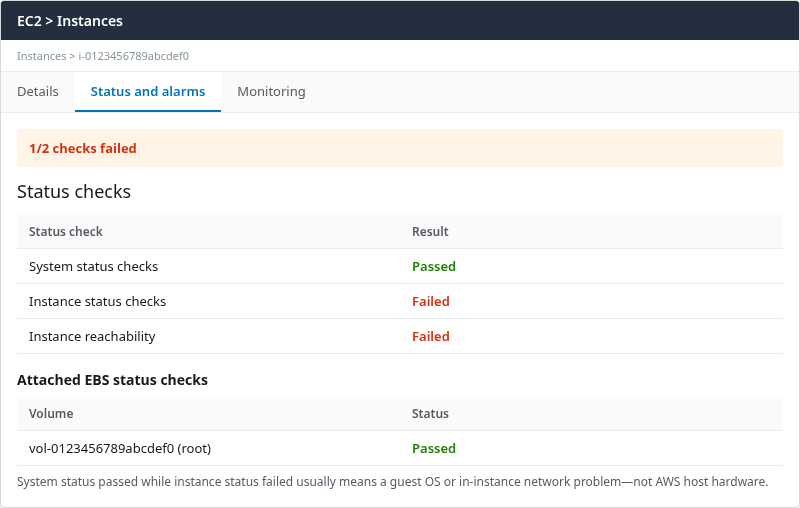
The same state appears through the AWS CLI:
aws ec2 describe-instance-status \
  --region ap-south-1 \
  --instance-ids i-0123456789abcdef0 \
  --include-all-instances \
  --query 'InstanceStatuses[0].{System:SystemStatus.Status,Instance:InstanceStatus.Status,Reachability:InstanceStatus.Details[0].Status}' \
--output table-------------------------------------------------
| DescribeInstanceStatus |
+-------------------+------------+--------------+
| Instance | Reachability| System |
+-------------------+------------+--------------+
| impaired | failed | ok |
+-------------------+------------+--------------+In this output:
- ok means the aggregate check passed.
- impaired means one or more details for that status failed.
- failed on Reachability is the lower-level reachability result behind the impaired instance status.
System: ok with Instance: impaired and Reachability: failed means focus on the guest OS first. The EC2 instance reachability check failed guide covers system log patterns, Serial Console, and rescue-instance repair—not repeated here.
Attached EBS Status Check if Displayed
On supported Nitro-based instances, EC2 can also show Attached EBS status checks for volumes attached to the instance. The lab root volume continued to report Passed while instance reachability failed because the failure came from systemd waiting on a missing disk in /etc/fstab, not from EBS reachability loss.
| Attached EBS status | Typical meaning |
|---|---|
| Passed | EC2 can reach the attached volume from the instance as expected |
| Failed | Volume or attachment reachability problem—see AWS EBS troubleshooting and AWS re:Post guidance for attached EBS status |
A full Linux filesystem on / can still be corrupted or full while attached EBS status remains Passed. So an EBS check showing Passed does not prove that the filesystem itself is healthy. A filesystem can still be full or corrupted even when EC2 can successfully reach the EBS volume.
Read describe-instance-status
Run aws ec2 describe-instance-status from any host with AWS CLI credentials and permission to describe the instance—it does not run on the EC2 instance itself.
On a healthy instance, the CLI returned ok for System, Instance, and Attached EBS status:
aws ec2 describe-instance-status \
  --region ap-south-1 \
  --instance-ids i-0123456789abcdef0 \
  --include-all-instances \
  --query 'InstanceStatuses[0].{System:SystemStatus.Status,Instance:InstanceStatus.Status,Ebs:AttachedEbsStatus.Status}' \
--output table---------------------------------
| DescribeInstanceStatus |
+------+------------+-----------+
| Ebs | Instance | System |
+------+------------+-----------+
| ok | ok | ok |
+------+------------+-----------+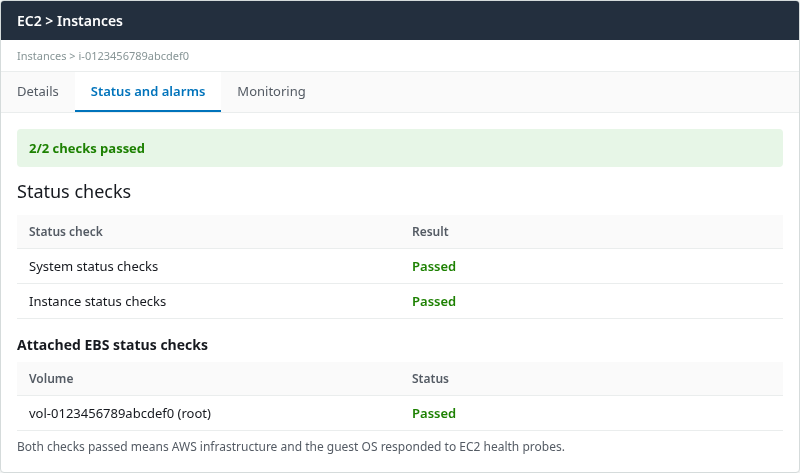
The CLI can expose System, Instance, and Attached EBS status separately even when the console summary banner groups or displays checks differently. A console may show 2/2 checks passed while the CLI still reports three status blocks when Attached EBS status is present.
Useful query fields:
SystemStatus.Status— system check aggregateInstanceStatus.Status— instance check aggregate (okorimpaired)InstanceStatus.Details[0].Status— reachability detail (passedorfailed)AttachedEbsStatus.Status— attached volume check when presentEvents— scheduled maintenance or retirement notices when AWS publishes them
Status checks read initializing for several minutes after launch, reboot, or stop/start. Poll until they settle before treating a failure as persistent.
When instance status is impaired, open the system log before changing security groups or rebooting repeatedly. The EC2 system log contains boot and kernel messages even when SSH is unavailable, so it is one of the most useful places to look when the instance cannot finish booting.
In the console, choose Actions, Monitor and troubleshoot, Get system log:
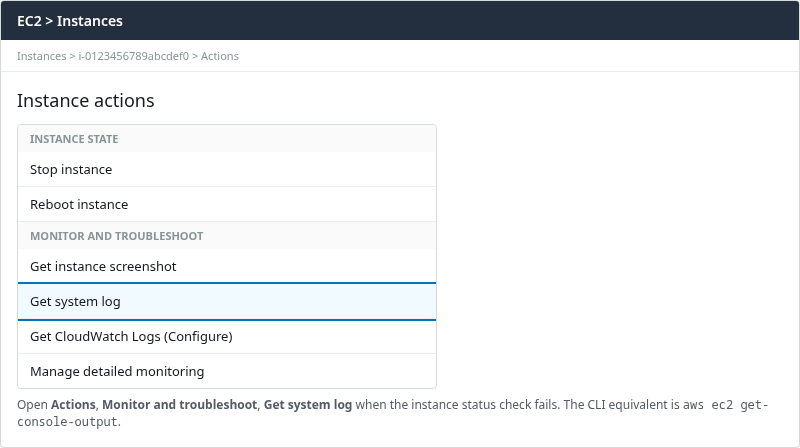
The CLI equivalent is get-console-output:
aws ec2 get-console-output \
  --region ap-south-1 \
  --instance-id i-0123456789abcdef0 \
  --latest \
  --query Output \
--output text | tail -20Timed out waiting for device dev-disk-by\x2duuid-11111111\x2d1111\x2d1111\x2d1111\x2d111111111111.
Dependency failed for badmount.mount - /badmount.
Dependency failed for local-fs.target - Local File Systems.
Started emergency.service - Emergency Shell.
Reached target emergency.target - Emergency Mode.
You are in emergency mode. After logging in, type "journalctl -xb" to view
system logs, "systemctl reboot" to reboot, or "exit" to continue bootup.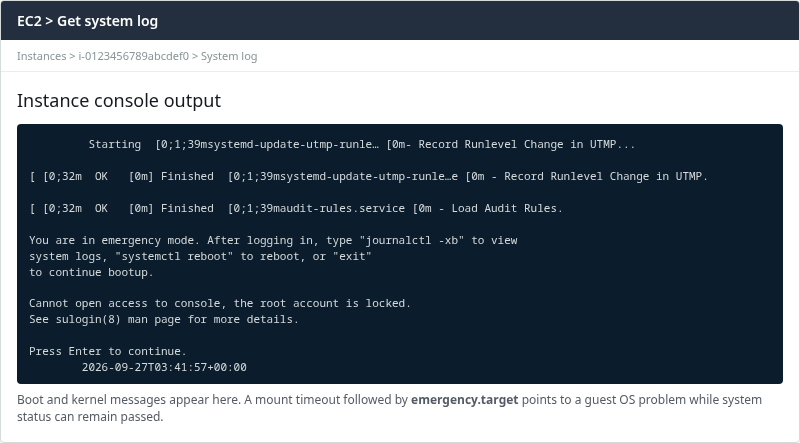
Mount timeouts followed by emergency.target confirm a guest OS boot problem while system status can remain passed.
What to Do for Each Failure
| Pattern | Likely layer | First responses |
|---|---|---|
| System impaired/failed, instance ok | AWS infrastructure | Wait for AWS recovery; check Health Dashboard; stop/start EBS-backed instance if impairment persists |
| System ok, instance impaired | Operating system, boot process, or networking inside the instance | Read system log; use Serial Console or rescue workflow—see reachability guide |
| Both checks failed | Host and guest both unhealthy | Treat the system status failure first; the instance check may recover after the underlying AWS infrastructure problem is resolved |
| Both checks ok, SSH still fails | Network path or service on instance | SSH timed out vs SSH refused—not status check failure |
| Attached EBS failed, others ok | EC2 cannot reliably reach or perform I/O to the attached EBS volume | Check VolumeStalledIOCheck; wait for AWS recovery; if persistent, consider stop/start or replace the affected volume |
Security groups, NACLs, and route tables filter traffic to the instance. They are not what EC2 instance status checks measure.
When Reboot, Stop/Start, or Serial Console Makes Sense
Reboot and stop/start are not the same in EC2:
- Reboot restarts the operating system and normally keeps the instance on the same underlying host.
- Stop/start shuts down the instance and typically starts it on another host for EBS-backed instances.
That is why reboot can help a transient OS hang, while stop/start is more useful for a persistent System status problem.
| Action | Host hardware | Guest OS disk | Typical use |
|---|---|---|---|
| Reboot | Normally same host | Volumes remain attached | Transient OS hang when there is no clear boot/configuration error |
| Stop / start | Typically moves an EBS-backed instance to another host | EBS volumes persist | Persistent system status failure; also changes public IPv4 unless an Elastic IP is associated |
| Serial Console / rescue instance | Not itself a host migration method | Lets you repair the OS or root volume | Bad fstab, boot failure, or filesystem/configuration problem confirmed in the system log |
When instance reachability fails because of a bad fstab entry or similar, rebooting alone repeats the failure until the configuration is fixed. After one failed reboot, read Get system log and follow the reachability recovery guide instead of looping reboots.
Troubleshooting
| Symptom | Likely cause | Next step |
|---|---|---|
| 1/2 checks failed, system passed | Guest OS or ARP reachability | System log; reachability recovery guide |
| 1/2 checks failed, instance passed | AWS host or network to host | Wait; Health Dashboard; stop/start |
| Checks stuck on initializing | Recent launch or reboot | Wait several minutes; poll again |
| Both ok, SSH timeout | Security group, route, NACL | SSH timeout guide—not reachability check |
| Both ok, SSH refused | sshd or host firewall | SSH refused guide |
| Attached EBS failed | EBS or host-to-volume I/O | VolumeStalledIOCheck; AWS recovery; stop/start or replace volume if persistent |
Summary
EC2 system status and instance status checks answer different questions. System status reflects AWS infrastructure hosting the instance; instance status reflects whether the guest OS responds to EC2's ARP-based reachability probe. Attached EBS status adds a separate volume reachability signal on supported instances, and optional application status checks monitor HTTP/HTTPS endpoints separately.
Console banners such as 1/2 checks failed or 3/3 checks passed reflect which of the checks shown for that instance passed or failed—not whether SSH or an application works. describe-instance-status exposes the same fields for automation. When system status is ok but instance status is impaired, the system log is one of the first places to look for boot, mount, kernel, or other OS-level failures—as in the reproduced fstab mount timeout that reached emergency.target.
Security groups and SSH symptoms are poor substitutes for status checks: timed-out SSH with both checks ok still points to VPC or service-layer problems, not instance reachability failure. For full guest OS recovery after a failed instance check, continue with EC2 instance reachability check failed. For impaired system status, prefer AWS recovery and stop/start before editing the guest OS.
References
- Amazon EC2 instance status checks
- Status checks for Amazon EBS volumes
- Amazon EC2 instance reboot
- Amazon EC2 instance stop and start
- Retrieve the system log
Frequently Asked Questions
What does 1/2 status checks mean?
1/2 checks failed means one of the checks included in that console summary failed. In the common two-check view, those are System status and Instance status. On instances where additional checks such as Attached EBS or Application status are included, the total count can be higher. Open Status and alarms or run describe-instance-status to see exactly which check failed.
Can a security group fail a status check?
No. Security groups are stateful packet filters for instance traffic. Denying inbound SSH typically causes client connection timed out, not a failed instance reachability check with system status still ok. Status checks use AWS infrastructure probes, not security group evaluation.
Does stop/start move the instance?
For an EBS-backed instance, stop then start typically launches the instance on a different underlying host, which can clear a system status failure tied to the old hardware. Reboot normally keeps the same host. Stop/start also assigns a new public IPv4 address unless the instance uses an Elastic IP. The instance ID and attached EBS volumes persist across stop/start.
