
| Package | aws-cli/2.37.3 (RHEL 10.2 on EC2, Nitro/XFS root on nvme0n1p3) |
|---|---|
| AWS Region | ap-south-1 (Mumbai) for the examples; EBS volumes and snapshots are Regional |
| Lab environment | Workstation with AWS CLI v2 and configured credentials — AWS CLI tutorial Install AWS CLI on Ubuntu · Install AWS CLI on Debian |
| Privilege | EC2 permissions to stop and start instances, create snapshots, and attach or detach EBS volumes; [sudo](/sudo-command-in-linux/) on the rescue host to mount the broken root filesystem |
| Scope | Why an EC2 Linux instance can stop in emergency mode after a boot or mount failure, how to read instance status checks and the EC2 system log, when to use Serial Console, AWSSupport-ExecuteEC2Rescue, or a manual rescue instance, and how to stop the instance, snapshot the root volume, detach, mount, fix /etc/fstab offline, reattach using the original root device name, and confirm SSH and status checks. Does not cover every unbootable root cause or full chroot/GRUB repair. |
| Related guides | Recover unbootable EC2 with rescue instance fstab UUID and label mounts AWS EBS Volume Guide AWS CLI Tutorial AWS Tutorial |
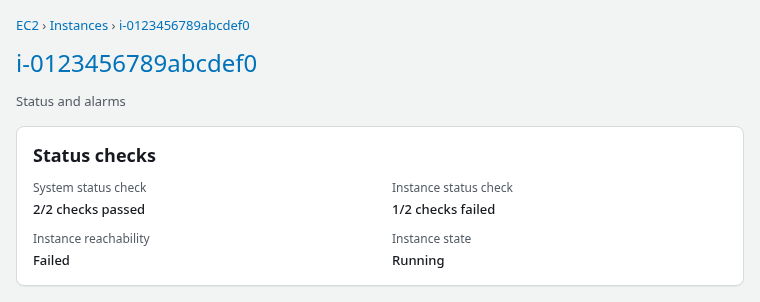
An EC2 instance can still show Running in AWS even when Linux failed to finish booting. A common sign is that SSH times out, the instance reachability check fails, and Get system log shows emergency.target.
One frequent cause is a bad /etc/fstab entry—for example, a disk UUID that no longer exists. Linux waits for that mount, cannot complete local-fs.target (the systemd milestone that waits for required local filesystems from /etc/fstab to become available), and drops into systemd emergency mode instead of normal multi-user boot.
The walkthrough below uses a deliberate bad fstab line on RHEL 10.2 and tests the manual rescue-instance path end to end. You can use the same diagnosis when the failure comes from another bad or missing local mount.
      EC2 instance starts
               ↓
     Linux reads /etc/fstab
               ↓
  Required device/UUID missing
               ↓
Required filesystem cannot mount
               ↓
local-fs.target cannot complete
               ↓
 Linux enters emergency.target
               ↓
    SSH never becomes usable
The root volume is the EBS disk that contains the root filesystem (/) and the core files needed to boot Linux. On a typical EC2 Linux installation, directories such as /etc, /usr, and /var are also stored there unless they were configured on separate filesystems. In this recovery, you temporarily move that disk to a healthy EC2 instance so you can edit the broken system while it is offline.
Instance stuck after an fstab change?
- Open Status checks and Get system log for mount or
emergency.targetlines. - Record the root volume ID and original root device name.
- Stop the broken instance and snapshot its root volume.
- Detach the root volume and attach it to a rescue instance in the same Availability Zone.
- Mount the root filesystem offline and fix
/etc/fstab. - Reattach the volume using the original root device name and start the instance.
- Confirm status checks and SSH using the current public IP.
Recognize Emergency Mode from EC2 Evidence
Emergency mode is a systemd boot target, not an EC2 instance state. The console can show running while the guest OS never reaches multi-user mode and sshd never accepts connections.
Start with EC2 status checks. System status checks AWS infrastructure hosting the instance. Instance status checks whether the guest operating system is healthy enough for EC2's instance status check to succeed:
aws ec2 describe-instance-status \
  --region ap-south-1 \
  --instance-ids i-0123456789abcdef0 \
  --include-all-instances \
  --query 'InstanceStatuses[0].{System:SystemStatus.Status,Instance:InstanceStatus.Status,Reachability:InstanceStatus.Details[0].Status}' \
--output table-------------------------------------------------
| DescribeInstanceStatus |
+-------------------+------------+--------------+
| Instance | Reachability| System |
+-------------------+------------+--------------+
| impaired | failed | ok |
+-------------------+------------+--------------+System: ok with Instance: impaired points toward an OS-level problem rather than a failed physical host. That pattern is consistent with an OS-level boot failure such as emergency mode, but the system log is what confirms the actual cause.
Pull the latest system log when SSH is unavailable. The console output is the same text as get-console-output:
aws ec2 get-console-output \
  --region ap-south-1 \
  --instance-id i-0123456789abcdef0 \
  --latest \
  --query Output \
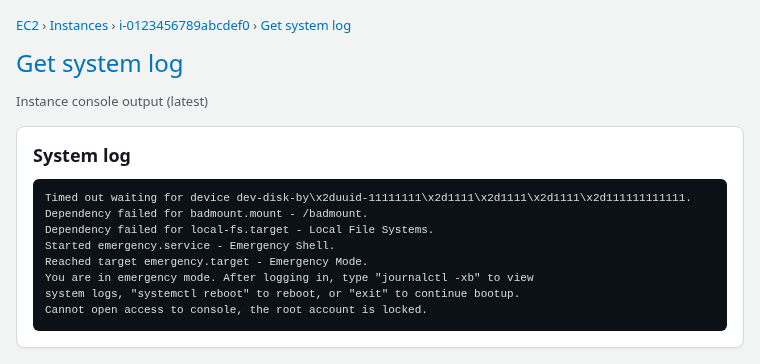
--output text | tail -40Timed out waiting for device dev-disk-by\x2duuid-11111111\x2d1111\x2d1111\x2d1111\x2d111111111111.
Dependency failed for badmount.mount - /badmount.
Dependency failed for local-fs.target - Local File Systems.
Started emergency.service - Emergency Shell.
Reached target emergency.target - Emergency Mode.
You are in emergency mode. After logging in, type "journalctl -xb" to view
system logs, "systemctl reboot" to reboot, or "exit" to continue bootup.
Cannot open access to console, the root account is locked.The important lines are Timed out waiting for device or Dependency failed for …mount, followed by emergency.target. The boot log reached an emergency shell, but the image does not have a usable password-based root login. Seeing the emergency prompt in the log does not necessarily mean the system can be repaired interactively through the console.
Choose the Fastest Recovery Path
A rescue instance is another healthy EC2 Linux instance used as a temporary repair machine. The broken instance's EBS root volume is attached to it as a secondary disk so you can mount and edit the filesystem offline.
Use the system log to identify the failure first. Then start with the simplest recovery option that gives you enough access to fix the problem.
| Situation | Try first |
|---|---|
| Serial Console is enabled, your IAM identity has serial-console permission, the instance type supports it, and the guest OS has a usable console login | EC2 Serial Console |
| You want AWS to automate the offline rescue workflow and the instance has an unencrypted root volume | AWSSupport-ExecuteEC2Rescue |
| Console login is blocked or you want full manual control | Rescue instance + offline EBS repair |
Serial Console is only an option if it was enabled for the account, your IAM identity has serial-console permission, the instance type supports it, and the guest OS has a usable console login. AWS-provided Linux AMIs typically do not have a password-based user configured by default, which is why the tested RHEL example falls back to offline repair.
AWSSupport-ExecuteEC2Rescue is an AWS Systems Manager Automation runbook that automates much of the offline rescue workflow. It creates a temporary helper environment, stops the unreachable instance, backs it up, attaches the root volume to a helper instance, runs EC2Rescue against the offline filesystem, and then restores the volume to the original instance.
You need permission to run the Automation and the EC2/SSM actions it uses. The broken instance itself does not need to be reachable through SSM for the offline rescue workflow. AWS currently does not support this runbook for instances with encrypted root volumes.
Use a rescue instance when SSH and the serial console cannot be used to edit the root filesystem. The sections below walk through that manual path on RHEL 10.2. The manual method also helps you understand what AWS is doing to the root disk during recovery.
  Boot failure on instance A                Rescue path
  ┌─────────────────────┐                  ┌─────────────────────┐
  │ Instance A (broken) │                  │ Instance B (rescue) │
  │ root on nvme0n1     │   detach/attach  │ own root nvme0n1    │
  │ SSH: timeout        │ ───────────────► │ broken vol nvme1n1  │
  │ emergency.target    │   same AZ        │ mount + edit fstab  │
  └─────────────────────┘                  └─────────────────────┘
Stop the Instance and Snapshot the Root Volume
Before detaching the root disk, record its identity and take a recovery snapshot. Because the instance is already unusable and must be stopped before the root volume can detach, stop first, then snapshot.
Identify the root volume and original device name
AWS uses a block device mapping for each attached volume. Note the root device name before detachment so you can reattach the repaired volume to the same mapping later. Other AMIs may use /dev/xvda or another name instead of /dev/sda1.
aws ec2 describe-instances \
  --region ap-south-1 \
  --instance-ids i-0123456789abcdef0 \
  --query 'Reservations[0].Instances[0].{RootDevice:RootDeviceName,BlockDevices:BlockDeviceMappings[*].{Device:DeviceName,Volume:Ebs.VolumeId}}' \
--output table-------------------------------------------------------
| DescribeInstances |
+---------------------------+-------------------------+
| RootDevice | /dev/sda1 |
+---------------------------+-------------------------+
|| BlockDevices ||
|+------------------------+--------------------------+|
|| Device | Volume ||
|+------------------------+--------------------------+|
|| /dev/sda1 | vol-0abc1234567890def ||
|| /dev/sdf | vol-0fedcba9876543210 ||
|+------------------------+--------------------------+|In this example the root volume is vol-0abc1234567890def on /dev/sda1. Save both values.
The /dev/sdf name is used only while the disk is attached as a secondary rescue disk. When you return it to the broken instance, use its original root mapping (/dev/sda1 in this lab), not /dev/sdf:
Original instance          Rescue instance           Return to original
 root → /dev/sda1           secondary → /dev/sdf      root → /dev/sda1
                                   ↓
                      Linux Nitro → /dev/nvme1n1
Stop the broken instance
EC2 requires the instance to be stopped before its root EBS volume can be detached.
aws ec2 stop-instances --region ap-south-1 --instance-ids i-0123456789abcdef0Wait until EC2 reports stopped:
aws ec2 wait instance-stopped --region ap-south-1 --instance-ids i-0123456789abcdef0Create a recovery snapshot
For a root volume, AWS recommends stopping the instance first so the snapshot is more consistent. Snapshots include data already written to the volume, not data still cached in the guest OS.
aws ec2 create-snapshot \
  --region ap-south-1 \
  --volume-id vol-0abc1234567890def \
  --description "Pre-emergency-mode repair" \
  --tag-specifications 'ResourceType=snapshot,Tags=[{Key=Name,Value=emergency-repair}]' \
  --query SnapshotId \
--output textsnap-0abc1234567890defWait until the snapshot completes before detaching the volume if this is production data:
aws ec2 wait snapshot-completed --region ap-south-1 --snapshot-ids snap-0abc1234567890defDetach the root volume
Detach the root EBS volume from the stopped instance:
aws ec2 detach-volume --region ap-south-1 --volume-id vol-0abc1234567890defWait until the volume state is available before attaching it elsewhere:
aws ec2 wait volume-available --region ap-south-1 --volume-ids vol-0abc1234567890defAttach the Root Volume to a Rescue Instance
Launch or pick a rescue instance in the same Availability Zone as the detached volume. An EBS volume and the instance it attaches to must be in the same AZ—for example, a volume in ap-south-1a cannot be attached directly to a rescue instance in ap-south-1b. Using a similar Linux distribution or version is convenient because filesystem and boot-repair tools are more likely to be available if you later need chroot, dracut, or GRUB commands.
Attach the broken root volume as a secondary device. /dev/sdf is the conventional API name for a non-root attachment:
aws ec2 attach-volume \
  --region ap-south-1 \
  --volume-id vol-0abc1234567890def \
  --instance-id i-0fedcba9876543210 \
  --device /dev/sdf
On Nitro instances, a volume attached through the API as /dev/sdf usually appears inside Linux as an NVMe device such as /dev/nvme1n1. Do not assume the NVMe number will always be nvme1n1; confirm the newly attached disk with lsblk before mounting anything.
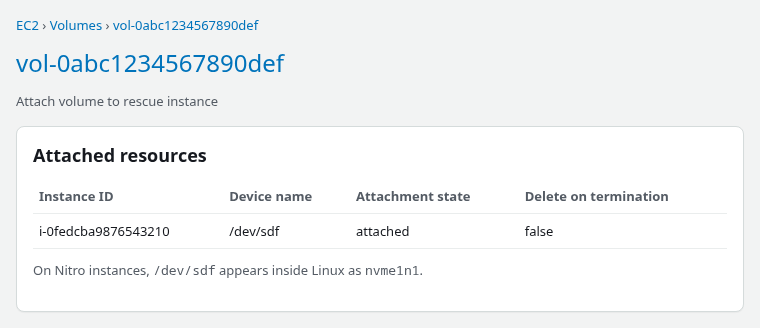
Confirm attachment state:
aws ec2 describe-volumes \
  --region ap-south-1 \
  --volume-ids vol-0abc1234567890def \
  --query 'Volumes[0].Attachments[0].{InstanceId:InstanceId,Device:Device,State:State}' \
--output table-------------------------------------------------
| DescribeVolumes |
+----------+------------------------+-----------+
| Device | InstanceId | State |
+----------+------------------------+-----------+
| /dev/sdf | i-0fedcba9876543210 | attached |
+----------+------------------------+-----------+Mount and Inspect the Broken System
SSH to the rescue instance. List filesystems and pick the root partition on the secondary disk—the one without an active mount point:
sudo lsblk -fNAME FSTYPE FSVER LABEL UUID FSAVAIL FSUSE% MOUNTPOINTS
nvme0n1
├─nvme0n1p3 xfs root c78c1f15-7ec8-4bc4-b1b6-0e557f828ec1 7.9G 19% /
nvme1n1
├─nvme1n1p3 xfs root c78c1f15-7ec8-4bc4-b1b6-0e557f828ec1Here nvme1n1p3 is the detached root filesystem from the broken instance. Notice that both XFS roots show the same filesystem UUID. That is why a normal XFS mount may reject the second filesystem and why nouuid is useful here.
Create a mount point:
sudo mkdir -p /mnt/rescue-rootIf mount reports a duplicate XFS filesystem UUID, mount the detached XFS filesystem with -o nouuid. If a normal mount succeeds, nouuid is not required:
sudo mount -o nouuid /dev/nvme1n1p3 /mnt/rescue-rootfindmnt should show the rescue mount:
findmnt /mnt/rescue-rootTARGET SOURCE FSTYPE OPTIONS
/mnt/rescue-root /dev/nvme1n1p3 xfs rw,relatime,seclabel,attr2,inode64,logbufs=8,logbsize=32k,noquotaInspect the broken fstab before editing:
sudo grep -n badmount /mnt/rescue-root/etc/fstab || true3:UUID=11111111-1111-1111-1111-111111111111 /badmount xfs defaults 0 0chroot is not required to edit /etc/fstab. Use chroot only when a repair command must run inside the broken system's root (for example grub2-mkconfig or dracut).
Fix the Boot Cause
Back up the file on the mounted root filesystem, then remove or correct the failing line.
sudo cp /mnt/rescue-root/etc/fstab /mnt/rescue-root/etc/fstab.bakRemove the deliberate bad mount line:
sudo sed -i '/badmount/d' /mnt/rescue-root/etc/fstabConfirm the bad entry is gone:
sudo grep badmount /mnt/rescue-root/etc/fstab || echo "badmount line removed"badmount line removedReview the repaired fstab and the block devices visible on the rescue host before returning the disk:
sudo cat /mnt/rescue-root/etc/fstabList block devices on the rescue host so you can match fstab UUIDs to real disks:
sudo blkidConfirm that every required UUID or device in the repaired fstab corresponds to storage that will actually be available to the original instance at boot.
For real incidents, compare against fstab UUID and label rules instead of deleting lines blindly. Use nofail only on optional data mounts so missing storage does not block boot. Do not add nofail to hide a problem with a filesystem the application or OS genuinely requires; fix the UUID or device reference instead.
When the failure is filesystem corruption rather than fstab, repair the unmounted partition before reattaching. For ext4, use the appropriate fsck/e2fsck workflow. For XFS, use xfs_repair; do not use generic fsck as though it repairs XFS metadata. Work from a snapshot or detached copy when possible.
Unmount cleanly before detaching the EBS volume from the rescue host. Do not detach the volume while it is still mounted on the rescue instance:
sudo umount /mnt/rescue-rootRestore the Root Volume
Detach the volume from the rescue instance:
aws ec2 detach-volume --region ap-south-1 --volume-id vol-0abc1234567890defConfirm the volume is available again:
aws ec2 wait volume-available --region ap-south-1 --volume-ids vol-0abc1234567890defReattach the repaired volume using the same root device name the instance had before detachment. In this RHEL 10 example that is /dev/sda1; other AMIs may use /dev/xvda or another mapping recorded in the block device mapping.
aws ec2 attach-volume \
  --region ap-south-1 \
  --volume-id vol-0abc1234567890def \
  --instance-id i-0123456789abcdef0 \
  --device /dev/sda1
Wait until EC2 reports the volume as in-use on the original instance:
aws ec2 wait volume-in-use --region ap-south-1 --volume-ids vol-0abc1234567890defStart the instance:
aws ec2 start-instances --region ap-south-1 --instance-ids i-0123456789abcdef0Poll until the instance returns to running:
aws ec2 wait instance-running --region ap-south-1 --instance-ids i-0123456789abcdef0Verify Status Checks and SSH
If the instance used an automatically assigned public IPv4 address, a stop/start can give it a new public IP. Check the current address in the EC2 console before assuming SSH is still broken.
Status checks can stay initializing for a few minutes after the first successful boot. Poll until both report ok:
aws ec2 describe-instance-status \
  --region ap-south-1 \
  --instance-ids i-0123456789abcdef0 \
  --include-all-instances \
  --query 'InstanceStatuses[0].{System:SystemStatus.Status,Instance:InstanceStatus.Status}' \
--output table------------------------
|DescribeInstanceStatus|
+-----------+----------+
| Instance | System |
+-----------+----------+
| ok | ok |
+-----------+----------+Confirm SSH and that / mounted from the expected NVMe partition. Replace ec2-user with the login user for your AMI, such as ubuntu on Ubuntu images:
ssh -i /path/to/key.pem ec2-user@203.0.113.10 'hostname; sudo findmnt /; sudo systemctl is-system-running || true'ip-172-31-19-129.ap-south-1.compute.internal
TARGET SOURCE FSTYPE OPTIONS
/ /dev/nvme0n1p3 xfs rw,relatime,seclabel,attr2,inode64,logbufs=8,logbsize=32k,noquota
runningsystemctl is-system-running may print starting on the first login if cloud-init or late units are still settling; wait and re-check if application services have not started yet.
Troubleshooting
| Symptom | Likely cause | Fix |
|---|---|---|
| XFS reports duplicate filesystem UUID | Rescue and broken roots share the same XFS UUID | Mount the detached filesystem with -o nouuid |
wrong fs type, bad superblock, or unknown filesystem |
Wrong partition, missing filesystem support, or filesystem damage | Re-check lsblk -f; do not assume nouuid will fix it |
Volume … is not in 'available' state |
Volume still attached | Detach from rescue or broken instance and wait for available |
| Attach fails with AZ mismatch | EBS volume and rescue instance are in different Availability Zones | Use a rescue instance in the volume's AZ, or create a new EBS volume from a snapshot in the rescue instance's AZ |
Status check ok but SSH still fails |
Changed public IP, network path, or SSH config | Check the current public/private IP first, then SG port 22, routing, key/user, and sshd logs |
| Emergency mode returns after fix | Another bad fstab line or failed unit | Re-read system log; mount offline again and inspect /etc/fstab and systemctl list-dependencies local-fs.target |
nvme1n1 missing after attach |
Nitro device rename delay | The API device name does not determine the Linux NVMe number on Nitro. Re-run lsblk and identify the newly attached disk by size or device information |
Summary
When an EC2 Linux instance drops into systemd emergency mode, normal multi-user boot has not completed—often because a line in /etc/fstab points at storage that never appears. EC2 can still show the instance as running while instance reachability fails and the system log reports emergency.target and a failed mount unit.
Read Status checks and Get system log first, then pick the fastest recovery path: Serial Console when console login works, AWSSupport-ExecuteEC2Rescue for automated offline rescue on unencrypted root volumes, or a manual rescue instance when you want full control over each step. In the example above, we stop the instance, snapshot its root disk, repair /etc/fstab from a rescue host in the same Availability Zone, mount the XFS root with nouuid when duplicate UUIDs block a normal mount, and attach the disk back using its original root device name before confirming status checks and SSH.
This offline method also works for other boot failures when the repair requires editing files or checking the root filesystem. Take a recovery snapshot before modifying the detached root volume, and use the filesystem-specific repair tool when the log points at corruption rather than a missing mount.
References
- Amazon EC2 instance status checks
- Retrieve EC2 console output
- EC2 Serial Console
- AWSSupport-ExecuteEC2Rescue — AWS Systems Manager Automation Runbook Reference
- Detach and attach Amazon EBS volumes
- systemd.special — emergency.target
Frequently Asked Questions
Can I recover EC2 without SSH?
Yes. EC2 Get system log, Serial Console, and AWSSupport-ExecuteEC2Rescue can each work without SSH. Session Manager also works when the SSM agent was already healthy before the failure. When the root filesystem must be edited manually and in-guest login is blocked, stop the instance and repair the root EBS volume on a rescue host—the path this article tests.
Can I edit /etc/fstab from another instance?
Yes. Stop the broken instance, detach its root volume, attach it to a second instance in the same Availability Zone, mount the root partition (use mount -o nouuid for XFS when duplicate UUIDs block a normal mount), edit /mnt/rescue-root/etc/fstab, unmount, detach, and reattach the volume to the original instance using the original root device name.
When should I run fsck?
For ext4, use fsck or e2fsck when the system log reports superblock or metadata corruption on an ext4 filesystem. For XFS, use xfs_repair instead—generic fsck does not repair XFS metadata. Neither is needed for a simple missing UUID in fstab. Work on a snapshot or detached copy when possible, and do not run repair tools on a filesystem that is still mounted read-write.
