
| Package | xfsprogs, e2fsprogs, cloud-utils-growpart, lvm2, aws-cli/2.37.3 (RHEL 10.2 on EC2, Nitro nvme devices) |
|---|---|
| AWS Region | ap-south-1 (Mumbai) for the examples; EBS volume modification is Regional |
| Lab environment | Workstation with AWS CLI v2 and SSH or Session Manager access to the instance — AWS CLI tutorial Install AWS CLI on Ubuntu · Install AWS CLI on Debian |
| Privilege | EC2 ModifyVolume permission and [sudo](/sudo-command-in-linux/) on the instance for growpart and filesystem growth |
| Scope | Why resize2fs returns bad magic number in super-block after an EBS resize on EC2, how to identify filesystem type and the correct block device, grow XFS with xfs_growfs or ext4 with resize2fs, handle a short LVM branch when findmnt shows /dev/mapper/, confirm the partition was extended, and verify final capacity. Does not cover a full EBS resize walkthrough when df is unchanged or a complete LVM administration guide — see the linked sibling articles first. |
| Related guides | EBS volume resized but df not changed Fix growpart no space left on device on EC2 Amazon Elastic Block Store AWS CLI Tutorial AWS Tutorial |
If resize2fs returns Bad magic number in super-block after an EBS resize, first check the filesystem type. resize2fs only works with ext2, ext3, and ext4. If df -hT shows xfs, use xfs_growfs instead.
The same error can also mean the command is pointed at the wrong block device or storage layer. On RHEL and several Linux AMIs, XFS is common — especially on the root filesystem. An additional EBS data volume can be XFS, ext4, or another type depending on how it was formatted.
The example uses a partitioned XFS data volume on Nitro (/dev/nvme1n1p1 mounted at /mnt/xfsdata) after EBS grows from 4 GiB to 8 GiB. The same diagnostic steps work for a root volume or an ext4 filesystem. First identify which layer is still too small; then choose the grow command that matches the filesystem.
┌─────────────┐     ┌──────────────────┐     ┌──────────────────┐
│ EBS volume  │ ──► │ Linux partition  │ ──► │ Filesystem       │
│ 8 GiB       │     │ nvme1n1p1 8G     │     │ xfs on /mnt/xfs  │
└─────────────┘     └──────────────────┘     └──────────────────┘
      ▲                       ▲                        ▲
  modify-volume            growpart              xfs_growfs / resize2fs
Increasing an EBS volume changes only the virtual disk size. When that disk contains a partition, the partition must grow next. The filesystem inside that partition must then grow separately. growpart, xfs_growfs, and resize2fs therefore operate on different layers — resizing one layer does not automatically update the others.
lsblk tells you how large the disk, partition, and logical-volume block devices are. df tells you how much capacity the mounted filesystem can currently use. That is why an EBS disk can show 8 GiB in lsblk while df still shows only 4 GiB — and why a successful growpart is not the end of the procedure.
Quick Answer
| Symptom | Likely cause | First check |
|---|---|---|
Bad magic number in super-block on resize2fs |
Filesystem is XFS, btrfs, or another non-ext type | df -hT on the mount point |
| Bad magic number but you expect ext4 | Wrong device, wrong filesystem assumption, or damaged ext metadata | lsblk -f, findmnt, blkid |
| EBS larger, partition still small | Partition not extended | lsblk then growpart |
Partition larger, df unchanged |
Filesystem not grown yet | xfs_growfs -d (XFS) or resize2fs (ext4) |
findmnt shows /dev/mapper/... or lsblk shows TYPE=lvm |
LVM sits between partition and filesystem | pvs, lvs, then PV/LV grow before filesystem tool |
Do not assume filesystem corruption until the device path, storage layers, and filesystem type are confirmed. Only start suspecting filesystem damage after you have confirmed that the device really contains ext4 and that you are running resize2fs against the correct device.
Why resize2fs Says Bad Magic Number
resize2fs from e2fsprogs only understands ext2, ext3, and ext4. A superblock is filesystem metadata that tells Linux what filesystem is present and describes important details about its layout. A magic number is a known value stored in that metadata that software uses to recognize the filesystem format. resize2fs looks for the metadata layout and superblock values expected from an ext2, ext3, or ext4 filesystem. When it reads an XFS device instead, those expected values are not there, so it reports a bad magic number.
After growpart on an enlarged XFS volume, the wrong tool produces:
sudo resize2fs /dev/nvme1n1p1resize2fs 1.47.1 (20-May-2024)
Couldn't find valid filesystem superblock.
resize2fs: Bad magic number in super-block while trying to open /dev/nvme1n1p1That message is expected when the partition is XFS. It does not by itself prove the volume is corrupt.
Common situations on EC2 after an EBS resize:
resize2fsruns before checkingdf -hT.- The command is pointed at the wrong storage layer — for example, the whole EBS disk instead of its filesystem partition, or an LVM physical volume instead of the logical volume that contains the filesystem.
- An ext-family grow command is used on XFS.
Identify the Filesystem and Correct Device
Before changing tools, read what Linux actually mounted. On the instance:
df -hT /mnt/xfsdataFilesystem Type Size Used Avail Use% Mounted on
/dev/nvme1n1p1 xfs 4.0G 110M 3.9G 3% /mnt/xfsdataThe Type column shows xfs, not ext4. That alone explains why resize2fs failed.
                    df -hT
                       |
          +------------+------------+
          |                         |
     Type = xfs                 Type = ext4
          |                         |
   xfs_growfs <mount-point>   resize2fs <filesystem-device>
AWS documents the same split: XFS grows on the mount point with xfs_growfs; ext4 grows on the filesystem device with resize2fs.
List block devices and filesystem signatures:
lsblk -f /dev/nvme1n1NAME FSTYPE FSVER LABEL UUID FSAVAIL FSUSE% MOUNTPOINTS
nvme1n1
└─nvme1n1p1 xfs 944cca09-823e-4bf6-9bfb-08163d6b295c 3.8G 3% /mnt/xfsdataConfirm which device backs the mount:
findmnt -n -o SOURCE,TARGET,FSTYPE,SIZE /mnt/xfsdata/dev/nvme1n1p1 /mnt/xfsdata xfs 3.9GIf the type is still unclear on a suspected ext4 target, read the signature directly:
sudo blkid /dev/nvme1n1p1Do not run repair tools until df, lsblk, findmnt, or blkid confirms what device and filesystem type you are dealing with.
On Nitro instances, the device name shown by EC2 — such as /dev/sdf — is exposed inside Linux as an NVMe device such as /dev/nvme1n1. Do not assume that /dev/sdf will always map to a particular NVMe number because NVMe enumeration order can change.
Match the Linux device to the volume in the EC2 console with the NVMe serial field:
sudo lsblk -o NAME,SERIAL,SIZE,FSTYPE,MOUNTPOINTSnvme1n1 vol0abc1234567890def 8G disk
└─nvme1n1p1 8G part xfs /mnt/xfsdataFor EBS NVMe devices, the serial contains the EBS volume ID with the hyphen removed, so vol-0abc1234567890def appears as vol0abc1234567890def. This lets you match the Linux NVMe device to the volume shown in the EC2 console. Use the nvme name from lsblk in grow commands, not the /dev/sd* attachment label alone.
Before changing a partition, LVM layout, or filesystem that contains important data, take an EBS snapshot.
Confirm the Partition Was Extended
After modify-volume, the EBS disk can show the new size while the partition and filesystem stay at the old boundary. Compare disk and partition sizes:
lsblk -o NAME,SIZE,TYPE,FSTYPE,MOUNTPOINTS /dev/nvme1n1Before growpart, the partition may still show 4G while the disk shows 8G.
This example has a partition (nvme1n1p1), so the partition must be extended first. Extend it to fill the enlarged disk:
sudo growpart /dev/nvme1n1 1CHANGED: partition=1 start=2048 old: size=8384512 end=8386559 new: size=16775135 end=16777182Recheck layout after a successful grow:
lsblk -o NAME,SIZE,TYPE,FSTYPE,MOUNTPOINTS /dev/nvme1n1NAME SIZE TYPE FSTYPE MOUNTPOINTS
nvme1n1 8G disk
└─nvme1n1p1 8G part xfs /mnt/xfsdataIf growpart prints NOCHANGE, the partition may already use the full disk. Skip to the filesystem grow step. If the disk itself still shows the old size, finish the EBS modification first — see EBS resized but df not changed.
From a workstation, confirm AWS applied the new volume size:
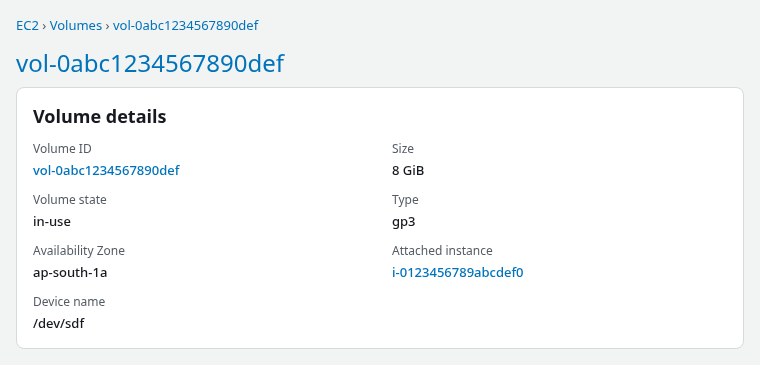
The console confirms that AWS reports the EBS volume at 8 GiB. The /dev/sdf shown here is the EC2 attachment name; on this Nitro instance the same volume appears inside Linux as an NVMe device whose serial matches the volume ID. in-use only means the volume is attached — it is not the Elastic Volumes modification progress state.
If the volume was modified recently, confirm the modification has reached optimizing or completed before extending the partition or filesystem:
aws ec2 describe-volumes-modifications --volume-ids vol-0abc1234567890def \
  --query 'VolumesModifications[0].{State:ModificationState,Target:TargetSize,Progress:Progress}' \
--output table-------------------------------------
| DescribeVolumesModifications |
+----------+-------------+----------+
| Progress | State | Target |
+----------+-------------+----------+
| 100 | completed | 8 |
+----------+-------------+----------+Once the modification state is optimizing or completed, proceed with lsblk and the partition or filesystem grow steps on the instance.
If There Is No Partition
If lsblk shows the filesystem directly on /dev/nvme1n1 with no p1 child, skip growpart and move to the filesystem-grow step once the disk row shows the new EBS size. AWS distinguishes volumes with and without a partition table; copying a partitioned example onto an unpartitioned disk is a common mistake.
If It Is XFS, Use xfs_growfs
XFS grows while the filesystem is mounted. Unlike resize2fs, xfs_growfs normally takes the mount point, not the underlying partition device:
sudo xfs_growfs -d /mnt/xfsdatameta-data=/dev/nvme1n1p1 isize=512 agcount=8, agsize=131008 blks
...
data blocks changed from 1048064 to 2096891Confirm the mount now reports the larger capacity:
df -hT /mnt/xfsdataFilesystem Type Size Used Avail Use% Mounted on
/dev/nvme1n1p1 xfs 8.0G 189M 7.8G 3% /mnt/xfsdataDo not run resize2fs on XFS. xfs_growfs is the supported grow path.
If It Is ext4, Use resize2fs
When df -hT shows ext4, resize2fs is the correct tool. It must target the block device that actually contains the ext filesystem — not a parent disk, not an unformatted slice, and not an LVM physical volume.
Grow ext4 after the partition (or whole disk, when unpartitioned) already matches the enlarged EBS size:
sudo resize2fs /dev/nvme1n1p1Use the device from findmnt or lsblk -f, not a guessed /dev/xvd* path from older documentation.
Make sure resize2fs targets the filesystem device
resize2fs must aim at the device that holds the ext superblock:
- Partitioned ext4 →
/dev/nvme1n1p1(the partition fromfindmnt) - Unpartitioned ext4 →
/dev/nvme1n1(filesystem on the whole disk) - ext4 on LVM →
/dev/mapper/<vg>-<lv>(see the LVM section below)
On a partitioned disk, running resize2fs against the parent disk often fails differently:
sudo resize2fs /dev/nvme1n1resize2fs 1.47.1 (20-May-2024)
Couldn't find valid filesystem superblock.
resize2fs: Device or resource busy while trying to open /dev/nvme1n1The partition table occupies the start of the disk; the ext4 superblock lives on the partition device. Target the block device findmnt reports for the mount.
If the Filesystem Is on LVM
If lsblk shows TYPE=lvm, the filesystem sits on an LVM logical volume. A /dev/mapper/... source from findmnt is another clue, but confirm it with pvs and lvs before running LVM resize commands — device mapper is also used by other technologies such as dm-crypt. Do not run resize2fs against the EBS disk or against the physical-volume partition just because that device became larger.
Check whether LVM sits between the EBS partition and the filesystem:
lsblk -o NAME,SIZE,TYPE,FSTYPE,MOUNTPOINTSIf the TYPE column shows lvm, or findmnt reports a source under /dev/mapper/, check the LVM layout before trying to grow the filesystem.
List physical volumes and which partitions or disks they occupy:
sudo pvsLogical volumes show the block device path that backs each mount:
sudo lvsConfirm the mount point and source device for the filesystem you need to grow:
findmnt /Device names in the commands below are examples only. Read the actual physical volume, volume group, logical volume, and mount point from pvs, lvs, and findmnt on the instance before running anything destructive.
In LVM, a physical volume (PV) is the disk or partition given to LVM, a volume group (VG) pools that storage, and a logical volume (LV) is the virtual block device that actually holds the filesystem.
         EBS disk / partition
               ↓
            PV (pvresize)
               ↓
               VG
               ↓
            LV (lvextend)
               ↓
     XFS / ext4 (xfs_growfs or resize2fs)
After the EBS disk and partition are large enough, extend the physical volume, then the logical volume, then the filesystem. On a typical RHEL root layout:
sudo pvresize /dev/nvme0n1p3Extend the logical volume to consume free space in the volume group:
sudo lvextend -l +100%FREE /dev/mapper/rhel-rootFor XFS on that logical volume:
sudo xfs_growfs /For ext4 on the logical volume, grow the filesystem device instead:
sudo resize2fs /dev/mapper/rhel-rootReplace /dev/nvme0n1p3, /dev/mapper/rhel-root, and / with the values from pvs, lvs, and findmnt. For the full LVM layer model, see EBS volume resized but df not changed.
Verify Final Size
After the correct grow command, block layout and df should match the enlarged EBS volume:
lsblk -o NAME,SIZE,TYPE,FSTYPE,MOUNTPOINTS /dev/nvme1n1NAME SIZE TYPE FSTYPE MOUNTPOINTS
nvme1n1 8G disk
└─nvme1n1p1 8G part xfs /mnt/xfsdataCheck the mounted filesystem reports the same capacity:
df -hT /mnt/xfsdataFilesystem Type Size Used Avail Use% Mounted on
/dev/nvme1n1p1 xfs 8.0G 189M 7.8G 3% /mnt/xfsdataThe EBS API should report the same size:
aws ec2 describe-volumes --volume-ids vol-0abc1234567890def \
--query 'Volumes[0].{Size:Size,State:State}' --output table--------------------
| DescribeVolumes |
+-------+----------+
| Size | State |
+-------+----------+
| 8 | in-use |
+-------+----------+When EBS, lsblk, and df all show 8 GiB, the resize path is complete.
Summary
resize2fs: Bad magic number in super-block on EC2 most often means resize2fs was aimed at XFS, at the wrong block device, or at the wrong storage layer — not that the EBS volume failed. If resize2fs reads an XFS filesystem, this error is expected because it is looking for ext filesystem metadata that is not there. df -hT and lsblk -f identify the filesystem type; findmnt and blkid confirm the device path.
After an EBS enlarge, work through the layers in order: EBS disk, partition (when one exists), optional LVM physical and logical volumes, then the filesystem. Use growpart only when a partition table is present. Grow XFS with xfs_growfs -d on the mount point; grow ext4 with resize2fs on the filesystem device. When lsblk shows TYPE=lvm, extend the PV and LV before either grow command.
If df still shows the old size before any grow command runs, walk the full layer checks in EBS volume resized but df not changed first.
References
- Amazon EBS volume modification
- Extend a Linux file system after resizing a volume
- Identify EBS volumes on Nitro-based instances
- xfs_growfs(8)
- resize2fs(8)
Frequently Asked Questions
Does bad magic number mean filesystem corruption?
Not usually on EC2 after a resize. It typically means resize2fs was used on XFS or on a device without an ext superblock — wrong disk, wrong layer, or wrong filesystem assumption. Confirm type with df -hT and the device with findmnt or blkid before running filesystem repair tools. Only start suspecting filesystem damage after you have confirmed that the device really contains ext4 and that you are running resize2fs against the correct device.
Which command grows XFS after an EBS resize?
Use xfs_growfs on the mounted path, for example sudo xfs_growfs -d /mnt/xfsdata, after the partition already fills the enlarged disk. Do not use resize2fs on XFS.
How do I find filesystem type on Linux?
Run df -hT on the mount point for the type column, or lsblk -f for FSTYPE on each device. findmnt prints the source device, mount point, and type together. When the type is still unclear, blkid reads the filesystem signature on a specific block device.
