
| Package | nvme-cli, util-linux (lsblk), aws-cli/2.37.3 (RHEL 10.2 on EC2, Nitro NVMe) |
|---|---|
| AWS Region | ap-south-1 (Mumbai); the tested volume is in ap-south-1a. EBS volumes are Availability Zone resources and can attach only to instances in the same AZ |
| Lab environment | Workstation with AWS CLI v2 and SSH or Session Manager access to the instance — AWS CLI tutorial Install AWS CLI on Ubuntu · Install AWS CLI on Debian |
| Privilege | EC2 DescribeInstances and DescribeVolumes permissions; [sudo](/sudo-command-in-linux/) on the instance for block-device inspection |
| Scope | Why the EC2 console can show an EBS volume attached or in-use at /dev/sdf while that path is missing inside Linux on Nitro EC2, how to confirm the AWS-side attachment, map the EBS volume ID to the guest NVMe device with lsblk SERIAL, nvme list, and nvme id-ctrl, read kernel attach lines in dmesg, verify the correct instance when no matching serial appears, and check NVMe driver support. Does not cover partitioning, formatting, or mounting after the device is identified. |
| Related guides | EC2 EBS device names vs NVMe EBS volume resized but df not changed Amazon Elastic Block Store AWS CLI Tutorial AWS Tutorial |
The EC2 console can report an EBS volume as in-use with attachment device /dev/sdf while ls /dev/sdf inside the instance returns No such file or directory. On Nitro instances that is often a naming mismatch: AWS records /dev/sdf in the block-device mapping, but the guest kernel exposes the volume as a block device such as /dev/nvme1n1 with the EBS volume ID in the NVMe serial field.
The walkthrough uses a fresh 5 GiB gp3 volume attached at /dev/sdf on RHEL 10.2 in ap-south-1a. AWS shows the volume attached; the guest OS shows nvme1n1 with serial vol0abc1234567890def. The goal is to map that NVMe device to the volume ID—not to format or mount it.
        AWS attachment request
   Volume: vol-0abc1234567890def
   Device label: /dev/sdf
                 |
                 | EC2 / Nitro attachment
                 v
            Linux NVMe driver
                 |
                 v
           /dev/nvme1n1
     SERIAL=vol0abc1234567890def
/dev/sdf is the device name supplied to the EC2 attachment API. /dev/nvme1n1 is the NVMe block device Linux assigned in this boot. The volume ID—not the nvme index—is what reliably connects the two.
Where to run the commands
aws ec2 …from a workstation with the AWS CLI configured.lsblk,nvme,dmesg, andlsmodon the EC2 instance.
Confirm the AWS Attachment
Before inspecting Linux, confirm AWS attached the volume to the intended instance and note the attachment device name AWS stores.
From a workstation, show only the device name, EBS volume ID, and attachment status:
aws ec2 describe-instances \
  --instance-ids i-0123456789abcdef0 \
  --query 'Reservations[0].Instances[0].BlockDeviceMappings[].{Device:DeviceName,VolumeId:Ebs.VolumeId,Status:Ebs.Status}' \
--output table----------------------------------------------------
| DescribeInstances |
+------------+-----------+-------------------------+
| Device | Status | VolumeId |
+------------+-----------+-------------------------+
| /dev/sda1 | attached | vol-06074582d3808cc13 |
| /dev/sdf | attached | vol-0abc1234567890def |
+------------+-----------+-------------------------+The /dev/sdf row is the data volume AWS believes it attached. /dev/sdf is the device name recorded in the EC2 block-device mapping. On Nitro, it does not necessarily match the device name Linux assigns.
Cross-check the volume object directly:
aws ec2 describe-volumes --volume-ids vol-0abc1234567890def \
--query 'Volumes[0].{State:State,Size:Size,AZ:AvailabilityZone,Attachments:Attachments}' --output json{
"State": "in-use",
"Size": 5,
"AZ": "ap-south-1a",
"Attachments": [
{
"VolumeId": "vol-0abc1234567890def",
"InstanceId": "i-0123456789abcdef0",
"Device": "/dev/sdf",
"State": "attached"
}
]
}State in-use with Attachments[].State attached confirms that AWS considers the volume attached to this instance. The next step is to verify that the guest operating system has detected the corresponding NVMe device.
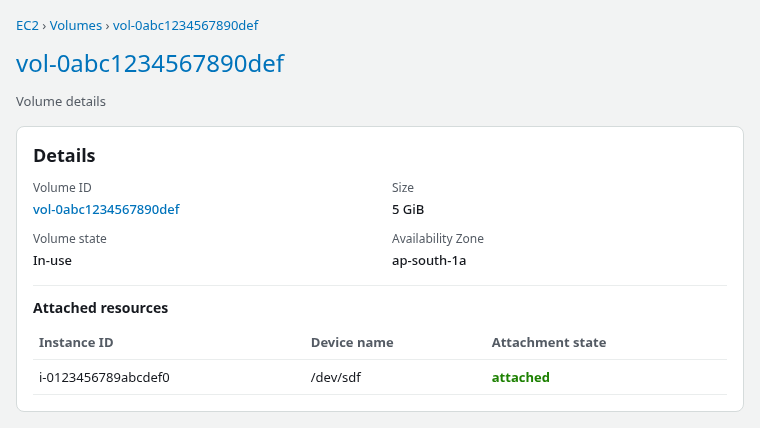
In the console, open EC2 → Elastic Block Store → Volumes, select the volume, and confirm Attachment status is Attached with the expected instance ID and device name.
The screenshot proves the AWS-side attachment state. It does not show which Linux /dev/nvme… device was assigned—that mapping must be checked inside the instance.
Understand Nitro Device Naming
On Nitro-based EC2 instances, EBS volumes attach through an NVMe controller. Linux exposes each EBS NVMe volume as an NVMe namespace, which in practical terms is the block device you see as /dev/nvme1n1, /dev/nvme2n1, and so on. Do not infer which EBS volume a namespace represents from its number; NVMe enumeration order can change between boots.
AWS still accepts attachment names like /dev/sdf, /dev/sdg, and /dev/xvdf in the EC2 API and console. Those names describe the attachment slot on the AWS side. The actual kernel block device is an NVMe namespace. Some AMIs create a convenience symlink for the EC2 attachment name through udev rules; others—including this RHEL test—may not provide /dev/sdf at all.
| What you see in AWS | What Linux uses on Nitro |
|---|---|
Attachment device /dev/sdf |
NVMe namespace such as /dev/nvme1n1 in this layout (index can change) |
EBS volume ID vol-0abc… |
NVMe serial vol0abc… (hyphen removed) in lsblk / nvme list |
| Block device mapping status attached | New nvme line in dmesg; matching serial in lsblk |
A missing /dev/sdf path while AWS shows the volume as in-use often means the Linux device name is different, not that the attachment failed. For attachment-name rules and symlink behavior on other AMIs, see EC2 EBS device names vs NVMe.
List Block and NVMe Devices
Do not use df -h to decide whether a new EBS disk exists. df lists mounted filesystems, not every attached block device. A brand-new EBS volume can be correctly attached and visible in lsblk while being completely absent from df.
Start on the instance by checking whether the console attachment name exists as a path:
ls -l /dev/sdfls: cannot access '/dev/sdf': No such file or directoryOn this RHEL Nitro instance that result is expected. It does not mean the volume is missing—it means the console device name is not a guest path here.
For EBS volumes exposed through NVMe, AWS places the EBS volume ID in the NVMe controller serial number. Linux tools such as lsblk and nvme list can therefore use that serial to map an AWS volume to its actual /dev/nvme… device.
List disks and partitions with serial numbers:
sudo lsblk -o NAME,SIZE,TYPE,FSTYPE,MOUNTPOINTS,SERIALNAME SIZE TYPE FSTYPE MOUNTPOINTS SERIAL
nvme0n1 10G disk vol06074582d3808cc13
├─nvme0n1p1 1M part
├─nvme0n1p2 200M part vfat /boot/efi
└─nvme0n1p3 9.8G part xfs /
nvme1n1 5G disk vol0abc1234567890defLook for a disk whose SERIAL matches the target EBS volume ID (hyphen removed). Do not identify the new volume only by its nvme index.
nvme list shows the same mapping in NVMe terms:
sudo nvme listNode Generic SN Model
/dev/nvme0n1 /dev/ng0n1 vol06074582d3808cc13 Amazon Elastic Block Store
/dev/nvme1n1 /dev/ng1n1 vol0abc1234567890def Amazon Elastic Block StoreIf no row shows the target serial, continue with volume-ID mapping, kernel detection, and instance verification below—not with partitioning or SCSI rescans first.
Map Volume ID to Device
Match the volume ID from AWS to the NVMe serial field. Do not look only for the exact /dev/sdf path; identify the attached EBS volume by its NVMe serial or volume ID.
| AWS field | Linux field | Example |
|---|---|---|
VolumeId |
lsblk SERIAL |
vol-0abc1234567890def → vol0abc1234567890def |
Attachments[].Device |
EC2 attachment name (may not be a guest path) | /dev/sdf |
Size in GiB |
lsblk SIZE on disk row |
5 → 5G |
If you want to verify the mapping directly with NVMe metadata, query the candidate device:
sudo nvme id-ctrl -V /dev/nvme1n1 | grep -E '^sn|^mn'sn : vol0abc1234567890def
mn : Amazon Elastic Block StoreThe sn field contains the EBS volume ID without the hyphen—the same value lsblk prints in SERIAL. AWS recommends nvme id-ctrl -V on Linux distributions other than Amazon Linux when mapping NVMe EBS devices. On Amazon Linux, the ebsnvme-id helper can also print the requested EC2 attachment name.
Once the serial matches the EBS volume ID, you have identified the attached device. A new volume may still have no partition table or filesystem, so it will not appear in df until it is partitioned, formatted, and mounted. Those steps are outside this article.
If lsblk already shows a matching SERIAL, you can stop here—the volume is attached and identified. Continue with the checks below only if no NVMe device matches the target volume ID.
Check Kernel Detection
If describe-volumes shows attached but no NVMe disk in lsblk carries the target serial, check whether the kernel logged an NVMe attach.
sudo dmesg | grep -iE 'nvme|Amazon Elastic Block Store' | tail -15[ 2.213796] nvme nvme0: pci function 0000:00:04.0
[ 2.228045] nvme nvme0: 2/0/0 default/read/poll queues
[ 2.235868] nvme0n1: p1 p2 p3
[ 178.515719] nvme nvme1: pci function 0000:00:1f.0
[ 178.528862] nvme nvme1: 2/0/0 default/read/poll queuesThese messages show that the kernel detected another NVMe controller; lsblk then confirms the corresponding namespace and device.
Nitro EBS volumes require NVMe support in the guest kernel. Current AWS Linux AMIs include the driver by default. On this RHEL system, the NVMe driver is loaded as kernel modules:
lsmod | grep nvmenvme 77824 2
nvme_core 262144 3 nvmeOn another Linux distribution, an empty lsmod result does not by itself prove that NVMe support is missing because the driver may be built into the kernel. Use nvme list, dmesg, and your distribution's kernel configuration or package information together.
If the volume is attached in AWS but no corresponding NVMe controller or device appears in lsblk, nvme list, or dmesg, check whether the nvme module is available on this RHEL build:
modinfo nvme | head -3filename: /lib/modules/6.12.0-211.53.1.el10_2.x86_64/kernel/drivers/nvme/host/nvme.ko.xz
description: NVMe host PCIe transport driver
version: 1.0On Nitro instances you normally do not run SCSI bus rescans for EBS. The NVMe driver hot-plugs the namespace when AWS completes the attach. If dmesg shows no new nvme controller after several minutes, verify the attachment targets the correct instance before considering a reboot.
Verify the Correct Instance
When AWS already reports State: in-use and attachment state attached for the correct InstanceId, an Availability Zone mismatch is not the explanation—the attach could not have reached that state across AZs. The relevant checks for “attached but I cannot find the device” are instance ID, NVMe serial mapping, nvme list, dmesg, and NVMe driver availability.
Confirm the volume attachment points at the instance where commands run:
aws ec2 describe-volumes --volume-ids vol-0abc1234567890def \
--query 'Volumes[0].Attachments[0].InstanceId' --output texti-0123456789abcdef0Request a session token first, then read the instance ID with IMDSv2 (required when the instance enforces HttpTokens=required):
TOKEN=$(curl -sS -X PUT http://169.254.169.254/latest/api/token -H "X-aws-ec2-metadata-token-ttl-seconds: 300")Pass that token on the metadata request:
curl -sS -H "X-aws-ec2-metadata-token: $TOKEN" http://169.254.169.254/latest/meta-data/instance-idi-0123456789abcdef0Compare this instance ID with the InstanceId shown in the EBS attachment. If they differ, you are logged in to a different EC2 instance.
If the attach operation itself does not complete—volume state available, attaching, or an attach error rather than attached—verify the volume and instance are in the same Availability Zone before retrying. EBS volumes attach only within one AZ.
| Symptom | Likely cause | Next step |
|---|---|---|
/dev/sdf missing, matching SERIAL on an nvme*n1 disk |
Nitro naming; volume is visible | Use the mapped NVMe path, not /dev/sdf |
| Console in-use, no matching NVMe serial | Wrong instance, Linux has not detected the NVMe device, or NVMe support is unavailable | Verify InstanceId, run nvme list, check dmesg, confirm NVMe support |
Matching serial found, disk absent from df |
New or unmounted volume | Device discovery is complete; partition/format/mount is a separate task |
nvme index changed after reattach |
Normal enumeration drift | Map by volume ID serial, not a fixed nvme1n1 path |
Summary
Two different problems get mixed together in forum threads. When AWS shows /dev/sdf but Linux exposes /dev/nvme1n1 with a matching EBS serial, that is normal Nitro naming—the volume is present under the NVMe path. When AWS shows attached and no NVMe device carries the target volume ID, that is a guest detection problem: wrong instance, missing NVMe driver support, or the device has not yet appeared in Linux.
Work through AWS confirmation first with describe-instances and describe-volumes, then map VolumeId to SERIAL with lsblk, nvme list, and nvme id-ctrl. Read dmesg for a new NVMe controller, confirm nvme modules load, and verify the instance ID matches. Do not use df to prove a block device exists, and do not assume /dev/sdf or a fixed nvme1n1 index. After the serial matches, partitioning and mounting are separate tasks.
References
- Amazon EC2 — Device names for volumes on Amazon EC2 instances
- Amazon EC2 — Map Amazon EBS volumes to NVMe device names
- Amazon EBS — Attach an Amazon EBS volume to an instance
- nvme-cli documentation
Frequently Asked Questions
Why is /dev/sdf missing?
On this RHEL Nitro instance, /dev/sdf does not exist because the actual EBS block device is exposed as NVMe. /dev/sdf is the attachment name AWS stores in the EC2 API and console. Other AMIs may create a symlink for the original EC2 attachment name, so always verify the real device with lsblk, its EBS serial, or AWS NVMe mapping tools. A missing /dev/sdf with in-use in the console usually means the Linux device name is different, not that the attach failed.
Do I need to rescan on Nitro?
Usually no. Nitro EBS volumes attach through the NVMe driver and show up as new nvme namespaces without SCSI rescan commands. If describe-volumes shows attached but lsblk has no matching serial, verify the instance ID, check dmesg for a new nvme controller, and confirm NVMe kernel modules load before considering a reboot.
Can EBS attach across Availability Zones?
No. An EBS volume attaches only to EC2 instances in the same Availability Zone as the volume. If the volume is in ap-south-1a and the instance is in ap-south-1b, the attach cannot succeed and the volume will not reach attached state on that instance.
