
| Package | amazon-cloudwatch-agent/1.300073.1b1859, aws-cli/2.37.3 (RHEL 10.2 on EC2) |
|---|---|
| AWS Region | ap-south-1 (Mumbai) for the examples; CloudWatch Logs API calls and log groups are Regional |
| Lab environment | Workstation with AWS CLI v2 and configured credentials — AWS CLI tutorial Install AWS CLI on Ubuntu · Install AWS CLI on Debian |
| Privilege | EC2 permissions to describe instances and IAM roles; logs:DescribeLogStreams and logs:FilterLogEvents on the target log group from the workstation |
| Scope | Why the CloudWatch agent on EC2 can stay running while log events never appear, how to read agent status and the agent log, verify applied configuration and file path (including trailing newlines), EC2 IAM, Region and account, CloudWatch Logs network reachability, then re-apply with fetch-config and verify the log stream. Does not cover CloudWatch alarm or custom metric ingestion troubleshooting. |
| Related guides | AWS CLI Tutorial EC2 disk full cannot SSH EC2 user data not running Amazon Elastic Block Store AWS Tutorial |
The Amazon CloudWatch agent is software running on the EC2 instance. It reads configured log files and sends new log entries to Amazon CloudWatch Logs over the AWS Logs API. CloudWatch does not connect into the instance to pull those files; the agent pushes logs outward from EC2.
The agent can report running while log events never show up in CloudWatch Logs. Running only means the amazon-cloudwatch-agent service is active. It does not prove the agent is watching the right file, can read it, has permission to call the Logs API, can reach the Regional endpoint, or is publishing to the Region and account open in the console.
The walkthrough below uses a RHEL 10.2 EC2 instance in ap-south-1. The agent tails /var/log/glc-app/test.log, meaning it watches that file for newly appended lines and sends those new entries to CloudWatch Logs. The target log group is glc-cwlogs-lab-app. The same checks apply on other Linux AMIs when the log file path and instance profile differ.
               EC2 instance
+-------------------------------------+
|                                     |
| Application                         |
|      |                              |
|      v                              |
| /var/log/app.log                    |
|      |                              |
|      v                              |
| CloudWatch agent                    |
|                                     |
+----------------|--------------------+
                 |
                 | HTTPS + IAM credentials
                 v
        CloudWatch Logs API
                 |
                 v
             Log group
                 |
                 v
             Log stream
                 |
                 v
             Log events
If the agent is running but logs are missing, the failure can occur at any point on this path: file → agent → IAM → network → CloudWatch Logs.
In CloudWatch Logs, a log group is the container for related logs, such as all logs from one application. A log stream is one source inside that group, such as logs from one EC2 instance. The actual lines the agent sends are stored as log events inside the stream.
For this example:
glc-cwlogs-lab-app               <- log group
└── i-0123456789abcdef0          <- log stream
    ├── baseline-1790483216      <- log event
    ├── badpath-1790483303
    └── stale-1790483495
A running agent is only one step in this pipeline. Logs can still disappear if the agent watches the wrong file, cannot read the file, the line has no trailing newline, the role lacks IAM permission, the instance cannot reach the CloudWatch Logs API over HTTPS, or events are sent to a different Region or AWS account than the one being checked.
Quick Answer
| Symptom | Most likely area | First check |
|---|---|---|
| Agent running, no log stream exists | Configuration, credentials/IAM, Region, or network | Agent status → agent log → fetch-config |
| Log stream exists, no new events | Wrong file, unreadable file, missing newline, PutLogEvents, or app not writing |
Match file_path; permissions; agent log |
Agent log shows AccessDenied on PutLogEvents |
IAM | EC2 instance role / instance profile |
| Agent log shows dial tcp … i/o timeout | Network | HTTPS test to logs.<region>.amazonaws.com |
| Log group exists in another Region or account | Region or account mismatch | Match EC2 Region and account to the log group |
| Config file edited, agent still uses old path | Configuration not applied | Re-run fetch-config; read piping log from in agent log |
ResourceNotFoundException on tail |
Stream not created in this Region/group | Agent log → config → IAM → connectivity |
Check CloudWatch Agent Status
Start with the agent control script. A stopped agent never ships logs, but a running agent still fails for every reason below.
On the EC2 instance:
sudo /opt/aws/amazon-cloudwatch-agent/bin/amazon-cloudwatch-agent-ctl -a status -m ec2{
"status": "running",
"starttime": "2026-09-27T04:26:45+00:00",
"configstatus": "configured",
"version": "1.300073.1b1859"
}status: running confirms the systemd service is up. configstatus: configured means the agent currently has configuration available. It does not prove that the JSON file edited on disk is the configuration the running agent is using.
If status is stopped, start the agent after a valid configuration is in place:
sudo /opt/aws/amazon-cloudwatch-agent/bin/amazon-cloudwatch-agent-ctl -a start -m ec2When the status command reports stopped or not configured, fix that before opening CloudWatch Logs in the console.
Read the CloudWatch Agent Log
When log events are missing, read the agent log next. The agent log often identifies the failing layer immediately, so check it before changing the configuration, IAM policy, or network.
On Linux the file is:
/opt/aws/amazon-cloudwatch-agent/logs/amazon-cloudwatch-agent.logTail recent lines after appending a test message to the watched file:
sudo tail -n 40 /opt/aws/amazon-cloudwatch-agent/logs/amazon-cloudwatch-agent.logOn a healthy pipeline the log shows which file connects to which log group and stream:
2026-09-27T04:26:46Z I! [logagent] piping log from glc-cwlogs-lab-app/i-0123456789abcdef0(/var/log/glc-app/test.log) to cloudwatchlogs with retention -1That line confirms the active configuration: log group, stream name, and file_path. If the path does not match the file being written, the agent is still using an older config even when configstatus is configured.
Search the same log for errors:
sudo grep -iE 'AccessDenied|RequestError|send request failed|no such file' \
  /opt/aws/amazon-cloudwatch-agent/logs/amazon-cloudwatch-agent.log | tail -10
When the grep output includes AccessDeniedException on PutLogEvents, fix IAM before re-checking JSON or security groups. When it shows dial tcp … i/o timeout to logs.<region>.amazonaws.com, focus on network path first. Lab captures of each pattern:
# IAM — missing PutLogEvents
2026-09-27T04:29:22Z E! [outputs.cloudwatchlogs] Aws error received when sending logs to glc-cwlogs-lab-app/i-0123456789abcdef0: AccessDeniedException: User: arn:aws:sts::123456789012:assumed-role/glc-cwlogs-lab-role/i-0123456789abcdef0 is not authorized to perform: logs:PutLogEvents on resource: arn:aws:logs:ap-south-1:123456789012:log-group:glc-cwlogs-lab-app:log-stream:i-0123456789abcdef0 because no identity-based policy allows the logs:PutLogEvents action

# Network — Logs API unreachable
2026-09-27T04:25:08Z E! [outputs.cloudwatchlogs] Aws error received when sending logs to glc-cwlogs-lab-app/i-0123456789abcdef0: RequestError: send request failed
caused by: Post "https://logs.ap-south-1.amazonaws.com/": dial tcp 10.42.2.76:443: i/o timeout
Verify the Applied Configuration
The running agent does not continuously reload a source JSON file on disk. AWS recommends keeping the source file outside the agent package and applying it with fetch-config. The active configuration lives under /opt/aws/amazon-cloudwatch-agent/etc/, typically in amazon-cloudwatch-agent.d/.
             Your source JSON
/etc/cw-agent/amazon-cloudwatch-agent.json
                    ↓
               fetch-config
                    ↓
  CloudWatch agent active configuration
 /opt/aws/amazon-cloudwatch-agent/etc/...
                    ↓
              running agent
Editing the source JSON does not automatically change the active configuration. Despite its name, fetch-config is the control action that loads and applies configuration from a source such as a local file or Systems Manager Parameter Store—it does not merely read a path you already edited by hand.
After any configuration change, run:
sudo /opt/aws/amazon-cloudwatch-agent/bin/amazon-cloudwatch-agent-ctl -a fetch-config -m ec2 -c file:/etc/cw-agent/amazon-cloudwatch-agent.json -sThe -s flag restarts the agent so the new log pipeline takes effect. During apply, the control script runs Configuration validation in two phases; both must succeed before the agent restarts.
Start configuration validation...
2026/09/27 04:26:45 I! Valid Json input schema.
2026/09/27 04:26:45 Configuration validation first phase succeeded
Configuration validation second phase succeeded
Configuration validation succeeded
If the control command only reports that validation failed, also check:
/opt/aws/amazon-cloudwatch-agent/logs/configuration-validation.logA minimal log collection block for one file:
{
  "logs": {
    "logs_collected": {
      "files": {
        "collect_list": [
          {
            "file_path": "/var/log/glc-app/test.log",
            "log_group_name": "glc-cwlogs-lab-app",
            "log_stream_name": "{instance_id}",
            "timezone": "UTC"
          }
        ]
      }
    }
  }
}
{instance_id} is a CloudWatch agent placeholder. On EC2, the agent replaces it with the actual instance ID, so instance i-0123456789abcdef0 gets a stream with that name.
In the lab, editing the JSON to point at /var/log/glc-app/stale-path.log without running fetch-config left the agent watching /var/log/glc-app/test.log while new writes went elsewhere. Status still showed configstatus: configured during that mismatch. After fetch-config -s, confirm the piping log from line in the agent log lists the intended file_path.
Check the Log File
The agent only ships lines from the exact file_path in the active configuration. A typo, a path on an unmounted volume, or writing test lines to a different file leaves CloudWatch Logs empty while the agent stays running.
In the lab, pointing the config at /var/log/glc-app/missing.log while appending to test.log produced no new events. Search the agent log for the active path after apply:
sudo grep file_path /opt/aws/amazon-cloudwatch-agent/logs/amazon-cloudwatch-agent.log | tail -3 file_path = "/var/log/glc-app/missing.log"
2026-09-27T04:28:13Z I! [logagent] piping log from glc-cwlogs-lab-app/i-0123456789abcdef0(/var/log/glc-app/missing.log) to cloudwatchlogs with retention -1Confirm the watched file exists and the agent user can read it (run_as_user in the JSON, often root):
sudo ls -l /var/log/glc-app/test.log-rw-r--r--. 1 root root 412 Sep 27 04:32 /var/log/glc-app/test.logAppend a unique test line to the same path named in the agent log:
echo "cw-test-$(date +%s)" | sudo tee -a /var/log/glc-app/test.logecho through tee -a writes a complete line ending with a newline (\n). That matters because the agent treats \n as the end of a log event.
Check for a trailing newline if a line was written but never appears: the agent can buffer text that does not end with \n. On the instance:
tail -c 1 /var/log/glc-app/test.log | od -An -tx1 0a0a means the file ends with a newline. This is a less common cause than wrong file_path, IAM, or network problems, but worth a quick check when everything else looks correct.
If the agent user cannot read the file, grant that user or group the minimum required read permission, or set run_as_user appropriately in the JSON and re-run fetch-config. Avoid making the log file world-readable unless that is actually required.
Check IAM Permissions
The agent needs AWS credentials to call the CloudWatch Logs API. On EC2, the normal approach is to attach an IAM role to the instance. EC2 exposes that role to software on the instance through an instance profile, so the agent can obtain temporary credentials automatically.
On a typical EC2 installation, the agent uses that instance role. If you explicitly configured another credential source or a cross-account role, verify that source instead.
Missing logs:PutLogEvents produces explicit errors in the agent log even when agent status is running.
The EC2 console Details tab shows the instance profile. Open the role in IAM and confirm log permissions on the target group.
Start with the AWS managed policy
AWS provides the managed policy CloudWatchAgentServerPolicy, which includes the permissions the agent needs for standard log and metric configurations, including CloudWatch Logs write actions. For a first installation or when isolating an IAM problem, attaching this policy to the instance role is the simplest confirmation step.
When the log group name must stay restricted, use a narrower inline policy such as the example below instead of—or in addition to—the managed policy.
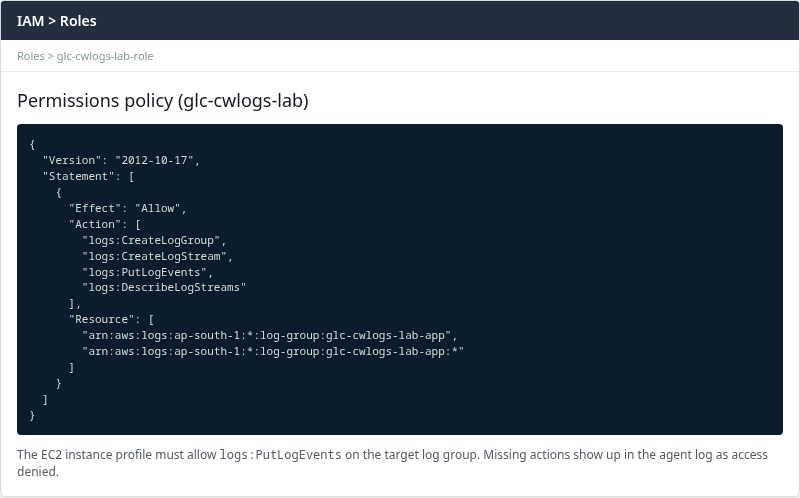
Example inline policy scoped to one log group:
{
  "Version": "2012-10-17",
  "Statement": [
    {
      "Effect": "Allow",
      "Action": [
        "logs:CreateLogGroup",
        "logs:CreateLogStream",
        "logs:PutLogEvents",
        "logs:DescribeLogStreams"
      ],
      "Resource": [
        "arn:aws:logs:ap-south-1:123456789012:log-group:glc-cwlogs-lab-app",
        "arn:aws:logs:ap-south-1:123456789012:log-group:glc-cwlogs-lab-app:*"
      ]
    }
  ]
}
The first ARN identifies the log group. The second ARN, ending in :*, matches log streams inside that group. Actions such as CreateLogStream and PutLogEvents operate on the stream-level resource.
For day-to-day diagnosis:
logs:PutLogEventsis the critical permission for publishing events.logs:CreateLogStreamis needed when the stream does not exist yet.logs:CreateLogGroupis needed only when the agent must create the log group itself. Ifglc-cwlogs-lab-appalready exists, ingestion can work withoutCreateLogGroup.
The managed CloudWatchAgentServerPolicy includes a broader set of Logs permissions because it supports more agent configurations than a single fixed-path file collector.
After updating IAM, wait briefly for credentials to refresh, append another test line, or restart the agent. The agent log should stop reporting AccessDeniedException on PutLogEvents.
Check Region and AWS Account
CloudWatch log groups are Regional. A log group created in Mumbai (ap-south-1) is a different resource from a log group with the same name in Virginia (us-east-1). The same log group name can therefore exist independently in multiple Regions.
The agent may be publishing successfully while the console or CLI is open in another Region. If the agent sends to ap-south-1 but CloudWatch Logs is viewed in us-east-1, the expected stream appears missing even though ingestion works elsewhere. The same confusion happens when the workstation CLI profile points at a different AWS account than the EC2 instance role.
On EC2, the agent normally uses the instance's Region unless the configuration or common-config.toml overrides it. Confirm the Region selector in the CloudWatch console matches the EC2 instance Region shown on the instance details page.
From a workstation with the AWS CLI configured, confirm which account and Region the CLI is using before tailing logs:
aws sts get-caller-identity --query Account --output text123456789012This shows the AWS account used by the workstation CLI. Compare it with the account that contains the EC2 instance and the CloudWatch log group.
Set the CLI Region to match the instance and log group (for example ap-south-1) with AWS_DEFAULT_REGION or --region on each command.
Check CloudWatch Logs Network Connectivity
The CloudWatch agent sends logs over HTTPS to the Regional CloudWatch Logs API endpoint, for example logs.ap-south-1.amazonaws.com. Because the agent pushes logs from EC2, the instance needs outbound connectivity to that endpoint even though CloudWatch is an AWS service.
A private EC2 instance still needs a network path to the CloudWatch Logs API. The two most common options are:
- A NAT gateway, which provides outbound access to the public CloudWatch Logs endpoint.
- A CloudWatch Logs interface VPC endpoint (AWS PrivateLink), which provides a private path to the service (
com.amazonaws.ap-south-1.logs).
Private EC2  --->  NAT gateway  --->  CloudWatch Logs public endpoint

Private EC2  --->  Logs VPC endpoint  --->  CloudWatch Logs
The endpoint security group must allow HTTPS (port 443) from the instance when using PrivateLink.
From the EC2 instance, test basic HTTPS reachability:
curl -sS --connect-timeout 5 https://logs.ap-south-1.amazonaws.com/ -o /dev/null -w '%{http_code}\n'In this lab the endpoint returned HTTP 404. That is fine for this test because the plain curl request is not a signed CloudWatch Logs API call. The important result is that you received an HTTP response instead of a DNS, connection, or TLS timeout.
When a VPC endpoint exists but its security group blocks the instance, DNS can still resolve logs.ap-south-1.amazonaws.com to the endpoint private IP while the agent log shows a timeout (see the connectivity example in Read the CloudWatch Agent Log). Fix the network path, confirm curl returns an HTTP response rather than timing out, then append a test log line.
This page covers log ingestion only. CloudWatch alarm or custom metric problems use different agent configuration sections and are out of scope here.
Verify the Log Stream and Events
From a workstation with the AWS CLI configured, list streams in the log group:
aws logs describe-log-streams --log-group-name glc-cwlogs-lab-app \
  --order-by LastEventTime --descending --limit 5 \
  --query 'logStreams[].{stream:logStreamName,last:lastEventTimestamp}' --output table
Two console states mean different things:
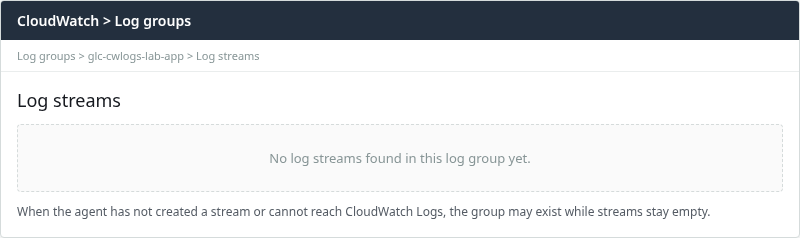
- Log group exists, no log stream yet — focus on configuration,
CreateLogStreampermission, credentials, and connectivity before inspecting individual event text. - Log stream exists, no new events — focus on
PutLogEvents, the watchedfile_path, file permissions, trailing newlines, and whether the application is writing new lines.
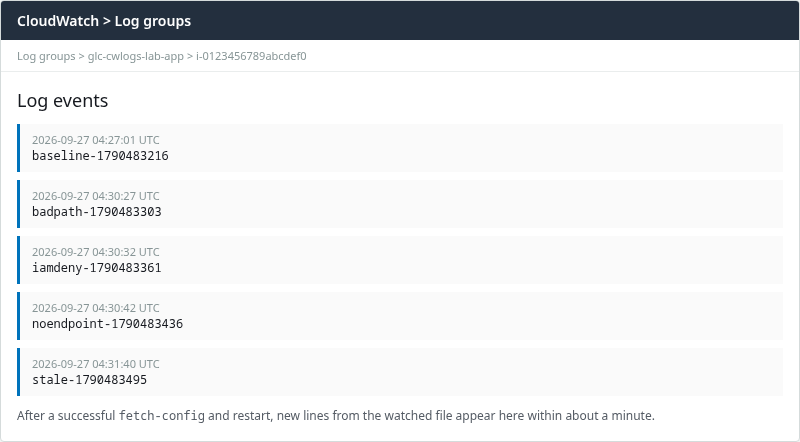
Tail recent events when a stream exists:
aws logs tail glc-cwlogs-lab-app --log-stream-names i-0123456789abcdef0 \
--since 30m --format short2026-09-27T04:27:01 baseline-1790483216
2026-09-27T04:30:27 badpath-1790483303
2026-09-27T04:31:40 stale-1790483495Before ingestion succeeded, the same tail command returned ResourceNotFoundException because no stream had been created yet in that Region and log group.
In the lab, new events appeared within about a minute after a successful test append. Allow a short delay before concluding that ingestion still fails.
Troubleshooting
| Symptom | Likely cause | Next step |
|---|---|---|
| Agent running, no stream | Config not applied, wrong path, IAM, Region, or network | Agent log → fetch-config -s → Region → IAM → curl Logs endpoint |
AccessDeniedException on PutLogEvents |
Role missing log write permission | Attach CloudWatchAgentServerPolicy or add PutLogEvents on the log group |
dial tcp … i/o timeout to Logs URL |
No NAT, blocked egress, or bad VPC endpoint SG | Fix outbound 443 or Logs interface endpoint (PrivateLink) |
ResourceNotFoundException when tailing |
Log group or stream not in this Region/account | Match Region and group name; check agent log |
| Log group empty in console, agent healthy in another Region | Wrong Region or account selected | Align console Region with EC2 instance Region |
| Test line appended, no event | Wrong path, permissions, or missing trailing \n |
Match file_path; check tail -c 1 | od -An -tx1 for 0a |
configstatus: configured, wrong file in agent log |
Source JSON edited without fetch-config |
Re-run fetch-config -m ec2 -c file:… -s |
Validation failed during fetch-config |
Invalid JSON schema | Fix JSON; read validation output from the control script and /opt/aws/amazon-cloudwatch-agent/logs/configuration-validation.log |
Optional: AWS Troubleshooting Runbook
AWS Systems Manager provides the AWSSupport-TroubleshootCloudWatchAgent automation runbook, which can check the instance profile, agent status, agent logs, and service endpoint connectivity. It can be useful when the manual checks above do not identify the problem.
Summary
If the CloudWatch agent is running but logs are missing, trace the problem from the source file to CloudWatch: file → agent configuration → IAM → network → log stream.
Start with the agent log. An AccessDeniedException points to IAM; a connection timeout points to networking; and an unexpected file_path points to configuration. Check agent status first, then read /opt/aws/amazon-cloudwatch-agent/logs/amazon-cloudwatch-agent.log. Confirm the active configuration with fetch-config, match the watched file path, and verify each line ends with a newline. Attach CloudWatchAgentServerPolicy or a scoped inline policy with PutLogEvents, confirm the CloudWatch console Region and AWS account match the instance, and test HTTPS to logs.<region>.amazonaws.com.
After those checks, aws logs tail or the CloudWatch console should show new events after a short delay. This workflow stays on log shipping only; CloudWatch alarms and custom metrics use separate agent settings.
References
- Troubleshooting the CloudWatch agent
- AWSSupport-TroubleshootCloudWatchAgent runbook
- Install the CloudWatch agent
- CloudWatch agent configuration file details
- CloudWatch agent CLI command
- CloudWatch Logs permissions reference
- CloudWatchAgentServerPolicy managed policy
- Interface VPC endpoints for CloudWatch Logs
Frequently Asked Questions
Where are CloudWatch agent logs on Linux?
On Linux the agent writes to /opt/aws/amazon-cloudwatch-agent/logs/amazon-cloudwatch-agent.log. That file records configuration translation, the active file_path, log group and stream wiring, and AWS API errors such as AccessDeniedException or network timeouts. Tail it before changing IAM or security groups.
Why did config changes not take effect?
The running agent does not watch the source JSON file for changes. After editing the configuration, run sudo amazon-cloudwatch-agent-ctl -a fetch-config -m ec2 -c file:/path/to/config.json -s. The -s flag restarts the agent with the active configuration under /opt/aws/amazon-cloudwatch-agent/etc/. Confirm the new settings in the agent log piping log from line.
Can a private EC2 instance send logs without a public IP?
Yes, but the instance still needs a path to the CloudWatch Logs API. Common options are a NAT gateway for outbound internet, or an interface VPC endpoint (AWS PrivateLink) for com.amazonaws.<region>.logs in the subnet with a security group that allows HTTPS from the instance. Without one of those paths, the agent log shows connection timeouts to logs.<region>.amazonaws.com.
