
| Package | cloud-init 24.4, aws-cli/2.37.3 (RHEL 10.2 on EC2) |
|---|---|
| AWS Region | ap-south-1 (Mumbai) for the examples; user data is stored with the instance in the Region where it launches |
| Lab environment | Workstation with AWS CLI v2 and configured credentials — AWS CLI tutorial Install AWS CLI on Ubuntu · Install AWS CLI on Debian |
| Privilege | EC2 RunInstances permission to launch test instances; [sudo](/sudo-command-in-linux/) on the instance to read cloud-init logs |
| Scope | Why EC2 user data may not appear to run on Linux, how to confirm the script was saved, wait for and read cloud-init status and log files, distinguish a script that never started from one that ran and failed, and fix common shebang, PATH, environment, line-ending, custom-AMI, and timing problems. Does not cover running user data on every reboot. |
| Related guides | Run EC2 User Data on Every Reboot EC2 Web Server Setup AWS CLI Tutorial AWS EBS Volume Guide AWS Tutorial |
EC2 user data is a launch-time script or cloud-init configuration that AWS stores with the instance. On Linux AMIs that use cloud-init, the user-data script normally runs during the first boot.
When EC2 user data appears not to run, first work out where the launch process stopped:
 User data supplied at launch
              ↓
  Was the payload stored?
              ↓
 Did cloud-init process it?
              ↓
    Did the script start?
              ↓
Did it finish successfully?
              ↓
          ┌───┴───┐
         yes      no
          │        │
          ▼        ▼
   Check result  Read logs
Once you know which step failed, the logs usually point to the right fix. If the script finished but your application still is not configured correctly, troubleshoot the commands inside the script. Common causes include a missing or invalid shebang, CRLF line endings, commands that work over SSH but not in the non-interactive root bootstrap environment, missing instance-profile permissions for AWS CLI calls, external dependencies that are temporarily unavailable, custom AMI cloud-init state, or expecting the script to run again after stop/start or reboot.
The walkthrough below uses a broken shebang, a failing command, and a corrected script on RHEL 10.2 (cloud-init 24.4). The same log paths and status commands apply on other Linux AMIs that use cloud-init.
User data not running?
- Confirm the launch stored the script (console Edit user data or IMDSv2).
- Wait for
cloud-initto finish:sudo cloud-init status --wait. - Run
sudo cloud-init status --long. - Read
/var/log/cloud-init-output.logfor script stdout/stderr. - Read
/var/log/cloud-init.logwhen you need module-level detail. - Fix the script, then validate on a fresh instance.
How EC2 User Data Runs
On a typical Linux EC2 instance, the chain looks like this:
             EC2 user data
                   ↓
  cloud-init reads the EC2 data source
                   ↓
scripts_user runs shell-script user data
                   ↓
         script output / errors
On first boot, AWS stores user data with the instance at launch time. cloud-init obtains it from the EC2 data source during boot and executes shell-script user data later through scripts_user in the final stage. A valid shell script is written to /var/lib/cloud/instance/scripts/part-001 and runs once per instance by default. Script output goes to /var/log/cloud-init-output.log; module messages go to /var/log/cloud-init.log.
User-data shell scripts normally run as root. You usually do not need sudo, and the script does not inherit the same shell environment, home directory, PATH, or profile files as the user you SSH in as. A command that works after you SSH in can therefore fail in user data because environment variables, PATH entries, shell profiles, or per-user tools such as nvm are missing.
EC2 reaching the running state does not mean the user-data script has finished. cloud-init may still be installing packages or executing bootstrap commands. Allow extra time before testing, then use sudo cloud-init status --wait.
Editing user data on an existing stopped instance changes the stored instance attribute, but a normal Linux user-data shell script does not automatically execute again when that instance starts. Extra steps are required to rerun cloud-init; see the FAQ.
Check Whether the User Data Was Saved
Before debugging cloud-init, confirm AWS actually received the script at launch.
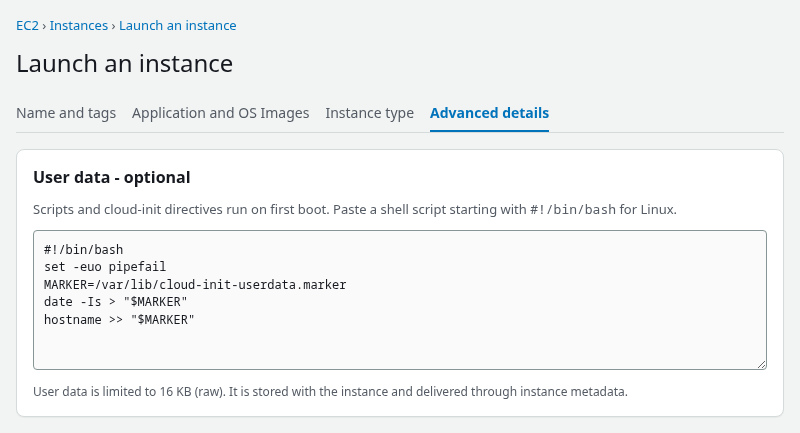
In the EC2 console, open Launch an instance → Advanced details and review the User data field. A Linux shell script should start with a shebang such as #!/bin/bash. The screenshot below shows the working script used for a corrected launch:
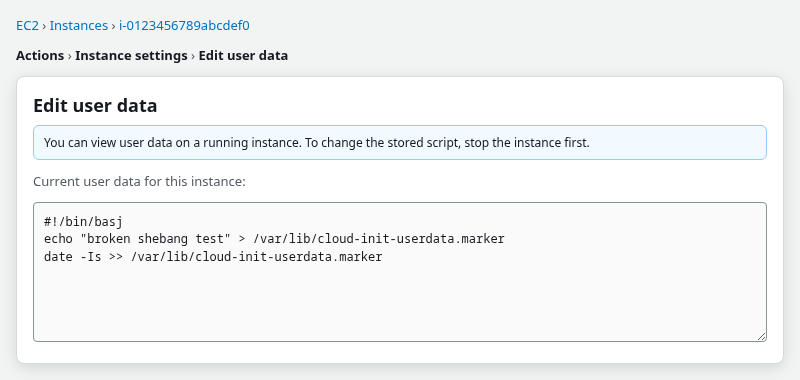
After launch, view the stored payload on the instance itself. AWS documents EC2 → Instances → select the instance → Actions → Instance settings → Edit user data. On a running instance you can view user data but not modify it until the instance is stopped:
From inside the instance, retrieve the same payload with IMDSv2:
TOKEN=$(curl -s -X PUT "http://169.254.169.254/latest/api/token" \
  -H "X-aws-ec2-metadata-token-ttl-seconds: 21600")
curl -s -H "X-aws-ec2-metadata-token: $TOKEN" \
http://169.254.169.254/latest/user-data#!/bin/basj
echo "broken shebang test" > /var/lib/cloud-init-userdata.marker
date -Is >> /var/lib/cloud-init-userdata.markerIf this output matches what was pasted at launch, the problem is not “AWS dropped the script.” Now check whether cloud-init actually ran the script and whether it finished successfully.
Do not place long-lived passwords, API keys, or other secrets directly in user data. User data is stored with the instance and can be retrieved through the EC2 console, instance metadata, or other principals and processes that have access to it. Use an instance role and a service such as Secrets Manager or Parameter Store when the script needs credentials.
Check cloud-init Status
If you connected immediately after launch, wait for cloud-init to finish before judging success or failure:
sudo cloud-init status --waitcloud-init status --wait waits until cloud-init reaches a finished state. A non-zero return code can indicate that cloud-init finished with errors, so follow it with cloud-init status --long rather than assuming the wait command itself failed to work.
Inspect the detailed status:
sudo cloud-init status --longOn the broken-shebang test instance:
status: error
extended_status: error - done
boot_status_code: enabled-by-generator
detail: DataSourceEc2Local
errors:
	- ('scripts_user', RuntimeError('Runparts: 1 failures (part-001) in 1 attempted commands'))
recoverable_errors:
WARNING:
	- Failed to run module scripts_user (scripts in /var/lib/cloud/instance/scripts)
	- Running module scripts_user (...) failed
The important fields here are:
status: errortells youcloud-initrecorded a failure. In this example, theerrorsentry namesscripts_userandpart-001, which ties the failure specifically to the user-data script.part-001is the scriptcloud-initgenerated from the launch payload.error - donemeanscloud-initfinished boot processing but recorded a failure.
On a successful first boot:
sudo cloud-init status --longstatus: done
extended_status: done
boot_status_code: enabled-by-generator
detail: DataSourceEc2Local
errors: []
recoverable_errors: {}status: done with empty errors is the healthy baseline after first boot.
For service-level context, scan recent cloud-init journal entries:
sudo journalctl -u cloud-init -u cloud-init-local -u cloud-final --no-pager -n 20Sep 26 09:30:06 ... cloud-init[1793]: Failed to run module scripts_user (scripts in /var/lib/cloud/instance/scripts)
Sep 26 09:30:06 ... systemd[1]: cloud-final.service: Failed with result 'exit-code'.Confirm that cloud-init generated the script file from the stored user data:
sudo ls -l /var/lib/cloud/instance/scripts/Review the first lines of the generated script:
sudo sed -n '1,20p' /var/lib/cloud/instance/scripts/part-001If part-001 is missing, cloud-init may not have recognized or generated the shell-script payload. Check cloud-init status --long and /var/log/cloud-init.log to see whether the user data was processed and which datasource was selected. If it exists, compare the first lines with the payload from Edit user data or IMDSv2.
Read cloud-init Logs
Check both logs because they show different parts of the failure.
| Log file | What it shows |
|---|---|
/var/log/cloud-init-output.log |
stdout/stderr from user-data scripts and other cloud-init stages |
/var/log/cloud-init.log |
module execution, script paths, and detailed failure reasons |
When you are unsure whether the script started at all, add markers near the top and end of the script:
echo "user data started $(date -Is)" > /tmp/user-data-startedAdd a matching marker at the end of the script:
echo "user data finished $(date -Is)" > /tmp/user-data-finishedIf only the first file exists, the script started and failed somewhere in between.
Executed and failed
If the script started before failing, you can usually find evidence that its first few commands ran. On the test instance that runs #!/bin/bash followed by /usr/bin/false:
sudo tail -n 10 /var/log/cloud-init-output.logCloud-init v. 24.4-7.el10_2.1 running 'modules:final' at Sat, 26 Sep 2026 09:32:42 +0000. Up 12.31 seconds.
2026-09-26 09:32:42,140 - cc_scripts_user.py[WARNING]: Failed to run module scripts_user (scripts in /var/lib/cloud/instance/scripts)
2026-09-26 09:32:42,140 - log_util.py[WARNING]: Running module scripts_user (...) failed
Cloud-init v. 24.4-7.el10_2.1 finished at Sat, 26 Sep 2026 09:32:42 +0000. Datasource DataSourceEc2Local. Up 12.56 secondsCheck whether the script started its own logging:
sudo cat /var/log/user-data-bootstrap.loguser-data starteduser-data started without user-data finished means the script began running and exited before later lines executed. That is different from a bad shebang where the marker file never appears at all.
Script could not start
On the broken-shebang instance, cloud-init attempted to run part-001, but the kernel could not launch the interpreter named in the shebang. The marker file is missing:
sudo ls -l /var/lib/cloud-init-userdata.markerls: cannot access '/var/lib/cloud-init-userdata.marker': No such file or directoryPull the module-level reason from cloud-init.log:
sudo grep -E 'part-001|scripts_user|Reason:' /var/log/cloud-init.log | tail -n 82026-09-26 09:38:00,194 - subp.py[DEBUG]: Running command ['/var/lib/cloud/instance/scripts/part-001'] ...
Reason: [Errno 2] No such file or directory: b'/var/lib/cloud/instance/scripts/part-001'
RuntimeError: Runparts: 1 failures (part-001) in 1 attempted commandsIf part-001 clearly exists but execution returns [Errno 2] No such file or directory, inspect both the interpreter path and the first line's line endings. A typo such as #!/bin/basj and a CRLF-contaminated #!/bin/bash\r can produce this type of failure.
Fix Shebang and Line-Ending Problems
Invalid shebang
The first line must reference a real interpreter:
#!/bin/bashCommon mistakes:
- Typo in the path (
#!/bin/basj) - Missing shebang: a plain user-data shell script should begin with
#!followed by a valid interpreter path, such as#!/bin/bash. Without that header,cloud-initdoes not recognize the payload as the same shell-script format. #!/bin/shwhen the script uses bash-only syntax without installing bash first
User-data shell scripts already run as root, so sudo and especially sudo su are unnecessary. sudo su can also change shell execution behavior in ways that make debugging harder.
Fix the script in the launch template or user-data field, then launch a new instance.
Windows line endings (CRLF)
Scripts edited on Windows may contain \r\n line endings. The shebang line becomes #!/bin/bash\r, which Linux cannot execute.
On a running instance, inspect a saved copy:
sudo sed -n '1p' /var/lib/cloud/instance/scripts/part-001 | od -An -tx1If you see 0d 0a at the end of the first line, convert the source script to Unix line endings before launch:
dos2unix bootstrap.shRe-launch with the converted file. cloud-init does not repair CRLF automatically.
Fix Commands That Work Manually but Fail in User Data
Forum threads for this query often describe a command that succeeds after SSH but fails during bootstrap. The usual reason is environment, not permissions.
User data runs as root in a non-interactive shell. It does not load .bashrc, .profile, or login-shell PATH changes, and per-user tool managers such as nvm or pyenv are absent unless you install them for root. Do not assume the script starts in the same directory you use after SSH. If a command depends on a directory, cd to it explicitly first.
Because the script runs as root, $HOME is normally /root. If you intend to create files for ec2-user, ubuntu, or another login account, use that user's explicit home path and set ownership appropriately. Scripts that use cd ~, git clone, or write config files under $HOME without thinking about this often land files in /root instead of the SSH user's home directory.
Safer patterns:
- Use absolute paths for binaries (
/usr/bin/systemctl,/usr/local/bin/myapp). cdexplicitly before running application commands.- Set required environment variables inside the script instead of assuming a profile loaded them.
- Do not rely on interactive shell setup.
Example:
#!/bin/bash
set -euo pipefail
cd /opt/myapp
/usr/bin/systemctl start myservice
If the application genuinely depends on a tool installed only in another user's environment, run that command as the intended user. Prefer explicitly setting the required environment over depending on .bashrc, which may behave differently in non-interactive shells:
sudo -u <login-user> -H bash -lc 'npm run build'If /var/log/cloud-init-output.log shows command not found for a tool that works after SSH, check PATH, absolute paths, $HOME, and whether the bootstrap script depends on a login shell.
If AWS CLI commands fail only in user data
User data runs on the EC2 instance. It does not automatically inherit the IAM permissions of the person who launched the instance. If the script calls AWS APIs or the AWS CLI, attach an instance profile (IAM role) to the instance with the required permissions.
Check which identity the instance sees:
aws sts get-caller-identityIf this returns a credentials error, confirm the instance has an IAM role attached in the EC2 console. A script that ran successfully can still fail on aws s3 cp, aws secretsmanager get-secret-value, or similar calls when the instance has no role or the role lacks the needed permissions.
Fix Package and Network Timing Problems
User data runs in cloud-init's final stage, relatively late in boot. DNS, package mirrors, APIs, and other services can still be temporarily unavailable even though the instance is already running. Common first-boot failures include curl without retries, systemctl enable on a package that is not installed yet, and assuming another daemon is already listening.
Keep failures visible. set -euo pipefail is useful for bootstrap scripts, but wrap operations that are expected to need retries — such as package downloads or external network calls — in explicit retry and error handling.
Example retry wrapper:
#!/bin/bash
set -euo pipefail

for i in $(seq 1 10); do
  if curl -fsS https://example.com/bootstrap.sh -o /tmp/bootstrap.sh; then
    bash /tmp/bootstrap.sh
    exit 0
  fi
  sleep 6
done

echo "Failed to download bootstrap script" >&2
exit 1
When /var/log/cloud-init-output.log shows a package manager or DNS error on the first attempt but a manual rerun works minutes later, timing is the likely cause.
If User Data Fails Only on a Custom AMI
When user data works on a stock AMI but not on a custom image, suspect leftover cloud-init state from the source instance.
A custom image should be prepared so cloud-init can correctly identify the next launch as a new instance and rerun modules that use once-per-instance frequency. Stale cloud-init state under /var/lib/cloud/ can interfere with that behavior. AWS also recommends removing cached user-data scripts from /var/lib/cloud/instances/<instance-id>/ before creating a reusable AMI so the source instance's bootstrap data is not carried into new instances.
Check whether cloud-init already considers the instance initialized:
sudo cloud-init status --longList the instance state directory for leftover semaphores or cached scripts:
sudo ls -l /var/lib/cloud/Before creating a reusable image, follow the cloud-init image-cleaning guidance so the AMI is prepared for new instances. Image preparation commonly includes:
sudo cloud-init cleanRun cloud-init clean only as part of controlled image preparation or troubleshooting. It resets cloud-init state on the instance where you run it.
Why User Data Usually Runs Once
Plain user-data shell scripts are normally handled with once-per-instance frequency. After cloud-init records that module for the instance, normal reboots or stop/start cycles do not simply execute the script again.
That matters because many readers who say “user data is not running” actually mean “it ran at launch, but not after reboot.” A plain shell script does not rerun by default.
After first boot, cloud-init.log may record:
helpers.py[DEBUG]: config-scripts_user already ran (freq=once-per-instance)To run bootstrap logic on every boot, use a different cloud-init frequency or a separate mechanism. That workflow is outside this article's scope.
Verify a Corrected Launch
After fixing the script, launch a fresh instance. Do not rely on editing user data on an instance that already completed first boot.
Working user data from the lab:
#!/bin/bash
set -euo pipefail
MARKER=/var/lib/cloud-init-userdata.marker
date -Is > "$MARKER"
hostname >> "$MARKER"
echo "cloud-init user data completed" >> /var/log/cloud-init-output.log
Wait for cloud-init, then verify status:
sudo cloud-init status --wait
sudo cloud-init status --longstatus: done
extended_status: done
errors: []
recoverable_errors: {}Confirm the marker file was written during first boot:
sudo cat /var/lib/cloud-init-userdata.marker2026-09-26T09:35:01+00:00
ip-172-31-19-25.ap-south-1.compute.internalThe output log should include the success line from the script:
sudo tail -n 3 /var/log/cloud-init-output.logCloud-init v. 24.4-7.el10_2.1 running 'modules:final' at Sat, 26 Sep 2026 09:35:01 +0000. Up 11.93 seconds.
cloud-init user data completed
Cloud-init v. 24.4-7.el10_2.1 finished at Sat, 26 Sep 2026 09:35:01 +0000. Datasource DataSourceEc2Local. Up 12.18 secondsIf cloud-init reports done, the marker exists, and the expected log line appears, the script completed successfully on first boot.
Summary
EC2 user data is stored at launch and executed by cloud-init during first boot. When bootstrap commands do not appear to work, first work out where the chain stopped: stored payload, cloud-init processing, script start, command failure, or unexpected result.
Wait for cloud-init with sudo cloud-init status --wait, then read cloud-init status --long and both log files under /var/log/. status: error means cloud-init recorded a failure — check whether errors names scripts_user and part-001 before blaming user data specifically.
A missing marker with a bad shebang usually means the interpreter could not start. A partial log such as user-data started without a finish line means the script ran and exited early. Commands that work over SSH may still fail in user data because of PATH, profiles, or non-interactive root execution.
Fix the script, validate on a fresh instance when possible, and remember that user data does not rerun on every reboot by default.
References
- Run commands when you launch an EC2 instance with user data input
- How do I troubleshoot issues when running scripts after launching an EC2 instance?
- cloud-init documentation
- Instance metadata and user data
Frequently Asked Questions
Where are EC2 user-data logs?
On Linux, read /var/log/cloud-init-output.log for script output and /var/log/cloud-init.log for module-level detail. Run sudo cloud-init status --wait, then sudo cloud-init status --long, to see whether the last boot finished with errors.
Does user data run as root?
Yes. cloud-init executes user-data shell scripts as root during the final boot stage unless the payload uses a different cloud-config directive. You usually do not need sudo inside the script.
Does user data run on every reboot?
No. Plain user-data shell scripts are normally handled with once-per-instance frequency. After cloud-init records that module for the instance, later reboots do not simply execute the script again unless you change cloud-init frequency settings or manually re-trigger modules.
How do I rerun user data?
For bootstrap changes, the cleanest validation is usually to launch a fresh instance from the corrected configuration. Existing instances can be configured or manually prepared to rerun cloud-init, but that is a separate workflow.
On a disposable test instance, sudo cloud-init clean --logs followed by a reboot causes cloud-init to run again as though the instance were new. Use that carefully because cloud-init clean resets cloud-init state. Do not run cloud-init clean casually on a production instance just to rerun one failed command. For targeted testing, cloud-init also supports rerunning individual modules with cloud-init single. Manually rerunning stages can behave differently from a normal boot.
