
| Tested on | AWS Management Console (Amplify Hosting) in ap-south-1 |
|---|---|
| AWS Region | ap-south-1 (Mumbai) for the examples; Amplify app metadata is Regional |
| Privilege | Permission to open the Amplify console and create or delete Hosting apps (for example AdministratorAccess-Amplify or account administrator) |
| Scope | How to publish a small static site (HTML, CSS, JS, images) on AWS Amplify Hosting, get an https://BRANCH.APPID.amplifyapp.com URL with HTTPS, redeploy when files change, and connect a custom domain with Amplify-managed TLS. Covers deploy without Git (zip upload) and GitHub-connected hosting. Does not cover Amplify Gen 2 full-stack backends, SSR frameworks, or the S3 plus CloudFront path in host a static site on S3 with a custom domain. For always-free static hosting without AWS billing, compare Cloudflare Pages and GitHub Pages. |
| Related guides | Host a static site on Cloudflare Pages Host a static site on GitHub Pages How to host static website on S3 AWS S3 bucket tutorial AWS Tutorial |
AWS Amplify Hosting stores your static files and serves them over HTTPS on a default amplifyapp.com hostname. You can upload a zip once from the console or connect a GitHub repository so each push redeploys the site. You do not install Nginx on an EC2 instance for a simple HTML demo.
Unlike Cloudflare Pages or GitHub Pages for a simple static site, Amplify is a metered AWS service. New AWS accounts may stay within Amplify’s Free Tier allowance initially, but build minutes, storage, and data transfer can incur charges later. Check the Amplify pricing page before you leave test apps running.
This guide has four steps: build the files locally, deploy once with Option A (zip upload) or Option B (GitHub), verify and publish updates, then add a custom domain and HTTPS. The console figures highlight the settings used in this guide. The live-site figure is from a real amplifyapp.com deployment after Option A in ap-south-1.
Key takeaways
- Amplify Hosting can publish plain HTML, CSS, JavaScript, and image files without you managing a web server.
- Use Deploy without Git when you want to upload a zip and get the site online quickly.
- GitHub integration redeploys when you push to the branch you selected during setup.
- Each hosting branch gets a URL shaped like
https://BRANCH.APPID.amplifyapp.com. - You can attach your own domain; Amplify can provision a managed TLS certificate after DNS validation.
What you need and what it costs
| Requirement | Cost / purpose |
|---|---|
| AWS account | Required — sign in at the AWS Management Console |
| Amplify Hosting access | IAM permission to create and manage Amplify apps in your account |
| Static website files | At least index.html; this guide adds css/, js/, and images/ |
amplifyapp.com hostname |
Included with the app; HTTPS on the default domain |
| GitHub account | Optional — only for Option B in Step 2 |
| Custom domain | Optional — registrar charges apply; Step 4 uses example.com / www.example.com as examples |
New AWS accounts may get some Amplify usage covered by the Free Tier. After that allowance is used, Amplify charges based on usage, so check the current pricing page before leaving test apps running. Delete apps under Amplify → App settings → General → Delete app when you no longer need them.
Overview
   Create website files
            |
            v
  Choose deployment method
       /            \
      /              \
 Zip upload        GitHub
      |                |
 Console deploy    Push to branch
      |                |
 AWS Amplify      AWS Amplify
       \            /
        \          /
Custom domain + HTTPS| Method | Best for | How updates work |
|---|---|---|
| Deploy without Git (zip) | First site, occasional manual updates | Upload a new zip from the Amplify console |
| GitHub integration | Sites you update with Git | Push to the connected branch; Amplify starts a new deployment |
The walkthrough has four numbered steps: Step 1 (files), Step 2 (first deploy — pick one option), Step 3 (verify and publish updates), and Step 4 (custom domain and HTTPS).
How AWS Amplify Hosting works
With traditional hosting, you copy files to a server you manage. With Amplify Hosting, you either upload a deployment package or connect a Git repository. Amplify serves each deployed branch at its own amplifyapp.com address. With GitHub, that branch maps to the connected Git branch; with manual deployment, it is the branch name you entered when you created the app (for example main, development, or production).
Amplify may run a build step for framework projects. This guide uses files that are already static HTML, CSS, JavaScript, and images at the repository or zip root.
How static files are organized
Keep index.html at the root of the zip or repository:
demo-static-site/
├── index.html
├── css/
│   └── site.css
├── js/
│   └── site.js
└── images/
    └── logo.svg
Amplify serves the published root at / on the default domain, so root-relative paths such as /css/site.css work. If index.html sits inside an extra folder, visitors may see 404 until you point Amplify at the correct output directory or move the files.
Step 1: Create the site files locally
Create a folder on your computer. Add index.html at the root:
<!DOCTYPE html>
<html lang="en">
<head>
  <meta charset="utf-8">
  <meta name="viewport" content="width=device-width, initial-scale=1">
  <title>Demo static site</title>
  <link rel="stylesheet" href="/css/site.css">
</head>
<body>
  <header>
    <img src="/images/logo.svg" alt="" width="32" height="32">
    <h1>Hello from AWS Amplify</h1>
  </header>
  <p id="status">Loading…</p>
  <script src="/js/site.js"></script>
</body>
</html>
Add css/site.css:
body {
  font-family: system-ui, sans-serif;
  max-width: 36rem;
  margin: 2rem auto;
  padding: 0 1rem;
  line-height: 1.5;
}

header {
  display: flex;
  align-items: center;
  gap: 0.75rem;
}

h1 {
  color: #232f3e;
  font-size: 1.35rem;
  margin: 0;
}
Add js/site.js:
document.getElementById('status').textContent =
  'Static HTML, CSS, and JavaScript are live on AWS Amplify Hosting.';
Save a small SVG as images/logo.svg, or use your own image.
To publish with a zip in Step 2, archive the contents of the folder (not the parent directory name alone) so index.html sits at the top level of the zip.
Step 2: Deploy the site on Amplify
Open the Amplify console, choose Create new app, then pick Host web app. Select one of the options below.
Option A: Deploy without Git (zip upload)
AWS documents manual deployment as app name, branch name, upload method, then deploy.
- Choose Deploy without Git and select Next (wording may vary).
- Enter an App name, for example
demo-static-site-manual. - Enter Branch name as
main(you can use another label such asdevelopmentif you prefer). - For Method, choose Drag and drop.
- Upload the zip you built in Step 1.
- Choose Save and deploy.
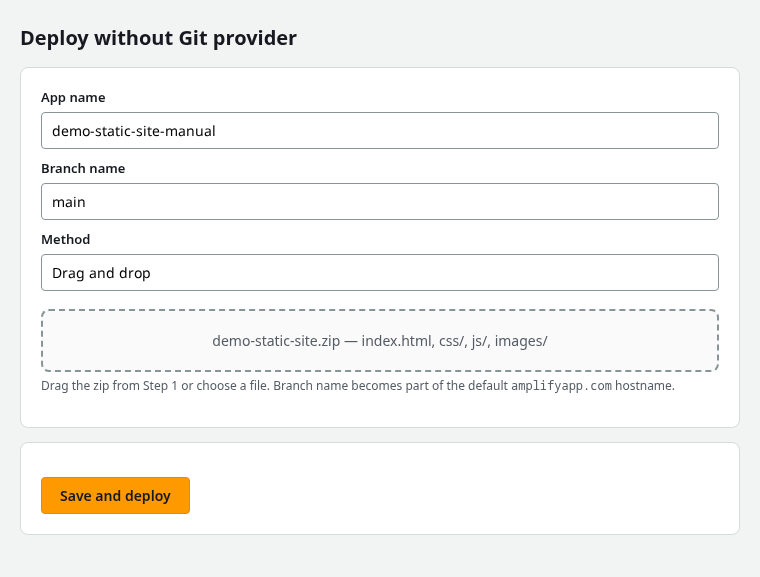
Amplify provisions the app and runs a deployment job. When the deployment job completes successfully, open Hosting and note the default domain:
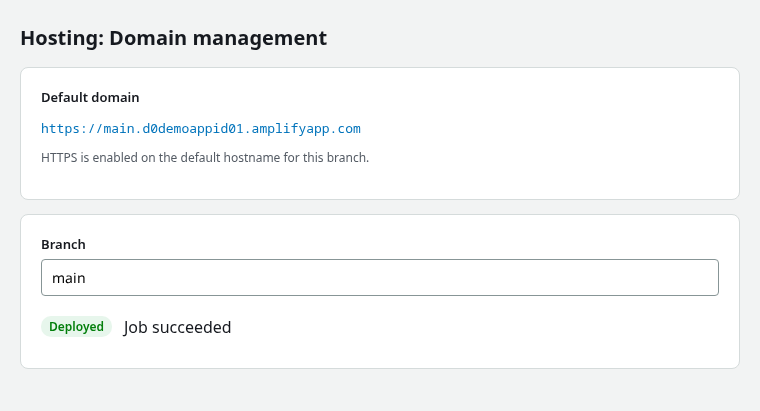
The branch name you entered becomes part of the default hostname. Because this guide uses main, the URL looks like:
https://main.APPID.amplifyapp.com/Replace APPID with the app ID Amplify shows for your deployment.
Option B: GitHub integration
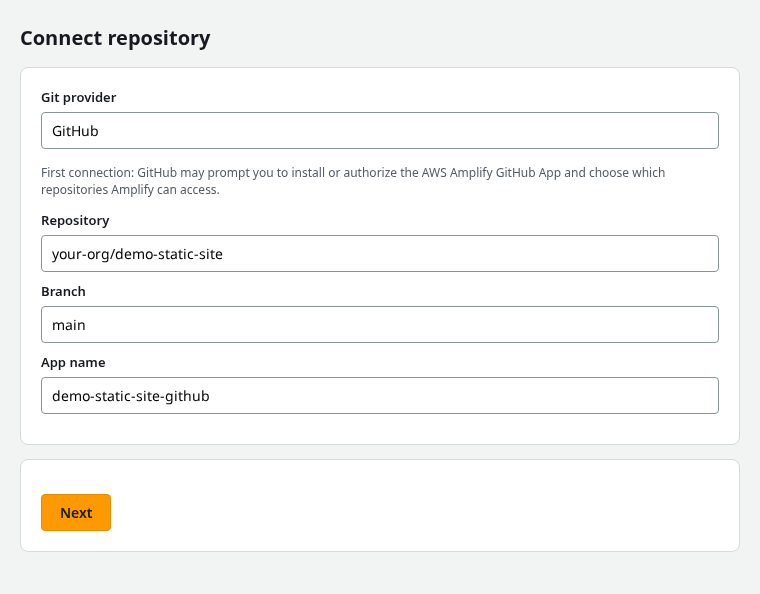
- Choose GitHub as the Git provider.
- The first time you connect GitHub, GitHub may ask you to install or authorize the AWS Amplify GitHub App and choose which repositories Amplify can access.
- Select the repository that contains your static files (for example a public repo named
demo-static-site). - Select the branch to deploy (usually
main) and confirm the App name, then continue.
On the build settings page, Amplify may try to detect a framework automatically. For this repository there is no framework or build step—the HTML, CSS, JavaScript, and images are already ready to publish.
Make sure the output directory points to the folder that contains index.html. In this example, the files are at the repository root, so use the root directory if Amplify asks for an output location. The exact field names depend on the console version—match what Amplify detected rather than adding paths you do not need.
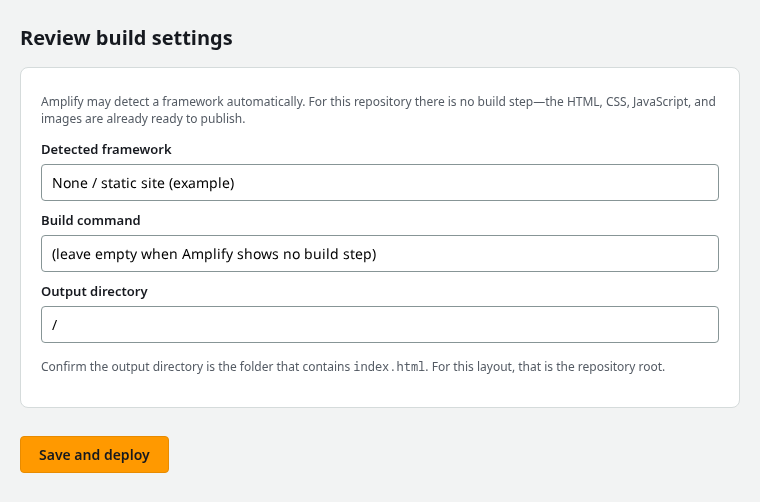
Choose Save and deploy. Amplify reads the files from the selected branch and publishes them. Because this example is already plain HTML, CSS, and JavaScript, there is no separate framework build step.
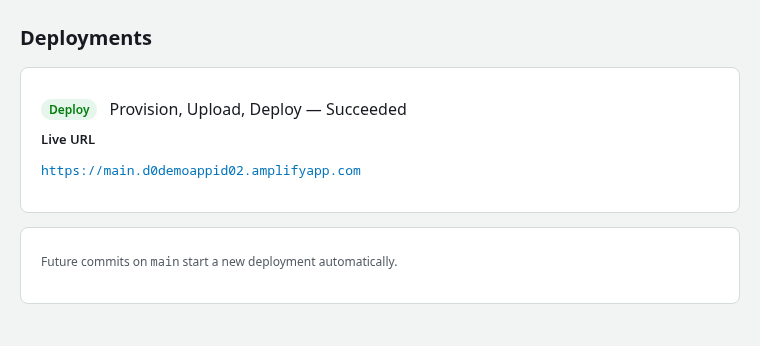
The default URL uses the same https://BRANCH.APPID.amplifyapp.com pattern as Option A.
Step 3: Verify the live site and publish updates
Open the default URL in a browser. You should see the heading, styles, logo, and the line from site.js.

Publish changes on Option A (zip)
- Edit the site files locally.
- Create a new zip with
index.htmlat the top level. - In the Amplify console, open your app and upload the new zip ( Hosting → Deploy or the deploy-without-Git flow for your app).
- Wait until the deployment job completes successfully, then hard refresh the URL.
Publish changes on Option B (GitHub)
- Commit and push changes to the connected branch.
- Amplify starts a new deployment automatically.
- Open Hosting → Deployments and wait until the latest job completes successfully, then refresh the live URL.
Test an update on the live site
Change the heading in index.html from Hello from AWS Amplify to My updated AWS Amplify site, then publish that edit using the path you chose in Step 2.
Option A (zip): Build a new zip, upload it from the Amplify console (same branch as the first deploy), wait until the deployment completes successfully, and refresh the live URL.
Option B (GitHub): Commit and push the heading change to the connected branch, wait until Hosting → Deployments shows the new job completed successfully, then refresh the live URL and confirm the new heading appears. The live-site figure above was captured after this GitHub update on a connected app in ap-south-1.
Step 4: Add a custom domain and HTTPS
You need a domain you control at a registrar or DNS provider. This section uses example.com and www.example.com as examples. Copy the exact record names and values from Hosting → Custom domains → View DNS records for your app—do not use the placeholder values in the figure alone.
Amplify creates and manages the HTTPS certificate for you after the required DNS records are in place. Once the domain shows Available in the console, open it over HTTPS. There is no separate “Enforce HTTPS” toggle like GitHub Pages.
If your DNS is hosted in Route 53
- Open Hosting → Custom domains → Add domain.
- Enter your domain (for example
example.com) and follow the wizard. - Map the subdomain you want (for example
www) to the Amplify branch you deploy (for examplemain). - Choose the Amplify managed certificate.
- When Amplify offers to create DNS records in Route 53, confirm so Amplify can add validation and routing records automatically.
- Wait until the domain status becomes Available, then open
https://www.example.com(or the hostname you configured).
Route 53 can often handle apex (example.com) and www in one flow; follow the branch mapping and record prompts Amplify shows for your case.
If your DNS is hosted elsewhere
- Open Hosting → Custom domains → Add domain and enter your domain (for example
example.com). - Choose Manual configuration for DNS when Amplify asks how records will be added.
- Select the Amplify managed certificate.
- Open View DNS records. For a subdomain such as
www, Amplify typically requires two DNS records when you use an external DNS provider:
- A certificate validation CNAME so ACM can verify domain ownership and issue or renew the certificate.
- A hosting CNAME that points
wwwat the CloudFront target Amplify provides for your app.
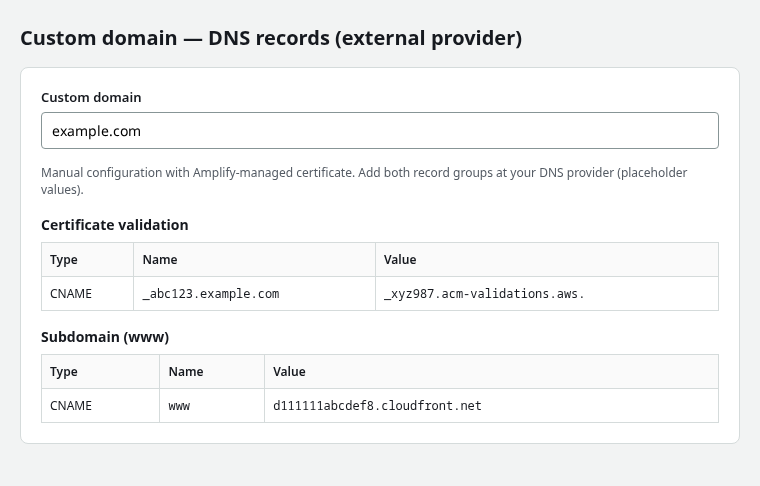
- Create both records at your DNS provider using the names and values Amplify lists (the screenshot uses fake placeholders only).
- For the root domain (
example.comwithoutwww), use the root-domain record type your DNS provider supports, such as ALIAS or ANAME, following the values Amplify shows for your setup. See custom domain documentation for supported patterns. - Wait for DNS propagation and for Amplify to verify the domain. When the domain shows Available, test
https://www.example.com.
The default amplifyapp.com URL keeps working while you add a custom domain.
Troubleshooting
| Symptom | Likely cause | Fix |
|---|---|---|
| 404 on the default URL | Deployment not finished or wrong publish root | Confirm the latest deployment completed successfully; confirm index.html is at the zip or repo root |
| Unstyled page | Wrong path to CSS | Use /css/site.css at site root, or fix paths if the publish directory changed |
| Stuck on Loading… | site.js did not load |
Confirm /js/site.js exists in the deployment; hard refresh after the latest deployment completes successfully |
| GitHub deploy fails at build | Framework detected on a plain HTML repo | On the build settings page, clear the build command and set the output directory to the folder that contains index.html |
| Custom domain stuck on pending | Missing validation CNAME or wrong hosting target | Open View DNS records; add both validation and hosting records; wait for propagation |
| Access denied in console | IAM missing Amplify permissions | Ask an administrator for Amplify create/list permissions or use a role with Hosting access |
| Old content after upload or push | New job still running or browser cache | Check Deployments until the latest job completes successfully; hard refresh the live URL |
Summary
You can host a small static website on AWS Amplify by packaging HTML, CSS, JavaScript, and images, then either uploading a zip (with an app name and branch name) or connecting a GitHub branch. Amplify serves the site at https://BRANCH.APPID.amplifyapp.com with HTTPS on the default domain. Updates are a new zip upload or a new commit on the connected branch.
For a custom domain, use Route 53 automation when your zone lives in AWS, or add Amplify’s certificate-validation and hosting DNS records at an external provider. Amplify is metered AWS hosting—not unlimited free static hosting like Cloudflare Pages or GitHub Pages—so delete test apps when you finish.
References
- AWS Amplify Hosting documentation
- Deploy without Git or a repository
- Connecting a custom domain
- Setting up Amplify access to GitHub repositories
- AWS Amplify pricing
Frequently Asked Questions
Is AWS Amplify Hosting free for static HTML?
New AWS accounts may qualify for Amplify Free Tier allowances. Check the current Amplify pricing page for the latest limits and charges. Amplify is not unlimited free hosting—monitor usage in the AWS Billing console and delete test apps you no longer need.
Should I use zip upload or GitHub for an ongoing site?
Use zip upload when you want occasional manual deployments. If you expect regular updates, start with the GitHub workflow so each push can deploy automatically.
Do I need a build command for plain HTML?
Often no. After Amplify reviews the repository, leave the build command empty when there is no framework build, and set the output directory to the folder that contains index.html.
Why does my zip deploy show 404?
The zip probably nested index.html inside an extra folder. Repackage so index.html is at the top level of the archive, then deploy again.
