
| AWS Region | ap-south-1 (Mumbai) for S3 and Route 53; switch the console to us-east-1 (N. Virginia) only for ACM certificates used on CloudFront |
|---|---|
| Lab environment | AWS Management Console and a registered domain; optional AWS CLI for verification commands at the end |
| Privilege | S3, CloudFront, ACM, and Route 53 create/update access in your AWS account (administrator is fine for a personal account) |
| Scope | Prerequisites (AWS account, domain, registrar access, static files), expected costs, and a console-only walkthrough in ap-south-1 for S3 and Route 53 with us-east-1 for ACM. Screenshots use demo-static.example.com. Does not cover S3 bucket basics or advanced CloudFront tuning. |
| Related guides | AWS S3 bucket tutorial How to use CloudFront with S3 AWS CLI tutorial Deploy a website with AWS EC2 AWS Tutorial |
You can put a simple HTML site on your own domain with HTTPS by storing files in Amazon S3, serving them through Amazon CloudFront, getting a TLS certificate from AWS Certificate Manager (ACM), and managing DNS in Amazon Route 53. Readers only see https://your-domain; the S3 bucket stays private and is read by CloudFront through Origin Access Control (OAC).
This guide follows the order you would click through in the AWS console. Figures use the placeholder demo-static.example.com so no real registrar name or account ID appears in the images. Use your domain everywhere the console asks for a hostname.
Keep the console Region on Asia Pacific (Mumbai) ap-south-1 for S3 and Route 53 if that is where you usually work. You only switch Region for one step: US East (N. Virginia) us-east-1 when requesting the ACM certificate for CloudFront. CloudFront itself is a global service and does not use the Mumbai Region selector the same way S3 does.
Prerequisites
Gather these before Step 1. If anything is missing, finish it first so you are not stuck mid-walkthrough.
| Requirement | Why you need it |
|---|---|
| AWS account | Sign in to the AWS Management Console. New accounts need a valid payment method; AWS bills for Route 53, S3, and CloudFront even when many items have Free Tier allowances. |
| Permission to use the services | Ability to create and change resources in S3, CloudFront, ACM, and Route 53 in the account you are using. A personal account with administrator access is enough; in a company account, an admin may need to grant those actions. |
| Registered domain name | A hostname you own (for example example.com or www.example.com). You will point DNS for that name at AWS. |
| Registrar login | Access to the website where you bought the domain, so you can change name servers (this guide uses Route 53 as DNS) or, if you keep DNS at the registrar, add CNAME records ACM and CloudFront need. |
| Static website files | At least one index.html (copy the short example from Step 2). Optional logo image for upload. No server-side code is required. |
| Web browser | To use the AWS console and to test https:// on your domain when you finish. |
| Chosen site hostname | Decide the exact URL visitors will open (apex example.com, www.example.com, or another subdomain). That same name goes on the ACM certificate, CloudFront alternate domain name, and Route 53 record later. |
Region reminder: Create the S3 bucket and Route 53 hosted zone in ap-south-1 when your console is set to Mumbai. Request the ACM certificate in us-east-1 (N. Virginia) — that is an AWS requirement for custom HTTPS on CloudFront, not a preference you can change to Mumbai.
Optional: install the AWS CLI if you want to run the curl check at the end; every create step in this article is console-based.
Expected costs
This setup is not a one-time “free website” button. Route 53 charges every month for a hosted zone, and CloudFront can charge for traffic after Free Tier limits. The table below is a rough budget for a small static site so you know what you might pay before you create buckets, zones, and distributions in the console.
Confirm current AWS pricing for your Region. Typical planning figures:
| Item | What to expect |
|---|---|
| Your domain | Yearly fee at your registrar (unless you registered it in Route 53) |
| Route 53 hosted zone | About USD 0.50 per month per public zone |
| Route 53 queries | Usually cents to low dollars per month at small scale |
| S3 storage | Often well under USD 1 per month for a tiny static site |
| CloudFront | Often the largest line item after Free Tier; depends on visitors and bytes served |
| ACM certificate | No charge for public certs used with CloudFront |
What you are building
          Browser opens https://demo-static.example.com
                              ↓
         Route 53 A record (alias) → CloudFront
                              ↓
              HTTPS + ACM certificate
                              ↓
         CloudFront fetches objects from private S3 (OAC)
Step 1: Create a public hosted zone in Route 53
Confirm the Region selector in the top-right shows Asia Pacific (Mumbai) ap-south-1 (Route 53 is global, but staying in your home Region keeps the console consistent with S3 in the next step).
- Open Route 53 (search for “Route 53” in the top bar).
- In the left menu, choose Hosted zones, then Create hosted zone.
- Enter your domain name. For a site at
www.example.com, the hosted zone name is usually the apex domainexample.com. In the screenshots we usedemo-static.example.comas if that whole name is the zone (use whatever matches your real DNS layout). - Set Type to Public hosted zone.
- Choose Create hosted zone.
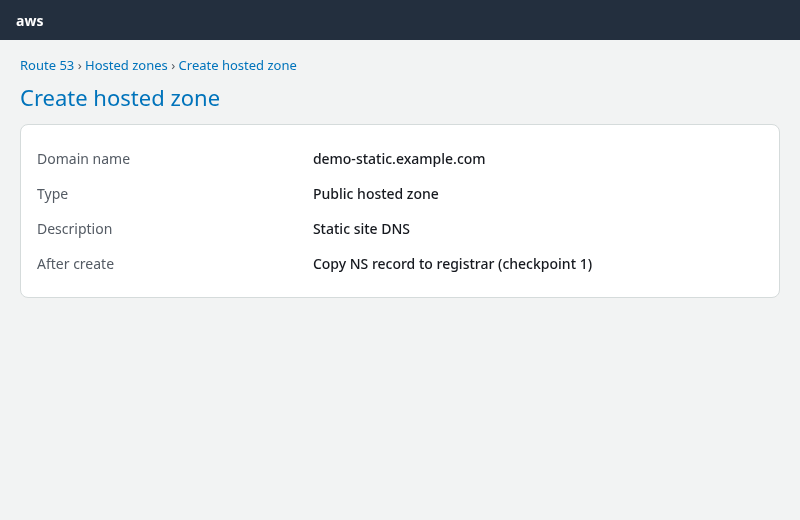
Route 53 creates two starter records: an NS record and an SOA record. Open the NS record and keep that tab handy.
Update name servers at your domain registrar
If you bought the domain at GoDaddy, Namecheap, Google Domains, or any registrar other than Route 53, the internet still looks to your registrar’s name servers until you change them.
- Copy all four name server hostnames from the Route 53 NS record (they look like
ns-123.awsdns-45.com). - Log in to your registrar website, open DNS or name server settings for your domain, and replace the existing name servers with those four values.
- Save at the registrar and wait. Propagation often takes a few minutes; it can take up to 48 hours.
Until this step is done, later steps that rely on Route 53 (certificate validation and the final website address) may sit in Pending or fail in the browser even when S3 and CloudFront look correct.
Step 2: Create an S3 bucket and upload your site
- Open Amazon S3 and confirm the Region is Asia Pacific (Mumbai)
ap-south-1(same Region you use when you sign in). - Choose Create bucket.
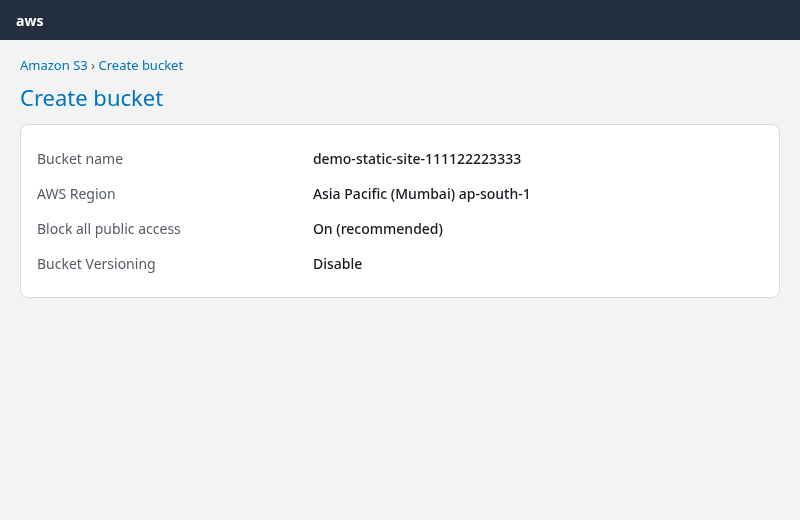
- Enter a bucket name that is globally unique (it does not have to match your website URL). Example pattern:
my-static-site-111122223333. - Confirm AWS Region (for example Asia Pacific (Mumbai)).
- Leave Block all public access turned on. CloudFront will read objects privately; you are not opening the bucket to the world.
- Leave other defaults unless you need versioning or logging, then choose Create bucket.
Create index.html (copy from the article)
For the lab, one small home page is enough. Save this as index.html on your computer (inline styles keep the example in a single file; your real site can use separate CSS and JS later):
<!DOCTYPE html>
<html lang="en">
<head>
  <meta charset="utf-8">
  <meta name="viewport" content="width=device-width, initial-scale=1">
  <title>My static site</title>
  <style>
    body { font-family: system-ui, sans-serif; max-width: 36rem; margin: 2rem auto; padding: 0 1rem; }
    h1 { color: #0972d3; }
  </style>
</head>
<body>
  <p><img src="images/logo.svg" alt="" width="48" height="48"></p>
  <h1>Hello from S3 and CloudFront</h1>
  <p>This page is served over HTTPS on your custom domain.</p>
</body>
</html>
Optional logo file
If you use the <img> line above, upload a logo as images/logo.svg in the bucket (create the images/ prefix in the console when you upload). You can use your own artwork, or the sample demo-static-site-logo.svg in this article’s folder as a starting point.
Upload to S3
- Open the new bucket → Objects → Upload.
- Add
index.htmlat the bucket root (object keyindex.html). - If you use a logo, upload
logo.svgunder prefiximages/(keyimages/logo.svg). - Choose Upload and wait until each object shows Succeeded.
Do not turn on Static website hosting in bucket properties for this pattern. The public URL is CloudFront on your custom domain, not the S3 website endpoint.
After CloudFront is deployed, set Default root object to index.html, then open the distribution cloudfront.net URL or your custom domain. You should see the heading and logo; a broken image usually means images/logo.svg is missing or the path in HTML does not match the object key.
Step 3: Request a TLS certificate in ACM (N. Virginia)
CloudFront only uses ACM certificates from US East (N. Virginia).
- In the console Region selector (top right), switch to US East (N. Virginia)
us-east-1. - Open AWS Certificate Manager (ACM).
- Choose Request certificate.
- Select Request a public certificate → Next.
- For Fully qualified domain name, enter the exact hostname visitors will type (for example
demo-static.example.comorwww.example.com). - For Validation method, choose DNS validation.
- Leave key algorithm at the default unless you have a reason to change it.
- Choose Request.
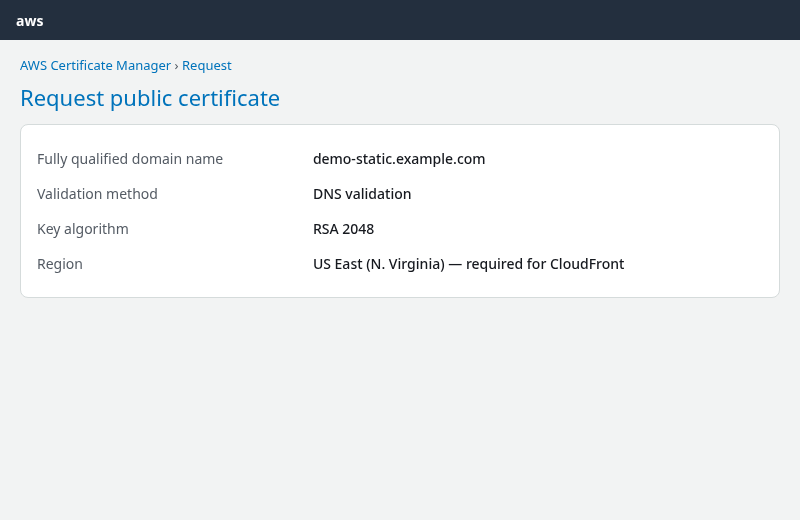
The certificate list shows Pending validation until DNS proves you control the domain.
Add the validation CNAME in Route 53
- Open the new certificate in ACM.
- In the Domains section, select the domain row.
- Choose Create records in Route 53 (visible when a matching public hosted zone exists in this account).
- Confirm the hosted zone name, then choose Create records.
Route 53 adds the CNAME records ACM needs. Return to ACM and refresh until Status is Issued (often within a few minutes once registrar name servers from Step 1 point at Route 53).
If your DNS is not in Route 53, copy the CNAME name and CNAME value from ACM and create that record manually at whichever provider hosts your DNS.
Step 4: Create a CloudFront distribution
- Open CloudFront in the console (global service; Region selector does not matter as much here).
- Choose Create distribution.
- Under Origin domain, pick your S3 bucket from the list. Select the bucket ARN style endpoint (
bucket-name.s3.region.amazonaws.com), not the static website endpoint. - Under Origin access, choose Origin access control settings (recommended) and create a new OAC if prompted (signing behavior Sign requests, origin type S3).
- Under Default cache behavior, set Viewer protocol policy to Redirect HTTP to HTTPS.
- Under Settings:
- Alternate domain name (CNAME): your site hostname (same as the ACM certificate).
- Custom SSL certificate: select the Issued ACM cert from
us-east-1. - Default root object:
index.html.
- Create the distribution.
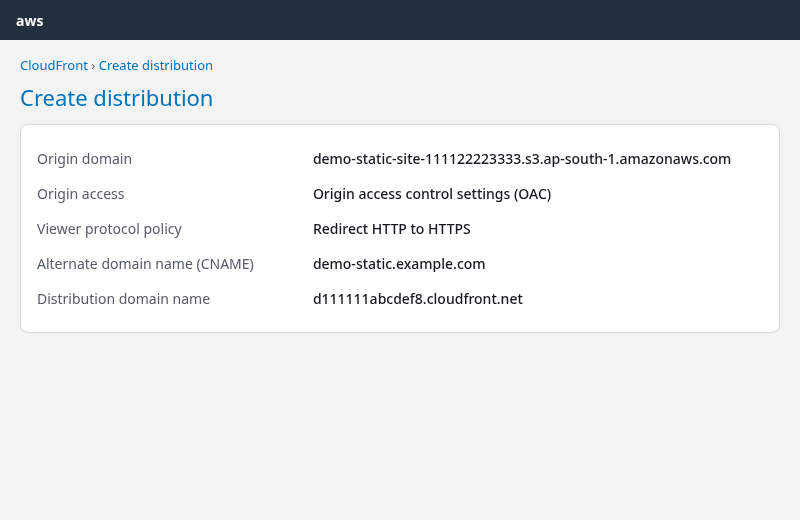
Deployment takes several minutes. Wait until Status is Deployed.
When the console offers to update the S3 bucket policy so CloudFront can read objects, accept it. That policy replaces a public “anyone can read” bucket policy.
Copy the Distribution domain name (for example d111111abcdef8.cloudfront.net). You can open https://that-name.cloudfront.net in a browser to test the file from S3 before custom DNS is ready.
Step 5: Point your domain at CloudFront in Route 53
- Open Route 53 → Hosted zones → your domain’s zone.
- Choose Create record.
- Record name: enter the subdomain part if you use one (
wwwforwww.example.com, or leave blank for apexexample.com). - Record type: A.
- Turn on Alias.
- Route traffic to: Alias to CloudFront distribution, then pick your distribution from the list.
- Choose Create records.
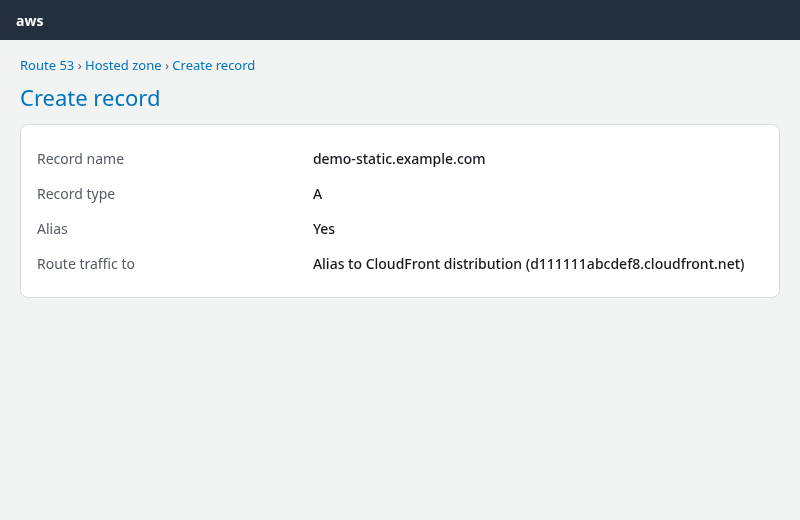
DNS may take a few minutes to update worldwide.
Step 6: Open the site in a browser
Visit https:// plus the hostname you configured (the same name on the ACM cert and CloudFront alternate domain name). You should see index.html and a valid padlock tied to your certificate, not *.cloudfront.net.
To double-check from a terminal:
curl -sSI "https://demo-static.example.com/" | head -n 5Replace the URL with your hostname. A healthy setup usually shows HTTP/2 200 on the root page.
For cache behavior and origin tweaks after the site works, see How to use CloudFront with S3.
If something does not work
| What you see | What to check |
|---|---|
| ACM stuck on Pending validation | Registrar name servers from Step 1; validation CNAME present in the hosted zone |
https://dxxxx.cloudfront.net works, custom domain does not |
Step 5 record name; wait for DNS; cert hostname must match the browser URL |
| 403 from CloudFront | index.html uploaded; default root object set; OAC bucket policy applied |
| Certificate mismatch in the browser | Hostname on the cert, CloudFront alternate domain name, and browser URL must all match |
Clean up to avoid surprise charges
- In CloudFront, disable then delete the distribution (wait until deployment finishes).
- Empty the S3 bucket, then delete the bucket.
- In ACM (
us-east-1), delete the certificate if nothing else uses it. - In Route 53, delete records in the hosted zone, then delete the hosted zone.
Summary
Budget for Route 53, CloudFront egress, and domain renewal before you treat the stack as free hosting. In the console you create a Route 53 zone and point your registrar’s name servers at AWS, upload files to a private S3 bucket, issue and validate an ACM certificate in N. Virginia, publish the bucket through CloudFront with OAC and your hostname, then add a Route 53 alias record to the distribution. Follow the steps in order; each DNS change is part of the same flow, not a separate automation track.
