
| Tested on | GitHub.com (repository, file upload, and Pages settings) |
|---|---|
| Applies to | Any computer with a browser and a free GitHub account |
| Privilege | Permission to create repositories and change Pages settings on the account you use |
| Scope | How to publish a small static site (HTML, CSS, JS, images) on GitHub Pages, get a https://USERNAME.github.io/REPO/ URL with HTTPS, redeploy when files change, and optionally attach a custom domain. Uses the GitHub web UI for the first upload. Does not cover GitHub Actions build pipelines, Jekyll themes, or Cloudflare Pages or S3 plus CloudFront hosting. |
| Related guides | Host a static site on Cloudflare Pages Host a static site on S3 with HTTPS Git tutorial for beginners Set up GitHub with Visual Studio Code How to host static website on S3 |
With GitHub Pages, the website files stay in a GitHub repository and GitHub publishes them as a site over HTTPS. You do not run Nginx or rent a VM for a simple HTML site. Visitors open a URL such as https://your-username.github.io/demo-static-site/ and GitHub serves index.html, CSS, JavaScript, and images from the branch you select.
This guide creates a project site, so the default URL includes the repository name:
https://USERNAME.github.io/demo-static-site/A GitHub user site uses the special repository USERNAME.github.io and gets the shorter URL https://USERNAME.github.io/. This guide does not use that layout.
The walkthrough has four steps: create the site files on your computer, create a public repository and upload them through the GitHub website, turn on Pages for the main branch, then verify and publish updates. Dashboard screenshots are simplified to highlight the settings used in this guide; GitHub may adjust the surrounding layout over time. The live-site figure is from a real github.io deployment.
Key takeaways
- GitHub Pages is a good fit for static HTML, CSS, JavaScript, and image files that you want to store and publish from a GitHub repository.
- On GitHub Free, the repository must be public to use GitHub Pages. Paid plans can also support Pages from private repositories.
- The default URL for this tutorial is
https://GITHUB-USERNAME.github.io/REPOSITORY-NAME/with HTTPS enabled. - You choose a branch and folder (
/root or/docs); this tutorial publishes frommainat the repository root. - After you change files on
main, GitHub starts a new Pages deployment. Wait until that deployment finishes before you test the live URL.
What you need and what it costs
| Requirement | Cost / purpose |
|---|---|
| GitHub account | Free at github.com |
| Public repository | Required on GitHub Free for a project site (this tutorial) |
| Static files | At least index.html; this guide adds css/, js/, and images/ |
github.io website address |
Included |
| HTTPS | Included automatically |
| Custom domain | Optional — configure DNS with your DNS provider; domain-registration charges still apply |
If the repository is only for learning, delete it under Settings → General → Delete this repository when you are finished.
Overview
     Create site files locally
                |
                v
      Create public GitHub repo
                |
                v
   Upload files to main (web UI)
                |
                v
   Settings → Pages → branch main / root
                |
                v
   https://USER.github.io/REPO/
The walkthrough has four numbered steps: Step 1 (files), Step 2 (repository and upload), Step 3 (enable Pages), and Step 4 (verify and publish updates).
How GitHub Pages works
With traditional hosting, you copy files to a server you manage. With GitHub Pages, your website files stay in the GitHub repository. GitHub publishes them as a website from the branch and folder you select under Settings → Pages. You still edit HTML and assets locally.
Each project site gets its own path under github.io. Organization-owned repos use the organization login in the URL (https://my-org.github.io/my-repo/).
How static files are organized
GitHub publishes the files from the branch and folder you select. For this tutorial, index.html sits at the repository root on main. Keep the files in the same simple folder structure:
demo-static-site/
├── index.html
├── css/
│   └── site.css
├── js/
│   └── site.js
└── images/
    └── logo.svg
Because this is a project site, the website lives under /demo-static-site/, not directly at github.io. Use relative paths such as css/site.css rather than /css/site.css, otherwise the browser looks for the file at the wrong location. Link to images/logo.svg and js/site.js the same way. The css folder must sit next to index.html in the repository, not inside an extra parent directory.
Step 1: Create the site files locally
Create a folder on your computer. Add index.html at the root:
<!DOCTYPE html>
<html lang="en">
<head>
  <meta charset="utf-8">
  <meta name="viewport" content="width=device-width, initial-scale=1">
  <title>Demo static site</title>
  <link rel="stylesheet" href="css/site.css">
</head>
<body>
  <header>
    <img src="images/logo.svg" alt="" width="32" height="32">
    <h1>Hello from GitHub Pages</h1>
  </header>
  <p id="status">Loading…</p>
  <script src="js/site.js"></script>
</body>
</html>
Add css/site.css:
body {
  font-family: system-ui, sans-serif;
  max-width: 36rem;
  margin: 2rem auto;
  padding: 0 1rem;
  line-height: 1.5;
}

header {
  display: flex;
  align-items: center;
  gap: 0.75rem;
}

h1 {
  color: #24292f;
  font-size: 1.35rem;
  margin: 0;
}
Add js/site.js:
document.getElementById('status').textContent =
  'Static HTML, CSS, and JavaScript are live on GitHub Pages.';
Save any small SVG as images/logo.svg, or use your own image.
Step 2: Create the repository and upload files
For this project-site tutorial on GitHub Free, use a public repository.
Create the repository
- Sign in to GitHub and open the New repository page (+ → New repository).
- Set Repository name to something unique, such as
demo-static-site. - Choose Public.
- You can leave Add a README file unchecked to start with an empty repository and upload the website files in one step.
- Choose Create repository.
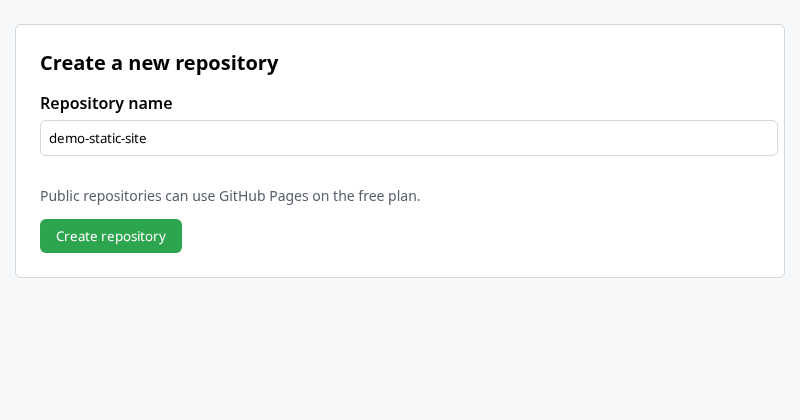
Upload the site with the web UI
- On the empty repository page, choose uploading an existing file (or Add file → Upload files).
- Drag the folder contents (
index.html,css/,js/,images/) into the upload area. Confirmindex.htmlis at the top level of the repo, not inside another folder. - Set the commit message (for example
Add static site files) and commit directly to themainbranch.
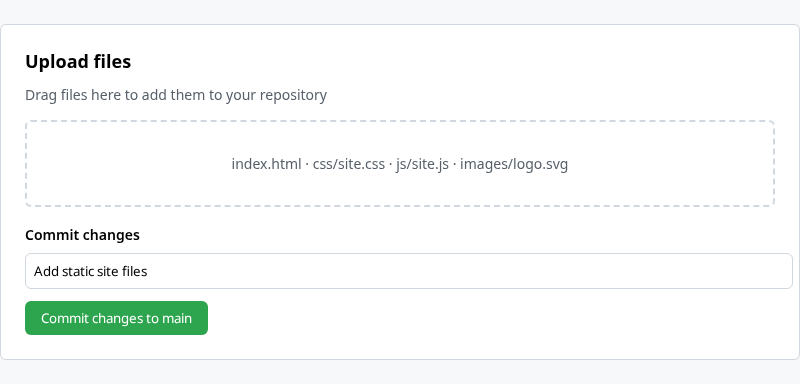
Keep index.html directly in the folder you selected for Pages. In this guide, that means the root of the main branch. If index.html ends up inside an extra folder, the github.io URL can return 404.
Step 3: Enable GitHub Pages
- Open the repository Settings tab.
- In the left sidebar, choose Pages (under Code and automation).
- Under Build and deployment, set Source to Deploy from a branch.
- Choose Branch
main, folder/ (root), then Save.
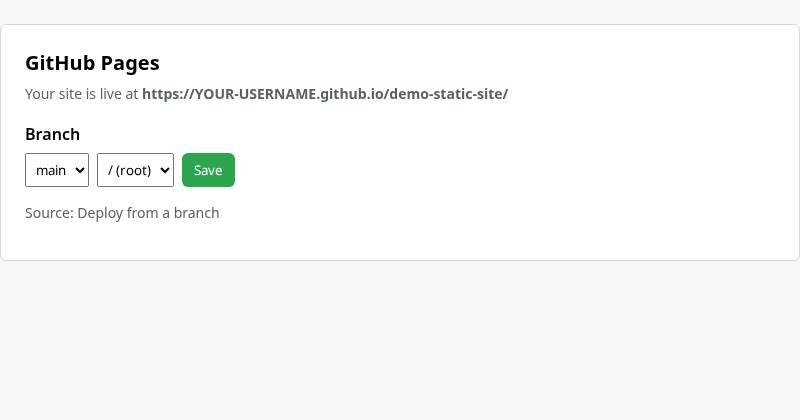
After you save the setting, GitHub starts publishing the site. When the deployment finishes, the Pages screen shows the live URL:
https://YOUR-USERNAME.github.io/demo-static-site/If the URL returns 404, confirm the deployment has finished and that Settings → Pages still uses main and / (root).
Step 4: Verify the live site and publish updates
Open the github.io URL in a browser. You should see the heading, styled text, the logo, and the line from site.js.

Publish changes
- Edit the website files locally or directly on GitHub.
- Commit the changes to the
mainbranch. - GitHub Pages automatically starts a new deployment from the configured publishing source.
- Wait for the deployment to complete, then refresh the
github.ioURL.
If the deployment fails, open the repository Actions tab and open the failed Pages run to see the error.
Test an update on the live site
To test the update workflow, change the heading in index.html from Hello from GitHub Pages to My updated GitHub Pages site. Commit the change to main, wait for Pages to deploy it, then refresh the live URL and confirm the new heading appears.
For day-to-day work, many readers later connect the folder with GitHub and Visual Studio Code or the Git CLI from the Git tutorial. The web upload in Step 2 is enough for the first deploy.
Optional: Custom domain and HTTPS
To use your own hostname, add the domain in GitHub before you create DNS records at your DNS provider.
- Open Settings → Pages, enter the custom domain (for example
www.example.com), and save. - At your DNS provider, add the DNS record required for the type of hostname you are using, as shown below.
- After DNS is correct, GitHub provisions the certificate automatically. Enforce HTTPS may stay unavailable while the certificate is being created; turn it on when the option appears.
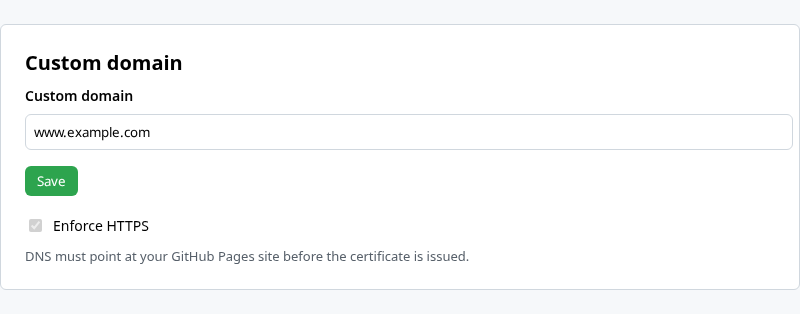
Use a subdomain such as www.example.com
Point a CNAME record at your GitHub Pages user or organization hostname:
   www.example.com
          |
          v  CNAME
   USERNAME.github.io
For a project site, the CNAME target is USERNAME.github.io, not USERNAME.github.io/demo-static-site. Pointing at the repository path is a common mistake.
Use an apex domain such as example.com
For an apex domain, use the current A, ALIAS, or ANAME values shown in GitHub’s Pages DNS documentation or by your DNS provider. GitHub also documents optional AAAA records where your provider supports them.
Use the apex domain and www together
If you use example.com, GitHub recommends also configuring www.example.com. With the correct DNS records for both, GitHub Pages can redirect between the two hostnames.
Custom domains are optional; the github.io URL remains available.
Troubleshooting
| Symptom | Likely cause | Fix |
|---|---|---|
404 on the github.io URL |
Deployment not finished or wrong branch or folder | Confirm the Pages deployment has finished; confirm Pages uses main and / (root) and that index.html is at the repo root |
| 404 right after upload | No index.html at publish root |
Move index.html to the repository root on main |
| Pages unavailable for a private repo | Repository is private on GitHub Free | Make the repository public or use a plan that includes Pages for private repos |
| Unstyled page or broken logo | Leading / on a project site |
Use relative paths such as css/site.css, images/logo.svg, and js/site.js |
| Stuck on Loading… | site.js did not load (often the same path issue) |
Fix the script URL to js/site.js; hard refresh after redeploy |
| Pages deployment failed | Invalid publishing source or build problem | Open the repository Actions tab, open the Pages workflow run, and read the failed step; confirm Settings → Pages points to main and / (root) |
| Old content after a commit | New deployment not finished, wrong branch, or cached browser copy | Confirm the commit is on main and the Pages deployment succeeded; then hard refresh |
Summary
You can host a small static website on GitHub Pages without managing a web server: put HTML, CSS, JavaScript, and images in a public GitHub repository, enable Deploy from a branch on main at the root, and use the https://USERNAME.github.io/REPO/ address GitHub prints in Settings → Pages. Updates are new commits on that branch; wait for the new Pages deployment to finish before checking the live site.
If you outgrow branch-based hosting or want automatic previews from another provider, compare hosting on Cloudflare Pages or S3 with CloudFront and a custom domain. Delete test repositories you no longer need so they do not clutter your account.
References
- GitHub Pages documentation
- Getting started with GitHub Pages
- Configuring a publishing source for your GitHub Pages site
- About custom domains and GitHub Pages
- Managing a custom domain for your GitHub Pages site
Frequently Asked Questions
Is GitHub Pages free for a simple HTML site?
Yes for a public repository on a free GitHub account. You pay separately only if you use a custom domain at a registrar or need features such as Pages on private repositories without a qualifying plan.
Do I need Jekyll or a build step?
No for the files in this tutorial. GitHub serves static HTML, CSS, and JavaScript directly from the branch. Frameworks and GitHub Actions builds are optional add-ons not covered here.
Why must my repository be public on the free plan?
GitHub Pages is available in public repositories with GitHub Free. Private repositories can use Pages on paid plans. This guide uses a public project repository so the steps work on GitHub Free.
What URL will visitors use?
For a project site, the default is https://GITHUB-USERNAME.github.io/REPOSITORY-NAME/ (or your organization name instead of a user name). User or organization sites that publish from a special USERNAME.github.io repository use a shorter github.io URL; this tutorial uses a project site.
How long does a GitHub Pages deployment take?
GitHub starts a new Pages deployment after changes reach the configured publishing source. Deployment time varies. If the new version does not appear, check that the latest commit is on main and review the Pages deployment status before troubleshooting the live URL.
