
| Tested on | Cloudflare dashboard (direct upload and Git-connected project flows) |
|---|---|
| Applies to | Any computer with a browser; optional GitHub account for Git-based deploys |
| Privilege | Cloudflare account with permission to create Pages projects |
| Scope | How to publish a small static site on Cloudflare Pages (HTML, CSS, JS, images), get a free *.pages.dev URL with HTTPS, redeploy when files change, and attach a custom domain. Covers direct upload and Git-based deployments. Does not cover Pages Functions, full-stack frameworks, or the AWS S3 plus CloudFront path in host a static site on S3 with a custom domain. |
| Related guides | Host a static site on S3 with HTTPS How to host static website on S3 Deploy a website with AWS EC2 AWS S3 bucket tutorial AWS Tutorial |
Cloudflare Pages stores your website files and serves them from Cloudflare locations around the world. Visitors load the site from a nearby location instead of from a server you have to manage yourself, and HTTPS is enabled automatically. This worldwide delivery network is commonly called a CDN (Content Delivery Network).
In this guide, we create a small website with HTML, CSS, JavaScript, and an image, then publish it on Cloudflare Pages in four steps—build the files, deploy once (direct upload or GitHub), update the live site whenever you change files, then optionally add a custom domain. The overview shows how those steps fit together.
The dashboard screenshots use the example project demo-static-site and hostname demo-static.example.com. Cloudflare may adjust the dashboard layout over time, but the settings shown here remain the same.
Already have a Pages site and only need DNS? Jump to Step 4: Add a custom domain and HTTPS.
Key takeaways
- Cloudflare Pages can host plain HTML, CSS, JavaScript, and images without a web server you manage.
- Direct upload is the simplest way to put files online when you are starting out.
- Git integration redeploys automatically when you push to GitHub or GitLab—but only on projects created with Git from the start.
- A direct-upload project cannot be switched to Git later; create a new Pages project if you change workflows.
- Every project gets HTTPS on
*.pages.dev; you can attach your own domain when DNS is set up correctly.
What you need and what it costs
For the simple HTML site in this guide, you do not need a paid Pages plan. This walkthrough does not use paid Workers or Pages Functions.
| Requirement | Cost / purpose |
|---|---|
| Cloudflare account | Free — sign in at dash.cloudflare.com |
| Permission to create Pages projects | Your account can add projects under Workers & Pages |
| Static website files | Required — at least index.html; this guide adds css/, js/, and images/ |
*.pages.dev address |
Included on the Free plan |
| HTTPS | Included automatically |
| GitHub account | Optional — only for Option B in Step 2 |
| Custom domain | Optional — registrar charges apply; apex example.com needs DNS on Cloudflare; subdomains such as www.example.com can often use a CNAME elsewhere |
Exact Free-plan quotas are on Cloudflare’s Pages limits page. If a project was only a test, delete it under Workers & Pages when you no longer need it.
Overview: from local files to your domain
You build the site on your computer first, pick one way to publish it on Pages, then optionally attach your own hostname. Both deployment paths end at the same place—a live *.pages.dev site (and custom domain when you add it).
  Create website files
          |
          v
Choose deployment method
     /             \
    /               \
Direct Upload      GitHub
    |                |
Upload files       Push files
    |                |
Cloudflare Pages   Cloudflare Pages
     \              /
      \            /
       Custom domain
Use the table below to choose a path before you create a Pages project. You cannot turn a direct-upload project into a Git-connected project later.
| Method | Best for | How updates work |
|---|---|---|
| Direct upload | Quick first site, occasional manual updates | Upload the folder again from the dashboard |
| GitHub integration | Sites you plan to update regularly | Push changes to GitHub and Cloudflare redeploys automatically |
The walkthrough has four numbered steps: Step 1 (create files), Step 2 (first deploy—Option A or Option B, not both), Step 3 (preview locally and publish updates), and Step 4 (optional custom domain and HTTPS).
How Cloudflare Pages works
With traditional hosting, you usually manage a web server yourself. With Cloudflare Pages, you upload your static website files and Cloudflare serves them for you. You do not need to install Nginx or keep a virtual machine running.
Each project gets its own project-name.pages.dev address. With Git integration, Cloudflare watches the GitHub branch you select and publishes a new version whenever you push a change.
How static files are organized
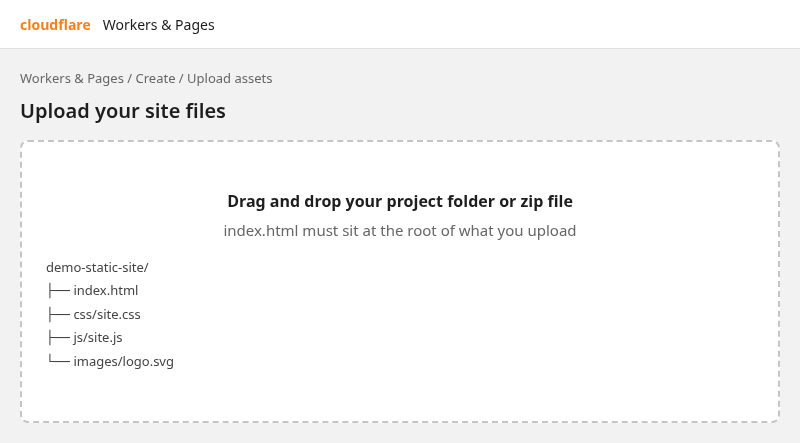
Cloudflare publishes the files you upload. If you use a framework with a build step, it publishes the files created by that build instead. For our simple site, the files are already ready to publish. Keep the files in the same simple folder structure:
demo-static-site/
├── index.html
├── css/
│   └── site.css
├── js/
│   └── site.js
└── images/
    └── logo.svg
Keep the same folder structure when you upload the site. Because index.html links to /css/site.css, the css folder must sit next to index.html in the upload or repository—not inside an extra parent folder.
Step 1: Create the site files locally
Create a folder on your computer. Add index.html at the root:
<!DOCTYPE html>
<html lang="en">
<head>
  <meta charset="utf-8">
  <meta name="viewport" content="width=device-width, initial-scale=1">
  <title>Demo static site</title>
  <link rel="stylesheet" href="/css/site.css">
</head>
<body>
  <header>
    <img src="/images/logo.svg" alt="" width="32" height="32">
    <h1>Hello from Cloudflare Pages</h1>
  </header>
  <p id="status">Loading…</p>
  <script src="/js/site.js"></script>
</body>
</html>
Add css/site.css for layout and colors:
body {
  font-family: system-ui, sans-serif;
  max-width: 36rem;
  margin: 2rem auto;
  padding: 0 1rem;
  line-height: 1.5;
}

header {
  display: flex;
  align-items: center;
  gap: 0.75rem;
}

h1 {
  color: #f38020;
  font-size: 1.35rem;
  margin: 0;
}
Add js/site.js so you can confirm client-side code runs:
document.getElementById('status').textContent =
  'Static HTML, CSS, and JavaScript are live on Pages.';
For the logo, save any small SVG as images/logo.svg, or paste a minimal icon of your own. The article bundle includes demo-static-site-logo.svg you can copy if you publish assets alongside the post.
Step 2: Deploy on Cloudflare Pages
Before you deploy:
- Finish Step 1 first.
- Use the overview table to pick a path.
- Complete one section below—Option A: Direct upload or Option B: GitHub integration—not both. Both are part of Step 2.
Option A: Direct upload
Best if you want the quickest setup and do not need automatic deployment from GitHub. Use a unique project name such as demo-static-site.
Create the Pages project
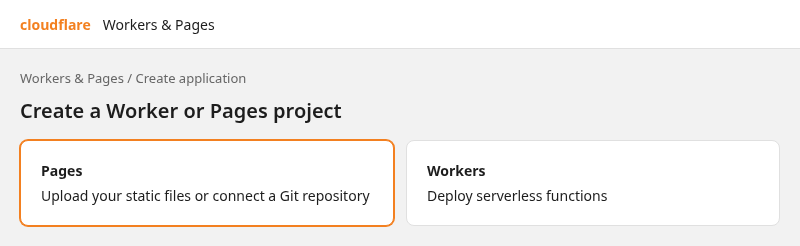
- Open Workers & Pages in the Cloudflare dashboard.
- Select Create application.
- Choose Pages, then Upload assets or drag and drop your static files (not Connect to Git).
Upload the files
- Enter a project name such as
demo-static-site(lowercase letters, numbers, and hyphens). - Drag your website folder (or a zip of it) into the upload area. Confirm
index.htmlis at the top level, not inside an extra parent folder. Pages expectsindex.htmlat the published root. If it ends up inside an extra folder, opening the rootpages.devaddress can return 404.
- Select Deploy site and wait until the deployment shows Success.
Direct upload does not ask you to set a framework preset or build output directory in the dashboard—the files you drop are what Pages publishes.
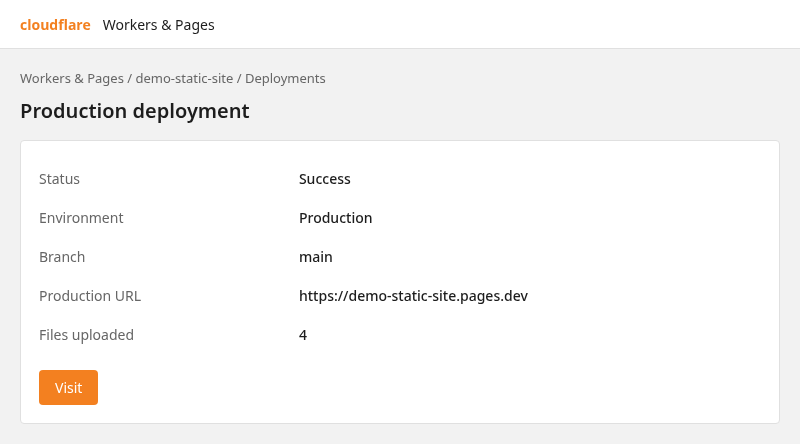
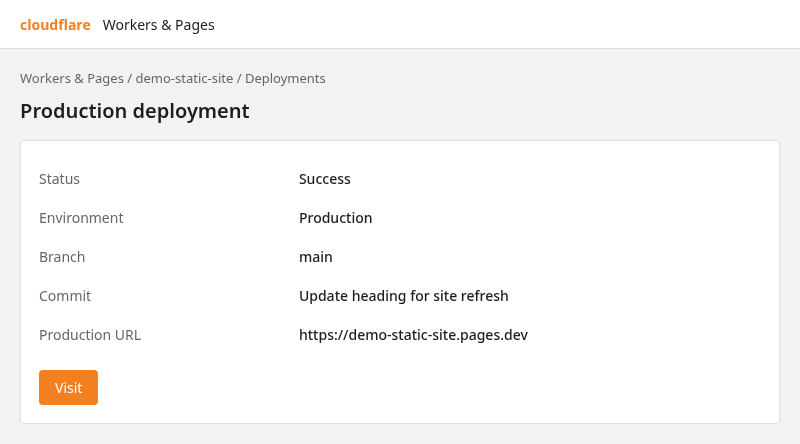
When the first deployment finishes, open the project → Deployments. Production shows Success and a Visit button next to https://<project-name>.pages.dev.
Verify the live site
Once the deployment finishes, open the site and make sure each part of the page loaded correctly.
- On the Deployments tab, confirm the latest Production deployment status is Success. If it failed, open the log on that row; missing
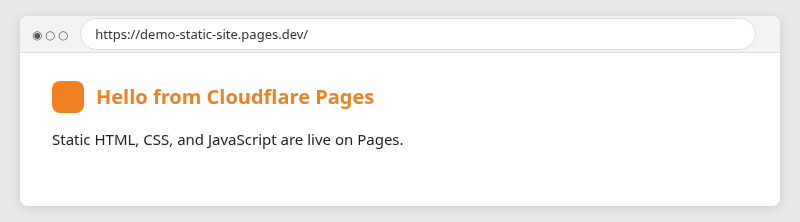
index.htmlat the publish root is the most common cause. - Click Visit (or copy the Production URL). The address bar should show
https://demo-static-site.pages.dev/(your project name replacesdemo-static-site). - On the live page, check four things:
- Orange Hello from Cloudflare Pages heading (CSS loaded)
- Logo image beside the heading (file under
images/uploaded) - Sentence Static HTML, CSS, and JavaScript are live on Pages. (JavaScript ran; if you still see Loading…, the script path or upload is wrong)
- Padlock or secure indicator in the browser (HTTPS from Pages)
If the page is plain HTML with no styling, open Deployments → your upload → the file list in the dashboard and confirm css/site.css is present with the same path as in index.html (/css/site.css).
When you change the site later, follow Step 3 (direct upload).
Option B: GitHub integration
Best if you want Cloudflare to redeploy automatically whenever you update the repository. Create a new Pages project with Connect to Git—do not try to attach Git to a direct-upload project.
Put the site files on GitHub
If the files are not already in GitHub:
- Sign in to GitHub and create a new repository named
demo-static-site. - Open the repository and choose Add file → Upload files.
- Upload
index.htmland thecss,js, andimagesfolders (same layout as Step 1). - Select Commit changes so the files are on the
mainbranch.
The repository should list the same files as in Step 1. If you already use Git on your computer, you can push the same folder from the command line instead.
Connect GitHub to Cloudflare Pages
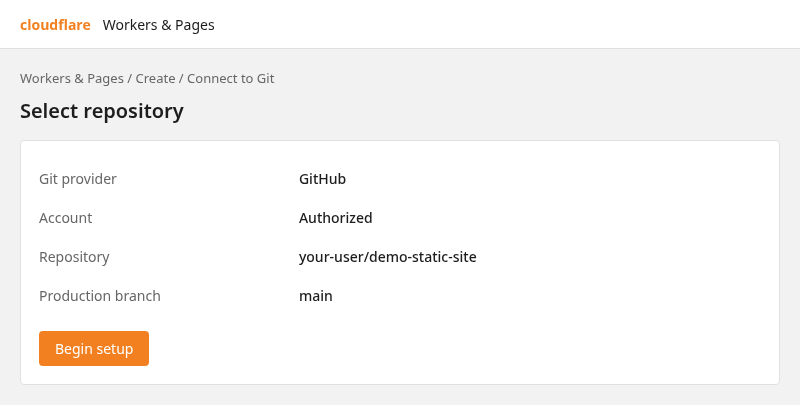
- In Cloudflare, open Workers & Pages → Create application → Pages → Connect to Git.
- Authorize GitHub when prompted, then select the
demo-static-siterepository. - Set Production branch to
main. This is the GitHub branch Cloudflare treats as the live version of your website.
Configure the build settings
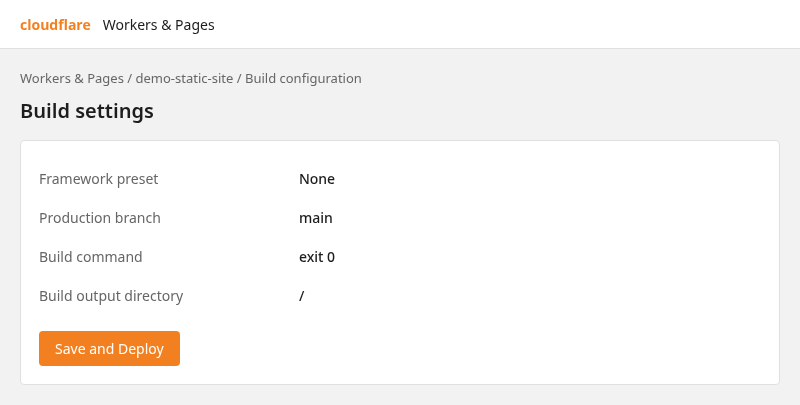
On the build settings screen, configure publishing for plain static HTML:
The Build output directory tells Cloudflare which folder contains the files that should be published to visitors. Point it at the directory that contains index.html. For this example, the static files sit at the repository root. If your site lives under public/ or dist/, enter that folder instead. The dashboard may show / for a root-level site; that means the repo root, not your computer’s filesystem root.
- Framework preset: None — this example uses plain HTML, CSS, and JavaScript, not a framework such as React or Next.js
- Build command:
exit 0— tells Cloudflare there is nothing to build first because the HTML, CSS, and JavaScript files are already ready to publish - Build output directory: repository root (folder containing
index.html), orpublic//dist/when your files live there
- Save and deploy.
Cloudflare should queue the first Production build from the latest commit on main.
Verify the live site
After the first successful build, open Visit on the project’s *.pages.dev URL. Confirm deployment Success, then check the live page for the same four signals as in Option A: orange heading, logo, JavaScript status text, and HTTPS in the address bar.
When you change files later, commit or push to main and Cloudflare rebuilds automatically. Use Step 3 (GitHub).
Step 3: Preview locally and publish site updates
After Step 2, your site is live on *.pages.dev. Day-to-day work is the same for both paths: edit files, preview on your computer, publish an update, then confirm Production. Saving changes on disk or on GitHub does not change the public URL until a new deployment finishes.
Preview on your computer first
Keep the same folder layout as Step 1. From the site folder, start a simple static server:
cd demo-static-site
python3 -m http.server 8080
Open http://127.0.0.1:8080/ and confirm styling, images, and JavaScript look right. Stop the server with Ctrl+C when you are done.
| Your Step 2 path | How you publish an update | When visitors see the change |
|---|---|---|
| Option A (direct upload) | Upload the whole site folder or zip again | Deployments → latest Production row is Success, then refresh |
| Option B (GitHub) | Commit to main in the browser or git push origin main |
Deployments → Success, then refresh (often one to three minutes) |
Direct upload (Option A)
- Edit and save files locally.
- Open Workers & Pages → your project → Deployments → Create deployment (sometimes Upload assets).
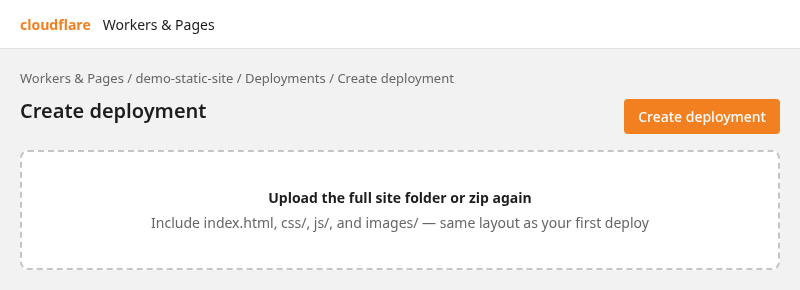
- Upload the full folder or zip again—not only the file you changed. Keep
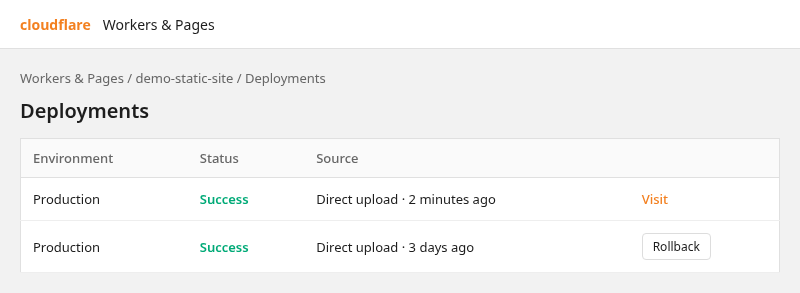
index.htmlat the top level. - When the newest Production row shows Success, click Visit or hard-refresh. Use a private window if the page still looks old.
GitHub (Option B)
Each commit on your production branch (main here) starts a new build—you do not use Create deployment for routine edits.
- On GitHub: edit a file or Upload files, then Commit changes to
main. - On your computer:
git commit, thengit push origin main.
Open the Pages project → Deployments, wait for Production → Success, then reload your *.pages.dev URL. Keep routine content changes on the production branch you set in Step 2.
Confirm the update on the live site
Change the h1 in index.html to My updated Cloudflare Pages site, publish with your path, and check the heading after Success.
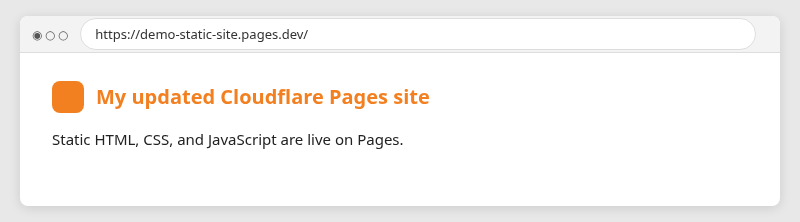
After every deployment (first launch or a later edit):
- Deployments shows Success on the latest Production row.
- The live URL shows the styled heading, logo, JavaScript status text, and HTTPS (same checks as Option A).
- Hard-refresh or use a private window if content looks stale.
- With a custom domain (Step 4), the same deployment updates
pages.devand your hostname—no extra DNS step per content change. - To undo a bad publish, use Rollback on an older Production row in Deployments (see the figure above for Visit and Rollback).
Step 4: Add a custom domain and HTTPS
After Step 3, your site can stay on *.pages.dev or you can attach your own hostname. This optional step adds the custom name. Pages provisions HTTPS automatically once DNS points at the project.
- Open the project → Custom domains → Set up a custom domain.
- Enter the hostname visitors will use (for example
demo-static.example.comorwww.example.com). - Follow the dashboard DNS instructions.
A CNAME is a DNS record that points one hostname to another hostname—for example, www.example.com → demo-static-site.pages.dev. Cloudflare shows the exact Name and Target (or Content) values to copy when you add the custom domain. If Cloudflare already manages your DNS, it may create the record for you.
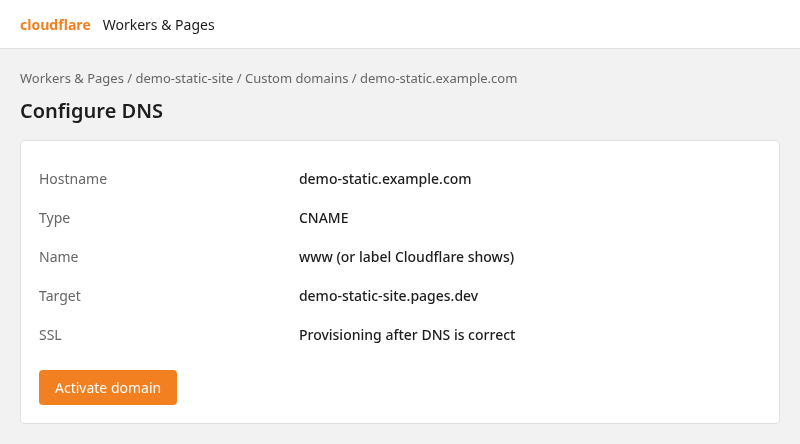
Copy the name and target exactly as Cloudflare shows them.
If you want visitors to use the root domain itself, for example example.com, Cloudflare calls this the apex domain. The domain must be added as a Cloudflare zone in the same account as the Pages project. Nameservers tell the internet which DNS provider is responsible for your domain; for an apex hostname on Pages, those nameservers must point to Cloudflare.
For a subdomain only (such as www.example.com), you can often add the CNAME at your current DNS provider using the values from the screen above. Validation can take a few minutes; the custom domain row shows Active when TLS is ready.
Troubleshooting
| Symptom | Likely cause | Fix |
|---|---|---|
404 on / |
No index.html at the publish root |
Put index.html at the top level of the upload or set Build output directory to the folder that contains it (Git projects) |
| Unstyled page | CSS path mismatch | Use root-relative links (/css/site.css) and include the css/ folder |
| Broken image | Missing file or wrong case | Match images/logo.svg exactly; Git builds are case-sensitive |
| Old content after deploy | Browser or CDN cache | Hard refresh or open the latest deployment URL from the dashboard |
| No Git deployment after connect | Wrong repo or branch, or GitHub access revoked | Confirm the repository and Production branch match the project; in GitHub, check that Cloudflare still has access to the repo |
| Custom domain stuck on Pending | DNS not correct for the hostname | For a subdomain, check the CNAME name and target; for an apex domain, confirm the zone uses Cloudflare nameservers |
Summary
You can host a small static website on Cloudflare Pages for free: Step 1 builds the files, Step 2 publishes them with direct upload or GitHub integration, Step 3 covers previewing locally and shipping updates, and Step 4 optionally attaches your own domain on HTTPS. For an AWS stack with S3 and CloudFront, see host a static site on S3 with a custom domain.
If a project was only for testing, delete it under Workers & Pages when you no longer need it.
References
- Cloudflare Pages documentation
- Cloudflare Pages get started (direct upload)
- Cloudflare Pages custom domains
- Cloudflare Pages limits (Free plan)
- Deploy static HTML on Pages (Git)
Frequently Asked Questions
Is Cloudflare Pages really free for a simple HTML site?
Yes for the static site in this tutorial on the Free plan. You pay separately if you register a custom domain at a registrar. This guide does not use Pages Functions.
Do I need GitHub to use Pages?
No. Direct upload in the dashboard is enough for a first site. Use a separate Git-connected project when you want every push to deploy automatically.
Why must my apex domain use Cloudflare nameservers?
For a Pages custom hostname on the apex (example.com), Cloudflare requires the domain to be a Cloudflare zone in the account with the project, with nameservers pointed to Cloudflare. A subdomain such as www.example.com can instead use a CNAME from another DNS provider to your *.pages.dev target.
Will this replace my existing Pages project?
Each project has its own *.pages.dev hostname and custom domains. Choose a different project name if you want to keep an existing Pages site unchanged.
Can I switch my direct-upload project to GitHub later?
No. Create a new Pages project with Connect to Git and point it at a repository containing the same files.
How do I publish changes after the first deployment?
For direct upload, open the project → Deployments → Create deployment and upload the full site folder again. For GitHub, commit or push to the production branch; Cloudflare starts a new build automatically. Wait for Success on Deployments, then refresh the site.
