
| Package | cloud-init 24.4, aws-cli/2.37.3 (RHEL 10.2 on EC2) |
|---|---|
| AWS Region | ap-south-1 (Mumbai) for the examples; user data is stored with the instance in the Region where it launches |
| Lab environment | Workstation with AWS CLI v2 and configured credentials — AWS CLI tutorial Install AWS CLI on Ubuntu · Install AWS CLI on Debian |
| Privilege | EC2 RunInstances permission to launch test instances; [sudo](/sudo-command-in-linux/) on the instance to read cloud-init logs and manage systemd units |
| Scope | Why a plain EC2 user-data shell script runs only once per instance, which method to use when a task must run on every boot (per-boot script, scripts-user always, systemd, or bootcmd), and how to verify recurring work across multiple reboots. Does not cover debugging a failed first-boot script. |
| Related guides | EC2 User Data Not Running EC2 Web Server Setup AWS CLI Tutorial AWS EBS Volume Guide AWS Tutorial |
By default, a Linux EC2 user-data shell script runs only during the instance's first boot. The same behavior applies when you reboot Linux or stop and start the same EC2 instance: normal shell user data does not automatically replay.
On Linux AMIs that use cloud-init, that happens because shell-script user data is handled by the scripts_user module with once-per-instance frequency. In this article, "every reboot" means subsequent boots of the same EC2 instance, including normal Linux reboots and stop/start cycles where cloud-init still treats it as the same instance.
If part of your setup must run on every boot, choose a mechanism designed for recurring work instead of assuming the original first-boot script will replay automatically. The options are a cloud-init per-boot script, the original user-data shell script itself (with a frequency override), a systemd service, or an early bootcmd. Keeping recurring work separate from first-boot setup makes the configuration easier to understand and change later. The example first shows that normal user data runs once, then configures tasks that run on two consecutive reboots.
Need it every reboot?
- Confirm whether the stored payload is a plain shell script (runs once) or
#cloud-config. - Pick the recurring pattern from the table below.
- Reboot twice and compare timestamps in the log or service output.
Why EC2 User Data Normally Runs Only Once
On Linux AMIs, EC2 stores user data at launch and cloud-init processes it during boot. A shell script that starts with #!/bin/bash is handled by scripts_user, which records once-per-instance state for that module.
          EC2 instance launches
                    ↓
        Plain user data runs once
                    ↓
           First boot finishes
                    ↓
           Reboot or stop/start
                    ↓
      scripts_user skips same script
                    ↓
Use scripts_per_boot, scripts-user always,
    systemd, or bootcmd for every boot
The solution is not usually to force the original first-boot script to run on every boot. Separate one-time setup from the work that genuinely belongs on every boot.
After the first boot, cloud-init skips the same user-data shell script on later boots. On a test instance launched with a once-only marker script, first boot wrote the marker:
sudo cat /var/lib/cloud-init-once.marker2026-09-26T10:02:03+00:00
ip-172-31-27-127.ap-south-1.compute.internalAfter one reboot, the marker timestamp stayed the same and cloud-init.log recorded that scripts_user had already run:
sudo grep -E 'scripts_user|already ran' /var/log/cloud-init.log | tail -n 62026-09-26 10:03:42,730 - modules.py[DEBUG]: Running module scripts_user (...) with frequency once-per-instance
2026-09-26 10:03:42,731 - handlers.py[DEBUG]: start: modules-final/config-scripts_user: running config-scripts_user with frequency once-per-instance
2026-09-26 10:03:42,731 - helpers.py[DEBUG]: config-scripts_user already ran (freq=once-per-instance)
2026-09-26 10:03:42,731 - handlers.py[DEBUG]: finish: modules-final/config-scripts_user: SUCCESS: config-scripts_user previously ranNothing is broken here. This is the default behavior. If the script never ran on first boot, see EC2 user data not running instead of forcing a rerun on reboot.
Which Every-Boot Method Should You Use?
| What you need | Use |
|---|---|
| Run a small script on every boot | /var/lib/cloud/scripts/per-boot/ via #cloud-config write_files |
| Rerun the user-data shell script itself every boot | MIME multipart payload with cloud_final_modules: [scripts-user, always] |
| Start or manage an application or daemon | systemd unit installed on first boot |
| Run a command very early every boot | #cloud-config bootcmd |
Do not blindly convert a first-boot bootstrap script into an every-boot script. Commands such as disk formatting, user creation, package installation, or one-time registration may not be safe or useful to repeat. Move only the recurring part into a per-boot script or systemd service.
Avoid deleting /var/lib/cloud/ semaphores or running cloud-init clean on production instances just to replay launch user data. For bootstrap changes, launch a fresh test instance when possible.
Option 1: Run a cloud-init Per-Boot Script
cloud-init has a built-in per-boot script directory. Any executable script placed in /var/lib/cloud/scripts/per-boot/ is picked up by the scripts_per_boot module on each boot. Unlike normal shell user data, cloud-init runs that module on every boot.
EC2 user data can contain more than shell scripts. #cloud-config is cloud-init's YAML configuration format. Here it is used only once, during the initial launch, to create an executable script in the per-boot directory:
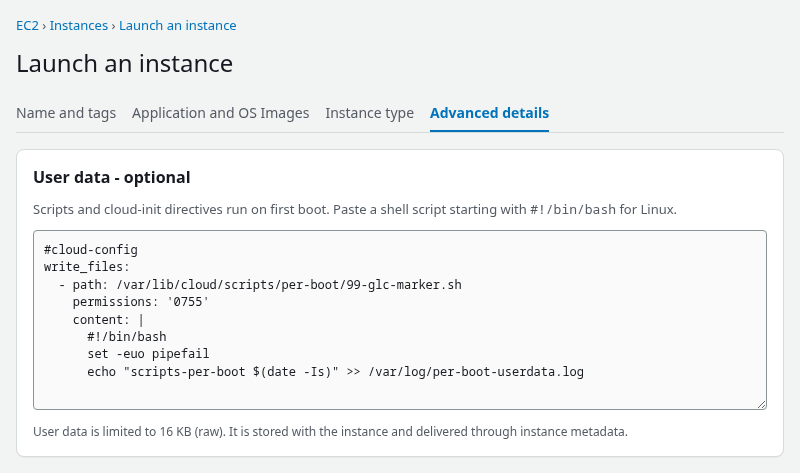
Working launch payload from the lab:
#cloud-config
write_files:
  - path: /var/lib/cloud/scripts/per-boot/99-glc-marker.sh
    permissions: '0755'
    content: |
      #!/bin/bash
      set -euo pipefail
      echo "scripts-per-boot $(date -Is) $(hostname)" >> /var/log/per-boot-userdata.log
Do not write scripts-per-boot: as a #cloud-config key. scripts_per_boot is the name of a cloud-init module. To use it, place an executable file in /var/lib/cloud/scripts/per-boot/, for example with write_files.
On first boot, write_files creates the executable earlier in the cloud-init process, and the later scripts_per_boot module finds and runs it during the final stage. You do not need to wait until the second boot. Confirm the file exists:
sudo ls -l /var/lib/cloud/scripts/per-boot/total 4
-rwxr-xr-x. 1 root root 112 Sep 26 10:08 99-glc-marker.shCheck the log after first boot:
sudo cat /var/log/per-boot-userdata.logscripts-per-boot 2026-09-26T10:08:43+00:00 ip-172-31-23-165.ap-south-1.compute.internalcloud-init.log should show scripts_per_boot running the script:
sudo grep -E 'scripts_per_boot|scripts_user' /var/log/cloud-init.log | tail -n 42026-09-26 10:08:43,803 - modules.py[DEBUG]: Running module scripts_per_boot (...) with frequency always
2026-09-26 10:08:43,803 - handlers.py[DEBUG]: start: modules-final/config-scripts_per_boot: running config-scripts_per_boot with frequency always
2026-09-26 10:08:43,803 - subp.py[DEBUG]: Running command ['/var/lib/cloud/scripts/per-boot/99-glc-marker.sh'] ...
2026-09-26 10:08:43,810 - handlers.py[DEBUG]: finish: modules-final/config-scripts_per_boot: SUCCESS: config-scripts_per_boot ran successfully and took 0.007 secondsOption 2: Run the User-Data Shell Script on Every Boot
If you specifically need the shell-script portion of EC2 user data itself to run every boot, AWS documents changing the scripts-user module frequency to always. That is different from placing a script in /var/lib/cloud/scripts/per-boot/:
scripts-userwithalwaysreruns the user-data shell script itself.scripts_per_bootruns only scripts deliberately placed in the per-boot directory.
For new configurations, a dedicated per-boot script is usually easier to maintain because it keeps first-boot setup separate from recurring work.
cloud_final_modules is the full list of final-stage cloud-init modules, not just a setting for scripts-user. Replacing it with only [scripts-user, always] can change which other final modules run. Use this method only when you specifically want the whole user-data shell script to rerun and you understand the cloud-init configuration change. For most new setups, a dedicated per-boot script or systemd unit is easier to maintain.
MIME multipart user data lets one EC2 user-data payload contain more than one content type. Here, the text/cloud-config part changes the scripts-user frequency, while the text/x-shellscript part contains the actual shell script to rerun.
AWS's example uses MIME multipart user data containing both a #cloud-config section and a separate shell-script part:
Content-Type: multipart/mixed; boundary="==GLC=="
MIME-Version: 1.0

--==GLC==
Content-Type: text/cloud-config; charset="us-ascii"
MIME-Version: 1.0
Content-Transfer-Encoding: 7bit
Content-Disposition: attachment; filename="cloud-config.txt"

#cloud-config
cloud_final_modules:
  - [scripts-user, always]

--==GLC==
Content-Type: text/x-shellscript; charset="us-ascii"
MIME-Version: 1.0
Content-Transfer-Encoding: 7bit
Content-Disposition: attachment; filename="userdata.sh"

#!/bin/bash
set -euo pipefail
echo "scripts-user always $(date -Is) $(hostname)" >> /var/log/scripts-user-always.log

--==GLC==--
On first boot, cloud-init.log should show scripts_user with always frequency:
sudo grep -E 'scripts_user|frequency' /var/log/cloud-init.log | tail -n 42026-09-26 10:32:38,767 - modules.py[DEBUG]: Running module scripts-user (...) with frequency always
2026-09-26 10:32:38,768 - handlers.py[DEBUG]: start: modules-final/config-scripts-user: running config-scripts-user with frequency alwaysAfter first boot:
sudo cat /var/log/scripts-user-always.logscripts-user always 2026-09-26T10:32:38+00:00 ip-172-31-20-73.ap-south-1.compute.internalUse this approach only when the entire shell-script payload should rerun. If only part of the bootstrap belongs on every boot, extract that part into /var/lib/cloud/scripts/per-boot/ instead of replaying package installs or one-time setup on every restart.
Option 3: Use systemd for Application and Service Tasks
Use systemd when the recurring task belongs to the operating system or application lifecycle, for example starting an application or running a boot-time health check.
         EC2 user data
               ↓
       first boot only
               ↓
   installs systemd service
               ↓
systemd owns the task thereafter
               ↓
           ┌───┴────┐
        boot 2   boot 3 ...
User data is only responsible for installing and enabling the service. After the first boot, systemd runs the task on each boot without rerunning EC2 user data.
First-boot user data can lay down the unit and helper script:
#!/bin/bash
set -euo pipefail
cat > /etc/systemd/system/glc-boot-task.service <<'EOF'
[Unit]
Description=Run EC2 boot task

[Service]
Type=oneshot
ExecStart=/usr/local/sbin/glc-boot-task.sh

[Install]
WantedBy=multi-user.target
EOF

cat > /usr/local/sbin/glc-boot-task.sh <<'EOF'
#!/bin/bash
set -euo pipefail
echo "systemd boot task $(date -Is) $(hostname)" >> /var/log/systemd-boot-task.log
EOF
chmod 755 /usr/local/sbin/glc-boot-task.sh
systemctl daemon-reload
systemctl enable glc-boot-task.service
systemctl start glc-boot-task.service
enable schedules the service for later boots. start runs it immediately on the current first boot.
If the real task needs network access, add ordering such as After=network-online.target only when that dependency is actually required.
After first boot, confirm the unit is enabled:
sudo systemctl is-enabled glc-boot-task.serviceenabledCheck the current boot in the service journal:
sudo journalctl -u glc-boot-task.service -b --no-pagerThe -b flag limits output to the current boot. You can also read the helper script's log file:
sudo cat /var/log/systemd-boot-task.logsystemd boot task 2026-09-26T10:12:48+00:00 ip-172-31-17-197.ap-south-1.compute.internalOption 4: Use bootcmd for Very Early Boot Commands
bootcmd in #cloud-config runs on every boot, very early in the boot process. runcmd, by contrast, runs only on first boot.
bootcmd runs before many later cloud-init modules and application services. Use it only when the command genuinely needs to happen early in boot. For normal application startup, prefer a per-boot script or systemd.
Because bootcmd runs early, do not assume normal application services, mounted filesystems, or network-dependent resources are ready yet.
Example:
#cloud-config
bootcmd:
  - echo "early boot $(date -Is)" >> /var/log/bootcmd.log
Verify the Task Across Multiple Reboots
Reboot the instance after SSH access returns:
sudo rebootPer-boot cloud-init script
Wait for cloud-init to finish:
sudo cloud-init status --waitThen read the per-boot log for a new timestamp line:
sudo cat /var/log/per-boot-userdata.logscripts-per-boot 2026-09-26T10:08:43+00:00 ip-172-31-23-165.ap-south-1.compute.internal
scripts-per-boot 2026-09-26T10:10:29+00:00 ip-172-31-23-165.ap-south-1.compute.internal
scripts-per-boot 2026-09-26T10:11:24+00:00 ip-172-31-23-165.ap-south-1.compute.internalThree lines with different timestamps mean first boot plus two reboots all executed the per-boot script.
scripts-user always
Wait for cloud-init to finish, then read the log:
sudo cloud-init status --waitAfter one or more reboots, the log should gain a new line each boot:
sudo cat /var/log/scripts-user-always.logscripts-user always 2026-09-26T10:32:38+00:00 ip-172-31-20-73.ap-south-1.compute.internal
scripts-user always 2026-09-26T10:34:16+00:00 ip-172-31-20-73.ap-south-1.compute.internalExpect one new line per boot. After two reboots following first boot, the log should contain three lines with different timestamps.
bootcmd
Read the bootcmd log after each reboot:
sudo cat /var/log/bootcmd.logExpect one new line per boot.
systemd service
For systemd, you do not need to wait for cloud-init to verify the recurring task. Check the service directly:
sudo systemctl status glc-boot-task.service --no-pagerRead the log from the current boot:
sudo journalctl -u glc-boot-task.service -b --no-pagerAfter two more reboots, the custom log file should show three timestamps:
sudo cat /var/log/systemd-boot-task.logsystemd boot task 2026-09-26T10:12:48+00:00 ip-172-31-17-197.ap-south-1.compute.internal
systemd boot task 2026-09-26T10:14:25+00:00 ip-172-31-17-197.ap-south-1.compute.internal
systemd boot task 2026-09-26T10:15:17+00:00 ip-172-31-17-197.ap-south-1.compute.internalEach reboot advanced the timestamp.
Troubleshoot When It Still Runs Only Once
Start with overall cloud-init health:
sudo cloud-init status --longIf cloud-init finished with errors, cloud-init may have failed before it got to the per-boot script.
Check which payload type was stored at launch:
TOKEN=$(curl -s -X PUT "http://169.254.169.254/latest/api/token" -H "X-aws-ec2-metadata-token-ttl-seconds: 21600")
curl -s -H "X-aws-ec2-metadata-token: $TOKEN" http://169.254.169.254/latest/user-data | head -n 8
A plain shell script (#!/bin/bash) runs once unless you used the MIME multipart scripts-user override. Per-boot work needs #cloud-config that installs /var/lib/cloud/scripts/per-boot/ files, the scripts-user frequency override, or first-boot user data that installs systemd.
Confirm the per-boot directory and permissions:
sudo ls -l /var/lib/cloud/scripts/per-boot/The script must be executable. If the file is missing, the launch payload may not have used write_files correctly, or first-boot cloud-init failed before writing it.
Check whether the relevant modules ran on the latest boot:
sudo grep -E 'scripts_per_boot|scripts_user' /var/log/cloud-init.log | tail -n 8If scripts_user shows already ran with once-per-instance frequency but you expected every-boot shell-script behavior, the launch payload did not include the cloud_final_modules override.
For bootcmd, check /var/log/cloud-init.log for the bootcmd module and confirm the configured command did not fail during an earlier cloud-init stage.
For systemd, verify the unit is enabled:
sudo systemctl is-enabled glc-boot-task.serviceenabledIf the unit is disabled, first-boot user data did not run systemctl enable, or the unit file was added manually without enabling it.
Summary
Plain EC2 shell user data runs once per instance through cloud-init's scripts_user module. That is why a launch script does not rerun after reboot, and why cloud-init.log may record config-scripts_user already ran.
To run work on every boot, choose the pattern that matches the task: a script in /var/lib/cloud/scripts/per-boot/ for short recurring cloud-init work, MIME multipart with scripts-user set to always when the entire shell-script payload must rerun, systemd for application lifecycle tasks, or bootcmd for very early commands. Do not replay one-time setup commands on every boot unless they are genuinely safe to repeat.
Reboot twice and compare log timestamps or journalctl -u output to confirm the recurring pattern works. If user data never ran on first boot, use the troubleshooting guide for failed launch scripts instead of forcing reruns on reboot.
References
- Run commands when you launch an EC2 instance with user data input
- cloud-init: Run commands during boot
- cloud-init module reference
- How do I rerun user data on an EC2 instance?
Frequently Asked Questions
Does EC2 user data run every reboot?
No. A plain shell script in user data is handled with once-per-instance frequency and normally runs only on the instance's first boot. To run logic on every reboot, install a per-boot script under /var/lib/cloud/scripts/per-boot/, use MIME multipart with scripts-user set to always, use bootcmd in #cloud-config, or install a systemd unit on first boot.
What is scripts-per-boot?
scripts-per-boot refers to the scripts_per_boot cloud-init module and the directory /var/lib/cloud/scripts/per-boot/. On each boot, cloud-init runs executable scripts in that directory. It is not a top-level #cloud-config key; use write_files to place scripts there at launch.
Should I use systemd instead?
Use systemd when the task is an application service, needs explicit ordering with other units, or should be managed with systemctl after bootstrap. Use cloud-init per-boot scripts for short recurring tasks that belong with instance bootstrap. Many production setups use both: cloud-init for first-boot install, systemd for ongoing service lifecycle.
