
| Tested on | Ubuntu 26.04 LTS (Resolute Raccoon) |
|---|---|
| Package | terraform 1.16.1hashicorp/aws 6.63.0awscli 2.27.29 |
| Applies to | Any host with Terraform and AWS credentials; examples use ap-south-1 |
| Privilege | AWS identity with S3 create/read/write and IAM sts:GetCallerIdentity |
| Scope | Bootstrap an encrypted versioned S3 bucket with Terraform, add an s3 backend block, migrate state with terraform init -migrate-state, and lock state with use_lockfile (Terraform 1.10+). Does not cover DynamoDB legacy locking, HCP Terraform workspaces, cross-account bucket policies, or production IAM role design. |
Terraform tracks every resource it manages in a state file (terraform.tfstate). By default that file sits on your laptop. That breaks down quickly when:
- Two people run
applyand overwrite each other's work - You lose the file and Terraform forgets what it created
- CI and laptops each hold a different copy
An S3 backend stores state in a shared bucket. On Terraform 1.10+, add use_lockfile = true so S3 native locking blocks concurrent writes — no DynamoDB table required for new setups.
What you will do in this lab:
- Create an encrypted, versioned S3 bucket with Terraform (local state first)
- Add a
backend "s3"block and migrate state withterraform init -migrate-state - Confirm
terraform.tfstateappears in S3 and locking works onterraform plan - Optionally verify the same settings in the AWS console
- Tear down when finished
init flags, and when to use -reconfigure instead of -migrate-state, read Terraform backends and remote state first. This article is the AWS S3 implementation.
What you need before starting
| Requirement | Why |
|---|---|
| Terraform 1.10+ | use_lockfile needs 1.10 or newer |
| AWS account with S3 permissions | Create buckets and read/write objects |
| AWS CLI or provider credentials | Same identity Terraform uses for API calls |
| Basic S3 familiarity | Buckets, objects, and regions |
Work in a dedicated directory so backend files stay separate from other projects:
mkdir -p ~/terraform-labs/configure-s3-bucket-as-terraform-backendChange into that directory — the remaining commands assume you are here:
cd ~/terraform-labs/configure-s3-bucket-as-terraform-backendConfirm AWS credentials
Terraform and the AWS provider call the same credential chain as the CLI. Confirm your identity before you create billable resources. If aws is not installed or configured yet, start with the AWS CLI tutorial.
aws sts get-caller-identitySample output:
{
    "UserId": "342524208658",
    "Account": "342524208658",
    "Arn": "arn:aws:iam::342524208658:root"
}
The Account number becomes part of the lab bucket name so the name stays globally unique. If this command fails, fix credentials before you run terraform apply.
Why bootstrap the bucket before the backend block
Terraform cannot store state in a bucket that does not exist yet. The usual pattern is two phases:
- Create the S3 bucket with local state (no
backend "s3"block yet). - Add the backend block and run
terraform init -migrate-stateto copyterraform.tfstateinto S3.
You only bootstrap once per state bucket. Other projects can reuse the same bucket with a different key path.
Define the AWS provider
Create versions.tf with Terraform 1.10+ and AWS provider 6.x:
terraform {
  required_version = ">= 1.10.0"

  required_providers {
    aws = {
      source  = "hashicorp/aws"
      version = "~> 6.0"
    }
  }
}

provider "aws" {
  region = var.aws_region
}

variable "aws_region" {
  type    = string
  default = "ap-south-1"
}
Change default if your lab region differs. The backend region must match the bucket region later.
Create the state bucket with Terraform
Add s3.tf to provision a bucket suited for remote state:
data "aws_caller_identity" "current" {}

resource "aws_s3_bucket" "terraform_state" {
  bucket = "glc-tfstate-lab-${data.aws_caller_identity.current.account_id}"
}

resource "aws_s3_bucket_versioning" "terraform_state" {
  bucket = aws_s3_bucket.terraform_state.id

  versioning_configuration {
    status = "Enabled"
  }
}

resource "aws_s3_bucket_server_side_encryption_configuration" "terraform_state" {
  bucket = aws_s3_bucket.terraform_state.id

  rule {
    apply_server_side_encryption_by_default {
      sse_algorithm = "AES256"
    }
  }
}

resource "aws_s3_bucket_public_access_block" "terraform_state" {
  bucket = aws_s3_bucket.terraform_state.id

  block_public_acls       = true
  block_public_policy     = true
  ignore_public_acls      = true
  restrict_public_buckets = true
}

output "state_bucket_name" {
  value = aws_s3_bucket.terraform_state.id
}
A production state bucket should always have:
- Versioning — roll back a bad state write
- Encryption — SSE-S3 (
AES256) at minimum - Public access blocked — state must never be world-readable
Add a small managed object so apply creates something visible besides the empty bucket. Create demo.tf:
resource "aws_s3_object" "demo" {
  bucket  = aws_s3_bucket.terraform_state.id
  key     = "demo/hello.txt"
  content = "S3 backend lab object"
}
Initialize and apply with local state
There is no backend block yet, so Terraform keeps terraform.tfstate in this directory. Initialize providers:
terraform initSample output:
Initializing the backend...
Initializing provider plugins...
- Finding hashicorp/aws versions matching "~> 6.0"...
- Installing hashicorp/aws v6.63.0...
Terraform has been successfully initialized!
Create the bucket and demo object:
terraform applyReview the plan, type yes when prompted, and wait for completion. A successful first apply creates five resources:
Apply complete! Resources: 5 added, 0 changed, 0 destroyed.

Outputs:

state_bucket_name = "glc-tfstate-lab-342524208658"
Copy state_bucket_name from your output — you need the exact string in the backend block next.
Add the S3 backend with native locking
Create backend.tf and paste your bucket name and region. Use a unique key per project so multiple stacks can share one state bucket:
terraform {
  backend "s3" {
    bucket       = "glc-tfstate-lab-342524208658"
    key          = "configure-s3-backend-lab/terraform.tfstate"
    region       = "ap-south-1"
    encrypt      = true
    use_lockfile = true
  }
}
Each backend argument does the following:
bucket— S3 bucket that holds statekey— object path inside the bucket (one path per root module)region— must match where the bucket was createdencrypt— server-side encrypt state objects at restuse_lockfile— S3 native locking (Terraform 1.10+); replaces DynamoDB for new setups
Reinitialize and migrate local state into S3:
terraform init -migrate-stateTerraform asks whether to copy existing state. Answer yes:
Do you want to copy existing state to the new backend?
  Pre-existing state was found while migrating the previous "local" backend to the
  newly configured "s3" backend. No existing state was found in the newly
  configured "s3" backend. Do you want to copy this state to the new "s3"
  backend? Enter "yes" to copy and "no" to start with an empty state.

Successfully configured the backend "s3"! Terraform will automatically
use this backend unless the backend configuration changes.
After migration:
- State lives in S3 at the
keyyou set - Local
terraform.tfstateis no longer the source of truth - The next
planorapplyreads and writes through the backend
Verify state landed in S3
List objects under your state prefix. Replace the bucket name if yours differs:
aws s3 ls s3://glc-tfstate-lab-342524208658/configure-s3-backend-lab/Sample output:
2026-09-04 13:10:03 9347 terraform.tfstateThe terraform.tfstate object is your remote state (about 9 KB after migration). During concurrent runs, Terraform may also write terraform.tfstate.tflock next to it when use_lockfile is enabled.
Run a plan to confirm the backend and locking path work end to end:
terraform planSample output (trimmed):
aws_s3_bucket.terraform_state: Refreshing state... [id=glc-tfstate-lab-342524208658]
...
No changes. Your infrastructure matches the configuration.
Releasing state lock. This may take a few moments...
The Releasing state lock line confirms S3 native locking wrapped the plan. See terraform init if you change backend settings later and need -reconfigure instead of another migration.
Confirm in the AWS console
CLI checks are enough to finish the lab. In the console, set the Region selector (top right) to Asia Pacific (Mumbai) / ap-south-1 first — if S3 → Buckets looks empty, you are usually in the wrong region.
Open Amazon S3 → Buckets. You should see one general-purpose bucket named glc-tfstate-lab-342524208658 in ap-south-1:
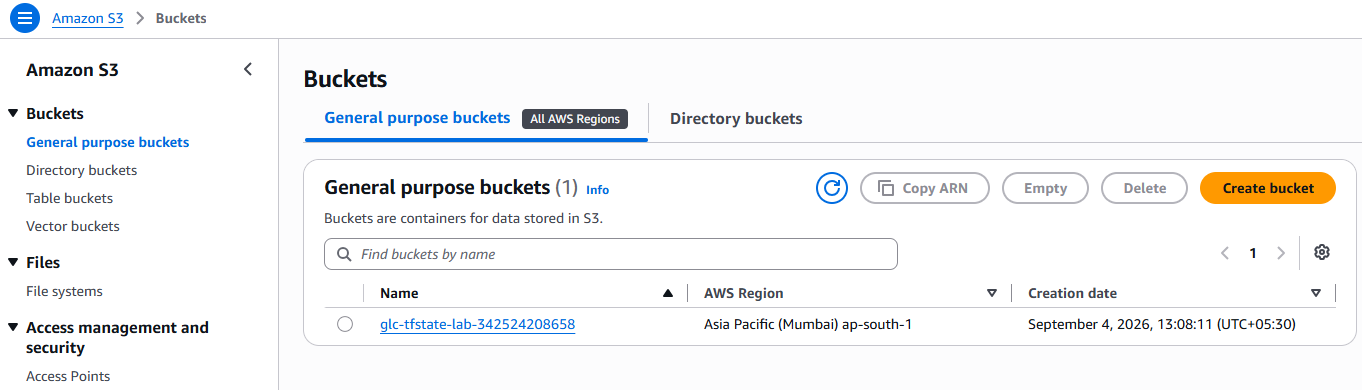
The bucket name should end with your AWS account ID when you use the same HCL as this guide. Open the bucket, choose Properties, and scroll to Bucket Versioning. Status should be Enabled:
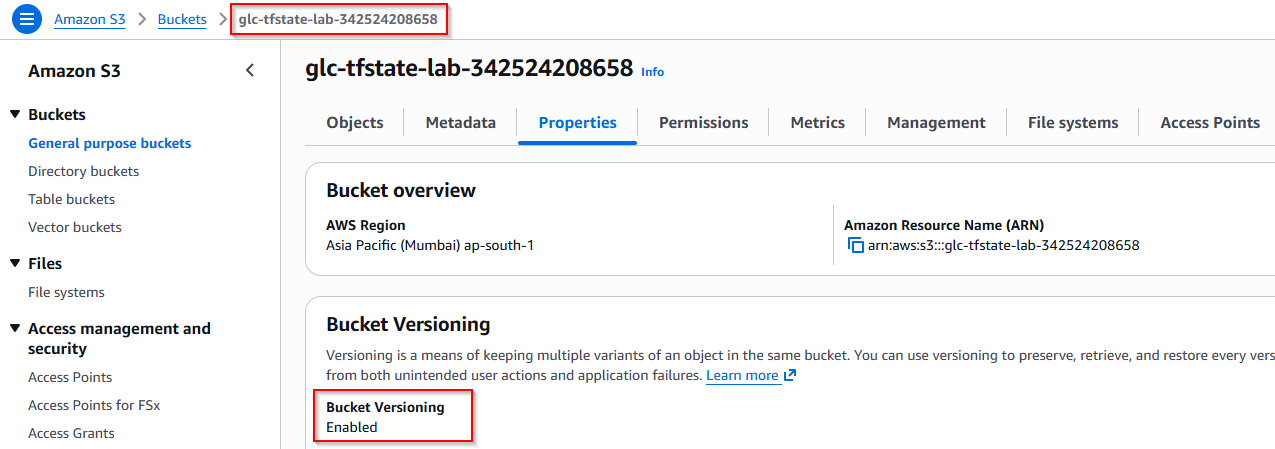
Bucket Versioning should read Enabled on the Properties tab. On the same Properties tab, Default encryption should show Server-side encryption with Amazon S3 managed keys (SSE-S3):
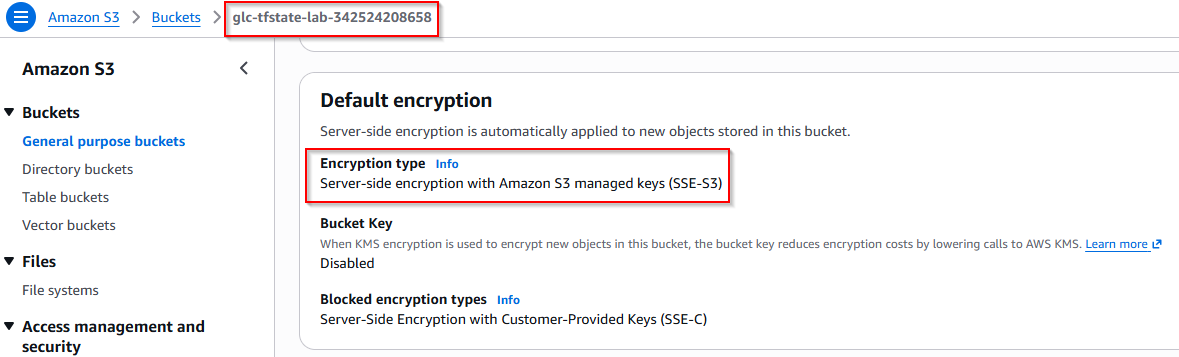
Default encryption should list SSE-S3 before you leave Properties.
Choose the Objects tab, open the prefix configure-s3-backend-lab/, and confirm terraform.tfstate is present:
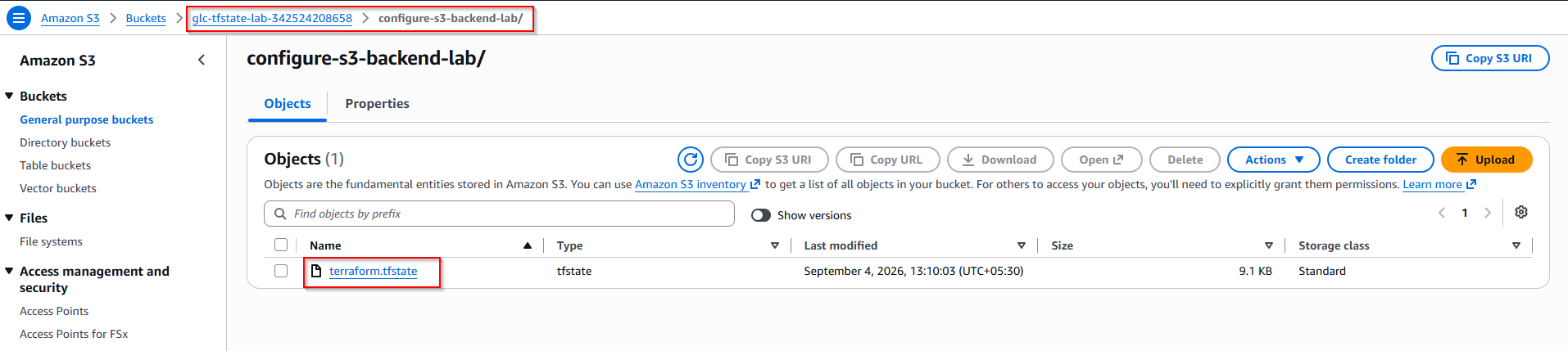
You may also see demo/hello.txt under the demo/ prefix from the sample object in demo.tf.
Tear down the lab
Destroying a state bucket while Terraform still stores state inside that bucket fails. Work through these steps in order:
- Remove
backend.tfso Terraform stops using the S3 backend - Run
terraform init -migrate-stateand answeryesto copy state back locally - Delete versioned state objects under the state prefix (versioning keeps old revisions)
- Set
force_destroy = trueon the bucket resource (lab only) - Run
terraform destroyfrom the same directory with the same.tffiles
Remove the backend block:
rm backend.tfMigrate state from S3 back to the working directory:
terraform init -migrate-stateAnswer yes when prompted. You should see Successfully unset the backend "s3".
Versioning keeps old state revisions even after you delete the current object. Empty the state prefix first:
aws s3 rm s3://glc-tfstate-lab-342524208658/configure-s3-backend-lab/ --recursiveIf destroy still reports BucketNotEmpty, delete non-current versions with aws s3api list-object-versions and delete-objects for every version and delete marker under that prefix.
Add force_destroy = true on the bucket resource for lab teardown only (never on production state buckets):
resource "aws_s3_bucket" "terraform_state" {
  bucket        = "glc-tfstate-lab-${data.aws_caller_identity.current.account_id}"
  force_destroy = true
}
Run destroy and confirm the bucket is gone:
terraform destroyType yes when prompted. A clean run removes every managed resource:
Destroy complete! Resources: 5 destroyed.Confirm the bucket no longer appears:
aws s3 lsAn empty list (or no glc-tfstate-lab-* entry) means teardown succeeded. You need the same .tf files and a reachable state file for destroy to know what to delete — deleting only the bucket in the console leaves orphaned AWS resources Terraform still believes exist.
Troubleshooting
| Symptom | Likely cause | Fix |
|---|---|---|
| S3 → Buckets shows no buckets | Console region is not ap-south-1 (or the region where you created the bucket) | Switch the Region selector to Asia Pacific (Mumbai) and refresh |
Error loading backend: S3 bucket does not exist |
Backend block points at a missing bucket or wrong region | Finish bootstrap apply first; match region to the bucket |
AccessDenied on terraform init or plan |
IAM user or role lacks S3 permissions on the bucket | Grant s3:ListBucket on the bucket ARN and s3:GetObject / s3:PutObject on arn:.../bucket/* |
Error acquiring the state lock |
Another apply/plan is running, or a stale .tflock object remains |
Wait for the other run; if sure nothing is running, inspect terraform.tfstate.tflock in S3 |
BucketNotEmpty on destroy |
Versioned state objects still in the bucket | Delete all object versions under the state prefix, then retry destroy |
Summary
You created an encrypted, versioned S3 bucket with Terraform while state still lived locally, then added an s3 backend with use_lockfile = true and migrated state with terraform init -migrate-state. After migration, terraform plan read and wrote state through S3, and the lock messages showed native locking was active.
The bootstrap-then-migrate pattern avoids referencing a bucket that does not exist yet. For new work, prefer use_lockfile over DynamoDB unless you are maintaining an older stack.
When you finish a lab, migrate state off S3 before you delete the bucket, and clear versioned state objects — otherwise destroy stops with BucketNotEmpty. For backend theory, partial configuration, and terraform_remote_state, continue with Terraform backends and remote state.
References
- Terraform S3 backend documentation
- Terraform state locking
- Amazon S3 User Guide
- AWS CLI
sts get-caller-identity
Frequently Asked Questions
Do I still need DynamoDB for S3 backend locking?
No, not for new configurations on Terraform 1.10 or newer. Set use_lockfile = true in the s3 backend block. DynamoDB locking is deprecated for S3 and remains only for older environments that have not migrated yet.
Can multiple projects share one state bucket?
Yes. Use one bucket and give each root module a different key value, for example networking/terraform.tfstate and apps/terraform.tfstate. Keep versioning enabled on the bucket.
What happens if I delete the state file from S3 manually?
Terraform loses track of managed resources. The next plan may try to recreate everything or fail with inconsistent state. Restore from a previous S3 version if versioning is on, or recover from backup — do not delete state casually.
Why does terraform init ask to migrate state?
Terraform detected a backend change and found an existing state snapshot. Answering yes copies that snapshot to the new backend. Answering no starts with an empty remote state and is almost never what you want during a deliberate migration.
