
| Tested on | Ubuntu 24.04 LTS on EC2 t3.medium in ap-south-1Workstation | Ubuntu 26.04 LTS with AWS CLI v2 |
|---|---|
| Package | kubeadm / kubelet / kubectl 1.36.4containerd 2.3.4Calico 3.32.2 (Tigera operator) |
| Applies to | AWS EC2 with Ubuntu 22.04 or 24.04 kubeadm node prep applies on any Linux host |
| Cert prep | CKA CKAD |
| Lab environment | Two Ubuntu EC2 instances in one VPC subnet — control plane and one worker (built in this guide) |
| Privilege | sudo on EC2 nodes; AWS credentials with EC2 API access on your workstation |
| Scope | Launch two EC2 instances, open Kubernetes ports in a security group, prepare nodes with containerd and kubeadm, install Calico, join a worker, and deploy a sample nginx workload. Does not cover EKS, custom VPC/NAT design, or production hardening. |
| Related guides | install kubectl and kubeconfig Kubernetes Pods |
You can run Kubernetes on plain EC2 without EKS. This guide walks through a small two-node lab from empty AWS resources to a working cluster.
What you will do:
- Create a security group and two Ubuntu EC2 instances
- Install containerd and kubeadm on both nodes
- Initialize the control plane, install Calico, and join the worker
- Deploy nginx to confirm pods schedule and talk over the network
When both nodes show Ready, the cluster is working.
What you will build
You end up with a minimal but real Kubernetes cluster:
| Node | Hostname | Role | Instance type |
|---|---|---|---|
| Control plane | k8s-cp |
Runs the API server; you run kubectl here |
t3.medium (2 vCPU, 4 GiB RAM minimum) |
| Worker | k8s-worker01 |
Runs application pods | t3.medium |
Both VMs live in the same VPC subnet and share one security group.
A few terms that matter later:
- Private IP — address nodes use inside the VPC. Pass this to
--apiserver-advertise-addressandkubeadm join. - Public IP — address you use from your laptop for SSH only.
- Pod network — separate IP range (
192.168.0.0/16in this lab) Calico assigns to pods.
The node preparation steps below are included in this article so you can follow one page start to finish. For deeper background on kernel settings and cgroup configuration, see install Kubernetes with kubeadm.
Before you start
Gather these before you open a terminal:
| Prerequisite | Why it matters |
|---|---|
| AWS account | You launch and pay for EC2 instances |
| AWS CLI configured | Create security groups and instances from your workstation — see the AWS CLI tutorial |
| Permission to create EC2 key pairs | Launch section creates glc-k8s-lab-key and saves the PEM on your workstation |
| Default VPC subnet ID | Launch commands need subnet-id |
| Ubuntu 24.04 AMI ID in your region | Pin the AMI at launch time |
Tips for a smooth run:
- Pick one AWS region and use it in every command. I use
ap-south-1below. - Replace
vpc-EXAMPLE,sg-EXAMPLE,subnet-EXAMPLE, and AMI values with yours before you paste commands. - Run AWS CLI commands on your workstation. Run kubeadm and
kubectlcommands on the EC2 nodes unless a step says otherwise.
Open Kubernetes ports in the security group
A security group is AWS's firewall around your instances. Kubernetes nodes talk to each other on many ports, so this lab uses a simple rule set:
- SSH (TCP 22) from your laptop — so you can log in
- All traffic from the same security group — so kubelet, Calico VXLAN, and API traffic can flow between nodes
That self-referencing rule is the one beginners miss most often. Without it, nodes stay NotReady even when SSH works.
For production, tighten these rules. Kubernetes documents individual control-plane and kubelet ports if you need that level of detail.
Create the group with the AWS CLI (replace vpc-id with your default VPC):
aws ec2 create-security-group --group-name glc-k8s-lab-sg --description "kubeadm lab" --vpc-id vpc-EXAMPLE --region ap-south-1Note the GroupId from the output — you pass it to every authorize-security-group-ingress call and to run-instances.
Allow SSH from your workstation for the lab:
aws ec2 authorize-security-group-ingress --group-id sg-EXAMPLE --protocol tcp --port 22 --cidr 203.0.113.10/32 --region ap-south-1Allow all traffic between instances that share this security group:
aws ec2 authorize-security-group-ingress --group-id sg-EXAMPLE --protocol -1 --source-group sg-EXAMPLE --region ap-south-1Confirm the inbound rules under EC2 → Security groups:
What to check in the screenshot:
- One rule allows SSH from your IP
- A second rule allows all traffic from
glc-k8s-lab-sgto itself (source and destination are the same group)
Launch the EC2 instances
This section runs on your workstation with the AWS CLI. You will:
- Set region, AMI, security group, and subnet variables
- Create an SSH key pair and save the PEM file
- Launch one control-plane VM and one worker VM
- Confirm both instances are
runningand note their IPs
Set shell variables on your workstation so the launch commands stay readable:
export AWS_DEFAULT_REGION=ap-south-1Look up the current Ubuntu 24.04 AMI in your region:
export AMI=$(aws ec2 describe-images --owners 099720109477 --filters "Name=name,Values=ubuntu/images/hvm-ssd-gp3/ubuntu-noble-24.04-amd64-server-*" "Name=state,Values=available" --query 'sort_by(Images,&CreationDate)[-1].ImageId' --output text --region "$AWS_DEFAULT_REGION")Print the AMI variable to confirm it is set:
echo "$AMI"Sample output — any non-empty ami-... ID means the lookup worked (yours will differ by region):
ami-050c78efa486a0196Set your security group and subnet IDs from the EC2 console or aws ec2 describe-subnets:
export SG_ID=sg-EXAMPLESet the subnet ID next:
export SUBNET_ID=subnet-EXAMPLECreate the SSH key pair in your region and save the private key locally:
- AWS returns
KeyMaterialonly once — if you lose the PEM, create a new key pair - The PEM file lives on your workstation, not on the EC2 instances
aws ec2 create-key-pair --key-name glc-k8s-lab-key --query 'KeyMaterial' --output text --region "$AWS_DEFAULT_REGION" > ~/glc-k8s-lab-key.pemRestrict permissions on the PEM file:
chmod 400 ~/glc-k8s-lab-key.pemLaunch the control-plane instance:
- AWS assigns private and public IPs automatically — you do not need
--private-ip-address --associate-public-ip-addressensures SSH works even when the subnet's auto-assign setting is off- The
Nametag (k8s-cp) is only for the EC2 console — you set the Linux hostname in the next section
aws ec2 run-instances --image-id "$AMI" --instance-type t3.medium --key-name glc-k8s-lab-key --security-group-ids "$SG_ID" --subnet-id "$SUBNET_ID" --associate-public-ip-address --tag-specifications 'ResourceType=instance,Tags=[{Key=Name,Value=k8s-cp}]' --region "$AWS_DEFAULT_REGION"Launch the worker in the same subnet and security group:
aws ec2 run-instances --image-id "$AMI" --instance-type t3.medium --key-name glc-k8s-lab-key --security-group-ids "$SG_ID" --subnet-id "$SUBNET_ID" --associate-public-ip-address --tag-specifications 'ResourceType=instance,Tags=[{Key=Name,Value=k8s-worker01}]' --region "$AWS_DEFAULT_REGION"List running instances when both are up and note each private address:
aws ec2 describe-instances --region "$AWS_DEFAULT_REGION" --filters "Name=tag:Name,Values=k8s-cp,k8s-worker01" "Name=instance-state-name,Values=running" --query 'Reservations[].Instances[].[Tags[?Key==`Name`].Value|[0],InstanceId,PrivateIpAddress,PublicIpAddress,State.Name]' --output tableSample output — columns are Name, InstanceId, PrivateIp, PublicIp, State:
---------------------------------------------------------------------------------
|                               DescribeInstances                               |
+--------------+-----------------------+----------------+----------------+--------+
|  k8s-cp      |  i-0d3219054557d7daa  |  172.31.22.66  |  43.205.133.1  | running|
|  k8s-worker01|  i-0911430cf76b9569f  |  172.31.28.174 |  3.110.200.11  | running|
+--------------+-----------------------+----------------+----------------+--------+
Use the table columns like this:
- Private IP (
172.31.x.x) — pass tokubeadm initandkubeadm join - Public IP — use from your laptop for SSH only
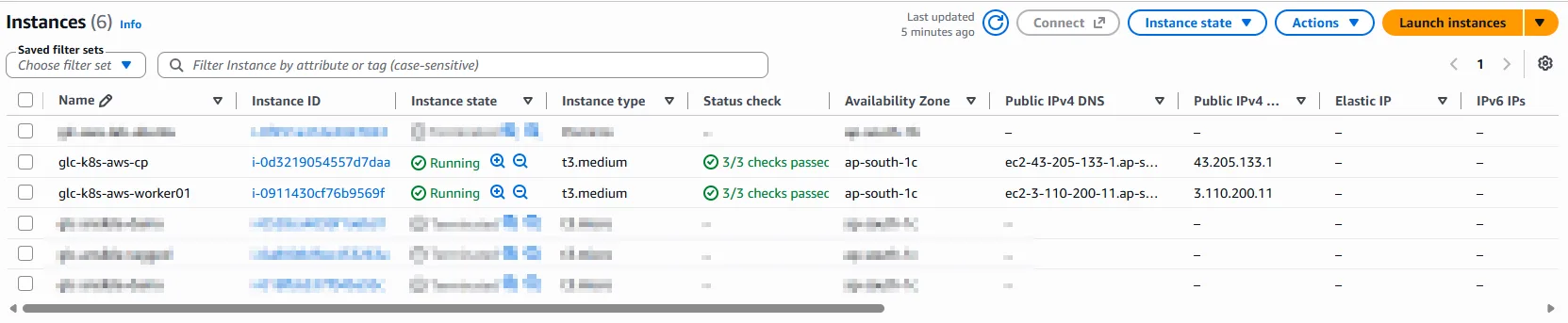
Both instances should appear as running in the EC2 console:

Before you install Kubernetes:
- SSH to each instance with the PEM file and the public IP from the table above
- Confirm you get a shell prompt — that proves the key pair and security group are correct
- The EC2 Name tag is only a console label; it does not change the Linux hostname
The next section sets hostnames to k8s-cp and k8s-worker01 on the guest OS.
Test SSH to the control plane first — replace the placeholder with your public IP:
ssh -i ~/glc-k8s-lab-key.pem ubuntu@<control-plane-public-ip> 'hostname -f || hostname'Repeat with the worker public IP from your describe-instances table.
Prepare both nodes for kubeadm
SSH into each EC2 instance and run the same preparation sequence. Work through these phases in order on both nodes before you run kubeadm init:
- Set the Linux hostname (
k8s-cpork8s-worker01) - Disable swap and load kernel networking modules
- Install containerd 2.x from Docker's APT repository
- Install
kubelet,kubeadm, andkubectlfrompkgs.k8s.iov1.36 - Turn off
ufwif it is active on AWS
Replace the hostname in the first command on each node.
Set the hostname on the control plane:
sudo hostnamectl set-hostname k8s-cpOn the worker, use k8s-worker01 instead. kubelet registers that hostname with the API server when the node joins the cluster.
Swap must be off before kubelet starts. By default, kubelet fails when swap is enabled. Disable it for this lab rather than configuring Kubernetes swap support:
sudo swapoff -aComment swap entries out of /etc/fstab so swap stays off after reboot:
sudo sed -ri '/^[^#].*[[:space:]]swap[[:space:]]/ s/^/#/' /etc/fstabLoad the networking kernel modules Kubernetes expects:
overlay— storage driver layer container images usebr_netfilter— lets iptables see traffic on Linux bridges (pod networking)
sudo modprobe overlayLoad br_netfilter for iptables rules on bridged pod traffic:
sudo modprobe br_netfilterPersist the modules across reboots:
printf 'overlay\nbr_netfilter\n' | sudo tee /etc/modules-load.d/k8s.confEnable IPv4 forwarding and bridge netfilter rules:
printf 'net.bridge.bridge-nf-call-iptables = 1\nnet.bridge.bridge-nf-call-ip6tables = 1\nnet.ipv4.ip_forward = 1\n' | sudo tee /etc/sysctl.d/99-kubernetes.confApply the sysctl settings immediately:
sudo sysctl --systemKubernetes runs containers through containerd. The containerd.io package is not in Ubuntu's default repositories, so add Docker's APT source first:
sudo apt-get update && sudo apt-get install -y ca-certificates curl gnupgCreate the APT keyring directory Docker expects:
sudo install -m 0755 -d /etc/apt/keyringsImport Docker's signing key:
curl -fsSL https://download.docker.com/linux/ubuntu/gpg | sudo gpg --dearmor -o /etc/apt/keyrings/docker.gpgMake the key readable to APT:
sudo chmod a+r /etc/apt/keyrings/docker.gpgAdd the Docker package source:
echo "deb [arch=$(dpkg --print-architecture) signed-by=/etc/apt/keyrings/docker.gpg] https://download.docker.com/linux/ubuntu $(. /etc/os-release && echo "$VERSION_CODENAME") stable" | sudo tee /etc/apt/sources.list.d/docker.list > /dev/nullRemove conflicting distribution packages, refresh indexes, and install containerd.io:
sudo apt-get remove -y containerd runcRefresh indexes and install containerd.io from Docker's repository:
sudo apt-get update && sudo apt-get install -y containerd.ioGenerate a default config and enable systemd cgroups — required on Ubuntu 24.04 with cgroup v2:
sudo mkdir -p /etc/containerd && sudo containerd config default | sudo tee /etc/containerd/config.toml > /dev/nullSwitch containerd to systemd-managed cgroups:
sudo sed -i 's/SystemdCgroup = false/SystemdCgroup = true/' /etc/containerd/config.tomlConfirm the setting is present before you restart containerd:
grep -n 'SystemdCgroup' /etc/containerd/config.tomlYou want true — kubelet needs systemd-managed cgroups on Ubuntu 24.04:
SystemdCgroup = trueRestart containerd and confirm it is active with systemctl:
sudo systemctl restart containerdEnable containerd at boot and confirm it is running:
sudo systemctl enable --now containerd && systemctl is-active containerdactive means containerd is running — kubelet depends on it:
activeNext, add the official Kubernetes package repository and install the control-plane tools:
curl -fsSL https://pkgs.k8s.io/core:/stable:/v1.36/deb/Release.key | sudo gpg --dearmor -o /etc/apt/keyrings/kubernetes-apt-keyring.gpgRegister the Kubernetes APT source:
echo 'deb [signed-by=/etc/apt/keyrings/kubernetes-apt-keyring.gpg] https://pkgs.k8s.io/core:/stable:/v1.36/deb/ /' | sudo tee /etc/apt/sources.list.d/kubernetes.listRefresh package indexes after adding the repository:
sudo apt-get updateInstall the Kubernetes packages and CRI tools with apt:
sudo apt-get install -y kubelet kubeadm kubectl cri-toolsHold the Kubernetes packages so an unattended upgrade does not jump versions ahead of your control plane:
sudo apt-mark hold kubelet kubeadm kubectlEnable kubelet. It may restart until kubeadm initializes the node — that is expected:
sudo systemctl enable --now kubeletOn AWS, turn off ufw when it is active — it blocks Calico VXLAN between nodes:
sudo ufw statusIf the status is active, disable it for the lab:
sudo ufw disableVerify kubeadm and containerd on the control-plane node before you initialize:
kubeadm version -o shortExpect the same minor release on both nodes (for example v1.36.4):
v1.36.4Check the containerd build that kubelet will use:
containerd --version | head -1The version string should show containerd v2.3.x (or your installed release):
containerd containerd v2.3.4 db8809540e1a7a9da5d518876894933ff55692abBoth nodes must report the same kubeadm minor version before you initialize the cluster. Repeat this section on the worker if you have not already.
Initialize the control plane
Run this section on the control-plane node only (k8s-cp). kubeadm init does three important things:
- Starts the API server, scheduler, and controller manager
- Creates the cluster certificate authority and kubeconfig files
- Prints a
kubeadm joincommand you will use on the worker
SSH to the control-plane node. Read its primary private IP — workers must reach the API server on this VPC address, not the public IP:
CP_PRIVATE_IP=$(hostname -I | awk '{print $1}')Confirm the address before you pass it to kubeadm:
echo "$CP_PRIVATE_IP"The --pod-network-cidr flag tells Kubernetes which IP range pods will use. It must match the Calico pool in the next section.
Before you run init, confirm the pod CIDR does not overlap anything else your nodes can reach:
- Your VPC CIDR (often
172.31.0.0/16on AWS default VPCs) - A corporate VPN range
- Another
192.168.0.0/16network at home or in the office
I use 192.168.0.0/16 below. Pick a different private range if that one is already in use.
Initialize the cluster:
sudo kubeadm init --apiserver-advertise-address="${CP_PRIVATE_IP}" --pod-network-cidr=192.168.0.0/16Init takes one to three minutes on t3.medium. When it finishes, kubeadm prints a kubeadm join command — copy the full line and save it; you need it on the worker.
A successful init ends with output like this — copy the full kubeadm join line at the bottom:
Your Kubernetes control-plane has initialized successfully!

...

kubeadm join 172.31.22.66:6443 --token <token> --discovery-token-ca-cert-hash sha256:<hash>
What matters in this block:
- The success message confirms the control-plane components started
- The join line uses your control-plane private IP on port
6443 - Save the token and
sha256:hash — the worker needs the exact command
kubectl reads cluster settings from a kubeconfig file. Configure it for the ubuntu user on the control-plane node:
mkdir -p $HOME/.kubeCopy the admin kubeconfig into your home directory:
sudo cp -i /etc/kubernetes/admin.conf $HOME/.kube/configFix ownership so kubectl runs without sudo:
sudo chown $(id -u):$(id -g) $HOME/.kube/configA node shows NotReady until a CNI (Container Network Interface) plugin gives pods network addresses. That is expected right after init:
kubectl get nodesOne control-plane node in NotReady is normal before Calico installs:
NAME     STATUS     ROLES           AGE   VERSION
k8s-cp   NotReady   control-plane   45s   v1.36.4
NotReady immediately after init is normal. Install Calico in the next section to move the node to Ready.
Install Calico
Run this section on the control-plane node only. Calico is the CNI plugin that:
- Assigns pod IP addresses from the
192.168.0.0/16pool you set at init - Routes traffic between pods on different nodes
- Moves nodes from
NotReadytoReady
You install the Tigera operator first, then apply a small custom-resources.yaml file that tells Calico how to behave on AWS.
Download the manifests with curl on the control-plane node. Create the CRD bundle first:
curl -fsSLO https://raw.githubusercontent.com/projectcalico/calico/v3.32.2/manifests/v1_crd_projectcalico_org.yamlRegister the Calico CRDs with the API server:
kubectl create -f v1_crd_projectcalico_org.yamlFetch and install the Tigera operator:
curl -fsSLO https://raw.githubusercontent.com/projectcalico/calico/v3.32.2/manifests/tigera-operator.yamlDeploy the operator Deployment in tigera-operator:
kubectl create -f tigera-operator.yamlDownload the operator custom resources file:
curl -fsSLO https://raw.githubusercontent.com/projectcalico/calico/v3.32.2/manifests/custom-resources.yamlEdit custom-resources.yaml before you apply it. Both nodes sit in the same EC2 subnet, so use these settings:
encapsulation: VXLAN— wrap all pod-to-pod traffic in VXLAN tunnelsbgp: Disabled— no BGP routing on AWS; VXLAN handles overlay networkingnodeAddressAutodetectionV4: kubernetes: NodeInternalIP— use the EC2 private IP, not the public one
Why not VXLANCrossSubnet? That mode skips encapsulation inside one subnet. On AWS that often requires disabling EC2 source/destination checks. This lab avoids that by encapsulating everything.
Add nodeAddressAutodetectionV4 and bgp: Disabled under spec.calicoNetwork, and set encapsulation: VXLAN on the default pool:
spec:
  calicoNetwork:
    bgp: Disabled
    nodeAddressAutodetectionV4:
      kubernetes: NodeInternalIP
    ipPools:
      - name: default-ipv4-ippool
        blockSize: 26
        cidr: 192.168.0.0/16
        encapsulation: VXLAN
        natOutgoing: Enabled
        nodeSelector: all()
Apply the edited custom resources:
kubectl create -f custom-resources.yamlWatch Tigera status until Calico reports healthy:
kubectl get tigerastatusWait until calico shows AVAILABLE True and DEGRADED False:
NAME        AVAILABLE   PROGRESSING   DEGRADED
apiserver   True        False         False
calico      True        False         False
ippools     True        False         False
When Calico is up, the control-plane node should flip to Ready:
kubectl get nodesReady on the control plane means Calico assigned networking to the node:
NAME     STATUS   ROLES           AGE   VERSION
k8s-cp   Ready    control-plane   5m    v1.36.4
Join the worker node
The worker registers with the control plane over the VPC private network. You only need the kubeadm join line from the init output.
Steps:
- SSH to the worker (
k8s-worker01) - Paste and run the full
kubeadm joincommand from init - Return to the control plane and confirm both nodes are
Ready
SSH to the worker and run the join command (replace the token and hash with yours):
sudo kubeadm join 172.31.22.66:6443 --token <token> --discovery-token-ca-cert-hash sha256:<hash>A successful join prints certificate approval messages and tells you to run kubectl get nodes on the control plane.
If the token expired (default TTL is 24 hours), create a fresh join command on the control plane:
kubeadm token create --print-join-commandBack on the control-plane node, confirm both nodes are Ready:
kubectl get nodes -o wideYou want two rows — both Ready, VPC addresses under INTERNAL-IP, and containerd:// as the runtime:
NAME           STATUS   ROLES           AGE   VERSION   INTERNAL-IP     EXTERNAL-IP   OS-IMAGE             KERNEL-VERSION           CONTAINER-RUNTIME
k8s-cp         Ready    control-plane   11m   v1.36.4   172.31.22.66    <none>        Ubuntu 24.04.4 LTS   7.0.0-1011-aws (amd64)   containerd://2.3.4
k8s-worker01   Ready    <none>          10m   v1.36.4   172.31.28.174   <none>        Ubuntu 24.04.4 LTS   7.0.0-1011-aws (amd64)   containerd://2.3.4
Both rows should show Ready and containerd:// as the runtime — not Docker.
Deploy a sample nginx workload
This section proves the cluster works end to end. You will:
- Create a one-replica nginx Deployment
- Wait until the pod is
Runningon a node - Expose it with a ClusterIP Service
- Curl the service from a temporary pod inside the cluster
All commands run on the control-plane node where kubectl is configured.
Create a deployment:
kubectl create deployment demo-nginx --image=nginx:1.27-alpineWait until the replica is available:
kubectl rollout status deployment/demo-nginx --timeout=120sThis line means the single nginx replica passed its readiness checks:
deployment "demo-nginx" successfully rolled outCheck which node received the pod and which pod IP Calico assigned:
kubectl get pods -l app=demo-nginx -o wideREADY 1/1 and STATUS Running mean the pod is healthy. IP is the Calico address; NODE is the host that runs it:
NAME                          READY   STATUS    RESTARTS   AGE   IP              NODE           NOMINATED NODE   READINESS GATES
demo-nginx-79c87bbb94-fp5tr   1/1     Running   0          30s   192.168.79.65   k8s-worker01   <none>           <none>
Expose the deployment inside the cluster with a ClusterIP service:
kubectl expose deployment demo-nginx --port=80 --name=demo-nginxConfirm the service received a ClusterIP:
kubectl get svc demo-nginxCLUSTER-IP is an internal address — only pods inside the cluster can reach it:
NAME         TYPE        CLUSTER-IP      EXTERNAL-IP   PORT(S)   AGE
demo-nginx   ClusterIP   10.102.244.95   <none>        80/TCP    10s
Copy the CLUSTER-IP value from the service output, then run a one-off curl pod against it:
- The curl pod runs inside the cluster — no extra security group ports needed
HTTP 200means kube-proxy routed traffic to the nginx pod successfully
kubectl run curl-demo --rm -i --restart=Never --image=curlimages/curl:8.11.1 -- curl -s -o /dev/null -w "HTTP %{http_code}\n" http://10.102.244.95HTTP 200 is a successful response from nginx through the cluster network:
HTTP 200HTTP 200 means the pod is serving traffic through the cluster network.
What this test confirms:
- The scheduler placed a pod on the worker
- Calico assigned a pod IP and routed traffic correctly
- kube-proxy forwarded the ClusterIP to the nginx container
For external access from your laptop you would need a NodePort or load balancer — that is outside this lab scope.
Clean up the demo objects when you are done testing:
kubectl delete deployment,svc demo-nginxTear down AWS resources
Stop billing by removing every lab object in this order:
- Terminate both EC2 instances
- Wait until state is
terminated(required before deleting the security group) - Delete the security group
- Delete the key pair from EC2 and remove the local PEM file
Set your region if the shell variable is not still exported:
export AWS_DEFAULT_REGION=ap-south-1Look up the instance IDs for your tagged nodes:
aws ec2 describe-instances --region "$AWS_DEFAULT_REGION" --filters "Name=tag:Name,Values=k8s-cp,k8s-worker01" "Name=instance-state-name,Values=running,stopping,stopped,pending" --query 'Reservations[].Instances[].[Tags[?Key==`Name`].Value|[0],InstanceId,State.Name]' --output tableTerminate both instances. Replace the IDs with yours if they differ:
aws ec2 terminate-instances --instance-ids i-0d3219054557d7daa i-0911430cf76b9569f --region "$AWS_DEFAULT_REGION"AWS moves instances through shutting-down before terminated. Poll until both rows show terminated:
aws ec2 describe-instances --instance-ids i-0d3219054557d7daa i-0911430cf76b9569f --region "$AWS_DEFAULT_REGION" --query 'Reservations[].Instances[].[Tags[?Key==`Name`].Value|[0],InstanceId,State.Name]' --output tableSample output when cleanup is complete — both instances must show terminated:
---------------------------------------------------------------
|                      DescribeInstances                      |
+------------------+-----------------------+-------------+
|  k8s-cp          |  i-0d3219054557d7daa  |  terminated |
|  k8s-worker01    |  i-0911430cf76b9569f  |  terminated |
+------------------+-----------------------+-------------+
You cannot delete a security group while instances still reference it, so wait for terminated before the next step.
Delete the lab security group:
aws ec2 delete-security-group --group-id "$SG_ID" --region "$AWS_DEFAULT_REGION"Confirm the group no longer exists — AWS returns InvalidGroup.NotFound when it is gone:
aws ec2 describe-security-groups --group-ids "$SG_ID" --region "$AWS_DEFAULT_REGION"InvalidGroup.NotFound is expected here — it confirms the security group was deleted:
An error occurred (InvalidGroup.NotFound) when calling the DescribeSecurityGroups operation: The security group 'sg-EXAMPLE' does not existRemove the key pair from EC2:
aws ec2 delete-key-pair --key-name glc-k8s-lab-key --region "$AWS_DEFAULT_REGION"Delete the local PEM copy from your workstation:
rm -f ~/glc-k8s-lab-key.pemConfirm the key pair is gone from EC2:
aws ec2 describe-key-pairs --key-names glc-k8s-lab-key --region "$AWS_DEFAULT_REGION"InvalidKeyPair.NotFound is expected — it confirms the key pair was removed from EC2:
An error occurred (InvalidKeyPair.NotFound) when calling the DescribeKeyPairs operation: The key pair 'glc-k8s-lab-key' does not existA final check with your lab tags should return no running instances:
aws ec2 describe-instances --region "$AWS_DEFAULT_REGION" --filters "Name=tag:Name,Values=k8s-cp,k8s-worker01" "Name=instance-state-name,Values=running,pending" --query 'Reservations[].Instances[].InstanceId' --output textNo output means nothing is still billing in this lab.
Troubleshooting
Use this table when a step does not match the expected output. Most first-time failures come from the security group, a mismatched pod CIDR, or Calico settings.
| Symptom | Likely cause | Fix |
|---|---|---|
Nodes stay NotReady after join |
No CNI, or Calico not healthy | kubectl get tigerastatus; confirm custom-resources.yaml applied and calico is AVAILABLE True |
Worker cannot reach API on 6443 |
Security group missing intra-group rule or wrong --apiserver-advertise-address |
Add self-referencing SG rule; re-init with the control-plane private IP |
kubeadm join fails token expired |
Bootstrap token TTL (default 24h) | On control plane: kubeadm token create --print-join-command |
Pods stay Pending |
No ready worker, or control-plane taint without toleration | kubectl describe pod; add workers or schedule on control plane only for labs |
| Calico picks public IP | Missing nodeAddressAutodetectionV4 on EC2 |
Set kubernetes: NodeInternalIP under spec.calicoNetwork before creating the Installation |
| Pods cannot reach each other on AWS | VXLANCrossSubnet in one subnet without source/destination check changes |
Use encapsulation: VXLAN in custom-resources.yaml as shown above |
curl to NodePort times out from laptop |
NodePort range not allowed in security group | Open TCP 30000-32767 to your IP, or test with in-cluster curl against ClusterIP |
Summary
You built a working two-node kubeadm cluster on EC2:
- Launched two Ubuntu instances in one subnet with a shared security group
- Prepared both nodes with containerd, kubelet, and kubeadm
- Initialized the control plane and installed Calico with
VXLANencapsulation - Joined the worker and deployed nginx to verify scheduling and pod networking
The in-cluster curl returning HTTP 200 is the proof point — if you reach that, the security group and pod CIDR issues that block most first-time labs are usually resolved.
For production, move to EKS or harden this footprint: restrict SSH and API exposure, use private subnets with a bastion or VPN, automate node prep with cloud-init or Ansible, and pin upgrade paths through kubeadm upgrade. The Kubernetes tutorial directory links deeper workload and networking lessons once your EC2 lab is running.
References
- kubeadm documentation
- Installing Kubernetes with kubeadm
- Amazon EC2 User Guide
- Calico — install with operator
- containerd documentation
Frequently Asked Questions
Can I use Docker instead of containerd on EC2?
kubeadm 1.24 and later expects a CRI-compatible runtime. containerd is the supported baseline in current Kubernetes docs. Docker-as-CRI was removed; install containerd.io from Docker's Ubuntu repository as shown in the kubeadm install guide.
Do I need a separate VPC, NAT gateway, and bastion host?
No for a learning cluster. Two instances in the default VPC with public IPs and a shared security group is enough. Production layouts often use private worker subnets, NAT for outbound image pulls, and a bastion for SSH — that adds cost and steps this guide deliberately skips.
Why must --pod-network-cidr match Calico?
kubeadm records the pod CIDR in cluster configuration. Calico's default-ipv4-ippool must use the same range or IPAM fails and nodes stay NotReady or pods never get addresses. The pod CIDR must also not overlap your VPC CIDR, VPN routes, or any other network the nodes can reach — pick a different private range if 192.168.0.0/16 is already in use.
How much does a two-node t3.medium lab cost?
Pricing varies by region. Two t3.medium On-Demand instances run continuously until you terminate them. Stop instances to cut compute charges, but EBS volumes still bill until deleted. Always terminate lab resources when you finish.
