
| Tested on | Ubuntu 26.04 LTS workstation AWS Region | ap-south-1 (Mumbai) |
|---|---|
| Package | Terraform 1.16.1terraform-aws-modules/eks 21.25.0terraform-aws-modules/vpc 6.7.0AWS provider 6.63.0 EKS Kubernetes 1.36 |
| Applies to | Any Linux host with Terraform and AWS CLI; AWS account with EKS and VPC permissions |
| Cert prep | CKA CKAD |
| Lab environment | Single EKS cluster glc-eks-lab with one t3.small managed node in a new VPC |
| Privilege | AWS credentials with permission to create VPC, EKS, IAM roles, and EC2; sudo on the workstation for CLI installs |
| Scope | Write Terraform for a VPC and EKS managed node group, run init/plan/apply, configure kubectl, and verify nodes. Does not cover Fargate-only clusters, IRSA workloads, or production IAM hardening. |
This guide builds a small Amazon EKS cluster with Terraform. AWS runs the Kubernetes control plane; you add worker nodes with a managed node group.
A few terms before you start:
- EKS — AWS hosts the API server and etcd; you add worker nodes
- VPC — your private network in AWS (subnets, routes, security groups)
- Managed node group — EKS creates and updates a group of EC2 worker instances for you
- Terraform module — reusable Terraform code from the registry so you do not write every AWS resource by hand
What you will do:
- Sign in to AWS from your workstation
- Create four Terraform files (VPC + EKS modules)
- Run
terraform init,validate,plan, andapply - Connect
kubectland confirm the node isReady
This lab creates billable AWS resources:
- EKS control plane (hourly charge)
- EC2 worker node (
t3.small) - NAT gateway (hourly + data processing)
- EBS volumes
Resources bill until you run terraform destroy. Do not destroy until you have verified the cluster and taken any screenshots you need. The lab uses a public Kubernetes API endpoint for simplicity — tighten network access before production use.
What you will build
You end up with a small but real EKS footprint:
| Component | Lab value |
|---|---|
| Cluster name | glc-eks-lab |
| Kubernetes version | 1.36 (standard support) |
| VPC CIDR | 10.0.0.0/16 with two private and two public subnets |
| Workers | One EKS managed node group (lab) on t3.small |
| Region | ap-south-1 (change var.region for your account) |
How the pieces fit together:
- VPC — private network (
10.0.0.0/16) for the cluster - Private subnets — worker EC2 instances live here (no direct internet route)
- Public subnets — NAT gateway gets a public IP here
- NAT gateway — sits in a public subnet; private subnets route outbound traffic through it so nodes can pull images and reach AWS APIs
- EKS control plane — runs on AWS-managed infrastructure (not in your subnets)
- Managed node group — one
t3.smallinstance joins the cluster as a worker
On the module versions tested here, first terraform apply created 54 AWS resources. That includes VPC, NAT gateway, IAM roles, security groups, EKS addons, the control plane, and the node group.
- Your count may differ if module or provider versions change
- On the first run, confirm the plan lists those resource types and shows no unexpected destroys
Want full control of every Linux setting on the nodes? See setup Kubernetes on AWS EC2 for a kubeadm lab. EKS trades that control for a managed control plane.
Before you start
Install these on your workstation before you open the Terraform directory. If anything is missing, use the linked guide first — do not jump straight to terraform apply.
| Prerequisite | Why it matters |
|---|---|
| AWS account | VPC and EKS resources bill by the hour |
| AWS CLI v2.32.0+ | Sign in with aws login — see the AWS CLI tutorial |
| Terraform 1.5.7+ | Install from install Terraform on Ubuntu if needed |
kubectl |
Manage the cluster after apply — install kubectl and kubeconfig |
| IAM permissions | Permission to create VPC, EC2, EKS, IAM roles, and CloudWatch log groups |
Tips for a smooth run:
- Pick one region and use it in every command (I use
ap-south-1below) - Export temporary credentials before Terraform when you use
aws login(next section) - First
terraform applytakes 12–20 minutes — the EKS control plane and node group are the slow parts
Sign in to AWS
Terraform uses the same AWS credentials as the CLI. Confirm login works before you create billable resources.
Steps in this section:
- Run
aws loginand complete the browser prompt - Verify identity with
aws sts get-caller-identity - Export temporary credentials for Terraform in this lab
Start the login flow:
aws loginComplete the browser prompt, then confirm the CLI sees your identity:
aws sts get-caller-identityJSON with your account ID means authentication worked:
{
    "UserId": "342524208658",
    "Account": "342524208658",
    "Arn": "arn:aws:iam::342524208658:root"
}
What to check in this output:
- Account — your 12-digit AWS account number
- Arn — the AWS identity Terraform will act as during
apply - My test output shows the account root identity; use a non-root identity for normal administration
- Your values will differ; an error instead of JSON means login failed
aws login sessions are temporary. This lab exports those credentials into the shell before every Terraform command:
- That gives Terraform standard temporary environment variables
- You avoid depending on whether the provider reads the CLI login cache directly
Run this in the same terminal where you run terraform init, plan, and apply:
eval "$(aws configure export-credentials --format env)"Create the Terraform project
Put all Terraform files in one directory. Terraform reads every .tf file in the current folder when you run init, plan, or apply.
Create the lab directory:
mkdir -p ~/terraform-labs/deploy-eks-cluster-aws-terraform && cd ~/terraform-labs/deploy-eks-cluster-aws-terraformYou will add four files:
| File | Purpose |
|---|---|
versions.tf |
Terraform and AWS provider versions, region, cluster name |
vpc.tf |
VPC module — subnets, NAT gateway, Kubernetes subnet tags |
eks.tf |
EKS module — control plane, addons, managed node group |
outputs.tf |
Cluster name, endpoint, and region for kubectl later |
Work through the files in this order: versions.tf → vpc.tf → eks.tf → outputs.tf.
Provider and locals
versions.tf tells Terraform which providers to download and sets the AWS region. local.cluster_name is reused in every other file so you only change the cluster name in one place.
Create versions.tf:
terraform {
  required_version = ">= 1.5.7"

  required_providers {
    aws = {
      source  = "hashicorp/aws"
      version = "~> 6.0"
    }
  }
}

provider "aws" {
  region = var.region
}

variable "region" {
  description = "AWS region for the EKS lab"
  type        = string
  default     = "ap-south-1"
}

data "aws_availability_zones" "available" {
  filter {
    name   = "opt-in-status"
    values = ["opt-in-not-required"]
  }
}

locals {
  cluster_name = "glc-eks-lab"
}
Key settings:
required_version— minimum Terraform for EKS module 21.xawsprovider~> 6.0— required by current EKS and VPC modulesvar.region— change if you deploy outsideap-south-1local.cluster_name— passed to VPC and EKS modules
VPC module
Workers need outbound internet to pull container images. EKS also needs subnets tagged for load balancers. The VPC module creates all of that in one call.
Create vpc.tf:
module "vpc" {
  source  = "terraform-aws-modules/vpc/aws"
  version = "~> 6.7"

  name = "${local.cluster_name}-vpc"
  cidr = "10.0.0.0/16"

  azs             = slice(data.aws_availability_zones.available.names, 0, 2)
  private_subnets = ["10.0.1.0/24", "10.0.2.0/24"]
  public_subnets  = ["10.0.101.0/24", "10.0.102.0/24"]

  enable_nat_gateway   = true
  single_nat_gateway   = true
  enable_dns_hostnames = true

  public_subnet_tags = {
    "kubernetes.io/role/elb" = "1"
  }

  private_subnet_tags = {
    "kubernetes.io/role/internal-elb" = "1"
  }

  tags = {
    Environment = "lab"
    Project     = local.cluster_name
  }
}
What each setting does:
cidr = "10.0.0.0/16"— IP range for the whole VPCprivate_subnets— where EKS worker nodes runpublic_subnets— where the NAT gateway gets a public IPenable_nat_gateway— lets private nodes reach the internetsingle_nat_gateway = true— one NAT for the lab (cheaper; production often uses one per AZ)- Subnet tags
kubernetes.io/role/...— tell AWS load balancers which subnets to use
EKS module
This file creates the Kubernetes cluster, required addons, and one managed node group.
EKS module 21.x naming changes (if you read older tutorials):
cluster_version→kubernetes_versioncluster_name→name
Create eks.tf:
module "eks" {
  source  = "terraform-aws-modules/eks/aws"
  version = "~> 21.25"

  name               = local.cluster_name
  kubernetes_version = "1.36"

  endpoint_public_access = true

  addons = {
    vpc-cni = {
      before_compute = true
    }
    kube-proxy = {}
    coredns    = {}
  }

  vpc_id     = module.vpc.vpc_id
  subnet_ids = module.vpc.private_subnets

  eks_managed_node_groups = {
    lab = {
      ami_type       = "AL2023_x86_64_STANDARD"
      instance_types = ["t3.small"]
      min_size       = 1
      max_size       = 2
      desired_size   = 1
    }
  }

  enable_cluster_creator_admin_permissions = true

  tags = {
    Environment = "lab"
    Project     = local.cluster_name
  }
}
Important fields:
kubernetes_version = "1.36"— standard-support Kubernetes on EKS at the time of this testendpoint_public_access = true— letskubectlreach the API from your laptop- The public API endpoint is reachable from the internet; AWS authentication is still required
- For a longer-lived cluster, restrict public-access CIDRs or use a private endpoint
addons— installsvpc-cni,kube-proxy, andcoredns; required with EKS module 21.x so nodes reachReadysubnet_ids— workers launch in private subnets onlyeks_managed_node_groups.lab— one node group with a singlet3.smallinstanceenable_cluster_creator_admin_permissions = true— adds the AWS identity running Terraform as an EKS administrator through an EKS access entry
Outputs
Outputs print values after terraform apply. You need cluster_name and region for aws eks update-kubeconfig later.
Create outputs.tf:
output "cluster_name" {
  description = "EKS cluster name"
  value       = module.eks.cluster_name
}

output "cluster_endpoint" {
  description = "EKS API server endpoint"
  value       = module.eks.cluster_endpoint
}

output "cluster_arn" {
  description = "EKS cluster ARN"
  value       = module.eks.cluster_arn
}

output "region" {
  description = "AWS region"
  value       = var.region
}
Initialize and validate Terraform
terraform init downloads the AWS provider and VPC/EKS modules. Run it once per directory before plan or apply.
Steps:
- Export AWS credentials
- Run
terraform init - Run
terraform validateto check syntax
Export credentials first:
eval "$(aws configure export-credentials --format env)"Download providers and modules:
terraform initYou want module downloads and a success message:
Downloading registry.terraform.io/terraform-aws-modules/eks/aws 21.25.0 for eks...
Downloading registry.terraform.io/terraform-aws-modules/vpc/aws 6.7.0 for vpc...
...
Terraform has been successfully initialized!
Check that the .tf files are syntactically valid:
terraform validateSuccess looks like this:
Success! The configuration is valid.Terraform also creates .terraform.lock.hcl. Commit that file if you store the lab in Git so everyone uses the same provider versions.
Review the Terraform plan
terraform plan is a dry run. It shows what Terraform would create without making changes. Always review the plan before apply.
Preview the resources:
terraform plan -no-colorOn a fresh directory you want a create-only plan:
Plan: 54 to add, 0 to change, 0 to destroy.

Changes to Outputs:
  + cluster_arn      = (known after apply)
  + cluster_endpoint = (known after apply)
  + cluster_name     = "glc-eks-lab"
  + region           = "ap-south-1"
How to read this plan:
- 54 to add — VPC, NAT, IAM, EKS cluster, addons, node group, and supporting resources (on the tested module versions)
- 0 to change / 0 to destroy — nothing already exists in this directory's state
- (known after apply) — endpoint and ARN are computed during creation
- cluster_name and region — confirm these match your intent before you type
yesat apply
Scroll through the full plan if you want to see individual resource names.
Deploy the EKS cluster
terraform apply creates everything from the plan. First apply takes 12–20 minutes.
Steps:
- Export fresh credentials
- Run
terraform apply - Review the plan and type
yes - Optionally monitor progress in a second terminal (below)
eval "$(aws configure export-credentials --format env)"
terraform apply
When Terraform shows the plan summary, type yes to confirm.
For CI automation, use terraform apply -auto-approve to skip the prompt.
A successful first apply ends with:
Apply complete! Resources: 54 added, 0 changed, 0 destroyed.

Outputs:

cluster_arn = "arn:aws:eks:ap-south-1:342524208658:cluster/glc-eks-lab"
cluster_endpoint = "https://51C746224F4C7E0EE860044869C34A66.gr7.ap-south-1.eks.amazonaws.com"
cluster_name = "glc-eks-lab"
region = "ap-south-1"
Save these from the output:
- cluster_name — used by
aws eks update-kubeconfigin the next section - cluster_endpoint — Kubernetes API URL (unique per cluster)
- region — must match every
awsandkubectlcommand - Your endpoint and account ID will differ — that is expected
If apply fails with expired credentials:
- Run
aws loginagain - Run
eval "$(aws configure export-credentials --format env)" - Re-run
terraform apply— Terraform resumes partial state; you do not start from scratch
Monitor EKS creation
While terraform apply runs in terminal 1, open terminal 2 and poll every 60 seconds:
watch -n 60 'aws eks describe-cluster --name glc-eks-lab --region ap-south-1 --query cluster.status --output text 2>/dev/null; aws eks list-nodegroups --cluster-name glc-eks-lab --region ap-south-1 --output text 2>/dev/null'Typical phases on t3.small in ap-south-1:
| Phase | What Terraform prints | AWS status | Typical time |
|---|---|---|---|
| VPC and NAT | module.vpc.aws_nat_gateway... Still creating |
NAT pending → available |
1–2 minutes |
| EKS control plane | module.eks.aws_eks_cluster... Still creating |
Cluster CREATING |
8–10 minutes |
| Node group | aws_eks_node_group... Still creating |
Node group CREATING → ACTIVE |
3–15 minutes |
This is normal, not a hang:
aws_eks_clusterwithStill creating...for 5–9 minutes- NAT gateway
Still creatingfor 1–2 minutes - No node group listed until the cluster reaches
ACTIVE
Do not kill terraform apply during those waits.
Configure kubectl
kubectl talks to the Kubernetes API. It reads connection details from ~/.kube/config on your workstation.
aws eks update-kubeconfig downloads the cluster endpoint and certificate, then adds a context so kubectl knows how to authenticate.
aws eks update-kubeconfig --region "$(terraform output -raw region)" --name "$(terraform output -raw cluster_name)"You want a line like this:
Updated context arn:aws:eks:ap-south-1:342524208658:cluster/glc-eks-lab in /root/.kube/configWhat that means:
- A new context was added to your kubeconfig
- The ARN includes your account ID, region, and cluster name
- Future
kubectlcommands use this context unless you switch withkubectl config use-context
Verify the EKS cluster
Two checks confirm the cluster is healthy:
- One node shows
Readyinkubectl get nodes - System pods show
Runninginkubectl get pods -A
List nodes:
kubectl get nodes -o wideLook for Ready in the STATUS column:
NAME                                        STATUS   ROLES    AGE   VERSION               INTERNAL-IP   EXTERNAL-IP   OS-IMAGE                        KERNEL-VERSION                           CONTAINER-RUNTIME
ip-10-0-1-162.ap-south-1.compute.internal   Ready    <none>   22m   v1.36.3-eks-cb19647   10.0.1.162    <none>        Amazon Linux 2023.12.20260817   6.18.41-94.142.amzn2023.x86_64 (amd64)   containerd://2.2.5+unknown
How to read the node line:
- STATUS
Ready— the worker joined the cluster and can run pods - VERSION — expect an EKS-optimized Kubernetes 1.36 build compatible with the control plane
- INTERNAL-IP — private VPC address; no public IP on workers is normal
- NAME — EC2 private DNS name (not a custom hostname like
k8s-worker01)
List system pods:
kubectl get pods -ACoreDNS and the VPC CNI (aws-node) should be Running:
NAMESPACE     NAME                       READY   STATUS    RESTARTS   AGE
kube-system   aws-node-ztt9k             2/2     Running   0          103s
kube-system   coredns-6d6b66db7b-5dm7m   1/1     Running   0          83s
kube-system   coredns-6d6b66db7b-vrc4l   1/1     Running   0          83s
kube-system   kube-proxy-546w6           1/1     Running   0          92s
What each pod does:
- aws-node — assigns pod IP addresses inside your VPC
- coredns — cluster DNS (pods resolve service names)
- kube-proxy — routes Service traffic to backend pods
Ready on the node and Running system pods mean the cluster is working.
Optional: confirm in the AWS console
You can also confirm the same resources in the AWS console. Set the region to ap-south-1 (Mumbai) before you open these pages.
In Amazon EKS → Clusters, glc-eks-lab should show Active with Kubernetes 1.36:

The cluster row should read Active with Kubernetes 1.36 before you open it. Open the cluster, then select the Compute tab. One node should be Ready and the managed node group should be Active:
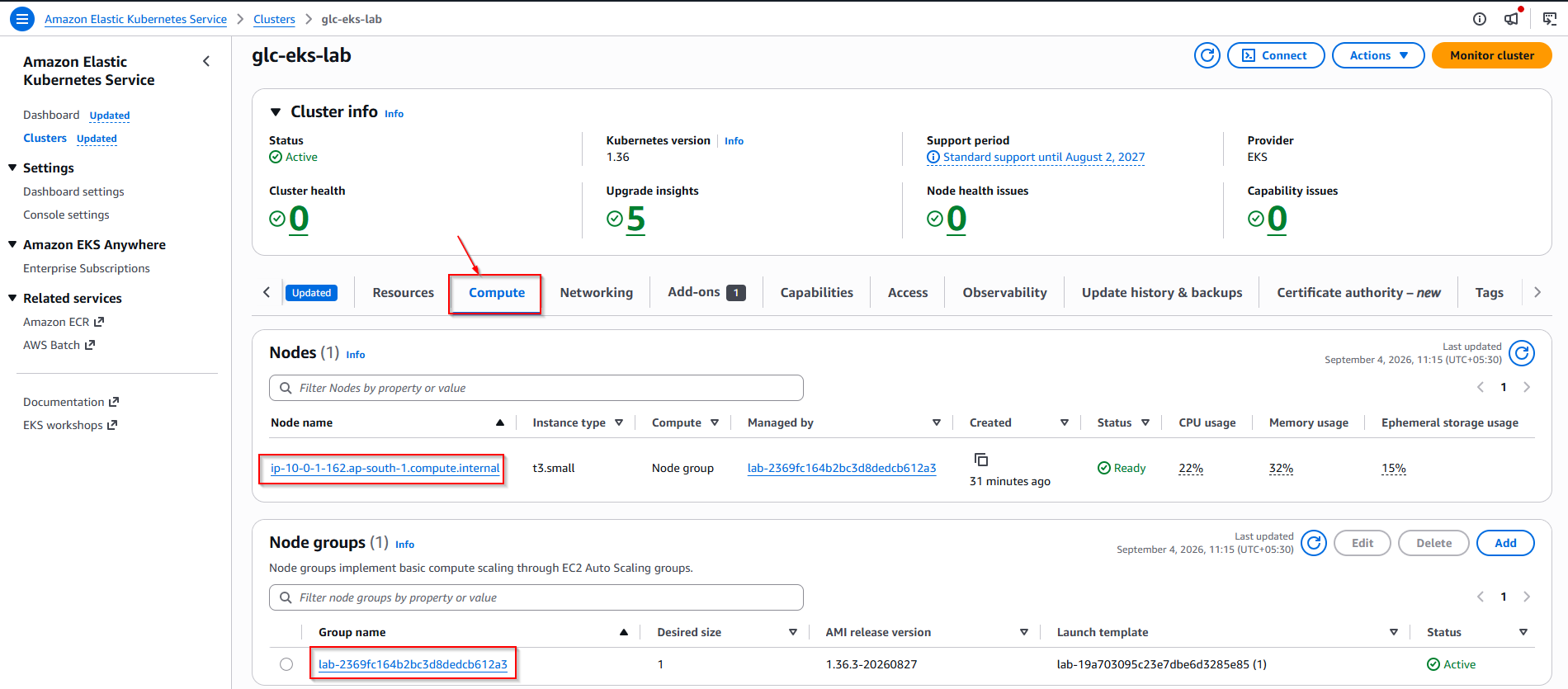
On Compute, the node group should be Active and the single node should show Ready.
In VPC → Your VPCs, search for glc-eks-lab-vpc. State should be Available with CIDR 10.0.0.0/16:
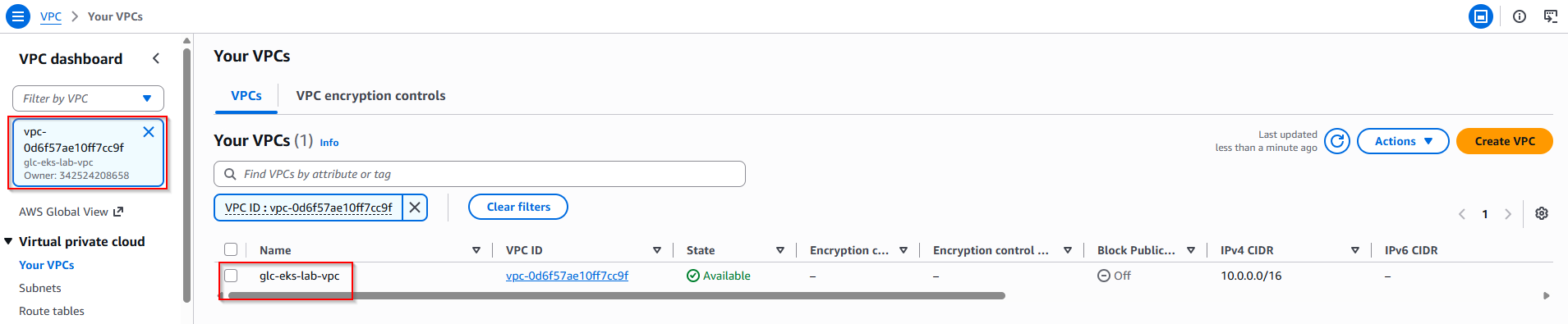
The VPC list should show Available with CIDR 10.0.0.0/16. Select that VPC and open the Resource map tab. You should see public and private subnets, route tables, and a NAT gateway under network connections:
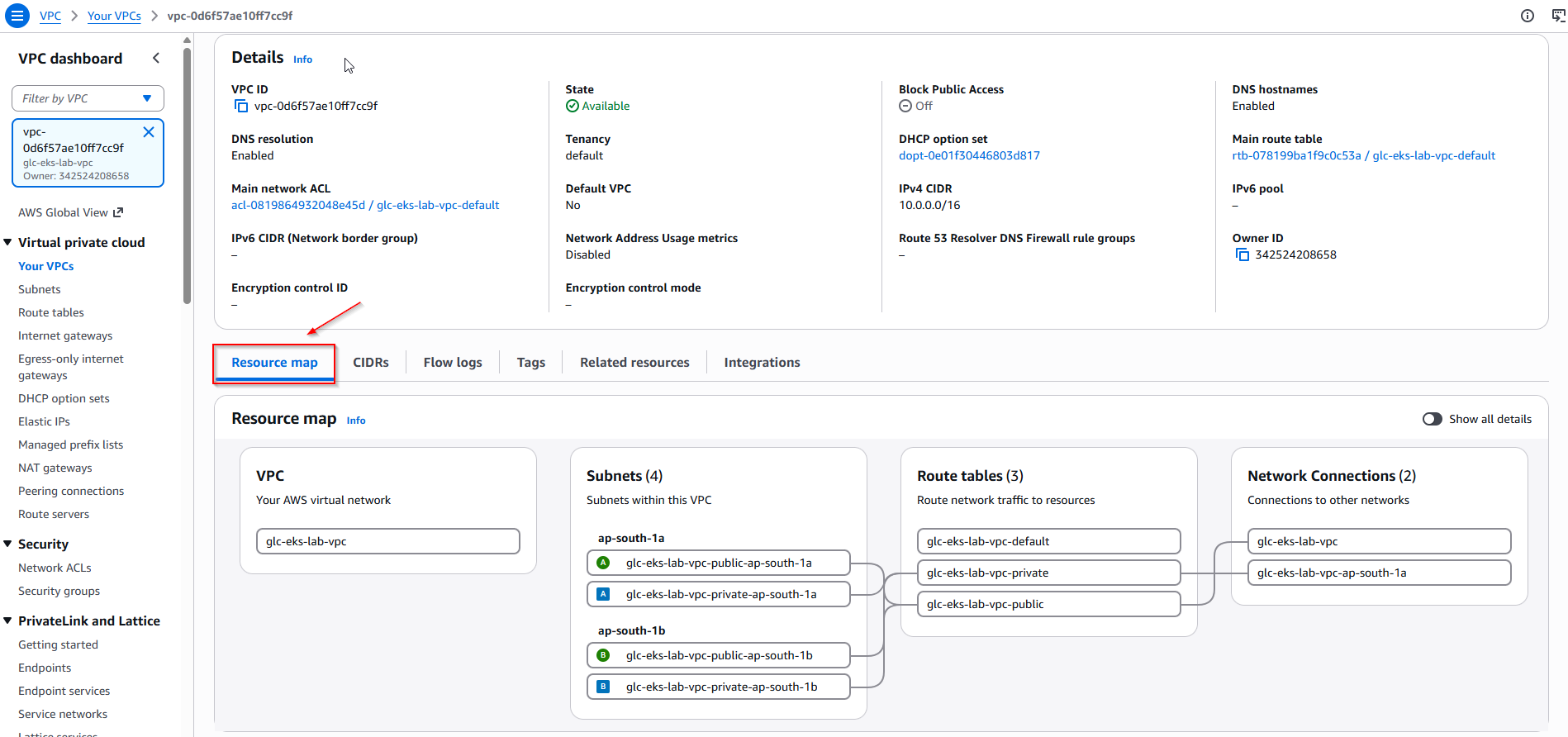
Destroy the EKS cluster
Skip until you have verified the cluster and captured any console screenshots.
terraform destroy removes every resource Terraform created. On the tested module versions, full destroy took about 13 minutes end to end.
Steps:
- Export fresh credentials
- Run
terraform destroyfrom the same directory - Review the plan and type
yes - Wait for
Destroy complete!before you assume billing stopped
eval "$(aws configure export-credentials --format env)"
terraform destroy
Terraform shows a destroy-only plan first — look for Plan: 0 to add, 0 to change, 54 to destroy. Review that summary, then type yes when prompted.
For automation, terraform destroy -auto-approve skips the confirmation prompt.
What to expect during destroy
| Phase | What Terraform prints | Typical time |
|---|---|---|
| Node group | aws_eks_node_group... Still destroying |
8–9 minutes |
| EKS cluster | aws_eks_cluster... Still destroying |
2–3 minutes |
| NAT gateway | aws_nat_gateway... Still destroying |
1–2 minutes |
| VPC and IAM cleanup | Security groups, subnets, roles | 1–2 minutes |
Do not kill terraform destroy during node group or NAT deletion — that is normal AWS behavior.
When every resource is gone, you should see:
Destroy complete! Resources: 54 destroyed.After destroy:
aws eks list-clustersinap-south-1should return no clustersglc-eks-lab-vpcshould no longer appear under VPC → Your VPCs- Terraform state for this directory should be empty
If destroy is interrupted (for example during NAT gateway deletion):
- Refresh credentials
- Run
terraform destroyagain — Terraform resumes where it left off
Troubleshooting
| Symptom | Likely cause | Fix |
|---|---|---|
No valid credential sources found |
aws login session not exported for Terraform |
eval "$(aws configure export-credentials --format env)" then retry |
Still creating... on aws_eks_cluster for 5–9 minutes |
Normal EKS control plane provisioning | Keep waiting; poll aws eks describe-cluster for status CREATING |
Node stays NotReady, cni plugin not initialized |
EKS addons missing from eks.tf |
Add the addons block (vpc-cni, kube-proxy, coredns) and re-apply |
ResourceAlreadyExistsException on /aws/eks/<cluster>/cluster |
CloudWatch log group left from a prior cluster | terraform import 'module.eks.aws_cloudwatch_log_group.this[0]' /aws/eks/glc-eks-lab/cluster then terraform apply, or delete the log group in CloudWatch |
Node group CREATE_FAILED |
Insufficient EC2 capacity or instance type unavailable | Change instance_types to t3.medium or another type available in your AZ |
kubectl cannot reach API |
Wrong context or expired AWS creds | Re-run aws eks update-kubeconfig; confirm aws sts get-caller-identity works |
kubectl returns Unauthorized after apply |
Missing EKS access entry for your IAM principal | Add enable_cluster_creator_admin_permissions or access_entries — see Fix kubectl Unauthorized after Terraform EKS apply |
| Destroy stuck on NAT gateway | Normal AWS behavior | Wait up to 15 minutes; do not kill the process |
Summary
You built and tore down a working EKS cluster with Terraform:
- Signed in to AWS and exported credentials for Terraform
- Wrote four
.tffiles using terraform-aws-modules VPC and EKS on Kubernetes 1.36 - Ran
terraform init,validate,plan, andapply(54 resources created) - Configured
kubectland confirmed nodes and system pods are healthy - Ran
terraform destroyand removed all 54 resources (~13 minutes)
The lab uses EKS managed node groups on Amazon Linux 2023. You still pay for the control plane, NAT gateway, EC2 workers, and EBS while the stack is running.
This guide was tested end to end: apply, kubectl verification, console screenshots, and destroy.
Next steps:
- Self-managed alternative: setup Kubernetes on AWS EC2
- Workload lessons: Kubernetes tutorial
References
- terraform-aws-modules/eks/aws
- terraform-aws-modules/vpc/aws
- Amazon EKS User Guide
- Terraform AWS Provider
Frequently Asked Questions
How is this different from the kubeadm-on-EC2 guide?
- EKS — AWS runs the control plane; you manage workers (or Fargate)
- kubeadm on EC2 — you manage the API server, etcd, and workers yourself
- EKS is less operational work; kubeadm gives more control over every Linux setting
Do I need the huge IAM policy from older EKS Terraform tutorials?
No for a personal lab.
- Use a non-root AWS identity with permissions to create VPC, EC2, EKS, IAM, and related resources
- Or authenticate with
aws loginusing an identity that already has those permissions - Scope policies tightly in production instead of copying blanket
Resource: "*"JSON
Why export credentials before Terraform when aws login already works?
- This lab exports
aws logintemporary credentials into the shell - Terraform then receives
AWS_ACCESS_KEY_ID,AWS_SECRET_ACCESS_KEY, andAWS_SESSION_TOKENthrough environment variables - That is a reliable path for tutorial runs
- The AWS provider also supports profiles and other credential sources outside this lab
How much does this lab cost?
Charges include:
- EKS control plane (hourly)
- EC2 worker (
t3.small) - EBS volumes attached to the worker
- NAT gateway hourly charge
- NAT data-processing charges
A single t3.small and one NAT gateway in ap-south-1 is a small lab, but not free tier. In a tiny lab the NAT gateway hourly charge can be surprisingly visible. Clusters on extended-support Kubernetes versions cost more on the control plane — another reason this guide uses 1.36. Destroy the stack when you finish.
