
git reflog is the Git command you use when commit history looks broken after a reset, amend, rebase, branch deletion, or checkout. It records where references such as HEAD, local branches, remote-tracking branches, and stash pointed recently inside your local repository.
If you ran a destructive command and need the shortest recovery path, start here:
git reflog
git reset --hard HEAD@{1}
Use HEAD@{1} only when the reflog entry at that position is the commit you want. In real repositories, always inspect the reflog output first and choose the correct entry.
This article uses tested output from a local Git lab. The examples were run with Git 2.48.1 on June 9, 2026.
What is Git Reflog?
Git reflog means reference log. A reference is a pointer such as HEAD, main, feature/login, origin/main, or stash. Whenever Git moves one of these references, Git can record the old and new position in a reflog.
Reflog availability depends on the repository and ref configuration; normal non-bare repositories typically enable reflogs automatically. Bare repositories disable core.logAllRefUpdates by default, so they do not record the same ref movement history.
That makes reflog different from normal commit history:
| Command | What it shows | Best use |
|---|---|---|
git log |
Commits reachable from the current branch | Review normal project history |
git reflog |
Recent movements of HEAD and other refs |
Recover commits hidden by reset, amend, rebase, checkout, or branch deletion |
git reflog --all |
Reflog entries from all refs that still have reflogs | Search across branches, remote-tracking refs, and stash |
git reflog show <ref> |
Reflog for one ref | Inspect a specific branch, remote-tracking branch, or stash |
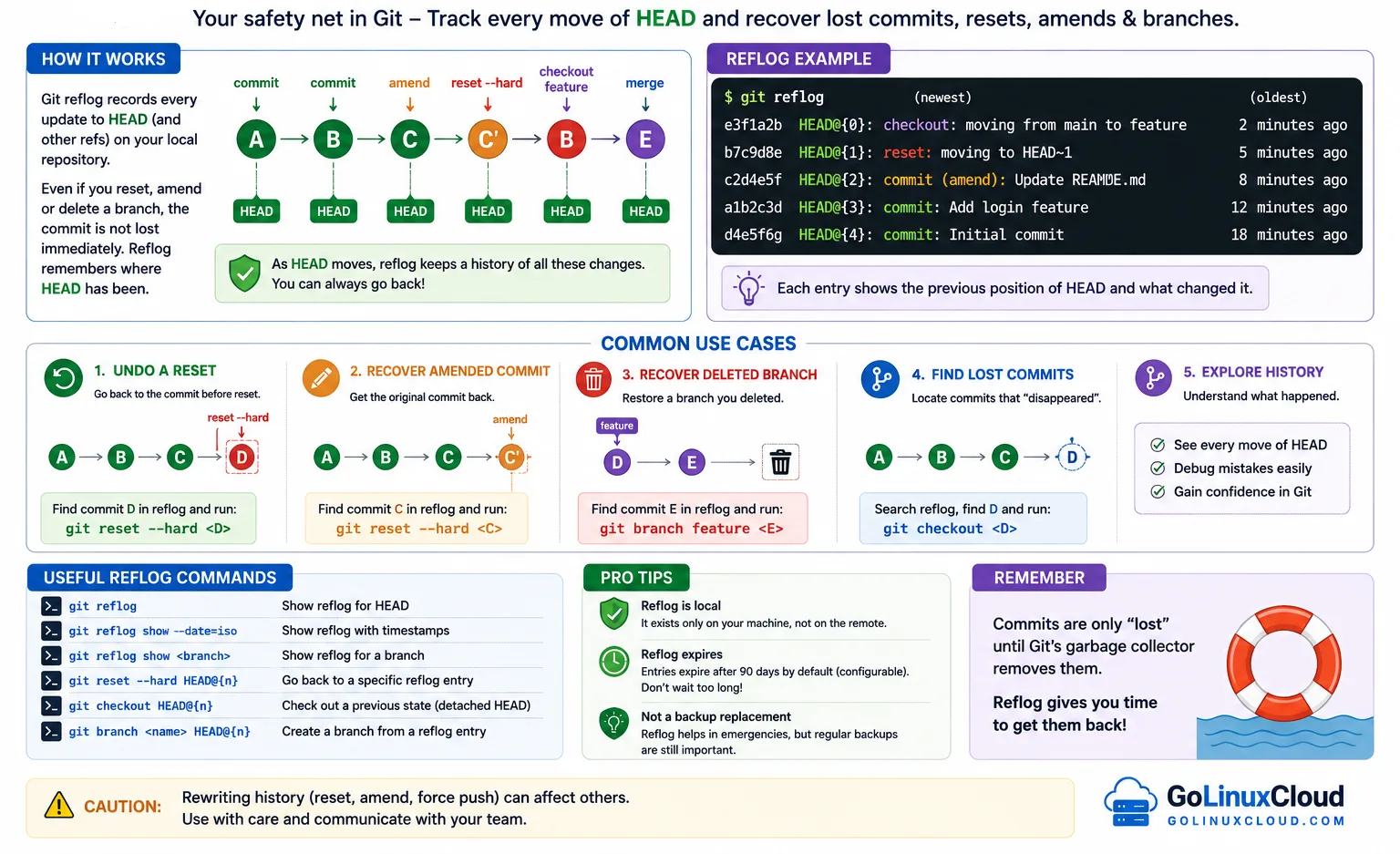
The official Git documentation describes reflogs as local records of when branch tips and other references were updated. It also notes that expressions like HEAD@{2} and main@{one.week.ago} can be used to refer to older ref positions.
Git Reflog Recovery Cheat Sheet
| Problem | Command pattern |
|---|---|
| See recent HEAD movements | git reflog |
| See reflog with timestamps | git reflog --date=iso |
| Recover after reset | git reset --hard HEAD@{1} |
| Recover by exact hash | git reset --hard <commit-hash> |
| Recover deleted branch | git branch <branch-name> <commit-hash> |
| Recover after rebase | git branch before-rebase <pre-rebase-hash> |
| Search all reflogs | git reflog --all |
| Show one branch reflog | git reflog show main |
| Show stash reflog | git reflog show stash |
| List refs with reflogs | git reflog list |
| Test whether a ref has a reflog | git reflog exists refs/heads/main |
| Preview reflog pruning | git reflog expire --dry-run --verbose --expire=now --all |
Tested Lab Setup
The following test repository was created in /tmp so the commands could be verified safely without touching a real project.
git --version
mkdir reflog-demo
cd reflog-demo
git init -b main
git config user.name "GoLinuxCloud"
git config user.email "author@golinuxcloud.test"
Tested output:
git version 2.48.1
Initialized empty Git repository in /tmp/git-reflog-lab.h8jLo3/reflog-demo/.git/
Next, three commits were created:
printf 'one\n' > app.txt
git add app.txt
git commit -m "initial commit"
printf 'two\n' >> app.txt
git add app.txt
git commit -m "add second line"
printf 'three\n' >> app.txt
git add app.txt
git commit -m "add third line"
Tested output:
[main (root-commit) 1652683] initial commit
 1 file changed, 1 insertion(+)
 create mode 100644 app.txt
[main 42c9538] add second line
 1 file changed, 1 insertion(+)
[main a535509] add third line
 1 file changed, 1 insertion(+)
The commit history before any recovery test looked like this:
git log --oneline --decorateTested output:
a535509 (HEAD -> main) add third line
42c9538 add second line
1652683 initial commit
Git Reflog Example After Reset
A common search query is git reflog reset or git reset reflog. Both usually mean: "I ran reset and want my commit back."
In the test repo, the latest commit was removed from visible branch history using a hard reset:
git reset --hard HEAD~1Tested output:
HEAD is now at 42c9538 add second lineAt this point, git log would no longer show commit a535509. Reflog still records where HEAD was before the reset:
git reflog --date=isoTested output:
42c9538 HEAD@{2026-06-09 08:45:26 +0530}: reset: moving to HEAD~1
a535509 HEAD@{2026-06-09 08:45:26 +0530}: commit: add third line
42c9538 HEAD@{2026-06-09 08:45:26 +0530}: commit: add second line
1652683 HEAD@{2026-06-09 08:45:26 +0530}: commit (initial): initial commit
The lost commit is the entry before the reset: a535509.
You can restore it by resetting back to the reflog entry:
git reset --hard HEAD@{1}
git log --oneline --decorate -3
Tested output:
HEAD is now at a535509 add third line
a535509 (HEAD -> main) add third line
42c9538 add second line
1652683 initial commit
You can also use the commit hash directly:
git reset --hard a535509Tested output:
HEAD is now at a535509 add third lineIn a shared repository, be careful before using git reset --hard on commits that were already pushed. For pushed history, compare this with git revert and git push force behavior before rewriting remote history.
Recover an Amended Commit with Git Reflog
git commit --amend replaces the latest commit with a new commit hash. The old commit disappears from normal git log, but reflog records the movement.
The test amended the latest commit message:
git commit --amend -m "add third line with better message"Tested output:
[main a7da451] add third line with better message
 Date: Tue Jun 9 08:45:26 2026 +0530
 1 file changed, 1 insertion(+)
Now inspect the latest reflog entries:
git reflog --date=iso -4Tested output:
a7da451 HEAD@{2026-06-09 08:45:26 +0530}: commit (amend): add third line with better message
a535509 HEAD@{2026-06-09 08:45:26 +0530}: reset: moving to HEAD@{1}
42c9538 HEAD@{2026-06-09 08:45:26 +0530}: reset: moving to HEAD~1
a535509 HEAD@{2026-06-09 08:45:26 +0530}: commit: add third line
The amended commit is a7da451, and the earlier commit was a535509. To recover the pre-amend commit without changing the current branch, create a branch at the old hash:
git branch before-amend a535509
echo "before_amend_exit=$?"
git branch --list before-amend
Tested output:
before_amend_exit=0
  before-amend
If your goal is only to fix the last commit message, see git commit amend examples and change Git commit message.
Recover a Deleted Branch with Git Reflog
Reflog can also help when a local branch was deleted before you pushed or merged its work.
In the test repo, a branch was created, committed, checked out back to main, and then deleted:
git switch -c feature/login
printf 'feature\n' > feature.txt
git add feature.txt
git commit -m "add login feature"
git switch main
git branch -D feature/login
Tested output:
Switched to a new branch 'feature/login'
[feature/login 3e4697d] add login feature
 1 file changed, 1 insertion(+)
 create mode 100644 feature.txt
Switched to branch 'main'
Deleted branch feature/login (was 3e4697d).
If you still have the deletion message, the branch tip is already visible: 3e4697d. If not, search all reflogs:
git reflog --all --date=iso | head -n 8Tested output:
a7da451 refs/heads/main@{2026-06-09 08:45:26 +0530}: commit (amend): add third line with better message
a535509 refs/heads/main@{2026-06-09 08:45:26 +0530}: reset: moving to HEAD@{1}
42c9538 refs/heads/main@{2026-06-09 08:45:26 +0530}: reset: moving to HEAD~1
a535509 refs/heads/main@{2026-06-09 08:45:26 +0530}: commit: add third line
42c9538 refs/heads/main@{2026-06-09 08:45:26 +0530}: commit: add second line
1652683 refs/heads/main@{2026-06-09 08:45:26 +0530}: commit (initial): initial commit
a7da451 HEAD@{2026-06-09 08:45:26 +0530}: checkout: moving from feature/login to main
3e4697d HEAD@{2026-06-09 08:45:26 +0530}: commit: add login feature
Create a new branch at the lost commit:
git branch recovered-login 3e4697d
git branch --list
Tested output:
* main
  recovered-login
Verify the recovered branch points to the commit that added the file:
git show --stat --oneline recovered-login --Tested output:
3e4697d add login feature
 feature.txt | 1 +
 1 file changed, 1 insertion(+)
If you need to switch to that branch after recovery, use git checkout or git switch.
Recover Commits After Git Rebase
Rebase rewrites commits onto a new base. The old commits disappear from normal git log, but reflog records each step of the rebase operation.
In a test repo with a commit named update configuration, an interactive rebase produced this reflog:
git reflogTested output:
8b9f410 HEAD@{0}: rebase (finish): returning to refs/heads/main
8b9f410 HEAD@{1}: rebase (pick): update configuration
91cd832 HEAD@{2}: rebase (start): checkout main
5c227ab HEAD@{3}: commit: update configuration
42c9538 HEAD@{4}: commit: add second line
1652683 HEAD@{5}: commit (initial): initial commit
Read the entries from newest to oldest. HEAD@{0} is where main landed after the rebase finished. HEAD@{3} is the pre-rebase commit — the version of update configuration before Git rewrote it.
Preserve that commit before doing anything else:
git branch before-rebase HEAD@{3}git branch exits silently when the branch is created. Verify it points at the pre-rebase commit:
git log --oneline before-rebase -1Tested output:
5c227ab update configurationYour hashes will differ from the sample. Use the commit: line immediately before the rebase (start): entry, or the HEAD@{n} position at that point in your own git reflog output. Git documents HEAD@{n} as a way to refer to older ref positions in the reflog.
Once before-rebase exists, you can compare it with the rebased tip, cherry-pick individual commits, or reset — without guessing which rewritten commit you need.
Show Reflog for a Specific Branch
By default, git reflog shows the HEAD reflog. To inspect a specific branch, use git reflog show <branch>.
git reflog show main --date=iso | head -n 5Tested output:
a7da451 main@{2026-06-09 08:45:26 +0530}: commit (amend): add third line with better message
a535509 main@{2026-06-09 08:45:26 +0530}: reset: moving to HEAD@{1}
42c9538 main@{2026-06-09 08:45:26 +0530}: reset: moving to HEAD~1
a535509 main@{2026-06-09 08:45:26 +0530}: commit: add third line
42c9538 main@{2026-06-09 08:45:26 +0530}: commit: add second line
This is useful when multiple branches are involved and HEAD moved through several checkouts.
For remote-tracking branches, the same pattern works if your local clone has a reflog for that ref, such as origin/main. This is helpful after a force push because your local clone may remember where the remote-tracking ref pointed before it moved.
Use git reflog list to see which refs currently have reflogs, and git reflog exists refs/heads/main (full ref name required) to test whether a specific ref has one.
Use HEAD@{n} and HEAD@{time}
Reflog entries can be referenced by position:
| Syntax | Meaning |
|---|---|
HEAD@{0} |
Current recorded HEAD position |
HEAD@{1} |
Previous recorded HEAD position |
main@{1} |
Previous recorded position of main |
HEAD@{1.minute.ago} |
Where HEAD pointed around one minute ago, if the reflog goes back that far |
main@{yesterday} |
Where main pointed yesterday, if available |
The test confirmed HEAD@{0} resolves to the current commit:
git rev-parse --short HEAD
git rev-parse --short 'HEAD@{0}'
Tested output:
a7da451
a7da451
You can also compare two reflog positions:
git diff --stat main@{1} main@{0}No output appeared because these two reflog positions point to commits with identical file content; only commit metadata changed during the amend. An empty diff is normal here — it does not mean the command failed.
Git Reflog for Stash
Stash has its own ref, so you can inspect stash reflog entries too.
printf 'temporary\n' >> app.txt
git stash push -m "temporary app change"
git reflog show stash --date=iso
Tested output:
Saved working directory and index state On main: temporary app change
a0ba40e stash@{2026-06-09 08:45:26 +0530}: On main: temporary app change
Here, stash@{0} identifies the newest stash entry in the stash reflog — the same entry git stash list shows. You can inspect or apply it using either interface:
git stash show stash@{0}Tested output:
 app.txt | 1 +
 1 file changed, 1 insertion(+)
To restore the stashed changes into your working tree:
git stash apply stash@{0}Tested output:
On branch main
Changes not staged for commit:
  (use "git add <file>..." to update what will be committed)
  (use "git restore <file>..." to discard changes in working directory)
	modified:   app.txt

no changes added to commit (use "git add" and/or "git commit -a")
The normal stash list shows the same entry:
git stash listTested output:
stash@{0}: On main: temporary app changeFor more stash workflows, see Git stash examples.
Git Reflog Expiration and Limitations
Reflog is powerful, but it is not permanent backup.
Important limits:
- Reflog is local to your clone; it is not pushed to GitHub or GitLab.
- Reflog usually cannot recover changes that were never committed or stashed.
- Reflog entries can expire and then be dropped by git prune during garbage collection.
- If a commit is no longer reachable and its reflog entry expires, Git may eventually remove the object.
- Another clone may contain the commit you need if that clone previously fetched or referenced it, but its reflog records only reference movements that occurred in that clone. Reflogs are strictly local repository history.
Common default expiration behavior is:
| Setting | Common default | Meaning |
|---|---|---|
gc.reflogExpire |
90 days | Keeps reachable reflog entries |
gc.reflogExpireUnreachable |
30 days | Keeps reflog entries not reachable from the current tip |
You can preview reflog expiration without deleting anything:
git reflog expire --dry-run --verbose --expire=now --all | head -n 10Tested output:
would prune commit (initial): initial commit
would prune commit: add second line
would prune commit: add third line
would prune reset: moving to HEAD~1
would prune reset: moving to HEAD@{1}
would prune commit (amend): add third line with better message
would prune checkout: moving from main to feature/login
would prune commit: add login feature
would prune checkout: moving from feature/login to main
would prune reset: moving to HEAD
Do not run expiration or garbage collection commands casually on a repository where you still need recovery options. Keep backups for important projects.
Git Reflog vs Git Log
Use git show and log commands when the commit is still part of normal branch history. Use reflog when the commit disappeared from normal history because a reference moved.
| Scenario | Use git log | Use git reflog |
|---|---|---|
| Review normal commits on current branch | Yes | Sometimes |
| Find commit hidden by hard reset | No | Yes |
| Find pre-amend commit | No | Yes |
| Find pre-rebase commit | No | Yes |
| Find branch tip after branch deletion | Usually no | Yes, if recently referenced |
| Inspect branch switching history | No | Yes |
| Recover never-committed file edits | No | Usually no |
git reflog show is closely related to this command:
git log -g --abbrev-commit --pretty=oneline -3Tested output:
a7da451 HEAD@{0}: reset: moving to HEAD
a7da451 HEAD@{1}: checkout: moving from feature/login to main
3e4697d HEAD@{2}: commit: add login feature
Git Reflog Recovery Checklist
Use this checklist before changing history again:
- Run
git reflog --date=isoand identify the exact entry you need. - Prefer creating a recovery branch at the commit hash before resetting anything.
- Use
git reflog --allif the normal HEAD reflog does not show the missing commit. - Check branch-specific reflog output when multiple branches were involved.
- Act quickly because reflog entries can expire.
Common Mistakes
Using HEAD@{1} without checking it
HEAD@{1} often means the previous HEAD position, but not always the one you want. If you checked out branches, amended commits, stashed changes, or reset multiple times, inspect git reflog first.
Expecting reflog to recover uncommitted work
Reflog tracks ref movement. If a file was never committed, stashed, or saved elsewhere, reflog usually cannot restore it.
Searching only HEAD reflog for a branch issue
If git reflog does not show the commit, try git reflog --all or a branch-specific reflog such as git reflog show main.
Waiting too long
Reflog entries expire. If you need to recover a commit, create a branch at that commit as soon as you find it.
Confusing git reflogging with git reflog
There is no standard Git command named git reflogging. The command is git reflog; "reflogging" is just a casual way people describe using reflog.
Frequently Asked Questions
What is git reflog?
Git reflog is a local reference log that records updates to HEAD, branches, stash, and other refs. It helps you find previous commit positions after reset, amend, rebase, checkout, or branch deletion.
How do I use git reflog to recover after git reset --hard?
Run git reflog, find the commit before the reset, then restore it with git reset --hard HEAD@{1} or git reset --hard
What is the difference between git log and git reflog?
Git log shows commits reachable from the current branch history. Git reflog shows where references such as HEAD and branches pointed recently, including commits hidden by reset, amend, rebase, or branch switching.
Can git reflog recover a deleted branch?
Yes, if the deleted branch tip still appears in HEAD reflog or another reflog. Find the commit with git reflog --all, then recreate the branch with git branch
How do I recover commits after git rebase using reflog?
Run git reflog, find the commit entry immediately before the rebase (start) line, then preserve it with git branch before-rebase HEAD@{n} or git branch before-rebase
Is git reflog pushed to GitHub or GitLab?
No. Reflog is local to each repository clone. Remote hosting providers do not expose your local reflog, so recovery depends on reflog entries available in your local clone or another developer's clone.
How long does git reflog keep entries?
Git commonly keeps reachable reflog entries for 90 days and unreachable entries for 30 days before expiration, depending on gc.reflogExpire and gc.reflogExpireUnreachable configuration.
Can git reflog recover uncommitted changes?
Usually no. Reflog records reference movement, not arbitrary uncommitted working tree content. It can recover commits, branch tips, amended commits, rebased commits, and some stash references, but not unsaved or never-committed file changes.
Is git reflogging a command?
No. People sometimes search for git reflogging when they mean using git reflog. The Git command is git reflog.
Summary
Git reflog is a local safety record for reference movement. It helps recover commits after git reset --hard, restore pre-amend commits, recover pre-rebase commits, locate deleted branch tips, inspect branch-specific history, and review stash movement.
The safest habit is to create a recovery branch before changing your current branch again. In the test lab, this preserved the recovered branch tip:
git branch recovery 3e4697d
echo "recovery_exit=$?"
git branch --list recovery recovered-login
Tested output:
recovery_exit=0
  recovered-login
  recovery
Creating a recovery branch is often safer than immediately resetting your current branch. After you verify the recovered commit, you can merge, cherry-pick, or reset depending on your workflow.
