
Introduction to Git Command Cheat Sheet
Git is one of the most widely used distributed version control systems used by developers to track changes, collaborate on projects, and maintain code history. Whether you are working on a personal project or contributing to a large team repository, understanding the most important Git commands can significantly improve your development workflow.
This Git command cheat sheet provides a quick reference to the most commonly used Git commands along with their syntax and examples. The goal is to help beginners quickly learn Git basics while also giving experienced developers a handy reference for daily development tasks.
In this guide, you will learn how to initialize repositories, stage and commit changes, manage branches, synchronize with remote repositories, and undo changes using commonly used Git commands. For a structured approach, see Git workflow guide.
Quick Git Command Cheat Sheet
This quick Git command cheat sheet summarizes the most frequently used Git commands for everyday development tasks. Use this table as a fast reference when working with repositories, branches, commits, and remote repositories.
| Task | Command |
|---|---|
| Initialize a new repository | git init |
| Clone a repository | git clone <repository-url> |
| Check repository status | git status |
| Stage changes | git add <file> |
| Stage all files | git add . |
| Commit changes | git commit -m "commit message" |
| View commit history | git log |
| Create a new branch | git branch <branch-name> |
| Switch branch | git checkout <branch-name> |
| Create and switch branch | git checkout -b <branch-name> |
| Download changes from remote | git fetch |
| Pull latest changes | git pull |
| Push commits to remote | git push |
| Delete a branch | git branch -d <branch-name> |
These commands cover the most common Git operations performed during daily development workflows.
Most common Git commands quick reference table
The following table provides a quick overview of essential Git commands along with their purpose.
| Command | Purpose |
|---|---|
git init |
Initialize a new Git repository |
git clone |
Create a local copy of a remote repository |
git status |
Show the current status of files |
git add |
Stage files for commit |
git commit |
Save staged changes to repository history |
git branch |
List or create branches |
git checkout |
Switch branches |
git merge |
Merge changes from another branch |
git fetch |
Download changes from remote repository |
git pull |
Fetch and merge remote changes |
git push |
Upload commits to remote repository |
This table acts as a quick reminder of the commands most frequently used when working with Git.
Git workflow overview (working directory, staging area, repository)
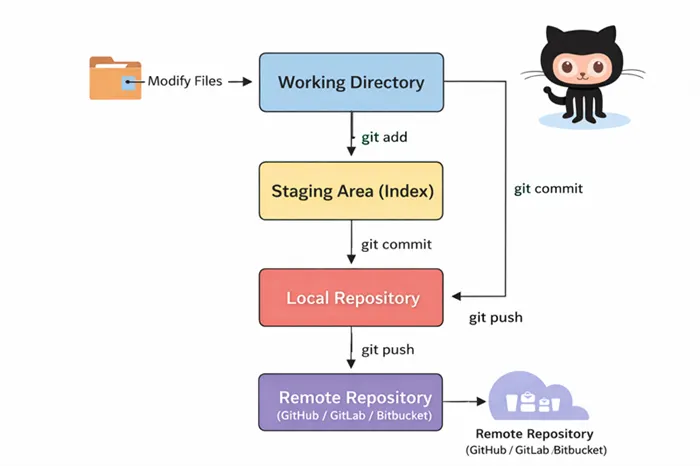
The Git workflow revolves around three main areas: Working Directory, Staging Area, and the Local Repository. The diagram above shows how changes move through these stages before they are eventually shared with a remote repository such as GitHub, GitLab, or Bitbucket.
Understanding this workflow is essential because almost every Git command interacts with one of these stages.
Working Directory
The working directory is the location where you actively modify files in your project. When you create, edit, or delete files inside your project folder, those changes occur in the working directory.
At this stage Git can detect file changes but they are not yet part of the repository history. You can check the current state of files using:
git statusThis command shows:
- Modified files
- New untracked files
- Files staged for commit
Changes in the working directory must first be added to the staging area before they can be committed.
Staging Area (Index)
The staging area, also called the index, is an intermediate step between the working directory and the repository. It allows you to review and select which changes should be included in the next commit.
You move changes from the working directory to the staging area using the git add command.
git add filenameTo stage all files in the current directory:
git add .The staging area helps developers create clean and meaningful commits by allowing them to group related changes together.
Local Repository
The local repository stores the complete commit history of your project on your machine. Once changes are staged, they can be permanently saved using the git commit command.
git commit -m "Add login feature"Each commit represents a snapshot of the project at a specific point in time. Git assigns a unique commit hash to every commit, allowing developers to track and revert changes when necessary.
Remote Repository
After committing changes locally, developers often synchronize their repository with a remote server such as GitHub, GitLab, or Bitbucket. This allows teams to collaborate and share code.
Changes are uploaded to the remote repository using:
git pushTo download the latest changes from the remote repository:
git pullTypical Git Workflow
A typical Git workflow follows this sequence:
Modify files → git add → git commit → git push- Modify files in the working directory
- Stage changes using git add
- Save changes to the repository using git commit
- Upload commits to the remote repository using git push
This workflow ensures that code changes are tracked, versioned, and safely shared with other developers.
Git Repository Setup Commands
These commands help you initialize a new repository, configure Git settings, and clone existing repositories from remote servers.
| Command | Example | Description |
|---|---|---|
git config |
git config --global user.name "John" |
Configure Git username or settings |
git init
Creates a new Git repository in the current directory.
git initgit clone
Creates a local copy of an existing remote repository.
git clone https://github.com/user/repository.gitgit config
Configures global Git settings used for commits.
git config --global user.name "Your Name"
git config --global user.email "you@example.com"
Git Staging Commands
Staging commands allow you to select which changes should be included in the next commit.
| Command | Description |
|---|---|
git add file.txt |
Stage a specific file |
git restore --staged file.txt |
Remove file from staging area |
git rm --cached file.txt |
Unstage file but keep it locally |
git add
Adds the file to the staging area so it can be included in the next commit.
git add file.txtgit restore --staged
Removes a file from the staging area without deleting the file.
git restore --staged file.txtgit rm --cached
Removes a tracked file from Git but keeps the file in the working directory.
git rm --cached file.txtGit Commit Commands
Commit commands record changes permanently in the Git repository.
| Command | Description |
|---|---|
git commit -m "message" |
Save staged changes |
git commit -am "message" |
Stage and commit modified files |
git commit --amend |
Modify the previous commit |
git commit
Creates a new commit containing the staged changes.
git commit -m "Initial commit"git commit -am
Stages and commits modified files in a single command.
git commit -am "Update README"git commit --amend
Updates the last commit message or includes additional changes.
git commit --amend -m "Correct commit message"Git Status and History Commands
These commands help inspect the current state of the repository and view commit history.
| Command | Description |
|---|---|
git status |
Show repository state |
git log |
Show commit history |
git log --oneline |
Compact commit history |
git reflog |
Show reference history |
git status
Displays modified, staged, and untracked files.
git statusgit log
Shows detailed commit history including author and timestamps.
git loggit log --oneline
Displays a condensed commit history.
git log --onelinegit reflog
Shows the history of HEAD changes and helps recover lost commits.
git reflogGit Branch Commands Cheat Sheet
Branch commands allow developers to create, manage, and merge branches during development.
| Command | Description |
|---|---|
git branch |
List branches |
git branch -d feature |
Delete branch |
git checkout feature |
Switch branch |
git switch feature |
Modern branch switching |
git merge feature |
Merge branch changes |
git branch
Lists all local branches.
git branchgit branch -d
Deletes a branch after it has been merged.
git branch -d feature-logingit checkout
Switches to the specified branch.
git checkout feature-logingit switch
Modern alternative to checkout for switching branches.
git switch feature-logingit merge
Combines changes from another branch into the current branch.
git merge feature-loginGit Remote Repository Commands
Remote repository commands allow you to connect your local Git repository to remote servers such as GitHub, GitLab, or Bitbucket. These commands help synchronize code between local and remote repositories.
| Command | Description |
|---|---|
git remote -v |
View configured remote repositories |
git remote add origin URL |
Add a new remote repository |
git remote set-url origin URL |
Change the remote repository URL |
git fetch origin |
Download changes from remote repository |
git pull origin main |
Fetch and merge remote changes |
git push origin main |
Upload commits to remote repository |
git remote
Displays the list of configured remote repositories and their URLs.
git remote -vgit remote add
Adds a new remote repository named origin.
git remote add origin https://github.com/user/repo.gitgit remote set-url
Updates the remote repository URL.
git remote set-url origin https://github.com/user/newrepo.gitgit fetch
Downloads the latest commits and branches from the remote repository without merging them.
git fetch origingit pull
Fetches the latest changes and automatically merges them into the current branch.
git pull origin maingit push
Uploads local commits to the remote repository.
git push origin mainGit Undo Commands
Git provides several commands to undo commits, unstage files, or revert changes safely such as git reset and git revert.
| Command | Description |
|---|---|
git reset HEAD file.txt |
Unstage a file |
git reset --soft HEAD~1 |
Undo commit but keep staged changes |
git reset --hard HEAD~1 |
Remove commit and discard changes |
git revert commit-hash |
Create a new commit that reverses changes |
git restore file.txt |
Restore file to last committed state |
git reset
Removes a file from the staging area.
git reset HEAD file.txtgit reset --soft
Moves HEAD back one commit but keeps changes staged.
git reset --soft HEAD~1git reset --hard
Completely removes the last commit and deletes all changes.
git reset --hard HEAD~1git revert
Creates a new commit that reverses the changes from a previous commit.
git revert commit-hashgit restore
Restores a file to the last committed version.
git restore file.txtGit Stash Commands
Git stash commands temporarily save uncommitted changes so you can work on another task without committing unfinished work using git stash.
| Command | Description |
|---|---|
git stash |
Temporarily save changes |
git stash list |
Show saved stashes |
git stash apply |
Apply a stash without removing it |
git stash pop |
Apply and remove stash |
git stash
Temporarily stores all uncommitted changes.
git stashgit stash list
Displays all saved stash entries.
git stash listgit stash apply
Applies the most recent stash but keeps it saved.
git stash applygit stash pop
Applies the latest stash and removes it from the stash list.
git stash popGit Tag Commands
Tags are used to mark specific points in a repository history, usually for version releases.
| Command | Description |
|---|---|
git tag |
List all tags |
git tag -a v1.0 -m "Release" |
Create annotated tag |
git push --tags |
Push tags to remote repository |
git tag
Lists all existing tags.
git taggit tag -a
Creates an annotated tag with a message.
git tag -a v1.0 -m "First release"git push --tags
Pushes all local tags to the remote repository.
git push --tagsGit Debugging and Inspection Commands
These commands help inspect repository history, identify issues, and debug changes using git reflog and git blame.
| Command | Description |
|---|---|
git reflog |
Show reference history |
git bisect start |
Find buggy commit |
git blame file.txt |
Show line-by-line author info |
git show commit-hash |
Display commit details |
git reflog
Shows the history of HEAD changes and helps recover lost commits.
git refloggit bisect
Helps locate the commit that introduced a bug using binary search.
git bisect startgit blame
Displays who last modified each line in a file.
git blame file.txtgit show
Shows detailed information about a specific commit.
git show commit-hashGit Bash Command Cheat Sheet
Git Bash provides a Unix-like command-line interface for Windows users to run Git commands and other shell utilities. It allows developers to interact with repositories, execute Git workflows, and automate development tasks directly from the terminal.
| Command | Description |
|---|---|
pwd |
Display current working directory |
ls |
List files and folders |
cd project |
Change directory |
mkdir project |
Create new directory |
rm file.txt |
Delete file |
clear |
Clear terminal screen |
git status |
Check repository state |
Most useful Git Bash commands
Git Bash supports both Git commands and standard shell commands, allowing developers to navigate directories and manage repositories efficiently.
pwd
ls
cd project-folder
git status
git branch
These commands help you navigate the project directory and check repository status.
Common Git Bash workflow examples
A typical workflow in Git Bash may look like this:
git clone https://github.com/user/project.git
cd project
git checkout -b feature-login
git add .
git commit -m "Add login feature"
git push origin feature-login
This workflow clones a repository, creates a new branch, commits changes, and pushes them to the remote repository.
Common Git Flags Cheat Sheet
Git commands support various flags that modify their behavior. Understanding these flags helps you perform operations more efficiently.
| Flag | Command Example | Description |
|---|---|---|
-m |
git commit -m "message" |
Add commit message |
-a |
git commit -a |
Automatically stage modified files |
-b |
git checkout -b branch |
Create and switch branch |
-d |
git branch -d branch |
Delete branch |
-f |
git push -f |
Force push commits |
--amend |
git commit --amend |
Modify last commit |
--oneline |
git log --oneline |
Show condensed commit history |
Git Workflow Quick Reference Table
The Git WorkFlow typically follows a sequence of commands that move changes from the working directory to the remote repository.
| Step | Command | Description |
|---|---|---|
| Clone repository | git clone URL |
Download repository |
| Check status | git status |
View modified files |
| Stage changes | git add file |
Add file to staging |
| Commit changes | git commit -m "msg" |
Save snapshot |
| Push changes | git push origin branch |
Upload commits |
Complete Git workflow commands in order
The most common Git workflow includes the following steps:
git clone repository-url
git status
git add .
git commit -m "Update project"
git push origin main
Clone → Stage → Commit → Push workflow
The typical workflow used by developers is:
Clone repository
        ↓
Modify files
        ↓
git add
        ↓
git commit
        ↓
git push
This sequence ensures that changes are tracked locally before being shared with other collaborators.
Git Command Examples for Daily Development
Developers use Git commands repeatedly in daily workflows such as creating branches, updating repositories, and resolving conflicts.
| Task | Command Example | Description |
|---|---|---|
| Create new branch | git checkout -b feature |
Start new feature development |
| Pull latest changes | git pull origin main |
Sync with remote repository |
| Push branch | git push origin feature |
Upload feature branch |
| Merge branch | git merge feature |
Combine branch changes |
Create new feature branch workflow
Developers often create feature branches to work on new functionality.
git checkout -b feature-login
git add .
git commit -m "Add login feature"
git push origin feature-login
This keeps development isolated from the main branch.
Pull latest changes from remote
Before starting new work, developers usually update their local repository.
git pull origin mainThis ensures your local branch contains the latest commits from the remote repository.
Resolve merge conflicts
Merge conflicts occur when two branches modify the same file. After resolving conflicts manually, you can commit the changes.
git add resolved-file
git commit -m "Resolve merge conflict"
Summary
This Git command cheat sheet covered the most commonly used Git commands required for daily development workflows. You learned how to initialize repositories, manage branches, stage and commit changes, interact with remote repositories, undo commits, and inspect repository history.
By understanding these commands and workflows, developers can efficiently track changes, collaborate with teams, and maintain version control across projects. Keeping this cheat sheet handy can help you quickly recall commands and streamline your development process.
Official Documentation
Frequently Asked Questions
What is a Git command cheat sheet?
A Git command cheat sheet is a quick reference guide listing the most commonly used Git commands along with syntax and examples. It helps developers quickly recall commands used for repository setup, branching, committing changes, and working with remote repositories.
What are the most commonly used Git commands?
Some of the most commonly used Git commands include git init, git clone, git status, git add, git commit, git branch, git checkout, git merge, git pull, and git push.
What is the typical Git workflow?
The typical Git workflow involves modifying files in the working directory, staging changes using git add, committing them using git commit, and pushing them to a remote repository using git push.
What is the difference between git fetch and git pull?
The git fetch command downloads changes from the remote repository without merging them, while git pull downloads and automatically merges the changes into the current branch.
