
git push force overwrites the history of a remote branch with your local branch. It is the tool you reach for after rewriting commits with rebase or amend, when a normal git push is rejected because the remote and local histories have diverged. Because force pushing can delete other people's commits, this guide focuses on doing it safely with --force-with-lease.
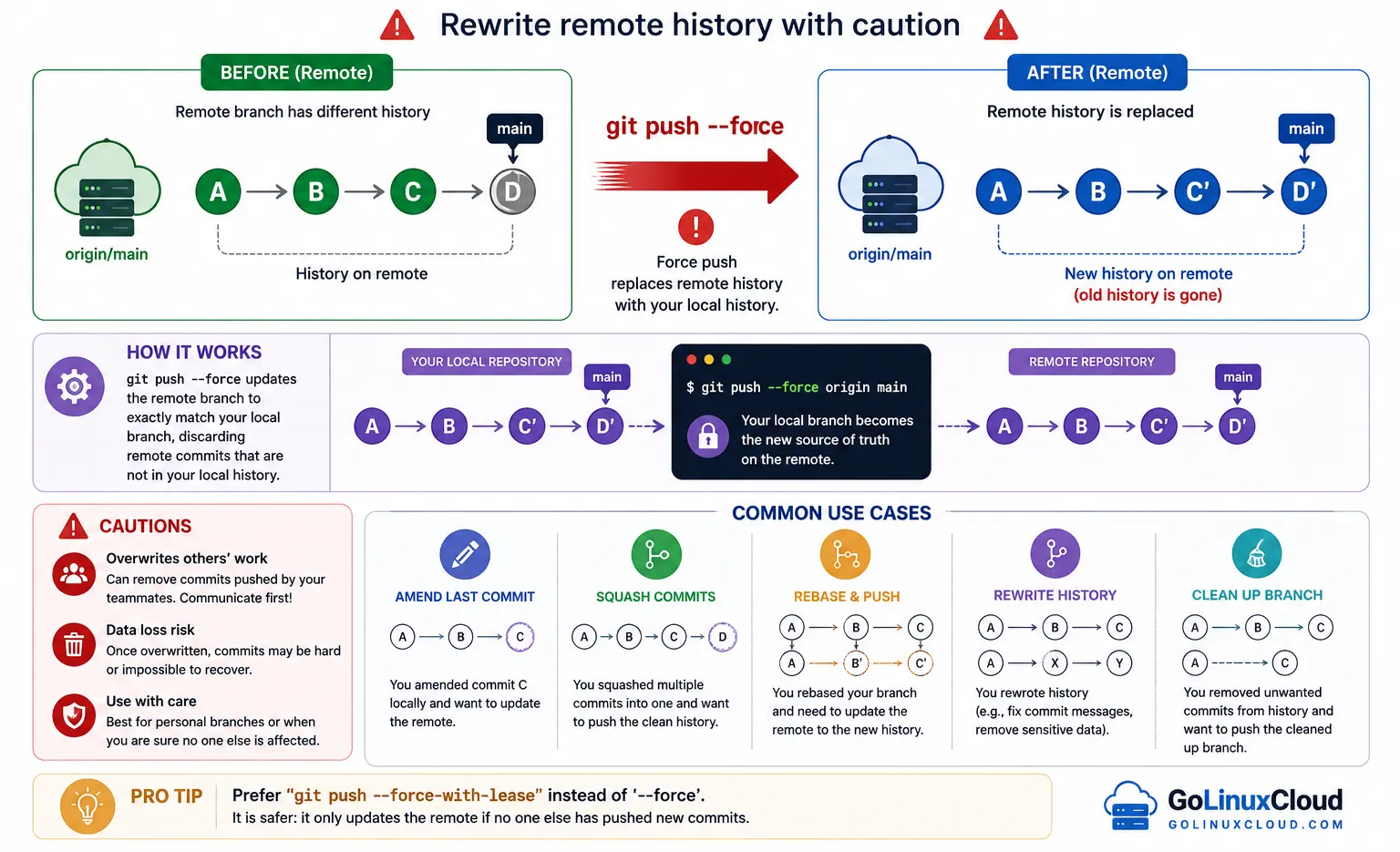
git push force - Quick Cheat Sheet
| Task | Command |
|---|---|
| Force push current branch (blind) | git push --force |
| Force push current branch (safe) | git push --force-with-lease |
| Force push a specific branch | git push --force origin branch-name |
| Safe force push a specific branch | git push --force-with-lease origin branch-name |
| Force push to origin master | git push origin master --force |
| Force push to origin main | git push origin main --force |
| Force push after rebase (recommended) | git push --force-with-lease |
| Force push after amending last commit | git push --force-with-lease |
| Force push only if remote ref matches a known SHA | git push --force-with-lease=branch:<sha> |
Short form of --force |
git push -f |
| Simulate a force push (no changes) | git push --force --dry-run |
git push --force Syntax
The basic syntax for a force push is:
git push --force <remote> <branch><remote>: the remote repository, usuallyorigin<branch>: the branch you want to overwrite (e.g.main,dev)
The short form is -f:
git push -f origin devA normal git push is a fast-forward update: it only succeeds when your local branch is a direct descendant of the remote branch. Adding --force removes that safety check and tells Git to make the remote branch point at your local commit no matter what, even if that discards commits on the remote.
When do you need to force push?
You only need git push force after you have rewritten history that was already pushed. Common triggers:
- You ran an interactive rebase to squash, reorder, or edit commits.
- You used
git commit --amendto change the last commit. - You ran
git resetto drop commits and want the remote to match.
In each case a plain push is rejected with a non-fast-forward error, because the remote still has the old commits:
 ! [rejected]        main -> main (non-fast-forward)
error: failed to push some refs to '...'
hint: Updates were rejected because the tip of your current branch is behind
That rejection is Git protecting you. Force pushing is how you intentionally override it.
git push --force vs git push --force-with-lease
This is the single most important decision when force pushing.
| Behavior | --force |
--force-with-lease |
|---|---|---|
| Overwrites remote history | Always | Only if remote is unchanged |
| Checks remote against your last fetch | No | Yes |
| Can silently delete a teammate's commits | Yes | No (push is rejected instead) |
| Safe on shared branches | No | Yes (with a recent fetch) |
git push --forceblindly overwrites the remote branch. If a teammate pushed after your last fetch, their commits are gone.git push --force-with-leaseonly overwrites the remote if it still matches the version you last fetched. If someone else pushed in the meantime, Git rejects the push so you can review their work first.
Rule of thumb: always prefer --force-with-lease. Only fall back to --force on a branch you are certain nobody else touches.
# Safer default
git push --force-with-lease

# Use only when you are sure no one else is on the branch
git push --force
How to force push to a remote branch
To overwrite a specific branch on the remote, name the remote and branch explicitly:
git push --force-with-lease origin feature-loginExample flow after rewriting commits on feature-login:
$ git push origin feature-login
 ! [rejected]        feature-login -> feature-login (non-fast-forward)
error: failed to push some refs to 'origin'

$ git push --force-with-lease origin feature-login
 + 5ced2eb...7f4b5c8 feature-login -> feature-login (forced update)
The + and (forced update) in the output confirm the remote branch was overwritten with your local history. This is the answer to git force push to a remote branch and git push origin force queries.
How to force push to origin master / main
To force push the default branch, check it out first and then force push it by name:
git checkout main
git push origin main --force-with-lease
Older repositories use master instead of main:
git push origin master --forceExample:
$ git push origin master
 ! [rejected]        master -> master (fetch first)
error: failed to push some refs to 'origin'

$ git push origin master --force-with-lease
 + 4e78c85...905b49b master -> master (forced update)
Force pushing to main/master is the riskiest case because everyone depends on it. Never do it on a shared default branch without telling your team, and always use --force-with-lease.
Force push after a rebase or amend
This is the most common real-world reason to force push.
After an interactive rebase rewrites your commits:
git rebase -i HEAD~3
# squash/reword commits, then:
git push --force-with-lease
After amending the most recent commit:
git commit --amend -m "fix typo in login handler"
git push --force-with-lease
In both cases your local commit hashes changed, so the remote no longer matches. --force-with-lease updates the remote branch to your rewritten history while still protecting against teammates' new commits.
Force push with lease pinned to a specific commit
For maximum control you can pin the lease to an exact commit hash. Git will only force push if the remote branch is currently at that SHA:
git push --force-with-lease=main:abc1234This is useful in scripts and CI, where you want the push to fail loudly if the remote moved to anything other than the commit you expect.
Common force push errors and fixes
! [rejected] (stale info) with --force-with-lease
 ! [rejected]        main -> main (stale info)
error: failed to push some refs to 'origin'
Your local view of the remote is outdated, so the lease check fails. This is --force-with-lease doing its job. Fix it by fetching the latest refs and reviewing what changed before retrying:
git fetch origin
# review new commits, then:
git push --force-with-lease
Updates were rejected on a normal push
 ! [rejected]        main -> main (non-fast-forward)
hint: Updates were rejected because the remote contains work that you do not have locally.
If you genuinely rewrote history and want the remote to match, use a lease push. If you simply fell behind, pull first instead of force pushing:
# You rewrote history on purpose:
git push --force-with-lease

# You just need the remote's changes:
git pull --rebase origin main
git push
For non-force rejections, the safe fix is to pull the remote changes before pushing again rather than overwriting them.
Force push refused by branch protection
On GitHub or GitLab, protected branches block force pushes entirely:
remote: error: GH006: Protected branch update failedThis is intentional. You must either open a pull request or have an administrator relax the branch protection rule. Do not try to work around it on shared branches.
Safety checklist before you force push
- Prefer
git push --force-with-leaseovergit push --force. - Run
git fetchfirst so your lease reflects the real remote state. - Never force push to shared branches (
main,master,develop) without coordinating. - Confirm you are on the right branch with
git statusandgit log --oneline. - Remember you can often recover the old tip from the reflog if something goes wrong.
Frequently Asked Questions
What is git push force?
git push force (git push --force) overwrites the remote branch with your local branch, even if it deletes commits that exist on the remote. It is used after rewriting history with rebase or amend.
What is the difference between git push --force and --force-with-lease?
git push --force blindly overwrites the remote branch. git push --force-with-lease only overwrites the remote if it has not changed since your last fetch, protecting teammates' commits.
How do I force push to a remote branch?
Run git push --force origin
How do I force push to origin master or main?
Use git push origin master --force or git push origin main --force. Prefer --force-with-lease on shared branches to avoid deleting other people's work.
Is git push force dangerous?
Yes. A force push can permanently remove commits pushed by other collaborators. Use --force-with-lease, communicate with your team, and never force push to shared branches like main without coordination.
Why is my force-with-lease rejected with stale info?
The stale info error means your local view of the remote is outdated. Run git fetch first, then retry git push --force-with-lease.
How do I force push after a rebase?
After git rebase rewrites your commit history, run git push --force-with-lease so the remote branch matches your rewritten local history.
Can I undo a force push?
If you know the previous commit hash (from git reflog or another clone), you can reset to it and force push again. Otherwise overwritten commits may be unrecoverable.
Summary
git push force rewrites the history of a remote branch to match your local branch. You need it after rebasing, amending, or resetting commits that were already pushed. The safe way to do it is git push --force-with-lease, which refuses to overwrite work that appeared on the remote since your last fetch. Reserve the blind git push --force for branches you alone control, and never force push a shared branch without telling your team.
For everyday, non-destructive pushing, see the complete git push guide.
