
Git merge is one of the most commonly used commands to combine changes from different branches created using git branch basics. Whether you're integrating feature work, resolving conflicts, or understanding fast-forward merges, knowing the right commands is essential. This guide covers all key Git merge scenarios with practical examples and a quick cheat sheet, including how to recover when Git blocks subsequent pulls with pulling is not possible because you have unmerged files.
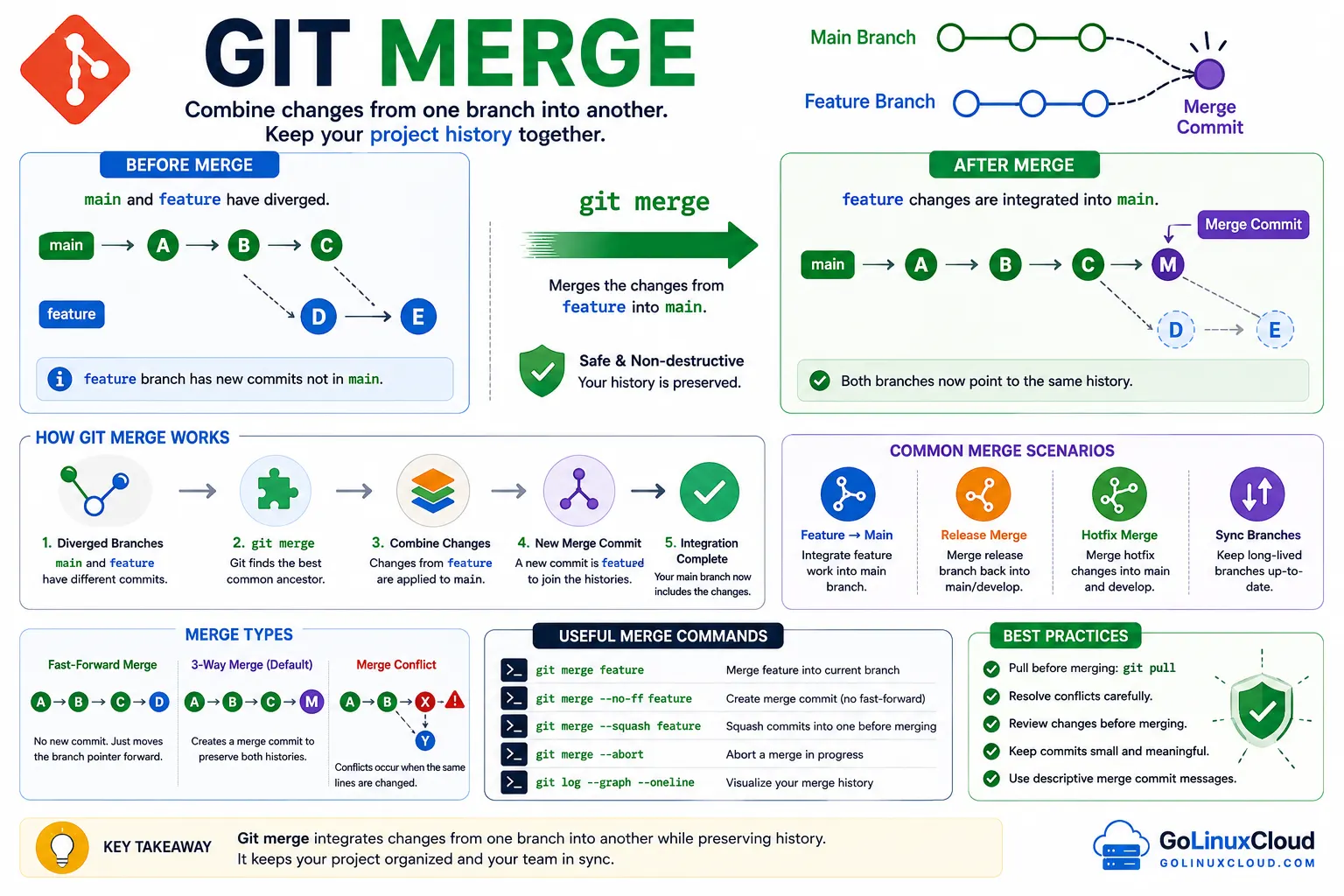
Git Merge Commands - Quick Cheat Sheet
| Task | Command |
|---|---|
| Merge branch into current branch | git merge <branch> |
| Merge branch into specific branch | git checkout main && git merge feature |
| Merge with fast-forward (default) | git merge <branch> |
| Force no fast-forward merge | git merge --no-ff <branch> |
| Squash commits before merge | git merge --squash <branch> |
| Merge specific commit | git merge <commit-hash> |
| Merge multiple branches | git merge branch1 branch2 |
| Abort ongoing merge | git merge --abort |
| Continue merge after resolving conflicts | git merge --continue |
| Check merge status | git status |
| View merge history | git log --oneline --graph |
| Show changes before merging | git diff <branch> |
| Fetch latest changes before merge | git fetch --all |
| Pull and merge in one step | git pull |
| Resolve conflicts manually | Edit file → git add . → git commit |
| View conflicting files | git status |
| Use merge strategy (recursive) | git merge -s recursive <branch> |
| Use ours strategy | git merge -s ours <branch> |
| Use theirs strategy | git merge -X theirs <branch> |
| Prevent commit during merge | git merge --no-commit <branch> |
| Add custom merge message | git merge -m "message" <branch> |
| Allow unrelated histories | git merge --allow-unrelated-histories |
| Revert a merge commit | git revert -m 1 <merge-commit> |
| Check merged branches | git branch --merged |
| Check unmerged branches | git branch --no-merged |
| Delete merged branch | git branch -d <branch> |
| Force delete branch | git branch -D <branch> |
| Compare branches before merge | git diff branch1..branch2 |
| Visualize branch history | git log --graph --all --oneline |
| Dry run merge (simulate) | git merge --no-commit --no-ff <branch> |
What is Git Merge?
Git merge is used to combine changes from one branch into another, typically integrating feature work into the main branch. It preserves the history of both branches and creates a unified commit history. This is a core operation in Git workflows, especially in collaborative development as part of a complete Git workflow.
What does git merge do
The git merge command takes changes from a specified branch and integrates them into your current branch.
git merge feature-branchThis command:
- Combines commit history from both branches
- Creates a new merge commit (in most cases)
- Updates the current branch with merged changes
When to use git merge vs rebase
- Use git merge when you want to preserve complete branch history
- Use git rebase when you want a clean, linear history using
git rebase
Example:
git merge feature-branch
git rebase feature-branch
Key difference:
- Merge → keeps history intact
- Rebase → rewrites history
How git merge works internally
Git identifies a common ancestor (base commit) between branches and applies changes accordingly, which you can inspect using git log.
There are two main ways Git performs a merge:
- Fast-forward merge
- Three-way merge
Git compares:
- Base commit
- Source branch changes
- Target branch changes
Then it combines them into a single branch state.
Basic Git Merge Example
Merge feature branch into main
Switch to the target branch using git checkout:
git checkout mainMerge the feature branch:
git merge feature-branchStep-by-step git merge workflow
git checkout main
git fetch --all
git pull
git merge feature-branch
This ensures your branch is updated using git fetch and ready for merging.
- You are on the correct branch
- Your branch is updated
- Merge happens without conflicts (if possible)
Verify merge results
Check the status:
git statusView commit history:
git log --oneline --graphIf successful, you will see the merged commits reflected in your history.
Fast-Forward vs Three-Way Merge
What is fast-forward merge
A fast-forward merge happens when there are no new commits in the target branch.
git merge feature-branchGit simply moves the pointer forward without creating a new commit.
When fast-forward merge happens
- No divergence between branches
- Feature branch is ahead of main
- No additional commits in main after branching
Result:
- Clean linear history
- No merge commit
What is three-way merge
A three-way merge occurs when both branches have diverged.
Git uses:
- Common ancestor
- Source branch commit
- Target branch commit
Example:
git merge feature-branchGit creates a new merge commit combining both histories. When the two sides share no common ancestor — for example after you import filtered history from another repository — add --allow-unrelated-histories as shown in move content from one Git repo to another.
Differences between fast-forward and no-fast-forward
| Feature | Fast-Forward Merge | No-Fast-Forward Merge |
|---|---|---|
| Merge commit | Not created | Created |
| History | Linear | Preserved with branch context |
| Command | git merge branch |
git merge --no-ff branch |
| Use case | Simple updates | Team collaboration |
To force no-fast-forward:
git merge --no-ff feature-branchThis ensures a merge commit is always created, preserving branch history.
Merge Branch with --no-ff
Using --no-ff ensures that Git always creates a merge commit, even if a fast-forward merge is possible. This helps preserve branch history and makes it easier to track feature development.
Why use --no-ff merge
By default, Git performs a fast-forward merge when possible. However, this can hide the context of feature branches.
Using:
git merge --no-ff feature-branchensures:
- A merge commit is always created
- Branch history remains visible
- Easier tracking of feature work
Preserve branch history
Without --no-ff, Git may flatten history:
main → A → B → CWith --no-ff, history is preserved:
main → A → B → C
          \       \
           D → E → M (merge commit)
This is useful in team environments where understanding changes is important.
Example with real workflow
git checkout main
git pull
git merge --no-ff feature-login -m "Merge feature-login into main"
This creates a clear merge commit with a descriptive message.
Handle Merge Conflicts (Real-World Case)
Why conflicts occur during merge
Conflicts happen when:
- Same file is modified in both branches
- One branch deletes a file while another modifies it
- Conflicts happen when changes overlap, which you can analyze using
git diff.
Identify conflict using git status
Run:
git statusYou will see:
both modified: file.txtGit marks conflicting sections inside files using:
<<<<<<< HEAD
=======
>>>>>>> feature-branch
Resolve conflict step-by-step
- Open the conflicting file
- Manually resolve differences
- Remove conflict markers
- Stage the file using
git add:
git add file.txt- Complete the merge using
git commit:
git commitUseful commands to fix conflicts
git merge --abort      # Cancel merge
git diff               # View differences
git log --merge        # View conflicting commits
git checkout --ours    # Keep current branch changes
git checkout --theirs  # Accept incoming changes
Merge Specific Commits and Advanced Usage
Merge a specific commit
To merge a specific commit:
git merge <commit-hash>Useful when you want only selected changes instead of full branch merge, similar to git cherry pick.
Merge multiple branches
You can merge multiple branches at once:
git merge branch1 branch2Git will combine all specified branches into the current branch.
Squash merge vs normal merge
Squash merge combines all commits into a single commit:
git merge --squash feature-branch
git commit
Difference:
| Type | Behavior |
|---|---|
| Normal merge | Preserves full commit history |
| Squash merge | Combines commits into one |
Use git merge strategies
Git supports different merge strategies:
git merge -s recursive feature-branch
git merge -s ours feature-branch
git merge -X theirs feature-branch
Common strategies:
recursive→ default strategyours→ keep current branch changestheirs→ prefer incoming branch changes
Git Merge vs Git Rebase
Key differences
| Feature | Git Merge | Git Rebase |
|---|---|---|
| History | Preserved | Rewritten |
| Commit type | Merge commit | No merge commit |
| Use case | Collaboration | Clean history |
When to use merge vs rebase
- Use merge for team collaboration and shared branches
- Use rebase for cleaner commit history before pushing
Pros and cons
Git Merge
- ✔ Preserves history
- ✔ Safe for shared branches
- ✖ Can create messy history
Git Rebase
- ✔ Cleaner linear history
- ✔ Easier to read logs
- ✖ Rewrites history (risk in shared repos)
Frequently Asked Questions
What is git merge?
git merge is used to combine changes from one branch into another, typically integrating feature work into the main branch.
What does git merge do?
git merge combines commit histories from different branches and creates a unified branch, often generating a merge commit.
What is fast-forward merge in Git?
A fast-forward merge occurs when there are no new commits in the target branch, allowing Git to simply move the branch pointer forward.
How to use git merge command?
Use git merge
How to resolve merge conflicts in Git?
Edit conflicting files manually, remove conflict markers, then run git add and git commit to complete the merge.
What is the difference between git merge and git rebase?
git merge preserves commit history and creates a merge commit, while git rebase rewrites history to create a linear commit sequence.
How to abort a git merge?
Use git merge --abort to cancel an ongoing merge and revert to the previous state.
What is --no-ff in git merge?
The --no-ff option forces Git to create a merge commit even when a fast-forward merge is possible, preserving branch history.
How to squash commits during merge?
Use git merge --squash
When should I use git merge?
Use git merge when working in collaborative environments where preserving complete branch history is important.
Summary
Git merge is essential for combining changes from different branches and managing collaborative workflows along with concepts explained in merge vs rebase. Whether you are performing a simple merge, handling conflicts, or using advanced strategies like squash or no-fast-forward, understanding these concepts helps maintain a clean and reliable project history.
Choosing between merge and rebase depends on your workflow, but mastering both ensures flexibility and better version control practices.
