
GitHub is one of the most essential tools for developers, but beginners often find it confusing at first.
In this guide, you will learn how to get started with GitHub step by step, including creating your first project, understanding GitHub workflow, and managing code changes.
By the end of this tutorial, you will be able to confidently use GitHub for your own projects.
What is GitHub?
GitHub is a cloud-based platform that allows you to store, manage, and collaborate on code using Git version control.
👉 Git = version control system
👉 GitHub = platform that hosts Git repositories
Git vs GitHub (Key Differences)
Before getting started with GitHub, it is important to understand how it differs from Git.
Git is a version control system that tracks changes in your code locally, while GitHub is a cloud-based platform that hosts Git repositories and enables collaboration among developers.
The table below highlights the key differences between Git and GitHub:
| Feature | Git | GitHub |
|---|---|---|
| Type | Version control system | Cloud-based hosting platform |
| Purpose | Track changes in code | Store and collaborate on code |
| Works offline | Yes | No |
| Collaboration | Limited | Built-in collaboration tools |
| Interface | Command-line based | Web interface + integrations |
Why use GitHub?
GitHub is widely used by developers and teams to manage code, track changes, and collaborate efficiently. It provides a centralized platform where you can store your projects, work with others, and maintain version history.
Here are the key reasons to use GitHub:
- Version control – Track changes and revert to previous versions anytime
- Collaboration – Work with multiple contributors using branches and pull requests
- Backup & storage – Store your code securely in the cloud
- Portfolio building – Showcase your projects to employers or clients
- Integration support – Works with tools like CI/CD pipelines, VS Code, and issue trackers
How to get started with GitHub (Step-by-step)
Follow these simple steps to create and manage your first project on GitHub.
Step 1: Create a GitHub account
To begin using GitHub, you need to create a free account.

- Visit GitHub official website
- Click on Sign up
- You can either signup using your existing Google or Apple ID or manually enter your email, password, and username
- Verify your email address
Once your account is created, you can log in and access your dashboard.
Step 2: Create your first repository
A repository (repo) is where your project files are stored.
- Click on the + (plus icon) at the top right
- Select New repository
- Enter a repository name (e.g.,
my-first-project) - Choose visibility (Public or Private)
- Click Create repository
-
Public repository
- Anyone on the internet can view your code
- Ideal for open-source projects and portfolios
- Others can fork and contribute to your project
-
Private repository
- Only you and selected collaborators can access it
- Best for personal, confidential, or company projects
- Keeps your code secure and hidden from the public
Your repository is now ready to store your project files.
Step 3: Create a file and commit changes
A commit is a snapshot of your changes.
- Open your repository
- Click Add file → Create new file
- Enter a filename (e.g.,
README.md) - Add some content
- Scroll down to the commit section
- Enter a commit message (e.g., "Initial commit")
- Click Commit new file
This saves your changes to the repository.
Step 4: Create a branch
Branches allow you to work on changes without affecting the main code.
- Click on the branch dropdown (usually shows
main) - Enter a new branch name (e.g.,
feature-update) - Click Create branch
Now you can make changes safely in this branch.
Step 5: Create a pull request
A pull request (PR) is used to merge changes from one branch into another.
- After making changes, click Compare & pull request
- Review your changes
- Add a title and optional description
- Click Create pull request
- Click Merge pull request
This merges your changes into the main branch.
GitHub workflow explained
The GitHub workflow is a simple process used to manage and collaborate on code safely. It ensures that changes are organized, reviewed, and merged without affecting the main project.
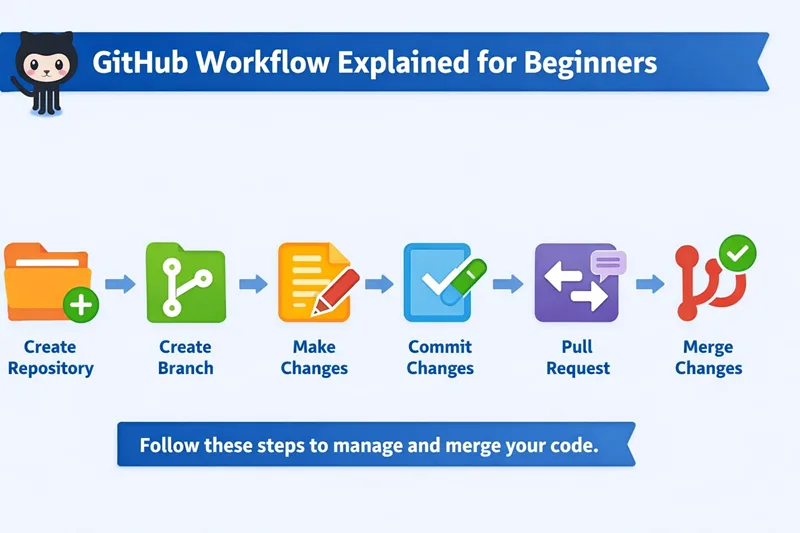
1. Create Repository
A repository (repo) is the main project folder on GitHub.
- Stores your code and files
- Maintains version history
- Acts as a central place for collaboration
Think of it as your project workspace
2. Create Branch
A branch is a separate copy of your code where you can safely make changes.
- Default branch →
main - New branch →
feature-update,bug-fix, etc.
Why use branches?
- Prevent breaking the main code
- Allow parallel development
3. Make Changes
In your branch, you can:
- Add new files
- Modify existing code
- Fix bugs
All changes are isolated from the main branch
4. Commit Changes
A commit is a saved snapshot of your changes.
- Each commit includes a message
- Helps track what was changed and why
Example:
git commit -m "Added login feature"Think of commit as saving your progress
5. Create Pull Request
A pull request (PR) is used to propose your changes to the main branch.
- Compare your branch with
main - Add a description of changes
- Allow others to review your code
This is where collaboration and review happen
6. Merge Changes
Once your changes are reviewed and approved:
- Merge your branch into
main - Changes become part of the main project
- Optionally delete the branch
This completes the workflow
Frequently Asked Questions
How do I get started with GitHub?
To get started with GitHub, create an account, create a repository, add files, commit changes, and use pull requests to manage code changes.
Is GitHub free for beginners?
Yes, GitHub offers free plans that allow users to create repositories and collaborate on projects.
What is the difference between Git and GitHub?
Git is a version control system used to track changes, while GitHub is a cloud platform that hosts Git repositories and enables collaboration.
How do I create my first project on GitHub?
You can create your first project by creating a new repository, adding files, committing changes, and managing versions using branches and pull requests.
Do I need to learn Git before using GitHub?
Basic knowledge of Git helps, but beginners can start with GitHub and gradually learn Git concepts while working on projects.
Summary
In this guide, you learned how to get started with GitHub by creating an account, setting up your first repository, and understanding the basic GitHub workflow.
You also explored key concepts such as commits, branches, and pull requests, which are essential for managing and collaborating on projects effectively.
With these fundamentals, you can now confidently begin using GitHub for your own projects and continue learning advanced Git and collaboration techniques.
What's next after learning GitHub?
Now that you understand the basics of GitHub, the next step is to deepen your knowledge of Git and improve your workflow.
Here are the most important topics to learn next:
Learn Git basics and core concepts
Start with Git fundamentals to understand how version control works.
Create and manage repositories
Learn how to initialize and clone repositories.
Work with branches and commits
Branching and commits are essential for real-world development.
- Git branch examples
- Git commit message guide
- Git merge examples
Sync code with remote repositories
Understand how to push and pull changes between your system and GitHub.
Handle changes and advanced workflows
Learn how to manage changes and improve your workflow.
Use GitHub with development tools
By following this learning path, you can move from beginner to advanced Git and GitHub usage and work on real-world projects confidently.
