
Deleting a GitHub repository permanently removes all code, commits, and history from your account. This action cannot be undone, so always ensure you no longer need the repository or have taken a backup.
Below is a quick reference to help you delete repositories, files, or local Git projects safely.
Delete GitHub Repository – Quick Actions
Use the table below as a quick reference to delete GitHub repositories, local Git projects, or specific files and folders. It covers the most common tasks users search for, so you can take action quickly.
For step-by-step instructions, safety precautions, and advanced scenarios, refer to the detailed sections later in this guide.
| Task | Action |
|---|---|
| Delete GitHub repository | Settings → Danger Zone → Delete this repository |
| Delete local Git repository (entire folder) | rm -rf <repository-folder> |
| Remove Git repo but keep files | rm -rf .git |
| Delete file in GitHub | Open file → Delete → Commit changes |
| Delete folder in GitHub | Delete all files inside → Commit changes |
| Delete repository via CLI (local only) | Remove .git directory |
| Verify repository before deletion | Check repo name carefully in confirmation step |
Delete Repository on GitHub
How to delete a repository on GitHub (step-by-step)
If you want to delete a repository in GitHub, the safest and most common method is from the GitHub website. This permanently removes the remote repository, including its commits, branches, issues, and pull requests.
Before deleting, make sure:
- you are deleting the correct repository
- you no longer need the code on GitHub
- you have created a backup if needed
This is the best method for queries like:
- how to delete a repository in GitHub
- how to remove repository from GitHub
- delete repository GitHub
Delete repository using GitHub UI (Settings → Danger Zone)
To delete a GitHub repository from the web interface:
- Sign in to your GitHub account
- Open the target repository
- Click Settings
- Scroll down to Danger Zone
- Click Delete this repository
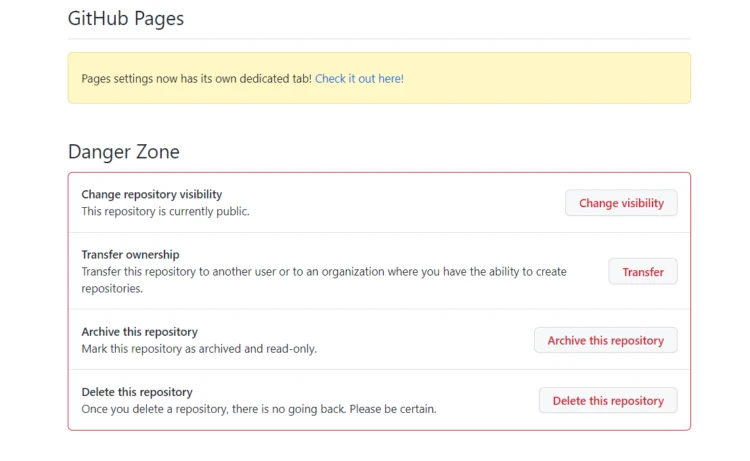
GitHub places this option inside Danger Zone because deleting a repository is a destructive action.
This method is useful when users search for:
- GitHub delete repository
- delete repo GitHub
- how to delete repo on GitHub
If you are new to navigating GitHub repositories, Getting Started with GitHub can help with the basics.
Confirm and permanently delete repository
After clicking delete, GitHub asks you to type the full repository name as confirmation.
For example:
username/repository-name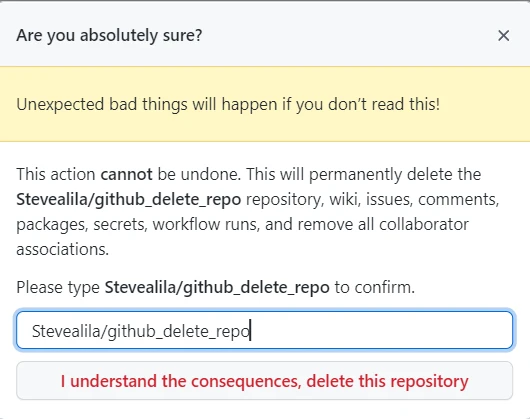
Once confirmed, GitHub permanently deletes the repository from your account.
This step is important because:
- the repository cannot be restored easily
- all remote history is removed
- collaborators lose access to that repository
This part helps target queries like:
- permanently delete repository GitHub
- how to delete a GitHub repository
- remove repository GitHub
Delete Git Repository from Command Line
Delete local Git repository (rm -rf .git)
If you want to remove Git tracking from a project but keep your files, delete only the .git directory:
cd repository-folder
rm -rf .git
This removes:
- Git history
- branches
- repository metadata
But it keeps:
- your project files
- folders
- local content
This is ideal for searches like:
- git delete repository local
- delete local git repository
- remove git repository but keep files
If your goal is only to stop tracking selected files instead of removing the whole repository, see Remove File from Tracking.
Delete entire repository folder
If you want to completely delete the local Git repository and all project files, remove the root folder:
rm -rf repository-folderThis deletes:
- the
.gitdirectory - all files
- all subdirectories
Use this only when you no longer need the project locally.
This section helps cover:
- delete git repository
- delete local repository git
- how to delete a git repository locally
Delete Git repository using command line safely
Before deleting a Git repository from the command line, check what you actually want to remove:
- Delete only
.git→ keep files, remove Git tracking - Delete root folder → remove both repo and files completely
A safer workflow is:
ls -laCheck whether .git exists, then decide which removal command to use.
This distinction matters because many users confuse:
- deleting a Git repository
- deleting a GitHub repository
- deleting a project folder
If you only want to clean local files that are not tracked, Git Clean may be a better fit than deleting the repository itself.
Delete Local vs Remote Repository
Difference between deleting local repo and GitHub repo
When working with Git, it’s important to understand the difference between deleting a local repository and deleting a GitHub (remote) repository.
- Local repository → exists on your system (your computer)
- Remote repository (GitHub) → exists on GitHub servers
Deleting one does NOT delete the other.
For example:
- deleting a GitHub repository → removes it online
- deleting a local repository → removes it only from your machine
Remove repository from GitHub vs local machine
Here’s the key difference:
-
Remove repository from GitHub
→ Done via GitHub UI (Settings → Danger Zone)
→ Deletes everything online -
Remove repository locally
→ Done using command line (rm -rf)
→ Deletes files from your system
Many users confuse this, especially when searching for:
- how to delete repository in GitHub
- git delete repository local
Delete Files and Folders in GitHub
Delete file in GitHub
To delete a file directly from GitHub:
- Open the repository
- Navigate to the file
- Click the file
- Click Delete (trash icon)
- Commit the change
This creates a new commit that removes the file from the repository.
This covers queries like:
- delete file in GitHub
- how to delete file from GitHub
Delete folder or directory in GitHub
GitHub does not allow deleting folders directly.
Instead, you must:
- delete all files inside the folder
- commit the changes
Once the folder is empty, Git automatically removes it.
This helps target:
- delete folder GitHub
- delete directory GitHub
Remove file using git command line
To delete a file using Git CLI:
git rm file.txt
git commit -m "Remove file"
git push
This removes the file from:
- local repository
- remote repository (after push)
If you want to remove the file but keep it locally:
git rm --cached file.txtLearn more in Remove File from Tracking.
Remove Git Repository (Alternative Terms Explained)
git remove repository vs delete repository
These terms are often used interchangeably:
- delete repository → correct and widely used term
- remove repository → informal variation
Both usually mean:
- deleting a GitHub repository
- or deleting a local Git project
git delete repo vs github delete repo
There is a difference:
-
git delete repo
→ refers to local deletion using command line -
github delete repo
→ refers to deleting repository from GitHub UI
Understanding this helps avoid confusion in searches like:
- git delete repository
- github delete repository
remove repository github explained
Removing a repository from GitHub means:
- deleting the repository permanently
- removing all commits, branches, and issues
- revoking access for collaborators
This action is irreversible.
Delete Repository in Different Scenarios
Delete repository after cloning
If you cloned a repository and no longer need it, you can simply delete it locally:
rm -rf repository-folderThis removes the repository from your system but does NOT delete it from GitHub.
This helps cover queries like:
- delete repository after cloning
- delete local git repo
Delete repository from GitHub account
To delete a repository from your GitHub account:
- Open the repository
- Go to Settings
- Scroll to Danger Zone
- Click Delete this repository
- Confirm by typing the repository name
This permanently removes the repository from your GitHub account.
This targets:
- how to delete repository in GitHub
- remove repository GitHub
- delete GitHub repo
Delete repository permanently
Deleting a repository permanently means:
- no recovery from GitHub
- no access to commit history
- no rollback option
Always ensure you:
- take a backup
- confirm repository name
- double-check before deleting
This section helps match:
- delete repository permanently
- delete GitHub repository permanently
Delete Repository Using Git Commands
git remove repo command
There is no direct git remove repo command.
Instead, use:
rm -rf .gitto remove Git tracking, or:
rm -rf repository-folderto delete the entire repository locally.
This covers:
- git remove repo
- remove git repository
git delete repository command line explained
To delete a Git repository using command line:
- remove Git history only:
rm -rf .git- remove full repository:
rm -rf repository-folderGit itself does not provide a built-in command to delete repositories.
This targets:
- git delete repository command line
- delete git repo CLI
how to delete git repository using CLI
Steps:
- Navigate to parent directory:
cd ..- Remove the repository:
rm -rf repository-folderThis deletes the repository completely from your system.
rm -rf as it permanently deletes files without confirmation.
Fix Common Errors
cannot delete repository github
Possible reasons:
- insufficient permissions
- not the repository owner
- organization restrictions
Ensure you:
- have admin access
- are logged into correct account
repository delete option not visible
If you cannot see the delete option:
- you may not have admin rights
- repository may belong to an organization
- UI layout may have changed
Check under Settings → Danger Zone
permission denied when deleting repo
This happens when:
- you don’t own the repository
- you lack required permissions
Solution:
- request access from repository owner
- verify your GitHub account
cannot delete local git repository
If deletion fails locally:
- file permissions issue
- directory in use
- insufficient privileges
Fix:
sudo rm -rf repository-folderor close programs using the folder.
Frequently Asked Questions
How do I delete a repository in GitHub?
You can delete a repository in GitHub by going to the repository Settings, scrolling to the Danger Zone section, and selecting "Delete this repository," then confirming the repository name.
Can I delete a Git repository from the command line?
Git does not have a direct command to delete a repository. You can remove it locally by deleting the folder or removing the .git directory using rm -rf.
What is the difference between deleting a local and GitHub repository?
Deleting a local repository removes it from your system, while deleting a GitHub repository removes it from GitHub servers. Both are independent actions.
How do I delete a file or folder in GitHub?
You can delete a file in GitHub by opening the file and selecting the delete option, then committing the change. To delete a folder, remove all files inside it.
Can I recover a deleted GitHub repository?
In most cases, deleted repositories cannot be recovered unless you have a backup or GitHub support restores it within a limited timeframe.
Summary
Deleting a Git repository depends on where it exists:
- GitHub → delete using UI (Settings → Danger Zone)
- Local machine → delete using
rm -rf
In this guide, you learned how to:
- delete repositories from GitHub and local system
- understand differences between local and remote deletion
- remove files and folders from repositories
- safely use command line for deletion
- fix common issues during repository deletion
Understanding these concepts helps avoid accidental data loss and ensures safe repository management.
