
git fetch is one of the most commonly used Git commands to download changes from a remote repository without merging them into your current branch.
If you are wondering:
- What does git fetch do?
- What is git fetch in Git?
- What is the difference between
git fetchvsgit pull?
Then this guide will help you understand everything with simple examples. git fetch origin assumes a remote name is already configured; add one with git remote add examples when git remote -v shows nothing.
In this tutorial, you will learn:
- What git fetch does
- How git fetch works
- git fetch vs git pull differences
- How to use git fetch with real examples
By the end, you will clearly understand when to use git fetch instead of pull.
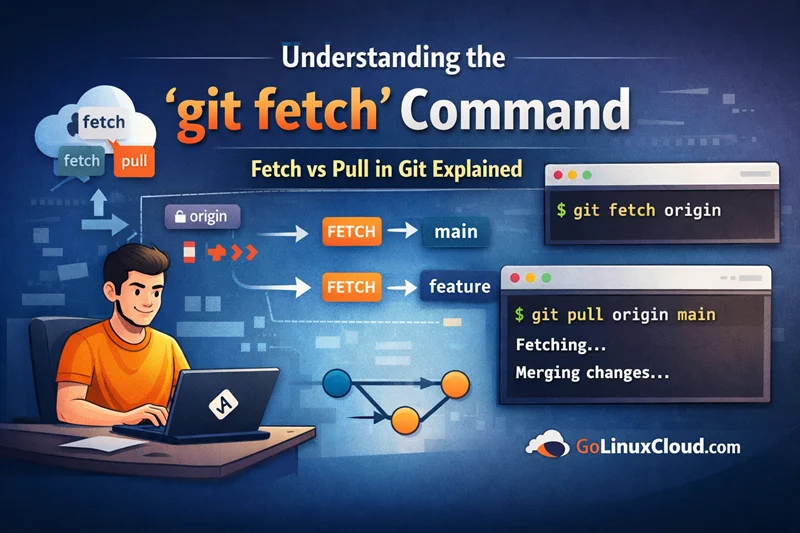
Git Fetch - Quick Cheat Sheet
| Task | Command |
|---|---|
| Fetch latest changes from remote | git fetch origin |
| Fetch from all remotes | git fetch --all |
| Fetch specific branch | git fetch origin <branch> |
| Fetch with verbose output | git fetch -v |
| Fetch and prune deleted branches | git fetch --prune |
| Fetch all tags | git fetch --tags |
| Preview fetch (dry run) | git fetch --dry-run |
| Compare local vs remote branch | git diff main origin/main |
| Merge fetched changes | git merge origin/main |
Rebase with fetched changes using git rebase |
git rebase origin/main |
| Check remote updates | git log HEAD..origin/main --oneline |
| View fetched branches | git branch -r |
What Does git fetch Do?
The git fetch command is used to download changes from a remote repository into your local repository without merging them into your current branch.
When you run git fetch, Git retrieves:
- New commits
- Updated branches
- Tags and references
However, it does NOT modify your working directory or current branch.
👉 In simple terms:
git fetch = download changes safely without applying them
How git fetch works internally
Internally, git fetch performs the following steps:
- Connects to the remote repository (usually
origin) - Downloads new commits and objects
- Updates remote-tracking branches like
origin/main - Leaves your local branch unchanged
Example:
git fetch originAfter this:
- Your local branch stays the same
- Remote branch (
origin/main) gets updated
To see the changes using git diff:
git diff main origin/mainWhat git fetch does NOT do
It is important to understand what git fetch does NOT do:
- ❌ Does NOT merge changes into your current branch
- ❌ Does NOT modify your working files
- ❌ Does NOT create conflicts automatically
This is why git fetch is considered a safe command compared to git pull.
What is git fetch in Git?
In Git, git fetch is a command used to retrieve updates from a remote repository without integrating them into your local branch.
It allows developers to:
- Stay updated with remote changes
- Review updates before merging
- Avoid unexpected conflicts
👉 It is commonly used in team workflows to safely inspect changes before applying them.
Why git fetch is important in Git workflow
git fetch plays a critical role in daily Git workflows:
- Helps you review changes before merging
- Prevents accidental overwrites
- Reduces merge conflicts
- Keeps your local repository in sync with remote
Typical workflow using git fetch:
git fetch origin
git diff origin/main
git merge origin/main
This ensures:
- You understand incoming changes
- You merge only when ready
git fetch vs git pull (Key Differences)
Both git fetch and git pull are used to get updates from a remote repository, but they behave differently.
| Feature | git fetch | git pull |
|---|---|---|
| Downloads changes | ✅ Yes | ✅ Yes |
| Merges changes | ❌ No | ✅ Yes |
| Safe operation | ✅ Yes | ⚠️ Risk of conflicts |
| Updates working directory | ❌ No | ✅ Yes |
👉 Key difference:
git fetch only downloads, while git pull downloads + merges
Difference between fetch and pull in git
git fetch→ downloads changes onlygit pull→ downloads + automatically merges
Example:
git fetch origin
git merge origin/main
is equivalent to:
git pull origin mainBut with fetch, you get control before merging.
When to use git fetch vs git pull
Use git fetch when:
- You want to review changes first
- You want a safe workflow
- You want to avoid conflicts
Use git pull when:
- You want quick updates
- You trust remote changes
- You don’t need manual control
How to Use git fetch
The basic syntax of git fetch is:
git fetch <remote>Most commonly:
git fetch originThis command:
- Downloads updates from remote
- Updates remote-tracking branches
- Does NOT affect your current branch
git fetch origin command
git fetch originThis is the most commonly used command.
It will:
- Fetch all branches from
origin - Update references like
origin/main
git fetch all remotes (--all)
To fetch changes from all configured remotes:
git fetch --allThis is useful when:
- You have multiple remotes
- You want to sync everything at once
git fetch specific branch
To fetch a specific branch:
git fetch origin feature-branchThis will:
- Download only that branch
- Not affect other branches
git fetch Command Syntax
The basic syntax of the git fetch command is:
git fetch <remote> <branch>In most cases, you will use:
git fetch originThis command downloads updates from the remote repository without modifying your current branch.
Basic syntax explained
git fetch→ Downloads changes from remote<remote>→ Name of remote repository (commonlyorigin)<branch>→ Optional specific branch to fetch
Examples:
git fetch
git fetch origin
git fetch origin main
👉 If no branch is specified, Git fetches all branches from the remote.
Common flags and options
Here are some commonly used options with git fetch:
| Option | Description |
|---|---|
--all |
Fetch from all remotes |
--prune |
Remove deleted remote branches locally |
--tags |
Fetch all tags |
-v |
Verbose output |
--dry-run |
Show what would be fetched without downloading |
Example:
git fetch --all --prunegit fetch Examples (Real Scenarios)
Fetch latest changes from remote
git fetch originThis will:
- Download latest commits
- Update remote-tracking branches
- Not modify your working directory
Fetch specific branch example
git fetch origin feature-branchThis command:
- Fetches only the specified branch
- Does not switch your current branch
Fetch all branches example
git fetch --allThis will:
- Fetch updates from all remotes
- Update all remote-tracking branches
Fetch with verbose output
git fetch -vThis displays:
- Detailed output of fetched changes
- Useful for debugging and understanding updates
git fetch origin Explained
The command:
git fetch originis the most commonly used form of git fetch.
What origin means in git fetch
originis the default name of the remote repository- It points to the repository you cloned from
You can verify using:
git remote -vExample output:
origin  https://github.com/user/repo.git (fetch)
origin  https://github.com/user/repo.git (push)
How remote-tracking branches are updated
After running:
git fetch originGit updates remote-tracking branches such as:
origin/mainorigin/dev
These branches:
- Represent the latest state of the remote repository
- Do not affect your local branches
To compare:
git diff main origin/mainTo merge changes:
git merge origin/maingit fetch Branch Explained
Fetch remote branch without switching
git fetch origin feature-branchThis will:
- Download the branch
- Not switch your working branch
👉 Useful when reviewing code changes from other branches.
Track remote branch locally
To create a local branch from a remote branch using git checkout or git switch:
git checkout -b feature-branch origin/feature-branchOr using modern Git:
git switch -c feature-branch origin/feature-branchThis will:
- Create a local branch
- Link it to the remote branch
- Allow you to start working on it
When to Use git fetch Instead of git pull
If you are wondering git fetch vs git pull or when to use git fetch instead of pull, the key difference is control and safety.
Use git fetch when you want to download changes without immediately applying them.
👉 This is especially useful in team environments where reviewing changes before merging is important.
Safe workflow using git fetch before merge
A safe and recommended Git workflow is:
git fetch origin
git diff origin/main
git merge origin/main
This approach helps you:
- Understand what changes are coming
- Avoid unexpected conflicts
- Maintain better control over your code
👉 This is why many developers prefer git fetch over git pull.
Avoiding conflicts using fetch
Using git fetch helps reduce merge conflicts because:
- You review changes before merging
- You can resolve issues manually
- You avoid automatic merges (which happen in
git pull)
👉 In short:
git fetch = safer workflow compared to git pull
Common Mistakes While Using git fetch
Why git fetch is not updating local branch
One of the most common questions is:
👉 "Why is git fetch not updating my branch?"
This happens because:
git fetchupdates remote-tracking branches only- It does NOT update your local branch
Example:
git fetch originThis updates:
origin/mainBut your local branch main remains unchanged.
To update your branch:
git merge origin/mainConfusion between fetch and pull
Many users confuse:
git fetchgit pull
👉 Key difference:
git fetch→ download changes onlygit pull→ download + merge
Example:
git pull origin mainis equivalent to:
git fetch origin
git merge origin/main
👉 This is why understanding fetch vs pull in git is critical.
Forgetting to merge after fetch
Another common mistake:
Running:
git fetch originBut not merging changes afterward using git merge
👉 Result:
- Your repo looks updated
- But your working branch is still outdated
Always follow with:
git merge origin/mainFrequently Asked Questions
What does git fetch do?
git fetch downloads commits, branches, and tags from a remote repository into your local repository without merging them into your working branch.
What is the difference between git fetch and git pull?
git fetch only downloads changes from the remote repository, while git pull downloads and automatically merges those changes into your current branch.
Is git fetch safe to use?
Yes, git fetch is safe because it does not modify your working directory or current branch. It only updates remote-tracking branches.
How to use git fetch?
You can run git fetch origin to download changes from the remote repository or git fetch --all to fetch updates from all remotes.
Does git fetch change local files?
No, git fetch does not change your local files or working directory. It only updates remote references.
What is git fetch origin?
git fetch origin downloads the latest changes from the default remote named origin and updates remote-tracking branches like origin/main.
When should I use git fetch instead of pull?
Use git fetch when you want to review remote changes before merging them into your local branch to avoid conflicts.
How to fetch a specific branch in Git?
Use git fetch origin <branch-name> to download a specific branch from the remote repository.
Summary
The git fetch command is used to download changes from a remote repository without merging them into your current branch.
In this guide, you learned:
- What does git fetch do
- What is git fetch in Git
- git fetch vs git pull differences
- How to use git fetch with examples
- git fetch origin and branch usage
👉 Key takeaway:
git fetch→ safe, controlled updatesgit pull→ fast but automatic updates
If you want full control over your workflow, always prefer git fetch before merging.
