
What is the Difference Between git fetch and git pull (Quick Answer)
git fetch vs git pull in one line
- git fetch downloads changes from the remote repository without modifying your local branch
- git pull downloads changes and automatically merges them into your current branch
When to use git fetch vs git pull (simple rule)
- Use git fetch when you want to review changes before applying them
- Use git pull when you want a quick update and are sure there are no conflicts
git fetch vs git pull Explained with Diagram
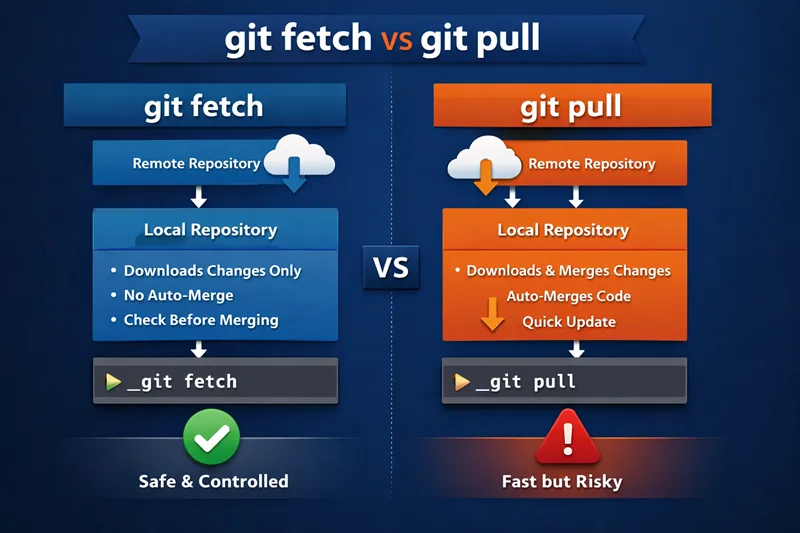
Visual workflow: fetch vs pull
git fetch
- Connects to the remote repository
- Downloads commits, branches, and tags
- Stores them in remote-tracking branches (like
origin/main) - Does not affect your current working branch
git pull
- Fetches changes from the remote repository
- Automatically merges those changes into your current branch
- Updates your working directory immediately
Why git pull = fetch + merge (what actually happens internally)
-
git pull performs two operations:
- git fetch → downloads latest changes from remote
- Git merge examples → merges those changes into your current branch
-
This means:
- Your local branch is updated instantly
- Merge conflicts can occur if local and remote changes differ
-
In contrast:
git fetchgives you control to review changes first- You can manually merge or rebase after checking differences
When to Use git fetch (Safe Workflow)
Check remote changes without affecting local code
Use git fetch to download updates from the remote repository without modifying your current branch (explained in git fetch examples). Both commands require a configured remote such as origin; see git remote add examples if the repository has no remote yet.
git fetch originThis updates remote-tracking branches like origin/main while keeping your local code unchanged.
Compare changes using git diff origin/branch
After fetching, compare your local branch with the remote branch before merging.
git diff origin/mainThis helps you understand what has changed using git diff examples and decide whether to merge or rebase.
Use git fetch + git rebase (best practice for teams)
For a clean commit history, use fetch followed by Git rebase guide.
git fetch origin
git rebase origin/main
This applies your local commits on top of the latest remote commits, avoiding unnecessary merge commits.
When to Use git pull (Quick Update Workflow)
Update local branch instantly using git pull
Use git pull when you want to quickly update your branch with remote changes (see detailed git pull).
git pull origin mainThis performs fetch + merge automatically.
Risks of git pull (merge conflicts explained)
- Automatically merges changes into your current branch
- Can create merge conflicts if local and remote changes overlap
- May introduce unwanted merge commits
When git pull is safe to use
- When your working directory is clean
- When no one else is modifying the same branch frequently
- When working on personal or isolated branches
git fetch vs git pull on Same Branch
What happens when both developers commit to same branch
When multiple developers push changes using git push to the same branch:
- Your local branch becomes outdated
- Remote branch contains new commits
Fetch + rebase vs pull (real difference in history)
Using git fetch + rebase:
git fetch origin
git rebase origin/main- Keeps commit history linear
- Avoids extra merge commits
- Preferred in team workflows
Using git pull:
git pull origin main- Creates a merge commit
- History becomes non-linear
- Faster but less clean
git fetch vs git pull on Different Branch
Fetch remote branch without switching
Fetch a specific branch without changing your current branch (learn more about git branch basics).
git fetch origin devThis updates origin/dev without affecting your working branch.
Pull specific branch into another branch
Merge changes from another branch directly using pull.
git pull origin devThis fetches and merges dev into your current branch.
Merge vs rebase comparison
Merge vs rebase comparison (see full guide on merge vs rebase)
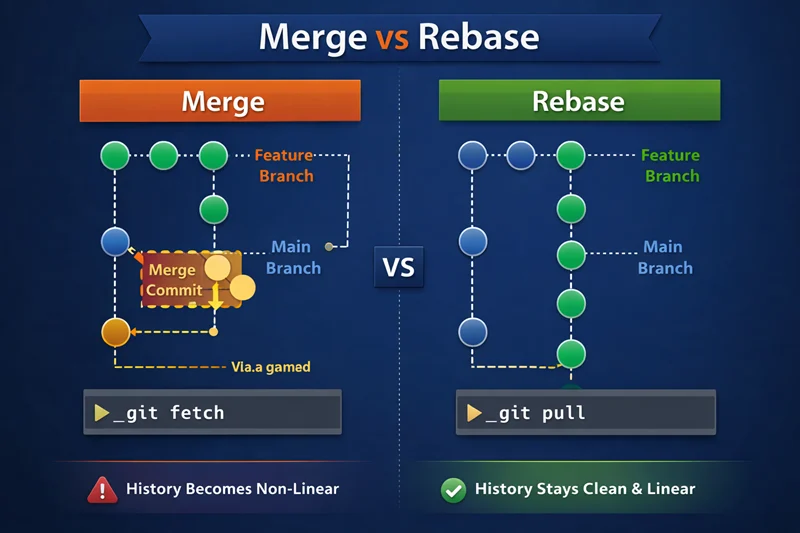
Merge approach:
git fetch origin
git merge origin/dev- Creates a merge commit
- Preserves full history
Rebase approach:
git fetch origin
git rebase origin/dev- Keeps history clean and linear
- Avoids extra merge commits
Frequently Asked Questions
What is the difference between git fetch and git pull?
git fetch downloads changes from the remote repository without modifying your local branch, while git pull downloads and automatically merges those changes into your current branch.
Is git fetch safer than git pull?
Yes, git fetch is safer because it does not automatically merge changes into your working branch, allowing you to review differences before applying them.
When should I use git fetch instead of git pull?
Use git fetch when working in a team or when you want to review remote changes before merging them into your local branch to avoid conflicts.
What does git pull do internally?
git pull performs two operations: git fetch followed by git merge (or rebase if configured), which updates your local branch with remote changes.
Does git fetch change local files?
No, git fetch does not modify your working directory or local files. It only updates remote-tracking branches.
What is git pull --rebase?
git pull --rebase fetches changes from the remote repository and rebases your local commits on top of them, resulting in a cleaner commit history without merge commits.
Which is better: git fetch or git pull?
git fetch is better for safe workflows and collaboration, while git pull is useful for quick updates when you are sure there are no conflicts.
Can git pull cause merge conflicts?
Yes, git pull can cause merge conflicts if your local changes conflict with remote changes, since it automatically merges updates into your current branch.
Summary
-
git fetch downloads changes from the remote repository without modifying your local branch
-
git pull downloads and automatically merges changes into your current branch
-
git fetch is safer because:
- It does not change your working directory
- Allows you to review changes before applying them
-
git pull is faster because:
- It performs fetch + merge in one step
- Updates your local branch immediately
-
Best practice:
- Use
git fetch + git rebasein team environments - Use
git pullonly when you are sure there are no conflicts
- Use
