
| Tested on | Ubuntu 26.04 LTS (Resolute Raccoon), x86_64 |
|---|---|
| Package | rclone 1.60.1+dfsg-4ubuntu3.2; fuse3 |
| Applies to | Ubuntu 26.04 LTS |
| Privilege | sudo for packages; normal user for Google sign-in and mounts |
| Scope | Mount Google Drive on Ubuntu 26.04 with rclone after GNOME removed Drive from Files, optionally enable a user systemd service, and separate mount from true folder sync (Insync or rclone sync). Does not cover GNOME Online Accounts on older LTS releases. |
| Related guides | Google Drive on Ubuntu 24.04 & 22.04 Install Dropbox on Ubuntu Install Google Chrome on Ubuntu backup Brave browser session on Ubuntu |
Google does not ship an official Google Drive desktop client for Linux. On Ubuntu 26.04, GNOME 50 also removed the old Files (Nautilus) integration that appeared after Settings → Online Accounts → Google—Ubuntu 26.04 release notes cite unmaintained libgdata and maintenance concerns.
For desktop and server use on 26.04, the practical default is rclone: install rclone and FUSE3, configure a gdrive remote with your own Google OAuth client, mount ~/GoogleDrive, and optionally start the mount with a user systemd unit after login. This guide also covers mount vs sync and when Insync or the browser is a better fit.
Before you begin
Run these steps on Ubuntu 26.04 with network access to Google. Confirm the release with check Ubuntu version if you are unsure—you need rclone here, not Online Accounts.
You need a Google account and a browser for OAuth during rclone config. Create your own Google OAuth client ID—rclone is not a Google product, and rclone’s shared Google Drive client ID is being retired during 2026, so new setups should not rely on it.
Quick answer
Install rclone and FUSE3, configure a remote named gdrive, then mount:
sudo apt updateInstall rclone and FUSE3:
sudo apt install rclone fuse3Create a mount point and start a foreground test mount:
mkdir -p ~/GoogleDrive
rclone mount gdrive: ~/GoogleDrive --vfs-cache-mode writes
Use a published OAuth desktop app you create in Google Cloud when rclone config asks for client_id and client_secret—details in Create a Google OAuth client ID for rclone.
Why Google Drive disappeared from Files in Ubuntu 26.04
After you add Google under Online Accounts, Calendar or Mail may still work, but there is no Files or Google Drive toggle for Nautilus. That is expected on 26.04, not a broken sign-in.
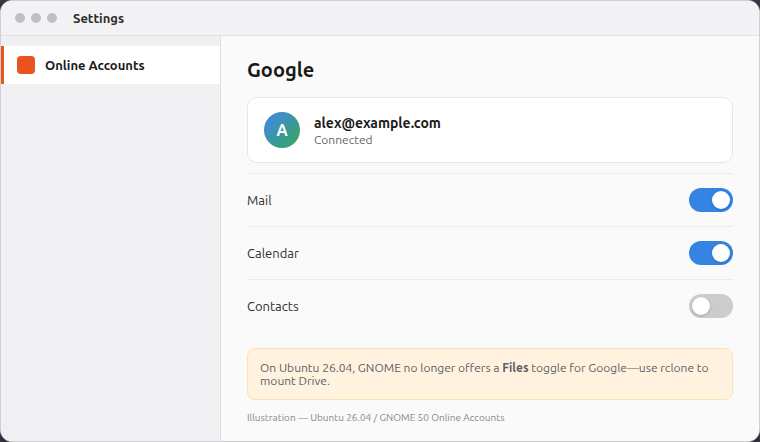
If your Google account connects but Files never appears, you need rclone—not another Online Accounts sign-in.
     Ubuntu 26.04 desktop
              |
              v
   GNOME Files: no Drive sidebar
              |
              v
        rclone + FUSE3 mount
              |
     +--------+--------+
     v                 v
 optional          mount vs
 systemd user      sync / Insync
 service           / browser
Does Google Drive have an official Ubuntu app?
No. Linux users rely on the web app, third-party tools such as rclone or Insync, or—on 24.04 / 22.04 only—the GNOME path in Google Drive on Ubuntu 24.04 & 22.04. There is no google-drive package from Google.
Mount Google Drive with rclone
rclone is an open-source tool (not from Google) that copies, syncs, and mounts cloud storage. FUSE3 lets rclone expose a remote as a directory such as ~/GoogleDrive without a kernel driver.
Install rclone and FUSE3
Install with the apt command:
sudo apt updateInstall the mount tools:
sudo apt install rclone fuse3Check the installed build on your host:
apt-cache policy rclonerclone:
Installed: 1.60.1+dfsg-4ubuntu3.2
Candidate: 1.60.1+dfsg-4ubuntu3.2Create a Google OAuth client ID for rclone
rclone’s Google Drive documentation requires your own OAuth client ID because the shared rclone client ID is being retired during 2026. The client ID and secret identify your rclone app to Google—they are not your Google password.
- Create or select a project and enable the Google Drive API.
- Configure the OAuth consent screen. For a personal Google account, choose External.
- Under Data Access, add the Google Drive scopes in rclone’s current instructions (for example Docs, full Drive access, and Drive metadata read-only).
- Under Audience, add your Google account as a test user.
- Create OAuth client ID → Desktop app and save the Client ID and Client secret.
- For long-term use, publish the app instead of leaving it in Testing. Apps in Testing can make refresh tokens expire after about seven days for Drive scopes.
If Publish app is disabled, follow rclone’s current OAuth steps; Google may require application homepage and privacy-policy details before an External app can be published. Personal rclone use may not need formal Google verification, but you may see an unverified-app warning.
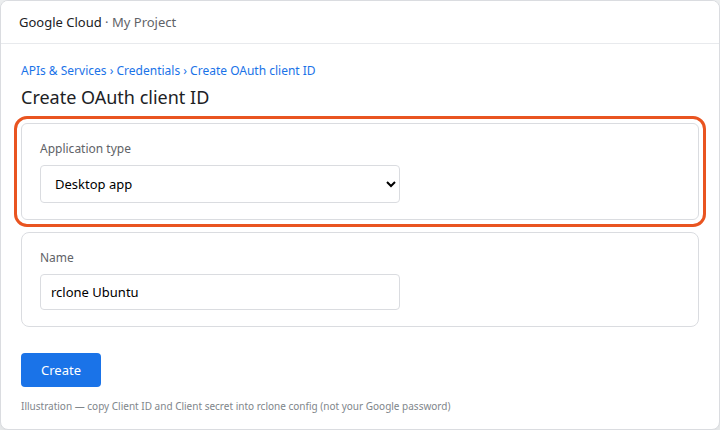
Pick Desktop app, name the client, then paste the generated ID and secret into rclone config—never your Google account password.
Use rclone’s making your own client ID when Google’s console layout or scope list changes.
Configure the Google Drive remote
Start the wizard:
rclone configTypical answers for personal My Drive:
n— new remote; namegdrive; storagedrive- Paste
client_idandclient_secretfrom Google Cloud - Scope
1(full access) unless you need read-only Use auto config:yon a desktop; on SSH-only hosts usenand run therclone authorizecommand rclone prints on a machine with a browser, then paste the token—often paired with the ssh command from your laptop- Shared Drive:
nfor personal My Drive; confirm;qto quit
List remotes:
rclone listremotesgdrive:Test the Google Drive connection
Confirm Google authentication works before you mount:
rclone lsd gdrive:If this lists top-level Drive folders, the remote is configured correctly. If you see an auth error, revisit Create a Google OAuth client ID for rclone or publish your OAuth app.
rclone stores the remote configuration and OAuth token in ~/.config/rclone/rclone.conf. Keep that file private and do not publish it in screenshots, forum posts, or shell logs.
Mount Google Drive
Create a mount point:
mkdir -p ~/GoogleDriveTest in the foreground (terminal stays busy until you stop the mount):
rclone mount gdrive: ~/GoogleDrive --vfs-cache-mode writesIn another terminal, list the mount:
ls ~/GoogleDrive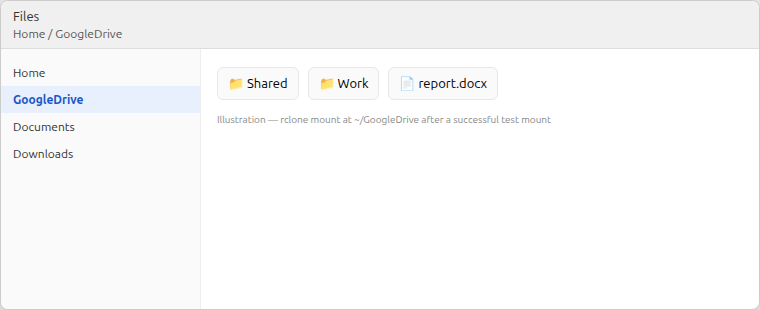
The mount path should list your Drive folders when the foreground rclone mount is still running (or after you start the user systemd unit).
rclone mount is a virtual filesystem—files load on demand, not as a full offline mirror.
Check quota:
rclone about gdrive:Stop the test with Ctrl+C, or unmount:
fusermount3 -u ~/GoogleDriveRun in the background when the test looks good:
rclone mount gdrive: ~/GoogleDrive --vfs-cache-mode writes --daemon--vfs-cache-mode writes caches writes locally; --vfs-cache-mode full uses more disk under ~/.cache/rclone for heavier use—still a cache, not a guaranteed full Drive copy.
Automatically mount Google Drive after login
A user systemd unit starts the mount after you log in (not before an interactive session unless you enable user lingering). Manage it with systemctl and the --user flag.
mkdir -p ~/.config/systemd/userSave ~/.config/systemd/user/rclone-gdrive.service:
[Unit]
Description=Google Drive mount (rclone)
After=network-online.target

[Service]
Type=simple
ExecStart=/usr/bin/rclone mount gdrive: %h/GoogleDrive --vfs-cache-mode writes
ExecStop=/usr/bin/fusermount3 -u %h/GoogleDrive
Restart=on-failure
RestartSec=10

[Install]
WantedBy=default.target
Reload user units:
systemctl --user daemon-reloadEnable and start:
systemctl --user enable --now rclone-gdrive.serviceCheck status:
systemctl --user status rclone-gdrive.serviceMount vs sync: which should you use?
| Goal | Tool | Behavior |
|---|---|---|
| Browse Drive like a mounted disk | rclone mount |
Virtual folder; on-demand access |
| Copy files one way | rclone copy |
Upload or download without deleting extras on the other side |
| Mirror source to destination | rclone sync |
One-way; can delete extras on the destination |
| Two-way folder sync | rclone bisync |
Advanced—read rclone docs before use on live data |
| GUI sync like Dropbox | Insync | Paid desktop client |
A mount can cache data locally but does not replace backups—sync can propagate deletes. rclone sync can delete files on the destination that are not present in the source. Test important sync jobs with --dry-run before running them against live data.
Google Docs, Sheets, and Slides export to office formats when you copy or sync with rclone; see rclone drive documentation.
Insync and browser alternatives
Insync provides a real local synchronized folder with selective sync—closest to Google’s desktop apps on other platforms. Linux builds target amd64; on ARM64, use rclone or the browser. Download a .deb from insynchq.com/downloads and install with sudo apt install ./insync_*_amd64.deb, or fetch the file with the wget command.
For occasional access without a mount, use drive.google.com or install Google Chrome on Ubuntu as the browser.
Other third-party tools can also mount Google Drive, but this guide uses rclone because it is actively documented, supports Google Drive directly, and works on both Ubuntu desktop and server systems.
Disconnect Google Drive
Unmount:
fusermount3 -u ~/GoogleDriveDisable the user service if you created one:
systemctl --user disable --now rclone-gdrive.serviceRemove the unit file and reload user systemd:
rm -f ~/.config/systemd/user/rclone-gdrive.service
systemctl --user daemon-reload
Delete only the Google remote (~/.config/rclone/rclone.conf may list other clouds):
rclone config delete gdriveRemove the package when nothing else uses rclone:
sudo apt remove rcloneSee how to remove software on Ubuntu for broader apt cleanup.
Troubleshooting
| Symptom | Likely cause | Fix |
|---|---|---|
| No Files / Drive toggle on 26.04 | GNOME 50 removed integration | Expected on 26.04—use a rclone FUSE mount instead of Files integration |
| Drive vanished after upgrade from 24.04 | Same removal | Switch to rclone; older workflow is 24.04 & 22.04 guide |
Google auth fails in rclone config |
Retired shared client ID | Create your own OAuth client per rclone drive docs |
| Auth works, then fails after ~7 days | OAuth app in Testing | Publish the app per rclone guidance |
Transport endpoint is not connected |
Stale FUSE mount | fusermount3 -u ~/GoogleDrive, then remount |
| Mount missing after login | User unit disabled | systemctl --user enable --now rclone-gdrive.service |
| Files in mount but not on disk | Virtual mount | Use Insync or rclone copy/sync for local copies |
Summary
Ubuntu 26.04 no longer mounts Google Drive in Files, so rclone with FUSE3 is the default free path: install packages, configure gdrive with your own OAuth client, mount ~/GoogleDrive, and optionally enable a user systemd service after login.
An rclone mount is not an offline copy. If you need files to remain available without an internet connection, use a sync or copy workflow (rclone copy / sync, or bisync only after reading rclone’s warnings) or a desktop sync client such as Insync. The browser covers light editing without a mount. On 24.04 or 22.04, GNOME Online Accounts remains simpler for sidebar browsing—see Google Drive on Ubuntu 24.04 & 22.04.
References
- Google Drive on your computer (official)
- rclone Google Drive
- Ubuntu 26.04 release notes — Google Drive removed from Files
Frequently Asked Questions
Is there an official Google Drive client for Ubuntu 26.04?
No. Use rclone mount, the browser, or a third-party client such as Insync.
Does Google Drive work on Ubuntu 26.04?
Yes, through rclone (or Insync), not through the old Files sidebar integration.
Why was Google Drive removed from GNOME Files?
GNOME 50 dropped the libgdata-based backend. Ubuntu’s release notes cite maintenance and security concerns.
Why did Drive disappear after upgrading to 26.04?
The feature was removed in the release, not because your Google account failed. Use rclone instead of Online Accounts for Drive browsing.
Is rclone mount the same as Google Drive sync?
No. Mount presents on-demand access. Folder sync needs Insync or rclone copy or sync; run rclone sync with --dry-run first because sync can delete destination files that are not on the source.
