
| Tested on | Ubuntu 26.04 LTS (Resolute Raccoon) |
|---|---|
| Applies to | Ubuntu 26.04 LTS and 24.04 LTS (App Center steps match 26.04 Desktop) |
| Privilege | sudo or root for system packages and Snap |
| Scope | Uninstall software on Ubuntu by finding how it was installed, then using apt remove or purge, Snap, Flatpak, App Center, or manual cleanup—with verification and safe autoremove preview. Does not replace dedicated guides for unused dependency cleanup or post-upgrade obsolete packages. |
| Related guides | Linux commands cheat sheet |
Ubuntu ships applications through APT (.deb), Snap, Flatpak, local .deb files, AppImage portable binaries, and sometimes manual installs under /usr/local. Each channel has its own uninstall command; using the wrong one leaves menu entries, snaps, or Flatpak data behind.
Match the tool to how the app was installed:
apt removeorapt purgefor Deb packagessudo snap removefor snapsflatpak uninstallfor Flatpak IDs- File deletion for AppImages
- App Center Manage → Uninstall for graphical Deb and Snap apps
The What “uninstall” usually means table below spells out when to prefer remove over purge.
sudo apt remove firefox does not remove the Firefox Snap when Firefox is installed as a Snap. snap remove cannot remove a plain APT package. When you are unsure, check dpkg -l packagename, snap list, and flatpak list --app.
Quick answer
Ubuntu software can come from APT/Deb, Snap, Flatpak, AppImage, or a manual installation. Use the same package system that installed the application to remove it.
| Installed with | Remove with |
|---|---|
| App Center (Deb or Snap) | App Center → Manage → select app → Uninstall |
sudo apt install … (archive Deb) |
sudo apt remove packagename |
| Same Deb, plus package-managed system config | sudo apt purge packagename |
sudo apt install ./file.deb |
sudo apt remove packagename or sudo apt purge packagename (name inside the .deb, not the filename) |
sudo snap install … |
sudo snap remove snapname (add --purge to skip a new recovery snapshot) |
flatpak install … |
flatpak uninstall APP_ID (add --delete-data to drop app data) |
| AppImage | Delete the .AppImage file and any launcher under ~/.local/share/applications/ |
Language package manager (pip, npm, cargo) |
pip uninstall, npm uninstall -g, or cargo uninstall |
Source / sudo make install |
make uninstall from the build tree, or manual cleanup under /usr/local |
What “uninstall” usually means
| Goal | Command or action |
|---|---|
| Remove APT app but keep package-managed system configuration | sudo apt remove packagename |
| Remove APT app and package-managed system configuration | sudo apt purge packagename |
| Remove Snap (snapd keeps an automatic recovery snapshot by default) | sudo snap remove snapname |
| Remove Snap without creating a new snapshot | sudo snap remove snapname --purge |
Remove Flatpak app but keep data under ~/.var/app/ |
flatpak uninstall APP_ID |
| Remove Flatpak app and its data | flatpak uninstall --delete-data APP_ID |
apt purge does not delete your files under /home—mail, browser profiles, and game saves stay unless you remove those folders yourself.
Find how the software was installed
Menu labels rarely match APT package names. Before you remove anything, confirm whether the app is Deb, Snap, or Flatpak.
Find the APT package name
When the command is still on your PATH, ask dpkg which package owns the binary:
dpkg -S "$(command -v cowsay)"cowsay: /usr/games/cowsayThe package name is the part before the colon (cowsay).
Search installed APT packages by keyword when you only know the app title:
apt list --installed 2>/dev/null | grep -i cowsaycowsay/resolute,now 3.03+dfsg2-8build1 all [installed]The name before / is what you pass to apt remove or apt purge.
Check whether it is a Snap
List installed snaps and read the Name column, not the store title:
snap listIf the app appears there, uninstall it with sudo snap remove in the Snap section below—not with apt remove.
Check whether it is a Flatpak
Installed Flatpak apps and their Application IDs (reverse-DNS) show up here:
flatpak list --appCopy the ID from the second column—for example io.github.sxyazi.yazi—not the friendly title in the first column.
Remove APT and DEB packages
Most CLI tools, libraries, and many desktop apps on Ubuntu come from APT. Deb uninstalls use the apt command with sudo for system-wide packages.
apt remove vs apt purge
For Deb packages from APT:
apt remove— drops program binaries; package-managed config may remain (rcindpkg)apt purge— removes the package and its package-managed system configuration
Remove a game package while keeping any residual config:
sudo apt remove slREMOVING:
sl
Summary:
Upgrading: 0, Installing: 0, Removing: 1, Not Upgrading: 235
Freed space: 60.4 kBAfterward, command -v sl prints nothing—the binary is gone.
Purge when you want package-managed configuration removed as well:
sudo apt purge figletIf you previously used apt remove only, dpkg -l figlet may show rc (removed, config files remain). sudo apt purge figlet clears that row.
Preview a package removal
For desktop environments, metapackages, drivers, or other large dependency trees, simulate before you commit:
sudo apt-get -s purge ubuntu-desktop-minimalThe -s (simulate) flag prints the full REMOVING list without changing the system. Use the same pattern with apt-get -s remove packagename when you only want to inspect a single package.
Local .deb files installed with apt
If you installed with sudo apt install ./package.deb:
- Uninstall with
sudo apt remove packagenameorsudo apt purge packagenamewhen you also want package-managed configuration gone - Read the internal name with
dpkg -I package.deb | grep Package, not the download filename - Prefer
apt removeorapt purgeover baredpkg -rso APT can reconcile dependencies - Use
sudo dpkg -P packagenameonly when APT is confused and you need a low-level purge
Third-party APT repositories
Apps such as Google Chrome, Docker CE, or VS Code often add a vendor sources.list entry:
sudo apt removeorsudo apt purgeremoves the application but not that repository or signing key- When the product also installs repositories, services, or multiple packages, use the application-specific guide in the stack-specific section below
Remove unused dependencies safely
After you remove a package, APT may report dependencies that are "no longer required." Preview that list before anything is deleted:
sudo apt-get -s autoremoveThe following packages will be REMOVED:
docutils-common liblzf1 python3-docutils
0 upgraded, 0 newly installed, 3 to remove and 235 not upgraded.Only after you agree with the list:
sudo apt autoremoveRead the REMOVING list every time. On one test host, autoremove wanted to drop fzf, ripgrep, and zoxide because APT had marked them auto-installed even though other workflows still used them. For broader dependency and cache cleanup, use the comparison table under Which cleanup guide do you need?
Remove Snap packages
Remove a Snap but keep a recovery snapshot
By default, snapd saves an automatic snapshot of app data when you remove a snap (retained about 31 days) so you can roll back:
sudo snap remove snapnameOn Ubuntu 26.04, a test remove of hello-world reported:
hello-world removed (snap data snapshot saved)Remove a Snap without creating a snapshot
Use --purge when you do not want snapd to create a new snapshot for this removal:
- Existing snapshots from earlier installs are not deleted
- The success line is typically
snapname removedwithoutsnap data snapshot saved
sudo snap remove snapname --purgeSome snaps require sudo; use the name from snap list, not the store label. Disabled revisions appear in snap list --all.
Remove Flatpak applications
Remove the application
Uninstall by Application ID (replace APP_ID with the value from flatpak list --app):
flatpak uninstall APP_IDA flatpak list --app line might look like Yazi with ID io.github.sxyazi.yazi in the second column—you pass the ID to flatpak uninstall, not the display name.
If the same ref exists in both user and system installations, pick the scope explicitly:
- User install:
flatpak uninstall --user APP_ID - System install:
flatpak uninstall --system APP_ID - Without
--useror--system, Flatpak searches available installations and may prompt when the ID exists in more than one place
Remove the application and its data
Add --delete-data when you also want data under ~/.var/app/<app-id>/ removed:
flatpak uninstall --delete-data APP_IDFlathub documents flatpak uninstall --unused to drop runtimes nothing installed still needs. That cleanup fits next to apt autoremove in the dedicated unused-packages guide linked below—not duplicated here.
Uninstall software with Ubuntu App Center
On Ubuntu 26.04 Desktop, use App Center instead of the old Ubuntu Software “Installed” tab:
- Open App Center from the dock or Activities search.
- Select Manage in the sidebar.
- Find the installed application.
- Select the application and click Uninstall.
- Enter your password when prompted.
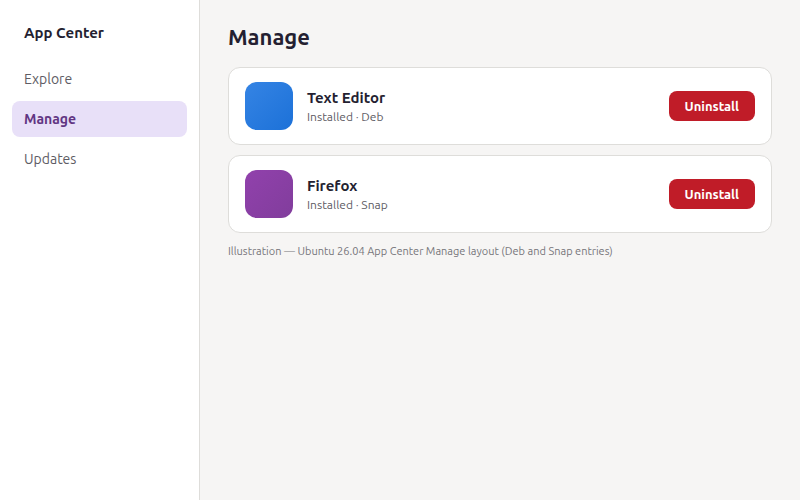
App Center uses the same backends as the terminal for:
- Deb packages — equivalent to the
aptremoval paths above - Snap applications — equivalent to
snap remove
Flatpak is not integrated into the default App Center—remove Flatpak apps with flatpak uninstall or a Flatpak-aware graphical tool.
Remove AppImage and manually installed software
AppImage and portable applications
- Delete the
.AppImagefile - Remove any
.desktoplauncher you created under~/.local/share/applications/ - Remove icons under
~/.local/share/icons/if you added them manually
Software installed with make install
- Run
sudo make uninstallfrom the same source tree and tag when upstream provides that target - Many projects do not—then remove files listed in the install step, often under
/usr/local/binand/usr/local/share - Portable tarballs: delete the extracted directory and any PATH wrapper you added
Confirm the software is removed
Verify an APT package
After sudo apt purge figlet, the apt-cache command policy subcommand should show Installed: (none):
apt-cache policy figletSample output after purge:
figlet:
  Installed: (none)
Verify a command is gone
After removing sl, the shell should not resolve the binary name:
command -v slNo output means the command is not on your PATH.
Check for package configuration leftovers
Packages removed with apt remove but not purged show rc in dpkg -l:
dpkg -l | awk '/^rc/ {print $2}'Purge names you no longer need with sudo apt purge packagename.
Which cleanup guide do you need?
| You want to… | Use |
|---|---|
| Uninstall one application you chose | This guide |
| Drop dependency packages and APT cache leftovers after removals | Remove unused packages on Ubuntu |
Clean packages left in installed (local) state after a release upgrade |
Remove obsolete packages on Ubuntu |
Troubleshooting
| Symptom | Likely cause | Fix |
|---|---|---|
Unable to locate package |
Wrong APT package name, package no longer in configured repositories, or app is Snap/Flatpak | dpkg -l, then snap list and flatpak list --app |
App gone but rc in dpkg -l |
Used remove not purge |
sudo apt purge packagename |
autoremove dropped tools you still want |
Orphan auto-installed packages | Reinstall; mark manual with apt-mark manual if needed |
| Menu icon remains after purge | Snap/Flatpak/manual .desktop |
Log out/in; remove stray file in ~/.local/share/applications/ |
snap remove says not installed |
Wrong snap name or old revision | snap list --all |
| Flatpak cannot find ref | Wrong APP_ID or wrong scope | Copy ID from flatpak list --app; use --user or --system |
Stack-specific uninstall guides
These pages go deeper when you remove a full product stack, not a single metapackage:
- Uninstall Docker on Ubuntu
- Uninstall Python on Ubuntu
- Google Chrome on Ubuntu — remove
google-chrome-stableand optional repository cleanup - Google Drive on Ubuntu 26.04 — unmount rclone, disable the user systemd unit, delete the
gdriveremote
Google Drive on Ubuntu 24.04 & 22.04 — remove GNOME Online Accounts - Jellyfin on Ubuntu —
apt purge jellyfin, removejellyfin.sources, optionally delete/var/lib/jellyfinand/etc/jellyfin - Yazi on Ubuntu — uninstall per install method (
.deb, zip, Snap, Flatpak) - HPLIP on Ubuntu —
apt removeorpurge, optional Snap, orhp-uninstallafter HP.run - ImageMagick on Ubuntu —
apt removeorpurgevs/usr/localsource uninstall
Summary
To uninstall software on Ubuntu 26.04, identify how it was installed, then use the matching remover:
- App Center Manage → Uninstall for graphical Deb and Snap apps
sudo apt removefor a normal Deb uninstall;sudo apt purgewhen package-managed system configuration should go toosudo snap removefor snaps;flatpak uninstallfor Flatpak IDs- File deletion for AppImages or
/usr/localinstalls
Preview risky operations with apt-get -s purge or apt-get -s autoremove before you confirm. App Center on 26.04 uses the Manage sidebar for graphical Deb and Snap uninstalls; Flatpak stays on the CLI. After removal, confirm with apt-cache policy, command -v, and optional dpkg -l | awk '/^rc/' for config stragglers.
Dependency-only cleanup and post-upgrade obsolete packages belong in the dedicated unused and obsolete guides—not in a one-line autoremove at the end of every app uninstall.
References
Frequently Asked Questions
What is the difference between apt remove and apt purge on Ubuntu?
apt remove deletes program binaries but can leave configuration files in an rc state in dpkg. apt purge removes the package and its package-managed system configuration. Neither command deletes ordinary user data in your home directory.
How do I find the package name before uninstalling on Ubuntu?
Run dpkg -S "$(command -v appname)" when the binary is still on PATH, or apt list --installed | grep -i keyword. GUI labels often differ from package names.
How do I uninstall a Snap application on Ubuntu?
List snaps with snap list, then run sudo snap remove snapname. Add --purge when you do not want snapd to create a new automatic recovery snapshot for this removal.
How do I uninstall a Flatpak app on Ubuntu?
Run flatpak list --app for the Application ID, then flatpak uninstall APP_ID. Add --delete-data to remove app data under ~/.var/app/. Use --user or --system when the same app is installed in both scopes.
Will apt autoremove break other software I still use?
It can. autoremove removes packages APT marked as automatically installed when nothing else depends on them. Run sudo apt-get -s autoremove first and read the list before you confirm.
How do I remove leftover configuration after apt remove?
Run sudo apt purge packagename on packages showing rc in dpkg -l, or list leftovers with dpkg -l | awk '/^rc/ {print $2}'.
How do I uninstall software I installed from a .deb file?
When you used sudo apt install ./package.deb, remove it with sudo apt remove packagename or sudo apt purge packagename—the same as archive packages.
Can I uninstall Ubuntu apps from App Center on 26.04?
Yes. Open App Center, select Manage in the sidebar, choose the app, and click Uninstall. That path covers Deb and Snap applications; use flatpak uninstall for Flatpak apps.
