
| Tested on | Ubuntu 26.04 LTS (Resolute Raccoon) |
|---|---|
| Also verified | Ubuntu 24.04 LTS — same official .deb and headless daemon workflow |
| Architecture | amd64 / x86_64 |
| Package | Official Dropbox .deb (desktop helper)Official headless Linux daemon ( wget + tar) |
| Applies to | Ubuntu 26.04 LTS and 24.04 LTS; the same Dropbox installer also works on supported 22.04 LTS systems |
| Privilege | sudo for package install; normal user for Dropbox sync |
| Scope | Install Dropbox on Ubuntu from the official desktop .deb or headless daemon, link an account, keep headless sync running after reboot, install the optional CLI helper, verify sync, update, uninstall safely, and troubleshoot tray and filesystem issues. Does not cover Dropbox API development or advanced proxy design. |
| Related guides | apt command wget command check Ubuntu version Flatpak on Linux How to remove software on Ubuntu |
Dropbox keeps a folder on your Ubuntu machine in sync with Dropbox cloud storage and your other linked devices. On desktop Ubuntu, install Dropbox’s official .deb package (a standard Ubuntu install file), sign in, and use a sync folder under your home directory. On a headless server, use Dropbox’s official 64-bit tarball and the dropboxd background process—a daemon that watches and synchronizes files without a graphical app.
This guide focuses on Ubuntu 26.04 and 24.04. It covers desktop and SSH/server setups, the difference between dropboxd and the optional dropbox CLI, and where the community Flatpak or Ubuntu’s older nautilus-dropbox package fit so you can pick a supported installer for a new setup. If your files live in Google Drive instead, see Google Drive on Ubuntu 26.04 for rclone mounts or Google Drive on Ubuntu 24.04 & 22.04 for Files integration.
.deb, headless daemon, or Flatpak—not several together). Multiple clients under the same user can run duplicate daemons and fight over the same local sync folder.
Quick Answer
| Goal | Path |
|---|---|
| Desktop Ubuntu | Download the official Ubuntu 22.10 or higher .deb, sudo apt install ./dropbox_*_amd64.deb, sign in, confirm your Dropbox folder syncs |
| Headless / SSH server | wget + tar the official x86_64 daemon, run ~/.dropbox-dist/dropboxd, open the printed link in a browser, install the dropbox CLI script, enable a systemd user service so sync survives reboot |
| Updates | Desktop app auto-updates; reinstall the current .deb only if an update fails |
| Uninstall | dropbox stop, sudo apt purge dropbox (or remove ~/.dropbox-dist), then remove config—delete the local Dropbox folder only after you confirm copies elsewhere |
Choose a Dropbox installation method
| Method | Best for | Support |
|---|---|---|
Official .deb |
Ubuntu desktop | Recommended — Dropbox-supported |
| Official headless daemon | SSH / server without a desktop | Dropbox-supported |
Community Flatpak (com.dropbox.Client) |
Existing Flatpak workflows | Unofficial — community wrapper on Flathub |
nautilus-dropbox (apt) |
Legacy Nautilus integration | Not recommended for new installs |
Avoid third-party linux.dropbox.com apt repository lines with obsolete apt-key imports. Codenames often lag new Ubuntu releases, and Dropbox staff have directed users to reinstall the current .deb when repository signing breaks.
Prerequisites and supported Ubuntu releases
Before you install:
- Ubuntu 26.04 or 24.04 LTS on amd64 / x86_64 (this guide’s primary targets). The same Dropbox packages also install on supported 22.04 LTS systems.
- A Dropbox account. Create one during the browser sign-in step if you do not have one yet.
- Outbound HTTPS to
dropbox.comand related Dropbox hosts. - Desktop path: a supported desktop environment and libraries for the tray icon (see troubleshooting if the icon is missing on GNOME).
Dropbox’s current Linux requirements list Ubuntu 64-bit 18.04 or later. Dropbox does not support Linux on ARM processors, so this guide targets amd64/x86_64 Ubuntu only—not ARM64 laptops or SBCs.
Confirm architecture with uname -m (expect x86_64) or lscpu.
On Dropbox’s Linux install page, choose:
- Ubuntu 22.10 or higher (.deb) for 24.04 and 26.04
- Ubuntu 18.04–22.04 (.deb) if you are on 22.04 LTS (older download label, same workflow)
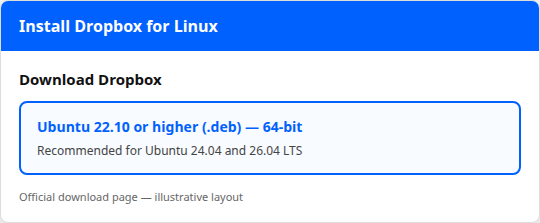
Dropbox’s current Linux download page labels the package for Ubuntu 24.04 and 26.04 as Ubuntu 22.10 or higher (.deb), 64-bit. The illustration below highlights that option—it is not a live capture of dropbox.com; confirm the exact buttons on the official page when you download.
Install Dropbox on Ubuntu desktop
Download the official Ubuntu .deb
Open Install Dropbox for Linux in a browser on the Ubuntu machine (or download on another system and copy the file over).
Download the 64-bit package for Ubuntu 22.10 or higher. The filename looks like dropbox_YYYY.MM.DD_amd64.deb. The label says 22.10 because that is Dropbox’s package branch name; it is the correct choice for 24.04 and 26.04.
.deb version may look old: the package is Dropbox’s open-source installer/integration helper. Dropbox downloads and updates the proprietary sync daemon separately. The helper version in apt can differ from the running daemon version shown in Dropbox Preferences or dropbox version after setup.
Install the Dropbox package
Install from the directory that contains the .deb so apt can resolve dependencies:
cd ~/DownloadsInstall the package (adjust the glob if your shell does not match the filename):
sudo apt install ./dropbox_*_amd64.debapt may pull in dependencies such as libappindicator3-1 for tray integration on GNOME.
Sign in and link your Ubuntu computer
Launch Dropbox from the application menu. The first-run flow downloads the proprietary daemon, opens a browser sign-in window, and creates your local sync folder.
~/Dropbox means the Dropbox directory in your home folder—for example /home/alice/Dropbox when your username is alice.
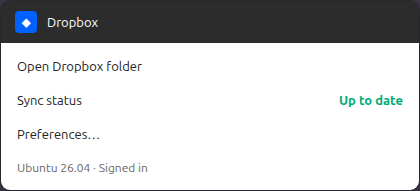
When sync is healthy, the Dropbox menu on the desktop should report a status such as Up to date:
Verify Dropbox is syncing
Confirm the folder exists:
ls ~/DropboxAn empty listing is normal immediately after linking; add a test file in the Dropbox web UI or drop a file into ~/Dropbox and watch it appear online.
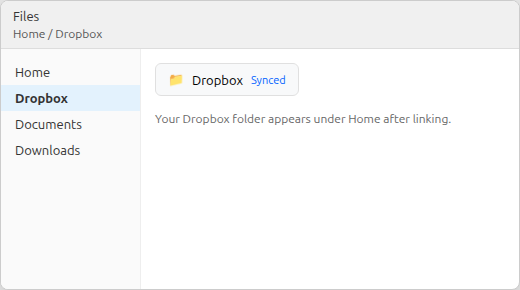
In Files (Nautilus), Dropbox should appear under Home:
After the official package or CLI helper is installed, you can also run:
dropbox statusDropbox is up to date!If dropbox is not found, install the CLI script in the headless section—the desktop .deb still syncs without it.
Install Dropbox on a headless Ubuntu server
Use this path when the machine has no graphical desktop or you administer it only over SSH.
Download the official 64-bit Dropbox daemon
From the target user’s home directory (sync runs as that user, not root):
cd ~Download and extract Dropbox’s official x86_64 bundle:
wget -O - "https://www.dropbox.com/download?plat=lnx.x86_64" | tar xzf -The tree lands under ~/.dropbox-dist/, including the dropboxd daemon binary.
Link the server to your Dropbox account
Start the daemon in the foreground for the first link:
~/.dropbox-dist/dropboxdThe daemon prints a message similar to:
This computer isn't linked to any Dropbox account...
Please visit https://www.dropbox.com/cli_link_nonce?nonce=...
Open that full URL in a browser on any computer, sign in to Dropbox, and approve the device. The running dropboxd process detects successful linkage; you do not paste an authorization code back into the terminal on current Dropbox headless flows.
┌─────────────────┐
│    dropboxd     │
│  (foreground)   │
└────────┬────────┘
         │ prints cli_link URL
         ↓
┌─────────────────┐
│ Browser (any PC)│
│ sign in + allow │
└────────┬────────┘
         ↓
┌─────────────────┐
│ Daemon linked   │
└────────┬────────┘
         ↓
┌─────────────────┐
│ ~/Dropbox syncs │
└─────────────────┘
Keep the terminal open until linking finishes. Closing an SSH session stops a foreground dropboxd unless you run it under a persistent service (next subsection).
Install the Dropbox CLI control script
dropboxd is the sync daemon. Commands such as dropbox status, dropbox stop, and dropbox start come from Dropbox’s separate Python CLI helper—not from the tarball alone.
PATH is the list of directories your shell searches when you type a command name. Putting the script in ~/bin lets you run dropbox without typing the full path.
Create ~/bin if needed:
mkdir -p ~/binFetch the CLI script:
wget -O ~/bin/dropbox "https://www.dropbox.com/download?dl=packages/dropbox.py"Make it executable:
chmod +x ~/bin/dropboxAdd ~/bin to your PATH when it is not already there (append to ~/.bashrc if needed):
export PATH="$HOME/bin:$PATH"Verify the CLI and sync state:
dropbox versionDropbox command-line interface version: ...Confirm the daemon is linked and syncing:
dropbox statusDropbox is up to date!Keep Dropbox running after logout or reboot
On a server, configure dropboxd to start automatically for the same Unix user that owns ~/Dropbox. Do not run the sync daemon as root.
Create a systemd user unit (run as that user, not with sudo):
mkdir -p ~/.config/systemd/userCreate the unit file:
nano ~/.config/systemd/user/dropbox.servicePaste:
[Unit]
Description=Dropbox sync daemon
After=network-online.target

[Service]
ExecStart=%h/.dropbox-dist/dropboxd
Restart=on-failure
RestartSec=3

[Install]
WantedBy=default.target
Enable and start the user service:
Reload the user unit files:
systemctl --user daemon-reloadEnable Dropbox to start now and on future logins for this user:
systemctl --user enable --now dropbox.serviceOn a headless host with no graphical login, allow the user’s systemd instance to run without an active session:
sudo loginctl enable-linger "$USER"Check that the service is active:
systemctl --user status dropbox.service --no-pagerAfter linking, dropbox status should still report a healthy sync when you disconnect from SSH.
Supported filesystems for the Dropbox folder
Dropbox supports the sync folder on ext4, XFS, Btrfs, ZFS, and eCryptFS backed by ext4. It does not support installing the Dropbox folder on network drives.
Most default Ubuntu desktop installs use ext4 for /home and need no change. Before you place a large sync folder on another disk—or move ~/Dropbox—check the mount:
findmnt -T "$HOME" -o TARGET,FSTYPETARGET FSTYPE
/ ext4On Ubuntu 26.04 with a default layout, / is often ext4, which meets Dropbox’s requirements. Run the same command on the path where you plan to store the folder if it differs from $HOME.
Optional: Install the community Dropbox Flatpak
Flathub publishes com.dropbox.Client, but Flathub labels it community-maintained—not verified, affiliated, or supported by Dropbox.
Prefer the official .deb when you want Dropbox-supported Linux installation. Use Flatpak only if you already rely on Flathub and accept an unofficial wrapper.
With Flatpak configured (Flatpak on Linux):
flatpak install flathub com.dropbox.ClientLaunch with:
flatpak run com.dropbox.ClientStill use one sync client per Ubuntu user on the machine.
Update Dropbox on Ubuntu
Desktop: Dropbox automatically updates the running application. Users cannot disable those auto-updates on supported Linux desktop installs.
Normally you do nothing. If an update fails or the app will not start, download the current .deb from dropbox.com/install-linux and install it over the existing helper package:
cd ~/Downloads
sudo apt install ./dropbox_*_amd64.deb
Headless: the daemon updates through Dropbox’s own update mechanism once installed. Keep using the official download URL if you rebuild the machine.
Use Dropbox from the command line
These commands require the dropbox CLI script (desktop .deb or manual install above)—not dropboxd alone.
Check sync status
Ask the CLI for the current sync state:
dropbox statusExpect Up to date! or a syncing message when the daemon is running and linked.
Start and stop Dropbox
Stop the daemon cleanly:
dropbox stopStart it again:
dropbox startOn headless systems, prefer systemctl --user stop dropbox.service and systemctl --user start dropbox.service when you use the user unit.
Enable autostart
On a desktop install, enable Dropbox when you log in to the graphical session:
dropbox autostart yDisable login autostart with:
dropbox autostart nManage selective sync
Dropbox’s CLI examples use paths relative to the Dropbox root. Change into the folder first:
cd ~/DropboxExclude a directory from sync:
dropbox exclude add large-folderList exclusions:
dropbox exclude listRun dropbox help for ls, sharelink, throttle, and other subcommands.
Uninstall Dropbox
Synced files can propagate deletes to Dropbox.com and other devices while the account is still linked. Stop Dropbox before removing local data.
Remove the desktop package
Stop the client:
dropbox stopRemove the Debian package:
sudo apt purge dropboxRemove Dropbox configuration when you no longer need the link on this machine:
rm -rf ~/.dropbox ~/.dropbox-distSee how to remove software on Ubuntu for purge vs remove.
Remove a headless installation
Disable the user service if you created one:
systemctl --user disable --now dropbox.serviceStop the daemon:
dropbox stopIf the CLI is missing, use kill and pkill carefully—for example pkill -f dropboxd—only when no other user runs Dropbox on the host.
Remove the daemon tree and config:
rm -rf ~/.dropbox ~/.dropbox-distRemove local files safely
~/Dropbox may contain the only copy of files that are not elsewhere in Dropbox or on another device.
Before deleting the local folder:
- Confirm important data in the Dropbox web interface or another linked device.
- Unlink or uninstall Dropbox so deletes do not sync unexpectedly.
- Remove
~/Dropboxonly when you intentionally want that copy gone from disk.
Do not run a casual rm -rf ~/Dropbox from a tutorial block while Dropbox is still running and linked.
Flatpak: flatpak uninstall com.dropbox.Client, then remove ~/.dropbox / ~/.dropbox-dist if present.
Troubleshooting
| Symptom | Likely cause | Fix |
|---|---|---|
| Sync works but no tray icon | GNOME AppIndicator library or extension | Install libappindicator3-1; enable an AppIndicator-compatible GNOME Shell extension |
dropbox: command not found after headless tarball |
CLI script not installed | Download dropbox.py to PATH (see headless section) |
| Unsupported filesystem warning | Dropbox folder on NFS or unsupported FS | Move folder to ext4/XFS/Btrfs/ZFS per Dropbox docs; verify with findmnt |
| Not syncing | Daemon stopped, selective sync, or full disk | dropbox status; dropbox exclude list; free space under ~/Dropbox |
| Proxy / cannot connect | Corporate proxy | Set proxy in Dropbox Preferences or dropbox proxy manual https HOST PORT |
Dropbox daemon version: Not installed |
Only legacy nautilus-dropbox CLI |
Install official .deb or complete headless dropboxd setup |
Old linux.dropbox.com apt errors |
Stale repository line | Remove the dropbox list file; use current .deb from Dropbox |
Dropbox syncs but the tray icon is missing
GNOME often needs AppIndicator support. The libappindicator3-1 package supplies libraries; GNOME Shell usually also needs an AppIndicator-compatible extension enabled—the library alone does not guarantee a visible tray icon.
Check the session type:
echo "$XDG_CURRENT_DESKTOP"Install the indicator library (available on Ubuntu 24.04 and 26.04):
sudo apt install libappindicator3-1Enable an AppIndicator extension from Extensions (or your distro’s extension tool), then log out and back in so the Dropbox icon can appear in the top bar.
dropbox: command not found after a headless install
The tarball provides dropboxd, not the dropbox command. Install the CLI script from Dropbox’s dropbox.py package URL and ensure ~/bin (or your chosen path) is on PATH.
Dropbox cannot use the selected filesystem
Run findmnt -T /path/to/Dropbox -o FSTYPE and compare with Dropbox’s supported Linux filesystem list. Network mounts and unsupported types require moving the folder to a supported local filesystem.
Dropbox is not syncing
Confirm the daemon is running (dropbox status or pgrep -af dropboxd). Check exclusions and disk space. Restart with dropbox stop then dropbox start, or systemctl --user restart dropbox.service on headless systems.
Dropbox cannot connect through a proxy
Configure the proxy in the desktop Preferences UI or with Dropbox’s CLI form dropbox proxy MODE [TYPE] [HOST] [PORT] [USERNAME] [PASSWORD].
Example for an HTTPS proxy on port 8080:
dropbox proxy manual https proxy.example.com 8080With authentication:
dropbox proxy manual https proxy.example.com 8080 username passwordUse headless installation when there is no desktop, not as the automatic fix for every proxy failure.
Summary
Ubuntu 26.04 and 24.04 on amd64 use the same Dropbox workflow: the official .deb labeled Ubuntu 22.10 or higher on the download page, or the official x86_64 headless tarball on servers. The .deb is an integration helper; Dropbox updates the proprietary sync engine separately and auto-updates the desktop app. Supported 22.04 LTS systems use the older download label on the same install page.
On desktop, sign in once and confirm ~/Dropbox and the tray status. On headless systems, run dropboxd, authorize via the cli_link_nonce URL, install the dropbox CLI script, and enable a systemd user service with loginctl enable-linger when the server has no graphical login. Check findmnt before placing large sync folders on non-default disks.
Prefer the official installers over community Flatpak and aging nautilus-dropbox. When uninstalling, stop Dropbox first, remove packages or ~/.dropbox-dist, and treat ~/Dropbox as live synced data—not disposable cache.
References
- Install Dropbox for Linux — official
.deband requirements - Dropbox help: Linux requirements — supported Ubuntu versions and filesystems
- Flathub: com.dropbox.Client — community package disclaimer
Frequently Asked Questions
Does Dropbox support Ubuntu 26.04?
Yes. Dropbox lists Ubuntu 64-bit 18.04 or later for the Linux desktop app. Use the Ubuntu 22.10 or higher .deb from Dropbox’s install page on 26.04.
Does Dropbox work on Ubuntu 24.04?
Yes. The same Ubuntu 22.10 or higher .deb and headless x86_64 daemon apply on 24.04 LTS.
Is Dropbox available for ARM64 Ubuntu?
No for Dropbox’s current Linux desktop requirements—they do not support ARM processors on Linux. This guide targets amd64/x86_64 Ubuntu only.
Is the Dropbox Flatpak official?
No. Flathub states com.dropbox.Client is community-provided and not verified or supported by Dropbox. Prefer the official .deb for a Dropbox-supported install.
Should I install nautilus-dropbox?
Not for a new install. Ubuntu multiverse still ships nautilus-dropbox 2019.02.14 (for example 2019.02.14-1.2build3 on 26.04 and 2019.02.14-1.2build2 on 24.04), but Dropbox directs users to the current .deb from dropbox.com/install-linux. The legacy package often reports Dropbox daemon version: Not installed until you complete an old GUI wizard.
Does Dropbox update automatically?
On the desktop app, yes—Dropbox auto-updates the running application and does not let users disable that behavior on supported Linux installs. Reinstall the latest .deb only if an update fails.
