
| Tested on | Ubuntu 24.04 LTS — GNOME Online Accounts and Files workflow (desktop) |
|---|---|
| Applies to | Ubuntu 24.04 LTS and 22.04 LTS (GNOME desktop) |
| Privilege | Normal user for Google sign-in; sudo only on a minimal GNOME image missing Online Accounts packages |
| Scope | Connect Google in Settings → Online Accounts, enable Files for that account, and browse My Drive in Nautilus on Ubuntu 24.04 and 22.04. Explains that this is not Windows-style folder sync and when to use rclone or Insync. Does not cover Ubuntu 26.04 (Drive was removed from Files there). |
| Related guides | Google Drive on Ubuntu 26.04 Install Dropbox on Ubuntu Install Google Chrome on Ubuntu Check Ubuntu version |
If you use Google Drive on a laptop, you usually want your files inside Files (Nautilus)—not a separate “install” step. Google does not publish a Drive for desktop app on Linux (official help). On Ubuntu 24.04 and 22.04, the built-in path is Settings → Online Accounts → Google, then enable Files for that account and open My Drive from the sidebar.
That workflow streams files on demand. It is not the same as the Windows client’s offline folder sync. If you need offline copies, automated transfers, or 26.04 support, use rclone or Insync as described in When Online Accounts is not enough.
Before you begin
Confirm you are on 24.04 or 22.04 with the GNOME desktop—check Ubuntu version if you are unsure. Server images without a graphical session cannot use Online Accounts. For a headless system, use the rclone workflow in our Google Drive on Ubuntu 26.04 guide instead.
You need a Google account and a browser for sign-in. A normal Ubuntu Desktop install already includes Online Accounts; you only install extra packages on a minimal GNOME setup (see Quick answer).
Quick answer
Open Settings → Online Accounts → Google, complete sign-in, return to Online Accounts, and make sure Files is enabled for your Google account. Then open Files and choose your Google account in the sidebar to browse My Drive.
On a minimal GNOME install that lacks Online Accounts, refresh indexes and install the GVfs Google backend:
sudo apt updateInstall Online Accounts and the GVfs Google backend:
sudo apt install gnome-online-accounts gvfs-backendsDoes Google Drive have an official Ubuntu app?
No. Google does not ship Drive for desktop on Linux. On 24.04 and 22.04 you access Drive through GNOME Files after linking Google in Online Accounts—there is no google-drive package to install from Google. Tutorials titled “install Google Drive on Ubuntu” usually mean connect or mount, not an official app.
Does Google Drive sync files locally on Ubuntu?
Not the way the Windows or macOS Drive client does. GNOME Online Accounts does not create a normal ~/Google Drive folder full of offline copies. Drive appears as a remote location inside Files—open a file and it downloads when needed; delete or save in Files and the change applies in the cloud.
GNOME Online Accounts also does not guarantee a full offline mirror of everything in Drive. For comparison with Dropbox on Ubuntu, Dropbox’s desktop app keeps a real synchronized folder on disk. Online Accounts is closer to browsing a network share.
If you need a normal path for scripts, terminal jobs, or offline synchronization, use rclone or another sync client—see Google Drive on Ubuntu 26.04 for mount and copy workflows.
Calendar, Mail, or Contacts can connect without Files enabled—if Files is off under Online Accounts, the account may look connected while My Drive never appears in the sidebar.
Access Google Drive from Files
Open Online Accounts
From the GNOME shell, open Settings and choose Online Accounts in the sidebar. If the panel is missing, install the packages in Quick answer and reopen Settings.
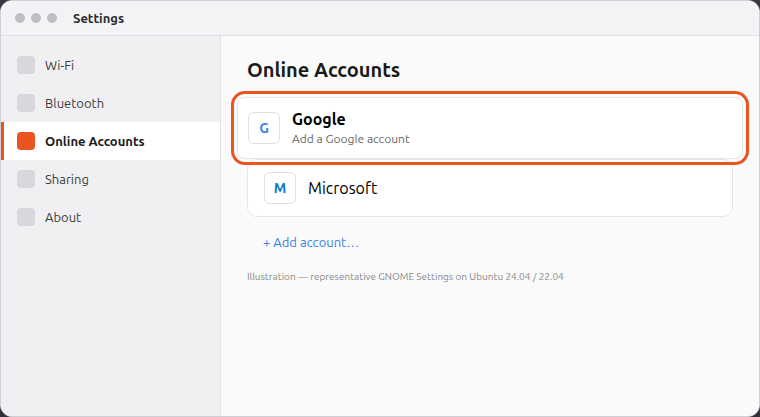
Choose Google from the provider list (or Add account if you already use other online accounts).
Add your Google account
Click Google. Your browser opens for Google sign-in; complete login and authorize GNOME to access your account as prompted. When you return to Settings, your Google account should appear under Online Accounts.
Make sure Files is enabled
Select your Google account in Online Accounts and confirm the Files switch is on. Ubuntu and GNOME expose Drive here—not as a separate “Files” checkbox on Google’s web consent screen, which can change over time. If Files is disabled, My Drive will not show in Nautilus even though Mail or Calendar still work.
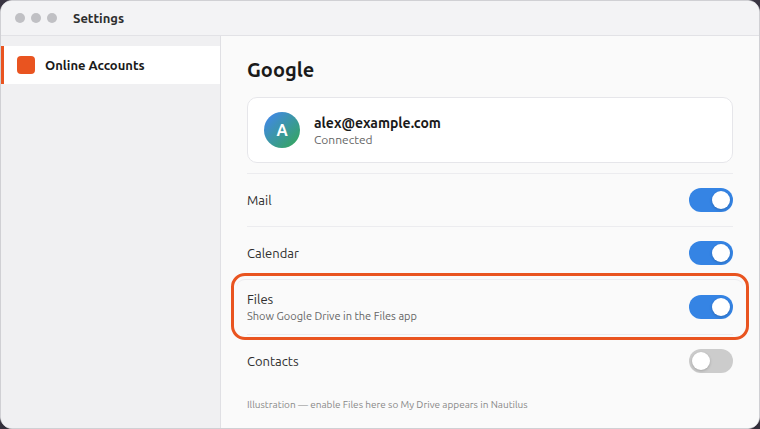
The Files row should stay on after you finish sign-in.
Open Google Drive in Files
Open Files. Your Google account appears in the sidebar (often under cloud or network locations)—open it and select My Drive. Folders and files load on demand; large transfers may feel slower than a local disk.
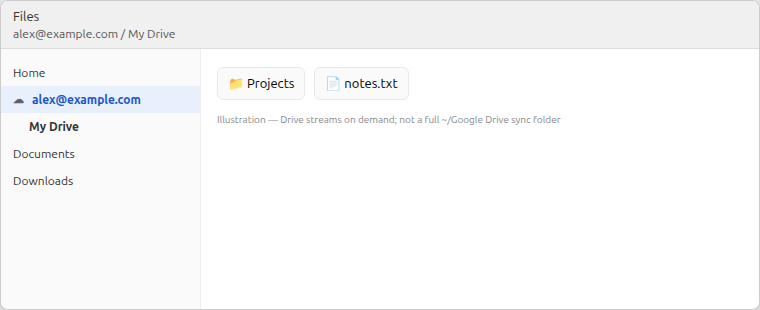
You should see your account in the sidebar and My Drive beneath it—not a separate Google Drive folder under Home.
After a reboot, check Settings → Online Accounts to confirm Google stays connected. If the sidebar entry disappears, open Online Accounts → Google, verify Files is still enabled, and reopen Files. Remove and reconnect the account only if My Drive still does not appear.
When Online Accounts is not enough
| Need | Option |
|---|---|
| Ubuntu 26.04 or no GNOME Files integration | Google Drive on Ubuntu 26.04 — rclone mount |
| Scripted copy, server, or cron jobs | rclone copy / sync (OAuth setup in the 26.04 guide) |
| GUI folder sync like Google’s Windows app | Insync (paid) — .deb from insynchq.com |
| Occasional edits in the browser | drive.google.com or Chrome on Ubuntu |
You do not need rclone just to browse Drive in Files on 24.04 or 22.04. Use rclone if you need scripting, offline copies, or 26.04 support, where Online Accounts no longer mounts Drive.
Disconnect Google Drive
Settings → Online Accounts → Google → Remove disconnects GNOME from Google. Revoke the app under Google Account permissions if you want to invalidate tokens on Google’s side.
Removing the account does not delete files in Drive. Local copies you made elsewhere stay on disk until you delete them.
Troubleshooting
| Symptom | Likely cause | Fix |
|---|---|---|
| No Online Accounts in Settings | Packages missing on minimal install | sudo apt install gnome-online-accounts gvfs-backends |
| Google connects but no Drive in Files | Files disabled in Online Accounts | Settings → Online Accounts → Google — turn Files on; reopen Files. Reconnect the account only if My Drive still missing |
| Account vanishes after upgrade to 26.04 | GNOME 50 removed Drive backend | Use rclone on 26.04 |
| Slow opens or timeouts | Network or large on-demand downloads | Expected for streaming; copy important files locally or use Insync |
| Need offline full-tree sync | Online Accounts is not sync | Insync or rclone sync; test with --dry-run before live runs |
Summary
Ubuntu 24.04 and 22.04 let you add Google Drive to Files through Settings → Online Accounts → Google, with Files enabled for that account. My Drive then appears in the sidebar and streams on demand—it is not a full offline sync product like Google’s Windows client.
Before you upgrade to 26.04, plan a replacement: GNOME no longer mounts Drive in Files on that release. For rclone mounts on current LTS, see Google Drive on Ubuntu 26.04. If you need offline synchronization on Jammy or Noble, use Insync or rclone; otherwise Online Accounts is enough for everyday browsing.
References
- Google Drive on your computer (official)
- GNOME Online Accounts
- Ubuntu 26.04 release notes — Google Drive removed from Files
Frequently Asked Questions
Does Google Drive work in Files on Ubuntu 24.04?
Yes on a typical GNOME desktop. Add Google under Settings → Online Accounts, enable Files for that account, then open My Drive from Files.
Is Ubuntu 22.04 the same as 24.04 for Google Drive?
Yes for this workflow. Both LTS releases use GNOME Online Accounts and the GVfs Google backend in Files until you move to 26.04.
Is Files integration the same as Google Drive sync?
No. It exposes cloud content for on-demand access in Files. True folder sync needs Insync or rclone copy/sync; rclone sync can delete destination files that are not on the source—use --dry-run first.
Why does this guide not cover Ubuntu 26.04?
26.04 removed Google Drive from Files. Use rclone mount on that release instead of Online Accounts for Drive.
