
| Tested on | Ubuntu 26.04 LTS (Resolute Raccoon) |
|---|---|
| Package | google-chrome-stable 155.0.8059.84-1 (amd64 lab)Official arm64 deb available from Google (155.0.8059.84-1 at refresh) |
| Applies to | Ubuntu 26.04 LTS and 24.04 LTS (64-bit amd64 or arm64); the same Google .deb workflow also works on supported Ubuntu 22.04 systems |
| Privilege | sudo or root to install the package; normal user to launch Chrome |
| Scope | Install the official Google Chrome browser on Ubuntu with Google's .deb and apt, confirm the automatic Google APT repository, update Chrome with apt install --only-upgrade google-chrome-stable, set Chrome as the default browser optionally, uninstall safely, and compare Chrome vs Chromium. Does not cover extensions, DevTools deep dives, proxy setup, or headless Chrome. |
| Related guides | apt command in Linux wget command in Linux Check Ubuntu version dpkg command in Linux How to remove software on Ubuntu |
Google Chrome is not in Ubuntu's main or universe repositories. Install it from Google's official .deb at dl.google.com with apt. A .deb package is the standard software-installation format used by Ubuntu and Debian. The Chrome package registers Google's signing key and APT source so security updates arrive through the same workflow as other system packages.
The steps below were run on Ubuntu 26.04 (amd64) with Chrome 155.0.8059.84. The download URL, apt install ./…deb flow, and google-chrome.sources file are the same on 24.04. Google's Linux requirements also cover 22.04 with the same method. Pick the amd64 or arm64 package name to match your CPU—do not install an amd64 deb on an arm64 system. Chrome is also a practical browser for Apple Music on the web when you do not need native iTunes on Linux, and for drive.google.com when you prefer the web app over a mount—see Google Drive on Ubuntu 26.04 or Google Drive on Ubuntu 24.04 & 22.04 for desktop integration options.
Quick answer
Google Chrome is proprietary software from Google, not an Ubuntu repo package. Open Terminal from Ubuntu's app menu, then check architecture, download the matching official deb, and install it locally with apt:
dpkg --print-architectureOn a typical 64-bit PC (amd64):
wget https://dl.google.com/linux/direct/google-chrome-stable_current_amd64.debInstall the downloaded package with apt (the ./ prefix tells apt to use the local file):
sudo apt install ./google-chrome-stable_current_amd64.debConfirm the binary:
google-chrome --versionThe installer adds /etc/apt/sources.list.d/google-chrome.sources, so future Chrome builds install with sudo apt update and sudo apt install --only-upgrade google-chrome-stable instead of downloading a new .deb every time. These steps apply to Ubuntu 26.04 and 24.04.
On arm64 (many ARM laptops and some cloud images), use google-chrome-stable_current_arm64.deb from the same host when dpkg --print-architecture prints arm64.
Google Chrome support on Ubuntu
Google documents Chrome for 64-bit Ubuntu 18.04 or later, which includes current LTS releases:
| Ubuntu | Supported with this guide |
|---|---|
| 26.04 LTS | Yes (primary lab) |
| 24.04 LTS | Yes (same commands) |
Google's published Linux requirements also include 22.04 LTS; use the same .deb and apt steps if you are on that release.
Chrome is a desktop browser. You need a graphical session for everyday use, outbound HTTPS to dl.google.com, and enough disk space for the package (the stable .deb is on the order of 130–140 MB on amd64 at refresh time).
Check whether Ubuntu is amd64 or arm64
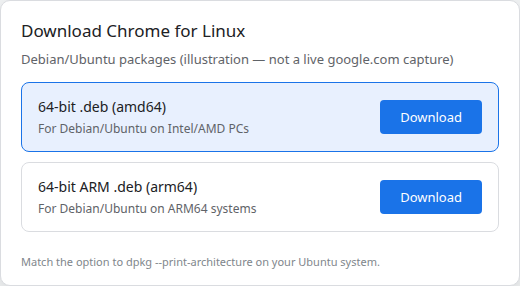
Package architecture must match the system. Ask dpkg:
dpkg --print-architectureSample output on the amd64 lab:
amd64dpkg --print-architecture |
Download file |
|---|---|
amd64 |
google-chrome-stable_current_amd64.deb |
arm64 |
google-chrome-stable_current_arm64.deb |
amd64 is the common 64-bit Intel/AMD PC architecture (sometimes labeled x86_64 elsewhere). arm64 is used by newer ARM-based laptops and some cloud images.
Google's download page lists separate Debian/Ubuntu packages for x86-64 and ARM64; the direct URLs on dl.google.com/linux/direct/ match the table above. At refresh, the arm64 stable deb reported the same version as amd64 (155.0.8059.84-1).
Install Google Chrome on Ubuntu
One official path is enough: Google's .deb installs Chrome, the signing key, and the APT repository. You do not need a separate tutorial that manually adds google-chrome.list unless you are repairing a broken setup.
      ┌─────────────────────┐
      │ Official Google .deb │
      └──────────┬──────────┘
                 │
                 v
      ┌─────────────────────┐
      │ sudo apt install ./… │
      └──────────┬──────────┘
                 │
                 v
      ┌─────────────────────────────┐
      │ google-chrome.sources + key │
      └──────────┬──────────────────┘
                 │
                 v
      ┌─────────────────────────────┐
      │ apt updates Chrome stable   │
      └─────────────────────────────┘
Download the official Google Chrome .deb
Use wget or a browser download into ~/Downloads. The stable amd64 URL stays constant; Google replaces the file when a new build ships:
cd ~/DownloadsPull the current stable build from Google (the filename stays the same while the version inside changes):
wget https://dl.google.com/linux/direct/google-chrome-stable_current_amd64.debThe transfer ends with a single large file. Check size and metadata before install:
ls -lh google-chrome-stable_current_amd64.deb-rw-r--r-- 1 user user 138M Oct 16 02:28 google-chrome-stable_current_amd64.debRead the embedded package version and architecture before you install:
dpkg-deb -f google-chrome-stable_current_amd64.deb Package Version ArchitecturePackage: google-chrome-stable
Version: 155.0.8059.84-1
Architecture: amd64dl.google.com or google.com/chrome. Third-party .deb copies are unnecessary and cannot be assumed to match Google's signed release.
Install Chrome with APT
Install the local package with apt so dependencies resolve from Ubuntu mirrors and the Google repository is configured automatically:
sudo apt install ./google-chrome-stable_current_amd64.debA successful first install registers alternatives and drops the DEB822 source file. You should see a Setting up google-chrome-stable line and an update-alternatives message pointing google-chrome at google-chrome-stable.
If apt reports a half-configured or broken package state from an earlier attempt, fix that state before retrying:
sudo apt --fix-broken installThen run the apt install ./google-chrome-stable_current_amd64.deb command again. Do not treat --fix-broken as a routine prerequisite on a healthy system.
Verify the installed Chrome version
Read the version string Chrome prints:
google-chrome --versionGoogle Chrome 155.0.8059.84Confirm which executable apt wired into your PATH:
command -v google-chrome/usr/bin/google-chromePoint releases change often; trust the output on your machine after install or upgrade, not a fixed number in a blog title.
Install from the desktop (optional)
On Ubuntu Desktop you can open Files, double-click the downloaded .deb, and follow Ubuntu's package-install prompt. The command line is easier to script and matches what Google documents for Linux administrators.
Launch Google Chrome
Start Chrome from the Ubuntu desktop
Press Super, type Google Chrome, and press Enter. Or start it from a terminal when you want to see errors on stderr:
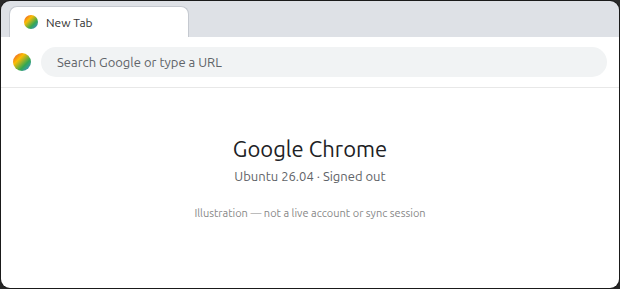
google-chromeAfter a clean install, Chrome should open a window with the new-tab page:
First-run setup
The first launch may ask whether Chrome should be the default browser and whether to send usage statistics. Depending on the current Chrome build, you may also need to review Google's Terms of Service or related setup choices. Sign-in with a Google account is optional and only needed if you want sync.
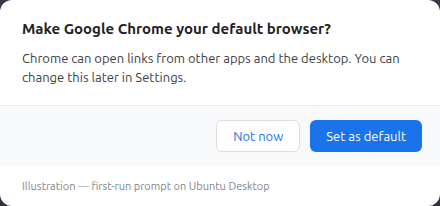
You can defer the default-browser choice and set it later from Ubuntu Settings → Apps (or Default Applications), then pick Web.
How Google Chrome updates on Ubuntu
Chrome receives frequent security releases on Linux. After the one-time .deb install, keep Google's APT source enabled and update through the package manager instead of re-downloading random .deb files from other sites.
Check the Google APT repository
Current Google Chrome Linux packages configure the Google APT repository using a DEB822 .sources file (an APT repository definition) on these Ubuntu releases. After install you should have one active definition:
cat /etc/apt/sources.list.d/google-chrome.sources### THIS FILE IS AUTOMATICALLY CONFIGURED ###
# Changes to this file will not be preserved.
# This file will not be recreated if removed.
X-Repolib-Name: Google Chrome
Types: deb
URIs: https://dl.google.com/linux/chrome-stable/deb/
Suites: stable
Components: main
Architectures: amd64
Signed-By: /usr/share/keyrings/google-chrome.gpgOn arm64 systems, the Architectures: line should read arm64. Older guides mention google-chrome.list; current packages prefer google-chrome.sources.
Refresh indexes and inspect what apt offers:
sudo apt updateSee which version apt considers installed and what Google's repo publishes:
apt-cache policy google-chrome-stablegoogle-chrome-stable:
Installed: 155.0.8059.84-1
Candidate: 155.0.8059.84-1
Version table:
*** 155.0.8059.84-1 500
500 https://dl.google.com/linux/chrome-stable/deb stable/main amd64 Packages
100 /var/lib/dpkg/statusUpdate Google Chrome
To upgrade only Chrome (without pulling every pending package on the system):
sudo apt updateUpgrade only the Chrome package:
sudo apt install --only-upgrade google-chrome-stableConfirm the running build after apt finishes:
google-chrome --versionUbuntu's Software Updater also picks up google-chrome-stable when Google's repository publishes a newer build.
Set Google Chrome as the default browser
If you want links and xdg-open to prefer Chrome:
xdg-settings set default-web-browser google-chrome.desktopVerify the change:
xdg-settings get default-web-browsergoogle-chrome.desktopGoogle Chrome vs Chromium on Ubuntu
Ubuntu Desktop ships Firefox by default. Chromium is the open-source browser project; Google Chrome is Google's proprietary build with Google account integration, sync, and Google's update channel.
| Google Chrome | Chromium (typical Ubuntu path) | |
|---|---|---|
| Source | Official .deb from Google (this guide) |
Distro or Snap packaging |
| Google sync | Built in | Not Google's branded sync stack |
| Updates | Google APT repository after first .deb |
Ubuntu Snap or distro maintainers |
Install Chrome when you specifically want Google's distribution. Use Chromium or Firefox when you prefer an open-source package from Ubuntu's usual channels.
Uninstall Google Chrome
Remove Chrome
On the package version tested for this article, purging Chrome also removed the Google repository entry the installer added. Package scripts can change between releases, so confirm what is left under /etc/apt/sources.list.d/ after purge:
sudo apt purge google-chrome-stableRefresh apt so indexes no longer reference a removed repo:
sudo apt updateCheck that no stale Chrome list files remain:
ls /etc/apt/sources.list.d/ | grep -i chromeNo output means no Chrome source file is left. If you still see both google-chrome.list and google-chrome.sources from an old manual setup, keep only the modern .sources file Google ships—see troubleshooting below.
Review optional dependency removal before deleting anything:
sudo apt-get -s autoremoveRun sudo apt autoremove only when that simulation lists packages you intend to drop.
Keep or delete your Chrome profile
Bookmarks, cache, and local profile data live under ~/.config/google-chrome/. Removing the apt package does not delete that directory. Delete it only when you are sure you do not need local data.
If Chrome Sync is enabled, synced data may still exist in your Google account, but unsynced local data is lost if you remove the profile folder.
Troubleshooting
| Symptom | Likely cause | Fix |
|---|---|---|
E: Unable to locate package google-chrome-stable |
Searching Ubuntu mirrors without installing Google's .deb first |
Download the official deb and sudo apt install ./google-chrome-stable_current_….deb |
package architecture (amd64) does not match system |
Wrong deb for CPU | Use _arm64.deb on arm64; use _amd64.deb on amd64 |
| APT warnings about duplicate Chrome repos | Legacy google-chrome.list plus google-chrome.sources |
List files with grep below; keep one Google source |
| Chrome not updating | Missing or disabled google-chrome.sources |
Reinstall the official .deb to recreate the source file |
google-chrome: command not found |
Install failed or binary not on PATH | dpkg -l google-chrome-stable; reinstall the deb |
Duplicate Google Chrome repository warnings
List every apt snippet that points at Google's Chrome deb repository:
grep -Ril "dl.google.com/linux/chrome" /etc/apt/sources.list.d 2>/dev/nullOn a clean current install you should see only google-chrome.sources. If an older google-chrome.list from a legacy tutorial is still present, apt may warn that Target Packages is configured multiple times. Open each file, confirm it references the same Google URL, and remove the duplicate after backing up the file—do not delete both definitions and leave Chrome with no update source.
Signed-By repository conflict
Mixed legacy one-line deb [arch=amd64] … entries and DEB822 .sources files can trigger Signed-By or signing-key conflicts. Use the grep command above to find duplicates, compare Signed-By: paths, and keep the single google-chrome.sources stanza that matches your architecture.
Chrome installs but does not open
Run Chrome from a terminal and read the error:
google-chromeClose stuck processes before retrying:
pkill -f google-chromeLaunch Chrome again from the terminal:
google-chromeIf the message points to graphics or GPU rendering, try a one-off diagnostic launch:
google-chrome --disable-gpuDo not leave --disable-gpu as a permanent fix unless you understand the driver trade-off.
Chrome is not receiving updates
Confirm the repository file exists and apt update succeeds, then run sudo apt install --only-upgrade google-chrome-stable. Compare apt-cache policy google-chrome-stable with google-chrome --version.
google-chrome: command not found
Check whether the package is installed:
dpkg -l google-chrome-stableReinstall from the official .deb if the package row is missing or shows un (not installed).
Summary
You install Google Chrome on Ubuntu by downloading Google's official .deb for your architecture (amd64 or arm64), running sudo apt install ./google-chrome-stable_current_….deb, and verifying with google-chrome --version. That single step installs the browser and registers google-chrome.sources, so security updates ship through apt instead of repeated manual downloads.
The same workflow targets Ubuntu 26.04 and 24.04 and also applies to supported 22.04 systems. Watch for duplicate google-chrome.list and .sources files if you upgraded from older tutorials—apt should see only one Google Chrome repository. To upgrade Chrome alone, use sudo apt install --only-upgrade google-chrome-stable after sudo apt update.
Purging google-chrome-stable removes the browser package; check /etc/apt/sources.list.d/ afterward for leftover Google entries. Profile data under ~/.config/google-chrome/ stays until you delete it. Choose Chrome when you want Google's build and sync; use Chromium or Firefox when you prefer Ubuntu's open-source packaging.
References
- Google Chrome — Download and install
- Google Chrome browser system requirements (Linux)
- Chrome Releases — Stable Channel
Frequently Asked Questions
Does Google Chrome support Ubuntu 26.04?
Yes. Google supports 64-bit Ubuntu 18.04 and later, which includes 26.04 LTS. Install the official .deb for your CPU architecture and let apt manage updates.
Does the same method work on Ubuntu 24.04?
Yes. The download URL, apt install ./…deb command, and automatic google-chrome.sources setup are the same on 24.04 and 26.04.
Is Google Chrome available for Ubuntu ARM64?
Yes. Google publishes google-chrome-stable_current_arm64.deb for arm64 systems. Run dpkg --print-architecture and install the matching package name; do not use the amd64 deb on arm64 hardware.
Is Google Chrome in Ubuntu's repository?
No. Chrome is proprietary software from Google. Ubuntu's apt indexes do not include it until you install Google's .deb, which adds Google's repository.
Does Google Chrome update automatically on Ubuntu?
The Google .deb adds Google's repository to Ubuntu's package manager, so Chrome participates in your normal update workflow. Software Updater or a regular sudo apt upgrade can install new Chrome releases after sudo apt update. To upgrade only Chrome, use sudo apt install --only-upgrade google-chrome-stable.
Should I install Chrome or Chromium?
Install Chrome when you want Google's proprietary build, sync, and update channel. Use Chromium when you want the open-source project packaged through Ubuntu's usual channels.
How do I uninstall Google Chrome from Ubuntu?
Run sudo apt purge google-chrome-stable, then sudo apt update. Check /etc/apt/sources.list.d/ for leftover chrome files. Remove ~/.config/google-chrome/ only if you no longer need local profile data.
