
| Tested on | Ubuntu 26.04 LTS (Resolute Raccoon) |
|---|---|
| Package | Apple Music web (music.apple.com)rhythmbox 3.4.9-3ubuntu3 (26.04 apt)Ubuntu wine 10.0~repack (26.04 universe; 24.04 ships Wine 9.0) |
| Applies to | Ubuntu 24.04 LTS and 26.04 LTS (amd64 desktop) |
| Privilege | sudo for apt packages; normal user for browser and Rhythmbox |
| Scope | Whether iTunes can run on Ubuntu, official Apple Music streaming in a browser, playing local music with Rhythmbox, what Linux can and cannot do for iPhone/iPad backup and sync, and why Wine or Bottles is experimental only. Does not cover full libimobiledevice workflows, Apple API development, or detailed Wine compatibility tuning. |
| Related guides | Google Drive on Ubuntu 26.04 Install Dropbox on Ubuntu |
Apple does not publish iTunes for Ubuntu or any other Linux distribution. Apple's lineup today looks like this:
- Windows: iTunes remains available for legacy media and some workflows.
- macOS: separate Music, TV, Podcasts, and Books apps replaced the old iTunes app.
- Linux: no official iTunes package.
On Ubuntu 26.04 and 24.04, match your goal to the path that actually works:
- Apple Music streaming: Apple Music on the web in a browser.
- Local MP3/FLAC libraries: a Linux player such as Rhythmbox.
- iPhone or iPad backup, restore, and sync: Apple Devices on Windows or Finder on macOS—not Wine.
- Classic
iTunes.exeon Ubuntu: Wine or Bottles only; treat it as an unsupported experiment.
Use check Ubuntu version if you are unsure which LTS release you run. Debian users who want the Sidra desktop wrapper should follow install Apple Music on Debian instead.
Quick answer
Apple does not provide iTunes for Ubuntu. Match the task:
- Streaming and cloud library — Apple Music on the web in Firefox or Google Chrome.
- Local MP3 or FLAC folders — install Rhythmbox with apt.
- iPhone or iPad backup, restore, and sync — Apple Devices on Windows or Finder on macOS—not Wine.
If you still try Windows iTunes under Wine or Bottles, expect:
- outdated installers and unreliable Apple Account sign-in
- community reports of blank or black windows on current Ubuntu
- no dependable USB iPhone or iPad detection for backup or restore
Can you install iTunes natively on Ubuntu?
No:
- No official
.deb, Snap, or Flatpak from Apple apt search itunesdoes not offer a supported client
apt search itunes 2>/dev/null | head -5Sorting...
Full Text Search...
amarok/resolute 2:3.3.2-1ubuntu3 amd64
easy to use media player based
atomicparsley/resolute 20240608.083822.1ed9031-1build1 amd64Ubuntu's indexes list other media tools—not an Apple iTunes package:
- No Apple
itunespackage inapt - Third-party players (for example Amarok) are unrelated to Apple's client
- Any tutorial that claims a native Linux iTunes installer is misleading
What do you need iTunes for?
Pick the row that matches your goal before you spend time on Wine.
| Goal | Best Ubuntu / current Apple solution |
|---|---|
| Listen to Apple Music | Apple Music web |
| Apple Music in an app-like window | Open music.apple.com in Chrome and create an app-style shortcut |
| Play local music files | Rhythmbox (or another Linux player) |
| Open DRM-free files from an old iTunes folder | Import compatible audio into Rhythmbox—no iTunes required |
| Back up or restore an iPhone or iPad | Apple Devices on Windows; Finder on macOS |
| Sync an iPhone like classic iTunes | Windows or macOS Apple stack |
Run the actual Windows iTunes.exe |
Wine or Bottles—unsupported experiment |
| Manage an old iPod or niche device | Device-specific; some Linux tools offer partial support |
Apple Music streaming
Apple documents Apple Music on the web as the official listen path without iTunes. On Ubuntu that covers:
- Streaming and your cloud library in a browser
- Playlists, radio, and lyrics where Apple enables them on the web
- No Wine or Windows installer
Local music library
If an old iTunes folder holds ordinary DRM-free audio (for example MP3 or compatible AAC/M4A), Rhythmbox can import and play those files like any other local library:
- Copy or import the folder with Music → Import Folder
- Rhythmbox does not automatically reproduce all iTunes metadata, ratings, playlists, or play counts
- Store purchases and DRM-protected Apple media still need Apple's supported clients on Windows or macOS
- FLAC is a common Linux local format; it is separate from classic iTunes library exports—Rhythmbox plays FLAC when you add those files directly
iPhone or iPad backup and sync
On Windows, Apple splits responsibilities across separate apps:
- Apple Music — music libraries
- Apple TV — films and TV
- Apple Devices — backup, restore, updates, and device sync
Wine does not replicate Apple's USB driver stack or those supported device workflows.
Running the actual Windows iTunes app
Some readers still want the classic iTunes window. Treat Wine as a lab experiment, not a product install:
- An older Windows iTunes build chosen for Wine compatibility may open on Ubuntu
- Community reports and Wine experiments commonly hit blank windows, crashes, or broken sign-in with current 64-bit iTunes for Windows
- Apple ships current iTunes only through official Windows downloads—not for Linux
- Do not use obsolete installers for Apple Account sign-in or Store use; they are legacy software, not a supported Apple Music client
Use Apple Music on Ubuntu
Open Terminal from the app menu only when you install Rhythmbox later; Apple Music itself needs a graphical browser session.
Open Apple Music in a browser
- Launch Firefox, Chrome, or another modern browser.
- Go to https://music.apple.com/.
- Sign in with your Apple Account (formerly called Apple ID) when you are ready to stream or open your library.
Apple Music subscription: streaming the full Apple Music catalogue requires an Apple Music subscription. Signing in uses your Apple Account; some previews and radio features may be available without a subscription depending on region.
   ┌──────────────────┐
   │ Ubuntu browser   │
   └────────┬─────────┘
            │
            v
   ┌──────────────────┐
   │ music.apple.com  │
   └────────┬─────────┘
            │
     ┌──────┴──────┬────────────┐
     v             v            v
┌─────────┐ ┌───────────┐ ┌─────────┐
│ Apple   │ │ Playlists │ │ Library │
│ Music   │ │           │ │ & radio │
└─────────┘ └───────────┘ └─────────┘
After sign-in, you get the same streaming experience Apple documents for the web—no Wine layer.
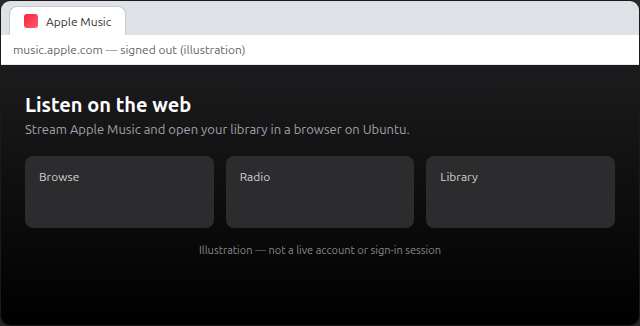
Use Apple Music like a desktop web app
Firefox is fine for everyday streaming in a normal browser tab. For an app-style window, use Google Chrome:
- Open
music.apple.comand sign in. - Use the Chrome menu → Create shortcut (or Install, if Chrome offers it for the site) and choose to open in its own window when prompted.
- Launch the shortcut from the app grid or dock.
It is still the web client, not native iTunes, but a dedicated window keeps daily listening out of a crowded browser tab.
Play a local iTunes music library on Ubuntu
Use Rhythmbox for local music
Rhythmbox is a desktop music player and library manager in Ubuntu's repositories: import folders and podcasts, and play common formats such as MP3 and FLAC. It fits the same desktop stack as other apps in must-have Ubuntu apps.
Rhythmbox installs with apt command:
sudo apt update
sudo apt install rhythmbox
rhythmbox --versionrhythmbox 3.4.9On the lab system (26.04), apt installed Rhythmbox 3.4.9 in main; 24.04 ships 3.4.7 with the same install command.
After install:
- Open Rhythmbox from Activities
- Use Music → Import Folder for a directory copied from another computer
- For lightweight playback only, Amberol is another Ubuntu option in apt
Rhythmbox does not replace Apple's store or device stack:
- no iPhone or iPad sync
- no iTunes Store purchase or redemption flow
- no playback of Apple's DRM-protected (FairPlay) media that requires Apple's official apps
Manage an iPhone or iPad from Ubuntu
What Linux tools can and cannot replace
Linux utilities such as libimobiledevice can sometimes:
- Mount devices or copy photos for narrow tasks
- Assist with workflows this guide does not walk through
They do not replace the supported backup, restore, and sync surface that Apple Devices on Windows or Finder on macOS offers:
- No encrypted backup/restore parity with Apple's tools
- No iOS updates through Apple's device workflow
- No full media sync matching iTunes or Apple Devices
When you still need Windows or macOS
Use a real Windows PC with Apple Devices or a Mac when the task is device management—not browser streaming:
- Backup, restore, and iOS updates through Apple's stack
- Full sync that classic iTunes or Apple Devices provided on Windows
- Wine on Ubuntu does not change Apple's documented model
Optional: Run iTunes with Wine or Bottles
Wine is a compatibility layer that can run some Windows applications on Linux; it is not Windows itself and does not guarantee that every Windows program works.
Bottles is a graphical tool that creates separate Wine environments for Windows applications, so experiments are easier to isolate than editing raw WINEPREFIX= paths by hand.
Read this section only if the tables above still leave you curious. For everyday Apple Music, skip it. The workflow resembles install Notepad++ in Linux (Wine plus a Windows .exe), but iTunes is far less reliable than Notepad++ on current Ubuntu.
Why this is experimental
- Apple does not support iTunes on Linux.
- Community reports and current Wine experiments commonly encounter blank or black windows, crashes, or failed sign-in with newer Windows iTunes builds.
- Older iTunes builds that sometimes launch are outdated; signing into an Apple Account or using Store features through them is a security and reliability risk in 2026.
- USB iPhone detection through Wine is not dependable for backup or restore.
Do not rely on Wine for device management:
- Use Apple Devices or macOS for backup and restore
- Download Apple software only from Apple's support downloads when you test on Windows—not random mirror sites
Ubuntu 26.04 and 24.04 Wine versions
Start with Ubuntu's packaged Wine before adding third-party repositories:
apt-cache policy winePackaged Wine versions on current LTS releases:
- Ubuntu 26.04: Wine 10.0 in universe (lab check)
- Ubuntu 24.04: Wine 9.0 in universe
A newer Wine major version does not mean iTunes works; it only defines what you are testing against.
Optional Bottles (often installed as Flatpak from the project's documented route):
- Each bottle is its own Wine prefix—a separate directory that holds one application's simulated Windows environment
- Easier to experiment with than raw
WINEPREFIX=commands - Still not a supported iTunes install
What works and what usually fails
| Feature under Wine/Bottles | Expected reliability |
|---|---|
| Installer runs | Maybe |
| iTunes window opens | Maybe |
| Local media playback | Sometimes |
| Apple Account login | Unreliable |
| Apple Music / Store online | Unreliable |
| iPhone USB detection | Do not rely on it |
| Backup / restore | No supported workflow—use Apple Devices / macOS |
| iOS update / restore | Use Apple Devices / macOS |
Test iTunes in an isolated Wine or Bottles environment
If you experiment anyway:
- Create a dedicated Wine prefix (for example
~/.wine-itunesor a Bottles bottle)—a separate simulated Windows environment; do not reuse it for banking or email. - Use only official Apple installers you would also trust on Windows.
- Note which build you tried and which features failed (sign-in, blank window, no device).
- Remove the prefix when finished if you do not need it.
There is no single command sequence that guarantees success on 26.04 or 24.04. Outcomes vary by:
- GPU and graphics stack
- Wine build and prefix settings
- Installer age (old vs current iTunes)
Community reports often mention a blank window after launch—stop and use the browser path instead.
Troubleshooting
| Symptom | Likely cause | What to try |
|---|---|---|
| Apple Music will not play in the browser | Sign-in, subscription, DRM, or network | Confirm Apple Account login and Apple Music subscription; try another browser; check HTTPS/proxy |
| Rhythmbox shows no music | Files not imported | Music → Import Folder; verify file permissions |
| iTunes window is black or blank under Wine | Modern iTunes + incomplete Wine graphics/web stack | Stop depending on Wine; use Apple Music web |
| Apple Account sign-in fails in Wine iTunes | Expected limitation | Use music.apple.com—do not reuse passwords on untrusted old builds |
| iPhone not detected | No Windows Apple driver stack in Wine | Use Apple Devices on Windows or macOS |
| Audio silent in Wine | PulseAudio/PipeWire or Wine audio driver | Check system volume; try winecfg audio settings once—then prefer native players |
| Old tutorial uses PlayOnLinux | Obsolete repo and scripts | Ignore PlayOnLinux; use browser + Rhythmbox, or current Wine/Bottles only for experiments |
Older guides recommend PlayOnLinux and the deb.playonlinux.com repository. On 26.04 or 24.04:
- Treat PlayOnLinux as obsolete for iTunes
- Prefer Apple Music web + Rhythmbox for daily use
- Use current Wine or Bottles only for isolated experiments
When a Wine test hangs, stop the prefix with wineserver -k; see kill and pkill if child processes remain:
WINEPREFIX="$HOME/.wine-itunes" wineserver -kReplace the path with your Bottles bottle or prefix if you used a different name.
Summary
- No native iTunes on Ubuntu—Apple does not ship a Linux client.
- Apple Music on the web is the official streaming path on 26.04 and 24.04.
- Rhythmbox (apt) covers local MP3/FLAC libraries without pretending to be iTunes.
- iPhone/iPad backup and sync belong on Apple Devices (Windows) or macOS, not Wine.
- Wine/Bottles + iTunes is experimental: users commonly report blank windows, broken sign-in, and missing USB devices (Wine 10 on 26.04, Wine 9 on 24.04).
Pick the row in the goal table that matches your task. To remove an experimental Wine prefix or Bottles bottle later, use the apt and Flatpak cleanup patterns in how to remove software on Ubuntu.
References
- Apple — Download iTunes for Windows
- Apple Support — Get the Apple Music app in the Microsoft Store
- Apple Support — Use Apple Devices on Windows
- Apple Support — Listen to music on the web with Apple Music
Frequently Asked Questions
Is there an official iTunes app for Ubuntu?
No. Apple publishes iTunes for Windows and maintains separate media apps on modern macOS. Linux has no official iTunes package.
Does iTunes work on Ubuntu 26.04?
Not as a supported product. Apple Music in a browser and Rhythmbox for local files work. Windows iTunes under Wine may launch in some experiments but is unreliable.
Does this work on Ubuntu 24.04?
Yes for the recommended paths: Apple Music web and Rhythmbox use the same workflow on 24.04 and 26.04. Packaged Wine differs (9.0 on 24.04 vs 10.0 on 26.04) but that does not make iTunes dependable.
Can I use Apple Music on Ubuntu?
Yes. Open music.apple.com, sign in with your Apple Account, and stream in a supported browser with an active Apple Music subscription. In Chrome, you can create an app-style shortcut for a dedicated window.
Can I back up an iPhone on Ubuntu?
Not with iTunes-through-Wine as a supported method. Use Apple Devices on Windows or the macOS device workflow for backup and restore Apple documents.
Can Wine run the latest iTunes?
Often no. Newer Windows iTunes builds are not reliably compatible with Wine; users commonly encounter launch failures, blank windows, or broken online features. Older installers sometimes open but are poor choices for Apple Account use in 2026.
Is Bottles better than Wine for iTunes?
Bottles makes isolated prefixes easier to manage, but it does not make iTunes supported. Treat Bottles like Wine: experimental only, not for device backup.
