
| Tested on | Ubuntu 26.04 LTS control node AWS Region | ap-south-1 (Mumbai) |
|---|---|
| Package | ansible-core 2.20.1amazon.aws 11.4.0boto3 1.41.0+ with AWS CRT (for aws login) |
| Applies to | RHEL, Rocky Linux, AlmaLinux, Oracle Linux, CentOS Stream, Fedora, Ubuntu AWS account with EC2 permissions |
| Privilege | sudo or root on the control node; AWS credentials with EC2 API access |
| Scope | Install the amazon.aws collection with a compatible Boto3 stack, create a lab security group, launch and tag one EC2 instance, start and stop by instance ID, discover instances by tag, and terminate when you finish. Does not cover full VPC design or the aws_ec2 dynamic inventory plugin. |
| Related guides | Ansible tags |
You can manage EC2 from a Linux control node the same way you manage on-prem hosts: playbooks that call AWS APIs instead of SSH. This optional chapter walks through launching Ubuntu 24.04 in ap-south-1, attaching tags, changing power state, and discovering VMs by tag so you are not clicking through the console for every change.
You need playbook basics from your first Ansible playbook. Cloud provisioning is not on the RHCE EX294 exam.
What you will automate
By the end you will have:
amazon.awspinned incollections/requirements.ymland a compatible Boto3 + CRT stack in a Python virtual environment- AWS credentials from
aws login(see the AWS CLI tutorial) - A lab security group created with
amazon.aws.ec2_security_group vars/aws_lab.ymlfor region, AMI, subnet, key pair, SSH CIDR, and instance name- Playbooks that launch and tag one instance, start and stop by instance ID, and discover hosts by
Envtag
Ansible talks to EC2 through the amazon.aws collection. Use amazon.aws.ec2_instance to create and change instances and amazon.aws.ec2_instance_info to query them. The legacy top-level ec2 module that depended on unmaintained boto was removed in amazon.aws 4.0.0. Look up FQCN options with modules, ansible-doc and collections before you copy examples from older blogs.
Before you start
| Prerequisite | Why it matters |
|---|---|
| AWS account with EC2 access | Playbooks call the EC2 API in your chosen region |
| AWS credentials on the control host | Boto3 1.41.0+ with AWS CRT can use credentials from aws login |
| VPC subnet ID in that region | Launch tasks need vpc_subnet_id |
| EC2 key pair in that region | SSH login after launch |
| Ansible on the control node | Same baseline as the rest of this course |
| AWS CLI v2.32.0+ | aws login, aws sts get-caller-identity, and subnet or AMI lookups |
Pick one region and stay consistent in playbooks and the CLI. I use ap-south-1 below. A region is not the same as an availability zone: ap-south-1b is a zone inside region ap-south-1.
Lab directory layout
Create a working tree on your control node so playbooks and vars stay together:
~/ansible-aws-lab/
├── collections/requirements.yml
├── vars/aws_lab.yml
└── playbooks/
    ├── create_security_group.yml
    ├── launch_ec2.yml
    ├── start_instance.yml
    ├── stop_instance.yml
    ├── terminate_instance.yml
    └── list_by_tag.yml
Run every ansible-playbook command from ~/ansible-aws-lab unless a step says otherwise. Activate the Python virtual environment from the install step before each run.
Install the amazon.aws collection and Boto3
Ansible-core does not ship AWS modules. Pin the collection version in collections/requirements.yml so a future amazon.aws release does not break your tested ansible-core pair.
Create collections/requirements.yml:
---
collections:
  - name: amazon.aws
    version: "11.4.0"
Ubuntu 26.04 blocks system-wide pip installs outside a virtual environment. Create an isolated environment for Ansible and Boto3 together:
sudo apt install python3-venv

python3 -m venv ~/ansible-aws-venv
source ~/ansible-aws-venv/bin/activate

python -m pip install ansible-core 'boto3[crt]>=1.41.0'
The amazon.aws collection supports older Boto3 releases, but this tutorial uses Boto3 1.41.0+ with AWS CRT because that is required for credentials created by aws login. Ubuntu's python3-boto3 package (1.40.x at the time of writing) is too old for that workflow.
Install the collection while the virtual environment is active:
ansible-galaxy collection install -r collections/requirements.ymlVerify versions:
ansible --version
ansible-galaxy collection list amazon.aws
python -c 'import boto3; print(boto3.__version__)'Collection Version
---------- -------
amazon.aws 11.4.0Reactivate the environment in any new shell before you run playbooks:
source ~/ansible-aws-venv/bin/activateConfigure AWS authentication
Ansible's AWS modules authenticate through Boto3. This tutorial uses the same AWS login configured in the AWS CLI tutorial. With Boto3 1.41.0+ and AWS CRT installed, Boto3 can use credentials created by aws login.
If you have not signed in yet, complete the aws login steps in the AWS CLI tutorial first.
Verify the CLI can reach AWS before you run playbooks:
aws sts get-caller-identity{
"UserId": "342524208658",
"Account": "342524208658",
"Arn": "arn:aws:iam::342524208658:root"
}If the command returns the expected AWS account and identity, authentication is working. For routine automation, use a non-root identity with only the permissions required by the playbooks.
Do not embed access keys in playbooks or commit them to Git.
Find the subnet and Ubuntu AMI
Launch playbooks need real IDs from your account. The commands below use the account's default VPC for the shortest runnable example. If a command returns None, use an existing VPC and subnet ID instead.
Set your region once for the shell session:
export AWS_DEFAULT_REGION=ap-south-1Read the default VPC ID:
aws ec2 describe-vpcs --filters Name=isDefault,Values=true --query 'Vpcs[0].VpcId' --output textvpc-090f366caca593558Pick a default subnet in that VPC:
aws ec2 describe-subnets \
  --filters Name=default-for-az,Values=true Name=vpc-id,Values=vpc-090f366caca593558 \
--query 'Subnets[0].[SubnetId,AvailabilityZone]' --output textsubnet-0feeabb44efb68329 ap-south-1cQuery the newest Ubuntu 24.04 Noble amd64 AMI published by Canonical:
aws ec2 describe-images --owners 099720109477 \
  --filters "Name=name,Values=ubuntu/images/hvm-ssd-gp3/ubuntu-noble-24.04-amd64-server-*" "Name=state,Values=available" \
--query 'sort_by(Images,&CreationDate)[-1].[ImageId,Name]' --output textami-050c78efa486a0196 ubuntu/images/hvm-ssd-gp3/ubuntu-noble-24.04-amd64-server-20260828AMI IDs change when Canonical publishes new snapshots. Run describe-images in your region instead of copying mine forever.
Look up your current public IPv4 address for the security group rule:
curl -s https://checkip.amazonaws.com203.0.113.25Create an SSH key pair in the same region if you do not already have one:
aws ec2 create-key-pair --key-name glc-ansible-aws-key --query 'KeyMaterial' --output text > ~/glc-ansible-aws-key.pemRestrict the private key file so OpenSSH accepts it:
chmod 400 ~/glc-ansible-aws-key.pemThe key pair appears under EC2 → Key pairs in the console:

Define the EC2 variables
Region, AMI, subnet, key pair, and SSH CIDR repeat in every playbook. Define them once in vars/aws_lab.yml and load the file with vars_files in each play.
Create vars/aws_lab.yml and replace values with IDs from your account:
---
ec2_region: ap-south-1
ec2_ami_id: ami-050c78efa486a0196
ec2_instance_type: t3.micro
ec2_key_name: glc-ansible-aws-key
ec2_subnet_id: subnet-0feeabb44efb68329
ec2_vpc_id: vpc-090f366caca593558
ec2_ssh_cidr: 203.0.113.25/32

# Set after you create the security group (see create_security_group.yml output)
ec2_security_group_id: sg-0123456789abcdef0

ec2_name: glc-ansible-demo
ec2_env: lab

# Set after your first launch (see launch playbook output)
ec2_instance_id: i-0528ca403bf1a6bd1
ec2_subnet_id and the security group you create next must belong to the same VPC. Set ec2_ssh_cidr to your public IP with /32. After you create the security group, copy security_group_id from the playbook output into ec2_security_group_id. After your first launch, copy the instance ID from the launch playbook output into ec2_instance_id. If you leave a placeholder value here, stop and start playbooks fail with an image_id error because the module thinks you are trying to create a new instance.
Create an EC2 security group with Ansible
A security group is a firewall attached to your instance. This playbook creates one that allows SSH from your IP and tags it for cleanup.
Create playbooks/create_security_group.yml:
---
- name: Create lab security group for Ansible EC2
  hosts: localhost
  connection: local
  gather_facts: false
  vars_files:
    - ../vars/aws_lab.yml
  tasks:
    - name: Allow SSH to lab security group
      amazon.aws.ec2_security_group:
        name: glc-ansible-aws-sg
        description: SSH for GoLinuxCloud Ansible AWS lab
        region: "{{ ec2_region }}"
        vpc_id: "{{ ec2_vpc_id }}"
        rules:
          - proto: tcp
            ports:
              - 22
            cidr_ip:
              - "{{ ec2_ssh_cidr }}"
            rule_desc: SSH for lab
        tags:
          Name: glc-ansible-aws-sg
          ManagedBy: ansible
      register: lab_sg

    - name: Show security group ID
      ansible.builtin.debug:
        msg: "security_group_id={{ lab_sg.group_id }}"
Run the playbook:
ansible-playbook playbooks/create_security_group.ymlOn the first run the security group task reports changed=1. A second run is idempotent:
PLAY RECAP *********************************************************************
localhost                  : ok=2    changed=0    unreachable=0    failed=0    skipped=0    rescued=0    ignored=0
The debug task prints your security group ID. Copy it into ec2_security_group_id in vars/aws_lab.yml before you launch the instance.
Confirm the group under EC2 → Security groups:

Launch and tag an EC2 instance
Create playbooks/launch_ec2.yml. The name parameter sets the Name tag. While a matching instance remains running with the same Name, AMI, and subnet, rerunning this playbook normally reuses it rather than launching another instance. ec2_instance uses multiple attributes when matching existing instances; name alone is not a permanent unique identifier.
---
- name: Launch one EC2 instance
  hosts: localhost
  connection: local
  gather_facts: false
  vars_files:
    - ../vars/aws_lab.yml
  tasks:
    - name: Create EC2 instance
      amazon.aws.ec2_instance:
        name: "{{ ec2_name }}"
        instance_type: "{{ ec2_instance_type }}"
        image_id: "{{ ec2_ami_id }}"
        key_name: "{{ ec2_key_name }}"
        vpc_subnet_id: "{{ ec2_subnet_id }}"
        security_groups:
          - "{{ ec2_security_group_id }}"
        region: "{{ ec2_region }}"
        network_interfaces:
          - assign_public_ip: true
        wait: true
        tags:
          Env: "{{ ec2_env }}"
          ManagedBy: ansible
      register: ec2_launch

    - name: Show instance ID and public IP
      ansible.builtin.debug:
        msg:
          - "instance_id={{ ec2_launch.instances[0].instance_id }}"
          - "public_ip={{ ec2_launch.instances[0].public_ip_address | default('pending') }}"
vpc_subnet_id places the instance in your chosen subnet. network_interfaces with assign_public_ip: true requests a public IP for SSH. Use network_interfaces instead of the deprecated network parameter.
Syntax-check before you call AWS:
ansible-playbook playbooks/launch_ec2.yml --syntax-checkAnsible only validates YAML here. It does not call AWS yet:
playbook: playbooks/launch_ec2.ymlRun the playbook against your account. This creates a billable instance:
ansible-playbook playbooks/launch_ec2.ymlA successful first launch shows changed=1 on the create task:
PLAY [Launch one EC2 instance] ********************************************************

TASK [Create EC2 instance] ************************************************************
changed: [localhost]

TASK [Show instance ID and public IP] *************************************************
ok: [localhost] => {
    "msg": [
        "instance_id=i-0528ca403bf1a6bd1",
        "public_ip=52.66.219.72"
    ]
}

PLAY RECAP ****************************************************************************
localhost                  : ok=2    changed=1    unreachable=0    failed=0    skipped=0    rescued=0    ignored=0
Copy the instance_id line into ec2_instance_id in vars/aws_lab.yml.
Run the same playbook again while the instance is still running:
ansible-playbook playbooks/launch_ec2.ymlThe create task should report ok with changed=0:
PLAY RECAP ****************************************************************************
localhost                  : ok=2    changed=0    unreachable=0    failed=0    skipped=0    rescued=0    ignored=0
When the instance is running, connect with the key pair you created. Canonical Ubuntu AMIs use ubuntu as the login name:
ssh -o StrictHostKeyChecking=accept-new -i ~/glc-ansible-aws-key.pem ubuntu@52.66.219.72 'uname -a && lsb_release -ds'Linux ip-172-31-4-120 7.0.0-1011-aws #11~24.04.1-Ubuntu SMP PREEMPT Mon Aug 10 15:20:57 UTC 2026 x86_64 x86_64 x86_64 GNU/Linux
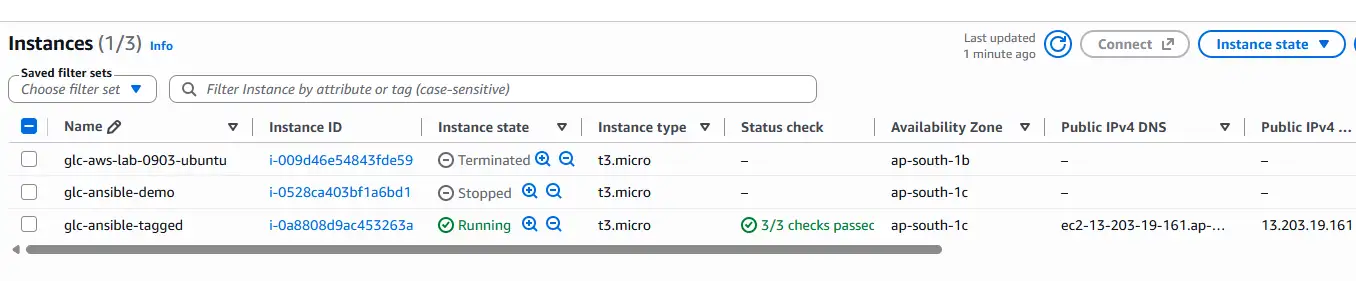
Ubuntu 24.04.4 LTSThe instance appears under EC2 → Instances:
Start and stop an EC2 instance
After launch, change power state with instance_ids and state. You do not recreate the VM.
Use state: started or state: running to power on and state: stopped to stop. Set ec2_instance_id in vars/aws_lab.yml to a real instance ID before you run these playbooks.
Stop (playbooks/stop_instance.yml)
---
- name: Stop EC2 instance by ID
  hosts: localhost
  connection: local
  gather_facts: false
  vars_files:
    - ../vars/aws_lab.yml
  tasks:
    - name: Stop instance
      amazon.aws.ec2_instance:
        instance_ids:
          - "{{ ec2_instance_id }}"
        region: "{{ ec2_region }}"
        state: stopped
        wait: true
Run the stop playbook:
ansible-playbook playbooks/stop_instance.ymlWhen the instance was running, the stop task reports changed=1:
PLAY RECAP ****************************************************************************
localhost                  : ok=1    changed=1    unreachable=0    failed=0    skipped=0    rescued=0    ignored=0
Start (playbooks/start_instance.yml)
---
- name: Start EC2 instance by ID
  hosts: localhost
  connection: local
  gather_facts: false
  vars_files:
    - ../vars/aws_lab.yml
  tasks:
    - name: Start instance
      amazon.aws.ec2_instance:
        instance_ids:
          - "{{ ec2_instance_id }}"
        region: "{{ ec2_region }}"
        state: started
        wait: true
Run the start playbook:
ansible-playbook playbooks/start_instance.ymlIf the instance was already running, Ansible reports ok with changed=0. That is normal idempotent behavior.
Use wait: true on stop and start when the next task depends on the instance reaching a stable state.
Find EC2 instances by tag
Hard-coding instance IDs breaks down when autoscaling or rebuilds replace VMs. Discover instances with amazon.aws.ec2_instance_info and filter on tags. Filter names and values are case-sensitive.
Always narrow by state as well as tag. A tag-only filter can return stopped instances and, briefly, recently terminated ones still visible to the API.
Create playbooks/list_by_tag.yml:
---
- name: List instance IDs for Env tag
  hosts: localhost
  connection: local
  gather_facts: false
  vars_files:
    - ../vars/aws_lab.yml
  tasks:
    - name: Query instances by tag
      amazon.aws.ec2_instance_info:
        region: "{{ ec2_region }}"
        filters:
          "tag:Env": "{{ ec2_env }}"
          instance-state-name:
            - running
            - stopped
      register: ec2_info

    - name: Show instance IDs
      ansible.builtin.debug:
        msg: "{{ item.instance_id }}"
      loop: "{{ ec2_info.instances }}"
      loop_control:
        label: "{{ item.instance_id }}"
Run the query playbook:
ansible-playbook playbooks/list_by_tag.ymlEach matching instance prints its ID. Use the returned ID as ec2_instance_id when running the lifecycle playbooks, or use this discovery pattern as the basis for looping over multiple instances in your own automation.
ok: [localhost] => (item=i-0528ca403bf1a6bd1) => {
    "msg": "i-0528ca403bf1a6bd1"
}
Terminate the EC2 instance
ec2_instance_info, confirm instance IDs, names, region, and tags, and be sure you are deleting the right hosts. Never terminate from a broad filter alone without reviewing the matched set first.
Create playbooks/terminate_instance.yml:
---
- name: Terminate EC2 instance by ID
  hosts: localhost
  connection: local
  gather_facts: false
  vars_files:
    - ../vars/aws_lab.yml
  tasks:
    - name: Terminate instance
      amazon.aws.ec2_instance:
        instance_ids:
          - "{{ ec2_instance_id }}"
        region: "{{ ec2_region }}"
        state: terminated
        wait: true
Termination is irreversible. Run only when you are ready to delete the instance:
ansible-playbook playbooks/terminate_instance.ymlTerminated instances stay visible in the EC2 console for about an hour before AWS removes the row. Filter out the Terminated state in the console if you do not want to see them.
Clean up the security group and key pair
When you finish testing, terminate the instance first, then remove the supporting lab resources:
- Terminate the EC2 instance (
terminate_instance.yml) - Delete the security group when no instances reference it
- Delete the key pair and remove the local
.pemfile
Example CLI cleanup after the instance is terminated:
aws ec2 delete-security-group --group-name glc-ansible-aws-sg --region ap-south-1Remove the EC2 key pair from your account:
aws ec2 delete-key-pair --key-name glc-ansible-aws-key --region ap-south-1Delete the private key file from disk:
rm -f ~/glc-ansible-aws-key.pemThe security group delete fails while an instance still references it. Terminate instances first.
Troubleshooting
| Symptom | Likely cause | Fix |
|---|---|---|
Collection amazon.aws not found |
Collection not installed | Activate the venv, then ansible-galaxy collection install -r collections/requirements.yml |
Boto3 cannot use aws login credentials |
Boto3 below 1.41.0 or CRT missing | In the venv: python -m pip install 'boto3[crt]>=1.41.0' |
You must include an image_id on stop or start |
ec2_instance_id is still a placeholder or wrong ID |
Copy the real instance ID from the launch playbook output into vars/aws_lab.yml |
InvalidAMIID.NotFound |
AMI retired or wrong region | Re-run aws ec2 describe-images in the same region as ec2_region |
| Launch fails without default VPC | No default subnet for the account | Set ec2_subnet_id explicitly in vars/aws_lab.yml |
| Security group name is ambiguous | Same group name in multiple VPCs | Pass the sg-… ID in ec2_security_group_id instead of the group name |
UnauthorizedOperation |
IAM policy too narrow | Grant required EC2 API actions for the resources you manage |
Playbook uses ec2: module |
Legacy syntax from pre-4.0 guides | Migrate to amazon.aws.ec2_instance |
changed=0 on start |
Instance already running | Expected idempotency, not an error |
| Terminate task does nothing | Termination protection enabled | Disable protection in the console before state: terminated |
| Tag filter matched unexpected hosts | Ran terminate without listing first | Run list_by_tag.yml and confirm IDs before terminate |
For module and collection resolution errors on the control node, see collection, module, and variable errors. When failures might be SSH, YAML, or inventory rather than AWS API calls, start with the Ansible troubleshooting hub.
References
- amazon.aws.ec2_instance module
- amazon.aws.ec2_instance_info module
- Amazon Web Services Guide (Ansible)
- AWS EC2 User Guide
- Security best practices in IAM
Frequently Asked Questions
Which Ansible module should I use for EC2 instances today?
Use amazon.aws.ec2_instance to create and manage instances and amazon.aws.ec2_instance_info to query them. The legacy ec2 module was removed from amazon.aws 4.0.0 because it depended on the obsolete boto SDK.
Do I need the AWS CLI if Ansible already uses boto3?
Ansible modules call AWS APIs through boto3. The AWS CLI is still useful for aws login, aws sts get-caller-identity, and quick subnet or AMI lookups. You can also use environment variables, named profiles, or an IAM role on the control host when Boto3 supports that credential source.
Can I run these playbooks from the EX294 lab without AWS?
No. This optional chapter needs an AWS account, API credentials with EC2 permissions, and billable resources. The RHCE EX294 exam does not test cloud provisioning.
Why use tags instead of instance IDs in playbooks?
Instance IDs change every launch. Tags such as Env: lab stay stable across automation runs, so you can discover matching instances with ec2_instance_info and pass the returned IDs to lifecycle playbooks without editing vars by hand.
What happens if I terminate an instance by mistake?
Termination is irreversible for the EC2 instance. Instance-store data is lost, and EBS volumes with DeleteOnTermination=true are deleted. Check the instance's block-device settings before terminating anything whose data you need. Test with stop first, list and verify IDs before terminate, and scope IAM policies to the minimum EC2 actions you need.
Why does my terminated instance still appear in the EC2 console?
AWS keeps terminated instances in the Instances list for about one hour for audit purposes. You are not billed for a terminated instance. Filter out the Terminated state in the console, or wait until AWS removes the row automatically.
