
| Tested on | Ubuntu guest VM on Oracle VirtualBox on Windows 10 |
|---|---|
| Package | Ubuntu: openssh-server, openssh-client; RHEL family: openssh-server, openssh-clients |
| Applies to | Linux guests in Oracle VirtualBox; SSH clients on Windows, Linux, or macOS |
| Privilege | Normal user in the VM for checks; sudo for firewall and network changes on the guest |
| Scope | SSH from the VirtualBox host into a Linux guest using NAT port forwarding, host-only, or bridged networking. Does not cover VMware, libvirt, or headless VBoxManage automation. |
| Related guides | OpenSSH tutorial |
There are three practical ways to SSH from your computer into a Linux VM running in VirtualBox:
- NAT + port forwarding — simplest starting point; works with VirtualBox's default network adapter
- Host-only — permanent private network between the host and VMs
- Bridged — VM reachable from other devices on your physical LAN
This walkthrough uses Oracle VirtualBox on a Windows 10 host with an Ubuntu guest. The same guest checks apply to Debian, Rocky Linux, AlmaLinux, and Fedora; service unit names differ (ssh vs sshd), but the VirtualBox steps are the same. For host-to-guest file copy without SSH, see VirtualBox shared folders — here the focus is shell access over the network.
Which VirtualBox network mode should you use?
| Requirement | Recommended mode |
|---|---|
| Just SSH from the VirtualBox host into one VM | NAT + port forwarding |
| Corporate laptop, VPN, or unknown network restrictions | NAT + port forwarding |
| Need a stable private host↔VM network | Host-only |
| Need several local VMs to communicate privately | Host-only |
| Need internet plus a private VM lab network | NAT + host-only |
| Other PCs or phones on the LAN must reach the VM | Bridged |
| Several VMs need internet and direct VM↔VM communication | NAT Network |
For most readers, start with NAT port forwarding. It uses VirtualBox's default NAT adapter and requires only one forwarding rule such as 127.0.0.1:2222 → guest port 22. Add host-only when you specifically need a persistent private network between the host and one or more VMs.
Verify SSH is running inside the VM
Log in to the VM console (VirtualBox window), open a terminal, and confirm OpenSSH is ready before you change network adapters. Package and firewall steps below use sudo on the guest.
Install and start OpenSSH Server
On Ubuntu and Debian, install openssh-server with the apt command if the unit is missing:
# Check whether the SSH server unit exists
systemctl status ssh

# Run only if you see "Unit ssh.service could not be found"
sudo apt update
sudo apt install openssh-server
sudo systemctl enable --now ssh
On RHEL, Rocky Linux, AlmaLinux, and Fedora, use the dnf command to install the server package:
sudo dnf install openssh-server
sudo systemctl enable --now sshd
The systemctl command should report Active: active (running):
# Ubuntu / Debian
systemctl status ssh

# RHEL / Rocky / AlmaLinux / Fedora
systemctl status sshd

# If inactive, start and enable:
sudo systemctl enable --now ssh          # Ubuntu / Debian
# sudo systemctl enable --now sshd # RHEL family● ssh.service - OpenBSD Secure Shell server
Loaded: loaded (/lib/systemd/system/ssh.service; enabled; preset: enabled)
Active: active (running) since Mon 2026-09-22 10:15:03 UTC; 2h 11min agoCheck port 22 and the guest firewall
Confirm SSH listens on port 22 with ss command:
sudo ss -lntp | grep ':22'LISTEN 0 128 0.0.0.0:22 0.0.0.0:* users:(("sshd",pid=842,fd=3))
LISTEN 0 128 [::]:22 [::]:* users:(("sshd",pid=842,fd=4))Lines showing 0.0.0.0:22 and [::]:22 mean sshd accepts connections on port 22.
On a single laptop, the Linux guest firewall is the usual blocker—not Windows Firewall on loopback NAT connections:
If either tool is inactive or not running, it is not blocking SSH—do not enable it just to add rules.
# Ubuntu / Debian — run allow only when status is active
sudo ufw status
sudo ufw allow OpenSSH

# RHEL family — run add-service only when state is running
sudo firewall-cmd --state
sudo firewall-cmd --permanent --add-service=ssh && sudo firewall-cmd --reload
Method 1: NAT with port forwarding
Use NAT with port forwarding when you simply want to SSH from the host PC into the VM:
- VirtualBox ships NAT as the default outbound networking mode
- Incoming SSH needs one forwarding rule, such as
127.0.0.1:2222→ guest port22 - No second virtual adapter or extra host NIC setup
┌─────────────┐      ┌──────────────────┐      ┌───────────────────┐      ┌─────────────────┐
│ SSH client  │ ───► │ 127.0.0.1:2222   │ ───► │ VirtualBox NAT    │ ───► │ 10.0.2.15:22    │
│ on host     │      │ host loopback    │      │ port forward      │      │ sshd in guest   │
└─────────────┘      └──────────────────┘      └───────────────────┘      └─────────────────┘
For CLI-based forwarding rules, see NAT port forwarding in VirtualBox.
Create the SSH port forward
In VirtualBox Manager:
- Open Machine → Settings → Network
- Select Adapter 1 (or the adapter already on NAT)
- Confirm Attached to is NAT—not NAT Network
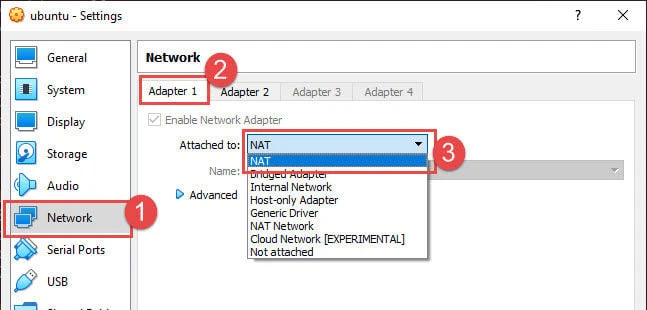
Then:
- Expand Advanced and click Port Forwarding
- Add a rule with the values below
| Field | Recommended value | Notes |
|---|---|---|
| Name | ssh |
Any label |
| Protocol | TCP | SSH uses TCP |
| Host IP | 127.0.0.1 |
Binds forwarding to localhost on the host |
| Host Port | 2222 |
Any free port on the host |
| Guest IP | (empty) | VirtualBox picks the guest |
| Guest Port | 22 |
SSH port inside the VM |
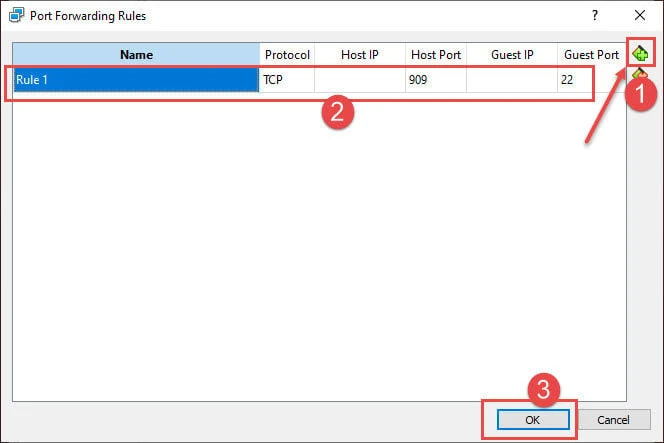
Leave Host IP empty only if you intentionally want the forwarded SSH port reachable through other host interfaces.
Click OK to save the network settings.
SSH to 127.0.0.1:2222
From the host, connect through the forwarded port. The ssh command accepts a non-default port with -p; you can also save a Host block in SSH config so ssh myvm replaces ssh -p 2222 user@127.0.0.1 each time.
ssh -p 2222 deepak@127.0.0.1Replace deepak with the Linux username inside the guest VM—not your Windows host username.
On the first connection, OpenSSH shows a host-key fingerprint prompt:
- Verify the fingerprint when you can
- Type
yesto continue - OpenSSH stores the host key in
known_hostsfor later logins
Why you cannot SSH directly to 10.0.2.15
A default NAT guest usually receives 10.0.2.15/24 on Adapter 1 — confirm with the ip command:
ip -4 addr show enp0s32: enp0s3: <BROADCAST,MULTICAST,UP,LOWER_UP> mtu 1500 qdisc fq_codel state UP group default qlen 1000
inet 10.0.2.15/24 brd 10.0.2.255 scope global dynamic noprefixroute enp0s3That address belongs to VirtualBox's private NAT network inside the hypervisor:
- The guest can initiate connections outward (guest → internet)
- The host OS does not connect inward to
10.0.2.15under standard NAT - Use the port-forward path to
127.0.0.1instead
┌─────────────┐      ┌──────────────────┐      ┌───────────────────┐      ┌─────────────────┐
│ SSH client  │ ───► │ 127.0.0.1:2222   │ ───► │ VirtualBox NAT    │ ───► │ 10.0.2.15:22    │
│ on host     │      │ host loopback    │      │ port forward      │      │ sshd in guest   │
└─────────────┘      └──────────────────┘      └───────────────────┘      └─────────────────┘
Method 2: Host-only networking
Add host-only networking when you want stable private addresses for host↔VM or VM↔VM communication:
- Host and VMs share a private subnet without using your physical LAN
- VM↔VM SSH works on the same host-only network
- Keep Adapter 1 on NAT if the VMs also need internet access
On Windows, host-only adds a VirtualBox virtual adapter and driver. That is fine on most home labs, but NAT port forwarding has fewer moving parts when you only need host→guest SSH on a locked-down corporate laptop.
┌─────────────┐      ┌────────────────────┐      ┌─────────────────┐
│ Host PC     │ ───► │ Host-Only vboxnet0 │ ───► │ Linux VM        │
│ 192.168.56.1│      │ 192.168.56.0/24    │      │ 192.168.56.116  │
└─────────────┘      └────────────────────┘      └─────────────────┘
Attach a host-only adapter
Create or confirm the host-only network first:
- Open Tools → Network (or File → Host Network Manager on older versions)
- Create a network if none exists; enable DHCP for automatic guest addresses
- Many labs use the
192.168.56.0/24range
Power off the VM before adding or reconfiguring Adapter 2. Then:
- Open Machine → Settings → Network → Adapter 2
- Check Enable Network Adapter
- Set Attached to to Host-only Adapter
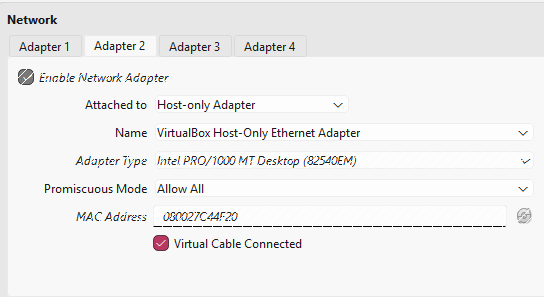
Confirm the Name drop-down lists your host-only network, then start the VM.
Find the host-only IP and connect
If the second adapter does not pick up an address automatically, reconnect its NetworkManager profile with nmcli:
sudo nmcli connection down "Wired connection 2"
sudo nmcli connection up "Wired connection 2"
Read the host-only address (Adapter 2 is usually enp0s8):
ip -4 addr show enp0s82: enp0s8: <BROADCAST,MULTICAST,UP,LOWER_UP> mtu 1500 qdisc fq_codel state UP group default qlen 1000
inet 192.168.56.116/24 brd 192.168.56.255 scope global dynamic noprefixroute enp0s8Connect from the host:
ssh deepak@192.168.56.116On Windows, a failed ping does not prove host-only is broken—Windows may block ICMP while TCP still works. Test the SSH port directly:
Test-NetConnection 192.168.56.116 -Port 22InterfaceAlias : Ethernet 7
SourceAddress : 192.168.56.1
TcpTestSucceeded : TrueRead the result this way:
TcpTestSucceeded : True— host-only routing to SSH works; checksshd, guest firewall, or credentials if login still failsTcpTestSucceeded : False— check the VirtualBox adapter, guest listener, or routing
NAT + host-only for multi-VM labs
For a reusable local lab with internet access:
- Adapter 1: NAT — package installs and updates
- Adapter 2: Host-only — stable host↔VM and VM↔VM SSH on
192.168.56.x
Use bridged on Adapter 2 only when other physical machines on your LAN must reach the VM directly.
Method 3: Bridged networking
Use bridged networking when the VM must behave like a machine on your physical LAN:
- Phones, other PCs, or network devices can SSH to the VM directly
- The guest gets an IP from your home or office router
- Bridged attaches through the host's physical NIC, so office Wi-Fi, VPN, or network policy can interfere
┌─────────────┐      ┌──────────────┐      ┌─────────┐      ┌─────────────────┐
│ Host PC     │ ───► │ Wi-Fi /      │ ───► │ Router  │ ───► │ Bridged VM      │
│ SSH client  │      │ Ethernet NIC │      │   LAN   │      │ 192.168.1.45    │
└─────────────┘      └──────────────┘      └─────────┘      └─────────────────┘
Attach the bridged adapter and connect
Power off the VM if VirtualBox will not save the change while it is running. Then:
- Open Machine → Settings → Network
- Select the adapter and set Attached to to Bridged Adapter
- Match the Name drop-down to the host NIC that reaches your router (Wi-Fi vs Ethernet)
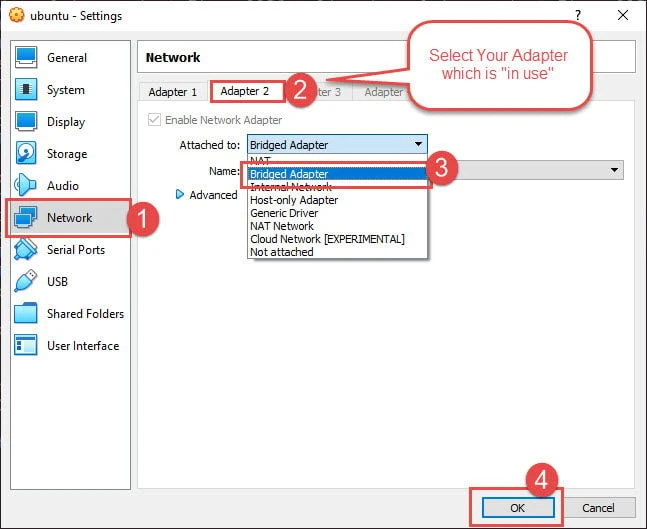
Start the VM and reconnect the profile if needed:
sudo nmcli connection down "Wired connection 2"
sudo nmcli connection up "Wired connection 2"
Read the LAN address:
ip -4 addr show enp0s8Connect with the bridged IP and your guest Linux username:
ssh deepak@192.168.1.45Replace interface names, IPs, and the username with what your guest reports. Use the same nmcli connection modify workflow when you need a static bridged address instead of DHCP.
127.0.0.1 is usually the more reliable fallback.
NAT vs host-only vs bridged
| Mode | Host → VM | VM → internet | VM ↔ VM | Other LAN devices → VM | Best use |
|---|---|---|---|---|---|
| NAT | Via port forwarding | Yes | No | Via port forwarding | Simple single-VM SSH from host |
| Host-only | Yes | No | Yes | No | Private host↔VM and VM↔VM lab |
| Bridged | Yes | Yes | Yes | Yes | VM reachable from physical LAN |
| NAT Network | Via port forwarding | Yes | Yes | Via port forwarding | Multi-VM shared NAT lab |
NAT Network is useful when multiple VMs must communicate through a shared NAT network; configuring it is outside this host-to-VM SSH guide. Standard NAT isolates each VM and needs port forwarding for incoming SSH from the host.
Troubleshooting
Before you change adapters, rule out listener and port problems with the methods in test an SSH connection — especially when the forwarded port or guest IP looks correct.
| Error / symptom | What it means | What to check |
|---|---|---|
Connection refused |
Host reached the target but nothing accepted SSH | sudo ss -lntp | grep ':22'; port-forward Guest Port; correct guest IP |
Connection timed out |
Traffic is not reaching the destination | Wrong IP; VPN; wrong bridged NIC; active guest firewall; port-forward host IP |
No route to host |
Routing or subnet problem | Guest address matches adapter mode (192.168.56.x host-only, 192.168.x.x bridged) |
127.0.0.1:2222 refused |
NAT rule missing or wrong | Host Port / Guest Port; VM running; sshd listening |
10.0.2.15 unreachable from host |
Normal standard NAT behavior | Use ssh -p 2222 user@127.0.0.1, not the NAT guest IP |
| Host-only IP exists but SSH fails | TCP path may still work when ping fails | Test-NetConnection <ip> -Port 22 on Windows; then check sshd and firewall |
| Bridged fails with VPN | Physical adapter or routing changed | NAT port forwarding to 127.0.0.1 |
| Second adapter has no IP | Profile did not come up on new attachment | nmcli connection down/up on that adapter; adapter enabled in VirtualBox |
| Host-key warning after VM rebuild | Guest has a new SSH host key | Verify fingerprint; update known_hosts |
Summary
SSH into a VirtualBox Linux guest starts inside the VM:
- Install
openssh-serverif needed - Confirm
sshorsshdis active - Verify port 22 with
sudo ss -lntp - Open the port in UFW or firewalld only when that firewall is already running
Pick the networking mode to match your goal:
- NAT + port forwarding (recommended default) —
127.0.0.1:2222→ guest22; do not SSH to10.0.2.15from the host - Host-only on Adapter 2 — stable
192.168.56.xlab with NAT on Adapter 1 for internet - Bridged — other LAN devices must reach the VM; fall back to NAT forwarding when VPN software blocks bridged routing
References
- Oracle VM VirtualBox User Manual — Network settings — NAT, host-only, bridged, and port forwarding
- sshd_config(5) — SSH server configuration
- ssh(1) — client usage and
-pport option
Frequently Asked Questions
Can I SSH into a VirtualBox VM without changing network settings?
Only if the guest already has an IP your host can reach. Default NAT does not expose the guest to the host OS directly—you need NAT port forwarding, host-only networking, or bridged networking.
What is the default NAT IP for a VirtualBox Linux guest?
Most guests receive 10.0.2.15 on the first NAT adapter. That address is for traffic inside VirtualBox's NAT layer, not for ssh from the host unless you add port forwarding to 127.0.0.1.
NAT port forwarding vs host-only for SSH from the same laptop?
NAT port forwarding is the simpler default: one forwarding rule on the existing NAT adapter, no second virtual NIC. Host-only is better when you need stable private addresses for several VMs or frequent host↔VM traffic on a dedicated subnet.
Should I use PuTTY or the OpenSSH client?
Both work. This guide uses the ssh command, which is built into Linux, macOS, and modern Windows (OpenSSH Client). PuTTY uses the same IP and port values in its session settings.
Why does bridged SSH stop working when I connect to a VPN?
VPN clients often capture routing and DHCP on the host interface the VM was bridged through. NAT port forwarding to 127.0.0.1 avoids that path.
Can VMs SSH to each other with NAT port forwarding?
No. NAT port forwarding connects the host to one guest port. VM-to-VM SSH needs host-only, bridged, internal, or NAT Network so guests share a reachable virtual subnet.
