
| Tested on | Ubuntu 26.04 LTS (Resolute Raccoon) |
|---|---|
| Package | photoqt 5.2+ds-1 (apt, Universe)org.photoqt.PhotoQt 5.4.1 (Flathub Flatpak) |
| Applies to | Ubuntu 26.04 LTS, 24.04 LTS, and 22.04 LTS |
| Privilege | sudo or root for apt, PPA, Flatpak, and Snap setup |
| Scope | Install PhotoQt with apt (recommended on Ubuntu 26.04), Flatpak for the latest PhotoQt release on Flathub, optional Snap, and the PhotoQt developer PPA when Ubuntu’s package is older. Covers launch, updates, uninstall, and common install errors. Does not cover building PhotoQt from source or a full feature tour. |
| Related guides | apt command Check Ubuntu version Linux screenshot tools Bulk resize and convert images Remove software on Ubuntu |
PhotoQt is a fast, configurable image viewer for Ubuntu that supports a large range of image formats, video files, metadata, and 360° panoramas. On Ubuntu 26.04, the simplest option is the photoqt package from Ubuntu’s Universe repository (one of Ubuntu’s standard software components), which currently provides PhotoQt 5.2.
If you want the newer PhotoQt 5.4.1 release published by the PhotoQt project, Flathub (the main repository for Flatpak applications) currently ships it as org.photoqt.PhotoQt. Ubuntu 24.04 and 22.04 ship older apt versions, so Flatpak or the PhotoQt developer PPA (a third-party apt repository on Launchpad) can make more sense on those releases.
Quick answer
Ubuntu 26.04 LTS already ships PhotoQt 5.2 in Universe, so the usual install is:
sudo apt update
sudo apt install -y photoqt
If you need the latest PhotoQt release (for example 5.4.1 on Flathub), install Flatpak and use org.photoqt.PhotoQt instead. The same apt and Flatpak commands work on 24.04 and 22.04; only the version apt offers changes (see the table below).
PhotoQt versions on Ubuntu 26.04, 24.04 and 22.04
The photoqt version in apt follows each Ubuntu LTS archive. The PhotoQt project releases newer builds more often, which is why Flatpak matters even when apt install photoqt already works.
| Ubuntu release | APT package (Universe) | Notes |
|---|---|---|
| 26.04 LTS | 5.2 (5.2+ds-1) |
Ubuntu-provided version; suitable for most users |
| 24.04 LTS | 4.4 (4.4+ds-1) |
Older major line; PPA or Flatpak often worth considering |
| 22.04 LTS | 2.5 (2.5-4) |
Legacy package; prefer Flatpak or PPA if you stay on 22.04 |
Confirm your release before copying commands from an older tutorial:
lsb_release -dsUbuntu 26.04 LTSOn 26.04, Flathub 5.4.1 is newer than apt 5.2. PhotoQt is also on the Snap Store (snap info photoqt shows the current stable channel version).
Which PhotoQt installation method should you use?
| Method | Ubuntu integration | Version freshness | Best for |
|---|---|---|---|
APT (photoqt) |
Excellent — updates with normal apt upgrade |
Ubuntu-provided version (5.2 on 26.04) | Most users on 26.04 |
Flatpak (org.photoqt.PhotoQt) |
Good — updates through Flathub | Latest stable on Flathub (5.4.1 at time of testing) | Newer PhotoQt without a PPA |
Snap (photoqt) |
Good on desktop Ubuntu with Snap enabled | Check snap info photoqt |
When you already prefer Snap packages |
PPA (ppa:lumas/photoqt) |
Uses apt, but maintained outside Ubuntu’s official archives |
Varies by Ubuntu release | 24.04 / 22.04 when apt is too old |
Recommendation: use apt on Ubuntu 26.04 unless you specifically need a newer PhotoQt than 5.2. Use Flatpak when 5.4.x features or fixes matter. Use the PPA mainly when Ubuntu’s package is considerably older (common on 24.04 and 22.04), not as a default first step on 26.04.
Install PhotoQt on Ubuntu with APT
Refresh package indexes
Update indexes so apt sees the current photoqt build for your release. These steps follow the usual apt command workflow (update, then install):
sudo apt updateThe command should complete without repository errors for Ubuntu’s own archives. Warnings from unrelated third-party repositories may not affect the Ubuntu archive itself. If photoqt is still unavailable, verify that universe is enabled as shown below.
Enable the Universe repository if PhotoQt is not found
The photoqt package lives in universe. Desktop Ubuntu usually enables it already; minimal cloud images sometimes do not.
If sudo apt install photoqt returns Unable to locate package photoqt, enable universe and refresh:
sudo add-apt-repository universe
sudo apt update
If add-apt-repository is missing, install software-properties-common first — see add-apt-repository command not found.
Install the PhotoQt package
Install the viewer from Ubuntu’s repository:
sudo apt install -y photoqtAPT downloads PhotoQt and its required dependencies, then returns to the shell prompt when installation completes.
Verify the APT installation
Check that the package is on disk and which version Ubuntu installed:
dpkg -l photoqtii photoqt 5.2+ds-1 amd64 Fast and highly configurable image viewerYou can also read the candidate version apt would install:
apt-cache policy photoqtphotoqt:
Installed: 5.2+ds-1
Candidate: 5.2+ds-1
Version table:
*** 5.2+ds-1 500
500 http://archive.ubuntu.com/ubuntu resolute/universe amd64 Packages
100 /var/lib/dpkg/statusOn a graphical desktop, PhotoQt needs a display server. A headless SSH session may print Qt platform errors if you run photoqt without DISPLAY; that does not mean the package failed to install.
Install the latest PhotoQt with Flatpak
Flatpak is the straightforward way to run PhotoQt 5.4.1 on Ubuntu without adding a PPA.
Install Flatpak and enable Flathub
Install Flatpak and register Flathub, the main software repository used for Flatpak applications:
sudo apt install -y flatpak
flatpak remote-add --if-not-exists flathub https://flathub.org/repo/flathub.flatpakrepo
You can run the command again safely; --if-not-exists prevents Flatpak from adding the same Flathub remote twice.
Install PhotoQt from Flathub
Install the application ID published on Flathub:
flatpak install -y flathub org.photoqt.PhotoQtWhen the app is already present, Flatpak reports that the ref is installed and skips the download.
Verify the Flatpak version
Check which PhotoQt version Flatpak installed:
flatpak info org.photoqt.PhotoQtPhotoQt - View and manage images and videos
ID: org.photoqt.PhotoQt
Ref: app/org.photoqt.PhotoQt/x86_64/stable
Branch: stable
Version: 5.4.1
License: GPL-2.0+
Origin: flathub
Installation: systemThe current Flathub build uses Flatpak’s sandbox model but is packaged with broad host filesystem access (--filesystem=host in the manifest), so everyday folders are available without extra overrides.
Pick either the apt photoqt package or the Flatpak build for daily use. Two installs can both register launchers and confuse which config directory owns your settings.
Optional: Install PhotoQt with Snap
Ubuntu desktop installations normally include Snap support already. PhotoQt is available from the Snap Store, published by the PhotoQt developer:
sudo snap install photoqtCheck the installed channel and version:
snap info photoqtname: photoqt
summary: Fast and highly configurable image viewer.
tracking: latest/stable
channels:
latest/stable: 5.4.1 2026-10-03 (73) 146MB -Stable Snap and Flathub both tracked 5.4.1 at the time of testing. Use Snap if you already manage applications with Snap; use Flatpak when you want the Flathub packaging channel and update flow.
Optional: Install PhotoQt from the PPA
The PhotoQt PPA (ppa:lumas/photoqt) is a third-party apt repository on Launchpad maintained by the PhotoQt developer. It ships newer .deb builds for several Ubuntu releases and is not part of Ubuntu’s official archives.
When the PhotoQt PPA makes sense
- On Ubuntu 24.04, apt still provides PhotoQt 4.4, while the PPA and Flatpak track the 5.x line.
- On Ubuntu 26.04, adding the PPA does not guarantee that apt will select a newer build. Use
apt-cache policy photoqtto compare available versions before switching package sources.
Use the PPA when you want an apt-managed 5.x build on 24.04 or 22.04 and prefer debs over Flatpak.
Add the PPA and install:
sudo add-apt-repository ppa:lumas/photoqt
sudo apt update
sudo apt install -y photoqt
Check which repository APT selected:
apt-cache policy photoqtIf the Ubuntu archive version sorts higher, apt keeps the distro package unless you pin the PPA version — see apt install specific version only when you have a deliberate reason to override the default candidate.
Launch PhotoQt on Ubuntu
Launch from the application menu
After install, open the app grid or Activities overview and search for PhotoQt. Flatpak and Snap installs may show an extra PhotoQt entry with the packaging origin in the tooltip.
Launch from the terminal
For the apt package:
photoqtOpen a file directly:
photoqt ~/Pictures/example.jpgFor Flatpak:
flatpak run org.photoqt.PhotoQtFor Snap:
snap run photoqtFirst look at PhotoQt
After launch, open a folder such as Pictures and select an image. The viewer shows the file name and dimensions in the toolbar, with a thumbnail filmstrip for the rest of the folder.
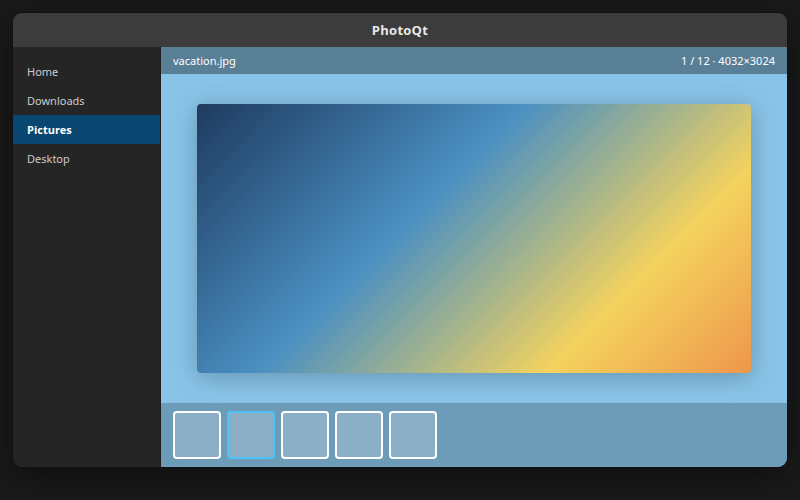
The main canvas should display your photo; the strip along the bottom lets you move to the next file without returning to the file manager.
Open Settings from the menu. On the Interface page you can change accent color, window decorations, and related layout options (as in the figure below). Use the Thumbnails and Image view pages for icon size, cache, and viewer behavior.
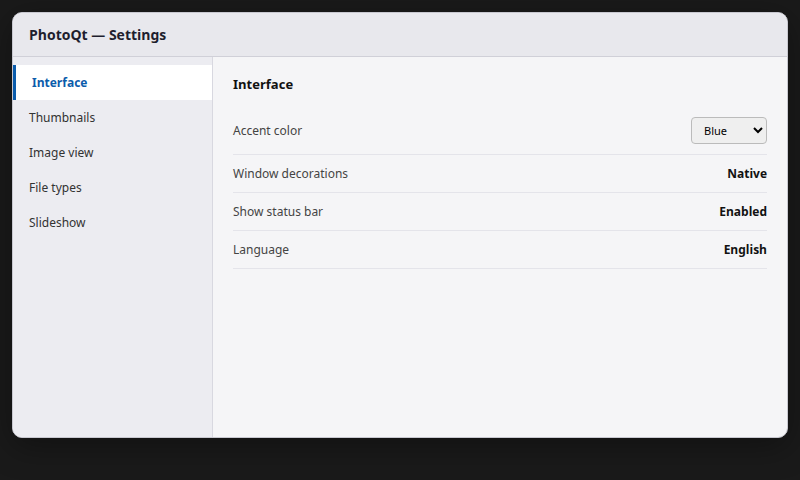
These options can be changed directly from PhotoQt’s Settings interface, so manual configuration-file editing is not required. For batch resize or format conversion from the shell, use How to Install ImageMagick 7 on Ubuntu 26.04 or How to Install ImageMagick on Ubuntu 24.04 & 22.04, or the recipes in bulk resize and convert images — PhotoQt is primarily a viewer, not a batch editor.
Update PhotoQt
Update an APT or PPA installation
Refresh indexes, then upgrade only the PhotoQt package:
sudo apt update
sudo apt install --only-upgrade photoqt
A full sudo apt upgrade also picks up photoqt when a newer .deb is available, but --only-upgrade targets PhotoQt explicitly.
Update a Flatpak installation
Update the PhotoQt Flatpak:
flatpak update -y org.photoqt.PhotoQtFlatpak can also refresh during a general flatpak update when you maintain other applications from Flathub.
Update a Snap installation
Refresh the Snap package when a new revision is published on the channel you track:
sudo snap refresh photoqtUninstall PhotoQt
Remove the APT or PPA package
Remove the deb package:
sudo apt remove --autoremove photoqtTo drop configuration files as well, use purge — see remove software on Ubuntu for remove vs purge.
If you added ppa:lumas/photoqt, remove the PPA when you no longer need it:
sudo add-apt-repository --remove ppa:lumas/photoqt
sudo apt update
Remove the Flatpak version
Uninstall the Flathub application:
flatpak uninstall -y org.photoqt.PhotoQtUser settings for the Flatpak build live under ~/.var/app/org.photoqt.PhotoQt/ if you want to delete them after uninstall.
Remove the Snap version
Drop the Snap package when you no longer need PhotoQt from Snap:
sudo snap remove photoqtTroubleshooting PhotoQt on Ubuntu
| Symptom | Likely cause | Fix |
|---|---|---|
E: Unable to locate package photoqt |
universe disabled or stale indexes | sudo add-apt-repository universe, sudo apt update, retry install |
add-apt-repository: command not found |
Minimal image without software-properties-common |
Install that package, then enable universe |
photoqt prints Qt display / platform errors over SSH |
No graphical session | Launch from the desktop session, or use SSH with X11 forwarding only when you need it |
PPA added but apt still installs old photoqt |
Ubuntu archive version sorts higher on 26.04 | Run apt-cache policy photoqt; prefer Flatpak for 5.4.x or pin only with care |
| Two PhotoQt icons / odd settings | Both apt and Flatpak (or Snap) installed | Remove one packaging method and keep a single launcher |
Summary
On Ubuntu 26.04, sudo apt install photoqt installs PhotoQt 5.2 from Universe. Ubuntu 24.04 and 22.04 provide older apt versions, so Flatpak or the PhotoQt developer PPA may be preferable when you need a newer release.
For the current Flathub release, install org.photoqt.PhotoQt. Snap is another convenient option if you already use Snap applications. Use the PPA mainly when you want a newer apt-managed deb package on an older Ubuntu release.
Launch from the app menu or with photoqt, flatpak run org.photoqt.PhotoQt, or snap run photoqt. Update with sudo apt install --only-upgrade photoqt, flatpak update, or sudo snap refresh photoqt, and remove only the packaging method you installed.
References
- PhotoQt — official site
- PhotoQt — GitLab releases
- Ubuntu Packages — photoqt
- Flathub — PhotoQt
- PhotoQt PPA on Launchpad
- PhotoQt on Snapcraft
Frequently Asked Questions
Which PhotoQt version is available on Ubuntu 26.04, 24.04, and 22.04?
In current Ubuntu archives, 26.04 ships 5.2+ds-1, 24.04 ships 4.4+ds-1, and 22.04 ships 2.5-4 in universe. Run apt-cache policy photoqt on your system to confirm. Flathub and Snap can provide newer PhotoQt builds on any of those releases.
Should I install PhotoQt with APT or Flatpak?
Use apt on Ubuntu 26.04 when 5.2 is new enough for you. Use Flatpak when you want the latest release on Flathub (for example 5.4.1) without compiling or juggling a PPA.
Is PhotoQt available as a Snap?
Yes. sudo snap install photoqt installs the Snap Store build. Check snap info photoqt for the current stable version. Use Snap when you already standardize on Snap packages; use Flatpak when you prefer Flathub’s update channel.
What image formats does PhotoQt support?
PhotoQt supports a large set of raster, vector, RAW, video, and specialty formats (140+ in upstream documentation). Exact decode support still depends on installed libraries and the package channel you chose; open a sample file after install to confirm your workflow.
